

Turn recordings into transcripts and summaries in minutes
Upload audio or video for multilingual transcription, AI notes, and action items
Daily Google Meet meetings from 9 AM to 6 PM, and then you still have to listen back to recordings to write meeting notes? Especially for iPhone users, often after a meeting you're left with an audio file that you have to manually listen to and type up. A one-hour meeting can easily take another hour to produce the minutes. That kind of overtime is maddening.
Luckily, you no longer have to suffer. There are many voice-to-text tools on the market that can help. This time we tested on iPhone and compared the 3 most common Google Meet voice-to-text solutions to see which one saves the most time and suits Hong Kong workers best.
3 Voice-to-Text Solutions at a Glance
Solution 1: Google Meet Built-in Transcription
Google Meet has a "Transcript" feature that automatically produces a text record when enabled. Sounds convenient, but in practice it has several limitations:
- Requires a Google Workspace paid account (Business Standard or above); the free personal version does not have it.
- Only supports English and a few languages; Cantonese is completely unsupported. If your meeting is half Cantonese and half English, it will just show blank.
- The transcript is only generated after the entire meeting ends, not in real time, so you cannot check key points during the meeting.
Simply put, if your company already has Workspace and your meetings are entirely in English, this feature might be barely usable. But for most Hong Kong SMEs and teams that use Cantonese, this can be ignored.
Solution 2: iPhone Screen Recording + Manual Transcription
Many iPhone users use the "Screen Recording" feature to record the Google Meet meeting (remember to turn on the microphone), then use another transcription app or manually type it out. The biggest problem with this method is that it is extremely time-consuming, and the recorded video file is huge—likely several GB—and hard to manage. You also have to manually identify who said what and which points are key, and finishing a verbatim transcript could take until dawn.
Solution 3: One-Click Voice-to-Text with Tinrec + AI Organization
This is the real lazy person's savior. Tinrec supports iPhone, Android, and web version. During meetings, you can use the iPhone's "Real-Time Recording" feature to get live text with less than 1 second delay, recognizing Cantonese, English, or even mixed languages. Most importantly, it doesn't just give you a verbatim transcript—it automatically generates AI summaries, action items, and section highlights. After the meeting, just press a button and everything is ready. You can even ask questions like "What budget did the client mention?" or "Who is responsible for follow-up?" using the AI Q&A feature, without scrolling through the whole transcript.
How Tinrec Helps You Save Overtime
Tinrec's core capability goes beyond simple voice-to-text transcription—it's a complete audio/video processing workstation. For iPhone + Google Meet meeting scenarios, these features are especially useful:
Stop organizing recordings by hand
Upload audio or video and automatically get a transcript, summary, and action items
- Real-Time Verbatim Transcript: Record while transcribing. Just place your iPhone on the table—no need for screen recording. Supports 14 languages. Cantonese error rate is about 8.3% in tests, sufficient for daily meetings.
- AI Structured Summary: Not just a shortened version of the transcript, but automatically split into sections like "Meeting Topic," "Discussion Conclusions," "Action Items," and "Responsible Person," clearly organized.
- Action Item Extraction: In meetings, people often say "I'll follow up later" or "Get back to you tomorrow." AI automatically catches these and generates a to-do list that can be exported to Notion, Google Docs, etc.
- AI Conversational Query: After transcription, you can ask "What was the marketing plan discussed in last week's meeting?" or "Who mentioned needing a budget increase?" The AI will find the relevant passages based on semantics.
- Cross-Platform Sync: Record on iPhone, then view, edit, and export on the web version on your computer, perfect for workers who frequently switch between phone and computer.
Practical Use Cases: Meetings, Classes, Interviews
Besides Google Meet meetings, Tinrec can handle many daily audio/video processing needs:
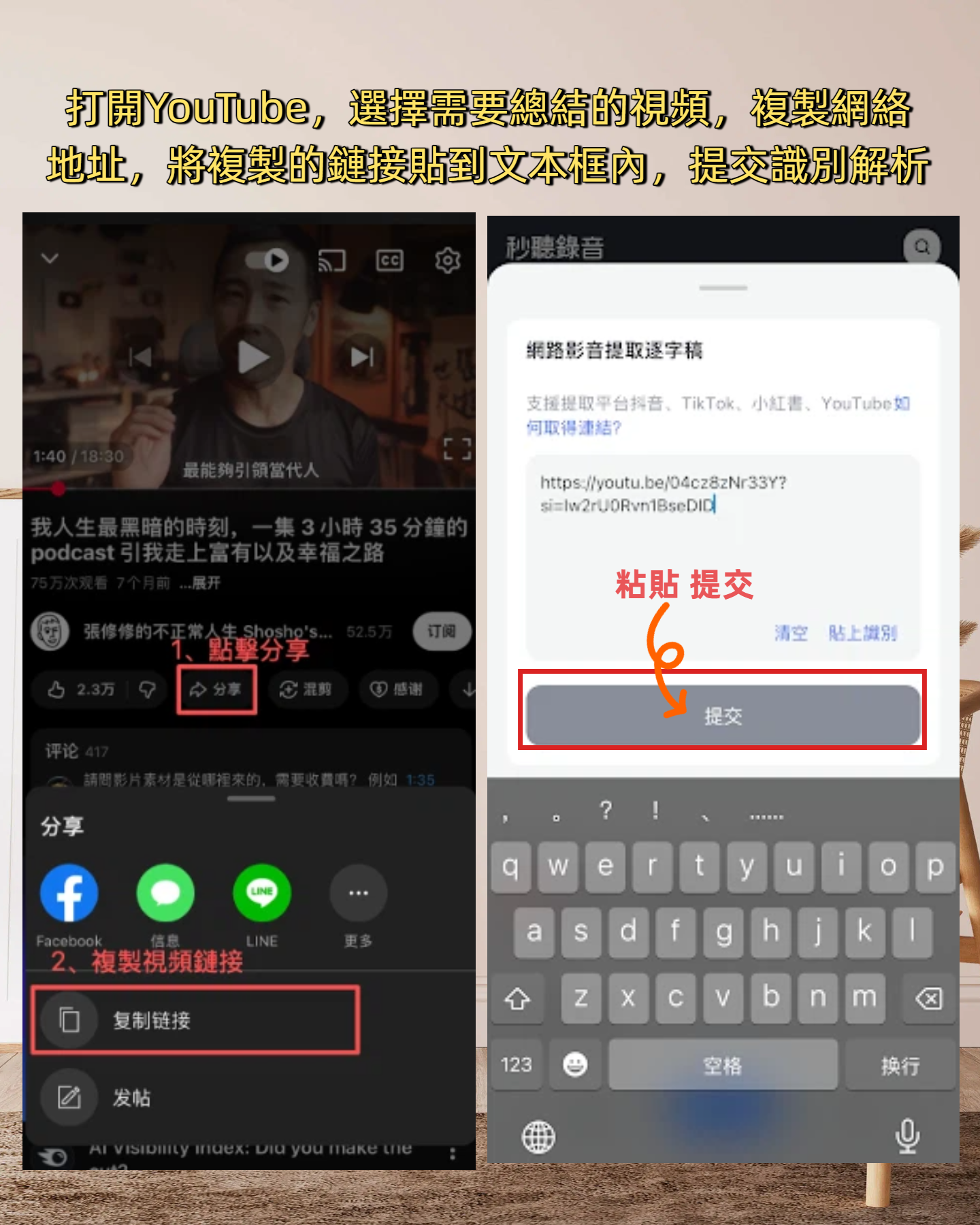
- Google Meet / Zoom / Teams Meetings: Use iPhone's real-time recording or directly record via the web version during a computer meeting, and get complete records immediately after.
- Online Courses: Record Zoom classes or webinars, transcribe to text, generate chapter highlights, and study twice as fast.
- Journalist / Researcher Interviews: For in-person or phone interviews, one-click recording on iPhone gives you an instant verbatim transcript, and you can use AI Q&A to find key quotes from interviewees.
- Content Creation: Want to turn YouTube or Xiaohongshu videos into text material? Just paste the link into Tinrec—no need to download.
Basically, for any scenario that needs to turn audio into useful text, Tinrec can handle it without installing multiple apps and converting back and forth.
4 Things to Consider When Choosing a Voice-to-Text Tool
There are many voice-to-text apps on the market. When choosing, consider the following points besides price:
- Language Support and Accuracy: If you need Cantonese transcription, test it carefully. Some tools claim multilingual support but have weak Cantonese recognition. Tinrec performs well in Cantonese and also supports mixed Chinese and English.
- Post-Transcription Organization Capability: Just a verbatim transcript is not enough. The ability to automatically generate summaries, action items, and answers is key. Tinrec's AI post-processing is stronger than general transcription tools, especially the AI Q&A feature.
- Cross-Platform and Export: Ensure your iPhone and computer can sync, and that it supports exporting to common formats like TXT, DOCX, PDF. Tinrec allows direct export as meeting minutes, saving formatting time.
- Privacy and Security: Meeting content may contain sensitive company data. Choose a platform with encryption and reliability. Tinrec uses industry-standard encryption, and audio files are stored in the cloud; you can manage and delete them anytime.
FAQ
Q: Do I need to enable screen recording when using Tinrec to record Google Meet meetings on iPhone? A: No. Tinrec has a real-time recording feature—just open the app and record; it captures your voice and the speaker through the iPhone microphone. For clearer recording, use headphones or place the phone near the speaker.
Q: Is the free version of Tinrec sufficient? A: The free version offers a basic monthly transcription quota, enough to try a few meetings. If you have more than 3 meetings per week, a Pro monthly or yearly plan is more cost-effective, with a monthly cost of just a few tens of HKD.
Q: For Cantonese meetings mixing English and Cantonese, how accurate is it? A: In tests, Tinrec correctly identifies mixed Chinese and English meetings, though some professional terms may have slight deviations. For important content, we recommend double-checking against the original recording.
Q: Can I share meeting minutes with colleagues? A: Yes. Tinrec supports sharing a link, and you can also export and send the file. Team collaboration is very convenient.
Conclusion: iPhone Users No Longer Need to Work Overtime for Meeting Minutes
If you're still using screen recording or manual transcription to organize Google Meet meeting minutes, we strongly recommend trying Tinrec. It not only saves you a huge amount of time but also turns scattered meeting recordings into a structured database that you can search and query anytime.
Download Tinrec on iPhone now. The free version already has enough quota for you to try. You'll see how great it is at your next meeting. No more overtime listening to recordings—leave 5 minutes after the meeting ends. That's the lifestyle technology should bring.
Turn every recording into actionable outcomes
Get 60 free transcription minutes when you sign in. No credit card required.
Related Reading
You might also like

How to Choose Audio-to-Text Transcription in 2026: 5 Steps from Recording to Meeting Minutes
There's a lot of discussion on PTT about transcribing audio files, but most people choose the wrong tool from the start—they download an app that only does live voice input and then realize it can't upload existing audio files. This article addresses common misconceptions, outlines 4 key purchasing criteria, provides a 5-step practical guide, and compares the differences and limitations of Tinrec, Notta, Otter.ai, and TurboScribe.

5 Free Speech-to-Text Tools Tested and Compared in 2026: Which Free Tier Is Actually Enough?
How to choose a free speech-to-text tool? This article breaks down the differences in free quotas, post-meeting organization, Chinese recognition, and team collaboration using 5 key criteria, and uses Tinrec as an example to illustrate the complete workflow from recording to transcript, summary, and action items.

2026 Mac Audio Transcription Showdown: Tinrec vs. Granola — Which One Can Actually Handle Existing Audio Files?
Got a bunch of meeting recordings on your Mac but no time to re-listen? This comparison of Tinrec and Granola, two Mac-compatible audio transcription solutions, covers five dimensions: importing existing audio files, Chinese recognition, audio file retention, post-meeting outputs, and team collaboration. We'll tell you which one to choose for which scenario.

Tinrec vs Notta 2026: 5-Dimension Comparison — Which AI Meeting Assistant Is Better for Chinese-Language Meetings?
Tired of re-listening to recordings and cleaning up transcripts after every meeting? This article compares Tinrec and Notta across five practical dimensions — meeting capture, Chinese-language processing, post-meeting outputs, team collaboration, and pricing/quotas — and includes a buyer's guide to help you choose the AI tool that actually handles the follow-up work.

2026 AI Meeting Notes Tools Compared: 4 Options Tested—Which Actually Deliver Usable Minutes?
Ever left a meeting and realized no one remembers the decisions? This hands-on guide breaks down four key factors for choosing an AI meeting notes tool and compares Tinrec, Granola, Notta, and Otter.ai on recording methods, post-meeting output, audio retention, and team management—so you can pick the right tool within your budget.

How to Implement Structured Output for AI Agents in 2026: A 5-Step Tutorial
Starting from the decision point of 'do you want a block of text or a piece of data?', this article breaks down JSON Schema, Function Calling, type validation, and observability for AI Agent structured output, and explains how Tinrec turns meeting content into structured minutes that can be used for follow-up work.

2026 AI Meeting Assistant Comparison: How Tinrec Turns Chinese Meetings into Actionable Data
Using Tinrec as an example, this article walks through the complete workflow of an AI meeting efficiency assistant—from recording, transcription, proofreading, and generating summaries and action items to exporting and team knowledge retention—and briefly compares the positioning differences of Otter.ai and Notta.

2026 AI Meeting Notes Tools Compared: 5 Picks That Summarize Without Replay
No more listening to meeting recordings from start to finish. Based on real scenarios like student projects, class note-taking, and online internship info sessions, this article explains how AI meeting notes turn transcripts into summaries, chapters, action items, and queryable data. It also covers 5 buying considerations and FAQs, plus Tinrec personal and team plan quotas and pricing.

2026 AI Agent Meeting Notes Comparison: Which Tool Actually Turns Meetings into Action Items?
Recorded a meeting but still can't use the data? This article breaks down the essence of "organizing" into 4 key selection criteria, compares Tinrec, Otter.ai, Granola, and Notta on smart meeting organization, and highlights 4 common pitfalls to help you choose a tool that truly turns meetings into action lists.