

Turn recordings into transcripts and summaries in minutes
Upload audio or video for multilingual transcription, AI notes, and action items
Pain Point: You’re Out and About, But Can’t Miss the Meeting
You’re on the subway, walking to a client meeting, or waiting for a connecting flight at the airport when your phone buzzes: an important team meeting in ten minutes. You open Google Meet, and while your colleagues’ faces are clear, the surrounding announcements, wind noise, and shaky camera make it hard to focus and take notes.
Google Meet’s “On-the-Go” mode is designed for exactly this scenario. It doesn’t ask you to tough it out on video; instead, it simplifies the call interface into a “listen-only, key items clear” mobile meeting tool. But once the meeting ends, what about the conclusions and action items discussed?
The key is not just to hear clearly, but to retain and find the information later. This article will guide you from setting up On-the-Go to using AI tools to turn meeting content into reviewable, trackable records—all in one go.
Target Deliverables: Not Just Listen, But Come Away with These Three Things
When attending a meeting on the move, what you really need is:
- A full transcript: To review exactly who said what afterward.
- A summary: To grasp the key points in 30 seconds.
- A to-do list: Who needs to do what by when.
Next, we’ll use Google Meet On-the-Go mode to “listen” to the meeting, then use an AI recording and summarization tool like Tinrec to “save” the meeting, and finally convert the audio into the three items above.
Standard Workflow: From Mobile Meeting to Searchable Meeting Notes
Step 1: Enable Google Meet’s On-the-Go Mode
On-the-Go is a built-in feature in the Google Meet mobile app (iOS/Android). When you’re walking, riding, or moving quickly, the phone’s accelerometer detects motion and prompts you to turn it on.
Manual activation:
- After joining a meeting, tap the “More controls” icon (three dots) at the bottom right.
- Select “On-the-Go” from the menu.
- Your camera will automatically turn off, and the screen will show only four large buttons: Mute, Raise Hand, Audio Device, and End Call.
The interface is deliberately enlarged and hides distracting meeting information, showing only the active speaker and participant count, so you can see the most important controls at a glance while moving.
Step 2: Capture the Recording During the Meeting
In On-the-Go mode, Google Meet itself does not record the meeting. You need to prepare a separate recording method, for example:
- Android screen recorder (recording only system audio).
- iPhone screen recording (ensure microphone is off to record system audio).
- Another device or voice recorder to capture external speaker audio.
Some worry that recording on a subway will be noisy. In practice, most phones’ internal recording captures call audio directly and doesn’t pick up much ambient noise. If you use an external microphone, we recommend using noise-canceling earphones for cleaner audio quality.
Step 3: Upload the Recording to an AI Tool to Auto-Generate Transcript, Summary, and To-Dos
After the meeting, open your preferred AI recording summarization tool (here we’ll use Tinrec as an example):
- Upload the audio file you just recorded.
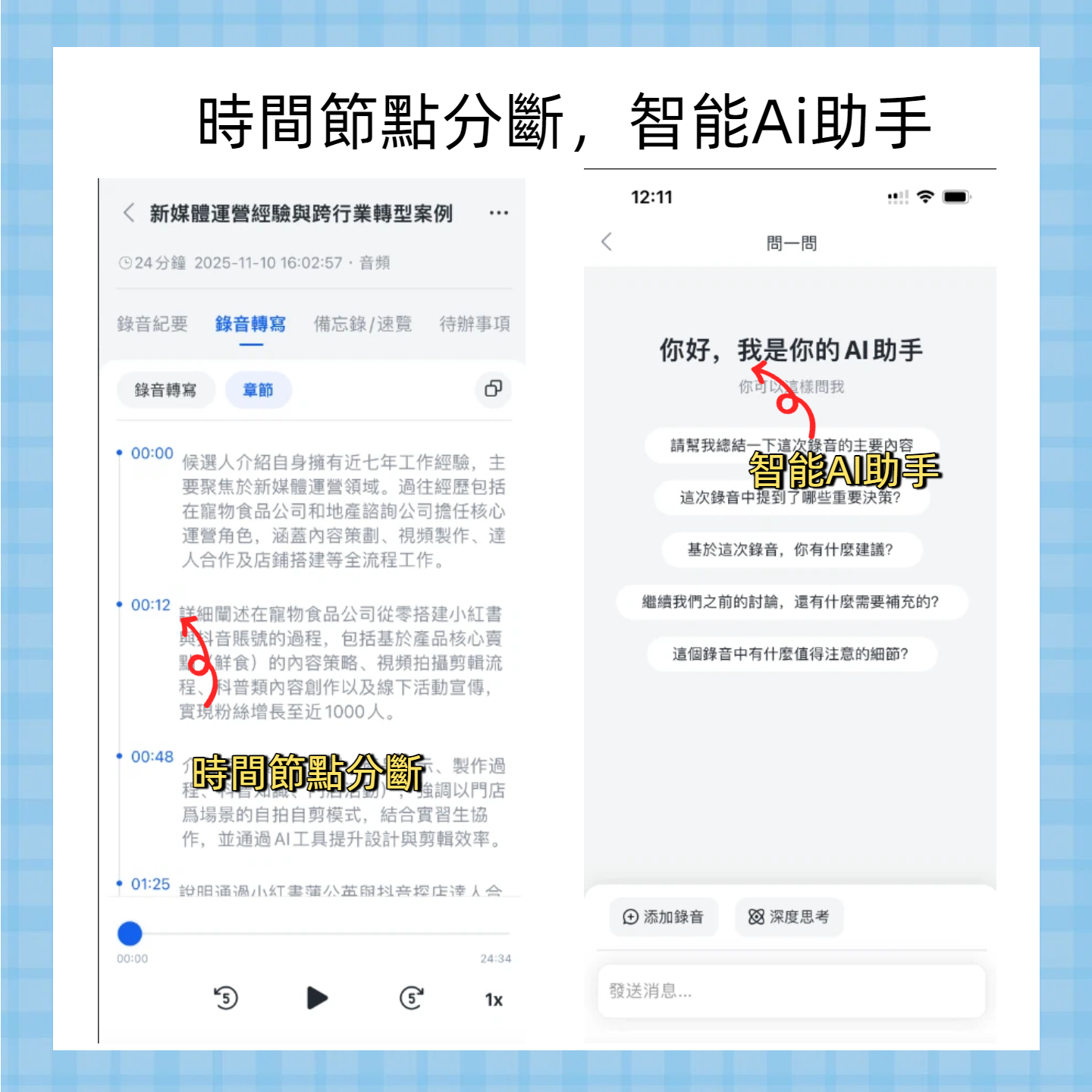
- Tinrec will automatically transcribe the audio and generate an AI summary with chapter segmentation.
- If the meeting covered action items, it will automatically extract a to-do list.
This step saves you from manually transcribing or listening to a two-hour recording from start to finish. After transcription, you can search by keywords—like client names or project codes—and even extract task-oriented phrases like “follow up” or “by this Friday.”
Step 4: Review the Summary, Check To-Dos, and Export to Colleagues

When the AI summary appears, don’t just blindly copy and paste. In practice, the safest approach is:
Stop organizing recordings by hand
Upload audio or video and automatically get a transcript, summary, and action items
- Quickly scan the summary to confirm it captures the meeting’s main points.
- Open the to-do list, cross-reference with relevant sections in the transcript, and verify names and deadlines are correct.
- Finally, export the results as Markdown, TXT, or PDF, and drop them into your team’s Notion, Google Docs, or Slack.
The entire process—from “meeting on the subway” to “meeting notes in the team folder”—takes less than ten minutes.
Tool Capability Checklist: You Need a Recording Assistant That Can “Organize”
| Capability | Google Meet On-the-Go | Tinrec (or other AI summarization tool) |
|---|---|---|
| Optimized interface for movement | ✅ Large buttons, camera off | ❌ Not responsible for meeting interface |
| Automatic motion detection | ✅ Suggests enabling, can toggle | ❌ |
| Bandwidth saving | ✅ Audio only, low data usage | ❌ Not a meeting tool |
| Generate transcript | ❌ | ✅ |
| AI summary | ❌ | ✅ Long meeting summary with chapters |
| To-do extraction | ❌ | ✅ Auto-extracts action list |
| Post-meeting dialogue search | ❌ | ✅ Keyword search, AI Q&A |
| Export and share | ❌ | ✅ Multiple formats, cross-platform |
Tinrec Application Example: From Audio to Action List in Seconds
Suppose you had a 40-minute product progress meeting. In On-the-Go mode, you could only focus on listening, and some parts were a bit messy. After the meeting, you get an m4a audio file and upload it to Tinrec:
- 0:45 seconds: Transcript generated, with a “Summary” tab appearing.
- Summary: “The discussion covered three core module timelines. The ‘payment integration’ is delayed to next Wednesday due to a third-party API issue; the engineering team needs to provide an alternative solution by Friday. The design team has completed UI adjustments pending QA verification.”
- To-dos: Automatically lists three items, including owner and estimated completion date.
You click on the “Payment alternative” to-do, and the auto-location feature jumps you to that part of the recording to confirm it hasn’t misinterpreted the speaker. Then one-click export to text, paste into Jira or Slack channel—no need for extra note-taking.
Frequently Asked Questions: 5 Common Questions About On-the-Go and Recording
1. Can others see my video in On-the-Go mode? No. Once you switch to On-the-Go, your camera is forcibly turned off. Others will only see your profile picture or name initials.
2. Are there legal issues with using the phone’s internal recording? If the meeting was announced as “recording in progress” or is a regular internal company meeting, it’s usually fine. For cross-organization client meetings, it’s strongly recommended to get verbal consent first.
3. How accurate is the transcription? With Tinrec, under clear recording conditions and predominantly Chinese, accuracy can reach about 98% (actual results depend on noise and speaker accents). Compared to standard phone voice input, it handles multiple speakers and technical terms better.
4. Can I do real-time transcription without recording? Yes. Some tools support real-time recording-to-text, but running both Meet and a recording app while moving drains battery faster. For important meetings, many people prefer to record first and transcribe later to avoid missing content due to app switching.
5. What about privacy and data security? For cloud transcription, always choose tools with clear privacy policies and encrypted transmission. Tinrec has an account system; only you can see the transcribed content unless you actively share it.
Final Advice: Mobile Meetings Aren’t a Compromise—They’re a Different Way to Focus
If you frequently attend meetings on the go, consider this mobile work kit:
- Solo workers: Keep Google Meet On-the-Go always on, pair with phone internal recording, and use Tinrec’s free tier for single meeting transcription afterward.
- Business professionals: Use screen recording with noise-canceling earphones, and an AI recording summarization tool to permanently store all meeting notes for cross-meeting search.
- Content teams: Treat interview recordings from On-the-Go mode as raw material, feed them into Tinrec to get transcripts, then extract quotable insights and soundbites.
The key is that being away from your desk doesn’t mean sacrificing meeting completeness and follow-up. Treat mobile meetings as “audio-only participation” and let AI handle the organization. That’s how you achieve true mobile work—not a downgrade.
References
Turn every recording into actionable outcomes
Get 60 free transcription minutes when you sign in. No credit card required.
Related Reading
You might also like

5 Best Speech-to-Text Transcription Tools in 2026: Free Tiers, AI Summaries, and Speaker Recognition Compared
Meeting recordings piling up, transcribing late into the night, free tools hitting you with upgrade prompts after just ten minutes—this article tackles real pain points, outlines 5 key criteria for choosing a transcription tool, and compares Easemate AI, Vocol.ai, Yating Transcription, inFin, cSubtitle, Litok, and PowerDirector in practice, ending with clear recommendations for different use cases.

3 Google AI Transcription Tools Tested: Free Limits, Long Recordings, and Speaker Labels Compared (2026)
Google offers more than one way to transcribe audio. This guide compares Google AI Studio, Gemini, and NotebookLM with step-by-step instructions, recording length limits, and prompt tips, plus public test data, so you can pick the right tool for your meeting length and spend less time re-listening.

2026 Voice-to-Transcript App Comparison: Which Handles Taiwanese Accents and Mixed Chinese-English?
Recording is easy, but transcribing makes you question life? This article compares four voice-to-transcript tools—Yating, SoundType AI, Atter, and Easemate AI—based on real-world use cases, highlighting their strengths and limitations. It covers differences in handling Taiwanese accents, mixed Chinese-English, import methods, and post-meeting organization, helping you decide which one suits you before downloading.

2026 Comparison of 5 Meeting Speech-to-Text Apps: Free Tiers, Chinese Recognition, and Summaries at a Glance
From the perspective of a mid-level manager with 15 meetings per week, this article compares five meeting speech-to-text apps: Vocol, Yating Transcription, cSubtitle, Meeting Ink, and Monica. It breaks down five dimensions: free quota, Chinese and Taiwanese accent recognition, meeting platform integration, summaries and action items, and team collaboration. It also honestly explains each tool's limitations and suitable scenarios.

Best Free Speech-to-Text Tools in 2026: 6 Options Compared, and One With the Most Generous Free Tier
There are plenty of free speech-to-text tools, but the real obstacle for most people isn't features—it's hitting a paywall as soon as the free quota runs out. This article reviews six free speech-to-text options, including MyEdit, Yating Transcription, NotebookLM, Easemate AI Meeting Recorder, inFin, and Taiwan's popular Vocol.ai. It explains each tool's positioning, highlights, free limitations, and ideal users, plus tips on how to choose and what to watch out for.

How to Choose a Speech-to-Text Tool in 2026: A 5-Point Comparison of Free Tiers, Chinese Recognition, and Summarization
Choosing a speech-to-text tool isn't about which one is most accurate—it's about your usage volume, language needs, and post-processing workflow. This article compares five key aspects: free tier limits, Chinese and Taiwanese Hokkien recognition, timestamp proofreading, AI summarization, and import/export formats. With practical tips for meetings, classes, interviews, and content creation, it helps you make a confident choice between free and paid options.
2026 AI Transcription Complete Guide: How to Choose Tools Trending on PTT and Organize Class Recordings
Starting from campus scenarios, this guide breaks down the four most common mistakes when using AI to organize transcripts, explains the core capabilities of transcription AI, the practical workflow, and key purchasing considerations. It also uses Tinrec as an example to demonstrate the complete process from recording to key notes.

5 AI Transcription Tools Tested for 2026: How to Choose the Free Options Trending on Dcard
A roundup of the most discussed AI transcription tools on Dcard, starting from the decision point of 'who will read this transcript?' It explains the use cases, free limitations, and practical tips for NotebookLM, Buzz, Google AI Studio, Groq Cloud, iPhone Shortcuts, and Yating Transcription, helping you choose the right method before you start.

5 AI Meeting Transcription Tools Compared for 2026: How to Choose Based on Free Tiers, Chinese Recognition, and Summarization Features
How to choose an AI meeting transcription tool? First clarify whether data can be uploaded to the cloud, and whether you need subtitle files or meeting minutes, then compare the transcription and summarization capabilities of 5 common tools. This article covers practical workflows, key purchasing criteria, and 4 common pitfalls to help you find a truly time-saving approach.