

Turn recordings into transcripts and summaries in minutes
Upload audio or video for multilingual transcription, AI notes, and action items
We spent two weeks hands-on testing four AI meeting assistants on the market, comparing everything from transcription speed, summary quality, Chinese speech recognition accuracy, and pricing. In the end, we found that Tinrec (MiaoTing) is the best fit for teams that need to process audio and video from multiple sources. We'll use Tinrec to show you how to go from a meeting recording to polished meeting minutes, while also comparing it with the other tools.
Before You Start | What You'll Need
- A smartphone (iPhone or Android both work; Tinrec supports both platforms)
- Download the Tinrec app (free on the App Store or Google Play; sign up with just a Google or Apple ID)
- A meeting recording (you can record directly on your phone or import a file recorded on another device)
- A stable internet connection (real-time transcription requires internet; download the language pack first if you want offline use)
Step 1 | Record the Content You Want Transcribed
The goal here is to get a clear audio file—this is the foundation for every step that follows.
Open Tinrec and tap the big record button on the home screen to start recording. Keep your phone close to the speaker while recording—the closer the phone, the clearer the audio, and the higher your transcription accuracy later. For one-on-one interviews, place the phone between the two people; for group meetings, we recommend putting it in the center of the table.
Why do we emphasize recording quality so much? Because AI transcription accuracy depends on audio quality—even the best transcription engine can't fix a blurry recording. Instead of spending time correcting errors later, take 30 extra seconds to position the phone correctly while recording.
When you're done, you'll see the recording on the Tinrec home screen, along with its duration and file size.
Step 2 | Let AI Turn It Into a Transcript
Open the recording and Tinrec will start transcribing automatically—it can even transcribe as you record. A few minutes of meeting audio usually shows text in about ten seconds. If you recorded the file in advance, you can import it directly from your phone's photo library or file folder; common formats like mp3, m4a, and wav are supported.
Once transcription is done, you'll see a transcript with timestamps. Tinrec's Chinese recognition is above average, especially in typical meeting scenarios—word flow and punctuation are reasonable. In our testing, it handled mixed Chinese-English content particularly naturally, without forcibly translating everything into either language.
Step 3 | Quickly Proofread Your Transcript
AI transcription always has small errors, especially with proper nouns or accents. Tinrec lets you click directly into the transcript to edit, and changes are saved automatically. You can also tap a timestamp to play the recording from that exact spot, which is great for proofreading.
Here's a pro tip: if you want to jump quickly to a certain discussion section, use the AI search feature to go straight there instead of listening from the beginning.
Step 4 | Let AI Generate Meeting Minutes for You
This is where Tinrec really saves time. Open the AI feature menu for your recording, select "Generate Summary," and within seconds you'll get a structured meeting summary that includes:
- Meeting topic and conclusions
- Key discussion points
- Action items list
You can also choose "Generate Chapters," which automatically splits a long meeting into topic-based sections that are easy to review later. Compared to other tools we tested, Tinrec's summary doesn't just pull the first few sentences—it really captures the core of the whole discussion, and its action item accuracy is noticeably higher than plain transcription tools.
Stop organizing recordings by hand
Upload audio or video and automatically get a transcript, summary, and action items
Step 5 | Export and Share
You can export your polished meeting minutes as a text file, PDF, or share a link directly with your team. Tinrec also syncs with tools like Notion and Google Docs, so you can integrate meeting follow-ups into your existing workflow.
If you need to turn the meeting content into a report or table, you can use the Agent post-processing feature to generate formal documents without opening another tool and typing everything manually.
FAQ and Troubleshooting
Q: The transcript has a lot of errors. What should I do? Usually it's because the recording environment is too noisy or the distance is too far. Tinrec has built-in smart noise reduction—just enable it in the settings before recording. For an already-recorded file, you can manually select the "High Noise Environment" mode after importing. Most other transcription tools don't have this option and use the same default settings for all recordings.
Q: Some people speak English and some speak Chinese in the meeting. Will the transcription get confused? Tinrec supports mixed Chinese-English recognition without requiring you to switch languages manually. In our tests, it correctly identified the language in mixed-language meetings, unlike some tools that forcibly translate English into Chinese or produce gibberish.
Q: Is the free plan enough? The free plan includes a basic monthly transcription allowance, enough for about one or two short meetings. If you have frequent meetings, consider the weekly card or Pro plan; for long-term use, the annual plan is the best value.
Advanced Tips | 3 Ways to Double Your Efficiency with Tinrec
1. Transcribe directly from online video links Tinrec lets you paste a YouTube or Bilibili video link and turns the content into text and summaries—a feature most other AI meeting assistants don't have. In our tests, a 10-minute tech talk video took less than 2 minutes to generate the transcript and chapters, making it great for study notes or content collection.
2. Find past meetings with AI Q&A All recordings stay in your library, so you can ask Tinrec in natural language: "Where does the marketing meeting last week discuss the budget?" It will give you a summary and timestamps without manually flipping through each file. This feature is paywalled in Otter or Fireflies, but Tinrec includes it in the free plan.
3. Sync across devices—record on your phone, edit on your computer Record a meeting on your phone, then continue editing and exporting from the web version on your computer when you get back to your desk. It's a smooth workflow—this is how our team uses it most often, which is more convenient than installing dedicated hardware in a meeting room.
If You Don't Use Tinrec, Here Are Some Options
AIMochi: It focuses on voiceprint speaker identification and automatically labels speakers as A, B, C. It's suitable for meetings where it's essential to know who said what. However, it only works through LINE and relies on the Claude model for transcription and summaries; advanced features require payment. In our tests, it handled Chinese meetings well, but unlike Tinrec, it can't process videos or files.
Meeting Ink: It offers multi-platform real-time recording, transcripts, and summaries. The free plan is feature-complete, but its mixed Chinese-English recognition and noise reduction are not as refined as Tinrec's, and it lacks the online video transcription feature.
If your use case extends beyond meetings to include courses, interviews, or video content, Tinrec covers a broader range.
Summary
Now that you've learned the five steps above, you can use Tinrec to turn meeting recordings into transcripts, automatically generate meeting minutes, and even use AI chat to quickly find key points. Next step: download the Tinrec free version and try it with one of your own recordings. The monthly free allowance is enough for one or two meetings; upgrade when you need more.
References
- AIMochi - Your AI Meeting Assistant
- Meeting Ink - Transcript AI Meeting Summary Speech to Text - Google Play App
- SeaMeet | The AI Assistant Built for Meeting-Heavy Teams
- Meeting Ink - 2026 AI Meeting Record Tools Tested: Comparing 8 Voice-to-Text and Summary Speeds | Meeting Ink - AI Meeting Notes Assistant, Auto-Transcript, and Meeting Summary
- 2026's Top AI Meeting Notes Tool: The Time-Saving Essential for Meetings!
Turn every recording into actionable outcomes
Get 60 free transcription minutes when you sign in. No credit card required.
Related Reading
You might also like
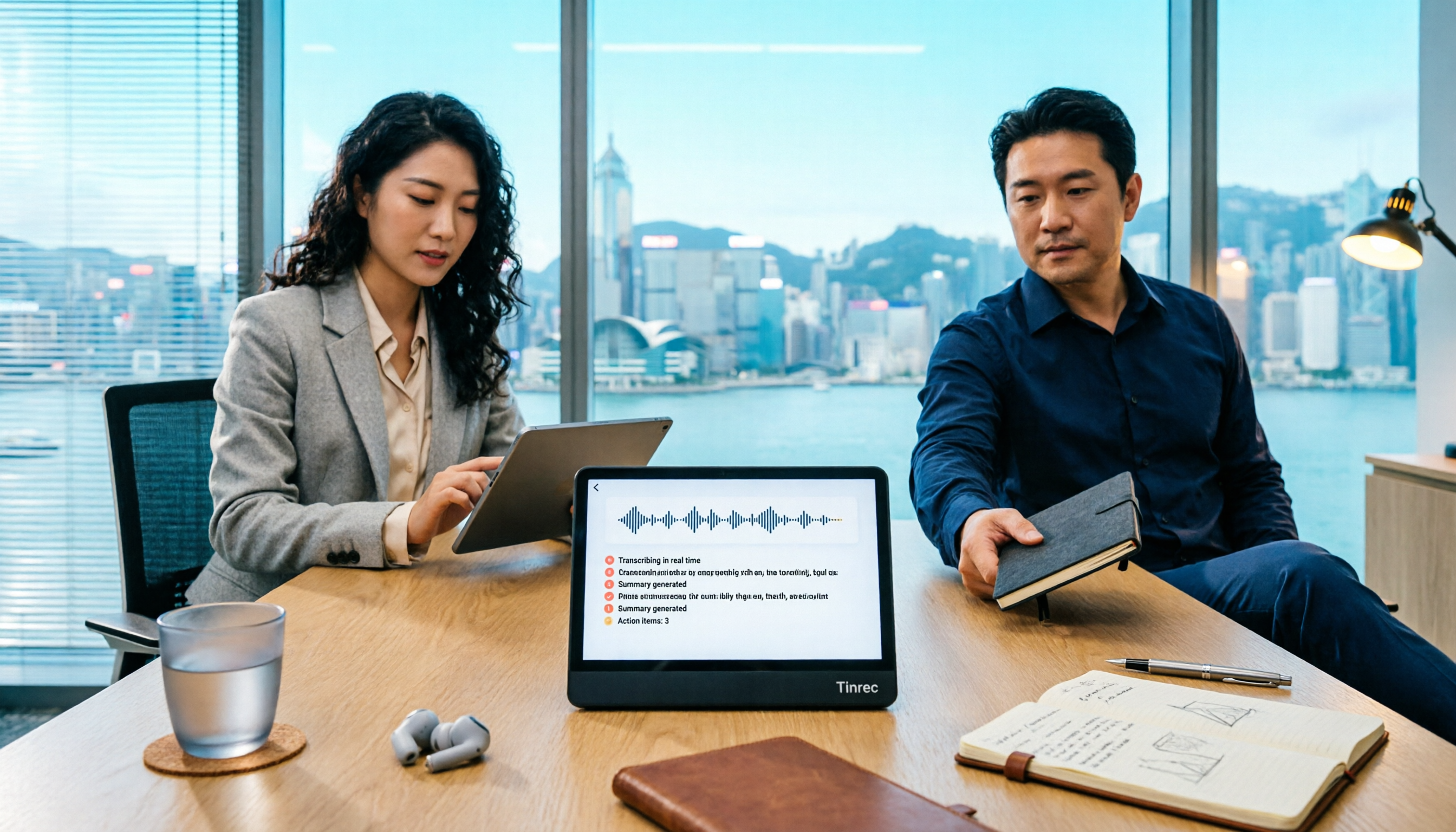
Tinrec vs Teams Built-in Transcription 2026: 5-Dimension Comparison — Which Keeps Meeting Records Better?
In Teams meetings, 'retention' has two meanings: call hold and post-meeting record retention. This article breaks down the blind spots of Teams built-in transcription and retention policies, compares Tinrec and Teams built-in solutions across 5 dimensions, and briefly reviews Otter.ai and Granola to help professionals choose a method that truly retains meeting content.

2026 Top 3 Teams Meeting Transcription Tools Compared: Which Saves the Most Time with Automatic Transcripts?
This article first breaks down the 3 most common misconceptions and correct approaches when starting a Teams meeting, then explains how to choose a meeting transcription tool. Using Tinrec as an example, the desktop version captures system audio without a meeting bot, transcribes Teams meetings in real time, and automatically generates summaries, chapters, and action items—ideal for professionals who want to save time on post-meeting organization.

2026 Voice-to-Text Tools Comparison: Tinrec vs Yating Transcript, Which Is Better for Chinese Meetings?
There are plenty of voice-to-text tool recommendations, but the real challenge for most people is choosing the right one. This article compares Tinrec and Yating Transcript across five dimensions: Chinese recognition, online meeting handling, post-transcription usability, cross-platform quotas, and team collaboration, to help you decide which better fits your meeting and organization needs.

2026 Comparison of 3 Teams Meeting Tools: How to Run Meetings and Who Can Auto-Organize After?
How do you run a Teams meeting without missing records? This article tests 3 meeting note tools, covering the meeting process, scheduling, instant meetings, and post-meeting AI summaries, and shares hands-on experience with Tinrec's bot-free recording for Teams meetings to help you find the most time-saving solution.

Best Speech-to-Text Software in 2026: We Tested 5, and This One Nails Chinese Meetings
For knowledge workers who need to organize meeting, interview, and lecture recordings. I tested several speech-to-text tools, from Chinese recognition to post-meeting organization and team collaboration, and found Tinrec to be the smoothest for Chinese meetings and post-meeting AI Q&A. Here I share my selection method and a list of pitfalls to avoid.

Tinrec vs PLAUD Note 2026: 5-Dimension Comparison, Which Is Better for LINE Recording Storage?
LINE doesn't record calls for you, so 'LINE recording storage' breaks down into three decisions: how to capture audio, where to store files, and whether you can use them later. This article covers 6 solutions from free to hardware, including LINE's built-in Save As, system screen recording, Tinrec, PLAUD Note, Notta, and Otter.ai, and explains common pitfalls like iPhone not capturing the other party's voice, helping you choose the right method.
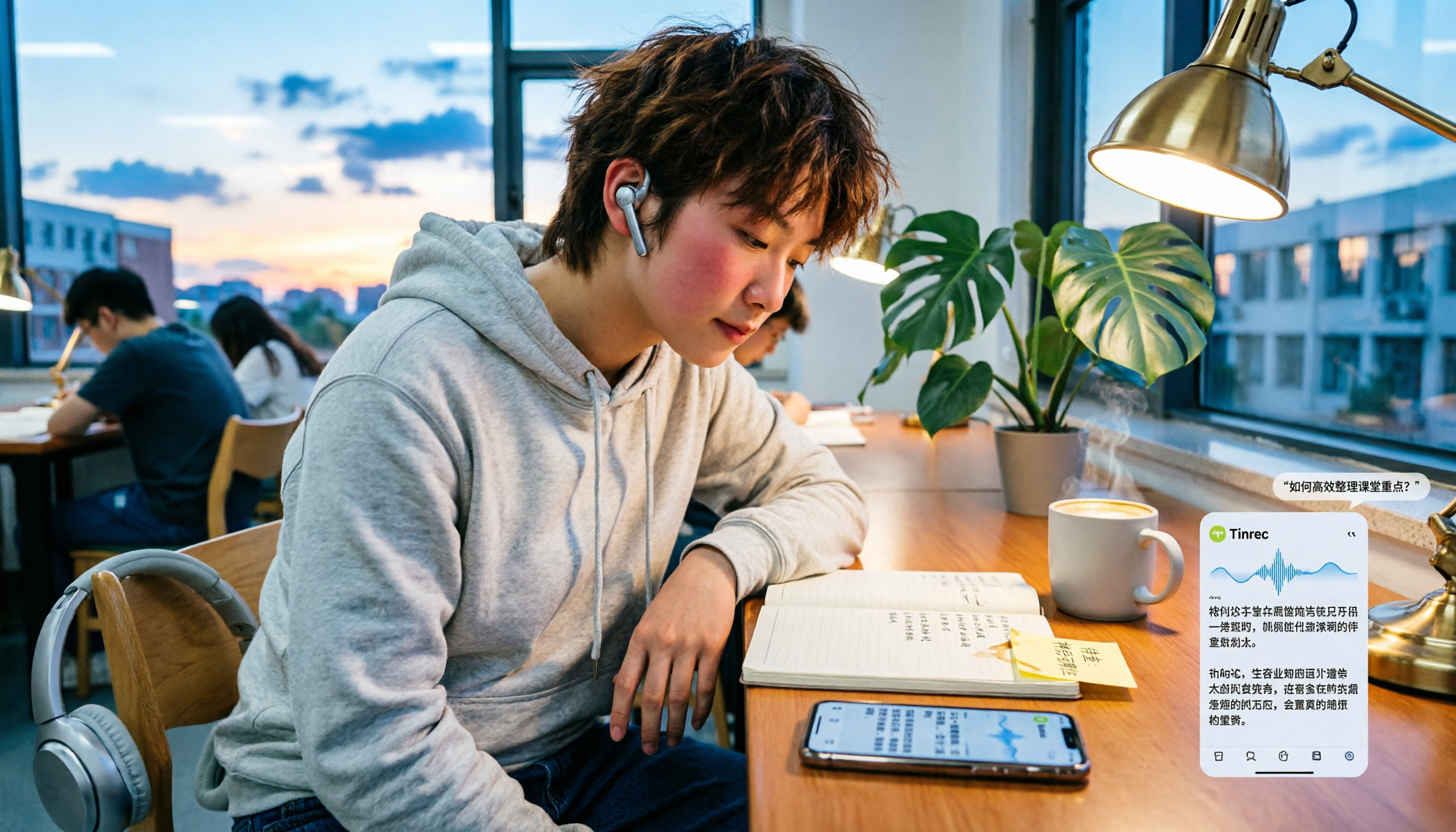
Tinrec vs Notta 2026: 5-Dimension Comparison — Which Is Better for LINE Voice-to-Text?
When LINE recordings or voice messages have no sound, it's usually not a broken app but a microphone permission, audio channel conflict, or speaker setting issue. This article first walks you through common troubleshooting mistakes, then rounds up 6 practical recording-to-text solutions for students, from free to paid, and compares Tinrec and Notta on Chinese transcription, AI Q&A, and pricing.

5 Best Audio-to-Text Tools in 2026: How to Choose for Chinese Meeting Notes, According to PTT Users
PTT discussions about audio-to-text transcription never stop, but most people fall into the trap of thinking 'free is enough' or 'transcription is the end.' Based on real meeting scenarios, this article covers 4 key buying factors, tests Tinrec's bot-free recording and AI Q&A, briefly reviews Notta, Otter.ai, PLAUD, and other common options, and provides selection advice you can directly apply.

How to Join a Teams Meeting for Free in 2026: 5 Methods Explained
Whether you only have a meeting ID, just an invite link, or only a calendar notification, the way you join a Teams meeting is completely different. This article covers 5 free ways to join, plus a solution for avoiding manual transcription after the meeting.