
Turn recordings into transcripts and summaries in minutes
Upload audio or video for multilingual transcription, AI notes, and action items
I attend about 15 meetings a week—team meetings, project status updates, one-on-ones, and cross-departmental coordination. The most annoying part used to be not the meetings themselves, but what came after—because every meeting left a pile of decisions and action items to sort out. Then I switched to Tinrec, and now it takes just 5 steps to turn recordings into searchable, organized meeting minutes. This guide walks you through the process.
Before You Start: What You'll Need
- A smartphone (iPhone or Android—Tinrec supports both platforms)
- Download the Tinrec app (free on the App Store or Google Play; registration only requires Google or Apple ID login)
- A recording you want to convert to text (could be a meeting, lecture, or interview recording)
- A stable internet connection (real-time transcription requires internet; if you need offline use, download the language pack in advance)
Step 1: Record the Content You Want to Transcribe
The goal here is to get a clear audio file—it's the foundation for all subsequent steps.
Open Tinrec and tap the record button on the main screen to start recording. Keep your phone close to the speaker—the closer it is, the clearer the audio, and the higher the transcription accuracy. For one-on-one interviews, place the phone between the two people; for group meetings, put it in the center of the table.
Why emphasize recording quality? Because AI transcription accuracy depends on audio quality—even the best transcription engine can't handle blurry audio. Instead of spending time proofreading later, spend an extra 30 seconds positioning the phone during recording.
Once done, you'll see the recording on Tinrec's main screen, with duration and file size displayed.
(Illustration: A person recording in a meeting room, phone placed in the center of the table, surrounded by participants, professional and natural atmosphere)
Step 2: Let AI Generate a Transcript
The goal here is to turn the recording into text—this is the basis for all subsequent analysis.
If you just finished recording, Tinrec will automatically start transcribing; if it's an existing file, tap "Import" to upload an audio or video file. Tinrec supports multiple formats and can also directly paste links to public videos like YouTube or Bilibili for transcription.
After uploading, Tinrec uses AI models for speech recognition, usually completing the transcript within minutes. Once done, you'll see the full text on screen, with timestamps automatically added.
Why use AI transcription instead of doing it yourself? Because an hour of recording takes at least three to four hours to transcribe manually, while Tinrec does it in minutes, freeing you up for more important tasks.
When finished, you'll have a searchable, editable transcript with a timeline for quick navigation.
(Illustration: Phone screen showing a transcript, clear text, office desk background with a cup of coffee)
Step 3: Quickly Proofread the Transcript
The goal here is to correct any words the AI might have misheard, ensuring accuracy.
Open the transcript and skim through it. Errors usually cluster around proper nouns, names, or heavily accented segments. Tinrec's editing feature lets you tap directly on the text to make changes, and you can play the corresponding audio to verify.
Why proofread? Because AI transcription, while powerful, can still make mistakes in noisy environments or when multiple people speak at once. Spending five minutes proofreading prevents embarrassing errors in meeting minutes, so you won't look bad when reporting to your boss.
After proofreading, your transcript becomes a reliable reference document.
(Illustration: A person sitting at a computer, screen showing a transcript, fingers typing corrections, focused expression)
Step 4: Let AI Generate Meeting Minutes
The goal here is to turn the transcript into actionable key points.
Stop organizing recordings by hand
Upload audio or video and automatically get a transcript, summary, and action items
In Tinrec, tap the "AI Summary" or "Chapter Organizer" feature. Tinrec automatically analyzes the transcript, extracting meeting topics, key conclusions, and action items. You can also use the AI Q&A feature to ask questions directly, such as "What decisions were made in this meeting?" or "Who is responsible for what task?"
Why use AI to generate meeting minutes? Because transcripts are too long—your boss won't read them. What you need is a concise version with "conclusions + action items + assignees." Tinrec can pull out 200 words of key points from a 10,000-word transcript, which is exactly what mid-level managers need.
When done, you'll have a structured meeting summary with a title, summary, chapters, and a to-do list.
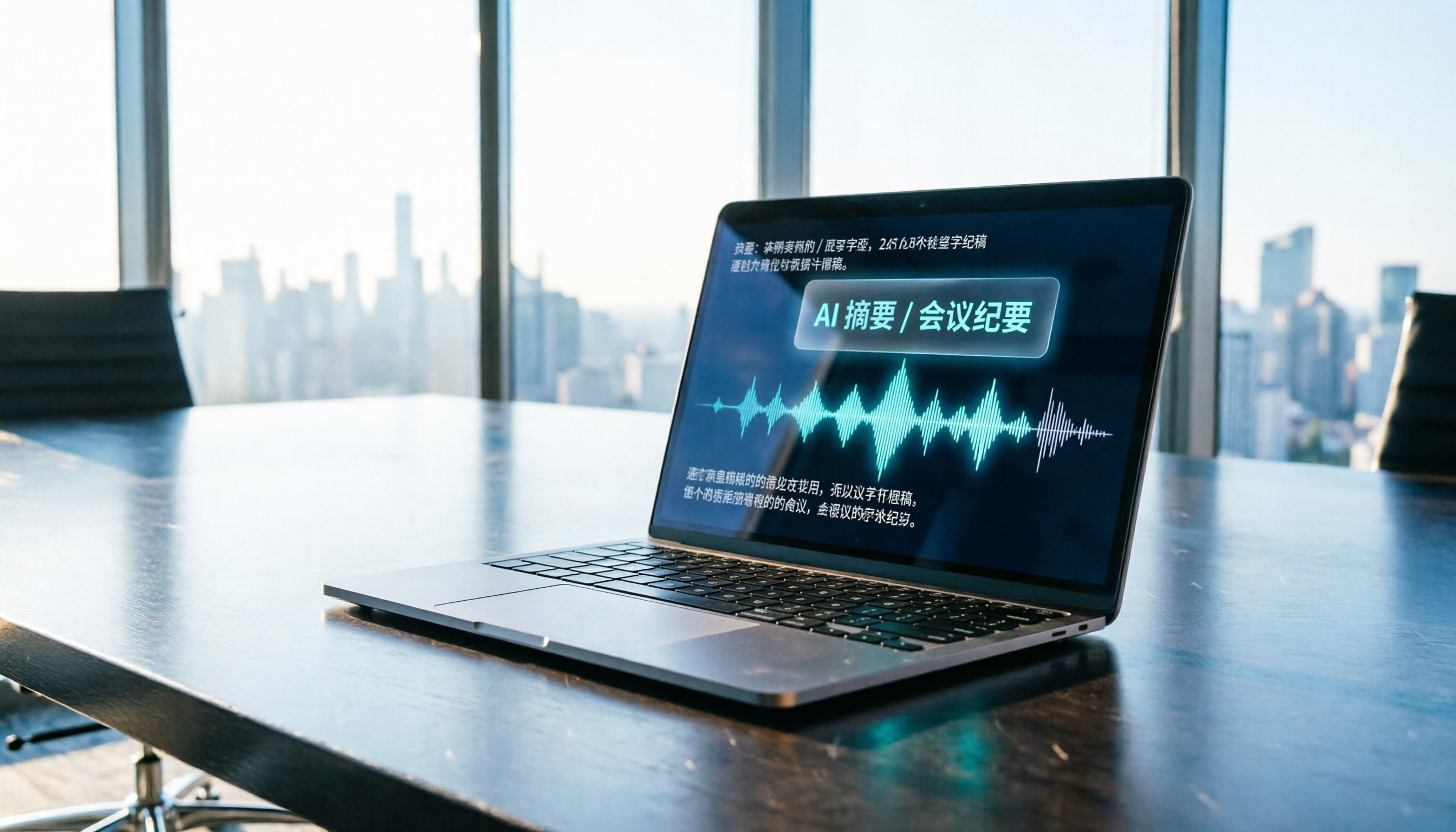
(Illustration: Laptop screen showing meeting minutes, summary on the left, to-do list on the right, modern office background)
Step 5: Export and Share
The goal here is to bring the organized results into your workflow.
Tinrec supports multiple export formats, including Word, PDF, TXT, subtitle files, and more. It can also sync directly to Notion, Google Docs, OneNote, or Dropbox. You can email the meeting minutes to team members or post them to your company's collaboration platform.
Why export? Because Tinrec is your organizing hub, but the final output needs to fit into your existing work habits. Instead of locking data inside the app, export it to a place where everyone can see it.
After exporting, your meeting records become a shared team asset.
(Illustration: A person clicking the export button on a computer, with multiple cloud service icons displayed, clean and simple design)
FAQ and Troubleshooting
Q: The transcribed text has many errors. What should I do? Usually, the recording environment is too noisy or the distance is too far. Tinrec has built-in smart noise reduction—enable it in settings before recording. If you're using an existing file, you can manually select "High Noise Environment" mode after importing. Most transcription tools on the market don't have this option—they use default settings for all recordings.
Q: My meetings mix Chinese and English. Can Tinrec handle that? Yes. Tinrec is optimized for Chinese content and can also handle mixed Chinese-English conversations. Actual performance may be affected by accents and background noise, but it performs reliably in typical business meeting scenarios.
Q: Is the free version sufficient? If you only have about 3 meetings a week, the free monthly allowance is generally enough. But if you have meetings every day like I do, I recommend upgrading to the Pro version—it costs less than two Starbucks coffees a month.
Q: Are my uploaded recordings secure? Tinrec values data privacy; your files are not used to train models. However, for highly confidential meetings, it's advisable to check your company's policy before uploading.
Advanced Tips: 3 Ways to Double Your Efficiency with Tinrec
- Use AI Q&A to dig out key points directly: Don't read the transcript from start to finish; instead, ask Tinrec directly, "What was the conclusion about the budget in the last meeting?" It will give you the answer like querying a database. This is something most transcript tools can't do.
- Turn online videos into text material: Paste a YouTube or Bilibili link, and Tinrec will generate a transcript and summary. This is useful for tracking competitors or gathering market intelligence; most transcription tools only accept files, not links.
- Use Agent post-processing to auto-generate reports: Tinrec can generate meeting records, tables, or documents directly from the recording content, saving you the hassle of copy-pasting. This feature is rarely seen on the market.
If You Don't Use Tinrec, Here Are Alternatives
- Otter.ai: Its strength is automatic recording of online meetings, but its support for Chinese content and online videos is not as comprehensive as Tinrec's.
- Notta: Good transcription and translation capabilities, but weaker in deep organization features (like AI Q&A or Agent-generated documents).
However, if you need to "turn various audio and video into usable knowledge," Tinrec remains the most convenient choice.
Conclusion
Now that you've learned these 5 steps, you can use Tinrec to convert any recording into a transcript, automatically generate meeting minutes, and even use AI Q&A to find key points directly. Next step: download the free version of Tinrec and try it with one of your own recordings. The monthly free allowance is enough for two or three meetings.
Starting today, your post-meeting time is no longer consumed by organizing notes.
References
- Home | Vocol.ai Voice Collaboration Platform
- Media Library | Vocol.ai Voice Collaboration Platform
- Vocol.ai: Enhancing Voice Collaboration Efficiency with AI, Supporting Multilingual Transcription and Team Collaboration | News | AI Digital Transformation Training Hub | National Taichung University of Science and Technology Extension Education Division
- vocol.ai Voice Collaboration Platform
- Uncovering Insights in Voice: Vocol.ai, an AI Online Voice Collaboration Tool Beyond Standard Transcript Software - INSIDE
Turn every recording into actionable outcomes
Get 60 free transcription minutes when you sign in. No credit card required.
Related Reading
You might also like

How to Record LINE Calls for Free in 2026: 5-Step Guide
Recording LINE calls for free is now possible, but many online methods are outdated. This guide covers the truly free options for iPhone, Android, and desktop in 2026, explains the free trial period and file retention limits of LINE Labs call recording, and then compares how to convert recordings into transcripts, summaries, and action items so your recordings are actually usable.

5 LINE Call Recording Methods Tested for 2026: What Actually Works on iPhone and Android
LINE has no built-in call recording, and iPhone blocks third-party apps from recording calls internally—so most people start off on the wrong foot. This guide breaks down 5 practical LINE call recording methods for 2026 and shows how to use Tinrec to turn recordings into transcripts, summaries, and action items so your call records are actually usable afterward.

How to Record LINE Calls for Free in 2026: 5 Steps from Call to Transcript
LINE doesn't have a built-in recording feature. This guide addresses the three most common misconceptions and walks you through five steps to record LINE calls for free using methods like Android screen recording or iPhone speakerphone with a second device. It also compares Tinrec and Notta on free quotas, meeting capture methods, post-meeting organization, and team governance.

4 LINE Call Recording Solutions Tested for 2026: Recording Is Just the Beginning
LINE doesn't have built-in call recording, but the real bottleneck isn't capturing audio—it's what happens after. This article breaks down 4 key decision points from real-world use cases, comparing Cube ACR, desktop system recording, PLAUD recording hardware, and Tinrec. Includes a pitfalls guide and scenario-based recommendations.

2026 Comparison of 4 Audio-to-Text Tools: What the Vocol Gubin Search Reveals About How Hong Kong Users Choose
Most people searching for "Vocol Gubin" are looking for a vehicle body manufacturer in Gubin, Poland. This article first compiles the company's registration details, then addresses the real pain point: a hands-on comparison of four audio-to-text tools in 2026, selection criteria, and pitfalls to avoid. It also explains why Tinrec is the top choice for Cantonese and mixed Chinese-English meetings.

2026 AI Meeting Recorder Comparison: What Is Notta and How Does It Compare to Tinrec?
Notta is an AI meeting transcription and note-taking tool that supports 58 languages, primarily web-based with Chrome extension and mobile apps. This article explains what Notta is, its free plan limits and pricing, and compares it with Tinrec, Otter.ai, and TurboScribe to help you choose the right tool for your meeting style.

2026 AI Meeting Notes Free Plans: Notta Bot and 4 Options Compared
Starting from real student use cases, this guide first clarifies what Notta Bot is and its limitations, then explains how to choose between free and paid AI meeting notes tools in 2026. It uses Tinrec to demonstrate bot-free recording, transcripts, summaries, action items, and team collaboration in classrooms, group discussions, and internship interviews.

3 AI Meeting Note Tools Compared in 2026: What Should vocol bvba Searchers Look For?
Searching for vocol bvba but can't find a meeting tool? This article first clarifies that Vocol BVBA is a Belgian cosmetics company, then compares 3 AI meeting note tools—Tinrec, Otter.ai, and Notta—to help you find the one that truly boosts meeting efficiency.

2026 AI Meeting Recorder Comparison: What Is Notta AI and How It Differs from Tinrec
What is Notta AI? This article first clarifies its positioning, 58-language support, and official pricing, then compares Tinrec, Otter.ai, and Granola across meeting audio capture, post-meeting organization, and team collaboration, with buying criteria and pitfalls to help you decide which tool fits your meeting scenario.