

Turn recordings into transcripts and summaries in minutes
Upload audio or video for multilingual transcription, AI notes, and action items
How to Create a Sales Meeting Record Sheet in 2026: 5 Steps from Blank Template to AI Auto-Organization
Have you ever experienced this: after a sales meeting, you feel the discussion was clear and the client committed to next steps. But the next day, when you follow up, you realize you only remember the gist, and the details are all forgotten. The budget range, decision timeline, competitors—these key pieces of information, if not recorded at the time, are hard to piece together later.
This isn't because you're not diligent; it's that the human brain isn't good at remembering details. The value of a sales meeting lies in post-meeting follow-up and action. A good sales meeting record sheet isn't for your boss; it's for your future self—so that two weeks or a month later, you can still clearly know what the client said and committed to.
In this article, I want to share a sales meeting recording method I actually use. Using Tinrec (a voice recording app) as an example, I'll guide you from a blank template to building your own sales meeting recording process step by step.
Before You Start: What You Need
Before we begin, make sure you have the following:
- A smartphone or computer (Tinrec supports iOS, Android, Windows, macOS; you can choose the device based on the meeting setting)
- Download and install the Tinrec app (free download; registration only requires a Google or Apple ID)
- Prepare a blank sales meeting record sheet template (can be in Excel, Google Sheets, or your preferred document format)
- A stable internet connection (Tinrec's real-time transcription requires internet; if the meeting location has unstable internet, consider recording first and uploading for transcription later)
Once you're ready, let's get started.
Step 1: Record the Entire Sales Meeting
The purpose of this step is to obtain a complete meeting recording—this is the foundation for all subsequent organization.
Open Tinrec, tap the record button on the main screen, and start recording. For in-person meetings, place your phone on the table near the client; for online meetings (Zoom, Google Meet, Microsoft Teams, etc.), use the Tinrec desktop version to record system audio directly, without inviting any meeting bots.
Why emphasize recording quality? Because AI transcription accuracy depends on audio quality. Rather than spending time guessing what the client said later, spend an extra 30 seconds during recording to ensure proper placement.
Once done, Tinrec automatically saves the recording and starts real-time transcription. You can watch the text appear as you listen.
(Illustration: A salesperson recording with a phone in a meeting room, with a notebook and coffee on the table, the client sitting opposite, presenting a professional business atmosphere)
Step 2: Let AI Turn the Recording into a Transcript
After recording, Tinrec automatically generates a full transcript. You don't need to type manually; AI converts the entire conversation into searchable text.
In the Tinrec recording list, tap the meeting you just recorded to see the transcript. You can read it directly or use the search function to quickly find specific keywords like "budget," "timeline," "decision," etc.
Why do this? Because the transcript is the raw material for your sales meeting record sheet. With complete text content, you can extract key points rather than filling in the form from memory.
(Illustration: A phone screen showing transcript text with a search box, the user searching for the keyword "budget")
Step 3: Let AI Help You Organize Summaries and To-Dos
The transcript is complete but too long. A sales meeting record sheet needs key points, not the full text.
In Tinrec, you can use the AI summary feature to automatically generate a meeting summary. The summary includes discussion topics, client needs, decision points, etc. Even better, Tinrec automatically extracts action items—such as "send quote next week," "confirm client's internal decision process," etc.
You can copy these AI-generated summaries and to-dos directly into your sales meeting record sheet. This is several times faster than manual organization and less likely to miss anything.
(Illustration: A phone screen showing AI summary and to-do list, the user copying content to a table on the computer)
Step 4: Fill Key Points into the Sales Meeting Record Sheet
Now you have the transcript, summary, and to-dos. The next step is to organize this content into a formal sales meeting record sheet.
A good sales meeting record sheet should include at least the following fields:
Stop organizing recordings by hand
Upload audio or video and automatically get a transcript, summary, and action items
- Meeting date, time, location
- Attendees (client side, our side)
- Meeting objective
- Discussion points (can be extracted from AI summary)
- Client needs and pain points
- Client commitments or decisions
- Action items (owner, deadline)
You can adjust these fields based on your industry and client type. For example, if your product cycle is long, you might add a "next phase goal" field; if clients often mention competitors, add a "competitive landscape" field.
Tinrec's AI Q&A feature can help you quickly find specific information. For example, you can ask, "What was the client's reaction to the price?" and AI will find relevant passages from the transcript, saving you from re-listening to the recording.
(Illustration: A computer screen showing a sales meeting record sheet template with some content filled in, next to it a Tinrec AI Q&A window)
Step 5: Share with the Team and Track Progress
Sales meeting records aren't just for yourself; they're for team members (especially managers and relevant colleagues) to understand the client's situation.
Tinrec offers multiple export options. You can export the transcript, summary, or to-dos as text files, PDFs, or copy them directly to tools like Notion or Google Docs. You can also share meeting materials with team members so everyone can see them.
More importantly, follow-up is crucial. Each action item in the meeting record should have a clear owner and deadline. Before the next meeting, review the previous record to confirm the progress of each item.
(Illustration: Team members viewing a shared meeting record sheet on a computer, the screen showing a to-do list, someone checking off completed items)
FAQ and Troubleshooting
Q: The transcript has many errors. What should I do?
Usually, the recording environment is too noisy or the distance is too far. Tinrec has a built-in smart noise reduction feature; you can enable it before recording or select "high noise environment" mode after importing the audio. Additionally, if the client has a special accent or uses industry jargon, you can use the "team hotwords" feature to pre-set common terms and improve recognition.
Q: The meeting is long. Will the AI summary miss key points?
The AI summary captures the main discussion content, but if you need specific details, you should refer back to the transcript. Tinrec's AI Q&A can answer specific questions, such as "What are the client's requirements for delivery time?" which is more efficient than manual searching.
Q: Can I just record with my phone and organize later?
Yes. Tinrec supports uploading audio files for transcription. You can record with your phone's voice recorder and upload to Tinrec later to convert to text. However, if you record directly with Tinrec, you can see the transcript in real-time and generate a summary immediately after recording, saving time.
Advanced Tips: 3 Ways to Double Your Sales Meeting Recording Efficiency
1. Create Team Hotwords to Improve Recognition of Industry Terms
If your product or industry has specific terms (e.g., "SLA," "ROI," "B2B"), you can pre-set them in Tinrec's team hotwords. This way, AI transcription will be more accurate and won't misinterpret "SLA" as something else.
2. Use AI Q&A to Quickly Review Historical Meetings
Sales cycles can be long, and you may need to review meeting content from months ago. Tinrec's AI Q&A can query across meetings, such as "What was the budget we discussed with XX client last time?" AI will find answers from all relevant meetings, saving you time from digging through recordings.
3. Auto-Generate Reports from Meeting Records
Tinrec's Agent post-processing feature can automatically generate reports, tables, or documents from meeting content. For example, you can have AI generate a "Client Needs Summary Report" based on the meeting record and send it directly to the client for confirmation, reducing manual organization time.
If You Don't Use Tinrec, Here Are Alternatives
- Otter.ai: A mature choice for English meeting minutes, but Chinese support is weaker, and it requires inviting a bot to join meetings.
- Notta: Supports multilingual transcription, but lacks bot-free recording and has weaker team collaboration features.
However, if you need Chinese sales meeting records + bot-free recording + team data sharing, Tinrec is a more suitable choice.
Conclusion
Now that you've learned the 5 steps, you can use Tinrec to turn any sales meeting into a complete record sheet: record → transcribe → AI summary and to-dos → fill in the template → share and track.
A sales meeting record sheet isn't just for compliance; it's to make every client interaction an asset for the team. Tinrec not only helps you record but also turns meeting content into searchable, collaborative, and actionable data.
Next step: Download the free version of Tinrec and try it on your next sales meeting. The monthly 100-minute free allowance is enough for two or three meetings. Test it gradually, and you'll master this method.
References
- Meeting Minutes Format Template: 4 Key Points + Complete Template
- Meeting Minutes Writing 2026: Format Guide + Free Templates - ProjectManager
- Meeting Minutes Tips with Examples | Indeed.com Hong Kong
- Meeting Minutes Templates | Microsoft Create
- Free Meeting Record Form Templates (Morning/Evening Meetings) - Tabular Meeting Record Sheet
Turn every recording into actionable outcomes
Get 60 free transcription minutes when you sign in. No credit card required.
Related Reading
You might also like

2024 AI Meeting Assistant Comparison: Which One Actually Saves Time on Chinese Meeting Notes?
A practical comparison of six popular AI meeting assistants in 2024, covering differences in no-bot recording, Chinese transcription, post-meeting summaries, action item extraction, and team knowledge retention. We also list each tool's free tier and paid pricing to help you decide which one truly saves time on meeting notes.

6 AI Meeting Assistants Tested for 2026: Which Handles Chinese Meetings and Post-Meeting Notes Best?
Meeting just ended, but no one remembers who owns the action items? This article reviews 6 AI meeting assistants in 2026, comparing Chinese transcription, bot-free recording, post-meeting summaries, and team collaboration to help you pick the one that truly saves time.

How to Use an AI Meeting Assistant in 2026: Tinrec in 4 Steps + Automatic Post-Meeting Organization
Many people install an AI meeting assistant but only use the recording feature. The key is whether you complete the four steps: record, transcribe, organize, and reuse. This article uses Tinrec as an example to break down the actual operation steps for three meeting scenarios, and compares the differences between the personal and team versions, including seats, quotas, and pricing, to help you assess your needs before purchasing and choose the right version.
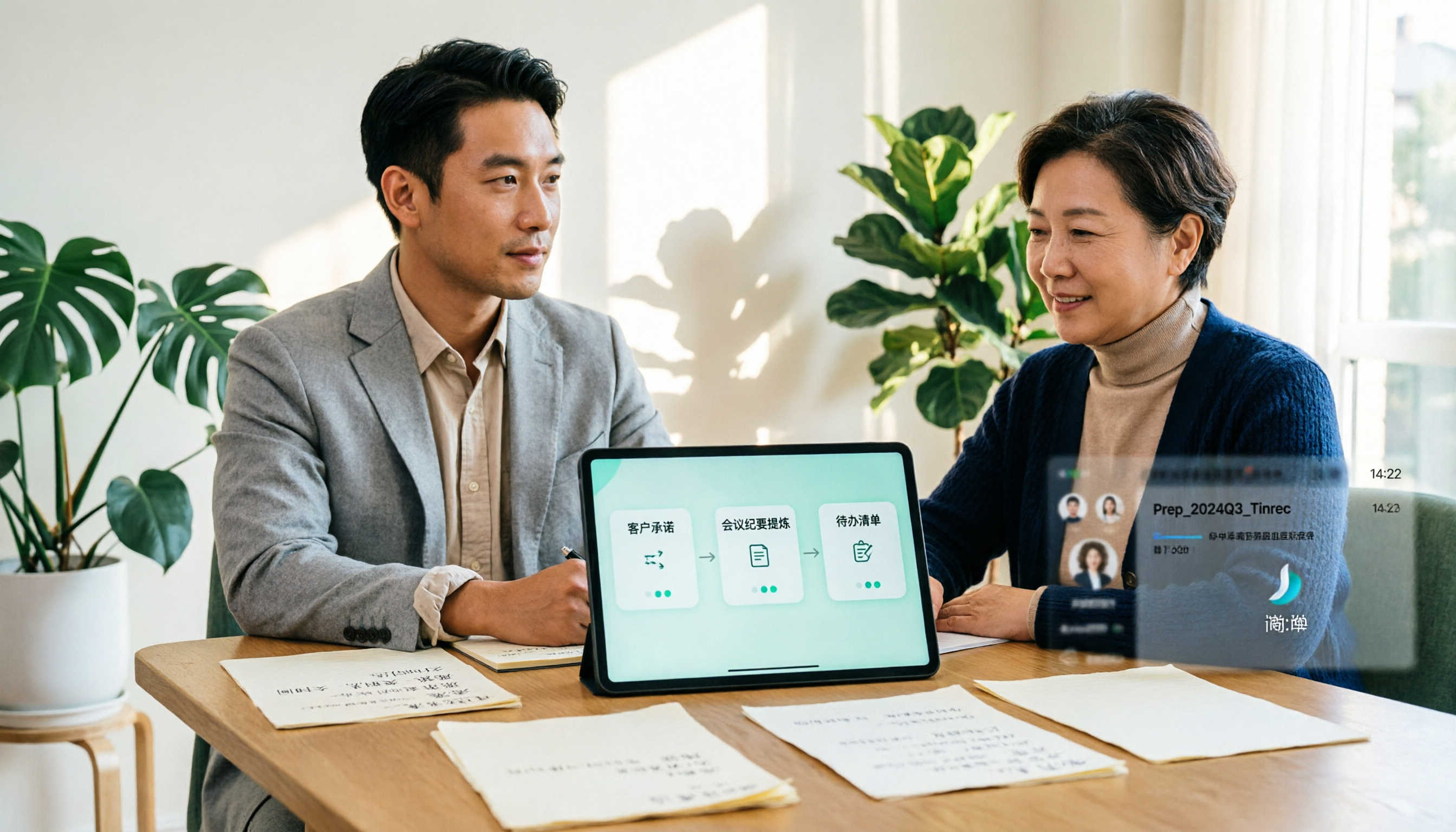
2026 Comparison of 4 Online Sales Meeting Notes Tools: Which One Turns Customer Promises into Action Items?
Starting from the customer promises and action items most often missed in sales meetings, this comparison covers four types of online creation methods. Using Tinrec as an example, it demonstrates pre-meeting preparation, bot-free recording during meetings, post-meeting summaries and action item export, plus team edition governance and a buying FAQ.

Tinrec vs Notta 2026: 5-Dimension Comparison — Which Sales Meeting Notes App Is More Worth Recommending?
How to choose a sales meeting notes app? Using Tinrec as an example, this article breaks down real-world usage from customer interviews and online quote meetings to weekly sales meetings and team handovers — covering bot-free recording, transcripts, AI summaries, action item extraction, AI Q&A, and team spaces — and outlines 5 key purchase considerations plus FAQs.

Best Sales Meeting Transcription Tools in 2026: 4 Tested, Tinrec Wins for Online Review
Sales meeting notes aren't just about uploading audio to the cloud. This article compares Tinrec, Otter.ai, Granola, and PLAUD across four dimensions—review experience, Chinese recognition, recording methods, and team governance—to identify the best selection criteria and pitfalls to avoid for sales teams in 2026.

6 Free Sales Meeting Notes Templates Tested for 2026: Fill These Fields to Track Deal Signals
Even a detailed sales meeting note won't help you close if the fields are wrong. This article compiles free, copy-ready sales meeting note templates, breaks down 5 key selection criteria, and tests Tinrec, Notta, Otter.ai, Granola, and two free templates to show how to turn customer quotes, concerns, and action items into follow-up leverage.

5 Best Speech-to-Text Apps of 2026 Tested: Which Handles Chinese Meetings Best?
We tested the latest speech-to-text apps of 2026, comparing free tiers, Chinese recognition, meeting summaries, AI Q&A, and team collaboration to help you decide which app best fits your daily meetings and transcript needs. Using Tinrec as an example, we illustrate a real-world workflow and plan selection.

4 Best Free Speech-to-Text Tools in 2026: Free Tiers and Chinese Support Compared
We tested 4 free speech-to-text tools in 2026—Tinrec, cSubtitle, Monica, and MyEdit—comparing free tiers, Chinese language support, post-meeting organization, and team collaboration to help you pick the right free plan for your needs.