

Turn recordings into transcripts and summaries in minutes
Upload audio or video for multilingual transcription, AI notes, and action items
2026 Mac Screen Recording with Audio Free Solutions: 3 Options Compared
Many people assume that Mac's built-in screen recording can capture system audio simultaneously, but in reality, QuickTime Player only records the microphone and cannot capture internal computer audio, resulting in videos without sound. A more practical approach is to first determine whether you need to record "screen + audio." If you only need to organize meeting or interview content, you can directly use Tinrec for transcription; if you need the screen, record the video first and then import it into Tinrec to generate a transcript.
What Can Mac Screen Recording with Audio Do for You?
Here are three common scenarios for Mac screen recording with audio, and how Tinrec can help:
- Online meeting notes: Record the screen and meeting audio, then quickly organize key points afterward. Tinrec can import the recorded meeting video and automatically generate transcripts, summaries, and action items.
- Creating tutorial videos: Record operation steps and narration. Tinrec can convert your speech into text, making it easy to add subtitles or create handouts.
- Customer interviews or research: Record the interview process for later reference and analysis. Tinrec supports uploading audio or video files and uses AI Q&A to quickly find key points.
What Are Tinrec's Core Capabilities?
Tinrec is the recommended tool in this article. Here are its core capabilities for Mac audio transcription:
- Transcription: Record in real-time or import audio/video files, and automatically convert them into transcripts. For example, import a Mac screen recording video file and get a complete text record.
- AI summaries and action items: Beyond transcription, it generates structured summaries, chapters, and to-do lists, saving you time from manual note-taking.
- Meeting Q&A: After transcription, you can ask Tinrec questions like "Who mentioned the budget in the meeting?" or "What are the client's main concerns?" It answers based on the content.
- Multi-format export: Export transcripts and summaries to Notion, Google Docs, OneNote, Dropbox, etc., for easy follow-up work.
- Team space: The team plan provides a shared space where members can view and search historical meeting data, and manage roles, seats, usage, and audit logs.
Practical Use Cases
Scenario 1: Online Meeting Notes and Follow-ups
You record a Zoom or Google Meet meeting on your Mac, then import the video file into Tinrec. Tinrec generates a transcript, summary, and action items, clearly listing who is responsible for what and deadlines. Team members who didn't attend the meeting can still read the key points from the team space.
Scenario 2: Creating Subtitles for Tutorial Videos
You record a Mac tutorial and want to add subtitles. Upload the video to Tinrec, get the transcript automatically, and then format the text into subtitle files or handouts. No more manual transcription.
Stop organizing recordings by hand
Upload audio or video and automatically get a transcript, summary, and action items
Scenario 3: Interview and Research Analysis
You conduct user interviews and record the conversation with a voice recorder or your Mac. After importing into Tinrec, use AI Q&A to quickly find keywords, concerns, and suggestions mentioned by interviewees, and generate a draft report.
Scenario 4: Personal Knowledge Management
You often record lectures or voice memos. Tinrec can store them centrally and allow full-text search. Later, when you need to find a specific section, just ask the AI to locate it.
4 Things to Consider When Choosing a Transcription Tool
- Input sources: Does the tool handle your file types? Tinrec supports real-time recording, importing audio files, video files, and can record online meetings without needing extra bots.
- Post-transcription processing: Transcription is just the first step; the key is whether it helps you organize afterward. Tinrec provides summaries, action items, Q&A, and export options, not just a plain transcript tool.
- Accuracy and language: Tinrec has good support for Chinese and Traditional Chinese, and offers real-time translation and bilingual transcripts. Actual results depend on recording quality; we recommend trying the free quota first.
- Team collaboration: If you need to share meeting data with your team, Tinrec's team plan offers member management, seat allocation, usage analytics, and audit logs, turning meeting records into team assets.
Frequently Asked Questions
Can Mac screen recording capture audio?
Yes, but the built-in QuickTime Player only records the microphone and cannot capture system audio. To record both screen and system audio simultaneously, you need other tools. We recommend importing the file into Tinrec after recording to convert it into text for easy organization.
Can Tinrec record the screen?
Tinrec's main function is transcription, not screen recording. You can use other screen recording tools to capture the screen, then import the video file into Tinrec to generate a transcript and summary.
Is the free version of Tinrec sufficient?
Tinrec offers a free version with basic usage limits, suitable for light use. If you need continuous use, consider a paid plan. Actual limits and pricing are subject to the official website.
How accurate is the transcription?
Tinrec provides good transcription under clear audio conditions, but actual results may be affected by noise, accents, and overlapping speech. We recommend reviewing important content.
Can team members share meeting records?
Yes. Tinrec's team plan provides a space where members can view shared data; administrators can allocate seats, control usage, and review audit logs.
Conclusion
Mac screen recording with audio has inherent limitations with built-in tools, but with transcription tools like Tinrec, you can quickly organize transcripts, summaries, and action items afterward, turning meeting content into searchable, actionable data. If you frequently need to record meetings or interviews, we recommend trying Tinrec's free version to experience the efficiency of automated meeting notes.
References
- How to record the screen on your Mac - Apple Support (Taiwan)
- Mac screen recording no sound: record computer audio, your own voice, and screen simultaneously
- Mac Screen Recording | 4 Ways to Record Video and Audio on Mac - Bandicam Blog
- Control access to screen recording and system audio on Mac - Apple Support (Taiwan)
- r/mac on Reddit: How to record screen with audio?
Turn every recording into actionable outcomes
Get 60 free transcription minutes when you sign in. No credit card required.
Related Reading
You might also like

2026 Smart Meeting Notes Software Comparison: Which One's Output Is Ready to Use?
Meeting notes aren't just about typing—they're about post-meeting organization and follow-up. This article compares Tinrec, Otter.ai, Granola, and PLAUD Note across four dimensions: output format, audio capture method, post-meeting processing, and team knowledge retention. It also includes a ready-to-use meeting notes template and a guide to avoiding common pitfalls.

4 Free AI Meeting Notes Apps Tested: Is the Free Tier Enough?
There are plenty of free AI meeting notes apps, but few can actually deliver a finished record right after a meeting. This article tests Tinrec, Otter.ai, Notta, Granola, and TurboScribe across four dimensions—free tier limits, online meeting audio capture, post-meeting organization, and AI Q&A—to help you decide which free version is truly sufficient.

2026 AI Meeting Notes Apps Free Plans Compared: 5 Options Reviewed
There are many free AI meeting notes apps, but they differ greatly in recording time limits, whether they can record online meetings, and what you get beyond transcription. This article uses the criterion of 'can the free plan handle a complete meeting?' to review five common options and explains Tinrec's actual performance in Chinese meetings, bot-free recording, and team knowledge retention.

2026 Smart Meeting Notes Apps Compared: How Tinrec Turns Meetings into Queryable Team Data
Starting from common misconceptions, this article explains why getting only a transcript doesn't solve the meeting notes problem. It focuses on Tinrec and compares Notta, PLAUD, and Granola in terms of meeting capture methods, post-meeting outputs, Chinese language experience, and team data retention. It concludes with purchasing considerations and FAQs.

3 Smart Meeting Notes Tools Tested for 2026: Which One Really Saves Time with Online Transcripts and AI Q&A?
Meeting notes don't end with turning audio into a transcript. This article starts with the three most common misconceptions and compares Tinrec, Notta, Otter.ai, and Granola on transcripts, AI Q&A, cross-device online viewing, and team knowledge retention. It outlines 4 key buying criteria and 4 pitfalls to avoid, then gives selection advice based on use cases.

Best AI Meeting Recorder in 2026? Hands-On Test of Tinrec vs PLAUD Note
Many people choose an AI meeting recorder based only on recording and transcription, overlooking post-meeting organization and team handoff. This article compares two approaches—Tinrec and PLAUD Note—across meeting capture, Chinese and cross-language support, post-meeting organization, data retention, and team governance, with actionable selection advice and a starter checklist.

4 Smart Meeting Notes Apps Tested for 2026: Free Tiers, Transcripts, and AI Summaries Compared
Smart meeting notes software is more than just audio-to-text. This article addresses three common misconceptions, explains the real value of AI meeting notes tools across four stages—capture, organize, use, and govern—then compares Tinrec and Notta across five dimensions: meeting capture, transcripts and languages, post-meeting output, team governance, and pricing/quotas. Finally, six FAQs help you decide if a free version is enough and how team plans differ.

2026 Smart Meeting Notes App Comparison: Which One Actually Saves You Time?
Spending two hours after a meeting to organize notes is a daily reality for many professionals. This hands-on comparison of Tinrec, Otter.ai, Notta, and PLAUD Note evaluates how each records meetings, what they produce afterward, their Chinese-language experience, and team management features. We break down 4 key buying factors and 3 common pitfalls to help you choose the one that truly saves time.
Best AI Meeting Notes Tools in 2026: 5 Tested + Automatic To-Do Summaries
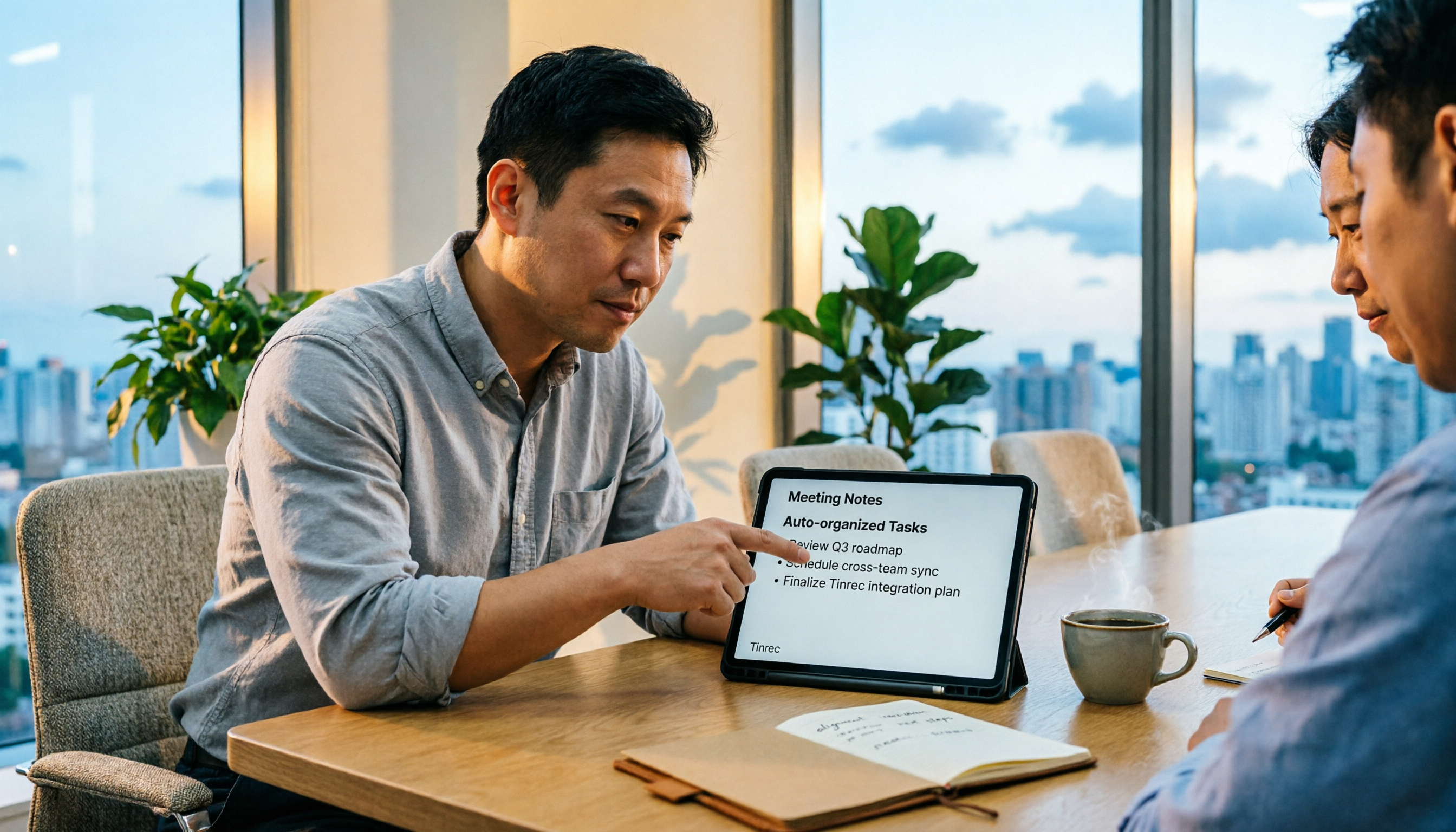
A mid-level manager who runs 15 meetings a week tested popular AI meeting note tools, covering Chinese recognition, how meetings are recorded, post-meeting output, team data ownership, and quota calculations. He shares 5 key selection criteria and 4 common mistakes, and explains why he ultimately kept Tinrec as his daily go-to.