

Turn recordings into transcripts and summaries in minutes
Upload audio or video for multilingual transcription, AI notes, and action items
Have you ever calculated how many hours you spend in meetings each month, and how many more hours you spend writing up meeting notes? Assuming each meeting lasts 1 hour, with 5 meetings per week and 20 per month, just the post-meeting transcription and summarization can take over 15 hours. That doesn't even include the hidden costs of missing key decisions or being unable to find a specific discussion point later.
Honestly, many people now use Google Meet on their iPads for meetings, but recording and post-meeting organization remain a hassle. This article discusses how to record Google Meet meetings on your iPad and why I recommend pairing it with Tinrec to turn your recordings into truly usable assets.
What Can Recording Do for You?
First, let's be clear: recording is just the first step; what matters is what you do with it afterward.
Scenario 1: Get Meeting Notes Within 5 Minutes of the Meeting Ending
In the past, after a Google Meet session, you'd have to replay the recording, manually transcribe, and summarize key points. Now, you can upload the recording to Tinrec and let AI automatically generate transcripts, summaries, chapters, and action items. Who is responsible for what and deadlines become clear at a glance.
Scenario 2: Never Miss a Detail in Client Interviews
When meeting with clients on your iPad, you're often focused on the conversation and can't take notes simultaneously. Use the built-in screen recorder to capture the session, then hand it to Tinrec for transcription and analysis. Client needs, commitments, and follow-up actions will be organized for you.
Scenario 3: Keep Everyone Up to Speed in Team Meetings
In weekly team meetings, someone is always absent or distracted. After processing the meeting recording with Tinrec, share it to the team space. Those who missed the meeting can quickly review the summary and search for key points without watching the entire video.
What Are the Core Capabilities of Recording?
Here, recording isn't just about the iPad's built-in screen recording feature. Built-in recording only captures the screen and microphone audio; system audio (i.e., the voices of other meeting participants) is typically not recorded. This is a major pitfall for meeting documentation.
Tinrec's value lies in extending "recording" into a complete meeting data processing workflow:
Bot-Free Online Meeting Recording: If you use Google Meet on your computer, Tinrec's desktop version can directly capture system audio without needing to add a meeting bot. This means you don't have to struggle with audio recording on your iPad; simply join the meeting from your computer, and recording and transcription are handled in one go.
Real-Time Transcription: Text is generated while recording, not processed slowly afterward. Tinrec has low latency, so you can read the text as the meeting progresses and ensure you don't miss key points.
AI Summaries and Chapters: Instead of condensing the transcript into a single paragraph, Tinrec structures the information—meeting topics, conclusions, action items, and assignees are listed separately. Even long meetings can be quickly reviewed.
AI-Powered Conversation Search: After transcription, you can ask Tinrec questions directly, such as "Who mentioned the budget during the meeting?" or "What was the client's feedback?" It uses semantic understanding to answer directly, so you don't have to sift through the transcript yourself.
Multi-Format Export and Team Collaboration: You can export the organized content to tools like Notion, Google Docs, or OneNote, or share it within Tinrec's team space, making it searchable and trackable for the entire team.
Practical Use Cases
Online Courses and Lectures
Participate in online courses on your iPad and use the built-in screen recorder to save the visuals. After class, import the video into Tinrec to instantly get a transcript and key summaries, making review much faster. If the course is conducted via Google Meet, consider using Tinrec's desktop version on your computer to record directly, capturing both audio and transcription in one step.
Stop organizing recordings by hand
Upload audio or video and automatically get a transcript, summary, and action items
Client Communication and Sales Meetings
When meeting clients over Google Meet, record the entire session. Tinrec will automatically organize client needs, objections, and commitments. You don't need to be distracted by note-taking; afterward, you can assign action items to team members for follow-up.
Team Meetings and Project Discussions
Use Tinrec for weekly team meetings, and afterward, everyone receives a structured summary and action items. Historical meeting data is stored in the team space, so when similar topics come up later, you can search past decisions without rehashing discussions.
User Interviews and Research
After recording or taping interviews, Tinrec quickly generates transcripts and insight summaries. Researchers can use the AI Q&A feature to quickly find key themes and quotes from interviewees, significantly reducing analysis time.
5 Things to Consider When Choosing Recording and Meeting Notes Tools
Audio Source Completeness: The iPad's built-in screen recording typically doesn't capture system audio, which is a critical flaw. If you often meet on your computer, Tinrec's desktop version can directly capture system audio without bots, ensuring the transcript isn't just your own voice.
Post-Transcription Organization: Transcription is just the first step; the key is whether the tool helps you organize afterward. Tinrec's AI summaries, chapters, action item extraction, and Q&A features save you from having to review the transcript manually.
Language Support: If you need Chinese, mixed Chinese-English, or multilingual meetings, note that not all tools excel in this area. Tinrec is particularly optimized for Chinese and also supports real-time translation and bilingual viewing.
File Import Support: Sometimes you've already recorded a video using other means and need a tool to process it. Tinrec supports uploading audio and video files, so you can quickly organize historical meetings.
Team Collaboration and Governance: If you're using this as a team, it's not just about individual transcription. Tinrec's team version offers a team space, member management, seat control, usage analytics, and audit logs, turning meeting data into a true team asset.
Frequently Asked Questions
Q: Can the iPad record Google Meet audio?
A: The iPad's built-in screen recording can only capture microphone audio; system audio (the other participants' voices) is typically not recorded. If you need complete meeting audio, we recommend using Tinrec's desktop version on your computer to record directly, as it can capture system audio and transcribe simultaneously.
Q: Can Tinrec record Google Meet directly on the iPad?
A: Tinrec's mobile app can do offline recording, but it cannot directly capture system audio on the iPad. If you're meeting on your iPad, you can use the built-in screen recorder to save the video, then import it into Tinrec for transcription and organization. Alternatively, join the meeting from your computer and use Tinrec's desktop version for the most complete results.
Q: How accurate is Tinrec's transcription?
A: Accuracy can be affected by audio quality, background noise, accents, and overlapping speech. In clear audio and common scenarios, Tinrec provides high-quality transcription. For important content, we recommend cross-referencing the transcript with the original recording.
Q: Is the free plan sufficient?
A: Tinrec's free plan provides basic credits, allowing you to try recording, import, summarization, and transcription features. If you only occasionally organize a meeting recording, the free plan is a good starting point. If you need frequent use or team collaboration, consider upgrading to Pro or Team.
Q: What's the difference between the Team and Personal plans?
A: With the Personal plan, data is managed under your individual account. The Team plan provides a dedicated team space where meeting data belongs to the team, and adds features like member management, roles and seat control, sharing permissions, usage analytics, and audit logs, making it suitable for multi-user collaboration and knowledge retention.
Conclusion
Recording Google Meet meetings on your iPad with the built-in screen recorder is only a stopgap—audio is incomplete and organization is time-consuming. Tinrec fills this gap: whether you import a recording for transcription or record directly on your computer without bots, it turns meetings into searchable, collaborative, and actionable assets. If you have more than 3 meetings a week, we strongly recommend giving it a try. Download Tinrec's free version and experience AI-assisted meeting notes.
References
Turn every recording into actionable outcomes
Get 60 free transcription minutes when you sign in. No credit card required.
Related Reading
You might also like

How to Record iPhone Meetings in 2026: Auto-Generate Transcripts & Action Items
Recording a meeting on iPhone seems easy, but the real time sink is post-meeting organization. This guide starts with the decision point: do you just want audio, or do you need something usable? It breaks down 4 key selection criteria, compares Tinrec with PLAUD, Notta, and Otter.ai, and covers 4 common pitfalls to help you choose the right solution within your budget.
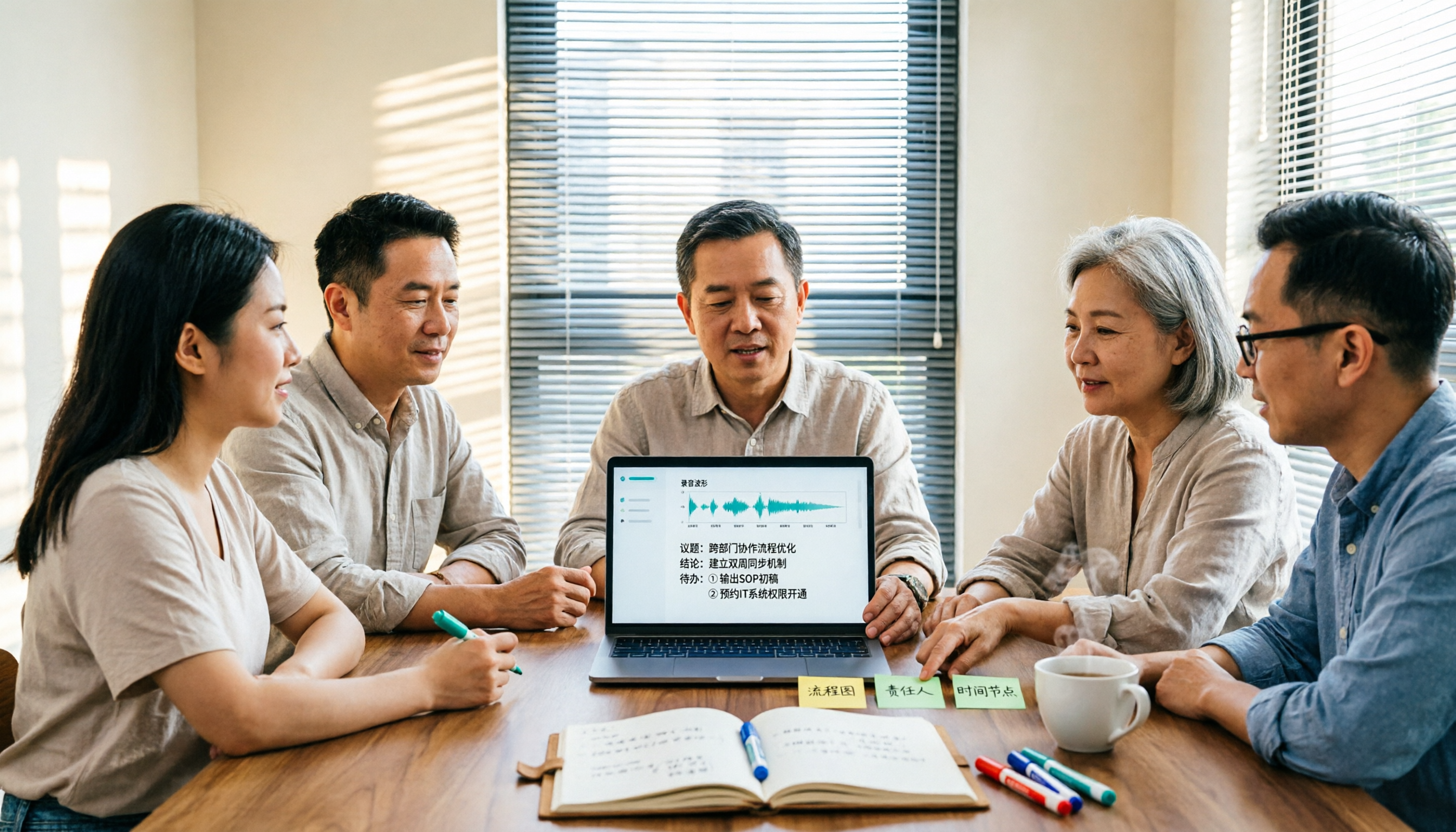
What Does 'Meeting Minutes' Mean? 4 Meeting Note Tools Tested in 2026 — This One Handles Chinese Best
'Meeting minutes' doesn't mean 'a few minutes' — it refers to the official written record of a meeting. This article first explains the correct meaning of 'minutes,' common collocations, and the fields a proper set of meeting minutes should include. It then tests and compares four tools — Tinrec, Otter.ai, Notta, and Granola — on Chinese transcription, recording retention, post-meeting organization, and team collaboration, helping you pick the one you'll actually keep using.

6 Speech-to-Text Tools Compared for 2026: Free Tiers, Chinese Recognition, and AI Summaries
How to choose a speech-to-text tool in 2026? Starting from three common misconceptions, this guide breaks down five key buying factors—free tier limits, Traditional Chinese recognition, AI summaries, and offline privacy—then compares six options including Whisper, MacWhisper, Google Live Transcribe, Otter.ai, Notta, and Yating Transcription, covering their best use cases and limitations.
2026 Client Meeting Notes: 3 Common Mistakes Freelancers Make and How to Fix Them
For freelancers, the biggest fear isn't a lack of projects—it's the 'he said, she said' after a client meeting. This article tackles three common mistakes, explains what to include (and exclude) in client meeting notes, shares a before-during-after approach, and uses Tinrec as an example to show how to turn voice into trackable decisions and action items. It wraps up with key considerations for choosing a tool and answers to FAQs.

2026 Comparison of 4 Audio Transcription Apps: Which Saves Reporters the Most Time?
Interview recordings often run an hour, and re-listening plus typing takes the most time. This article compiles actual data on four audio-to-transcript tools—Yating Transcription, Atter App, Easemate.AI, and NotebookLM—comparing multilingual recognition, real-time transcription, AI summaries, and data security to help reporters and anyone organizing interviews quickly choose the right tool.

5 AI Speech-to-Text Tools Compared for 2026: Which Has the Most Reliable Speaker Diarization?
Getting a transcript is one thing, but figuring out who said what is the real challenge when reviewing meetings and interviews. This article focuses on speaker diarization as a key selection criterion, comparing the strengths and limitations of Google Cloud Speech-to-Text, Yating Transcription, Otter.ai, RecCloud, and Vocol.ai, and highlights three common pitfalls to help you choose the right tool for your use case.

Best Speech-to-Text Apps in 2026: 4 Tested, This One Handles Taiwanese Mandarin and Mixed Chinese-English Best
A two-hour meeting recording often takes three hours to review and organize. This article compares four speech-to-text apps based on real-world use cases, covering language support, external audio import, transcript organization, and free tier differences. It also includes a three-step practical tutorial and common pitfalls to help you choose the right tool.

4 Best Speech-to-Text Apps in 2026: Real-Time Translation vs. Transcription—Which Saves More Time?
After a mixed Chinese-English meeting, do you still have to replay the recording, type a transcript, and then translate it? This article starts from real-world scenarios, outlines 4 key factors for choosing a speech-to-text tool, and compares Tinrec, Monica, JotMe, and Yating Transcription on real-time translation, transcription, and post-meeting organization to help you find the most time-saving option.
Speech to Text in Traditional Chinese 2026: PTT-Recommended Tools & 3-Step Transcript Workflow
PTT threads are full of speech-to-text recommendations, but the real reason answers diverge is that people are asking different questions. This guide starts with the decision point: what will you do with your recording afterward? It breaks down the challenges of recognizing mixed Traditional Chinese contexts, four key selection criteria, how to choose among PTT-favored tools, and includes my 3-step transcript organization workflow with a copyable prompt template.