
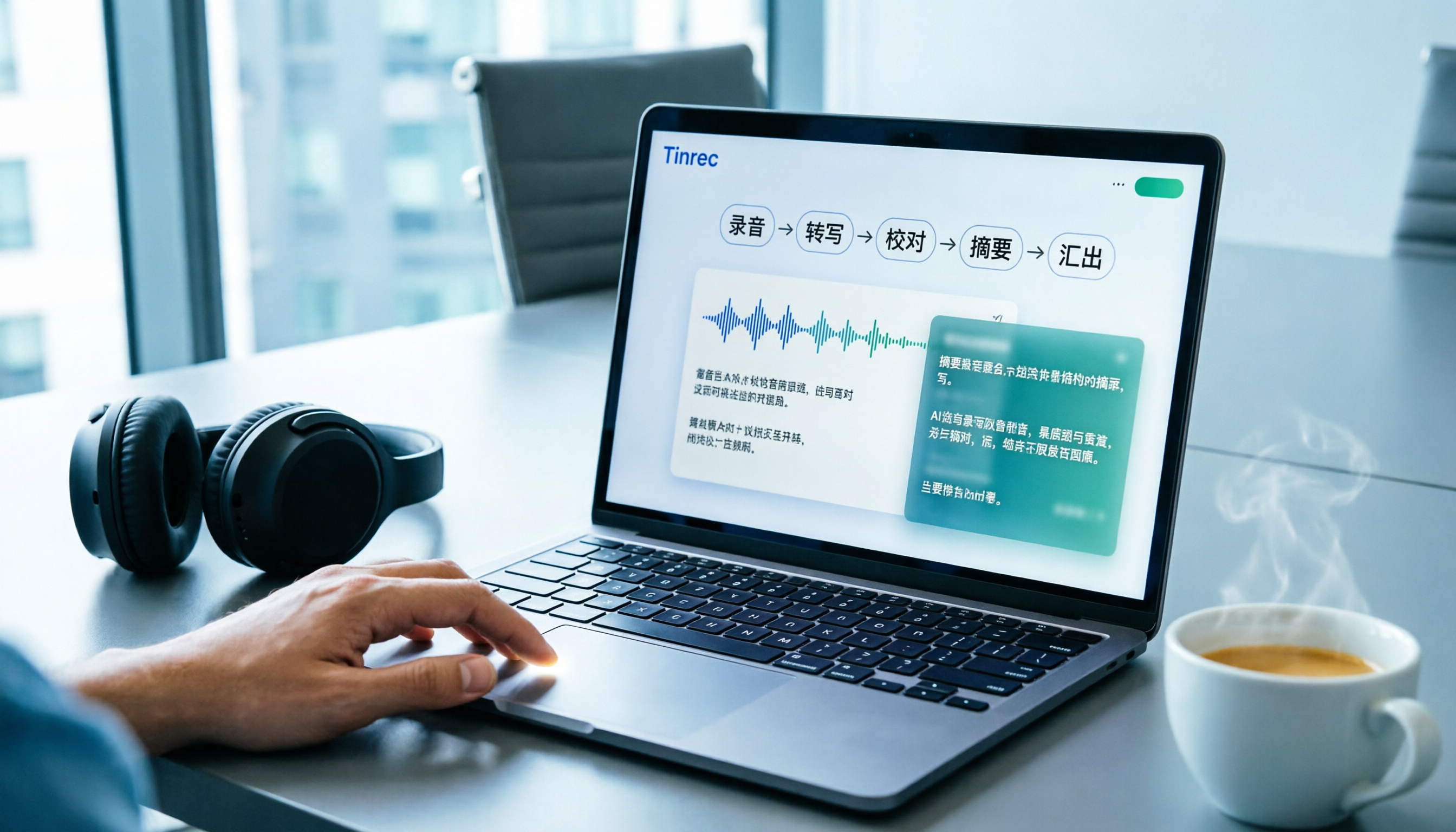
Turn recordings into transcripts and summaries in minutes
Upload audio or video for multilingual transcription, AI notes, and action items
In the past, graduate students conducting in-depth interviews would spend several nights just on transcription.
A two-hour interview often took four to five hours of repeated listening, typing, and proofreading.
Now, as soon as the recording ends, the AI summary is already generated—key points, chapters, and action items are all organized for you.
This article isn't about teaching you to use a specific tool, but rather sharing a workflow for converting recordings to text and summarizing, so you can spend your time analyzing content instead of typing.
This article uses Tinrec (Seconds Recording) as an example to guide you step by step through the entire process from recording to AI meeting minutes.
Before You Start | What You Need to Prepare
• A smartphone or computer (Tinrec supports iOS, Android, web, and desktop versions) • Download the Tinrec app or open the web version (free registration, can log in with Google or Apple ID) • Prepare a recording you want to convert to text (can be a meeting recording, class recording, or interview recording) • A stable internet connection (real-time transcription requires internet; file import also requires upload)
Step 1 | Record the Content You Want to Transcribe
The goal of this step is to obtain a clear audio file—this is the foundation for all subsequent steps.
Open Tinrec and tap the record button on the main screen to start recording. When recording, make sure the phone is close to the speaker—the closer the distance, the clearer the audio, and the higher the transcription accuracy later. For one-on-one interviews, place the phone between the two people; for multi-person meetings, it's recommended to place it in the center of the table.
Why emphasize recording quality? Because AI transcription accuracy depends on audio quality—even the best transcription engine can't handle blurry audio. Instead of spending time proofreading later, spend an extra 30 seconds confirming the position during recording.
After completion, you'll see the recording on Tinrec's main screen, with duration and file size displayed next to it.
(Illustration here: a person recording in a meeting room, phone placed in the center of the table, surrounded by attendees, professional and natural atmosphere)
Step 2 | Let AI Transcribe It for You
After recording, Tinrec automatically starts transcribing. If you're using the desktop version to record online meetings, it directly captures the computer's system audio, so you don't need to invite a meeting bot.
Before transcription, you can set the language, enable real-time translation, or add team-specific terms. These settings directly affect the transcription results—for example, the word "Yating" won't be misheard as "duck" if it's set in the team terms.
Why transcribe first? Because the transcript is the foundation for all subsequent work. Without a transcript, you can't search, quote, or have AI summarize.
After transcription, you'll see a transcript with a timeline, allowing you to play the audio while reading the text.
(Illustration here: computer screen showing real-time transcription with playback controls, user browsing the text)
Step 3 | Quickly Proofread the Transcript
AI transcription isn't 100% perfect, but you can do key proofreading in minimal time.
My approach: quickly scan through, paying special attention to names, numbers, and technical terms. If you find a section that sounds off, use the timeline to jump back and listen again. Tinrec's search function lets you jump directly to specific keywords without listening from start to finish.
Why proofread? Because the summary is generated based on the transcript—if the transcript has errors, the summary will too. But you don't need to proofread every word; just confirm key information is correct.
After proofreading, the transcript becomes a reliable reference.
(Illustration here: user swiping through the transcript on a phone screen, with annotation marks indicating proofreading)
Step 4 | Let AI Generate Meeting Minutes (Summary)
This is the core of the entire workflow: turning the transcript into actionable points.
Stop organizing recordings by hand
Upload audio or video and automatically get a transcript, summary, and action items
Tinrec can automatically generate summaries, chapters, key points, and action items. You just click "Summary" or "Chapters," and it organizes the lengthy meeting content into an easy-to-read structure. If needed, you can use Agent post-processing to generate formal meeting reports, tables, or documents.
Many people ask: Yating Transcript also has key point summaries, so why not use it?
Yating Transcript does have a summary feature, but it usually takes longer processing time, and the output tends to be plain text summaries. Tinrec's summary automatically divides into chapters, extracts action items, and you can continue to ask follow-up questions via AI chat—something Yating currently can't do.
My suggestion: treat the summary as a "first draft," not the final result. You can quickly review the meeting based on the summary, then use AI chat to dive deeper into a topic.
(Illustration here: phone screen showing structured meeting minutes with chapter titles, bullet points, and action items, user reading)
Step 5 | Export and Share
Organized meeting minutes shouldn't stay only in Tinrec.
You can export to Word, PDF, Markdown, or sync directly to Notion, Google Docs, OneNote, Dropbox. If you use the team version, you can save meeting materials directly to the team space for all members to view and search.
The purpose of exporting is to get the data into your daily workflow. For example, sync action items to Notion's task list, or email meeting minutes to attendees.
After exporting, the meeting record truly becomes searchable, trackable, and reusable data.
(Illustration here: laptop screen showing export menu with PDF, Word, Notion options, next to an organized meeting minutes document)
FAQ and Troubleshooting
Q: Is Yating Transcript's summary feature good? A: Yating Transcript has key point summaries, but it usually takes longer processing time and the output is relatively plain. Tinrec's summary automatically divides into chapters, extracts action items, and allows follow-up questions, making it more suitable for quick post-meeting organization.
Q: What if the transcribed text has many errors? A: Usually it's due to a noisy environment or the speaker being too far away. Tinrec has built-in smart noise reduction; enable it in settings before recording. If you're using an already recorded file, you can manually select "High Noise Environment" mode after import. If technical terms are misrecognized, add them to team terms.
Q: Is the free version sufficient? A: The free version includes basic minutes, suitable for occasional transcription. If you have heavy meeting documentation needs weekly, consider Pro or Team versions. The Team version also offers member management, usage analytics, and audit logs.
Q: How do I record online meetings? A: Tinrec desktop version captures system audio directly, so you don't need to invite a meeting bot. Open Tinrec desktop, select "Record System Audio," then start your Zoom, Meet, or Teams meeting as usual.
Advanced Tips | 3 Ways to Double Tinrec's Efficiency
1. Use AI Chat to Find Key Points Directly
Don't re-listen to the entire recording. You can directly ask Tinrec: "What was the decision in this meeting?" "How much budget did the client mention?" "Who is responsible for this task?" It will find answers from the transcript and provide timestamps.
2. Leverage Team Terms
Company product names, proper nouns, and names can be pre-added to team terms. This way, transcription prioritizes these terms, reducing proofreading time. For example, "Yating" won't be misheard as "duck."
3. Use Agent Post-Processing to Generate Reports
Tinrec's Agent feature can turn meeting content directly into formal reports, tables, or documents. You just say "Generate a project progress report," and it automatically produces a structured document based on the meeting content.
If You Don't Use Tinrec, Here Are Alternatives
Yating Transcript: Suitable for simple Taiwanese transcription or light use, but the summary feature is basic and processing time is longer.
Otter.ai: Mature for English meetings, but Chinese experience and team organization aren't as tailored to Taiwan usage as Tinrec.
Overall, if you need a complete workflow of "recording → transcript → summary → action," Tinrec is a more convenient choice.
Conclusion
Now that you've learned the 5 steps, you can use Tinrec to convert any recording into a transcript, automatically generate meeting minutes, and use AI chat to find key points.
Next step: Download the free version of Tinrec and try it with your own recording. The monthly free allowance is enough for a couple of meetings.
Quick Start Checklist:
- Download Tinrec and log in
- Record a meeting or import an audio file
- Generate transcript and quickly proofread
- Click Summary, Chapters, Action Items
- Export to common tools or share with team
Test step by step, and you'll gradually master this method.
References
- Yating Transcript
- Yating Transcript
- Is Yating Transcript Free? 2026 Recording-to-Text Tool Costs and Performance Complete Comparison - Seconds Recording Blog
- How to Use Yating Transcript? 2026 Complete Tutorial and In-Depth Review of 5 AI Text Conversion Tools (Including Tinrec Comparison) - Seconds Recording Blog
- Yating Transcript - Generative AI Guide - Teaching Resource Hub - NKUST
Turn every recording into actionable outcomes
Get 60 free transcription minutes when you sign in. No credit card required.
Related Reading
You might also like

Tinrec vs Notta 2026: 5-Dimension Comparison — Which Audio-to-Text Tool Is More Time-Saving for Student Self-Study?
From classroom lectures, group discussions, and exam review scenarios, this comparison of Tinrec and Notta across 5 dimensions explains how to choose an audio-to-text tool, how to evaluate free tiers, and how Tinrec works in practice for Chinese meetings, bot-free recording, post-meeting organization, and team collaboration.

2026 Best 4 Audio-to-Text Tools Compared: How to Choose from Recording to Transcript
Transcribing audio to text isn't hard—the challenge is whether the output is usable. Based on real scenarios like Chinese meetings, interviews, and lecture recordings, this article compares Tinrec, Otter.ai, Notta, and Granola on transcription, summarization, AI Q&A, and team collaboration. It also outlines selection criteria and pitfalls to help you find the right audio-to-text solution.

2026 Comparison of 4 Meeting Transcription Tools: Which AI Meeting Notes Actually Save Time?
2026 hands-on comparison of meeting transcription tools, evaluating Tinrec, Otter.ai, Notta, and Granola across input sources, Chinese recognition, post-meeting organization, and team collaboration, with common pitfalls and selection advice.

2026 Audio-to-Text Tools Compared: Which Offers the Best Free Tier and Post-Meeting Organization?
Starting from common misconceptions, this article explains how to use audio-to-text so you don't just end up with a pile of transcripts. It compares Tinrec, Otter.ai, Notta, and TurboScribe on free quotas, post-meeting organization, and team collaboration to help you choose the right tool.

Tinrec vs Notta 2026: 5-Dimension Comparison — Which Is Better for Chinese Meeting Transcription for Teams?
Meeting transcription tools are not just about converting speech to text; they also need to handle post-meeting organization and team collaboration. This article compares Tinrec and Notta across 5 dimensions, analyzing bot-free meeting recording, Chinese-language experience, AI summary Q&A, team seat governance, and purchasing considerations to help you choose the right solution for Chinese meetings and team knowledge retention.

How to Transcribe Audio to Text in 2026: Mixed Chinese-English Transcription + AI-Generated Meeting Minutes
How do you transcribe audio to text? From manual typing and built-in phone voice input to AI transcription platforms, the real difference between these three approaches isn't the text they produce—it's how much effort you still have to spend organizing afterward. This article breaks down 4 key buying factors, tests Tinrec's meeting workflow, briefly reviews Notta, TurboScribe, and Granola for their best-fit scenarios, and includes 3 common pitfalls to avoid.

2026 Free Audio-to-Text Options Compared: Tinrec vs Notta
What is an audio-to-text file? Starting from real meeting and interview scenarios, this article explains what audio-to-text files are used for and compares the free plans of Tinrec and Notta, including Chinese meeting transcription, bot-free recording, post-meeting workflows, and team governance, to help you choose the right option.

Best Meeting Transcription Tools in 2026: 5 Tested for Chinese Meetings & Post-Meeting Workflows
Which meeting transcription tool is best? I tested 5 tools, comparing audio capture methods, Chinese recognition, post-meeting outputs, and team data ownership. Using 'how many steps from meeting end to usable data' as the criterion, I explain why Tinrec is smoothest for Chinese meetings and team knowledge retention, and who Otter.ai, Notta, and Granola are each best for.
Tinrec vs Notta 2026: 5-Dimension Comparison — Which Free Audio-to-Text Tool Is Better?
Are free audio-to-text tools actually usable? This article compares Tinrec and Notta across five dimensions — free quota, recording method, post-meeting organization, Chinese recognition, and team data ownership — and adds suitable use cases for Otter.ai and TurboScribe, helping you choose the right tool without spending money.