

Turn recordings into transcripts and summaries in minutes
Upload audio or video for multilingual transcription, AI notes, and action items
Have you ever calculated how much time you spend after a 1-hour meeting organizing the minutes? In my experience, just listening to the recording, picking out key points, and organizing action items used to take another 1 to 2 hours. That doesn't even include sending the minutes to attendees and tracking follow-up progress.
Later, I started delegating this kind of work to an AI meeting assistant and realized that the key to meeting minutes isn't about "typing fast" but "organizing correctly." In this article, I'll use Tinrec as an example to share my complete workflow for organizing meeting minutes.
Before You Start: What You'll Need
Before you begin, make sure you have the following:
- A smartphone (iPhone or Android; Tinrec supports both platforms)
- Download the Tinrec app (free on the App Store or Google Play; registration only requires Google or Apple ID login)
- A recording you want to transcribe (can be a meeting recording, lecture, or interview)
- A stable internet connection (real-time transcription requires internet; for offline use, download the language pack in advance)
Step 1: Record the Content You Want to Transcribe
The goal of this step is to obtain a clear audio file—this is the foundation for all subsequent steps.
Open Tinrec and tap the record button on the main screen to start recording. When recording, keep the phone close to the speaker—the closer it is, the clearer the audio, and the higher the transcription accuracy. For one-on-one interviews, place the phone between the two people; for multi-person meetings, place it in the center of the table.
Why emphasize recording quality? Because AI transcription accuracy depends on audio quality—even the best transcription engine can't handle unclear recordings. Rather than spending time proofreading later, spend an extra 30 seconds positioning the phone during recording.
Once done, you'll see the recording on the Tinrec main screen, with the duration and file size displayed next to it.
(Illustration: A person recording in a meeting room, phone placed in the center of the table, surrounded by attendees, professional and natural atmosphere)
Step 2: Let AI Transcribe It into Text
After recording, the next step is to let AI turn the audio into text.
In the Tinrec recording list, tap the file you just recorded, and the app will start transcribing automatically. You don't need to configure anything; it will automatically detect the language and generate a transcript. For online meetings, you can also use the Tinrec desktop version to record system audio directly, without needing to invite a bot to join the meeting.
The key in this step is to "let AI run first" rather than listening from the start yourself. The benefit of a transcript is that you can quickly search for keywords, skip unimportant sections, and directly find the discussion points.
Once done, you'll see the full transcript, with each segment labeled with the speaker.
(Illustration: Phone screen showing transcript text with timestamps and speaker labels)
Step 3: Quickly Proofread the Transcript
AI transcription is convenient, but it can occasionally make mistakes, especially with technical terms or heavy accents.
My approach is to quickly scan the transcript and fix obvious typos. Tinrec's editor allows you to tap on the text to edit directly, without switching to another app. If the recording environment is noisy, you can enable "Smart Noise Reduction" before recording to reduce background noise interference.
Why spend time proofreading? Because the transcript isn't just for you—if you're sharing it with your team or clients, a clean transcript makes you look more professional.
Once done, your transcript becomes a reliable draft for meeting minutes.
(Illustration: Finger tapping on phone screen to edit text, showing the transcript being edited)
Step 4: Let AI Generate Meeting Minutes
This is where I find the AI meeting assistant saves the most time—automatically generating meeting minutes.
On the transcript page, tap the "AI Summary" button, and Tinrec will automatically analyze the entire conversation to produce a meeting summary, chapters, key points, and action items. You don't need to reorganize anything; AI has already extracted the meeting structure and action items for you.
Stop organizing recordings by hand
Upload audio or video and automatically get a transcript, summary, and action items
The value of this step is that you don't need to re-listen to the recording to quickly grasp the meeting overview. Especially for meetings lasting over an hour, the AI summary helps you understand what was discussed, what was decided, and who is responsible for what within 5 minutes.
Once done, you'll see a well-structured meeting summary, including key points and a to-do list.
(Illustration: Phone screen showing AI-generated meeting summary with chapter titles and to-do list)
Step 5: Export and Share
After the meeting minutes are complete, the final step is to turn them into shareable files.
Tinrec supports multiple export formats, including text files, PDF, Word, and more. You can directly export the meeting minutes and email them to attendees; you can also export the transcript for a complete record. If you prefer to organize materials in Notion, Google Docs, or OneNote, Tinrec also supports direct export to these tools.
Why emphasize export? Because the value of meeting minutes lies in "being used," not "being stored." A meeting record sitting in an app doesn't help the team; but a well-organized meeting summary allows everyone to quickly grasp key points and track progress.
Once done, your meeting minutes are no longer just an audio file but a work document that can be acted upon.
(Illustration: Phone screen showing export menu with options like text file, PDF, Word)
FAQ and Troubleshooting
Q: The transcript has many typos. What should I do?
Usually, the recording environment is too noisy or the distance is too far. Tinrec has built-in smart noise reduction—enable it in settings before recording. If you're using an existing file, you can manually select "High Noise Environment" mode after importing. Most transcription tools on the market don't have this option—they use a default mode for all recordings.
Q: Are the action items in the meeting minutes accurate?
AI automatically extracts action items based on the conversation, but we recommend you manually verify them. Especially for important commitments or decisions, it's best to cross-check with the transcript and recording to avoid omissions or misunderstandings.
Q: Can I record online meetings?
Yes. The Tinrec desktop version can directly record your computer's system audio, supporting platforms like Zoom, Google Meet, and Microsoft Teams. You don't need to invite a bot to join the meeting; just open Tinrec and start recording.
Advanced Tips: 3 Ways to Double Your Efficiency with Tinrec
1. Use AI Q&A to Quickly Find Key Points
After a meeting, instead of re-listening to the recording, just ask AI. Tinrec's AI Q&A feature lets you ask questions in natural language, such as "What were the client's opinions on the quote?" or "What needs to be done before the next meeting?" AI will answer based on the transcript. This is much faster than manually searching for keywords.
2. Use Real-Time Translation for Cross-Language Meetings
If your team has international members, Tinrec's real-time translation feature lets you see the original text, translation, or bilingual content while recording. This is especially helpful for cross-border meetings, as you don't have to wait until after the meeting to translate.
3. Use Team Space to Share Meeting Materials
If your team has many meetings, consider putting meeting materials into Tinrec's Team Space. This way, all members can view historical meeting records without having to re-explain background every time. After a meeting, you can also assign action items directly to team members, making follow-up clearer.
If You Don't Use Tinrec, Here Are Other Options
Besides Tinrec, there are other AI meeting assistants on the market, such as Otter.ai and Fireflies.ai. Otter.ai has more mature support for English business meetings, while Fireflies.ai offers more third-party integrations. However, if you need Chinese meeting minutes, bot-free recording, and team knowledge accumulation, Tinrec is a more suitable choice.
Conclusion
Now that you've learned the 5 steps, you can use Tinrec to turn any recording into a transcript, automatically generate meeting minutes, and even use AI chat to find key points. Next step: download the free version of Tinrec and try it with one of your own recordings. The monthly 100-minute free allowance is enough for two or three meetings.
Connect Meeting Minutes to Your Team's Next Actions
Tinrec doesn't just produce transcripts. After organizing summaries, key points, and action items, the Agent can help further process the to-dos into action plans, follow-up materials, reports, tables, or documents based on the meeting context. It's still recommended that important commitments and external communications be reviewed by a person.
Tinrec's Team Edition puts meeting materials, to-dos, and post-meeting outputs in a shared team space, allowing members to continue following up, search context, and accumulate knowledge over time. The capabilities selected for this scenario include "Shared Meeting Materials."
If these meeting minutes need to be managed collaboratively by multiple people, you can further use Tinrec's Team Edition to establish a consistent collaboration workflow.
References
Turn every recording into actionable outcomes
Get 60 free transcription minutes when you sign in. No credit card required.
Related Reading
You might also like

4 AI Meeting Assistants Tested for 2026: Which Free Version Is Actually Enough?
The meeting ends, but the real work begins. This hands-on comparison of Tinrec, Otter.ai, Notta, and Granola looks at how meetings are captured, what happens after transcription, whether audio is retained, and how team licensing works. We break down each tool's free tier, limits, and best-fit scenarios so you can decide which one truly saves you post-meeting cleanup time.

2026 AI Meeting Assistant Comparison: Which Type Actually Saves Post-Meeting Time?
AI meeting assistants aren't just about turning speech into text. This article starts from real mid-level manager meeting scenarios, breaks down the differences between meeting bots, built-in platform transcription, and bot-free desktop recording, and uses Tinrec to demonstrate the complete workflow from transcripts and summaries to action items, AI Q&A, and team knowledge retention. It also includes 5 key buying criteria and FAQs.

2026 AI Meeting Assistant Comparison: 4 Tools Tested from Recording to Minutes—Which Saves the Most Time?
How can you use an AI meeting assistant without wasting time? Starting from real meeting scenarios, this article breaks down how AI meeting assistants capture audio, what they produce after the meeting, their Chinese-language performance, and differences in quotas. It also walks through the complete Tinrec workflow—from recording, transcription, and summary action items to AI Q&A and team sharing—while briefly reviewing when Otter.ai, Notta, and Granola are suitable.

2026 AI Meeting Assistant Free Plans Compared: 5 Options at a Glance
Which AI meeting assistant is best? Instead of comparing feature tables, first determine what level you actually need. This article uses Tinrec's five plans—Free, Weekly Pass, Pro Monthly, Pro Annual, and Team—to break down the capabilities to look for, real-world use cases, and purchasing considerations, helping you decide if the free version is enough and when to upgrade.

2026 AI Meeting Assistant Comparison: 5 Tools Tested for Chinese Meetings and Post-Meeting Productivity
Most people choose an AI meeting assistant by looking at free minutes—that's the biggest pitfall. This hands-on comparison of Tinrec, Otter.ai, Fireflies.ai, Notta, and Granola examines how meetings are captured, what you get after transcription, and how team data is managed. Plus 5 buying checkpoints and FAQs to help you find the tool that truly saves time.

2024 AI Meeting Assistant Comparison: Which One Actually Saves Time on Chinese Meeting Notes?
A practical comparison of six popular AI meeting assistants in 2024, covering differences in no-bot recording, Chinese transcription, post-meeting summaries, action item extraction, and team knowledge retention. We also list each tool's free tier and paid pricing to help you decide which one truly saves time on meeting notes.

6 AI Meeting Assistants Tested for 2026: Which Handles Chinese Meetings and Post-Meeting Notes Best?
Meeting just ended, but no one remembers who owns the action items? This article reviews 6 AI meeting assistants in 2026, comparing Chinese transcription, bot-free recording, post-meeting summaries, and team collaboration to help you pick the one that truly saves time.

How to Use an AI Meeting Assistant in 2026: Tinrec in 4 Steps + Automatic Post-Meeting Organization
Many people install an AI meeting assistant but only use the recording feature. The key is whether you complete the four steps: record, transcribe, organize, and reuse. This article uses Tinrec as an example to break down the actual operation steps for three meeting scenarios, and compares the differences between the personal and team versions, including seats, quotas, and pricing, to help you assess your needs before purchasing and choose the right version.
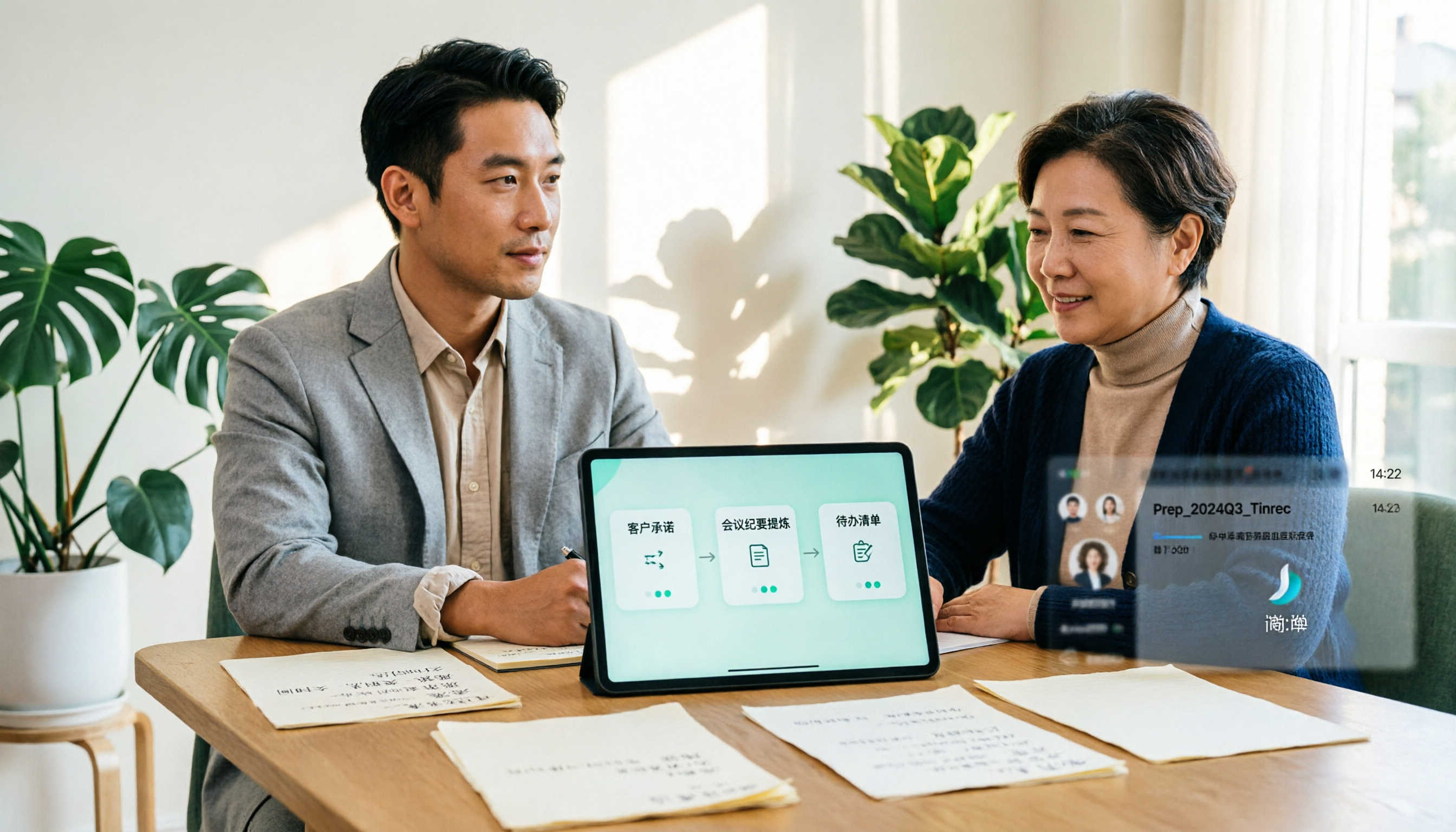
2026 Comparison of 4 Online Sales Meeting Notes Tools: Which One Turns Customer Promises into Action Items?
Starting from the customer promises and action items most often missed in sales meetings, this comparison covers four types of online creation methods. Using Tinrec as an example, it demonstrates pre-meeting preparation, bot-free recording during meetings, post-meeting summaries and action item export, plus team edition governance and a buying FAQ.