
Turn recordings into transcripts and summaries in minutes
Upload audio or video for multilingual transcription, AI notes, and action items
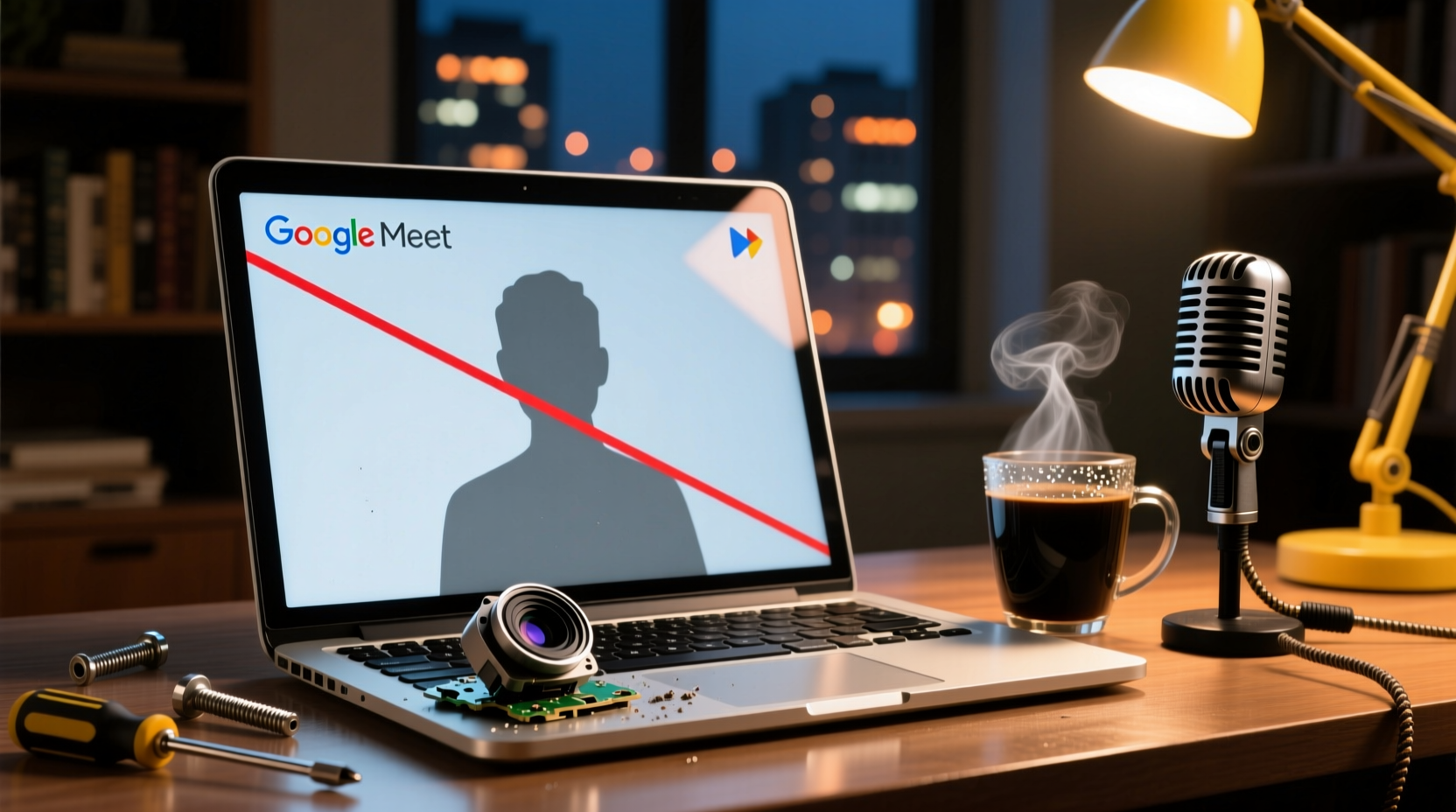
When you're about to join an important Google Meet meeting and discover your camera won't turn on, the screen is black, and the other participants can't see you—it's enough to cause instant anxiety. Don't worry; most camera issues have clear solutions. This article will guide you through step-by-step troubleshooting from scratch and show you how to use Tinrec to record meeting audio when your camera can't be fixed right away, ensuring your meeting isn't interrupted by device problems.
Common Causes of Camera Malfunctions
A Google Meet camera that isn't working is usually not caused by a single issue but by problems at the permission, software, or hardware level. Understanding these causes can help you pinpoint the problem faster.
Common causes include:
- Browser permissions not granted: Chrome or another browser hasn't been given permission to access the camera for Google Meet.
- Camera is being used by another application: Other software (such as Zoom, Teams) is using the camera, preventing Google Meet from accessing it.
- Hardware acceleration conflicts: Chrome's hardware acceleration feature can sometimes interfere with the camera, causing the video to not display.
- System privacy settings restrictions: The operating system's (Windows, macOS) privacy settings are blocking the browser from accessing the camera.
- Camera hardware or driver issues: The camera is physically damaged, or the driver is outdated or not installed correctly.
- Camera cover or switch is off: Some laptops have a physical camera cover or privacy switch that may have been accidentally turned off.
Troubleshooting Steps: From Browser Permissions to System Settings
1. Check Browser Permissions
First, make sure Google Meet has permission to use the camera.
- In Chrome, click the lock icon on the left side of the address bar or go to "Site settings."
- Find the "Camera" option and make sure it's set to "Allow."
- If you previously selected "Block," change it to "Allow," then refresh the page.
2. Disable Hardware Acceleration
Hardware acceleration is a common culprit for camera issues. In Chrome:
- Click the three dots in the top-right corner and select "Settings."
- Scroll to the bottom and click "Advanced."
- Under the "System" section, turn off "Use hardware acceleration when available."
- Restart Chrome and try joining the meeting again.
Note: After disabling hardware acceleration, you may not be able to use Google Meet's background effects, but the camera functionality usually returns to normal.
3. Check System Privacy Settings
The operating system may be blocking the browser from accessing the camera.
For Windows users:
- Go to "Settings" > "Privacy" > "Camera."
- Make sure "Allow apps to access your camera" is turned on.
- Under "Allow desktop apps to access your camera," confirm that Chrome or Edge is enabled.
For macOS users:
- Go to "System Preferences" > "Security & Privacy" > "Privacy" > "Camera."
- Check the checkbox next to Chrome or Safari.
4. Close Other Applications Using the Camera
If other applications (such as Zoom, Teams, or the Camera app) are using the camera, Google Meet won't be able to access it. Close those applications, or restart your computer to free up the camera.
Stop organizing recordings by hand
Upload audio or video and automatically get a transcript, summary, and action items
Hardware and Driver Checks
If all software settings are correct, the issue may be with the hardware or drivers.
- Check the camera cover or privacy switch: Some laptops have a physical camera cover or privacy switch; make sure they are open.
- Test the camera itself: Use the system's built-in camera app to test if the camera is working. If the camera app also shows no video, it's a hardware or driver issue.
- Update drivers: On Windows, open "Device Manager," find "Cameras" or "Imaging devices," right-click on the camera, and select "Update driver."
- Restart your device: Sometimes a simple restart can resolve temporary glitches.
Backup Plan: Use Tinrec to Record Meeting Audio
If the camera issue can't be resolved immediately and the meeting must proceed, you can choose to turn off video and participate via audio. However, this means that the discussion content, decisions, and action items from the meeting may not be fully captured. In this case, you can use Tinrec to record the meeting audio to preserve the content.
Tinrec is an AI meeting notes tool that supports capturing system audio via its desktop app to record audio from online meetings like Google Meet, and it generates real-time transcripts. Even if you can't turn on video, you can still fully record the meeting content, and after the meeting, it automatically generates summaries, chapters, and action items.
Steps to use:
1. Install and open the Tinrec desktop app on your computer.
2. Click the "Record" button, and Tinrec will start capturing system audio.
3. Join the Google Meet meeting as usual; even without the camera on, Tinrec will record the meeting audio.
4. After the meeting ends, Tinrec will automatically generate a transcript, summary, and action items for your review and follow-up.
Notes:
- Tinrec only records audio, not video. If you need a video backup, you'll still need to fix the camera.
- Before recording a meeting, it's recommended to inform participants and comply with local laws and regulations.
Common Questions and Quick Fixes
Q: My camera works in Zoom but not in Google Meet. Why?
This is usually a browser permission or hardware acceleration issue. Check Chrome's camera permissions and try disabling hardware acceleration.
Q: I've allowed camera permissions, but the screen is still black.
Try disabling hardware acceleration or restarting the browser. If that doesn't work, check system privacy settings and whether the camera is being used by another application.
Q: The camera indicator light is on, but I can't see the video in Meet.
It could be a hardware acceleration conflict. Disable hardware acceleration and restart Chrome.
Q: I'm using a company computer, and permissions are locked by the administrator. What should I do?
Contact your IT department to confirm whether the Google Workspace admin console allows camera access.
Summary: Keep Meetings Uninterrupted Despite Device Issues
Camera issues can be frustrating, but in most cases, they can be resolved through systematic troubleshooting. From browser permissions and hardware acceleration to system privacy settings, check step by step, and you'll usually get it working quickly. If the issue can't be resolved right away, don't forget to use Tinrec to record the meeting audio, ensuring that discussions, decisions, and action items aren't missed. That way, even if your device has problems, your meeting can proceed smoothly.
References
- Troubleshoot camera issues in a meeting - Google Meet Help
- camera in google meet not working - Microsoft Q&A
- r/techsupport on Reddit: Why is my camera not working for google meet but it works for other things like zoom?
- Why is My Google Meet Camera Not Working? | Claap
- Google Meet Camera Not Working? | Fix in Minutes - Cobry
Turn every recording into actionable outcomes
Get 60 free transcription minutes when you sign in. No credit card required.
Related Reading
You might also like

Tinrec AI Meeting Recorder Review (2026): Bot-Free Recording & Chinese Transcripts
Most people choosing an AI meeting notes app ask 'which one is free' first, but overlook whether it understands Chinese, keeps audio files, and produces usable post-meeting output. This review compares Tinrec and Granola across 5 dimensions, with a 3-step getting-started guide and FAQs to help you decide which fits your meeting scenarios.

2026 AI Meeting Notes Free Plans Compared: 4 Tools at a Glance
Are free AI meeting notes tools good enough? This article compares Tinrec, Otter.ai, Notta, and TurboScribe on free quota calculation, per-session limits, Chinese recognition, and post-meeting organization, with hands-on testing to help you find the most suitable tool without spending money.

Which AI Meeting Notes Tool Is Best in 2026? 5 Steps to Find Your Perfect Fit
Spending extra time organizing meeting notes after a meeting is a common pain point for many office workers. This article starts from real-world usage scenarios and uses 5 steps to help you decide how to choose an AI meeting notes tool. Using Tinrec as an example, it explains how real-time transcription, AI summaries, action item extraction, AI Q&A, and team knowledge retention work in practice, helping you pick the one that truly works for you.

2026 AI Meeting Notes Tools Compared: Which Is Easiest to Learn and Fastest to Use?
Buying a meeting notes tool you can't use is more wasteful than not taking notes at all. Instead of stacking specs, this hands-on comparison looks at ease of learning across Tinrec, Otter.ai, Notta, Granola, and more. It breaks down four key factors that determine how quickly you can get up to speed, and honestly covers each tool's free tier, Chinese-language performance, and real limitations—so you can pick the one you can open and use right away.

2026 AI Meeting Recorder Comparison: 4 Tools Tested for Chinese Meetings and Free Tiers
More AI meeting recorder tools are appearing, but choosing the wrong one is worse than choosing none. This article starts from two decision points—where your meetings happen and what you need afterward—and tests Tinrec, Otter.ai, Notta, and PLAUD Note on recording methods, Chinese language performance, post-meeting output, and free tiers. It also lists three common buying traps to help you choose right the first time.

Tinrec vs Plaud Note in 2026: 5-Dimension Comparison — Should Your AI Meeting Notes Be Software or Hardware?
What are AI meeting notes? They're more than just audio recordings — they turn meeting conversations into transcripts, summaries, decisions, and action items. This article compares Tinrec and Plaud Note across 5 dimensions — online meeting capture, Chinese transcription, post-meeting output, team governance, and cost structure — to help you decide between a cross-device software workflow and a portable recording device.

2026 AI Meeting Notes Guide: Bot-Free Recording + Auto Summaries & Action Items
Just finished a meeting and realized the note-taking is only beginning? This guide tackles real pain points, breaks down 5 key factors for choosing an AI meeting notes tool, and takes a deep dive into how Tinrec achieves bot-free recording, real-time transcription, AI summaries, and action item extraction. It also compares Otter.ai, Granola, and Notta, with 4 common pitfalls to avoid and scenario-based recommendations.

2026 AI Meeting Notes Tools Compared: Which Is Best for Chinese Meetings?
AI meeting notes tools are multiplying, but most people make the wrong choice from the start. This article tackles common misconceptions, outlines 4 key buying criteria, and compares Tinrec, Otter.ai, Notta, PLAUD Note, and Granola—plus a pitfalls guide and scenario-based recommendations to help you find a free tool that works or a paid one that's worth it.
2026 Voice Collaboration Tools Comparison: Is the Vocol.AI 888 v-point Voucher from PTT Still Worth Buying?
Vocol.AI 888 v-point vouchers once appeared on PTT's e-coupon board for NT$40–50, despite a face value of NT$1,200—a huge price gap. But these vouchers expired on June 30, 2024, so they're no longer valid. This article explains the actual voucher rules, the pitfalls of buying serial-number products, and compares 5 voice collaboration tools including Tinrec, Otter.ai, and Notta to help you decide whether to buy a voucher or choose a tool directly.