
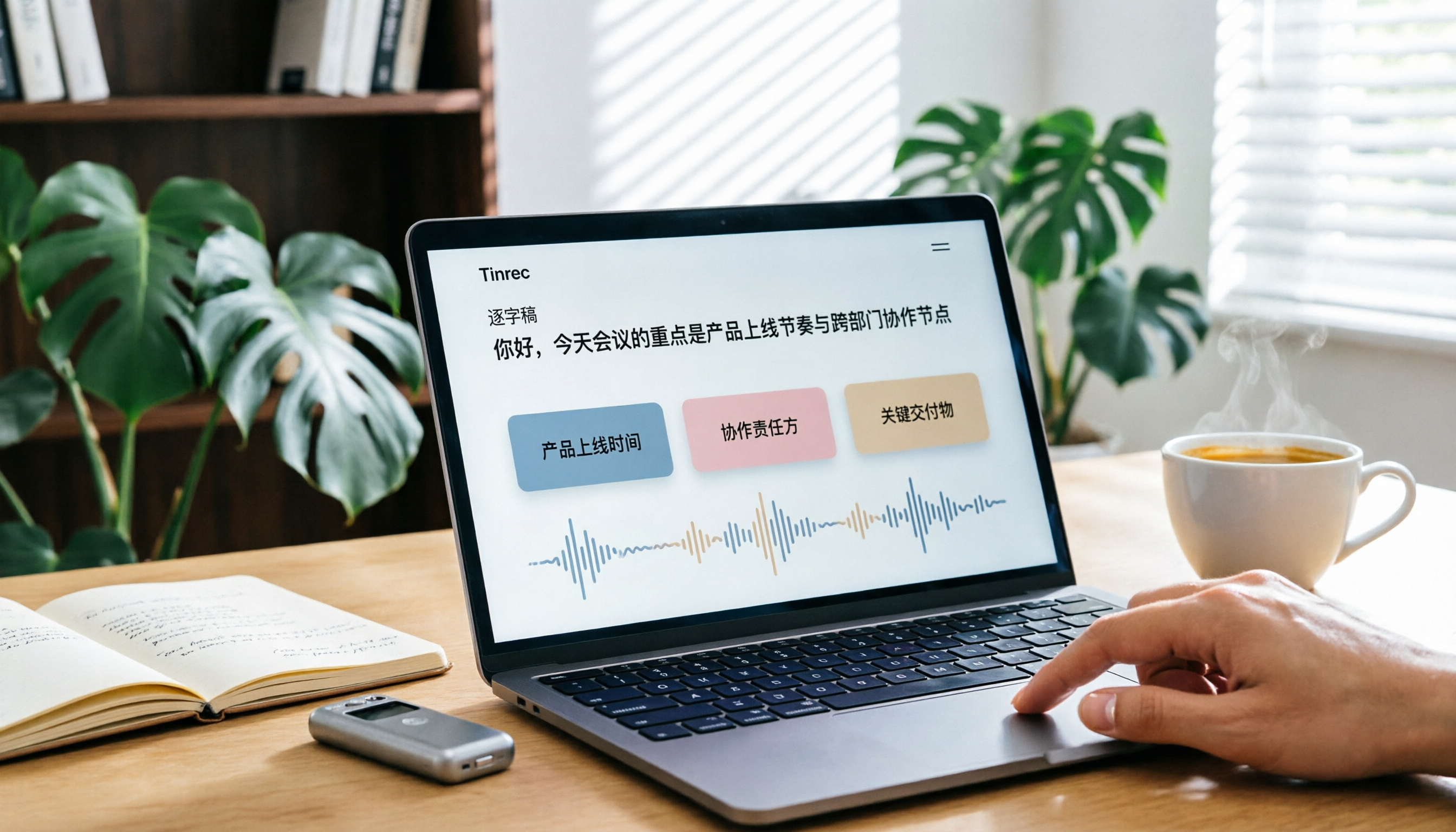
Turn recordings into transcripts and summaries in minutes
Upload audio or video for multilingual transcription, AI notes, and action items
What Can Downloading Plaud Recordings Do for You?
After buying a Plaud voice recorder, the first hurdle many people face is: once you've finished recording, how do you get the files out?
In real-world usage, you'll likely encounter these scenarios:
Scenario 1: You want to save recordings to your computer for backup
After a meeting or interview, you want to download the original audio from the Plaud App to your computer for long-term storage or to share with colleagues.
Scenario 2: You need the transcript for further editing
You've already seen the transcribed text in the App, but you want to export the text file to Google Docs or Notion to continue organizing it into meeting minutes.
Scenario 3: You want to share with someone who doesn't have the App
The other person doesn't have the Plaud App, and you want to send them the audio file or transcript directly.
This article will first walk you through the various ways to download Plaud recordings, then introduce a Tinrec alternative that requires no extra hardware, so you can choose the most convenient path based on your needs.
What Are the Core Methods for Downloading Plaud Recordings?
1. Export Recordings via the Plaud App
Plaud's recording data is primarily stored in the mobile App, so the most direct way to download recordings is through the App.
Generally, you can find the share or export function on the recording details page, where you can choose the type of content to export, including the audio file itself, the transcript text, or key notes.
2. Export Transcripts and Summary Text
If what you need isn't the raw audio but the organized text content, the Plaud App can export transcribed text, key summaries, and other data.
In some usage scenarios, the App supports exporting in multiple formats, making it easy to open or edit later with other software.
3. Use the Share Function to Send to Other Apps
From the App's share button, you can send the recording or transcript directly to AirDrop, LINE, Messages, or other installed apps.
This is especially convenient when you need to quickly send files to colleagues or friends.
4. Download via the Desktop App
In addition to the mobile version, Plaud also offers a desktop App. If you prefer organizing files on your computer, you can install the Plaud App on your computer first, then export the recording data you need from the desktop end.
5. Be Aware of Transcription Quotas and Subscription Plans
Plaud's AI transcription is not entirely free. Each Plaud recorder includes 300 minutes of transcription per month; beyond that, you'll need to upgrade your subscription to continue using full transcription features.
Downloading the recording file itself is usually not subject to transcription quotas, but if you need to download "transcripts" or "AI summaries," you'll need to check whether your plan still has available minutes.
6. Where Are the Recording Files Stored?
The Plaud recorder has built-in storage; recordings are first saved on the device and then synced to the mobile App via Bluetooth.
Therefore, before downloading, make sure the recorder has finished syncing with your phone; otherwise, the App may not show the latest recordings.
Practical Use Cases: What to Do After Downloading Plaud Recordings
Scenario 1: Organizing Meeting Minutes
After a two-hour meeting, you export the transcript and key summary from the Plaud App and paste them into your company's shared document area.
But if you want to go a step further and automatically generate action items, meeting conclusions, and next steps, Tinrec can help you organize structured meeting data right after the recording ends, saving you the manual work.
Scenario 2: Backing Up Interview Material
After an interview, you download the Plaud recording to your computer and also keep a copy of the transcript for future reference.
If you have a high volume of interviews, Tinrec's audio/video file import feature can help you batch-process historical recordings and quickly build a searchable interview database.
Stop organizing recordings by hand
Upload audio or video and automatically get a transcript, summary, and action items
Scenario 3: Creating Course Notes
After recording a class, you download the transcript and then highlight key points and take notes yourself.
Tinrec's AI summary and chapter features can automatically split long recordings after transcription, highlight key sections, and reduce the time spent replaying audio.
5 Things to Consider When Choosing a Recording-to-Text Tool
1. Do You Need Extra Hardware?
Plaud requires purchasing a physical recorder to use. If you don't want to carry an extra device, Tinrec lets you record directly on your phone or computer with no additional hardware needed.
2. Is the Transcription Quota Sufficient?
Plaud includes 300 minutes of transcription per month; heavy users may need to upgrade their plan. Tinrec's personal plan also offers free trial minutes, while the team plan provides 2,000 minutes per seat per month of shared import quota, suitable for teams with high usage.
3. Does It Support Online Meeting Recording?
Plaud primarily records through hardware, so for online meetings, you need to place your phone near the device to capture audio, which is somewhat limiting. Tinrec's desktop version can directly capture system audio from your computer, so you can record Zoom, Google Meet, Microsoft Teams, and other online meetings without needing an extra meeting bot.
4. Post-Transcription Organization Capabilities
Downloading the recording is just the first step; the key is whether you can quickly turn the transcription into usable material. In addition to transcripts, Tinrec automatically generates summaries, chapters, and action items, and supports AI Q&A, allowing you to ask follow-up questions about meeting highlights.
5. Team Collaboration Needs
If you need to share recording data with team members for collaborative use, Plaud's team features are relatively limited. Tinrec's team plan offers a dedicated team space where meeting data belongs to the team, with member, role, seat management, and usage analytics—ideal for those who treat meeting records as a team asset.
Frequently Asked Questions
Can I copy Plaud recordings directly from the recorder to my computer?
Generally, Plaud recorders need to sync to the mobile App via Bluetooth first, and then you export the recordings from the App. Directly connecting the recorder to a computer as a USB drive to retrieve files depends on the device model and firmware version; we recommend checking the official documentation first.
Do I need to pay to download Plaud recordings?
Downloading the raw recording file itself usually doesn't incur extra charges. However, if you want to download AI-transcribed text or summaries, it will consume your monthly transcription quota; after exceeding 300 minutes, you'll need to upgrade your plan.
What formats can Plaud transcripts be exported in?
The Plaud App supports multiple export formats, but the actual available formats vary by App version and usage scenario. We recommend checking the share or export options on the recording details page to see what's currently available.
If I don't want to buy a recorder, are there other ways to convert recordings to text?
Yes. Tinrec doesn't require extra hardware; you can record, transcribe, and generate summaries directly on your phone or computer. If your main need is organizing meeting minutes, interviews, or course content, Tinrec is a lighter-weight option.
What's the difference between Tinrec and Plaud in terms of downloading recordings?
With Plaud, recordings are first stored on the hardware device and then synced to the App for export. With Tinrec, recording and transcription are done in the cloud, so you can directly export transcripts, summaries, and audio files from the web version or App without going through physical device syncing.
What should I be aware of when using recording-to-text tools?
Whether you use Plaud or Tinrec, you should proactively inform the other party and obtain consent before recording, and comply with local privacy regulations. Additionally, AI transcription may have errors due to audio quality, accents, or multiple people speaking at once; for important content, we recommend cross-checking against the original recording.
Conclusion
The core process for downloading Plaud recordings is: first, make sure the recorder has synced to the App, then use the export or share function within the App to choose the format you want for the recording, transcript, or summary.
If you only record occasionally and need to back up files to your computer, Plaud's App export feature should suffice. But if you want to further organize recording content into searchable, collaborative, trackable meeting data—or if you don't want to be limited by hardware-based recording—Tinrec is an alternative worth trying.
Especially for those who frequently handle online meetings, interviews, or team-shared meeting minutes, Tinrec's bot-free recording, AI summaries, action item extraction, and team space can turn recording data into a sustainable asset.
References
- Plaud Taiwan | Official Website | Leading AI Recording Device Brand
- Plaud Note | The Smartest AI Voice Recorder Card
- Plaud App Download | Mobile and Desktop Versions
- PLAUD NOTE | AI Smart Recording Card | Free 300 Minutes of Transcription per Month - Esentra International
- Plaud Note Pro Unboxing Review | Portable AI Smart Recording Evolved! Who Is It For? - Mr. Mad
Turn every recording into actionable outcomes
Get 60 free transcription minutes when you sign in. No credit card required.
Related Reading
You might also like

2026 Comparison of 4 Online Transcription Tools: Yating vs. Tinrec — Which Should You Choose?
Starting from the real need for 'Yating online transcription,' this comparison examines Tinrec, Yating, Notta, and TurboScribe across Chinese recognition, post-meeting organization, online meeting recording, and team collaboration. It clearly explains each tool's limitations and ideal users to help you pick the one that truly saves time.

Cantonese Speech-to-Text App Comparison 2026: Tinrec vs Otter.ai — Which Wins on Five Dimensions?
Comparing Tinrec and Otter.ai across five dimensions—Cantonese with mixed English recognition, bot-free meeting recording, post-meeting AI organization, cross-platform input, and team seat governance—to help you decide which Cantonese speech-to-text app truly fits your meeting scenarios and budget.

2026 Comparison of 5 Transcription Tools' Free Tiers: Which Free Version Is Most Generous?
How many free minutes does Yating Transcription actually offer? Public sources cite 20 minutes, 120 minutes, and about 300 minutes. This article explains why these figures conflict, how pricing works after the free quota runs out, and compares the free plans and ideal use cases of Tinrec, Notta, Otter.ai, and TurboScribe to help you judge whether a one-time free allotment covers your actual usage.

Best Transcription Tools in 2026: Testing 3 Options, Yating Free Plan Limits and Tinrec Differences
People searching for "Yating transcription free" often ask: how much can the free version handle, do I have to pay to upload audio files, and is it enough for a meeting? This article compares Yating, Tinrec, Otter.ai, and Notta in terms of free quotas, Chinese recognition, and post-meeting organization, and lists 3 common pitfalls when choosing a tool to help you decide which one is worth using long-term.

Yating Transcription 2026 Guide: Is It Good, Limitations, and Better Alternatives
From a student's real-world usage scenarios, this guide examines whether Yating Transcription is good, common pitfalls, and why transcription is only the first step. It also explains how Tinrec uses live transcription, AI summaries, action item extraction, and AI Q&A to turn class and group discussion recordings into materials that can actually be reviewed and delivered.

3 Transcription Tools Tested for 2026: How Long Can Yating Record, and Which Tool Is Best for Long Meetings?
How long can Yating Transcribe record? The official documentation doesn't specify a single-recording limit; the real constraints are audio-file billing and free hours. This article breaks down Yating's duration and pricing rules, and compares Notta, TurboScribe, and Tinrec on long meetings, post-meeting organization, and team collaboration to help you choose the right tool.

4 Online Audio Transcription Tools Tested in 2026: PLAUD File-to-Text vs. AI Meeting Summaries—Which Saves the Most Time?
Stuck with a pile of PLAUD recordings and unsure how to quickly transcribe and summarize them online? This article uses a real meeting workflow to compare Tinrec, PLAUD, Otter.ai, and Notta, and shows you how to export audio from the PLAUD App and turn it into searchable, queryable meeting data.

Tinrec vs Plaud Note in 2026: 5-Dimension Comparison — Is Plaud Recording Still Worth It?
How to choose an AI recording tool in 2026? This article compares Tinrec and Plaud Note across 5 dimensions: bot-free online meeting recording, post-meeting summaries and AI Q&A, team spaces and seat management, and the cost structure of hardware versus subscription. It's for SMB managers and team leads evaluating meeting note tools, with a pitfalls guide and scenario-based selection advice at the end.

2026 AI Recording & Note-Taking Tools Compared: After Plaud's Cloud Playback, Which One Actually Saves You Time?
Starting from the real frustration of 'Plaud recording online viewing,' this hands-on comparison of Plaud, Otter.ai, Granola, and Tinrec examines differences in meeting transcription, post-meeting organization, Chinese language support, and team collaboration, offering mid-level managers who need to report upward and track downward an actionable selection guide.