

Turn recordings into transcripts and summaries in minutes
Upload audio or video for multilingual transcription, AI notes, and action items
What Are Notion AI Meeting Notes?
Notion AI Meeting Notes is Notion's built-in AI note-taking feature that records audio during meetings, transcribes it in real time, and automatically generates summaries, key points, and action items after the meeting ends.
It doesn't require installing a separate meeting bot, and the desktop app can capture system audio directly, making it suitable for recording online meetings on Zoom, Google Meet, Microsoft Teams, and similar platforms.
If you already use Notion to organize projects, tasks, or meeting materials, this feature lets you keep meeting notes right in your existing workspace without needing another tool.
Core Features and Highlights
Real-Time Recording and Transcription During Meetings
In a Notion page, type /meeting to add an AI Meeting Notes block. Once the meeting starts, click Start transcribing, and Notion will convert speech to text in real time.
The desktop app can capture both system audio and microphone input, so it picks up both sides of an online meeting. The browser version only captures microphone audio, so if you're wearing headphones, the meeting app's audio typically won't be recorded.
Automatic Summary Generation After Meetings
After the meeting ends, Notion AI uses the transcript and any notes you wrote before the meeting to automatically generate a summary of key points, decisions, and action items.
This is especially useful if you don't want to spend time re-listening to recordings. You can jot down the agenda or background info in the notes area before the meeting, and the AI will factor that into the summary it generates.
Ask Questions About Past Meetings
Notion AI lets you ask questions about past meeting notes, such as "What was the deadline we discussed last time?" The tool provides answers based on the meeting content, along with full context.
This feature is great for anyone who needs to double-check decisions or track follow-ups. Instead of manually searching through transcripts, you can just ask a question.
Audio Files Stay on Your Local Device
While Notion AI Meeting Notes saves the transcript and summary to your Notion page, the actual audio file is stored locally on the device you used to record—not in the cloud.
In other words, if you record on your laptop and later open the same meeting note on a desktop, you may not see an option to download the audio file. To download it, you'll need to go back to the device where the recording was made.
Pricing and Usage Limits
Notion AI isn't completely free. The free plan includes trial-like AI features with limited credits, suitable for light experimentation.
If you only use meeting notes occasionally, you can start with the free plan. But if you need to use AI summaries, Q&A, translation, or rewriting frequently, you'll need to consider upgrading to a paid plan.
Notion's pricing plans are subject to change based on official policy, so be sure to check Notion's website for current plans and AI usage limits before purchasing.
How to Use Notion AI Meeting Notes
Step 1: Add a Meeting Notes Block
Open any Notion page, type /meeting or /ai meeting notes in a blank space, and the AI Meeting Notes block will appear.
If you've already added the meeting to Notion Calendar, you can also add it directly from the calendar event, or wait for Notion to detect the meeting and remind you.
Stop organizing recordings by hand
Upload audio or video and automatically get a transcript, summary, and action items
Step 2: Write Notes Before the Meeting
Before the meeting starts, you can write down agenda items or background info in the notes area. Notion AI will factor this into the summary it generates.
This step isn't required, but if you want the summary to better reflect the meeting context, it's worth spending a minute or two jotting down key points.
Step 3: Start Transcribing
When the meeting begins, click Start transcribing. Doing so confirms that everyone in the meeting has agreed to be recorded and transcribed.
The desktop app uses system audio and the microphone to capture the conversation. The browser version only captures microphone input; system audio won't be included.
Step 4: Stop and Generate Summary
After the meeting ends, click Stop, and the AI summary will start generating automatically. Note that you need at least one minute of recorded audio to generate a summary.
If you want to continue recording, click the slider icon at the top of the meeting notes block and select Resume transcription.
FAQ
Is Notion AI Meeting Notes free?
Notion's free plan includes trial-like AI features, but usage is limited. If you're a light user, you can start with the free plan; if you need frequent use, you'll need to consider upgrading to a paid plan.
What's the difference between the browser and desktop versions?
The desktop app can capture both system audio and microphone input, making it ideal for online meetings on Zoom, Google Meet, and Teams. The browser version only captures microphone input, so if you're using headphones, the meeting tool's audio typically won't be recorded.
Can I use Notion AI Meeting Notes on mobile?
Yes. The Notion mobile app records audio using your phone's microphone. Mobile is best for in-person meetings or when meeting audio is played aloud through another device.
However, if you join a video call on your phone and use headphones, Notion won't be able to hear or transcribe other participants' voices.
Where are audio files stored?
Audio files are stored locally on the device you used to record—not in Notion's cloud. If you record on your laptop and later open the same meeting note on a desktop, you may not see an option to download the audio file.
Do I need consent from participants to use AI Meeting Notes?
Yes. When you start transcribing, Notion will ask you to confirm that everyone in the meeting has agreed to be recorded and transcribed. You should also comply with local laws regarding recording.
How is Notion AI Meeting Notes different from regular meeting bots?
Notion AI Meeting Notes doesn't require installing a bot to join your meetings. The desktop app captures system audio directly, so it can fully record Zoom, Google Meet, or Teams meetings without extra bots or software.
References
- AI Note Taker: Capture Everything from Meetings | Notion
- Create meeting notes with AI Note Taker in Notion | Notion Help Center
- Notion AI Tutorial: What Features Does It Have? How to Use Notion AI Meeting Notes? Differences Between Free, Plus, Business, and Enterprise Plans Explained | Future Commerce
- Sharing a small tip about Notion AI Meeting. It's not a hidden feature, but it's something people might overlook. Although Notion AI Meeting notes are presented as transcripts, it actually saves the audio file locally on your recording device. Usually, if you're on a computer, the audio file is stored in the meeting notes path on that device. You can check the screenshot for the location: ▌ 1. Open the meeting note ▌ 2. You'll see an Audio option to download. Note that...
- Notion AI Tutorial: 3 Steps to Automated AI Meeting Notes, Features, Pricing, and Free Limits | Homeplus Broadband
Turn every recording into actionable outcomes
Get 60 free transcription minutes when you sign in. No credit card required.
Related Reading
You might also like

2026 AI Meeting Note Tools Buyer's Guide: 5 Hands-On Tests for Google Meet
Tired of struggling with Google Meet meeting notes? This article tests Tinrec, Otter, Notta, Granola, and Google Meet's built-in features—covering bot-free recording, Chinese transcription, post-meeting organization, and team collaboration—to help you find the best AI meeting note solution.
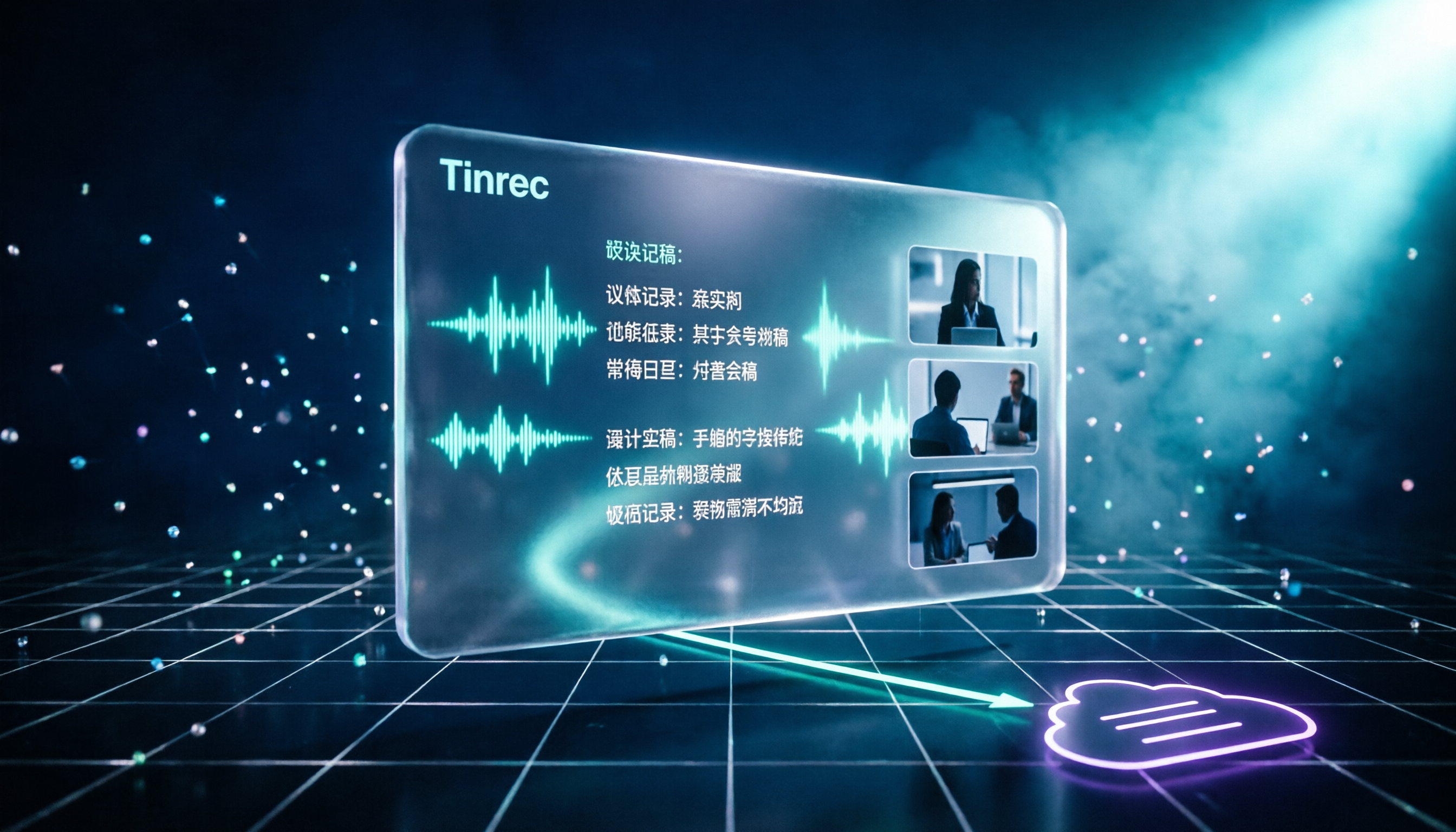
2026 Hands-On Comparison of 3 AI Meeting Recorders: How to Choose a Free Option for Google Ecosystem Users?
Do you use Google Meet for meetings and Google Docs for organizing notes, but still rely on manual meeting minutes? This hands-on comparison tests 3 AI meeting recorders, covering bot-free recording, Chinese transcripts, free tiers, and Google Docs export, to help you find the most time-saving solution for Google ecosystem users.

5 Best AI Meeting Transcription Tools in 2026: Free vs Paid Plans Compared
Struggling to keep up with meeting notes? This article compares 5 AI meeting transcription tools, covering bot-free recording, Chinese speech recognition, AI summaries, and team collaboration. We break down free plan limits and offer practical recommendations to help you find the perfect meeting note assistant.

5 Best AI Meeting Recorder & Note-Taking Tools in 2026: Which Free Plan Is Actually Enough?
AI voice-to-text and meeting note tools come with varying free-tier limits. This article compares 5 practical tools—covering free quotas, recording methods, transcripts, summaries, and team collaboration—to help you decide which fits your meeting scenarios best.

6 Best AI Transcription Tools Compared in 2026: Which Free Plan Is Worth It?
A practical comparison of AI transcription and speech-to-text tools worth trying in 2026, including Tinrec, NotebookLM, Yating, Vocol.ai, cSubtitle, and Notta. We break down free allowances, Chinese recognition accuracy, meeting notes, and team collaboration features to help you find the best fit.

5 Best AI Meeting Note Tools Tested in 2026: Which Free Plan Is Worth It?
Choosing the right AI meeting notes tool can be tricky. This article tests five tools, including Tinrec, on transcription, summarization, team collaboration, and free-tier limits to help you find the most time-saving solution for Chinese and online meetings.

Is Notta Safe in 2026? A 4-Factor Hands-On Comparison: Privacy, Security, Pricing, and Alternatives
Is Notta safe? This article helps you determine whether Notta is trustworthy by examining four key areas: data encryption, compliance certifications, privacy policies, and user reviews. It also compares Notta and Tinrec across transcription, meeting summarization, and team collaboration to help you make a more informed choice.
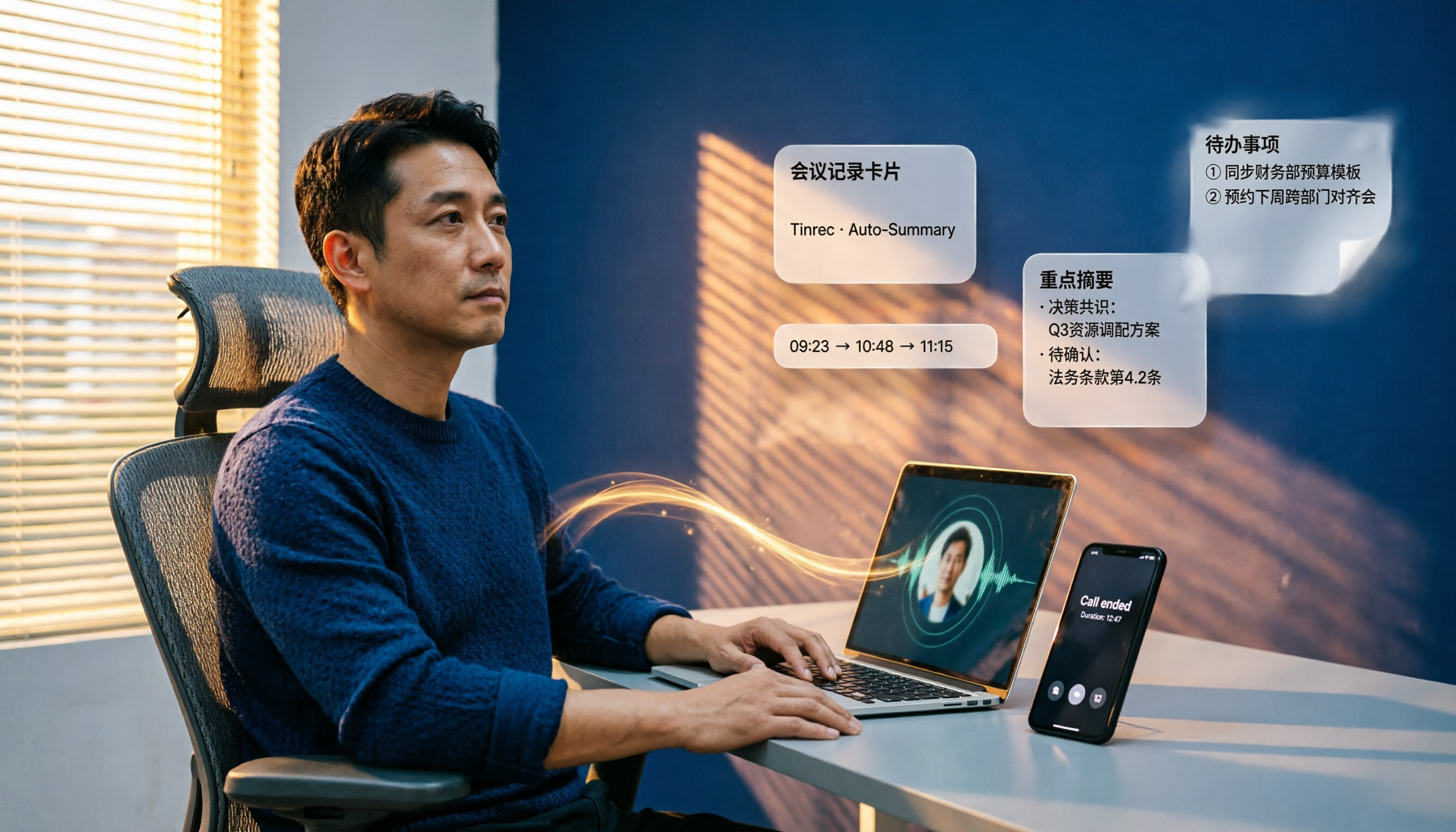
Google Meet vs Facebook Messenger in 2026: Which One for Meetings and Calls?
Based on real meeting needs of a mid-level manager, this article compares Google Meet and Facebook Messenger in terms of meeting records, call quality, cross-platform support, and team collaboration, and explains why tools like Tinrec are needed to fill the gaps after meetings.

Google Meet vs Microsoft Teams in 2026: Which One Should Small Teams Choose?
After using Google Meet and Microsoft Teams, I found that most teams don't need to pick just one. This article covers real meetings, file collaboration, learning curves, and cross-platform experiences to help you decide which tool fits which scenario—and why adding a bot-free AI meeting notes tool can unify your meeting records across both platforms.