

Turn recordings into transcripts and summaries in minutes
Upload audio or video for multilingual transcription, AI notes, and action items
After a Google Meet, the Hardest Part Is Never the Meeting Itself
Have you ever had this experience: you're on a Google Meet for an hour and a half, and the moment you close the window, your mind goes blank—"I think we talked about something, but I can't remember the details."
What's worse, responsibilities are clearly assigned during the meeting, but afterward, no one remembers who's supposed to do what or when the deadline is.
If you rely on manual note-taking during the meeting, it's easy to miss the context of the discussion. If you only use Google Meet's built-in transcription, you're left with a long transcript that you still have to sift through yourself.
This article helps you figure out: for Google Meet meeting notes, should you use bot-free desktop recording, AI meeting notes, or a traditional meeting assistant? Each approach suits different people, and I'll break it down from a hands-on testing perspective.
Before Choosing a Google Meet Meeting Recorder, Consider These 4 Key Points
1. Do You Want a Bot to Join the Meeting?
Some tools join Google Meet as a "meeting bot." The upside is that they can appear automatically after scheduling, but the downside is that participants see an extra account, which some may find intrusive.
Another approach is bot-free recording: the tool directly captures your computer's system audio without joining the meeting. Tinrec and Granola both take this route, making the experience closer to "recording on your own."
2. After Transcription, Can It Turn Content into To-Dos?
A transcript is just the starting point. What really saves time is whether the tool can automatically organize summaries, chapters, key points, and action items.
If you only get a transcript, you still have to manually organize it. But if the tool can directly list "who's responsible for what and when it's due," post-meeting work becomes much faster.
3. How Does It Handle Chinese Meetings?
Taiwanese teams often deal with mixed Chinese-English content, Chinese proper nouns, Taiwanese accents, or varying speaking speeds. The tool's Traditional Chinese transcription, team vocabulary maintenance, and real-time translation capabilities directly affect its practicality.
Don't just rely on official claims—test it with your own real meeting recordings.
4. Is Meeting Data Stored in Personal Accounts or Team Spaces?
Personal use and team use are very different. For team use, meeting data should belong to the team, and when members leave or change, historical meetings shouldn't disappear with them.
This involves member roles, seats, usage, and permission management—not just "can we share an account."
Tinrec (Miaotong Recording)—Best for Turning Google Meet into Trackable To-Dos
Tinrec is an AI meeting notes and team collaboration tool, not just a recording-to-text app. It supports real-time recording, bot-free online meeting transcription, audio file import, real-time translation, and automatically generates summaries, chapters, key points, and to-dos.
Bot-Free Google Meet Recording Without Inviting Extra Accounts
Tinrec's desktop version directly captures your computer's system audio, so you don't need to add a bot to Google Meet. Before the meeting, open Tinrec and start recording.
This is great for teams that don't like unfamiliar accounts in meetings. You don't need extra permissions from a Google Workspace admin, and you don't have to worry about a bot suddenly disconnecting.
After the Meeting, Get Summaries, Chapters, and To-Dos Automatically
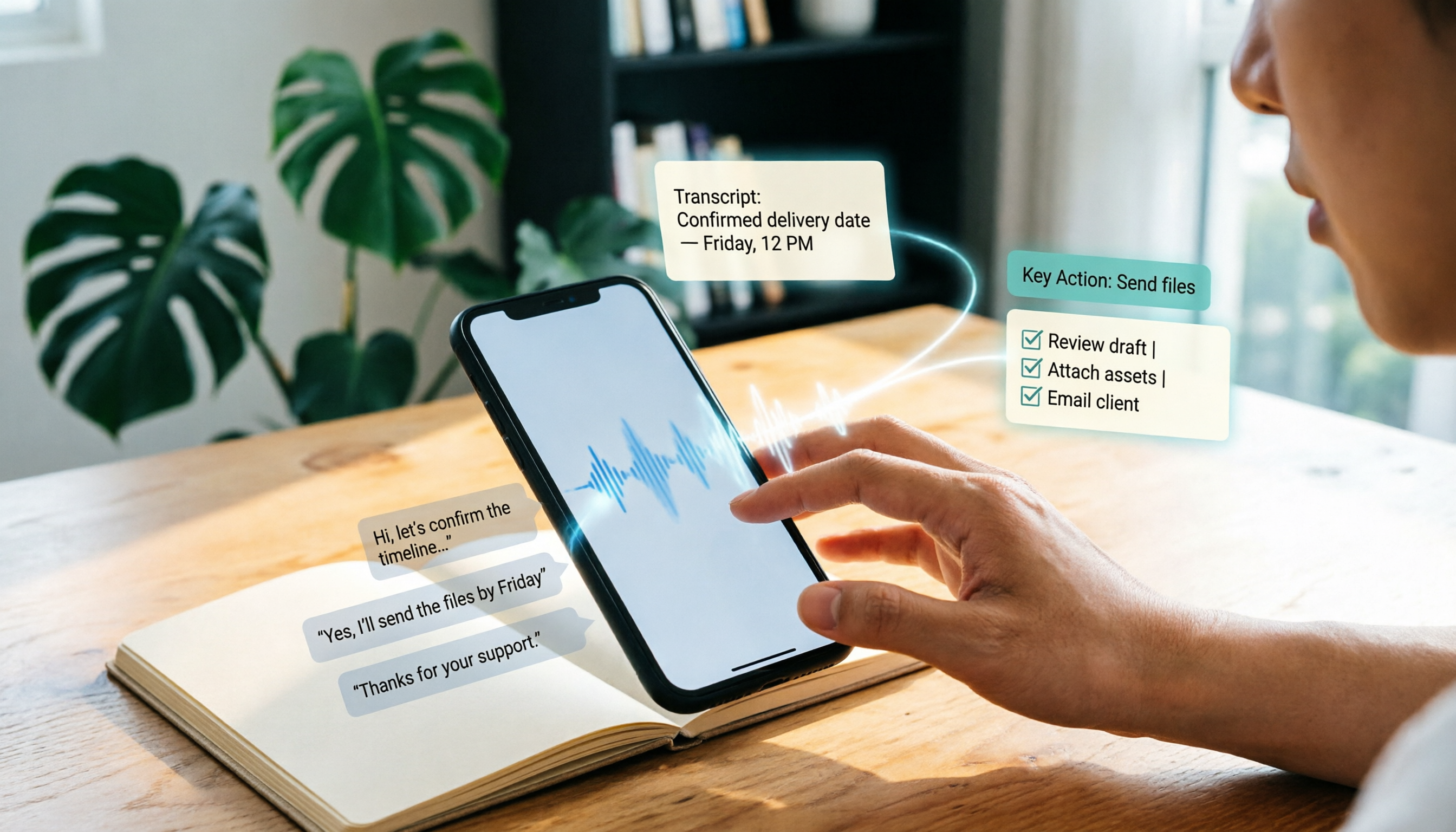
Here's how the test went: during a Google Meet, Tinrec recorded in the background and transcribed in real time. After the meeting, it generated an AI summary, chapters, and key points, and extracted action items from the discussion.
For example, if the project meeting mentions "Marketing needs to submit the new copy by next Wednesday," Tinrec turns such action items into to-dos, rather than just giving you a 40-minute transcript.
Keep Asking Questions After Recording, No Need to Manually Search Transcripts
Tinrec supports AI Q&A. You can ask, "Who mentioned the budget in the last meeting?" or "What feedback did the client have on the second version of the proposal?" and it will answer based on the meeting content, not just keyword search.
This is especially useful for those who need to review historical meetings, organize client requirements, or prepare proposals.
Stop organizing recordings by hand
Upload audio or video and automatically get a transcript, summary, and action items
Chinese and Multilingual Meeting Experience
Tinrec handles Chinese, Traditional Chinese, and mixed Chinese-English content, and offers real-time translation with bilingual viewing. The team version also supports team vocabulary, improving recognition of product names, project codes, or industry terms.
Actual transcription quality depends on recording quality, accents, noise, and overlapping speech, so it's not advisable to judge based on a single accuracy number.
Differences Between Personal and Team Plans
The personal plan is for individuals organizing their own meetings and interviews. The free version offers basic credits for a trial, a weekly card is available for short-term intensive use, and Pro monthly or annual cards are for steady use.
The team plan is a separate collaboration space, not multiple people sharing one account. Members are divided into owners, admins, and regular members, with "seats" determining who can record, upload, edit, import, and export. Members without a seat can still view team data but cannot perform resource-using actions.
The team plan also includes usage analytics, audit logs, an audio recycle bin, and team vocabulary. When a member leaves or is removed, their team resources can be transferred to other active members, so meeting data doesn't disappear with the individual.
Tinrec's Limitations
Tinrec is not a tool that "automatically joins all calendar meetings." You need to actively open the desktop version to start recording.
Additionally, the team plan currently offers team-level sharing, where all active members can read team data—it shouldn't be described as a file-level granular permission system.
Who Is Tinrec Best For?
If you have regular weekly Google Meets, want automatic summaries and to-dos after meetings, need Chinese meeting organization, or want to centralize meeting data in a team space, Tinrec is a very worthwhile option to try right now.
Besides Tinrec, These 2 Tools Are Often Compared
Granola: More Like "Your Notes + AI Enhancement"
Granola also uses a bot-free approach to record meetings and combines your handwritten notes to generate more targeted meeting content. It suits people who like taking notes during meetings and want AI-assisted organization.
However, note that Granola doesn't support uploading pre-recorded audio files and doesn't retain meeting audio. If you need to organize historical recordings, play back for verification, or keep audio in a team space, Tinrec's file import and audio retention capabilities are more complete.
Otter.ai: Mature for English Meetings, but Not the First Choice for Chinese
Otter is a mature AI meeting assistant covering Google Meet, Zoom, and Teams, with speaker identification, AI Chat, and team management. If you primarily have English meetings, Otter's free 300 minutes are great for getting started.
But Otter's strength is in English business meetings. If your daily meetings are in Chinese or mixed Chinese-English, Tinrec's Chinese experience, real-time translation, and team vocabulary are more aligned with your needs.
Pitfall Guide: 3 Common Mistakes When Choosing a Google Meet Meeting Recorder
Pitfall 1: Only Looking at "Can It Transcribe?" Without Considering "What Can It Do After Transcription?"
Many tools can transcribe Google Meet, but the difference lies in the post-transcription workflow.
If you only get a transcript, you still have to manually organize it. But if it can automatically generate summaries, to-dos, and chapters, and even allow follow-up questions, the time saved is truly noticeable.
Pitfall 2: Assuming All Tools Can Automatically Join Meetings
Some meeting assistants join Google Meet as bots, while others require you to manually start desktop recording.
If you expect Tinrec to appear automatically like a calendar bot, you might be disappointed. Tinrec uses bot-free desktop recording, so you need to actively start the recording.
Pitfall 3: Using a Personal Tool as a Team Tool
Personal and team plans are different product logics. What a team needs isn't "multiple people sharing one account," but rather meeting data owned by the team, data transferable when members leave, and admins who can view usage and operation logs.
If you're choosing a tool for a department or company, it's best to evaluate the team plan directly, rather than making do with a personal plan.
Summary: How Should You Choose Your Google Meet Meeting Recorder?
If what you need is to automatically turn Google Meet meetings into summaries, to-dos, and queryable data, while also wanting good Chinese support and no bots in meetings, Tinrec is the top pick in this article.
Here's a scenario-based recommendation:
- Need bot-free Google Meet recording with Chinese summaries and to-dos → Tinrec
- Want to centralize meeting data in a team space and manage members and seats → Tinrec Team Plan
- Need to replay recordings, organize historical audio, or interviews → Tinrec (supports audio import and retention)
- Prefer taking handwritten notes during meetings with AI-assisted organization → Granola
- Primarily have English meetings and want to start with free 300 minutes → Otter.ai
We recommend starting with Tinrec's free version to confirm whether Google Meet recording, summaries, and to-dos fit your workflow. If it works well, then consider a paid personal plan or team plan—no need to rush into an upgrade.
References
Turn every recording into actionable outcomes
Get 60 free transcription minutes when you sign in. No credit card required.
Related Reading
You might also like

2026 Outlook Teams Meeting Notes Comparison: Which Method Saves the Most Time After the Meeting?
The new Outlook has built-in Teams meeting toggles, making scheduling a 30-second task—but the real cost is post-meeting organization. This guide breaks down the 5 key checks for scheduling Teams meetings in new Outlook, from version identification to account requirements and step-by-step actions, and compares three post-meeting documentation methods: Teams built-in transcription, Otter.ai, Notta, and Tinrec, to help you choose the most time-saving meeting workflow.

5 LINE Call Recording Methods Tested for 2026: Can iPhone and Android Record Both Sides?
LINE has no built-in call recording feature, and iPhone screen recording often captures only your own voice. This guide covers 5 practical LINE recording methods—from iOS 18 built-in call recording and Android screen recording to computer system audio capture—and compares how to use Tinrec to turn recordings into transcripts, summaries, and action items.

5 LINE Call Recording Methods Tested for 2026: Which One Actually Captures the Other Person's Voice?
LINE itself has no call recording button, so the real question is whether you're using a phone or computer, iPhone or Android. This guide covers 5 common LINE call recording methods, whether each captures the other party's voice, and how to use Tinrec afterward to turn audio into transcripts, summaries, and action items—solving both 'recording it' and 'making it useful.'

5 Best Microsoft Teams Meeting Transcription Tools in 2026: From Built-in Recording to AI Summaries
Creating a meeting in Teams takes three clicks, but the real time sink is post-meeting organization. This guide first breaks down the differences between the three entry points for creating Teams meetings—calendar meetings, channel meetings, and Outlook—along with a pre-send checklist. Then it compares five solutions that turn meetings into transcripts, summaries, and action items, helping you move from 'meeting ended' to 'ready to act.'
6 Ways to Save LINE Voice Messages and Calls in 2026: Tested and Compared
Can't find a download option when you long-press a LINE voice message? This article covers 6 methods to save LINE recordings—from sharing to Files on mobile, saving on desktop, Keep notes, to AI transcription tools. We tested which method is least likely to lose files and explain how to turn saved recordings into transcripts, summaries, and action items.

What Is LINE IN Recording in 2026? 2 Recording Solutions Compared: Don't Confuse It With LINE Call Recording
LINE IN recording captures a line-level input signal, which is completely different from recording a LINE call. This article first explains in 3 minutes the equipment, connections, and most common volume misunderstanding for LINE IN, then compares PLAUD NotePin and Tinrec across five dimensions: device requirements, post-meeting organization, scenario coverage, Chinese-language experience, and team collaboration, to help you decide which method to use for preserving important audio.

How to Save LINE Voice Messages to Your Phone in 2026: 5-Step Guide
How do you save LINE recordings to your phone? This guide tackles three common misconceptions and walks you through five steps to download LINE voice messages, convert them to MP3, and back them up to the cloud. It also explains why LINE call recording isn't managed by LINE and how to turn saved audio into searchable, queryable text data.

How to Save LINE Recordings in 2026: 5-Step Guide to Voice Messages, Call Recordings & Backup
LINE recordings come in two types—chat voice messages and call recordings—and they're saved completely differently. This guide walks you through 5 steps to save voice messages to your phone, computer, and cloud, explains how to handle call recordings, covers 4 common mistakes that make files disappear, and shows how to turn saved recordings into searchable, queryable text with AI tools.

3 LINE Voice Message Download Methods Tested in 2026: Which One Actually Works?
LINE doesn't offer an official download button for voice messages, and online tutorials contradict each other. This guide covers three approaches—saving via Keep Notes, sharing to Files, and third-party backup tools—comparing compatible devices, batch capability, and real limitations, plus how to transcribe recordings after downloading.