

Turn recordings into transcripts and summaries in minutes
Upload audio or video for multilingual transcription, AI notes, and action items
What Can LINE IN Recording Do for You?
Let's clarify one thing upfront: LINE IN recording and LINE call recording are completely different. LINE IN recording involves using a 3.5mm male-to-male audio cable to feed sound from an external device (such as a computer, tablet, voice recorder, or CD player) directly into a recording device. Many people search for "what is LINE IN recording" when they actually mean "how to record LINE calls." The keywords look similar, but the use cases are vastly different.
For students, the most practical scenarios for LINE IN recording include:
Scenario 1: Recording original audio during video tutoring sessions Tutoring centers play video courses on computers or tablets. You don't want to rely on holding your phone up to the speaker—that method picks up background noise, muffled sound, and classmates flipping pages. Using a LINE IN cable to feed the device's audio directly into your recorder yields much cleaner audio.
Scenario 2: Preserving teacher's demonstration audio files In some classes, teachers play listening tests or language demonstrations. Recording in the room often results in clipping or low volume. LINE IN allows you to control the output volume at the source, making recording quality more stable than capturing sound through the air.
Scenario 3: Digitizing old media content If you have old CDs, MDs, or cassette tapes at home, connecting them via LINE IN to a recording device lets you convert that content into digital files for preservation.
Remember this key point: LINE IN recording captures the "line input signal," not "air vibrations picked up by a microphone." So it's ideal for recording audio from electronic devices, but not suitable for capturing live vocals directly.
Core Principles and Equipment for LINE IN Recording
How It Differs from Regular Recording
Regular recording is "microphone capture": sound travels through the air, the microphone picks it up, and it's converted into an electrical signal. LINE IN recording is "line input": sound travels directly from the output of the playback device through the cable to the recording device, skipping the attenuation and ambient noise of air transmission.
This also explains why volume control logic for LINE IN recording is different from what you might expect: the recording volume depends on the "output volume of the playback device," not the headphone volume on the recorder. Turning up the headphone volume on the recorder only makes it louder for your ears; the recorded signal doesn't change. This is one of the most common mistakes beginners make.
Equipment You'll Need
The basic equipment for LINE IN recording isn't complicated, but each item has details to watch out for:
1. A recording device that supports LINE IN input This is the most important requirement. Not all voice recorders or MP3 players have a LINE IN port. The easiest way to check is to look for two 3.5mm round jacks on the device: usually one is for headphones, and the other is the LINE IN or MIC IN port. If your device only has one jack, it likely only supports headphone output and doesn't support LINE IN recording.
2. A 3.5mm male-to-male audio cable Both ends are 3.5mm male connectors—one goes into the headphone jack or audio output of the playback device, and the other goes into the LINE IN port of the recorder. These cables are easy to find at electronics stores or online and are inexpensive, but it's recommended to choose one with shielding to reduce electrical interference.
3. A pair of headphones (only needed if you want to monitor while recording) Some recording devices support simultaneous recording and monitoring. You can plug headphones into the recorder's headphone jack while recording via LINE IN to monitor the audio in real time. If the device only has a LINE IN port and no separate headphone jack, you'll have to listen to the playback device's output during recording or check the recording afterward.
Wiring Steps
Here's the practical process:
- Plug one end of the 3.5mm male-to-male cable into the headphone jack or audio output of the playback device (computer, tablet, or phone).
- Plug the other end into the LINE IN port of the recording device.
- In the recording device's settings menu, switch the recording source to "Audio Input" or "LINE IN."
- Set the playback device's volume to a mid-level, then do a 10-second test recording and play it back to ensure there's no clipping.
- Once confirmed, start the actual recording.
Here's a practical tip: don't set the playback device's output volume to maximum from the start. LINE IN input is sensitive to overly strong signals; if the output volume is too high, the recording will clip, and that kind of distortion is hard to fix in post-production. Start at 50% to 70% and adjust from there.
Practical Use Cases
Recording Video Tutoring Sessions
This is probably the most common scenario for students. Tutoring centers play video courses on computers or tablets, and you want to record the entire class for review at home.
Stop organizing recordings by hand
Upload audio or video and automatically get a transcript, summary, and action items
The correct LINE IN recording process is: connect the playback device's headphone jack to the 3.5mm cable, plug the other end into the recorder's LINE IN port, select LINE IN as the recording source, and then start playing the course. The resulting audio file is the original course audio, free from classroom echoes or classmates coughing in the background.
If you need to monitor the recording while it's happening, plug headphones into the recorder's headphone jack. But remember: headphone volume doesn't affect recording volume; the recording volume is determined solely by the playback device's output volume.
Preserving Listening Materials for Language Learning
If a teacher plays an English listening test on a computer in class, or you're watching a Japanese instructional video on a tablet at home and want to save the audio separately for repeated listening, LINE IN is the most direct way to capture it. Compared to recording with your phone held up to the speaker, LINE IN recordings have no ambient noise, so repeated listening isn't disrupted by background sounds.
Digitizing Old Media
If you have an old CD player or MD player and want to convert the content to digital files, LINE IN is the most cost-effective method. Connect the CD player's headphone output to the recorder's LINE IN port, then play and record simultaneously. Audio quality depends on the playback device's output quality and the cable, but it's sufficient for preservation purposes.
4 Things to Watch Out for When Using LINE IN Recording
1. Confirm your device actually supports LINE IN This is the most basic yet most overlooked step. Many people buy a cable only to find their recorder has only MIC IN, not LINE IN. MIC IN and LINE IN have different input levels; plugging a LINE IN signal into a MIC IN port will result in distorted audio. Before purchasing a device, make sure the specs clearly state "LINE IN" or "Audio Input."
2. Recording volume is controlled by the playback device, not the recorder This is the most common mistake beginners make. The volume buttons on the recorder control "monitoring volume" or "playback volume," not the level of the recorded signal. To adjust recording volume, you need to change the output volume on the playback device. It's recommended to do a test recording before the actual session and play it back to confirm the volume is appropriate.
3. Don't overlook cable quality Some cheap 3.5mm cables lack shielding, and when used near a computer, they can pick up electrical interference that sounds like a "buzzing" background noise. If you notice this during a test recording, switching to a shielded cable usually solves the problem.
4. Set recording format and storage space in advance Before a long recording session, check that the recorder has enough storage space and that the recording format is set correctly. High-quality formats like WAV take up a lot of space; a long class could result in several gigabytes. If you're just recording for review purposes, MP3 is usually sufficient and saves a lot of space.
Frequently Asked Questions
Is LINE IN recording the same as LINE call recording?
Not at all. LINE IN recording is a hardware-level "line input recording" that uses a 3.5mm audio cable to connect a playback device to a recorder. LINE call recording is a software-level "recording of LINE app calls" that requires screen recording, call recording apps, or third-party tools. The only similarity is that the keywords look alike; the use cases and methods are completely different.
Can I use LINE IN recording if my recorder has only one 3.5mm jack?
If that jack only supports headphone output, then no, you can't use LINE IN recording. Some devices have a single 3.5mm jack that's a combo design supporting both headphone and microphone input, but that jack may not support LINE IN levels. The safest approach is to check the device's specifications to see if it explicitly mentions "LINE IN" or "Audio Input" functionality.
Why is the LINE IN recording very quiet?
Because the playback device's output volume is too low. LINE IN recording volume is controlled by the playback device; increasing the playback volume will increase the recorded signal. If the playback device is already at maximum and the recording is still quiet, the recorder's input sensitivity settings may need adjustment, or the cable connection might be loose.
Can I monitor while recording with LINE IN?
It depends on the device. If the recorder has separate LINE IN and headphone jacks, you can usually monitor while recording: connect the audio cable to the LINE IN port and headphones to the headphone jack for real-time monitoring. If the device has only one jack, you can't monitor with headphones during recording; you'll need to play back the recording afterward to check.
If my device doesn't have a LINE IN port, can I still use this method?
No, without a LINE IN port, you can't do wired recording. The alternative is to use a microphone to record from the speaker, but the audio quality will be significantly worse. If you frequently need to record audio from electronic devices, make "supports LINE IN" a must-have feature when choosing a recorder.
Conclusion
The core value of LINE IN recording is simple: it bypasses the attenuation and ambient noise of air transmission, directly capturing the audio signal from a playback device. For students, it's the most cost-effective and stable solution for recording video tutoring sessions, preserving listening materials, and digitizing old media.
If you only need to record a class occasionally, holding your phone up to the speaker might suffice. But if you record video courses weekly and have basic audio quality requirements, investing in a decent 3.5mm male-to-male cable and a recorder that supports LINE IN is worth it. First, confirm the device specs, then buy the cable, and after connecting, do a 10-second test recording to check the volume—these three steps will help you avoid most beginner pitfalls.
References
- How can I hear the sound from the device being recorded while recording via Line in on a music player? - Transcend Info
- Tutorial: Line-in recording on MP3 players - PTT Bulletin Board System
- The Ultimate Guide to LINE Call Recording: 5 Methods to Record LINE Calls!
- Tutoring English Tool: Line-in for Simultaneous Listening and Original Audio Recording, Touch-Screen Noise Reduction, Long-Distance Professional Voice Recorder, Dual Mic, High Fidelity, BSMI R45757
- PCM-D10 | Help Guide | Recording from an external device connected to the MIC IN/LINE IN jack via LINE input
Turn every recording into actionable outcomes
Get 60 free transcription minutes when you sign in. No credit card required.
Related Reading
You might also like

2026 Comparison of 4 Meeting Notes Tools: Which Free Version Is Good Enough?
There are countless meeting notes tools, but what really matters is whether they can turn recordings into trackable conclusions and action items. This article breaks down the selection criteria using 4 common tool approaches and demonstrates Tinrec's practical use for real-time transcription, AI summaries, action item extraction, AI Q&A, and team knowledge retention, along with buying tips and FAQs.

Teams Meeting Creation: 3 Methods Tested in 2026, Tinrec Makes Post-Meeting Cleanup Easier
A comparison of three common ways to create Teams meetings: Teams calendar, Outlook calendar, and channel meetings. Covers attendee invitations, external participants, recording storage, and post-meeting data management, plus how Tinrec fits into transcription, summaries, action items, and team knowledge retention.
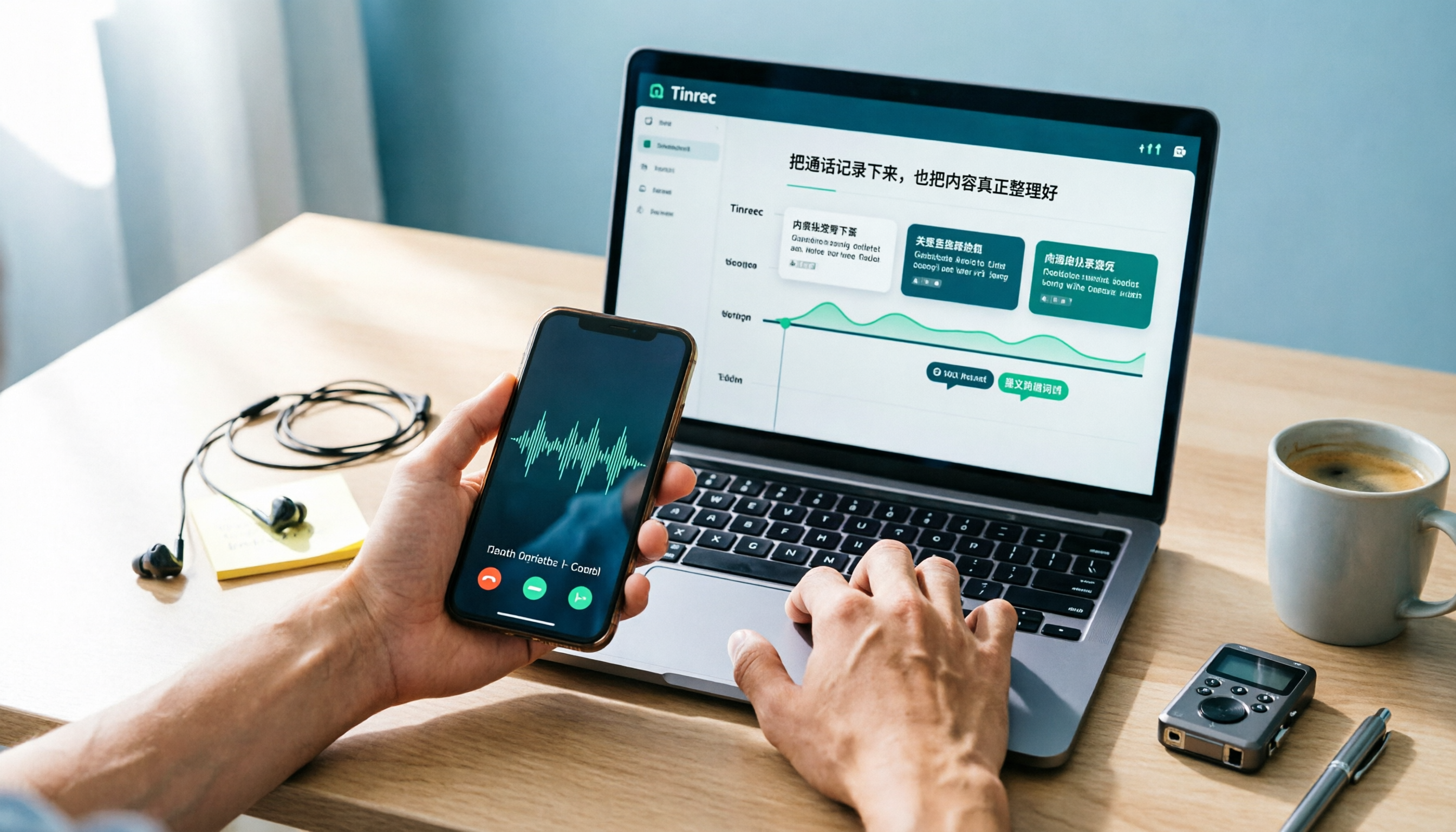
4 LINE Call Recording Methods Compared for 2026: How to Choose Between iPhone, Android, and Desktop
LINE doesn't have built-in call recording, but the methods fall into two layers: capturing the audio and then using it. This guide starts with the system limitations on iPhone and Android, compares screen recording, third-party call recording apps, external recording devices, and Tinrec's post-recording workflow, helping you choose the method that truly saves time.

4 Ways to Start a New Meeting in Microsoft Teams: Instant Meeting, Calendar, Channel, or Outlook — Which Is Fastest?
A comparison of four ways to start a new meeting in Microsoft Teams: Calendar Instant Meeting, Calendar New Meeting, Team Channel Instant Meeting, and the Outlook add-in. It also covers how to use Tinrec to transcribe, summarize, and capture action items after the meeting.

5 LINE Call Recording Methods Tested for 2026: Which One Turns Calls into Meeting Notes?
LINE doesn't have built-in call recording, but many important workplace conversations happen over LINE calls. Based on my real needs leading a team, this article covers 5 ways to record LINE calls on iPhone, Android, and desktop, comparing audio quality, whether both sides are captured, and whether recordings can become transcripts and action items. It concludes with which method best suits professionals juggling a dozen meetings a week.

4 Recommended LINE Call Recording Solutions for 2026: iPhone, Android, and Computer Explained
LINE does not have built-in call recording, but there are solutions for iPhone, Android, and computer. Based on real needs from student projects and interviews, this article covers 4 recording methods, 4 key considerations before recording, 5 common pitfalls, and a hands-on test of using Tinrec to turn call audio into transcripts, summaries, and action items.

3 LINE Voice Message Download Methods Tested: Phone, Computer, and Tinrec Workflow (2026)
How do you download LINE voice messages? This guide covers saving voice messages on phone and computer, plus how to use Tinrec to transcribe, summarize, and extract action items so your recordings don't just sit in a folder.
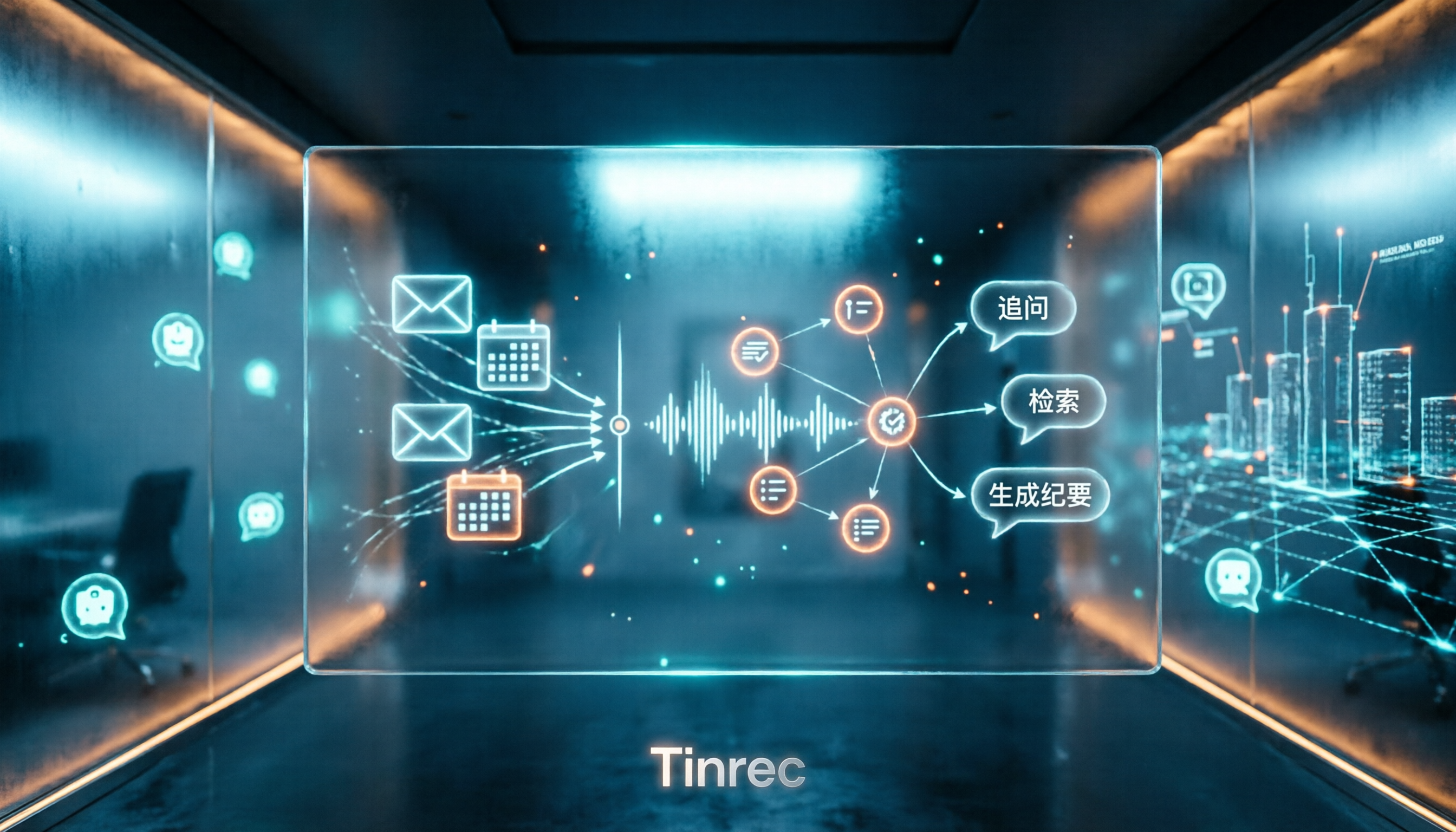
2026 Outlook Add Teams Meeting Tools Comparison: Which Saves More Time from Scheduling to Minutes?
Adding a Teams meeting in Outlook looks like just a button click, but what really trips people up is version differences, drafts without links, and that hour of post-meeting cleanup. This article tackles three common misconceptions, walks you through the complete process from scheduling to minutes, and tests how Tinrec turns Teams meeting content into searchable, queryable data.
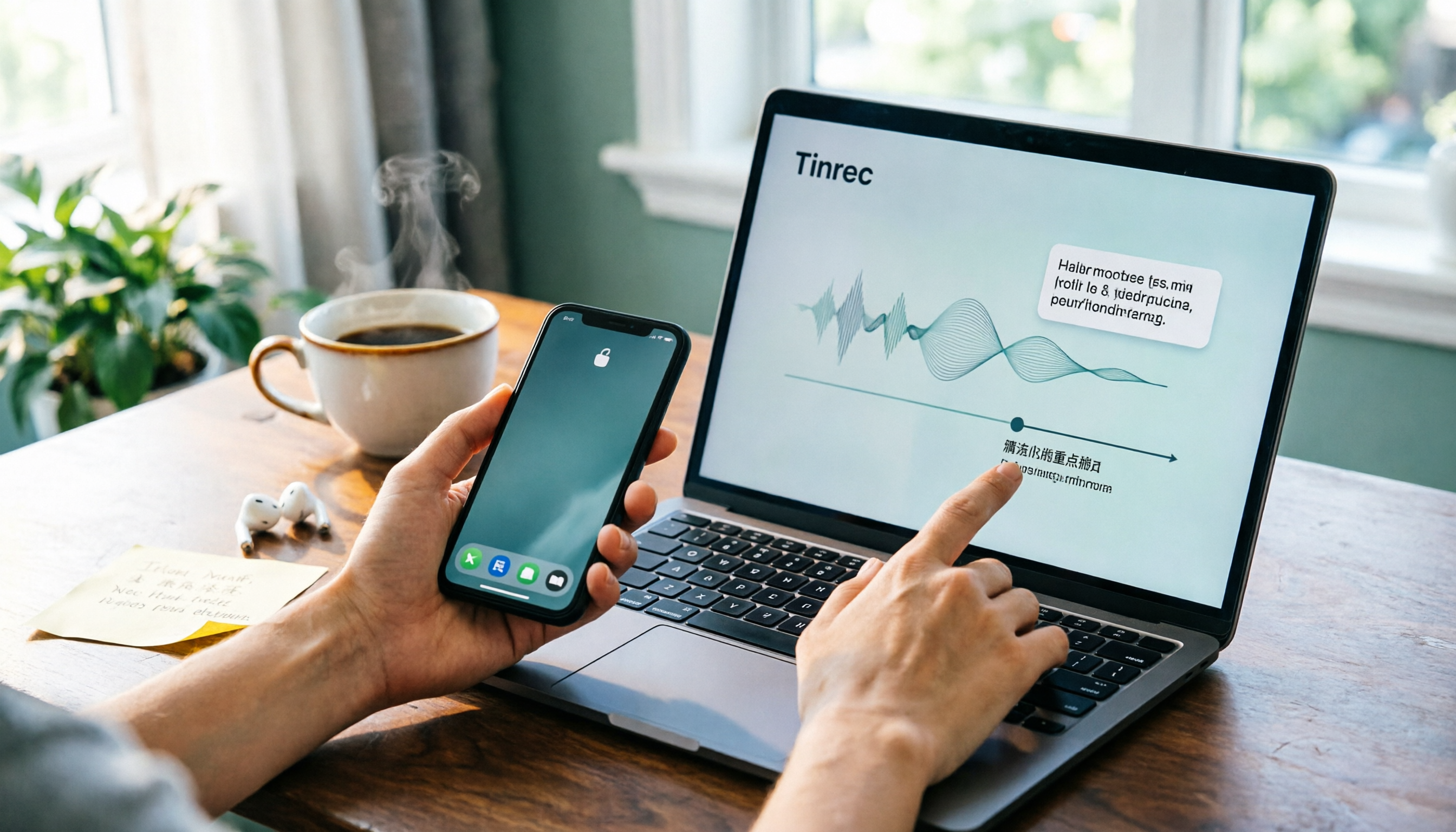
4 LINE Voice Message Download & Organization Tools Tested in 2026: After You Save Them, Which One Actually Helps You Find the Key Points?
How do you download LINE voice messages? This guide first explains the steps for saving them on desktop via "Save As" and on mobile by transferring through Keep to the Files app, then tests and compares 4 ways to organize them after download, including Tinrec, Otter.ai, Notta, and TurboScribe, to help you decide which one truly turns voice into searchable, quotable data.