

Turn recordings into transcripts and summaries in minutes
Upload audio or video for multilingual transcription, AI notes, and action items
2026 Comparison of 3 Google Meet Recording Methods on Mac: Tinrec's One-Click Transcription Saves the Most Time
Many people think that after a Google Meet on Mac, the only way to take meeting notes is to type while listening—that's the first misconception. The second misconception is that to keep a record of the meeting, you must invite a "meeting bot" to join as a participant. In reality, Google Meet is a web service. On a Mac, you can join by logging into your Google account in a browser and entering the meeting code or link. Before joining, you can check your microphone, speakers, and camera in the settings. The real hassle is after the meeting: transcripts, key points, action items, and who is responsible for what.
There's actually a third way to turn Google Meet meetings on Mac into usable data: use Tinrec desktop to capture your computer's system audio directly. No extra meeting participants are needed, the transcript runs while the meeting is happening, and after it ends, the summary, chapters, and action items are ready. Below, we'll use Tinrec as the main example to break down how it works, who it's for, and what to look for when choosing a tool.
What Can Tinrec Do for Google Meet on Mac?
Scenario 1: No more spending an hour organizing notes after a meeting
Previously, after a two-hour Google Meet, you might spend another hour re-listening to the recording and extracting key points. With Tinrec, as the meeting ends, AI has already generated a summary and chapters. You can quickly scan who said what and what the conclusions were, and action items are listed separately.
Scenario 2: Understand cross-language meetings in real time
When meeting with overseas clients on Google Meet, missing keywords is a big worry. Tinrec supports real-time translation. During recording, you can switch between original text, translation, or bilingual display, so you can verify while the meeting is still going.
Scenario 3: Transcribe past meeting audio files all at once
Have a bunch of old meeting recordings or screen recordings? Tinrec supports audio and video file transcription. After uploading, you can organize them into transcripts and summaries, and manage them in the same place as future meetings.
Scenario 4: Turn meeting data into a team asset, not personal files
If Google Meet meetings for the same project are scattered across everyone's computers, a new person taking over means starting from scratch. Tinrec's team space centralizes recordings, transcripts, and action items, so new members can directly view past meetings.
What Are Tinrec's Core Capabilities?
Bot-free online meeting recording: This is the biggest difference between Tinrec and "meeting bots." Tinrec desktop captures your Mac's system audio directly, so it can handle meeting audio from Google Meet, Zoom, Microsoft Teams, and Webex played on your computer. No unfamiliar account appears in the meeting room. Note that this is not "automatically joining all meetings on your calendar"—you need to actively open Tinrec to start recording.
Real-time transcription and translation: Transcribes as it records, not waiting for the file after the meeting. During the meeting, you can follow along with the text to confirm you haven't missed key points. For cross-language communication, you can view in original, translated, or bilingual mode.
AI summary and chapters: It doesn't just condense the transcript into a paragraph; it structures the information—meeting topic, discussion points, and conclusions are listed in sections, so you can quickly skim even long meetings.
Action item extraction and AI Q&A: It organizes action items and owners from the discussion. If you remember a detail after the meeting, you can directly ask Tinrec, "Who mentioned the budget in this meeting?" or "What was the client's feedback on the delivery date?" It answers based on the meeting content, so you don't have to scrub through the timeline yourself.
Multi-format export and post-processing: Transcripts and summaries can be exported to common tools like Notion, Google Docs, OneNote, and Dropbox, and can further generate reports, tables, and documents, directly connecting to your existing workflow.
Team space and governance: The team version provides an independent space to centrally store Audio, Folder, TODO, and other data. It also allows managing member roles and seats, viewing usage trends, querying and exporting audit logs, and using the audio recycle bin. Roles determine who can manage the team, and seats determine who can record, upload, edit, and export—members without a seat can still view and play team data.
Stop organizing recordings by hand
Upload audio or video and automatically get a transcript, summary, and action items
Practical Use Cases
Weekly stand-ups and project meetings: Cross-department weekly meetings are the easiest to forget after they end. Use Tinrec to record Google Meet on Mac, and get summaries and action items right after. Before the next meeting, refer back to the previous decisions to track progress without asking again.
Customer interviews and sales meetings: Customer needs, concerns, and commitments are scattered throughout the conversation, and manual notes often miss them. After recording with Tinrec, you can use AI Q&A to quickly pull out "the budget range the customer mentioned" or "what materials to send next," and organize them into follow-up materials.
International and cross-language meetings: For meetings with mixed Chinese and English or entirely foreign languages, Tinrec's real-time translation and bilingual transcripts reduce understanding gaps. Teams can also maintain hotwords to improve recognition of product names and technical terms.
Courses, lectures, and research interviews: These types of content are usually long and information-dense. After transcribing with Tinrec, chapters and summaries are generated. When you need to cite a specific statement, searching the transcript is much faster than repeatedly listening to the recording.
5 Things to Consider When Choosing a Google Meet Recording Tool on Mac
1. Will a bot appear in the meeting room? Some tools need to join as a participant, which may not look good to external clients. Tinrec desktop captures system audio, so no extra account appears in the meeting list.
2. Recognition performance for Chinese and mixed Chinese-English: Don't just look at official marketing; try it with your own meeting recordings. Tinrec covers Chinese, Traditional Chinese, and multilingual scenarios, and provides team hotword management. Actual performance is still affected by recording quality, noise, accents, overlapping speakers, and technical terms.
3. Can you use it directly after transcription? The transcript is just the first step. Tinrec provides summaries, chapters, action items, AI Q&A, and translation after transcription. The real savings come from reducing post-meeting organization costs.
4. Export and workflow integration: Make sure the tool can bring results into where you already work. Tinrec supports multi-format export and third-party tools, and can also generate reports, tables, and documents through Agent post-processing.
5. Team governance capabilities: If meeting data is to be used by the whole department, you need to look at members, roles, seats, usage, and auditing. Tinrec's team version centralizes these. When a member leaves, team resources can be handed over and won't disappear with their personal account.
Frequently Asked Questions
Q1: Do I need to install an app for Google Meet on Mac?
Google Meet is a web service. On a Mac, go to the Google Meet website in your browser, log in with your Google account, and enter the meeting code or link to join. Before joining, you can check your microphone, speakers, and camera in the settings.
Q2: Will Tinrec join my Google Meet as a bot?
No. Tinrec desktop captures your computer's system audio. It does not require inviting an extra account into the meeting, and it does not automatically join all meetings on your calendar. You need to actively start recording.
Q3: What should I be aware of when recording Google Meet on Mac?
Recording and transcription involve personal data and communication content. Please comply with local regulations and obtain participant consent when necessary. Also, transcription results may still be affected by audio conditions. For important information, it's recommended to verify with the transcript timestamps and recording.
Q4: Can I try the free version first?
The free version of Tinrec provides basic quota to experience recording, importing, summaries, and transcription. If you have a lot of meetings in a short period, consider a weekly pass. If you have steady weekly needs, the Pro monthly or annual plan is more suitable. For multi-person sharing and management, the team version offers an independent space and seat allocation.
Q5: What's the difference between the personal and team versions?
Personal version data is managed by the individual account. The team version is an independent team space where meeting data belongs to the team, and adds capabilities such as member invitations, role and seat management, sharing rights, usage analytics, audit logs, and audio recycle bin.
Conclusion
Using Google Meet on Mac isn't hard; the hard part is the post-meeting organization that no one wants to do. Instead of manually re-listening to recordings or having a bot account join every meeting, it's better to let a tool prepare the transcript, summary, and action items while the meeting is happening—that's the most practical value of Tinrec desktop. If your meeting volume has grown to the point where note-taking becomes a burden, start with the free version's basic quota and experience what it's like to not spend time organizing after a meeting.
References
Turn every recording into actionable outcomes
Get 60 free transcription minutes when you sign in. No credit card required.
Related Reading
You might also like
6 Ways to Use Google Meet on Apple TV in 2026: Screen Mirroring, Streaming Devices, and Post-Meeting Tools Compared
Google Meet doesn't have an official Apple TV app. This guide covers 6 practical workarounds, from AirPlay screen mirroring and Mac mirroring to Google TV streaming devices, plus post-meeting tools like Notta, Granola, and Tinrec, with free and paid pricing to help you decide which is easiest.

How to Use Google Meet in Gmail (2026): Start a Meeting in 3 Steps & Auto-Organize Notes
Google Meet is built right into the Gmail sidebar, so you can start or join video meetings without switching to Calendar. This guide walks you through 3 steps, explains entry points for different account types, and tackles the part most people get stuck on—organizing transcripts, summaries, and action items after the meeting.

How to Record Google Meet Without a Bot and Auto-Generate Action Items with AI (2026 Guide)
Tired of forgetting key points after a Google Meet call? This guide explains the relationship between Google Meet and Google One plans, then hands-on tests Tinrec's bot-free desktop recording, AI summaries, and action item extraction. We also compare Otter.ai, Notta, and Granola, with key buying factors and pitfalls to avoid.

Google Meet Time Limit in 2026: Free 60-Minute Cap and Which Meeting Notes Tool to Choose
Google Meet free version limits group meetings with 3+ participants to 60 minutes, while 1-on-1 calls can last up to 24 hours. Paid Workspace plans allow up to 24 hours. This article breaks down how the limit actually works and compares Google Meet with Tinrec for meeting notes, cross-platform support, post-meeting output, and team data retention, helping you decide which to choose.

Best Google Meet Note-Taking Tools in 2026: 7 Tested, This One Excels for Chinese Meetings Without a Bot
Starting from the need to join a meeting via Google Meet now, this guide reviews 7 Google Meet note-taking and transcription tools, including Tinrec, Otter, Fireflies, Notta, Granola, TurboScribe, and Google Meet's built-in capabilities. It compares Chinese meeting support, bot-free recording, AI Q&A, team knowledge retention, and pricing.

Google Meet Pricing in 2026: Free Plan Limits and Tinrec as an Alternative
Google Meet's free version caps group meetings at 60 minutes, and recording and AI features are tied to Workspace subscriptions (annual billing around $7/$14/$22 per user per month). This article, from a student's hands-on perspective, explains why post-meeting organization is the real pain point and compares Tinrec's differences in bot-free recording, Chinese transcription, AI summaries, and team knowledge retention.
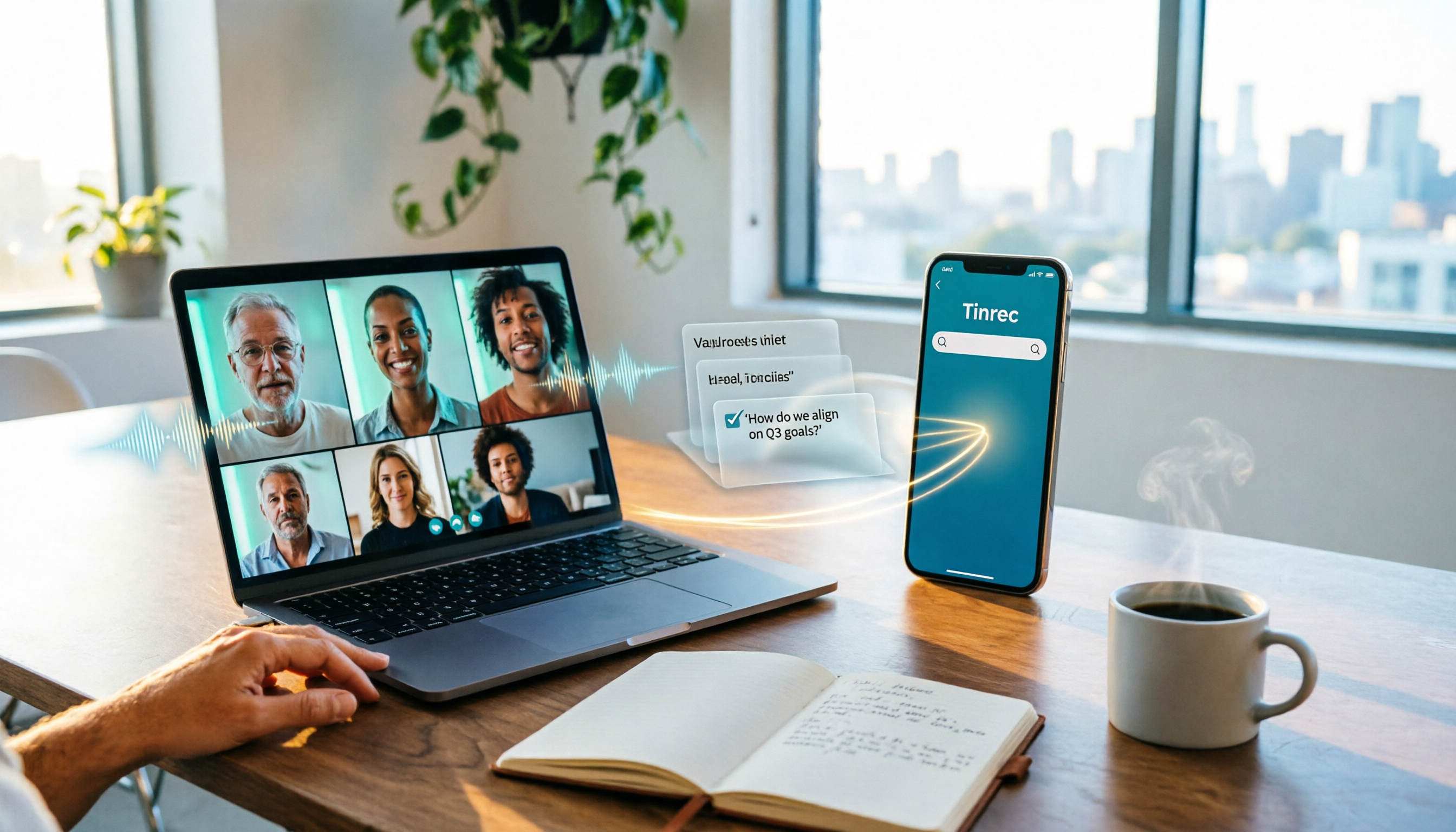
How to Share System Audio in Google Meet (2026): Full System Sound + High-Quality Stereo
Google Meet now lets you share your entire device's system audio during presentations, not just Chrome tab audio. This guide covers the steps to enable it, system requirements, rollout timeline, and common limitations, plus how to use Tinrec after a presentation to turn transcripts, summaries, and action items into searchable meeting records.

3 Google Meet on Windows Options Tested in 2026: Which Meeting and Note-Taking Method Saves the Most Time?
Using Google Meet on Windows, most people only solve the meeting itself but not how to keep the post-meeting data. This article walks you through: from browser and PWA to Tinrec desktop bot-free recording, automatically turning Google Meet meetings into transcripts, summaries, action items, and team-searchable data.

How to Check Your Google Meet Version in 2026: 4 Steps to Confirm the Latest Version
Can't find the version number in Google Meet settings? This guide covers how to check and update Google Meet across web, Android, iOS, Meet hardware, and the REST API, plus a practical way to organize transcripts, summaries, and action items after meetings.