

Turn recordings into transcripts and summaries in minutes
Upload audio or video for multilingual transcription, AI notes, and action items
Why You Need to Confirm Your Google Meet Version
You open Google Meet, search through every setting for a "version number," and come up empty. It's not you—Google Meet simply doesn't have a single version number.
The web version updates in the cloud along with Google Workspace, so you're always on the latest version. The Android and iOS apps each have their own store versions. Meet hardware in conference rooms runs on a separate firmware update track. And the Meet REST API for developers has version numbers like 1.1.0.
These four tracks move at completely different paces. This article lays out the check paths in a list, and at the end adds one more thing: confirming your version is just the first step—the real time sink is organizing everything after the meeting.
Option 1 | Tinrec — Beyond Version Updates, Meeting Content Is What Matters
Tinrec is an AI meeting notes and collaboration tool for individuals and teams. It doesn't just turn audio into text—it organizes meeting recordings into searchable, summarizable, queryable, and exportable data.
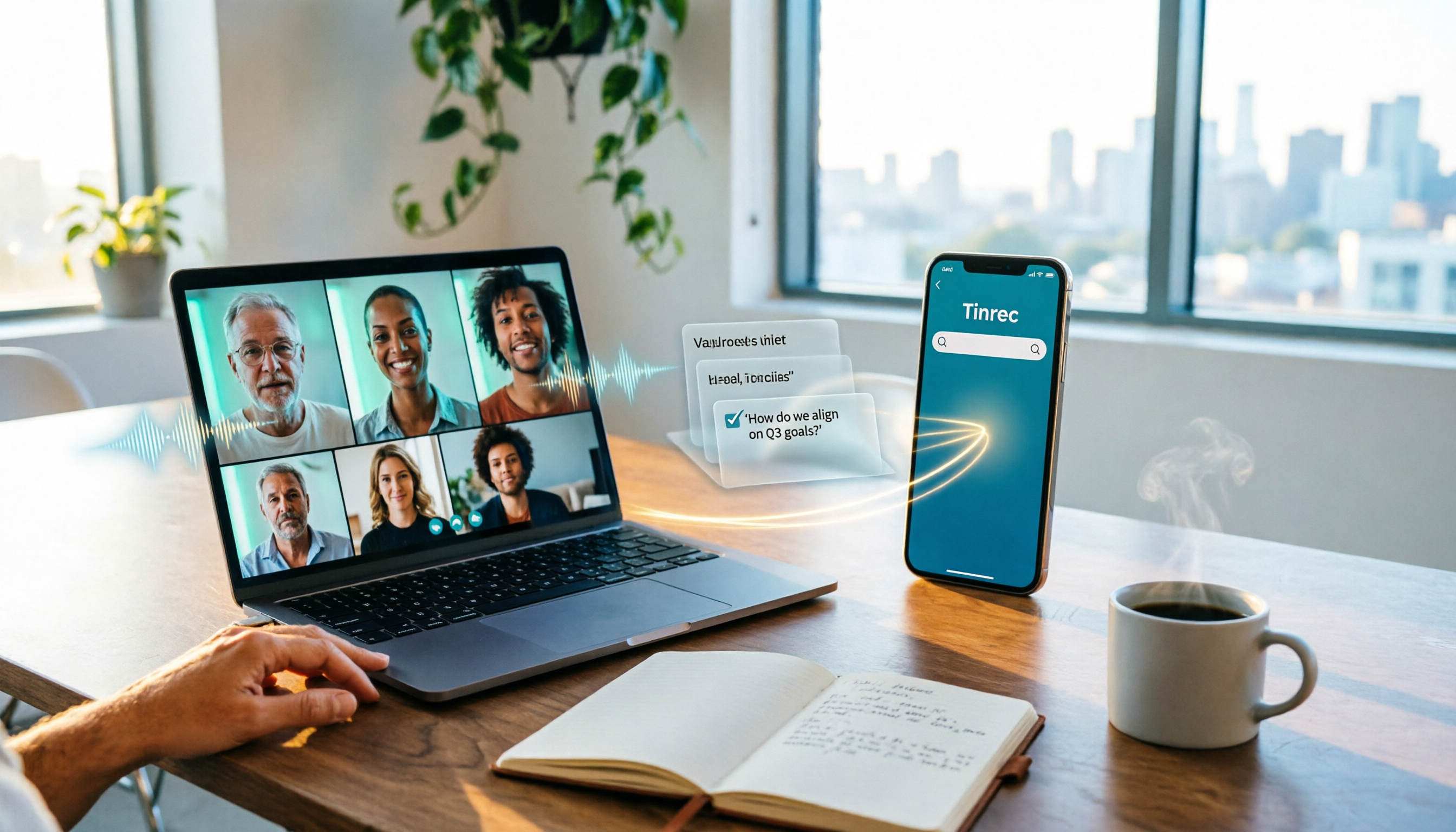
Record online meetings without a bot: The desktop app captures your computer's system audio directly, handling Zoom, Google Meet, Microsoft Teams, Webex, and other online meetings without pulling an extra meeting bot into the room.
Transcribe while recording, auto-generate structure after: Real-time audio-to-text, with automatic summaries, chapters, key points, and action items generated when the meeting ends. No need to re-listen to long meetings from the start—just scan the chapters to grasp the discussion flow.
Ask AI questions about meeting content: This is where it differs most from other transcription tools. You can keep asking questions about a single meeting or across multiple meetings—like "What were the three concerns the client mentioned?"—without digging through the transcript yourself.
Export and team knowledge retention: Results can be exported to Notion, Google Docs, OneNote, Dropbox, and other tools for further work. The team version stores meeting data centrally in a team space, so data doesn't leave with individual members when they change roles.
On pricing, the personal version has a free tier to try first, plus a weekly pass, Pro monthly, and Pro annual. The team version is USD 29.80 per paid seat per month, or USD 199 annually (about USD 16.58/month). First-time eligible users can try 7 days with 1 free seat and 300 minutes of shared team import quota; paid seats include 2,000 minutes of shared team import quota per month. Actual prices are subject to the official purchase page.
Who it's for: People who have meetings every week and need transcripts and post-meeting organization; departments and project teams that want to turn meeting notes into team assets.
Option 2 | Google Workspace Official Update Blog
Google's Workspace update blog is the most authoritative source for tracking Google Meet feature changes, with "rapid release" and "scheduled release" timelines.
Its purpose is "feature announcements," not "version number lookups," so you can see when a feature launched but won't find numbers like 8.x.x. Best for admins and those who need to stay on top of changes.
Option 3 | Mobile App Store Pages (Google Play / App Store)
Mobile is the easiest place to find a version number. On Android, go to Settings → Apps → Google Meet → App info to see the version field. On iOS, check the version history in the App Store.
Note that the store page shows the app version, which may not sync with web features. Third-party APK sites may show old version numbers like 2022.01.09.423471724.Release—those are historical versions, not the current state.
Stop organizing recordings by hand
Upload audio or video and automatically get a transcript, summary, and action items
Option 4 | Google Meet Hardware Update Notes
If you use conference room equipment, the version you need is actually the Meet hardware update announcement—covering things like camera framing behavior, peripheral support, and security updates.
Official docs also list known issues, such as the Logitech Tap updater failing in rare cases and causing unresponsive touch, with a recommendation to contact hardware vendor support. This track is completely unrelated to app versions.
Option 5 | Google Meet REST API Release Notes (Developers)
Developers find version numbers in the API docs. For example, Meet API 1.1.0 can retrieve the meetingCode property for ongoing meetings, adds a MEET_VERSION_UNSUPPORTED error code so clients can guide users to install a compatible app, and the spaces.members resource is now generally available.
These version numbers only matter to people integrating systems—regular users don't need to worry about them.
So Many Sources—How Do You Choose?
• Wondering "why hasn't my feature appeared yet?" → Google Workspace official update blog • Want to know which app version is installed → Google Play or App Store version field • Conference room equipment acting up → Meet hardware update notes and known issues list • Writing code to integrate meeting data → Meet REST API Release Notes • Want to solve "version confirmed, but no one's organizing the meeting notes" → Tinrec, which handles transcripts, summaries, action items, and export in one go
Most office workers' problem isn't the version—it's the post-meeting organization work. That's why I put Tinrec first on the list.
3 Things to Know Before Checking Your Version
First, a new version doesn't mean all features are available. Google rolls out features gradually, so the same version may show different features across accounts. Check your Workspace plan level first.
Second, the web version not having a version number is normal. Instead of fixating on a number, just check the official update blog's feature announcements—that's what you actually want to know.
Third, be mindful of consent for recording and notes. In most regions, recording involves participant consent. It's best to inform participants before the meeting starts and obtain consent when needed. Tools like Tinrec lower the cost of note-taking, but for important content, it's still recommended to cross-check with transcript timestamps and recordings.
Summary
Google Meet doesn't have a single version number—web, mobile apps, hardware, and API each have their own update pace. Confirm which track you need to check first so you don't waste time searching.
After confirming your version, what really affects work efficiency is whether meeting content is properly captured. If you have meetings every week and need to produce minutes and action items, try Tinrec to bring recording, transcription, summarization, Q&A, and export into one workflow.
FAQ
Does Google Meet have a unified version number? No. The web version updates in the cloud with Workspace, while mobile apps, Meet hardware, and the REST API each have their own version pace, so there's no universal number to find.
Where do I find the mobile version number? On Android, check App info in Settings. On iOS, check the version history in the App Store.
How do I confirm the web version is up to date? The web version never had a version number—just check the Google Workspace official update blog's feature announcements.
Is the Meet hardware version the same as the app version? No. Hardware runs on a separate firmware update track, with its own update notes and known issues list.
Is Tinrec's free version enough? If you only occasionally organize a recording, the free version is a good start. If you have regular weekly meetings or long-term data retention needs, consider Pro or the team version.
Do I need to inform participants before recording a meeting? Yes, it's recommended. Recording and transcription involve participant consent in most regions. It's best practice to inform participants before the meeting starts and obtain consent when needed.
References
Turn every recording into actionable outcomes
Get 60 free transcription minutes when you sign in. No credit card required.
Related Reading
You might also like

6 Ways to Use Google Meet on Apple TV in 2026: Screen Mirroring, Streaming Devices, and Post-Meeting Tools Compared
Google Meet doesn't have an official Apple TV app. This guide covers 6 practical workarounds, from AirPlay screen mirroring and Mac mirroring to Google TV streaming devices, plus post-meeting tools like Notta, Granola, and Tinrec, with free and paid pricing to help you decide which is easiest.

How to Use Google Meet in Gmail (2026): Start a Meeting in 3 Steps & Auto-Organize Notes
Google Meet is built right into the Gmail sidebar, so you can start or join video meetings without switching to Calendar. This guide walks you through 3 steps, explains entry points for different account types, and tackles the part most people get stuck on—organizing transcripts, summaries, and action items after the meeting.

How to Record Google Meet Without a Bot and Auto-Generate Action Items with AI (2026 Guide)
Tired of forgetting key points after a Google Meet call? This guide explains the relationship between Google Meet and Google One plans, then hands-on tests Tinrec's bot-free desktop recording, AI summaries, and action item extraction. We also compare Otter.ai, Notta, and Granola, with key buying factors and pitfalls to avoid.

Google Meet Time Limit in 2026: Free 60-Minute Cap and Which Meeting Notes Tool to Choose
Google Meet free version limits group meetings with 3+ participants to 60 minutes, while 1-on-1 calls can last up to 24 hours. Paid Workspace plans allow up to 24 hours. This article breaks down how the limit actually works and compares Google Meet with Tinrec for meeting notes, cross-platform support, post-meeting output, and team data retention, helping you decide which to choose.

Best Google Meet Note-Taking Tools in 2026: 7 Tested, This One Excels for Chinese Meetings Without a Bot
Starting from the need to join a meeting via Google Meet now, this guide reviews 7 Google Meet note-taking and transcription tools, including Tinrec, Otter, Fireflies, Notta, Granola, TurboScribe, and Google Meet's built-in capabilities. It compares Chinese meeting support, bot-free recording, AI Q&A, team knowledge retention, and pricing.

Google Meet Pricing in 2026: Free Plan Limits and Tinrec as an Alternative
Google Meet's free version caps group meetings at 60 minutes, and recording and AI features are tied to Workspace subscriptions (annual billing around $7/$14/$22 per user per month). This article, from a student's hands-on perspective, explains why post-meeting organization is the real pain point and compares Tinrec's differences in bot-free recording, Chinese transcription, AI summaries, and team knowledge retention.
How to Share System Audio in Google Meet (2026): Full System Sound + High-Quality Stereo
Google Meet now lets you share your entire device's system audio during presentations, not just Chrome tab audio. This guide covers the steps to enable it, system requirements, rollout timeline, and common limitations, plus how to use Tinrec after a presentation to turn transcripts, summaries, and action items into searchable meeting records.

3 Google Meet on Windows Options Tested in 2026: Which Meeting and Note-Taking Method Saves the Most Time?
Using Google Meet on Windows, most people only solve the meeting itself but not how to keep the post-meeting data. This article walks you through: from browser and PWA to Tinrec desktop bot-free recording, automatically turning Google Meet meetings into transcripts, summaries, action items, and team-searchable data.

4 Google Meet Call Recording Tools Tested in 2026: Which One to Switch to When Call History Won't Show?
When Google Meet call history won't show, most people's first instinct is to reinstall the app or switch browsers, but the problem often lies with the account, device, or organization permissions—not user error. This article addresses this common misconception, explains why call history may be missing, outlines 4 key factors for choosing a meeting recording tool, and compares Tinrec with Notta, Granola, and Otter.ai. It also includes a pitfalls guide and selection recommendations.