
Turn recordings into transcripts and summaries in minutes
Upload audio or video for multilingual transcription, AI notes, and action items
Do you often use your iPhone to record meetings or class highlights, only to find that reviewing the audio and manually transcribing is both time-consuming and painful? Especially with hour-long voice memos, finding key conclusions can feel like looking for a needle in a haystack.
This article will give you a comprehensive understanding of how to record efficiently on your iPhone. It not only explains the advanced settings of the built-in Voice Memos app but also provides a complete comparison table of mainstream AI recording tools (including built-in Voice Memos, Otter.ai, and Tinrec), practical steps, and frequently asked questions.

Quick Navigation:
- If you want to simply capture ideas without needing a transcript → Make good use of the advanced settings of the built-in Voice Memos app.
- If cross-language transcription and post-meeting organization are priorities → Prioritize tools with AI summaries and conversation search functions.
Why Is the Built-in iPhone Voice Memos App Convenient but Still Lacking?
Using your iPhone as a portable recording device to capture personal memos or lectures is very convenient. However, traditional recordings have extremely low information density, making review costly. When you record a cross-department meeting, you may find that afterward:
- Too tedious to organize: Unable to get a transcript directly, requiring constant pausing and typing.
- Lack of highlights: No decision summaries, making it hard to compile action items after the meeting.
- Difficult to search: Traditional audio files cannot be searched by semantic content; you can only drag the timeline blindly to find key conversations.
That's why more and more professionals and students are turning to advanced AI recording solutions on the iPhone.
5 Must-Know Hidden Tips for the iPhone's Built-in Voice Memos App
If you only need to record audio, according to Apple's user guide, the Voice Memos app on iPhone has the following powerful features:
1. Voice Isolation and Wide Spectrum Filtering
When recording in a noisy environment, open Control Center and tap the Voice Memos option. Select "Voice Isolation" to filter out background noise, or choose "Wide Spectrum" to preserve the ambient atmosphere (note: not supported on all models).
2. Stereo and Spatial Audio Recording
Go to Settings > Voice Memos > Recording Mode, and choose Mono, Stereo, or Spatial Audio. When you select Stereo or Spatial Audio, the system uses multiple microphones to record left and right channels, providing an immersive playback experience.
3. Advanced Editing and Seamless Resume
During recording, you can pause at any time and tap "Resume" to continue. Swipe up on the waveform to view details; if you're not satisfied with a segment, you can trim or replace it for fine-tuning.
4. Background Recording and Dynamic Island Display
During recording, you can return to the home screen and open other apps that don't play audio. On supported models, the Dynamic Island will show the ongoing recording status, making it easy to expand or navigate back to the app.
5. iCloud Auto Sync
Simply enable iCloud sync in settings, and your recordings will appear and automatically update on all iPhone, iPad, and Mac devices signed in with the same Apple ID, enabling seamless cross-device management.
Stop organizing recordings by hand
Upload audio or video and automatically get a transcript, summary, and action items
Want Real-Time Transcription? A Comparison of Must-Have AI Recording Tools for iPhone
When the built-in Voice Memos app can't meet your work needs, choosing the right AI tool can save you a lot of time. Here's a comparison of three common options on the market:
| Comparison Dimension | iPhone Built-in Recorder | Otter.ai | Tinrec (formerly MiaoTing Recording) |
|---|---|---|---|
| Language Support | Depends on system version and language limitations | Primarily supports English, weak Chinese support | Supports automatic recognition in 10 languages including Chinese, Japanese, English, etc. |
| Real-time Transcription | Requires latest iOS updates | Supported | Supported with real-time conversion, no delay |
| Summary & Action Items | None | Yes, primarily in English | Automatically generates meeting minutes, conclusions, and action items |
| AI Conversation Search | None | Yes | Supports semantic search, allowing you to ask questions about the content as if talking to a person |
| Export & Cross-Platform | iCloud across Apple devices | Cross-platform | Full support for iOS, Android, Web, multi-format export |
| Price / Free Tier | Completely free | Limited free plan | Free tier: 100 minutes/month; Upgrade from $4.9/month |
Practical Guide: How to Build a "Record → Understand → Act" Workflow on iPhone
If you decide to use AI assistance, the following takes Tinrec as an example to share how to quickly obtain transcripts and summaries in different scenarios:
1. In a Meeting: Real-Time Transcription
For physical meetings or speeches, open the app and use real-time recording to text. The system records and converts to text instantly with no waiting. After the meeting, the system automatically generates meeting minutes and to-do lists, ensuring that recordings are not just saved but truly utilized.
2. Handling Existing Files: Audio File to Text
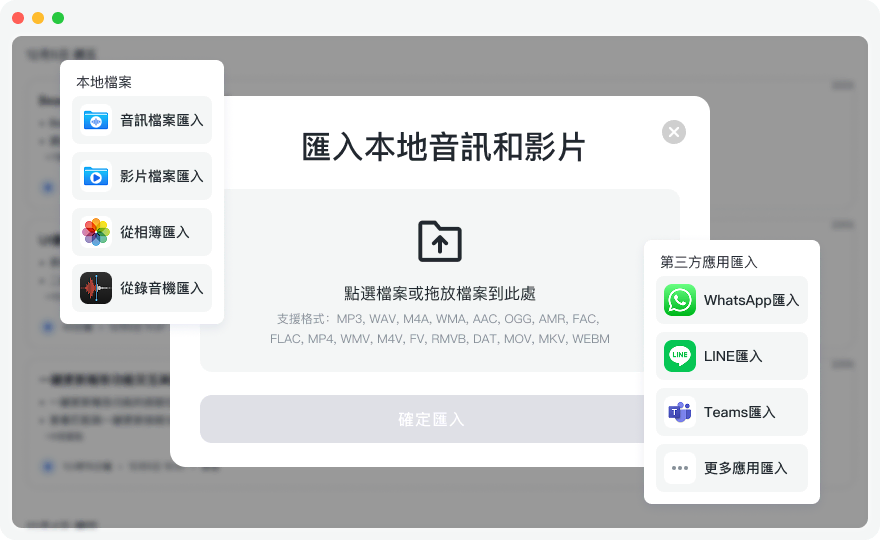
If you have recorded an important interview using the built-in Voice Memos app, you can export the file and use the audio to text feature. After uploading, the system can quickly identify speakers and generate a transcript.
3. Learning Scenarios: Podcast/Online Video to Text
Heard a great YouTube talk or podcast but don't have time to listen to the whole thing? Copy the video link and use the podcast/online video to text feature, which quickly parses the content and extracts key summaries.
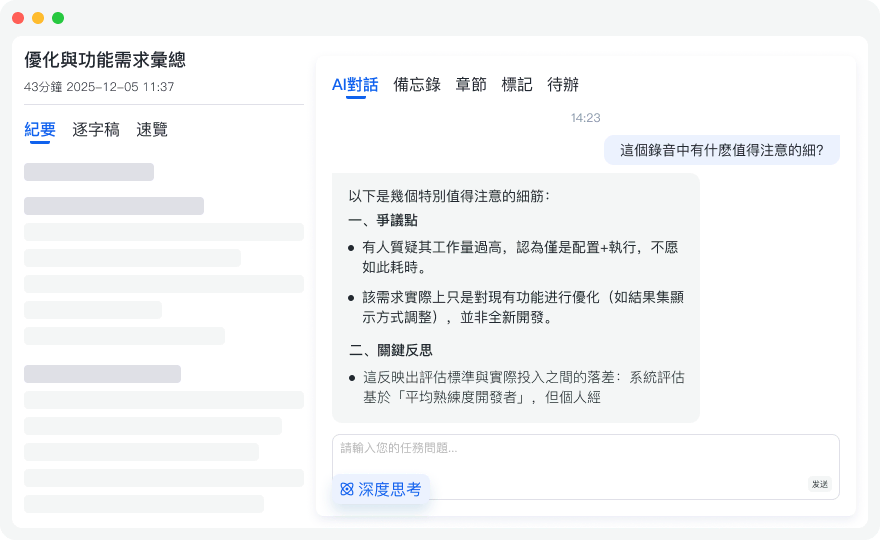
4. Key Search: AI Conversation Search
For a two-hour meeting recording, you don't need to manually Ctrl+F for keywords. Use the AI conversation search feature to directly ask questions about the recording, such as "What was the marketing budget mentioned for next week?" The AI quickly searches and responds.
Frequently Asked Questions (FAQ)
Q1: Can iPhone recordings be directly transcribed?
Older iOS versions of the built-in Voice Memos app only provide voice recording and do not support transcription. If you need a transcript, it's recommended to use an AI recording tool like Tinrec that supports Chinese recognition.
Q2: Can I use my iPhone to record during Teams or Google Meet meetings?
Yes, but using the iPhone microphone directly may result in poor quality due to speaker volume. A better solution is to use an AI recording tool on the web or computer to record online meeting content synchronously.
Q3: Can the iPhone Voice Memos app filter background noise?
Yes. During recording, open Control Center, tap the Voice Memos icon at the top, and select "Voice Isolation" to effectively filter background noise and make voices clearer.
Q4: Which AI recording tools offer a free tier?
Many tools on the market offer basic free tiers. For example, Tinrec provides 100 minutes of free transcription per month, which is quite practical for users who occasionally need meeting notes.
Q5: Is there a storage limit when recording on iPhone? How to save space?
The length of iPhone recordings is mainly limited by available storage space. To save space, it's recommended to regularly delete unnecessary voice files or export them as text and back up to the cloud.
Q6: How to export audio files to colleagues or convert to meeting minutes?
In the built-in Voice Memos app, tap the share button next to a recording to send the audio file to colleagues. For meeting minutes, you need to upload it to a third-party AI tool for parsing and then export as Word or PDF text files before sharing.
Turn every recording into actionable outcomes
Get 60 free transcription minutes when you sign in. No credit card required.
Related Reading
You might also like

2026 Comparison of 4 Meeting Transcription Tools: Actionable Transcripts Without a Meeting Bot
Meeting transcription isn't just uploading an audio file. This hands-on comparison of Tinrec, Notta, Otter.ai, and Granola breaks down selection criteria, common pitfalls, and team seat differences to help you find a solution that truly produces actionable meeting notes.

5 Meeting Transcription Methods Tested for 2026: Which One Actually Saves You from Re-listening?
Meeting transcription isn't just about dumping audio into a tool. This article tackles common misconceptions and compares five approaches: manual transcription, built-in platform transcription, meeting bots, bot-free desktop recording, and file upload. We break down key selection criteria, practical limitations, and team collaboration differences to help you find a method that truly saves post-meeting cleanup time.

4 Meeting Transcription Tools Tested for 2026: Which Free Version Is Actually Good Enough?
Meeting transcription tools have changed a lot since 2024. The key question is no longer whether they can transcribe, but what they can do for you after transcription. This article starts with common misconceptions, explains 4 key points for choosing a tool, then compares Tinrec, Otter.ai, Notta, and TurboScribe in terms of positioning, free quotas, and paid plans, and finally offers scenario-based recommendations to help you avoid pitfalls from looking only at free quotas.

How to Transcribe Meeting Audio in 2026: Real-Time Transcripts + AI Summaries and Action Items in One Go
How can you transcribe meeting recordings without working overtime? This guide starts with four key criteria for choosing a tool, then hands-on breaks down Tinrec's bot-free recording, real-time transcription, AI Q&A, and team seat management. It also compares who Notta, Otter.ai, and Granola each suit best, with three common pitfalls to watch out for.

2026 Meeting Transcription Comparison: Bot-Free Recording + AI Summaries Made Easy
How to choose a meeting transcription tool? This article uses a comparison chart to break down the differences between four approaches: meeting bots, pure transcription, recording hardware, and Tinrec. It covers real-time transcripts, AI summaries, action item extraction, team spaces, and pricing quotas to help you decide which suits your meeting style.

Tinrec vs Notta 2026: 5-Dimension Showdown — Which Is Faster for Chinese Meeting Transcripts?
A two-hour meeting takes three hours to transcribe? This guide breaks down the five key dimensions of meeting audio-to-text — from recording and transcription to proofreading and team archiving — with hands-on comparisons of Tinrec and Notta in Chinese meeting scenarios. Plus, four common pitfalls to help you find the right tool within free limits.

2026 Comparison of 4 Meeting Transcription Apps: Cantonese Meetings, AI Summaries, and Team Knowledge Retention—Which One Wins?
A hands-on comparison of 2026 meeting transcription tools—Tinrec, Otter.ai, Notta, and PLAUD—covering capture methods, post-meeting organization, Chinese and Cantonese meeting experience, team collaboration, and pricing structures, to help Hong Kong office workers decide whether they need 'a transcript' or 'meeting materials they can act on directly.'

2026 Comparison of 5 Meeting Transcription Tools: Which Offers the Best Free Tier and Chinese Recognition?
How to choose a meeting transcription tool? This article examines four key aspects: recording method, post-meeting output, free tier limits, and Chinese recognition. It compares Tinrec, Otter.ai, Notta, PLAUD, and other mainstream tools, outlines team plan pricing and seat details, and includes a pitfalls guide and scenario-based recommendations to help you select the right transcription tool for your needs.

How to Transcribe Platform Meeting Recordings in 2026: Bot-Free Recording + AI Summaries & Action Items
From Zoom, Google Meet, Teams to in-person meetings, this guide covers key considerations, workflow, and tool comparisons for transcribing platform meeting recordings. Using Tinrec as an example, it explains bot-free recording, transcripts, summaries, action items, AI Q&A, and team plan limitations, and compares Otter.ai, Granola, Notta, and other options.