

Turn recordings into transcripts and summaries in minutes
Upload audio or video for multilingual transcription, AI notes, and action items
2026 AI Meeting Recorder Comparison: Why Tinrec Beats Notta for Students
Last semester I took a three-credit required course, and the professor talked like he was trying to catch a bullet train, flipping through slides faster than I could take notes. I tried handwriting everything, but when I opened my notebook before midterms, I couldn't even read my own writing. That's when I started looking for AI meeting note tools, thinking at least I could record lectures and turn them into text. I started with Notta's free version, then tried Otter, and finally made it through the whole semester with Tinrec. This article is my hands-on experience, for classmates who are also on a tight budget but don't want to fail.
Why Are People Looking for Notta Alternatives?
Notta is the first transcription tool many people try. It handles multi-device recording, meeting notes, and file imports. But when I used the free version, I found a real problem for students: the free quota is limited, and recording a two-hour lecture could use it up in one go. And if you want post-meeting Q&A, action item extraction, and team sharing for Chinese meetings, the depth isn't quite there. Later my roommate recommended Tinrec, and I realized transcription could be more than just a verbatim transcript. If you have similar needs, Tinrec is worth checking out.
Tinrec vs Notta: What's Different in the Core Experience?
Chinese Meetings and Mixed Chinese-English
The most common thing in class is Chinese mixed with English terms, like "this case's ROI needs to be recalculated." Tinrec covers Chinese, Traditional Chinese, and multilingual meeting scenarios, supports mixed Chinese-English content organization, real-time translation, and bilingual viewing, plus team hotwords for common terms. Notta also supports multilingual transcription, but if you often deal with Taiwanese Mandarin expressions, Tinrec's hotword feature makes technical term recognition smoother. Actual results still depend on recording quality, accent, and background noise.
Online Meeting Recording Method
Tinrec's desktop version captures computer system audio directly, no meeting bot needed. Notta often requires a meeting bot or file upload. For students, a bot suddenly appearing in an online group discussion can be awkward. Tinrec's bot-free approach lets you record naturally on Zoom, Google Meet, Teams, or Webex. You just open Tinrec desktop, start recording, and the transcript appears in sync.
Depth of Post-Meeting AI Processing
After transcription, Tinrec automatically generates summaries, chapters, key points, and action items. It also supports AI Q&A about meeting content, mind maps, reports, tables, and documents, and exports to Notion, Google Docs, and more. Notta also has summary and translation features, but Tinrec emphasizes a complete post-transcription workflow. For example, after a group discussion, you can ask Tinrec "What's the conclusion?" or "Who's responsible for what?" without manually scrolling through 30 pages of transcript.
Free Plan and Student Budget
Tinrec's free version offers a basic quota so you can try recording, importing, summarizing, and transcribing—good for occasional use. If you have steady weekly needs, consider a weekly pass, Pro monthly, or annual plan, choosing by task. Notta's free version also has limits, which may not be enough for students recording full lectures. Which is more cost-effective depends on your usage frequency. Try the free versions first and test with your own lecture recordings.
Cross-Platform and Input Sources
Tinrec supports iOS, Android, Web, and desktop, covering live recording, online meetings, audio files, and mobile recording. Notta also covers multi-device transcription. Tinrec's advantage is unifying these inputs and continuing to process them afterward. If you need to manage historical recordings, interview files, and meeting notes in one place, Tinrec's database is more useful than a simple transcription tool.
Tinrec's Core Features at a Glance
Live Speech-to-Text Recording
Open Tinrec, start recording, and text appears in real time with low latency. During class you can follow along to check for missed key points, and by the end of class the transcript is ready. For someone like me who can't write as fast as the professor talks, this is a lifesaver.
Stop organizing recordings by hand
Upload audio or video and automatically get a transcript, summary, and action items
Bot-Free Online Meeting Recording
Tinrec's desktop version captures computer system audio directly, no extra bot joining the meeting. Group online discussions, remote classes, or interviews can all be recorded this way. You don't have to worry about a bot taking up a meeting link or extra setup.
AI Summary and Chapters
For a two-hour meeting or class, Tinrec automatically generates a summary and chapters, breaking long content into a browsable structure. During finals prep, I don't have to re-listen from the start—just read the summary to grasp key points quickly. This feature is seriously powerful.
Action Item Extraction and AI Q&A
Tinrec extracts action items from discussions—who's responsible for what, when it's due—all clear at a glance. You can also ask Tinrec questions about the meeting content, and it answers based on semantic understanding. After our group discussions, I use this to double-check assignments.
Multi-Format Export and Agent Post-Processing
Tinrec supports exporting results to Notion, Google Docs, OneNote, Dropbox, and more, and can generate reports, tables, and documents. If you need to organize interviews for a graduation project, this saves a ton of formatting time.
Real-World Use Cases
Classroom Lectures
The professor talks fast and flips slides faster than turning pages. Now I just open Tinrec to record in class, and by the end the transcript and summary are ready. Before midterms I just read the chapter highlights instead of borrowing notes. The free version's monthly basic quota is actually enough if you only record key subjects.
Group Discussions
Our group discussions are always chaotic, and nobody remembers the conclusions afterward. Now we record offline discussions on our phones and use Tinrec desktop for bot-free recording of online discussions. Afterward, action items are automatically extracted, so everyone knows their tasks. I've convinced three classmates to use it, and they all say they wish they'd found it sooner.
Finals Prep
Before finals, I imported all my semester recordings into Tinrec and used AI Q&A to find key points. For example, I asked "What exam question types were mentioned this semester?" and it compiled the answers. This is way more efficient than re-listening to 20 hours of recordings.
Graduation Project Interviews
For my graduation project I needed to interview industry professionals. After transcribing, Tinrec helped me quickly find key opinions from interviewees. I can copy quotes directly from the transcript instead of typing them out. If a group needs to share interview data long-term, Tinrec's team version has separate spaces and seat management, but for most individual students, Pro is enough.
What to Look for When Choosing a Speech-to-Text Tool
Chinese Recognition and Mixed Chinese-English
First, confirm support for Chinese and mixed Chinese-English. Tinrec covers Chinese, Traditional Chinese, and multiple languages, with real-time translation and team hotwords. Actual results depend on recording quality, so test with your own recordings.
Free Quota and Pricing
Students have limited budgets, so free quota matters. Tinrec's free version offers a basic quota for light use; if you need more, choose a weekly pass, Pro monthly, or annual plan by task. Try the free version first, then pay once you're sure it fits.
Platforms and Input Sources
Check whether the tool supports your common platforms. Tinrec supports iOS, Android, Web, and desktop, handling live recording, online meetings, audio files, and mobile recording. Cross-platform use is convenient for students.
Post-Meeting Processing
Don't just look at transcription—summary, action item extraction, AI Q&A, and export matter more. Tinrec integrates all of these, turning meeting notes into reusable data.
Team Collaboration and Data Ownership
If you're a long-term project group, look at team features. Tinrec's team version offers independent team spaces, member and seat management, usage analytics, and audit logs. Meeting data belongs to the team and stays even if members leave. But for most individual students, the personal version is enough.
Conclusion: Is Tinrec Worth Trying?
If you're looking for an AI meeting note tool for students, Tinrec has clear advantages in Chinese experience, bot-free online meeting recording, and post-meeting AI processing. It doesn't just give you a transcript—it helps you organize summaries, action items, and Q&A, so you can spend time on what really matters. I used it for a whole semester, from lectures and group discussions to graduation project interviews. I recommend trying Tinrec's free version and testing it with your own lecture recordings—that's more direct than reading any review. Finally, remember to follow local laws when recording and get consent from teachers and classmates when needed.
References
- AI Meeting Notes Generator
- Meeting Ink - 2026 AI Meeting Notes Tool Test | 7 Speech-to-Text and Summary Speed Comparison | Meeting Ink - AI Meeting Notes Assistant Auto Transcription and Summary
- AI Note Writer: Capture Meeting Content | Notion
- Master Meeting Notes! How to Do AI Speech-to-Transcript? Gemini Notebook, Gemini, EchoScript Operation Analysis | 104 Career Power
- Recently many people ask me if there are AI tools for meeting notes?
Turn every recording into actionable outcomes
Get 60 free transcription minutes when you sign in. No credit card required.
Related Reading
You might also like

3 iPhone Quick Recording Methods Tested: Which One Auto-Organizes Transcripts After One-Tap Start?
Want to record quickly on iPhone? There are three one-tap start methods: Action Button, Back Tap, and Shortcuts. This article tests the setup steps, compatible models, and limitations of each, then compares what happens after you hit record—showing how Tinrec turns a phone recording into a searchable transcript, summary, and to-do list.

Complete Guide to iPhone Recording in 2026: Voice Memos Location, Export, and Meeting Organization
Where are iPhone recordings stored? The answer is the Voice Memos app, but many people can't find them in Files after recording. This complete guide first explains the three locations of iPhone recordings, how to export to the Files app, and quick launch settings, then discusses how to choose organization tools to turn meeting recordings into searchable, queryable, and deliverable data.

2026 Recording App Buying Guide: Tinrec vs Notta and 3 More Compared
A recording app shouldn't just capture audio. This guide compares Tinrec, Notta, Otter, Granola, and TurboScribe on Chinese transcription, bot-free meeting recording, post-meeting organization, and team collaboration—with a focus on whether you can use the output right away. It also covers free tiers, pricing, and key buying considerations.

4 AI Recording Tools Compared for 2026: Should Students Start with Free or Paid?
From class notes and group discussions to thesis interviews, we compare 4 common approaches to AI recording tools and demonstrate with Tinrec to explain whether the free version is enough, when to upgrade, and if group projects need the team plan.
5 Ways to Record Computer Audio in 2026: Which Is Easiest for System Sound?
Computer recording actually serves two different needs: recording your microphone or recording the sound your computer is playing. This article starts with common recording mistakes and covers Windows built-in Voice Recorder, Stereo Mix, Audacity, Otter.ai, and Tinrec, comparing their use cases and testing differences in system sound recording, transcription, AI summaries, and team collaboration to help you find the easiest approach.
4 Computer Recording Tools Tested and Compared in 2026: Why Your Screen Recording Has No Sound (It's Probably Not Your Microphone)
When your computer recording has no sound, it's usually not a broken microphone—it's that system audio wasn't captured. This article breaks down 5 common causes, 4 key factors for choosing a tool, and compares Tinrec, Granola, TurboScribe, and PLAUD for computer recording, so you can figure out whether to fix your settings or switch tools.

4 Best Cantonese Speech-to-Text Tools in 2026: Free Version Comparison
We tested 4 Cantonese speech-to-text tools in 2026, comparing free tiers, Cantonese and mixed Chinese-English recognition, post-meeting organization, and team collaboration. Tinrec stands out as our top pick for Chinese-language meetings, bot-free online meeting recording, AI Q&A, and team spaces.
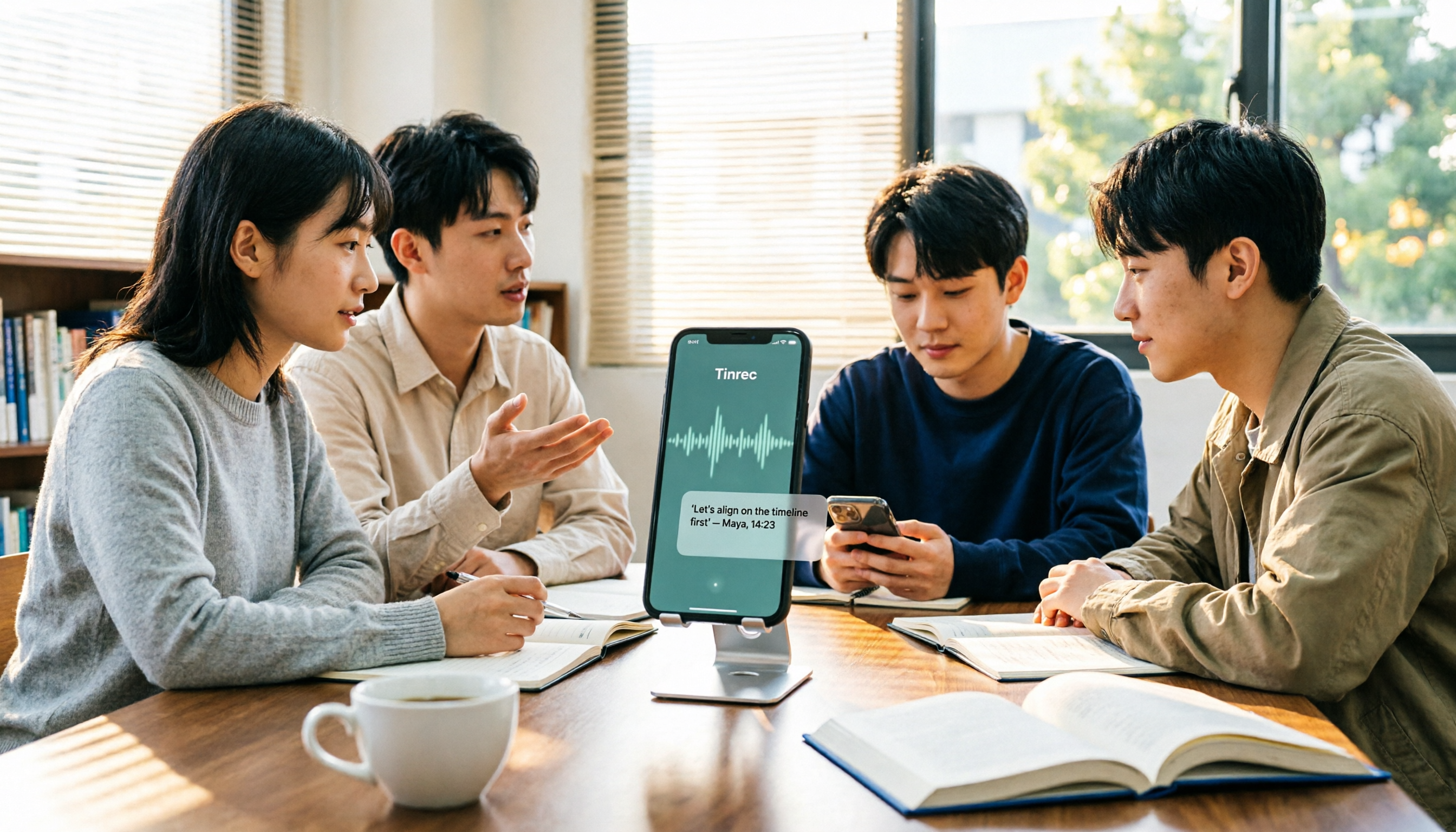
2 Recording Tools Compared in 2026: Understand 'Can You Record Anyone?' Before Choosing
Students often want to record classes, group discussions, or phone calls for self-protection, but 'can you record anyone?' depends on whether you're part of the conversation, your purpose, and how you use the recording. This article explains key Taiwan recording laws from a student's perspective, then compares Tinrec and PLAUD Note across entry cost, recording scenarios, post-meeting organization, old file search, and team sharing, with final recommendations for students.

2026 Comparison of 3 Recording Meeting Note Tools: Which Saves the Most Time with Bot-Free Recording, AI Q&A, and Team Knowledge Retention?
2026 real-world comparison of recording meeting note tools, covering bot-free meeting capture, Chinese and mixed Chinese-English experience, post-meeting organization, team knowledge retention, and pricing quotas. Compares Tinrec and Otter.ai, and explains the positioning of similar tools like Notta, helping you choose the right meeting notes workflow for your needs.