
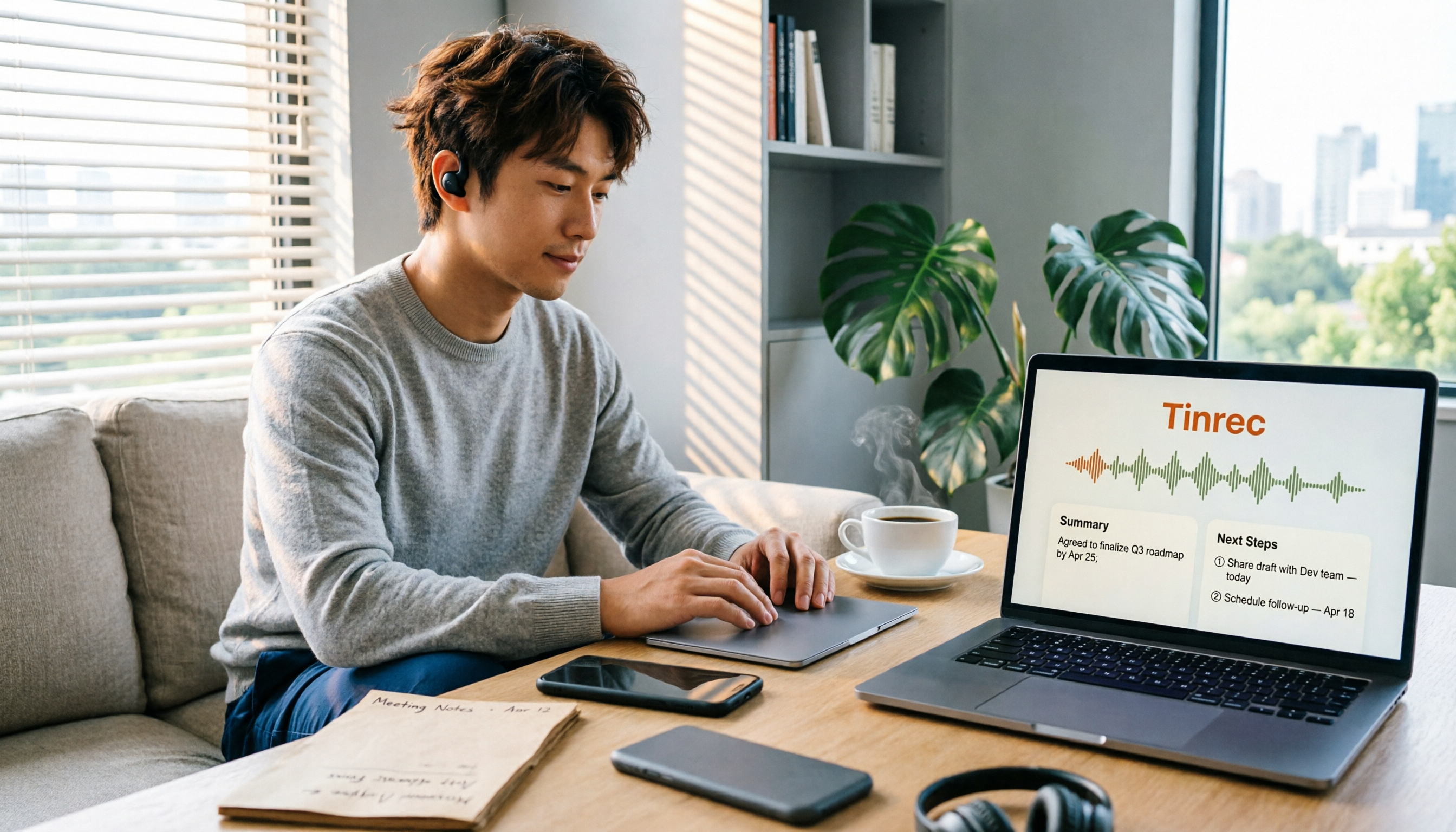
Turn recordings into transcripts and summaries in minutes
Upload audio or video for multilingual transcription, AI notes, and action items
Why Do You Need iPhone Call Recording?
Many people have a misconception about iPhone call recording: they think that just installing a third-party app will let them secretly record entire phone calls like on Android. Others believe the opposite—that "iPhone can't record calls at all." Both ideas can waste your time.
The real need for call recording is simple: verbal confirmation of specifications from a client, tasks assigned by your manager, or medical information from a family member. Recording is just the first step. The key is being able to quickly find that one sentence later.
This article covers 5 common iPhone call recording and post-call organization solutions, from built-in system features to AI-powered tools. Read through and then decide.
Solution 1 | Tinrec — Turn Call Recordings into Searchable Data
Tinrec is an AI meeting notes and collaboration tool for individuals and teams. It doesn't handle "how to record" but rather "what to do after recording."
Most people finish a call and the audio file just sits in Voice Memos. When they need to review it, they have to fast-forward from the beginning. Tinrec's approach is to upload audio files (call recordings, meeting recordings, interviews—anything works) and convert them into transcripts. Then it automatically generates summaries, chapters, and action items. You can even ask AI questions directly on the meeting data.
For example, if a client mentions three revision directions during a call, after transcription you can directly ask "What were the payment terms the client mentioned?" without listening again. Recordings can also be exported to Notion, Google Docs, OneNote, Dropbox, and other tools for further processing, or handed to an Agent to generate reports, tables, and meeting minutes.
Tinrec's desktop version also supports bot-free recording of online meetings by directly capturing your computer's system audio. It works with Zoom, Google Meet, Microsoft Teams, and Webex without inviting a meeting bot.
For pricing, the personal plan has a free tier to try, plus weekly and Pro monthly/annual plans. The team plan is a separate team workspace with a 7-day, 1-seat trial (including 300 minutes of shared team import quota). Team monthly is USD 29.80 per paid seat, annual is USD 199 per paid seat, with 2,000 minutes of shared team import quota per seat per month. Actual prices are subject to the official purchase page.
Who it's for: Individuals, sales teams, and teams that need to turn large volumes of call and meeting recordings into searchable data.
Solution 2 | iPhone Built-in Call Recording — The Easiest Official Method
Starting with iOS 18, iPhone has built-in call recording for the first time. The steps are the same for outgoing and incoming calls. During a call, you can enable "Call Recording" from the call interface.
Note that to comply with recording consent laws, the other party will receive a notification that the call is being recorded. The recording interface will also show "Recording," and you can stop at any time. Hanging up automatically stops the recording. The recording is saved to Notes, and in supported regions and languages, you can view a transcript. With Apple Intelligence enabled, you can get a call recording summary.
The transcript may not appear immediately and may take time to process. It may not fully reflect the call content, so for important information, it's best to verify against the recording.
Who it's for: General users who only want official features and don't make many calls.
Stop organizing recordings by hand
Upload audio or video and automatically get a transcript, summary, and action items
Solution 3 | Notta — Multilingual File Transcription
Notta focuses on multi-platform transcription, meeting notes, file import, translation, and team plans. It overlaps significantly with Tinrec.
The free plan offers 120 minutes per month, with a maximum of 3 minutes per file. Pro annual is about USD 8.17 per month, with 1,800 minutes per month. Business annual is about USD 16.67 per seat per month, offering unlimited transcription, role permissions, and usage reports. Subject to the official pricing page.
Who it's for: Users who need multilingual transcription and primarily work with files.
Solution 4 | TurboScribe — Cost-Effective Long-File Transcription
TurboScribe is a cost-effective file transcription tool focused on long files, batch uploads, subtitles, and translation.
The free plan allows 3 files per day, up to 30 minutes per file. Unlimited annual is USD 120 (about USD 10 per month). Paid plans support files up to 10 hours or 5 GB, and you can upload 50 files at once. Subject to the official pricing page.
Who it's for: People with many long recordings to batch transcribe on a budget.
Solution 5 | PLAUD Note / NotePin — Portable AI Recording Hardware
PLAUD is a representative of AI recording hardware. You're buying a standalone device, portable recording, and a hardware experience.
The US official site shows NotePin at USD 159 and Note Pro at USD 189. Membership: Starter is 300 minutes per month; Pro is USD 99.99 per year with 1,200 minutes per month; Unlimited is USD 239.99 per year. Subject to the official page.
Who it's for: People who are often on the go, don't want to record with their phone, and are willing to carry an extra device.
With So Many Options, How Should You Choose?
- Want to turn call and meeting recordings on your phone into searchable, queryable, exportable data → Tinrec
- Need Chinese transcription, mixed Chinese-English content, and team data accumulation → Tinrec
- Need bot-free recording of Zoom, Meet, Teams online meetings → Tinrec
- Only want iPhone's official built-in features and make few calls → iPhone built-in call recording (has transcript, but no cross-meeting Q&A)
- Have a bunch of long audio files to batch transcribe and prioritize budget → TurboScribe
- Often on the move and want a standalone recording device → PLAUD Note
Simply put, if your need stops at "just having a recording," the built-in feature is enough. If you need to organize, find key points, and share with your team after recording, Tinrec will save you the most time.
3 Things to Know Before Using iPhone Call Recording
- First, confirm laws and the other party's consent. In Taiwan, recording without consent may involve privacy and communication security issues. The built-in feature's notification exists for this reason.
- Transcripts are not always verbatim. Apple officially notes that transcripts may not fully reflect the call content. AI transcription is also affected by audio quality, accents, and overlapping speakers.
- Organize right after recording, don't wait three months. Tools like Tinrec generate summaries, action items, and transcripts all at once. Process on the same day to make the data truly useful.
Conclusion
Can iPhone record calls while on a call? Yes, provided you have iOS 18 or later, regional and language support, and the other party receives a recording notification. The built-in feature solves "recording it," but "what to do after recording" is the real pain point for most people.
If you only occasionally need a call record, the built-in call recording is enough. If calls and meetings are part of your daily work, we recommend trying Tinrec to keep transcripts, summaries, action items, and team data in one place.
References
- Record and transcribe a call on iPhone - Apple Support (Taiwan)
- Upgrade to iOS 18 to get "iPhone Call Recording" - Step-by-step guide, finally you can record while on a call! - Dream & Hunter
- How to use iPhone call recording? iOS built-in recording and AI transcription tips - Mr. Mad
- How to record calls on iPhone? 5 iPhone call recording methods revealed!
- Does iOS 18 support iPhone call recording? Everything you need to know
Turn every recording into actionable outcomes
Get 60 free transcription minutes when you sign in. No credit card required.
Related Reading
You might also like
3 Ways to Convert LINE Voice Messages to Text in 2026: Which Saves the Most Time?
LINE doesn't have a built-in feature to convert received voice messages to text. There are three common methods, each with different capabilities. This article compares their use cases and limitations, and explains how to use Tinrec to generate summaries, chapters, and action items after transcription, turning voice into usable data.

2026 Recording App Comparison: Tinrec vs Notta vs Otter.ai — Which One Should You Choose?
From the perspective of a mid-level manager juggling 15 meetings a week, this article first asks whether a recording app just captures audio or actually handles your post-meeting work. It then compares Tinrec and Notta across five dimensions: how they capture online meetings, what happens after transcription, Chinese and mixed-language experience, team data governance, and pricing. Finally, it offers specific recommendations for different scenarios.

2026 MP3 to Text Tools Buyer's Guide: 4 Tested Picks and How to Choose
MP3 to text isn't just about turning audio into a transcript. This 2026 buyer's guide compares Tinrec, Notta, TurboScribe, and Otter.ai across four angles—file limits, Chinese recognition, post-meeting organization, and team collaboration—and covers the three most common pitfalls so you can pick the one that actually saves you time.
3 Best Samsung Call Recording Solutions in 2026: Built-in, Third-Party Apps, and AI Tools Compared
Does your Samsung phone have built-in call recording? The answer depends on your region and model. This article breaks down the current state of Samsung call recording and Android system limitations, then compares three common solutions—from simple recording apps to AI tools that turn calls and meetings into transcripts, summaries, and action items—so you can decide which one fits your needs.

2026 Comparison Test of 4 Transcription Tools: Which Is the Most Time-Saving for Chinese Meeting Transcription?
How do you write a transcript without falling into traps? This article first breaks down the three most common misconceptions about handwritten transcripts, along with principles for handling sentence breaks and punctuation. It then compares 4 transcription tools in hands-on tests, explaining how Tinrec turns "typing drudgery" into "proofreading work," and includes a pitfall-avoidance guide and selection advice.

4 iPhone Recording Methods Compared in 2026: Which One Helps You Organize Key Points After Recording?
Recording on iPhone isn't just about pressing the red button. This article addresses common misconceptions and covers practical methods for using the built-in Voice Memos, call recording, and external microphones. It explains why post-recording organization is crucial and introduces how Tinrec turns iPhone recordings into searchable, queryable, and shareable transcripts and meeting materials.

4 Best Audio Transcription Tools in 2026: Where Samsung Voice Recordings Are Stored and How to Organize Them
Can't find your Samsung voice recordings? It's usually not because the files were deleted, but because you don't know where they're stored. This article first explains where Samsung voice recordings are located, where the files are saved, and call recording limitations. Then it compares 4 audio organization tools side by side, showing how to use AI to organize transcripts, summaries, and action items after recording.
5 Fast iPhone Recording Methods Compared: One-Tap Start, But Who Can Organize Your Meeting?
iPhone has 5 built-in quick recording methods: Action Button, Lock Screen shortcut, Back Tap, Control Center's Local Capture, and the basic Voice Memos. This hands-on comparison covers startup speed, use cases, and limitations, and explains how to choose a tool for meeting notes and avoid common pitfalls.

How to Record iPhone Calls in 2026: Built-in One-Tap Recording + Automatic Transcription
Starting with iOS 18.1, iPhone has a built-in call recording feature. This guide walks you through checking your system version, region and language support, the notification both parties hear, and legal considerations, then shows you step by step how to record a call, find the recording file, and access the transcript. It also covers the real limitations of the built-in feature and what you can add for post-call organization, cross-platform use, and team collaboration.