
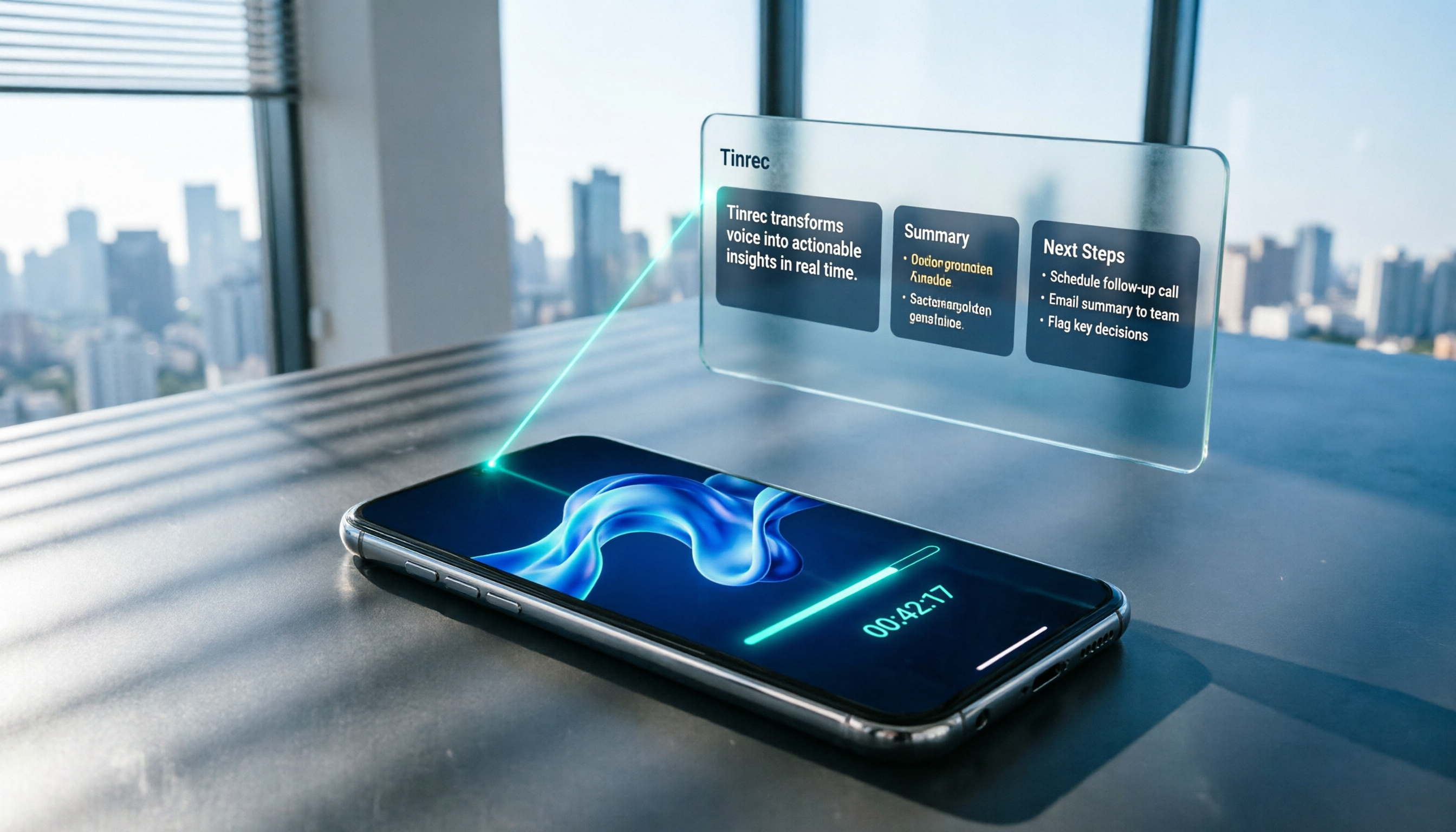
Turn recordings into transcripts and summaries in minutes
Upload audio or video for multilingual transcription, AI notes, and action items
3 Best Samsung Call Recording Solutions in 2026: Built-in, Third-Party Apps, and AI Tools Compared
Does Your Samsung Phone Have Call Recording? First, Identify Your Situation
Bottom line: It depends on your region and model. Some Samsung phones in certain markets do offer call recording in the native Phone app. But in places like Taiwan and Hong Kong, due to local laws and privacy regulations, most models won't show this option in settings. If you open the Phone app settings and can't find "Call recording" or "Record calls," it's usually not a setup error—the feature is simply disabled for your region.
Another reality: since Android 9.0, system-level call recording APIs have been significantly restricted. Third-party apps can mostly only use the phone's microphone—recording the sound coming out of the earpiece speaker, not directly capturing the call audio. This is why many people install a recording app and later find the other person's voice is faint and muffled during playback.
Most people's real need isn't just "keep an audio file"—it's "not having to listen to the whole thing again after hanging up." If you've experienced any of these three scenarios, this article is for you:
- A 40-minute client call ends, and you need to write a follow-up record but can only piece it together from memory.
- An online meeting finishes, and you have to manually organize the transcript, action items, and decisions.
- Dozens of recordings pile up, and to find one specific sentence, you have to listen from start to finish.
4 Key Points to Understand Before Choosing a Samsung Call Recording Solution
1. Do you want an audio file or usable text? If you just need a backup, a stable recording app is enough. But if your goal is to submit meeting notes or track action items, the focus should be on transcription, summarization, and search capabilities after recording—not just the record button.
2. Is the recording source system audio or microphone? Built-in recording in the Phone app usually captures call audio directly, so both sides sound clear. Third-party apps use the microphone, and quality depends on ambient noise and speaker volume—the difference can be huge. This is why the same phone with different solutions can yield vastly different results.
3. Does local law allow it? Regulations on call recording vary by region. Some places require one-party consent, others require two-party consent. Before choosing a solution, confirm your local rules, and if necessary, inform the other party and get consent.
4. Can you use it right after recording? Saving the audio file is just the first step. Can it automatically generate a transcript, summary, and action items? Can you ask in one sentence, "What was the amount he mentioned?" That's where real time savings happen.
Tinrec – Turn Calls and Meetings into Reusable Data
Tinrec is an AI meeting notes and collaboration tool for individuals and teams, available on iOS, Android, and web. Its core value is going several steps further after recording.
Call and in-person recording with live transcription. After a call ends, use the mobile app's real-time recording to capture the speaker output, and it generates a transcript simultaneously. More common uses are physical meetings, interviews, and classes: start recording, and text accumulates in sync—no need to rely on memory to recall who said what.
No bot needed for online meetings. The desktop version directly captures computer system audio and works with Zoom, Google Meet, Microsoft Teams, Webex, and more. No extra bot account joins the meeting room, and no extra line appears in the participant list. For client meetings, this matters more than you'd think.
The real value is after recording. When the meeting ends, AI automatically organizes summaries, chapters, and action items. You can also ask questions directly about the entire meeting, such as "Who mentioned the budget in the last meeting?" It answers based on semantic understanding, not just a list of keyword search results. Transcripts, summaries, and action items can be exported to Notion, Google Docs, OneNote, and other tools for further editing, and can also generate reports, tables, and meeting minutes.
Real-world experience. In meetings with good audio conditions and mostly single speakers, Chinese transcripts are highly usable—most paragraphs need only minor edits. If multiple people talk over each other, air conditioning is loud, or speakers have heavy accents, it's still recommended to cross-check with the recording. Chinese, mixed Chinese-English, and multilingual meetings are its strong suit, and it also supports real-time translation and bilingual viewing during recording.
Stop organizing recordings by hand
Upload audio or video and automatically get a transcript, summary, and action items
Three practical advantages:
- Process the entire content at once: transcript, summary, chapters, action items, and mind map all in one place—no moving between multiple tools.
- AI Q&A saves re-listening time: to confirm a detail, just ask—much faster than dragging the timeline.
- Team plan keeps data: meeting data belongs to the team, members can view and reuse it; admins can manage roles, seats, usage, and audit logs. When a member leaves or loses their seat, resources can be transferred to other active members.
Limitations to be clear about:
- Call recording uses the phone's microphone and cannot capture internal system call audio. Sound quality depends on the environment—same as all third-party solutions on the market.
- Free and paid plans have usage limits; heavy users should consider upgrading. The team plan's first eligible trial is 7 days, 1 free seat, and 300 minutes of shared team import quota. Seats, shared quota, and pricing are subject to the official purchase page.
Who it's for: People who need to turn calls and meetings into searchable, queryable text data; those who often use Zoom, Meet, Teams but don't want a bot in the meeting; teams that need to switch between phone and computer, or want to turn meeting records into team assets.
Besides Tinrec, What Other Call Recording Options Are There?
Cube ACR: A veteran free call recording app. Besides phone calls, it also supports recording calls on Facebook, LINE, WhatsApp, Telegram, etc. Audio files are stored in a built-in file browser where you can play, delete, or export. Its strength is recording calls, but it lacks meeting summaries, action item extraction, and AI Q&A—after recording, you still have to figure out transcription yourself.
Call Recorder: Automatically starts recording on outgoing or incoming calls, and you manually save after hanging up. Files are sorted by date/time or contact name, making it fairly easy to find files. It usually automatically turns on speakerphone to capture both sides, so be aware of others hearing the content in public. Similarly, it doesn't have transcription or post-meeting organization capabilities.
AirDroid Parental Control: A parental control tool. After linking devices via pairing code, you can view your child's device screen and record their calls. Its purpose differs from general adult call recording. Before use, be sure to confirm local laws and the monitored person's informed consent. Meeting notes, AI summaries, and team collaboration are not its design goals.
Pitfall Guide: 4 Most Common Mistakes with Samsung Call Recording
Pitfall 1: Assuming every Samsung has built-in call recording. Built-in availability depends on region and model—the same phone may have it in one country but not another. If you can't find it in settings, first check regional restrictions; no need to rush to repair.
Pitfall 2: Only looking at free downloads, not recording quality. Since Android 9.0, third-party apps struggle to directly access system call audio. Microphone-based solutions vary greatly in noisy environments. Test a recording in your own actual environment before committing to long-term use.
Pitfall 3: Ignoring legal and consent issues. Call recording legality varies by region, and business calls often involve confidentiality obligations. Confirm regulations before recording, and if necessary, inform the other party and get consent.
Pitfall 4: Only saving audio files without organizing. Recording a bunch of files but never listening again is as good as not recording. If the purpose is to produce records and track action items, choose a tool that automatically generates transcripts and summaries and allows AI follow-up questions. Otherwise, the time spent organizing later will exceed what you saved.
Conclusion: Which One Should You Choose?
- Just want a simple call audio backup, zero budget → Third-party recording apps like Cube ACR or Call Recorder.
- Call, interview, or meeting content needs to become transcripts, summaries, and action items → Tinrec. This is its biggest difference from pure recording apps.
- Don't want a bot joining online meetings → Tinrec desktop version captures system audio, no extra account in the participant list.
- Need to use on both phone and computer, and want AI follow-up questions after recording → Tinrec, supports iOS, Android, and web, with AI Q&A.
- Team needs to share meeting data, manage members and usage → Tinrec team plan, data belongs to the team, and can be transferred when members leave.
- Need parental control rather than meeting notes → Tools like AirDroid Parental Control are more suitable.
One final reminder: before recording calls, confirm local laws and get consent if necessary. To test effectiveness, first use Tinrec's free version on one or two of your own real recordings to see if the transcript and summary are good enough, then decide whether to upgrade. That's safer than paying upfront.
References
- [Mobile Tips] How to record calls on Samsung phones? 3 methods organized | Jyes Communication ~ Challenge the lowest price in the phone market
- Detailed Guide: Samsung phone call recording tutorial, easily record call content! – AirDroid
- Samsung phone not showing call recording option? Full analysis of causes and solutions – AirDroid
- Give your Samsung phone the original built-in "call recording" feature | Monster Repair Kaohsiung phone and computer repair center, iPhone repair, Mac computer repair
- How to record, play back, and share voice recordings on your Samsung Galaxy phone | Samsung Taiwan
Turn every recording into actionable outcomes
Get 60 free transcription minutes when you sign in. No credit card required.
Related Reading
You might also like
3 Ways to Convert LINE Voice Messages to Text in 2026: Which Saves the Most Time?
LINE doesn't have a built-in feature to convert received voice messages to text. There are three common methods, each with different capabilities. This article compares their use cases and limitations, and explains how to use Tinrec to generate summaries, chapters, and action items after transcription, turning voice into usable data.

2026 Recording App Comparison: Tinrec vs Notta vs Otter.ai — Which One Should You Choose?
From the perspective of a mid-level manager juggling 15 meetings a week, this article first asks whether a recording app just captures audio or actually handles your post-meeting work. It then compares Tinrec and Notta across five dimensions: how they capture online meetings, what happens after transcription, Chinese and mixed-language experience, team data governance, and pricing. Finally, it offers specific recommendations for different scenarios.

2026 MP3 to Text Tools Buyer's Guide: 4 Tested Picks and How to Choose
MP3 to text isn't just about turning audio into a transcript. This 2026 buyer's guide compares Tinrec, Notta, TurboScribe, and Otter.ai across four angles—file limits, Chinese recognition, post-meeting organization, and team collaboration—and covers the three most common pitfalls so you can pick the one that actually saves you time.

2026 Comparison Test of 4 Transcription Tools: Which Is the Most Time-Saving for Chinese Meeting Transcription?
How do you write a transcript without falling into traps? This article first breaks down the three most common misconceptions about handwritten transcripts, along with principles for handling sentence breaks and punctuation. It then compares 4 transcription tools in hands-on tests, explaining how Tinrec turns "typing drudgery" into "proofreading work," and includes a pitfall-avoidance guide and selection advice.

4 iPhone Recording Methods Compared in 2026: Which One Helps You Organize Key Points After Recording?
Recording on iPhone isn't just about pressing the red button. This article addresses common misconceptions and covers practical methods for using the built-in Voice Memos, call recording, and external microphones. It explains why post-recording organization is crucial and introduces how Tinrec turns iPhone recordings into searchable, queryable, and shareable transcripts and meeting materials.

4 Best Audio Transcription Tools in 2026: Where Samsung Voice Recordings Are Stored and How to Organize Them
Can't find your Samsung voice recordings? It's usually not because the files were deleted, but because you don't know where they're stored. This article first explains where Samsung voice recordings are located, where the files are saved, and call recording limitations. Then it compares 4 audio organization tools side by side, showing how to use AI to organize transcripts, summaries, and action items after recording.
5 Best iPhone Call Recording Solutions in 2026: From Built-in Features to AI Transcription
iPhone finally has built-in call recording starting with iOS 18, but the real challenge is what comes after: transcription, summarization, and organizing your data. This article compares 5 common iPhone call recording and post-call organization solutions, including iPhone's built-in call recording, Tinrec, Notta, TurboScribe, and PLAUD recording hardware. We break down features, pricing, and ideal users, and remind you about the legal and consent issues you must consider before recording.

5 Fast iPhone Recording Methods Compared: One-Tap Start, But Who Can Organize Your Meeting?
iPhone has 5 built-in quick recording methods: Action Button, Lock Screen shortcut, Back Tap, Control Center's Local Capture, and the basic Voice Memos. This hands-on comparison covers startup speed, use cases, and limitations, and explains how to choose a tool for meeting notes and avoid common pitfalls.

How to Record iPhone Calls in 2026: Built-in One-Tap Recording + Automatic Transcription
Starting with iOS 18.1, iPhone has a built-in call recording feature. This guide walks you through checking your system version, region and language support, the notification both parties hear, and legal considerations, then shows you step by step how to record a call, find the recording file, and access the transcript. It also covers the real limitations of the built-in feature and what you can add for post-call organization, cross-platform use, and team collaboration.