
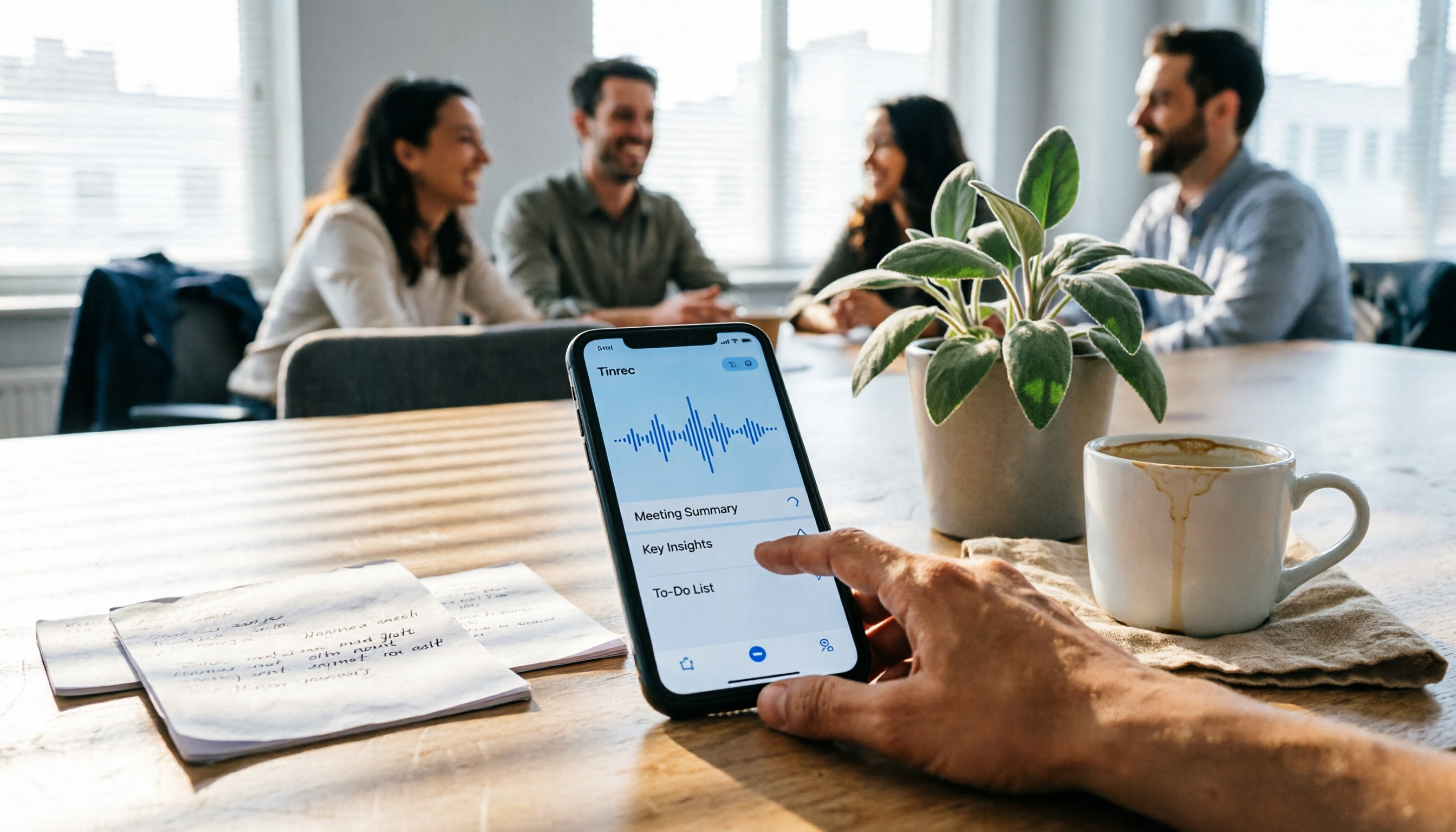
Turn recordings into transcripts and summaries in minutes
Upload audio or video for multilingual transcription, AI notes, and action items
5 Fast iPhone Recording Methods Compared: One-Tap Start, But Who Can Organize Your Meeting?
Before You Record on iPhone, Ask Yourself: Are You Taking a Quick Note or Organizing a Full Meeting?
The meeting has already started, your boss is on the third key point, and you're just now unlocking your phone, swiping to the Utilities folder, and finding Voice Memos.
Another scenario: you're walking down the street and suddenly get a call from a client. After hanging up, you realize you didn't write down any of their requirements.
The trouble with iPhone recording is never that it can't record—it's whether you have time to press the button in the moment, and how much time you'll spend re-listening afterward.
This article will walk through the 5 built-in quick recording methods on iPhone, then discuss how to choose a tool if your goal is meeting notes.
5 Built-in Quick Recording Methods on iPhone: How Many Seconds to Start?
1. Voice Memos (Utilities folder) The most basic method: open the app and record. On supported models, an ongoing recording appears in the Dynamic Island; tap it to return to the app. When recording with the built-in microphone, newer models automatically record in Spatial Audio, while older models default to mono—you can enable stereo recording in Settings. Recordings are named "New Recording" or by location, and you can rename them later.
2. Action Button (iPhone 15 Pro and later, including 16 and 17 series) Go to Settings and change the Action Button on the left side to "Voice Memos." Then just long-press to start recording. This is one of the fastest ways to start—no need to even open an app.
3. Lock Screen shortcut (iOS 18 and later) Replace the default Camera and Flashlight buttons at the bottom of the Lock Screen with Voice Memos. Long-press the icon to record immediately. No unlocking, no searching for an app.
4. Back Tap (with Shortcuts) First, create a "Record Audio" action in the Shortcuts app. Then go to Settings > Accessibility > Touch > Back Tap, choose double-tap or triple-tap, and assign the shortcut you just created. After that, tap the back of your phone to start recording. Note: this method requires the screen to be unlocked to work.
5. Control Center "Local Capture" Swipe down from the top-right corner to open Control Center, tap the plus sign to add a control, and find "Local Capture" under the Utilities category. It's useful when you don't want a recording indicator to appear, but it only records your own voice—the other party won't be captured.
Also, starting with iOS 18.1, iPhone has built-in call recording. However, during a call, a notice saying "This call will be recorded" appears, so both parties know. We'll cover this more in the pitfalls section.
4 Key Points to Understand Before Choosing an iPhone Recording Method
Startup speed: Can you start recording within 3 seconds? The Action Button and Lock Screen shortcut are the fastest—just long-press after unlocking. If you often remember to record only after a meeting has started, this dimension matters more than anything.
Can you use it right after recording? Built-in tools give you an audio file. For a 30-second memo, re-listening is fine. But for a 60-minute meeting, re-listening takes 60 minutes. The difference lies in whether the tool offers transcription, summarization, to-dos, and Q&A.
Chinese and mixed Chinese-English recognition. Meetings in Taiwan are rarely pure Chinese or pure English—more often it's "Let's follow up on this case next week." A tool's ability to handle mixed language directly determines how much time you'll spend editing afterward. Actual recognition accuracy depends on recording quality, noise, accents, and overlapping speech; no tool can guarantee a fixed accuracy rate.
Cross-device and team use. Today you record on iPhone, tomorrow you organize on a computer, and the day after you need to show a colleague. If recordings stay only on the phone, data is scattered across personal devices—when someone leaves, everything is lost.
Tinrec – If You Need More Than Just Recording
Tinrec is an AI meeting notes and collaboration tool for individuals and teams, available on web, desktop, and mobile. Its core concept is turning meetings into searchable, collaborative, actionable data.
No bot needed for online meetings. The desktop version directly captures your computer's system audio, handling Zoom, Google Meet, Microsoft Teams, Webex, and more—no need for a meeting bot to join as a participant. On iPhone, it's great for on-the-go, offline conversations, and quick notes.
Stop organizing recordings by hand
Upload audio or video and automatically get a transcript, summary, and action items
Ask for key points right after recording. It automatically generates summaries, chapters, key points, and to-dos. Even more useful is AI Q&A—after a 40-minute meeting, you can directly ask "What was the conclusion?" or "Who is responsible for sending the quote?" without listening from the beginning.
Integrates with your existing workflow. Transcripts and organized results can be exported to Notion, Google Docs, OneNote, Dropbox, and other tools, and can further generate reports, tables, and meeting minutes.
We tested in real meeting scenarios: indoor environment, keyboard sounds, and people interrupting. The conclusion: Tinrec's value isn't in the recording itself, but in how quickly you get readable results after recording. Actual performance still depends on recording quality, noise, accents, and overlapping speech. For important content, we recommend cross-checking with transcript timestamps and audio playback.
Three advantages. First, recording, transcription, summary, and to-dos are in one workflow—no moving files between three apps. Second, it supports real-time translation, viewable in original, translated, or bilingual mode—no need for a separate translator in cross-language meetings. Third, the free version offers basic quota to experience recording, import, summary, and transcription; for short-term intensive use, a weekly pass is available.
Limitations to be clear about: File import minutes are subject to plan quotas, not unlimited—heavy users need to upgrade to a paid plan. Also, the team version is a separate team space, not multiple people sharing a personal account, and currently sharing is mainly at the team level, without per-file permission settings.
Who is it for? Those with regular weekly meetings, needing Chinese and mixed Chinese-English transcripts, wanting to use AI to find key points right after recording, or wanting to keep meeting data within the team.
Besides Tinrec, What Other Options Are There?
iPhone built-in Voice Memos: Free, fastest to start, the top choice for quick notes. It also offers simple editing like trim, replace, and recover. But it only gives you an audio file—no AI summary, to-dos, or Q&A. After recording a 60-minute meeting, you still have to re-listen yourself. For a 30-second memo, the built-in app is enough.
Notta: A multilingual transcription tool. Free version: 120 minutes per month, max 3 minutes per recording. Annual Pro is about USD 8.17/month, 1,800 minutes per month (refer to official page). Transcription is decent, but it lacks Tinrec desktop's bot-free online meeting recording, Agent post-processing, and team space.
Otter.ai: Top choice for English meetings. Basic free: 300 minutes per month. Annual Pro is about USD 8.49/user/month (refer to official page). If your meetings are almost all in English, it's a good deal. But Chinese meetings are not its strength, and it lacks Tinrec's team hotwords and team data accumulation.
Pitfall Guide: 4 Most Common Mistakes with iPhone Quick Recording
Pitfall 1: You set up Back Tap but tapping doesn't work. Back Tap requires the screen to be unlocked, and a thick phone case may reduce sensitivity. If you want to record as soon as you pick up the phone, the Action Button or Lock Screen shortcut is more reliable.
Pitfall 2: Thinking the other party won't know about call recording. Built-in call recording starting with iOS 18.1 shows a "This call will be recorded" notice that both parties can hear. In Taiwan, recording involves consent from both parties; it's advisable to inform the other party before recording to avoid legal risks.
Pitfall 3: Treating "Local Capture" as two-way call recording. It only records your own voice—the other party won't be captured. It's fine for your own voice memos, but not suitable for preserving a full conversation.
Pitfall 4: Only caring about recording, ignoring how to use it afterward. This is the most common and most expensive pitfall. Built-in tools save the audio but don't organize it. If a 60-minute meeting is only for re-listening later, you've spent double the time. The value of AI meeting tools is saving that re-listening time.
Conclusion: Which One Should You Use?
Quick 30-second memo, sudden inspiration → iPhone built-in Voice Memos, or set Action Button or Lock Screen shortcut to record—just one press.
Need fast startup and post-recording organization → Set Action Button to record, or record directly in Tinrec to transcribe while recording.
Online meetings (Zoom, Meet, Teams, Webex) → Tinrec desktop bot-free recording—no need to invite a bot.
Chinese + mixed Chinese-English meeting transcripts → Tinrec, with team hotwords to maintain professional terminology.
Zero budget, meetings almost all in English → Otter.ai free version, 300 minutes per month—one of the few exceptions in this article.
Team needs to share meeting data → Tinrec team version, with team space, roles, and seat management; data can be handed over when members change.
iPhone's built-in recording features are actually quite sufficient. The only complaint: it won't organize for you. If your goal isn't just to keep audio, but to have searchable, queryable meeting records, try Tinrec's free version with basic quota. Experience how much organization time you can save in a real meeting, then decide whether to upgrade.
References
- Record in Voice Memos on iPhone - Apple Support (Taiwan)
- iPhone recording is not troublesome! One-tap quick self-protection at critical moments
- iPhone recording shortcut setup tutorial: 3 ways to quickly start recording - Tech Girlz
- iPhone call recording tutorial: Step-by-step learn phone recording
- [iPhone recording tutorial] iOS built-in Voice Memos, one-tap quick recording - YouTube
Turn every recording into actionable outcomes
Get 60 free transcription minutes when you sign in. No credit card required.
Related Reading
You might also like
3 Ways to Convert LINE Voice Messages to Text in 2026: Which Saves the Most Time?
LINE doesn't have a built-in feature to convert received voice messages to text. There are three common methods, each with different capabilities. This article compares their use cases and limitations, and explains how to use Tinrec to generate summaries, chapters, and action items after transcription, turning voice into usable data.

2026 Recording App Comparison: Tinrec vs Notta vs Otter.ai — Which One Should You Choose?
From the perspective of a mid-level manager juggling 15 meetings a week, this article first asks whether a recording app just captures audio or actually handles your post-meeting work. It then compares Tinrec and Notta across five dimensions: how they capture online meetings, what happens after transcription, Chinese and mixed-language experience, team data governance, and pricing. Finally, it offers specific recommendations for different scenarios.

2026 MP3 to Text Tools Buyer's Guide: 4 Tested Picks and How to Choose
MP3 to text isn't just about turning audio into a transcript. This 2026 buyer's guide compares Tinrec, Notta, TurboScribe, and Otter.ai across four angles—file limits, Chinese recognition, post-meeting organization, and team collaboration—and covers the three most common pitfalls so you can pick the one that actually saves you time.
3 Best Samsung Call Recording Solutions in 2026: Built-in, Third-Party Apps, and AI Tools Compared
Does your Samsung phone have built-in call recording? The answer depends on your region and model. This article breaks down the current state of Samsung call recording and Android system limitations, then compares three common solutions—from simple recording apps to AI tools that turn calls and meetings into transcripts, summaries, and action items—so you can decide which one fits your needs.

2026 Comparison Test of 4 Transcription Tools: Which Is the Most Time-Saving for Chinese Meeting Transcription?
How do you write a transcript without falling into traps? This article first breaks down the three most common misconceptions about handwritten transcripts, along with principles for handling sentence breaks and punctuation. It then compares 4 transcription tools in hands-on tests, explaining how Tinrec turns "typing drudgery" into "proofreading work," and includes a pitfall-avoidance guide and selection advice.

4 iPhone Recording Methods Compared in 2026: Which One Helps You Organize Key Points After Recording?
Recording on iPhone isn't just about pressing the red button. This article addresses common misconceptions and covers practical methods for using the built-in Voice Memos, call recording, and external microphones. It explains why post-recording organization is crucial and introduces how Tinrec turns iPhone recordings into searchable, queryable, and shareable transcripts and meeting materials.

4 Best Audio Transcription Tools in 2026: Where Samsung Voice Recordings Are Stored and How to Organize Them
Can't find your Samsung voice recordings? It's usually not because the files were deleted, but because you don't know where they're stored. This article first explains where Samsung voice recordings are located, where the files are saved, and call recording limitations. Then it compares 4 audio organization tools side by side, showing how to use AI to organize transcripts, summaries, and action items after recording.
5 Best iPhone Call Recording Solutions in 2026: From Built-in Features to AI Transcription
iPhone finally has built-in call recording starting with iOS 18, but the real challenge is what comes after: transcription, summarization, and organizing your data. This article compares 5 common iPhone call recording and post-call organization solutions, including iPhone's built-in call recording, Tinrec, Notta, TurboScribe, and PLAUD recording hardware. We break down features, pricing, and ideal users, and remind you about the legal and consent issues you must consider before recording.

How to Record iPhone Calls in 2026: Built-in One-Tap Recording + Automatic Transcription
Starting with iOS 18.1, iPhone has a built-in call recording feature. This guide walks you through checking your system version, region and language support, the notification both parties hear, and legal considerations, then shows you step by step how to record a call, find the recording file, and access the transcript. It also covers the real limitations of the built-in feature and what you can add for post-call organization, cross-platform use, and team collaboration.