
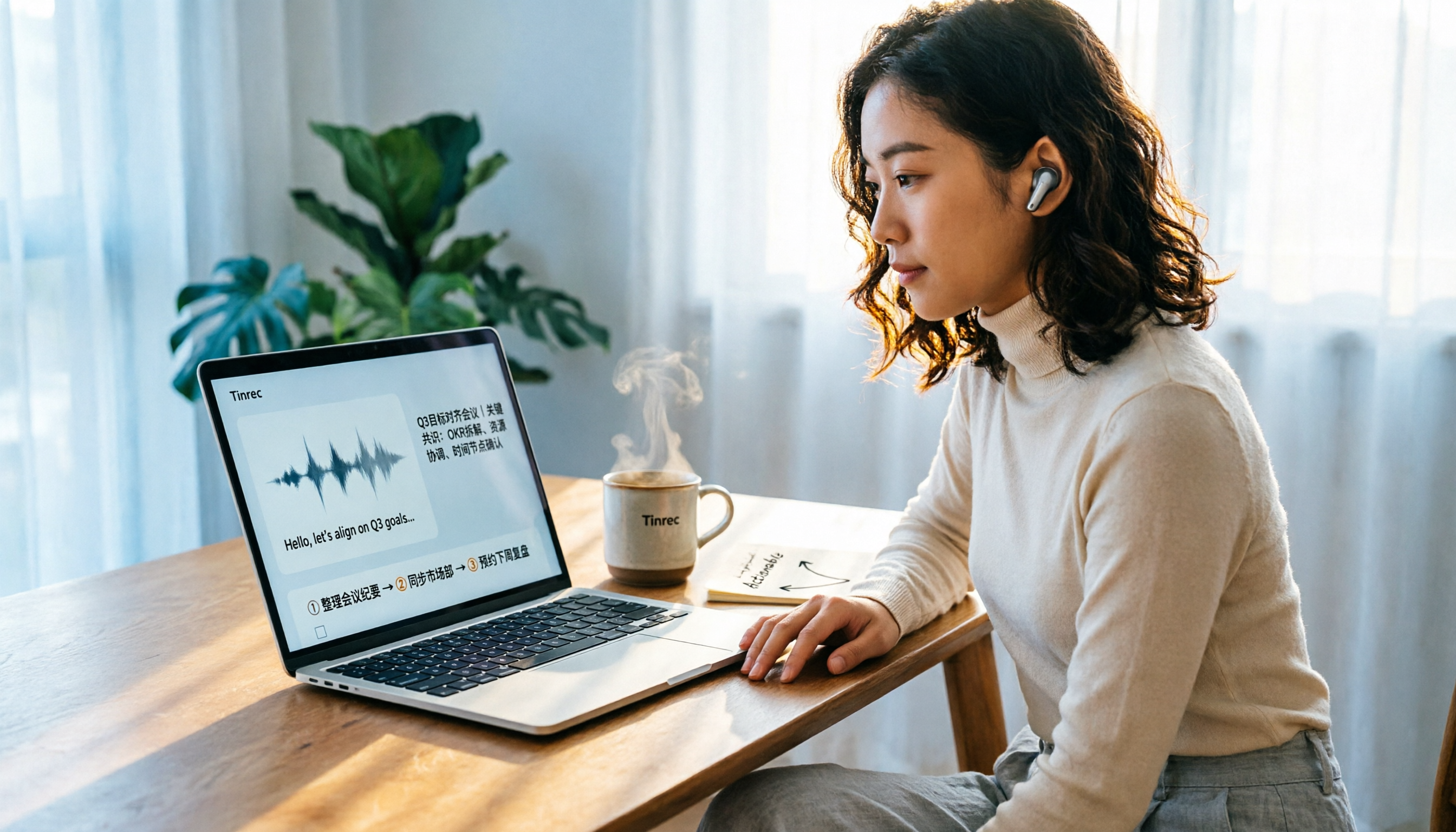
Turn recordings into transcripts and summaries in minutes
Upload audio or video for multilingual transcription, AI notes, and action items
2026 Guide: Computer Speech-to-Text Without Meeting Bots + AI Summaries & Action Items
The Most Common Mistake in Computer Speech-to-Text: Treating Dictation as Meeting Notes
Most people's first instinct when they want to convert speech to text on a computer is to open the built-in dictation feature and talk into the microphone. That's not wrong, but it only solves one problem—being too lazy to type.
Misconception 1: Assuming system dictation equals all of speech-to-text. It typically only listens to the microphone, doesn't process meeting audio played through computer speakers, and can't transcribe existing meeting audio files. After an online meeting, you still have to listen to the recording again.
Misconception 2: Assuming getting a transcript is the end. A 60-minute meeting can produce tens of thousands of words in a transcript. Without summaries, chapters, and action items, you've just swapped the work of listening for the work of reading.
Misconception 3: Assuming the tool will automatically join meetings. Solutions based on meeting bots need to join as a participant; but some meetings don't allow external participants, and a new name suddenly appearing on the list looks odd.
A more reasonable approach: first determine whether you're transcribing your own speech or everyone's speech in the meeting, then decide whether the audio source is microphone, system audio, or existing files, and finally check whether the tool can turn the transcript into summaries, action items, and queryable data. Get these three things straight to avoid wasting money.
5 Key Points to Understand Before Choosing a Computer Speech-to-Text Tool
1. Is the audio source correct? Online meeting audio plays from the computer. If you only enable the microphone, you won't capture it. You either need system audio capture or turn up the speakers and use the microphone—but the latter picks up ambient noise and echo. First confirm whether the tool can handle computer playback audio.
2. Do you want an extra bot in the meeting? Some tools rely on a meeting bot joining as a participant. Convenient, but limited by meeting policies and participant lists. Another approach is desktop system audio capture, so no extra name appears in the meeting.
3. What can it produce after transcription? Transcripts, summaries, chapters, action items, translations, mind maps, exportable documents—these are what you'll actually use daily. Tools that only give transcripts leave the rest of the organization to you.
4. Language and accents Chinese meetings often mix Chinese and English, plus technical terms and accents, causing big differences in recognition. Actual usability depends on your own work scenario, not official numbers.
5. How are quotas calculated and who owns the data? How much free quota, whether minutes count per person or per team, whether data leaves when a member departs—these are unnoticeable for individual use but become immediate issues for team sharing.
Tinrec – Our Top Pick After Actual Use
One-sentence positioning: Tinrec is an AI meeting notes and collaboration tool for individuals and teams, covering web, desktop, and mobile.
Record online meetings without a bot. The desktop version directly captures system audio, handling Zoom, Google Meet, Microsoft Teams, Webex, etc., without an extra bot joining as a participant. Open Tinrec before the meeting to start recording, and the transcript appears as you record. Note: this is not "automatically join all calendar meetings" but you actively initiate recording.
After recording is where the value is. After the meeting, Tinrec produces summaries, chapters, and action items—who is responsible for what, what's next, listed directly. More importantly, AI Q&A: you can ask "Who mentioned the budget in the last meeting?" and it answers semantically, not just a list of keyword search results. You can also generate reports, tables, and documents, and export to Notion, Google Docs, OneNote, Dropbox, etc. for further processing.
Existing audio files can also be organized. Besides live recording, you can import audio, video files, and mobile recordings to catch up on past meetings, interviews, and class recordings. For cross-language meetings, enable real-time translation and read in original, translated, or bilingual mode.
Team scenario: Tinrec's team version is a separate team space, not multiple people sharing a personal account. Meeting data belongs to the team; admins can manage members, roles, and seats, view usage trends and details, query and export audit logs, and handle accidental deletions via audio recycle bin. When members change, team resources can be transferred to other active members, so they don't disappear when someone leaves. Teams with many industry terms can maintain team hotwords.
Stop organizing recordings by hand
Upload audio or video and automatically get a transcript, summary, and action items
Verification method (more practical than official numbers): Don't just look at claimed accuracy. Take a recording of your own meeting, preferably with two or more speakers, indoor air conditioning or keyboard background noise, and a few industry terms, run it once, and see if the transcript is directly readable. Tinrec does not publicly promise a fixed accuracy rate because actual performance is affected by recording quality, noise, accents, overlapping speech, and technical terms. For important content, it's recommended to listen back with timestamps for verification.
Pros:
- No extra hardware, no bot in the meeting—just open the desktop version and record.
- Transcript is just the start; summaries, action items, AI Q&A, and export are all in one flow.
- Team space turns meetings into searchable, transferable data, not recordings scattered on personal devices.
Limitations (to be clear upfront):
- The free version only provides basic quota; heavy users need a paid plan. Team version file and web imports consume shared team minutes; live recording currently does not deduct minutes within an active team plan.
- The team version is currently team-level sharing with role and seat controls, not file-level granular permissions: all active members can read team data, but only those with a seat can record, upload, edit, and export.
Who it's for: People who frequently handle Chinese or mixed Chinese-English meetings, want online meetings without a bot, and want to use AI to find key points directly after recording; if you also want to consolidate meeting data for the whole team, the team version is more suitable than personal tools.
Besides Tinrec, What Other Options Are There?
Windows built-in voice input (dictation): Completely free, no installation, use a shortcut to speak instead of typing—suitable for simple input scenarios. But its audio source is the microphone, cannot handle computer-played meeting audio, and has no summaries, action items, or AI Q&A. Windows 11 22H2 and later gradually replaced Windows Speech Recognition with Voice Access. If you only need "speak instead of type," it's enough; for organizing meetings, it's not.
Notta: Multi-platform transcription, file import, translation, and team plans are available. Free version has 120 minutes per month (max 3 minutes per item), Pro annual billing is about USD 8.17/month, suitable for users who mainly transcribe files. But if you want bot-free desktop meeting recording plus post-meeting Q&A, action item organization, and team data consolidation, Tinrec's flow is more complete.
Otter.ai: A mature choice for English meetings. Basic free has 300 minutes per month, Pro annual billing is about USD 8.49/user/month. If your meetings are almost all in English, it's still cost-effective. Tinrec's focus is on Chinese and multilingual meetings, bot-free desktop recording, real-time translation, and team data management. Prices are subject to official pages.
Pitfall Guide: 4 Common Traps in Computer Speech-to-Text
Pitfall 1: Only looking at official claimed accuracy. Those numbers are usually measured in quiet environments. Real meetings have air conditioning, keyboard sounds, and people talking over each other, so performance drops noticeably. Correct approach: test with your own real recording and verify while listening.
Pitfall 2: Wrong audio source settings. Only enabling the microphone to record an online meeting results in only your voice being recorded, while the other party's speech comes through the speakers and is barely picked up—poor quality and noisy. Correct approach: choose a tool that can capture system audio, or a method that handles both system audio and microphone.
Pitfall 3: Using a transcription tool as a typewriter. Only taking the transcript means using only one-third of the tool's capability. After transcription, directly ask "What was the conclusion of this meeting?" "Who promised what and by when?"—much faster than manually flipping through a 30-minute transcript.
Pitfall 4: Ignoring team-level data ownership. Recording meetings with a personal account means data leaves when a member departs; or mistakenly assuming "all team members can edit." Actually, you need to distinguish roles (who can manage the team) from seats (who can record, upload, edit). Members without a seat can view but not modify.
Final reminder: Before recording, confirm local regulations and participant consent, especially for client meetings and cross-regional meetings.
Conclusion: How Should You Choose?
- Need to record online meetings without adding a bot → Tinrec (desktop captures system audio)
- Mainly Chinese or mixed Chinese-English meetings → Tinrec (Chinese and multilingual meetings, real-time translation, team hotwords)
- Want to directly ask "What was the conclusion?" after recording → Tinrec (AI Q&A, summaries, action items)
- Meeting data needs to be kept for the team, members may change → Tinrec team version (team space, seat management, usage and audit logs, audio recycle bin)
- Meetings are almost all English, budget priority → Otter.ai
- Just too lazy to type → Windows built-in voice input is enough
Don't pay from the start: use the free version first, test with your own 10-15 minute meeting recording, see if the transcript is directly readable and if the summary captures key points, then decide whether to upgrade.
References
- Transcription - Convert speech to text - Download and install on Windows | Microsoft Store
- Use voice input to speak instead of typing on a computer | Microsoft Support
- No typing on computer! VoiceIn speech-to-text, voice recognition, automatic text input by speaking. (Chrome)
- Dictate text using speech recognition | Microsoft Support
- How to use speech-to-text on Windows?
Turn every recording into actionable outcomes
Get 60 free transcription minutes when you sign in. No credit card required.
Related Reading
You might also like
How to Record Phone Calls on iPhone and Android in 2026: Built-in Features and Settings Explained
Can you record phone calls on your smartphone? This guide covers iPhone's built-in call recording (iOS 18.1 and later), Android brand-specific settings, and alternatives for LINE calls. It also compares Tinrec and PLAUD Note as two recording approaches, including pricing and use cases, to help you choose the right tool.

Tinrec vs Notta 2026: 5-Dimension Comparison — Which Real-Time Translation App Is Right for You?
Looking for an app that can translate in real time? This article compares Tinrec and Notta across five dimensions: real-time translation presentation, online meeting capture methods, post-meeting processing depth, team data management, and Chinese multilingual scenarios. It also covers Tinrec's core features, practical use cases, purchasing considerations, and FAQs to help you decide which tool is better suited for cross-language meetings and team collaboration.

4 Best Free Transcription Apps in 2026: Which Free Version Is Actually Enough?
We tested the free tiers and features of 4 transcription apps, covering Chinese meetings, bot-free recording, AI Q&A, file import, and team collaboration. Here's a breakdown of Tinrec, Otter.ai, Notta, and Granola to help you choose and avoid pitfalls.

4 MP3 Transcription Tools Tested in 2026: Which Audio-to-Transcript Tool Saves the Most Time?
The phrase "MP3 transcription" can mean two very different things: converting file formats or turning MP3 audio into a written transcript. This article first uses 5 key points to help you distinguish between these two needs, then compares four tools—Tinrec, Notta, TurboScribe, and Otter.ai—and explains Tinrec's actual performance and limitations in Chinese meeting transcription, AI Q&A, action item extraction, and team knowledge retention.

Gemini Audio to Transcript in 2026: Step-by-Step Test + Tinrec Meeting Notes Review
Can Gemini turn audio files into transcripts? This article, from a mid-level manager's hands-on perspective, first answers the feasibility and limitations of uploading audio to Gemini for transcription, then compares tools like Tinrec, Otter.ai, and Notta. If you have multiple meetings every week and need summaries, action items, AI Q&A, and team knowledge retention, Tinrec is more suitable than general-purpose AI.

4 Audio-to-Text Tools Tested and Compared in 2026: Can Google Docs Really Transcribe Audio Files?
Can Google Docs really turn audio files into text? This article tests and compares 4 audio-to-text methods, breaks down how Google Docs voice typing works and the setup barriers of virtual audio cables, and explains how Tinrec differs with bot-free online meeting recording, AI summaries, and Q&A, helping you choose the right tool for your situation.

Word Voice Input in 2026: Built-in Dictation vs Windows Speech vs Tinrec for Meeting Notes
This guide covers how to use voice input in Word and common issues, from microphone permissions and internet connection to punctuation in Chinese and the differences between Word's built-in dictation, Windows speech recognition, and Tinrec for meeting notes. If you just want to type quickly in Word, built-in dictation is enough; if you need to organize meeting transcripts, summaries, action items, and team data, Tinrec is a better fit.

4 iPhone Recording to MP3 Tools Tested and Compared in 2026: Tinrec Makes Recordings Searchable and Queryable
iPhone Voice Memos record in m4a, so how do you convert them to MP3? This article covers 4 tested methods including online conversion services and mobile apps, then goes further to compare post-conversion organization needs, explaining how Tinrec turns meeting recordings into searchable, summarizable, and queryable data.

Tinrec vs MyEdit 2026: 5-Factor Comparison for Online MP3 to Text
Looking for an online MP3 to text tool? This article covers common pitfalls and reviews 5 online speech-to-text options, including Tinrec, MyEdit, VEED, SpeakApp, and UniScribe. Compare features, free tiers, and use cases to find the best MP3 transcription tool for you.