

Turn recordings into transcripts and summaries in minutes
Upload audio or video for multilingual transcription, AI notes, and action items
4 Ways to Transcribe iPhone Recordings in 2026: Is the Built-in Voice Memos App Enough?
After the meeting, you realize you don't need the recording—you need a usable transcript
After a 90-minute meeting, you pick up your iPhone and there's a long recording sitting in Voice Memos. To confirm "who's submitting the proposal next week," you have to drag the progress bar back and forth, listening to it section by section.
Another scenario is a class or lecture: recording is easy in the moment, but when you get home to organize the key points, you realize that listening and typing at the same time takes longer than the class itself.
If this sounds like your situation, this article lays out the current ways to transcribe iPhone recordings—built-in features, third-party apps, and AI meeting tools—and explains who each one is for.
Before we compare, understand these 4 key points
1. Do you just want text, or data you can keep using?
A transcript is only the first step. The real time sink is turning the transcript into summaries, action items, and conclusions. If a tool only gives you a big block of text, you still have to read through it and organize it yourself. That's why I first look at "what can be done after transcription."
2. Does your iPhone support transcription?
Apple's support documentation is clear: audio transcription requires iPhone 12 or later, supports English, Spanish, Portuguese, Italian, French, German, Japanese, Korean, Simplified Chinese, and Traditional Chinese, and is unavailable in some countries or regions. You can view the transcript while recording or after. So the first thing is to confirm your device and language are supported.
3. Does cross-device matter?
Many people's actual workflow is: record on iPhone, organize on computer. If a tool only lives on your phone or only supports a specific system, format and data transfer become extra costs. This point will clearly separate the options in the comparison below.
4. Is the free tier enough for you?
Built-in features are free, but their limits are obvious; third-party tools usually have free tiers, and you pay once you exceed them. First figure out roughly how many meetings you record per month and how long each one is, then decide whether to pay for an upgrade.
Tinrec — After actually using it, my top recommendation for handling iPhone recordings
In one sentence: Tinrec is an AI meeting notes and collaboration tool for individuals and teams, supporting iOS, Android, and web.
Its biggest difference from ordinary recording apps is that it connects the entire flow from "recording → transcript → usable data."
Transcribes as you record, and automatically generates summaries and action items after the meeting. Open Tinrec during a meeting, and the transcript grows in real time along with the recording. When the meeting ends, the summary, chapters, and action item list are already organized—who's responsible for what, what the deadlines are—no need to listen from the beginning again. For people who have two or three regular meetings every week, the time saved is direct.
After recording, you can just ask questions. This is what makes it feel most different to me. The transcript isn't just for keyword search; you can directly ask it: "Who mentioned the budget in the last meeting?" It understands the meaning and gives you an answer. Among tools at the same price point, few have this ability to "keep asking questions around meeting content."
iPhone recordings and computer meetings can all go into the same place. Interviews and class recordings you capture on your phone can be uploaded as audio or video files for transcription; for online meetings, the desktop version can directly capture your computer's system audio, so you don't need to invite a meeting bot into the room. It also supports real-time translation and bilingual viewing during recording, and exporting results to Notion, Google Docs, OneNote, Dropbox, and other tools for further work, even generating reports, tables, and meeting minutes.
For teams, the team plan turns meetings into team assets. The team plan provides a separate team space where meeting data belongs to the team, and you can manage members, roles, and seats, view usage trends, export audit logs, and use the audio recycle bin. Currently, the team monthly plan is USD 29.80 per paid seat per month, and the annual plan is USD 199 per paid seat per year (about USD 16.58 per month); eligible teams can try it for 7 days with 1 free seat and 300 minutes of shared team import quota, and paid seats provide 2,000 minutes of shared import quota per month, while live recording under an active seat is currently not deducted by the minute. Prices and promotions are subject to the official purchase page.
Three advantages I consider most practical:
First, the cost of post-meeting organization is greatly reduced. Transcription, summary, action items, and chapters are all done at once, with no need to copy and paste between multiple tools.
Second, cross-device. It works on iPhone, Android, web, and desktop, so recordings and data aren't tied to one device.
Third, data can continue to be used. Transcripts can be queried, exported, and handed off to the next team member in the team space, instead of sitting on someone's phone.
Things to keep in mind:
Stop organizing recordings by hand
Upload audio or video and automatically get a transcript, summary, and action items
Tinrec does not promise a fixed accuracy rate; actual recognition quality is affected by recording environment, noise, accents, multiple people speaking at once, and technical terminology. For important content, it's recommended to cross-check with transcript timestamps and recording playback. Also, the free version provides a basic quota to try recording, import, summary, and transcription; if you have a long meeting almost every day, you'll need to consider upgrading.
Who it's for: People who have meetings or interviews to organize every week, want to use AI to find key points right after recording, need to switch between phone and computer, or want to keep meeting data in the team rather than a personal account.
Besides Tinrec, what other options are there on iPhone?
iPhone built-in Voice Memos and Notes
Free and no installation required, it's the most intuitive option for iPhone users. If your device and language meet the requirements, you can tap "View Transcript" in the lower left while recording or after, and there's also "Copy Transcript" in the upper right; the Notes app can also transcribe recordings and save them via "Add Transcript to Note." Note that deleting the recording also deletes the transcript. It has no AI Q&A, action item extraction, or chapter organization, and it can't export transcripts to workflows like Notion or Google Docs, let alone cross over to Android or computer. If your need is just "occasionally record a Chinese segment and take a look," the built-in option is actually enough.
Notta
Notta also covers multi-platform transcription, meeting notes, translation, and team plans, and overlaps significantly with Tinrec. The official free version offers 120 minutes per month with a 3-minute limit per item—this limit is quite unfriendly for meetings that easily run an hour; the Pro annual plan works out to about USD 8.17 per month with 1,800 minutes per month, and the Business annual plan is about USD 16.67 per seat per month. The difference is: Tinrec offers bot-free desktop meeting recording, AI Q&A around meetings, Agent post-processing, and team space roles, seats, and usage governance. If you just need to convert files to text, Notta is worth considering; if what you want is "meeting data you can query and hand off after the meeting," Tinrec is more complete.
Otter.ai
Otter is a fairly mature AI meeting assistant. Basic is free with 300 minutes per month, and Pro annual is about USD 8.49 per user per month, including 1,200 minutes of in-app recording and 10 file imports per month. Its strength is English business meetings. If your meetings are almost entirely in English and your budget is limited, Otter is a reasonable choice. But if you mainly record Chinese or mixed Chinese-English content, and want transcripts to also settle into team data with team hotwords and bilingual comparison, Tinrec will be smoother.
Pitfall guide: The 4 most common mistakes when transcribing iPhone recordings
Pitfall 1: Assuming every iPhone can automatically generate transcripts. Audio transcription requires iPhone 12 or later, and some languages and countries or regions are not supported. Recording an entire meeting only to find there's no transcript is frustrating. Confirm your device and language settings before recording.
Pitfall 2: Deleting the recording also deletes the transcript. According to Apple's support documentation, deleting a recording also deletes the transcript; call recording transcripts may also not appear immediately. For important content, first "Copy Transcript" or export to another tool before cleaning up recordings.
Pitfall 3: Using a transcription tool only as "recording to text." If you only use the transcript, you're only using one-third of the tool's capability. After recording, directly ask it "What was the conclusion of this meeting?" or "What are the action items?"—much faster than flipping through a 30-minute transcript yourself.
Pitfall 4: Ignoring recording consent and regulations. Recording and transcription involve other people's privacy. Please follow local laws and obtain consent from participants when needed.
Conclusion: Which one should you choose?
Simply put, the built-in iPhone transcript can already handle "occasionally record a segment and take a look"; but as soon as your needs move toward "organizing, querying, cross-device, team sharing," Tinrec becomes the more suitable choice.
- Only record one or two segments a month, don't want to install any app → iPhone built-in Voice Memos (but no AI Q&A or action items)
- Meetings or interviews every week, want to directly ask "What was the conclusion?" or "Who's responsible for what?" after recording → Tinrec
- Record on iPhone, organize on computer, or also use Android → Tinrec (cross iOS, Android, web)
- Need team sharing of meeting data, manage seats and usage → Tinrec team plan
- Meetings almost entirely in English, budget first → Otter.ai
I suggest starting with Tinrec's free version and trying it on a recent meeting or class recording of your own. If the transcription quality and post-meeting organization really help, then consider upgrading—no need to pay from the start.
Sources
- View Voice Memos transcripts on iPhone | Apple Support (Taiwan): https://support.apple.com/zh-tw/guide/iphone/iph00953a982/ios
- Record and transcribe calls on iPhone | Apple Support (Taiwan): https://support.apple.com/zh-tw/guide/iphone/iph57c6590e9/ios
- iPhone Notes and recording apps also have transcription! Simple 4-step tutorial | BusinessNext: https://www.bnext.com.tw/article/83281/iphone-notes-change-voice-to-text
- Free iPhone recording-to-text transcripts! iOS 18 supports 10 languages | 500 Times: https://500times.udn.com/wtimes/story/12671/8961423
- iPhone Voice Memos to text tutorial, transcripts without third-party apps | Mr. Mad: https://mrmad.com.tw/iphone-voice-memo-to-text
References
- View Voice Memos transcripts on iPhone - Apple Support (Taiwan)
- iPhone Notes and recording apps also have transcription! Turn class, meeting, and lecture content into text instantly: simple 4-step tutorial | BusinessNext
- Free iPhone recording-to-text transcripts! iOS 18 supports 10 languages | Quality Life | 500 Times
- Record and transcribe calls on iPhone - Apple Support (Taiwan)
- iPhone Voice Memos to text tutorial, transcripts without third-party apps - Mr. Mad
Turn every recording into actionable outcomes
Get 60 free transcription minutes when you sign in. No credit card required.
Related Reading
You might also like

2026 iPhone Audio-to-Transcript Showdown: Which Tool Handles Chinese Meetings Best?
The built-in Voice Memos app on iPhone can already turn recordings into transcripts, but what happens after you get the text? This article compares three approaches—iPhone's built-in feature, cloud transcription services, and Tinrec—covering their workflows, language support, usage limits, and post-meeting organization capabilities. It also includes FAQs to help you decide which option best fits your meeting and interview needs.
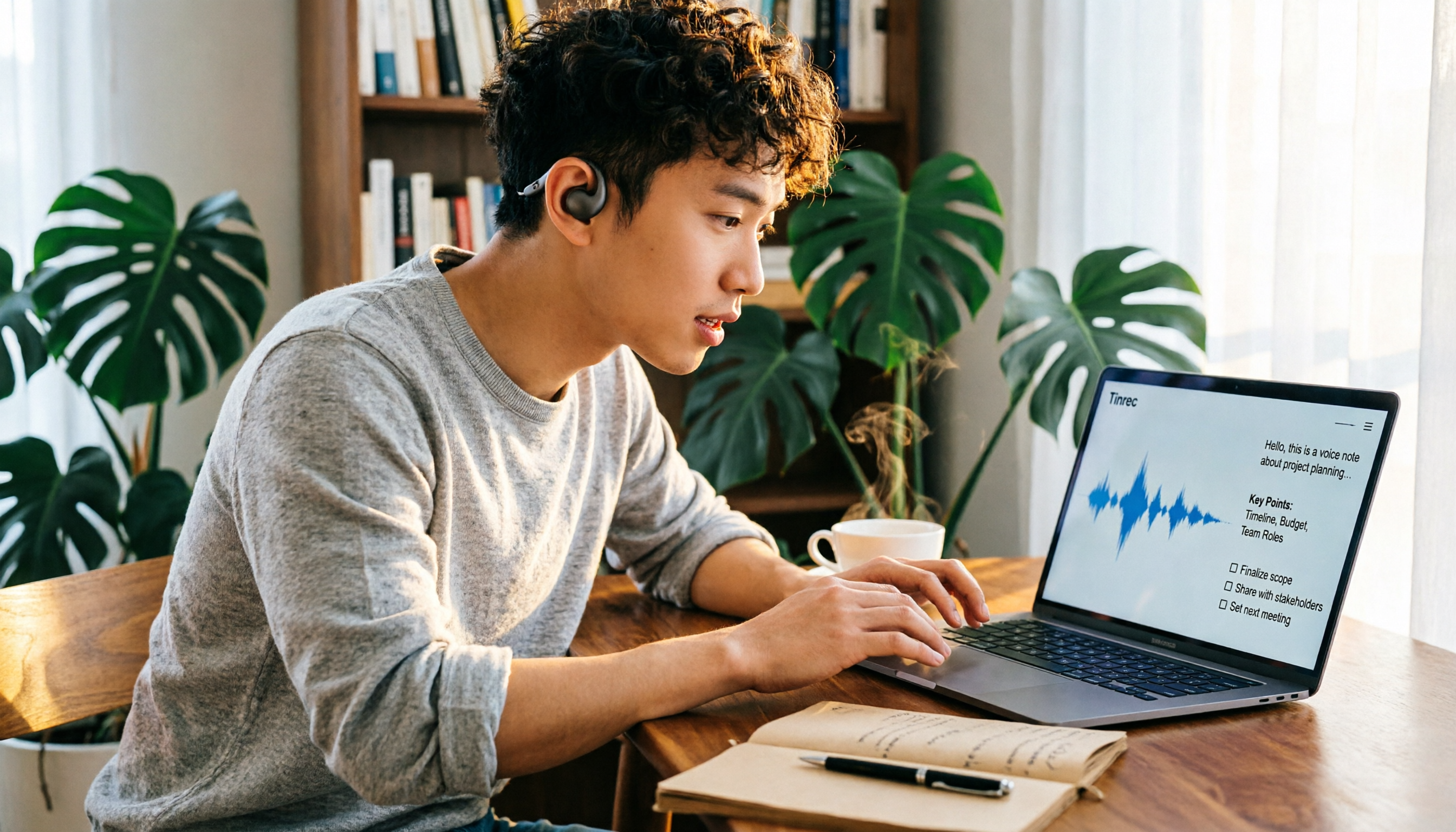
5 Desktop Recording Solutions Compared in 2026: Which Saves the Most Time for Recording, Transcribing, and Organizing?
Can a desktop computer record audio? Yes, both Windows and Mac have built-in recording features. This article reviews 5 desktop recording solutions, from no-install built-in tools, free open-source Audacity, and Bandicam audio recording, to Tinrec, which can turn recordings directly into transcripts, summaries, and to-dos. It also includes selection advice and 4 things to know before recording.

How to Record Computer Screen with Audio in 2026: 5-Step Guide
The key to capturing audio during screen recording is your audio source settings. This 5-step guide shows you how to record sound on Windows, macOS, and online meetings, and compares built-in tools with Tinrec for meeting audio and post-meeting organization.

3 Built-in Screen Recording Methods Compared: How to Launch Them and What to Do With the Files
Need to record your screen? On Windows, press Win+G. On Mac, press Command + Shift + 5. On iPhone, open Control Center and tap the record button. You can start in 3 seconds, completely free. This guide covers the shortcuts, limitations, and common pitfalls of all three built-in options, then compares Tinrec and Otter.ai across 5 dimensions to solve what happens after recording—turning your video into transcripts, summaries, and action items.

5 Screen Recording and Meeting Note Methods Compared in 2026: Where to Hit Record So It's Not Wasted
Where do you hit record for screen recording? This guide covers the recording button locations and practical limitations on Windows, Mac, iPhone, and Android. It also explains why meetings should use audio transcription instead of screen recording, and compares Tinrec with built-in tools to help you press the right button and actually use what you record.

5 iPhone Notes Font Alternatives Tested and Compared in 2026: How to Choose Between Built-in Limits and AI Organization Tools
iPhone Notes cannot truly change fonts; you can only adjust headings, bold, italic, and highlights. iOS 18 adds text color and background color. This article reviews 5 options: Tinrec, iPhone built-in Notes, Notion, Evernote, and Notta, and helps you choose based on your needs.
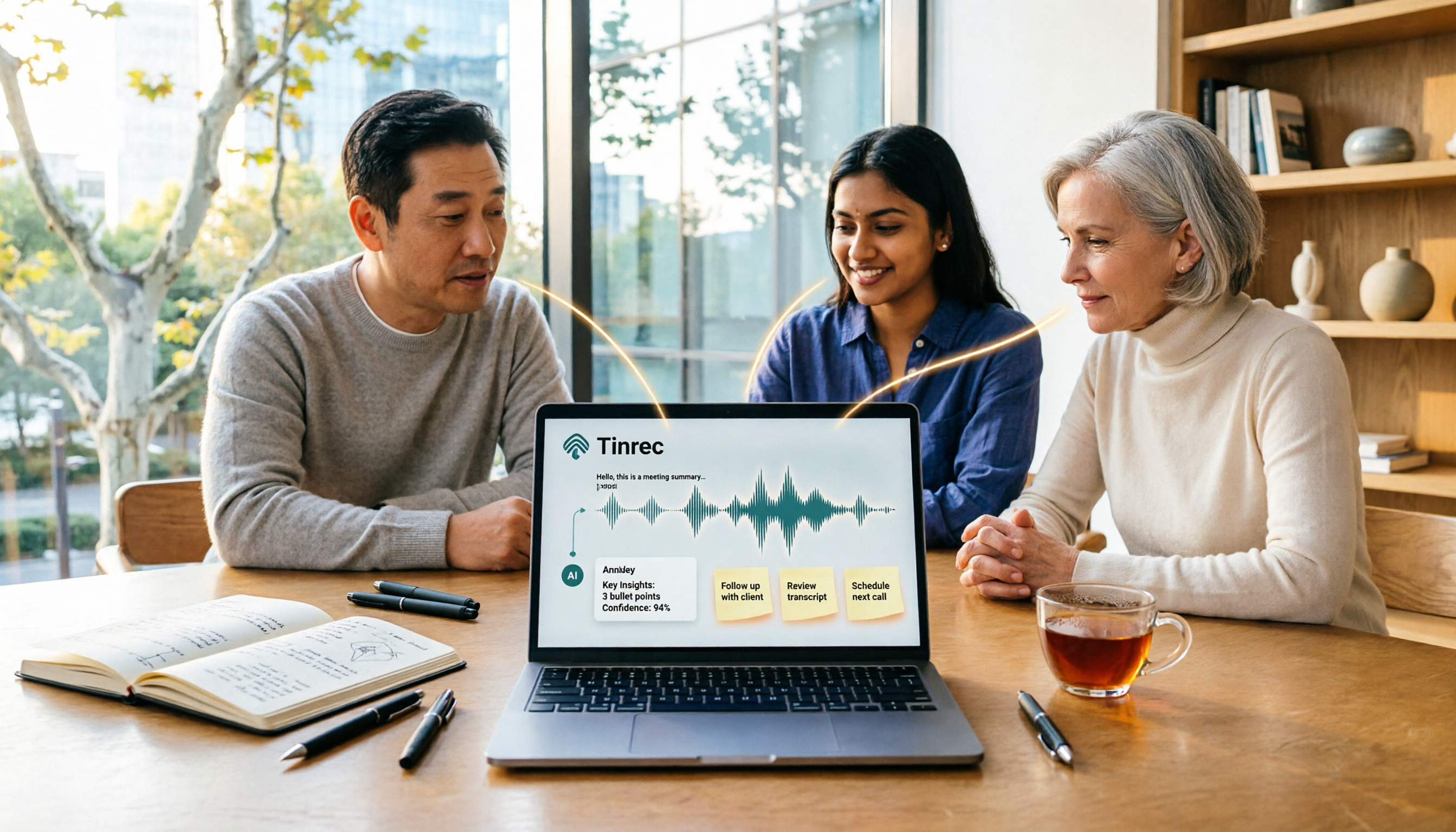
Tinrec vs Windows Voice Recorder in 2026: 5-Dimension Comparison for Laptop Recording
How do you record audio on a laptop? This article compares Tinrec and Windows Voice Recorder across 5 dimensions, explains the limitations of built-in recording on Windows and Mac, and covers bot-free online meeting recording, AI summaries, transcripts, to-dos, exports, and team collaboration to help you choose the right laptop recording solution for meetings, interviews, and classes.

2026 Screen Recording Tools Compared: Built-in Recorders vs. AI Meeting Assistants
For simple screen recording on your computer, Windows Game Bar and macOS built-in tools are enough. But if you need to capture online meetings and get transcripts and summaries, the approach is completely different. This guide compares built-in screen recorders with Tinrec, an AI meeting assistant, using step-by-step instructions to help you decide which fits your needs.
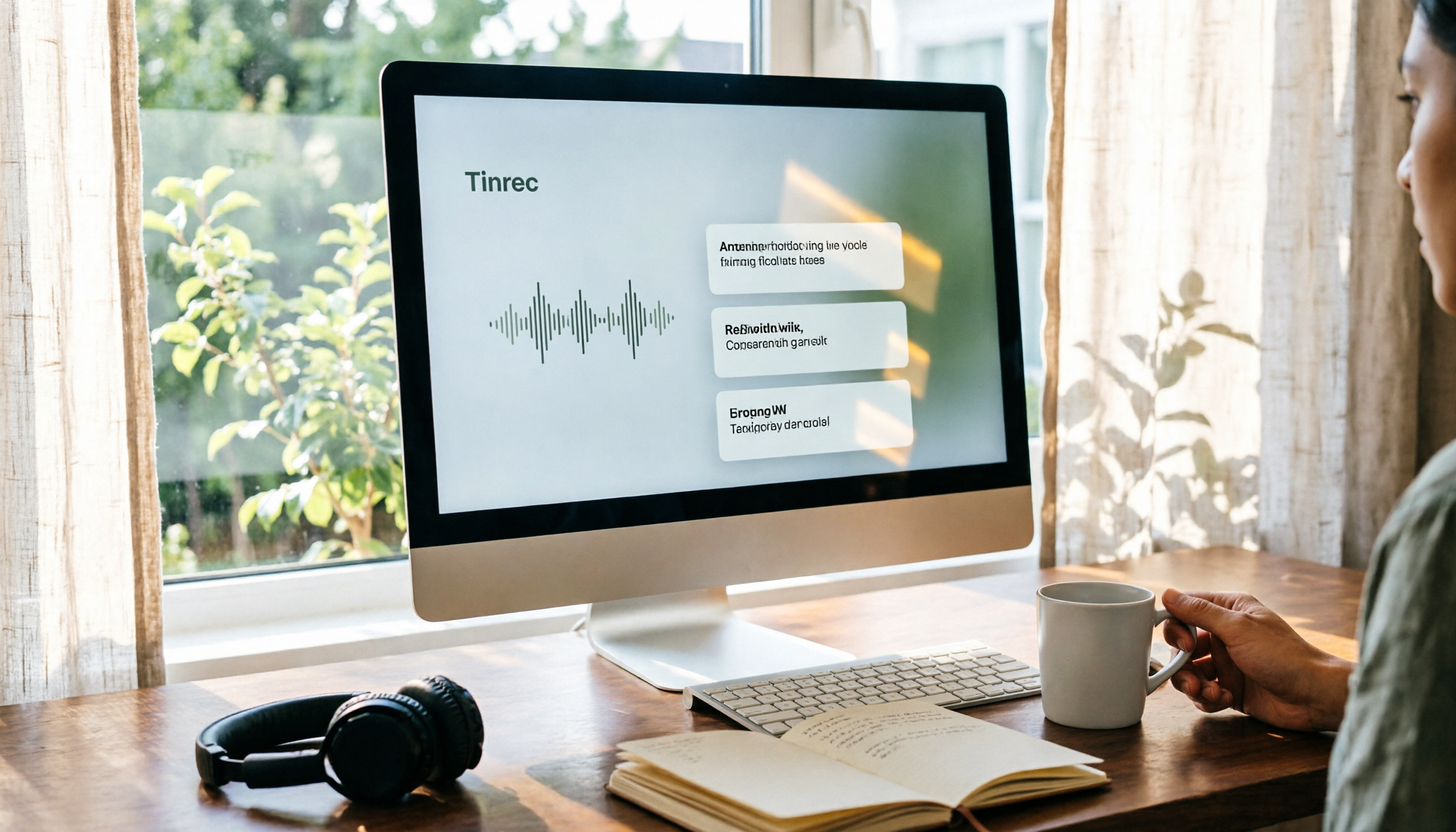
Windows Built-in Recorder vs Tinrec in 2026: 5-Dimension Comparison — Which Desktop Recording Tool Should You Choose?
Can a desktop computer record audio? This article compares Windows built-in Voice Recorder and Tinrec across 5 dimensions, covering recording sources, transcription and organization, AI Q&A, cross-platform use, and team collaboration, with buying advice and pitfalls to avoid to help you find the best desktop recording solution.