

Turn recordings into transcripts and summaries in minutes
Upload audio or video for multilingual transcription, AI notes, and action items
2026 iPhone Audio-to-Transcript Showdown: Which Tool Handles Chinese Meetings Best?
After a 90-minute meeting, you hit record on your iPhone, walk out of the room, and then it hits you: that recording still needs to become a transcript. In the past, you either typed it out yourself or found another service. Now your iPhone can do it built-in, but there's a gap between "a transcript" and "meeting notes you can send straight to your boss."
In this article, I'll break down the three most common approaches: iPhone's built-in feature, online transcription services, and Tinrec. The point isn't who transcribes fastest—it's whether you can actually use the result afterward.
What Can iPhone's Built-in Feature Do for Audio-to-Transcript?
iPhone's Voice Memos app can turn recordings into text, and you can view the transcript either while recording or after. It's supported on iPhone 12 and later, with languages including Traditional Chinese, Simplified Chinese, English (all variants), Japanese, Korean, French, German, Spanish, Portuguese, Italian, and more. Some countries or regions don't support this feature.
The steps are simple: open Voice Memos, tap the recording, and tap the transcript icon in the bottom-left corner to see the text. To take the content with you, you can select "Copy Transcript" to copy the whole thing, or "View Transcript" to copy just a section. If the audio was recorded on iOS 17 or earlier, the system will automatically generate a transcript when you open it. For call recordings in certain regions and languages, you can view them in the Notes app and choose "Add Transcript to Note" or "Copy Transcript."
Three things to keep in mind. First, transcripts aren't 100% accurate—Apple itself recommends checking the content before use. Second, transcripts can't exist on their own; deleting the recording deletes the transcript too. Third, it gives you "text," not "organization"—no section summaries, no to-do lists, and no way for three colleagues to collaborate in one place.
Why Most People End Up Using Tinrec for iPhone Recordings
The built-in feature solves "sound to text," but the real time sink in meetings is what comes after: turning a transcript into something readable, searchable, and shareable.
Tinrec is an AI meeting notes and collaboration tool for individuals and teams. It doesn't just convert audio to text—it turns meeting recordings into searchable, summarizable, queryable, exportable, and further editable data, and stores them in a team space as collaborative, traceable meeting assets.
For the typical iPhone user workflow: you record a meeting on your iPhone, export the audio file, and upload it to Tinrec. It generates a transcript, AI summary, chapters, key points, and action items. You don't get a blob of text—you get meeting material you can actually use.
If you already host Zoom, Google Meet, Microsoft Teams, or Webex meetings on your computer, Tinrec's desktop app can capture system audio directly without a meeting bot joining. The recordings end up in the same place as your iPhone imports.
Core Capabilities of Tinrec for iPhone Recordings
Audio and video file transcription: Upload iPhone-exported recordings or existing audio/video files and quickly turn them into text. Great for organizing past meetings, interviews, and class recordings.
AI summaries and chapters: Long meetings are notorious for hiding key points. Tinrec breaks content into structured chapters and generates summaries, so you can grasp a two-hour meeting in three minutes.
Action item extraction: It pulls action items from discussions—who's responsible for what, what's next—so you don't have to dig through the transcript yourself.
AI Q&A: After transcription, you can ask questions directly about the meeting content, such as "What budget concerns did the client mention?" or "Were the action items from last time followed up?" The system answers based on semantic understanding, not just keyword matching.
Multi-format export and third-party tools: Organized content can be exported to Notion, Google Docs, OneNote, Dropbox, and other tools without retyping.
Real-time translation and bilingual view: For cross-language meetings, you can see the original, translation, or bilingual content while recording, and keep the bilingual comparison afterward.
Team space and governance: The team plan offers a dedicated team space where meeting data belongs to the team, with member, role, seat management, usage analytics, audit logs, and an audio recycle bin. When members change, data doesn't disappear with them.
Real-World Scenarios: When You Need Tinrec Most
Scenario 1: Client Meetings and Sales Interviews
Client meetings are where commitments get lost. Record on iPhone, upload to Tinrec afterward. The transcript preserves original statements, the summary organizes needs, objections, and conclusions, and action items list follow-ups. When you need to deliver to your boss or turn it into a proposal, just export to your document tool.
Stop organizing recordings by hand
Upload audio or video and automatically get a transcript, summary, and action items
Scenario 2: Classes, Lectures, and Online Courses
A two-hour class can produce tens of thousands of words in a transcript. Tinrec's chapters and summaries break content by topic, so you can jump to the section you need when reviewing, and use AI Q&A to confirm where a concept was mentioned.
Scenario 3: User Interviews and Research
Research interviews value exact quotes and context. The transcript preserves full statements for later citation, and AI Q&A lets you quickly compare how multiple interviewees answered the same question, saving hours of digging through files.
Scenario 4: Department Weekly Meetings and Project Meetings
Teams meet every week, but data is scattered across everyone's phones. Centralize recordings in Tinrec's team space so new members can review past meetings, managers can track usage and permissions, and decisions don't vanish when someone leaves.
5 Things to Consider When Choosing a Transcription Solution
1. Actual Chinese recognition performance: Don't just read official specs. Test with your own recordings, especially meetings with mixed Chinese-English or overlapping speakers. Tinrec covers Chinese and multilingual meeting scenarios and offers team hotwords for terminology, but actual results still depend on recording quality, accents, noise, and overlapping speech.
2. What you can do after transcription: A transcript is just the first step. Whether you can generate summaries, chapters, action items, and ask follow-up questions is what saves time. This is where Tinrec is relatively complete.
3. Whether audio files are retained: Some tools don't keep audio, so you can only rely on text for verification. Tinrec retains audio and provides a recycle bin, so accidentally deleted files can be recovered before cleanup.
4. Your devices and platforms: Make sure the tool supports your devices. Tinrec offers web, desktop, and mobile versions, so iPhone recordings, online meetings on your computer, and existing audio files all go into the same database.
5. Team usage and permission design: If meeting data is shared, note that "roles" and "seats" are different—roles determine who can manage the team, seats determine who can record, upload, edit, and export. Tinrec's team plan lets members without seats still view, play, and read data, but resource usage requires a seat.
Frequently Asked Questions
Q1: Does iPhone's built-in transcript support Traditional Chinese?
Yes. iPhone 12 and later can use audio transcripts, with languages including Traditional and Simplified Chinese, but the feature isn't available in some countries or regions. Actual availability depends on your model and OS version.
Q2: What about models before iPhone 12?
Older models can't use built-in audio transcripts. In practice, most people export the recording and use a tool that supports file transcription. Tinrec's audio upload feature fits this scenario—recordings from older phones can still be turned into transcripts and summaries.
Q3: How do I get iPhone recordings into Tinrec?
The most direct way is to export the recording from Voice Memos as an audio file and upload it to Tinrec. If you're recording an online meeting on your computer, you can also start a bot-free recording directly from the desktop app. Both sources go into the same workspace.
Q4: What are the limitations of Apple Intelligence transcript summaries?
Apple's Writing Tools can generate transcript summaries, but it requires an Apple Intelligence-capable model, such as iPhone 15 Pro, iPhone 15 Pro Max, and iPhone 16 series or later, and some languages or regions aren't supported. If you have an older model or need cross-device, cross-team organization, consider a dedicated meeting notes tool like Tinrec.
Q5: Is Tinrec's free plan enough? How does pricing work?
The free plan offers basic quota to try recording, importing, summaries, and transcription—suitable for occasional use. For short-term intensive meetings or interviews, consider a weekly pass; for steady weekly use, the Pro monthly plan is better; for long-term data retention, the annual plan has a lower monthly equivalent. Actual prices, currencies, and promotions are subject to the official purchase page.
Q6: What's the difference between team and personal plans?
Personal plan data is managed by the individual account. The team plan is a separate collaborative space where meeting data belongs to the team, with additional features like member invitations, role and seat management, shared benefits, usage analytics, audit logs, and an audio recycle bin. Currently, the team monthly plan is USD 29.80 per paid seat per month, and the annual plan is USD 199 per paid seat per year (about USD 16.58 per month). Each paid seat provides 2,000 minutes of team shared import quota per month. Eligible new teams can try 7 days with 1 free seat and 300 minutes of team shared import quota.
Conclusion
iPhone's built-in transcript is enough for "occasionally turning a recording into text"—it's fast and requires no extra installation, which is genuinely convenient. But if you face weekly meetings, need records for your team, or want recordings to be searchable, queryable, and reusable long-term, the built-in feature will quickly hit its ceiling.
From my own testing: iPhone records, Tinrec organizes. Once the workflow of transcription, summary, action items, Q&A, and export to team space runs smoothly, meeting notes go from "post-meeting chore" to "done in passing." If you want to compare, start with the free plan and try it on a real meeting to see the difference.
References
- View Voice Memos transcripts on iPhone - Apple Support (Taiwan)
- iPhone Notes and Voice Memos also have transcript features! Turn class, meeting, and speech content into text in 4 simple steps | BusinessNext
- Free iPhone audio-to-text transcripts! iOS 18 supports 10 languages | 500 Times
- Record and transcribe phone calls on iPhone - Apple Support (Taiwan)
- iPhone Voice Memos to text tutorial: built-in transcript without third-party apps - Mr. Mad
Turn every recording into actionable outcomes
Get 60 free transcription minutes when you sign in. No credit card required.
Related Reading
You might also like
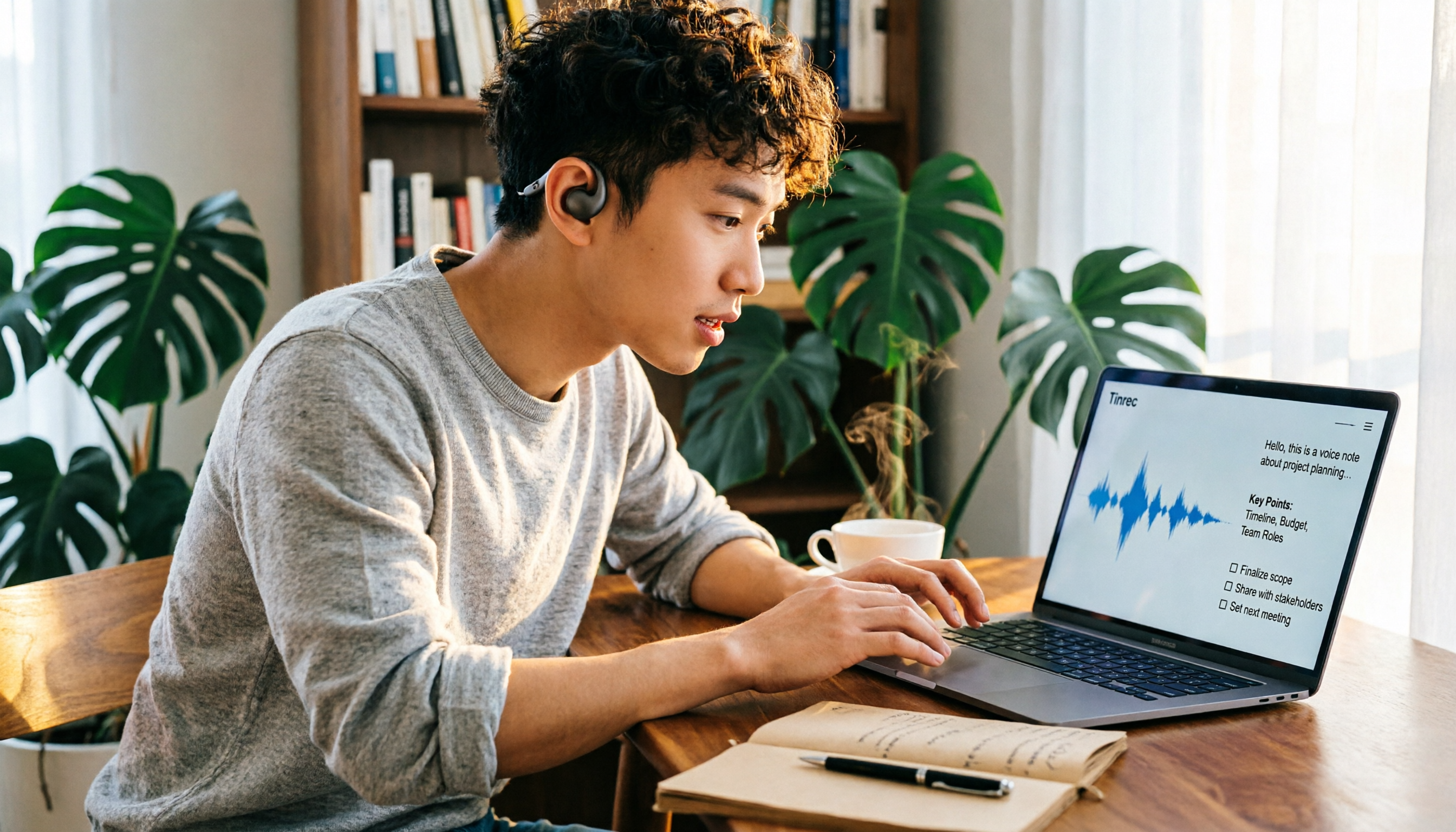
5 Desktop Recording Solutions Compared in 2026: Which Saves the Most Time for Recording, Transcribing, and Organizing?
Can a desktop computer record audio? Yes, both Windows and Mac have built-in recording features. This article reviews 5 desktop recording solutions, from no-install built-in tools, free open-source Audacity, and Bandicam audio recording, to Tinrec, which can turn recordings directly into transcripts, summaries, and to-dos. It also includes selection advice and 4 things to know before recording.

How to Record Computer Screen with Audio in 2026: 5-Step Guide
The key to capturing audio during screen recording is your audio source settings. This 5-step guide shows you how to record sound on Windows, macOS, and online meetings, and compares built-in tools with Tinrec for meeting audio and post-meeting organization.

3 Built-in Screen Recording Methods Compared: How to Launch Them and What to Do With the Files
Need to record your screen? On Windows, press Win+G. On Mac, press Command + Shift + 5. On iPhone, open Control Center and tap the record button. You can start in 3 seconds, completely free. This guide covers the shortcuts, limitations, and common pitfalls of all three built-in options, then compares Tinrec and Otter.ai across 5 dimensions to solve what happens after recording—turning your video into transcripts, summaries, and action items.

5 Screen Recording and Meeting Note Methods Compared in 2026: Where to Hit Record So It's Not Wasted
Where do you hit record for screen recording? This guide covers the recording button locations and practical limitations on Windows, Mac, iPhone, and Android. It also explains why meetings should use audio transcription instead of screen recording, and compares Tinrec with built-in tools to help you press the right button and actually use what you record.

5 iPhone Notes Font Alternatives Tested and Compared in 2026: How to Choose Between Built-in Limits and AI Organization Tools
iPhone Notes cannot truly change fonts; you can only adjust headings, bold, italic, and highlights. iOS 18 adds text color and background color. This article reviews 5 options: Tinrec, iPhone built-in Notes, Notion, Evernote, and Notta, and helps you choose based on your needs.
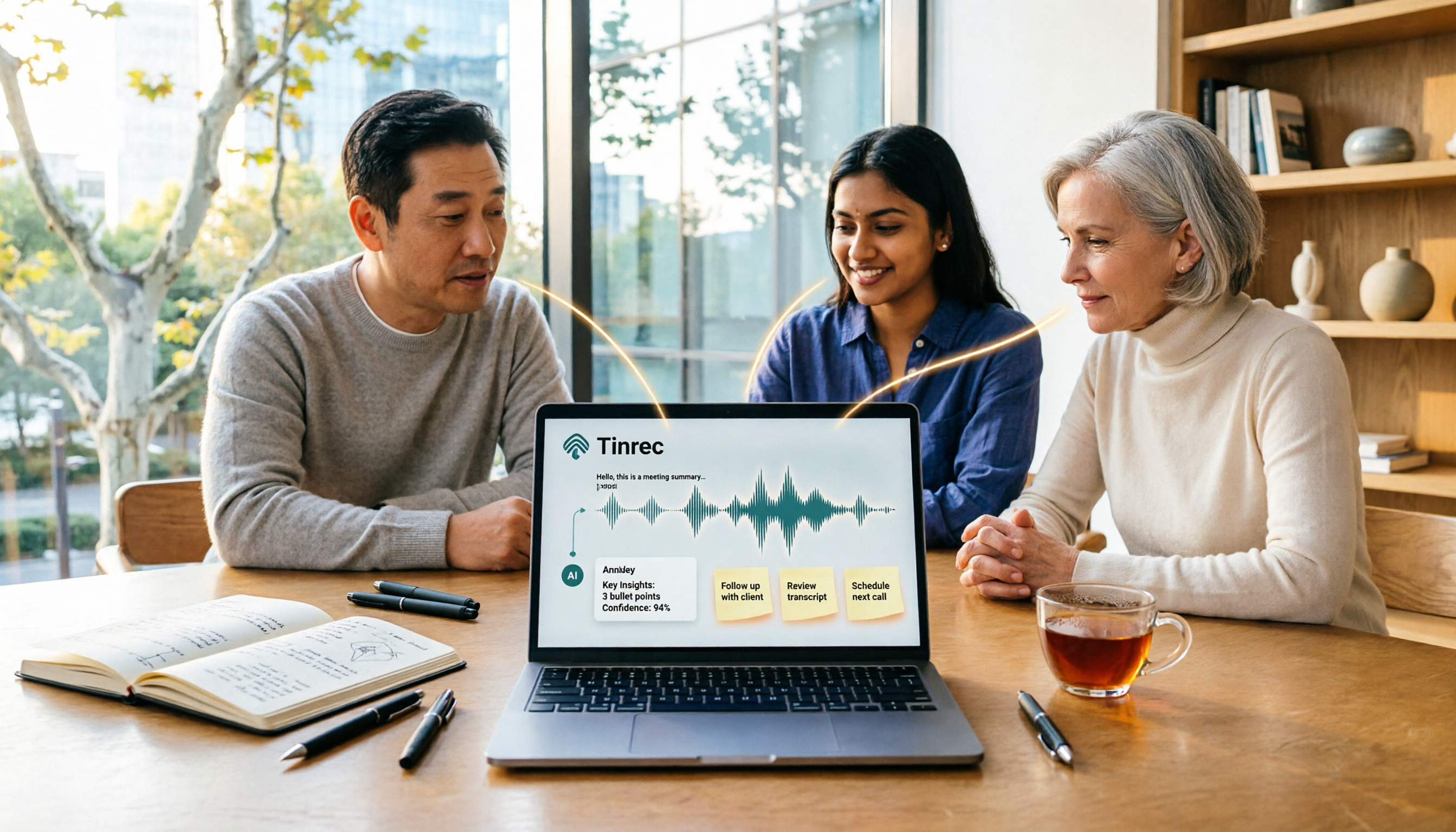
Tinrec vs Windows Voice Recorder in 2026: 5-Dimension Comparison for Laptop Recording
How do you record audio on a laptop? This article compares Tinrec and Windows Voice Recorder across 5 dimensions, explains the limitations of built-in recording on Windows and Mac, and covers bot-free online meeting recording, AI summaries, transcripts, to-dos, exports, and team collaboration to help you choose the right laptop recording solution for meetings, interviews, and classes.

2026 Screen Recording Tools Compared: Built-in Recorders vs. AI Meeting Assistants
For simple screen recording on your computer, Windows Game Bar and macOS built-in tools are enough. But if you need to capture online meetings and get transcripts and summaries, the approach is completely different. This guide compares built-in screen recorders with Tinrec, an AI meeting assistant, using step-by-step instructions to help you decide which fits your needs.

4 Ways to Transcribe iPhone Recordings in 2026: Is the Built-in Voice Memos App Enough?
There are actually 4 ways to turn iPhone recordings into transcripts: the built-in Voice Memos and Notes apps, Tinrec, Notta, and Otter.ai. This article compares them by device and language limitations, post-meeting organization, cross-device use, and team collaboration, and lists the 4 most common pitfalls to help you decide which is best for your meetings, classes, and interviews.
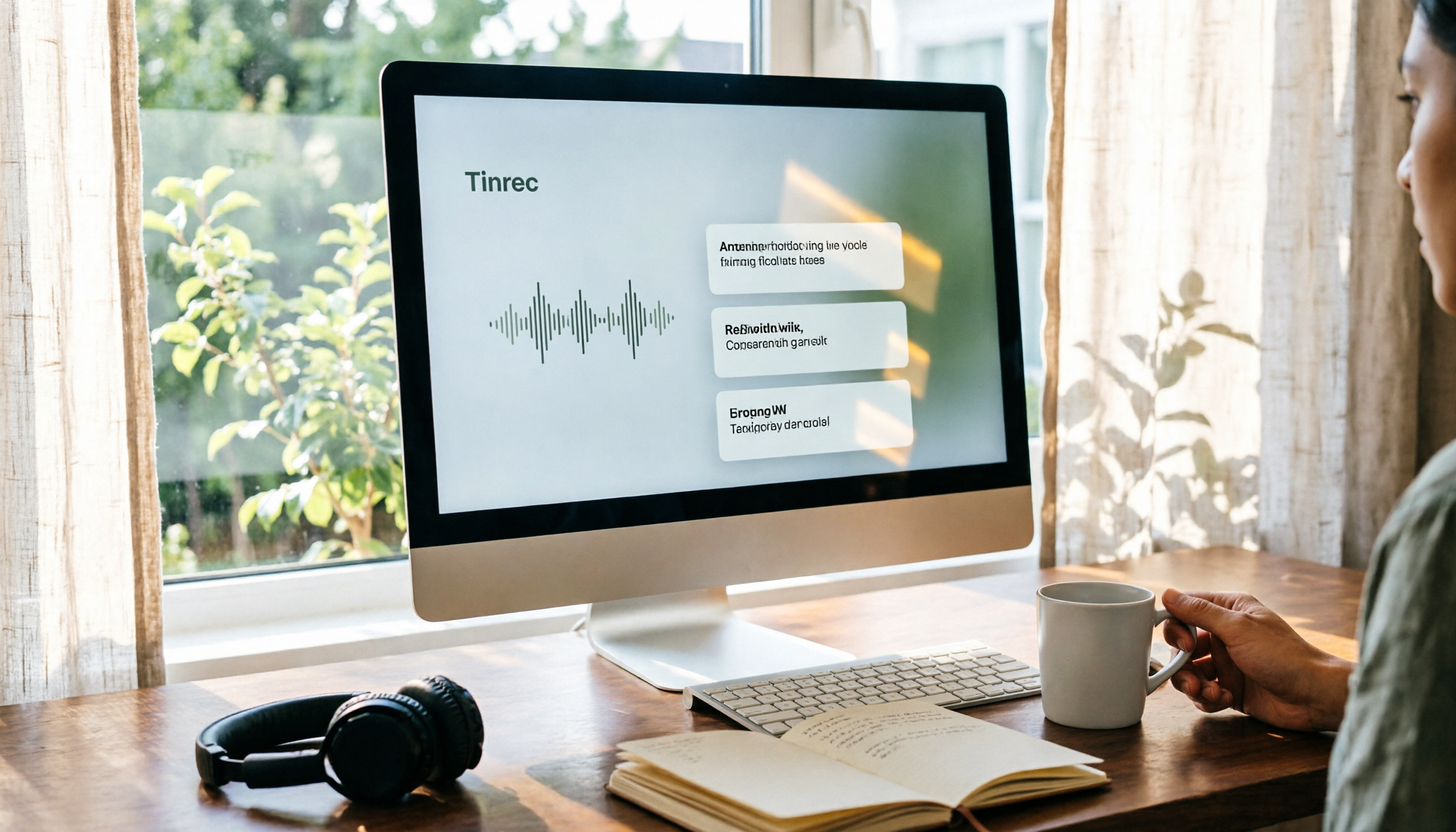
Windows Built-in Recorder vs Tinrec in 2026: 5-Dimension Comparison — Which Desktop Recording Tool Should You Choose?
Can a desktop computer record audio? This article compares Windows built-in Voice Recorder and Tinrec across 5 dimensions, covering recording sources, transcription and organization, AI Q&A, cross-platform use, and team collaboration, with buying advice and pitfalls to avoid to help you find the best desktop recording solution.