
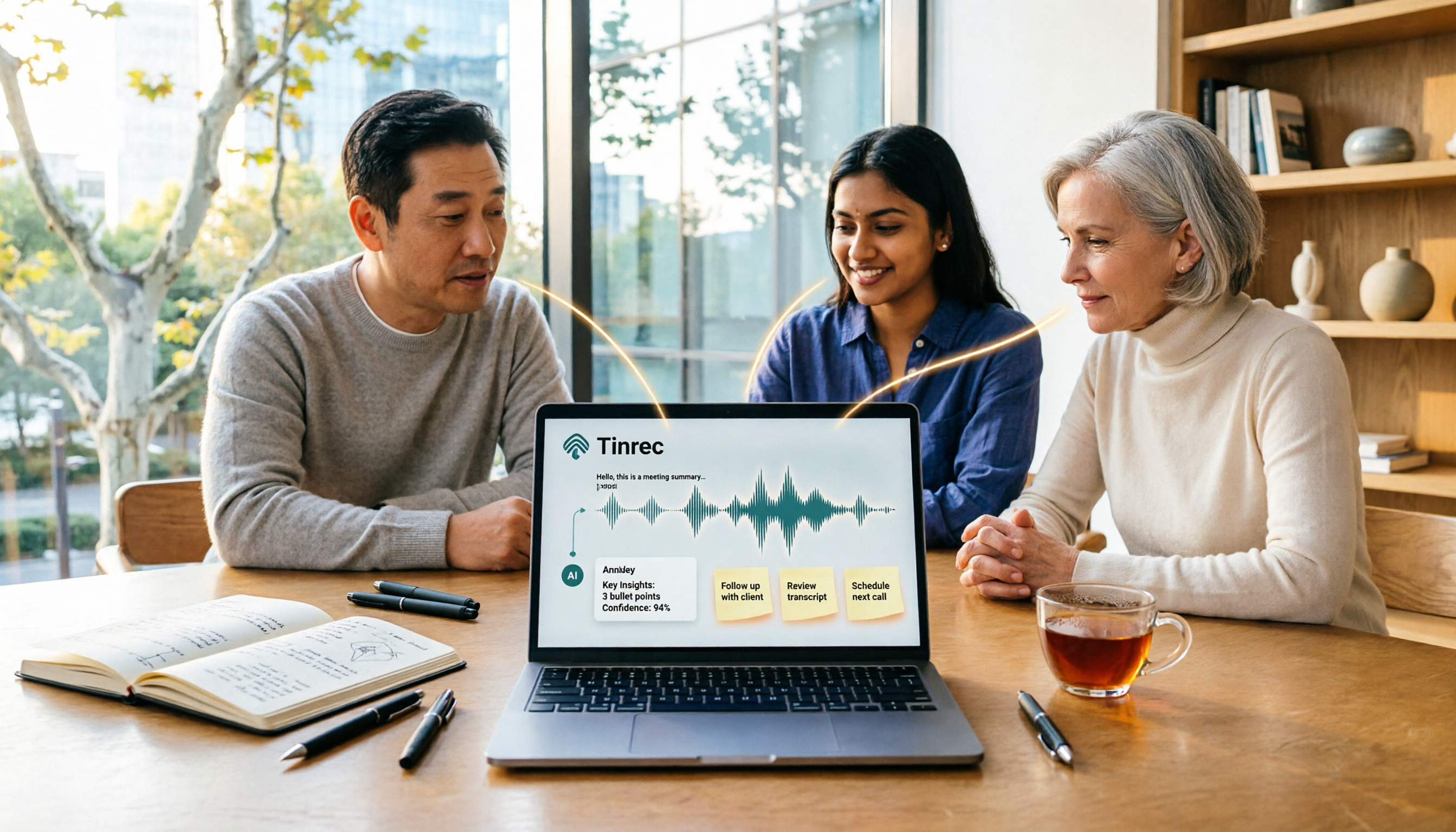
Turn recordings into transcripts and summaries in minutes
Upload audio or video for multilingual transcription, AI notes, and action items
Tinrec vs Windows Voice Recorder in 2026: 5-Dimension Comparison for Laptop Recording
Laptop recording isn't just pressing the record button—you may have run into these situations
Five minutes into an online meeting, your manager is already on the third decision, and you're still looking for the record button on your laptop. By the time the meeting ends, all you have is an audio file, and you have to replay it yourself to get a transcript and to-dos.
The same goes for interviews or classes. Recording goes smoothly in the moment, but when you need to organize the key points afterward, you end up dragging back and forth through a 60-minute audio file, and your notes are only half done.
What's more troublesome is that some laptops can record from the microphone but can't capture the system sound playing from the computer. Choose the wrong tool, and either you can't record at all, or you spend even more time organizing after recording.
Before choosing a laptop recording solution, understand these 5 key points
- Audio source: First figure out whether you need to record the microphone, computer system audio, or both. Built-in tools on Windows and Mac are fine for simple voice recording, but system audio settings often vary by model.
- Transcription and organization: If you're recording for meeting notes, interviews, or class notes, whether the tool can automatically generate transcripts, summaries, and chapters matters more than the recording format.
- Cross-platform use: If you record on a laptop today and want to review on your phone or the web tomorrow, confirm which platforms the tool supports and whether files can be exported.
- AI post-processing: Whether you can directly ask "What was the conclusion of this meeting?" after recording and whether it can extract to-dos will determine how much replay time you save.
- Quota and team governance: For personal use, check the free quota and per-recording limits; for team use, clarify roles, seats, shared quotas, and data ownership.
Tinrec—a choice that truly saves time after laptop recording
Tinrec is an AI meeting notes and collaboration tool for individuals and teams, available on desktop, web, and mobile. It doesn't just turn audio into text; it turns meeting, interview, and class recordings on your laptop into searchable, summarizable, queryable, and exportable data.
For online meetings, the most common laptop recording scenario, Tinrec's desktop app directly captures computer system audio, handling meeting audio played on laptops from platforms like Zoom, Google Meet, Microsoft Teams, and Webex without inviting a meeting bot to join. You just open Tinrec and start recording, and a transcript is generated as you record. Note that it is not currently a meeting bot that automatically joins all calendar meetings; instead, the user actively records through the desktop app.
After recording, Tinrec automatically generates summaries, chapters, key points, and to-dos. For example, after a project weekly meeting, you can first read the AI summary to grasp the discussion flow, then check the to-do list to confirm who is responsible for what. If you want to go back and ask about details, you can directly ask questions about the meeting content, such as "Who mentioned the budget in the last meeting?"—no need to manually Ctrl+F through the transcript.
Tinrec also supports real-time translation. During cross-language meetings, you can view the original text, translation, or bilingual content; mixed Chinese-English meeting content can also be organized together. For situations with Traditional Chinese and mixed Chinese-English that users in Taiwan often encounter, this is a more direct advantage than pure English meeting tools.
For output, transcripts, summaries, to-dos, and AI-generated content can be exported to common formats and taken to tools like Notion, Google Docs, OneNote, and Dropbox for further processing. The team version provides an independent team space to centrally store meeting recordings, transcripts, folders, TODOs, and other data, with member management, roles and seats, shared benefits, usage analytics, audit logs, audio recycle bin, and team hotwords. Team members without a seat can still view, play, and read team data; only after getting a seat can they record, upload, edit, and export.
For pricing and quotas, the personal version has a free version, weekly card, Pro monthly card, and Pro annual card, suitable for choosing based on usage frequency. The team version offers a 7-day trial for first-time eligible users, 1 free seat, and 300 minutes of team shared import quota; team monthly payment is USD 29.80 per paid seat per month, and annual payment is USD 199 per paid seat per year, equivalent to about USD 16.58 per month, with each paid seat providing 2,000 minutes of team shared import quota per month. Under an active team plan and active seats, real-time recording currently does not deduct minutes; file and web imports use team shared import minutes. Actual prices and benefits are subject to the official purchase page.
Stop organizing recordings by hand
Upload audio or video and automatically get a transcript, summary, and action items
In terms of advantages, first, laptop online meetings don't need a bot, which is very practical for people who don't want a bot to appear in the participant list; second, after recording, it doesn't just give you a transcript but also generates summaries, to-dos, Q&A, and reports; third, the team version deposits meeting data into a team space, so data still belongs to the team even when members change. The limitations should also be made clear: the free version is a trial quota, and heavy use requires an upgrade; file and web imports are affected by plan quotas; accuracy is affected by recording quality, noise, accents, overlapping speakers, and technical terminology, so important content should be verified against transcript timestamps and recording playback.
If you frequently hold Chinese or mixed Chinese-English meetings on a laptop and want to use AI to find key points and generate to-dos directly after recording, or need to keep meeting data for team sharing, Tinrec is a solution well worth trying first.
Besides Tinrec, how do built-in laptop recording and other tools compare?
Windows Voice Recorder
Windows built-in "Voice Recorder" requires no extra installation and is suitable for temporary memos, voice messages, or simple microphone recording. To record sound played by the computer, some models require enabling Stereo Mix in sound settings, and not every laptop supports it; digital speakers may also not be captured. It has no AI summaries, to-do extraction, AI Q&A, or team space; if you just need a short recording, it works, but meeting notes still need to be organized yourself afterward.
Mac Voice Memos
Mac's "Voice Memos" is intuitive and suitable for casually recording classes, ideas, or personal memos. It can handle microphone input, but if you want to record system audio played by the computer and generate transcripts, summaries, and to-dos, you still need other tools. Tinrec's advantage is putting recording, transcription, AI Q&A, export, and team data management into one workflow; for simple personal short recordings, Voice Memos is more than enough.
Otter.ai
Otter.ai is a mature English AI meeting assistant. The Basic free version offers 300 minutes per month, and Pro annual billing is about USD 8.49 per user per month. If your meetings are mainly in English, Otter is a reasonable choice. But if the content is often Traditional Chinese or mixed Chinese-English, and you want desktop bot-free system audio capture, real-time translation, team hotwords, and team space data deposition, Tinrec's positioning is closer. There's no need to force a winner; first look at your meeting language and organization needs.
Notta
Notta covers multi-platform transcription, document import, translation, and team plans. The free version offers 120 minutes per month with a maximum of 3 minutes per recording; Pro annual billing is about USD 8.17 per month with 1,800 minutes per month. It is suitable for file processing that needs transcription and subtitles. Tinrec, on the other hand, emphasizes desktop bot-free online meeting recording, post-meeting AI Q&A, Agent post-processing, and team data deposition; if what you want is to "keep taking action after the meeting," the direction is different.
Pitfall guide: the 4 most common mistakes when choosing a laptop recording solution
Pitfall 1: Assuming built-in laptop recording can definitely capture system audio. Many laptops only capture the microphone by default; system audio requires additional settings or may not be supported at all. First confirm whether you need to record voices, computer playback, or both.
Pitfall 2: Treating the tool as just a recorder. If you still have to replay and type the transcript yourself after recording, you're only using a small part of the tool. Prioritize solutions that can generate transcripts, summaries, and to-dos; Tinrec's AI Q&A is a great helper for post-recording organization.
Pitfall 3: Ignoring free quotas and per-recording limits. Free plans usually have minute limits, single-file length limits, or feature restrictions. Before an important meeting, confirm the quota is sufficient to avoid interruption mid-recording.
Pitfall 4: Forgetting recording consent and data ownership. Before recording, confirm local regulations and participant consent; for team use, confirm whether data is stored in a personal account or team space. Tinrec's team version stores resources in a team space and manages usage permissions with roles and seats, so team resources can be handed over when members leave.
Conclusion: Which laptop recording tool should you actually use?
Need Chinese/mixed Chinese-English meetings, bot-free laptop recording, and post-meeting AI key point finding → Tinrec. Need to export transcripts, to-dos, and summaries to tools like Notion and Google Docs → Tinrec. Need team sharing of meeting data and management of member seats and usage → Tinrec. Only need to casually record a personal memo with a budget of 0 → Windows Voice Recorder or Mac Voice Memos. Meetings mainly in English and only need English meeting notes → Otter.ai is a mature choice.
It is recommended to start with Tinrec's free version to experience recording, import, summaries, and transcription, and see whether it fits your laptop recording workflow; if your needs are stable, then upgrade to a personal or team plan. You don't have to pay from the start—first confirm that the tool can really save you post-meeting organization time.
References
- Record computer sound (computer recording) - Microsoft Q&A
- How to record audio on a laptop? - Superman Marketing
- 4 computer recording methods explained! Easy to understand, easily record computer sound [2026 latest]
- Can't keep up with online classes or meetings? Windows built-in "Voice Recorder" helps you record content, steps explained at once | BusinessNext
- [Super simple] computer recording solutions
Turn every recording into actionable outcomes
Get 60 free transcription minutes when you sign in. No credit card required.
Related Reading
You might also like

2026 iPhone Audio-to-Transcript Showdown: Which Tool Handles Chinese Meetings Best?
The built-in Voice Memos app on iPhone can already turn recordings into transcripts, but what happens after you get the text? This article compares three approaches—iPhone's built-in feature, cloud transcription services, and Tinrec—covering their workflows, language support, usage limits, and post-meeting organization capabilities. It also includes FAQs to help you decide which option best fits your meeting and interview needs.
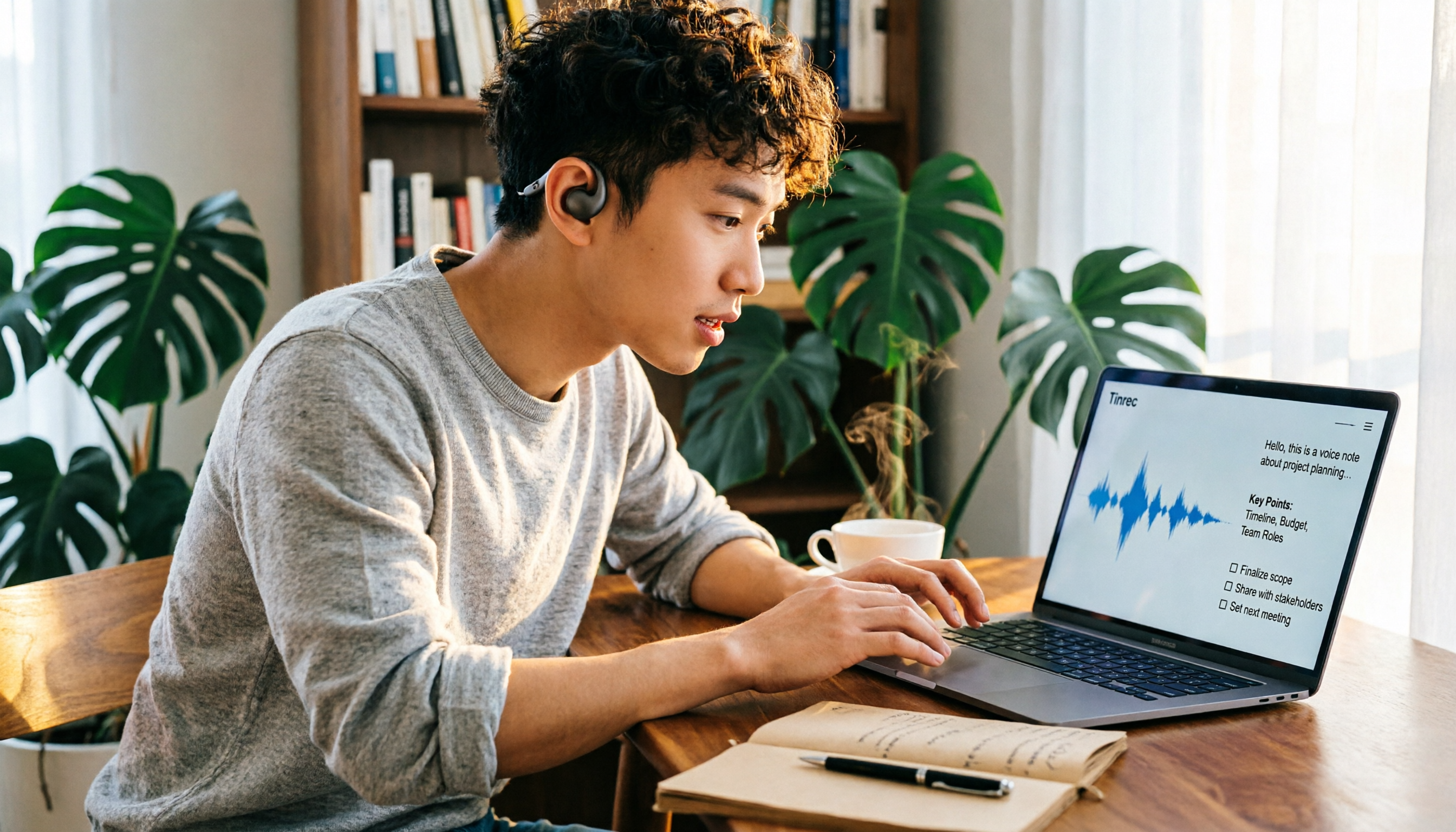
5 Desktop Recording Solutions Compared in 2026: Which Saves the Most Time for Recording, Transcribing, and Organizing?
Can a desktop computer record audio? Yes, both Windows and Mac have built-in recording features. This article reviews 5 desktop recording solutions, from no-install built-in tools, free open-source Audacity, and Bandicam audio recording, to Tinrec, which can turn recordings directly into transcripts, summaries, and to-dos. It also includes selection advice and 4 things to know before recording.

How to Record Computer Screen with Audio in 2026: 5-Step Guide
The key to capturing audio during screen recording is your audio source settings. This 5-step guide shows you how to record sound on Windows, macOS, and online meetings, and compares built-in tools with Tinrec for meeting audio and post-meeting organization.

3 Built-in Screen Recording Methods Compared: How to Launch Them and What to Do With the Files
Need to record your screen? On Windows, press Win+G. On Mac, press Command + Shift + 5. On iPhone, open Control Center and tap the record button. You can start in 3 seconds, completely free. This guide covers the shortcuts, limitations, and common pitfalls of all three built-in options, then compares Tinrec and Otter.ai across 5 dimensions to solve what happens after recording—turning your video into transcripts, summaries, and action items.

5 Screen Recording and Meeting Note Methods Compared in 2026: Where to Hit Record So It's Not Wasted
Where do you hit record for screen recording? This guide covers the recording button locations and practical limitations on Windows, Mac, iPhone, and Android. It also explains why meetings should use audio transcription instead of screen recording, and compares Tinrec with built-in tools to help you press the right button and actually use what you record.

5 iPhone Notes Font Alternatives Tested and Compared in 2026: How to Choose Between Built-in Limits and AI Organization Tools
iPhone Notes cannot truly change fonts; you can only adjust headings, bold, italic, and highlights. iOS 18 adds text color and background color. This article reviews 5 options: Tinrec, iPhone built-in Notes, Notion, Evernote, and Notta, and helps you choose based on your needs.

2026 Screen Recording Tools Compared: Built-in Recorders vs. AI Meeting Assistants
For simple screen recording on your computer, Windows Game Bar and macOS built-in tools are enough. But if you need to capture online meetings and get transcripts and summaries, the approach is completely different. This guide compares built-in screen recorders with Tinrec, an AI meeting assistant, using step-by-step instructions to help you decide which fits your needs.

4 Ways to Transcribe iPhone Recordings in 2026: Is the Built-in Voice Memos App Enough?
There are actually 4 ways to turn iPhone recordings into transcripts: the built-in Voice Memos and Notes apps, Tinrec, Notta, and Otter.ai. This article compares them by device and language limitations, post-meeting organization, cross-device use, and team collaboration, and lists the 4 most common pitfalls to help you decide which is best for your meetings, classes, and interviews.
Windows Built-in Recorder vs Tinrec in 2026: 5-Dimension Comparison — Which Desktop Recording Tool Should You Choose?
Can a desktop computer record audio? This article compares Windows built-in Voice Recorder and Tinrec across 5 dimensions, covering recording sources, transcription and organization, AI Q&A, cross-platform use, and team collaboration, with buying advice and pitfalls to avoid to help you find the best desktop recording solution.