

Turn recordings into transcripts and summaries in minutes
Upload audio or video for multilingual transcription, AI notes, and action items
Last month, I spent two evenings on a 40-minute interview video
Last month, I needed to turn a 40-minute online interview video into a transcript.
My first thought was the same as yours: Can't Google do this?
So I tried each Google method one by one, and also compared them with Tinrec, which I normally use.
The conclusion was a bit surprising.
All Google methods work, but what really eats up time isn't the transcription itself—it's how much effort you still have to put into organizing after the transcription is done.
If you're also searching for Google video to text, this is a summary of my actual workflow after testing.
The real pain point of video-to-text: It's not that it can't transcribe, it's that the output isn't usable
I've encountered roughly three situations.
First, two people are talking in the video, with air conditioning and keyboard noise in the background. The transcribed text needs to be checked sentence by sentence, which is slower than just listening again yourself.
Second, what you actually need isn't a transcript.
You need to know: What was decided in these 40 minutes, and who needs to do what?
Third, this transcript needs to be shared with colleagues next week, but it's just sitting in your cloud drive. No one knows where it is, and no one can ask follow-up questions about the details.
So when choosing a method, I usually ask myself one question first: Do I want text, or do I want what comes after the text?
Before choosing a video-to-text method, understand these 4 key points
First, does it actually work with Chinese?
Many tools advertise beautifully, but when you actually open them, you find they only recognize English. This is the case with Google Drive's automatic transcription subtitles—the feature is powerful, but currently only supports English; Traditional Chinese is not yet available. You must confirm this before starting.
Second, does it require the prerequisite of "real-time playback"?
Some methods require the video to play from beginning to end, with the microphone on to capture audio. If the video is 40 minutes, you have to wait 40 minutes doing nothing else.
Third, what do you get after transcription?
Is it plain text, a subtitle file, or a organized result including summary, chapters, and to-dos? This determines how many more hours you'll spend afterward.
Fourth, where will this data be stored?
A transcript that only lives in a personal account is a file that becomes disconnected after use. Content that can enter a team space, be searched, and be questioned becomes an asset.
Tinrec — The one I kept after testing
Tinrec is an AI meeting notes and collaboration tool for individuals and teams, supporting iOS, Android, web, and desktop.
I later switched my workflow to it. The key wasn't how fast it transcribes, but that it also handles the "after transcription" part.
The first scenario is processing videos already on your computer.
I imported that interview video directly—no need to play from the beginning, no virtual audio cable, no waiting with the microphone on. After importing, I first get a transcript, then it automatically generates a summary and chapters. I can jump right to "the part where he talked about the budget."
The second scenario is online meetings.
Tinrec's desktop version directly captures the computer's system audio, without needing to invite a meeting bot as a participant. When using Zoom, Google Meet, Microsoft Teams, or Webex, I just open it before the meeting starts, and the transcript grows in sync during the meeting.
The third scenario, and the real reason I kept it: AI Q&A.
After recording, I don't need to Ctrl+F for keywords. I just ask it: "What are the three concerns the other party mentioned in this interview?" It gives me an answer based on semantics, not a string of sentences that appeared.
My actual test method was to take the same 5-minute Chinese conversation (with air conditioning noise indoors, two people interrupting each other) and run it through three methods: With Google Docs voice typing, I had to let the video play completely, and the transcription mixed in some sentences unrelated to the video; with Google Drive automatic subtitles, it got stuck on language support; with Tinrec importing the same file, I directly got a transcript plus a summary I could continue to question.
The difference isn't in the text itself, but in the path afterward.
Its three main advantages:
1. It produces data you can continue working with, not just text. Summaries, chapters, to-dos, mind maps, reports, and tables can all be generated, and it can export to Notion, Google Docs, OneNote, Dropbox, and other tools.
2. Complete handling of Chinese and multilingual scenarios. Supports real-time translation during recording, can switch between original text, translation, or bilingual view, and teams can maintain their own hot words so product names, project codes, and other professional terms are less likely to be misheard.
3. It grows from a personal tool into a team workspace. The team version is an independent team space, not multiple people sharing one account; you can create multiple teams, invite members via link, and distinguish between owner, admin, and regular member. Roles determine who can manage the team and settings; seats determine who can record, upload, edit, and export.
I'll also honestly state its limitations:
Stop organizing recordings by hand
Upload audio or video and automatically get a transcript, summary, and action items
The free version provides a basic quota, suitable for trying it out with one of your own videos first; if you need to process a large number of long videos every week, you'll need to move to a paid plan.
Also, any transcription result is affected by audio quality, accent, overlapping speakers, and technical terminology. My habit is to verify important numbers and commitments by going back to the recording at that point.
Who it's for:
If your videos are in Chinese, you want to do "transcription" and "post-meeting organization" in one go, and this transcript will later be shared or questioned by others, then it will save you a lot of back-and-forth compared to pure transcription tools.
By the way, for team use: members without a seat can still view, play, and read team data, but need a seat to upload, edit, and export. When a member leaves or is removed, team resources can be transferred to other active members, and data won't disappear with the personal account. The team version is priced per seat; with annual payment, it's about USD 16.58 per seat per month. Actual prices and benefits are subject to the official purchase page.
Besides Tinrec, what methods does Google itself offer?
Google Docs voice typing.
Open Google Docs in Chrome, click the plus sign in the bottom right, select "Tools" then "Voice typing." After the microphone icon appears, set the language, then play the video you want to transcribe. It will convert the audio to text as it plays. Free and intuitive, but it has high demands on the playback environment. A noisy background will mix a lot of irrelevant content into the transcript, making proofreading laborious. Tinrec doesn't need the video to play from beginning to end, doesn't need microphone input, and after transcription you can directly ask questions about the content.
Google Drive automatic transcription subtitles.
Upload the video to Google Drive, open the subtitle editor, select "Create automatically generated subtitles," and the system will automatically generate a subtitle file. After completion, you can choose to edit or download; the format is vtt. This feature is now available to free accounts too, no need to be a Workspace enterprise user. But note, it currently only supports English; Traditional Chinese is not yet available. Tinrec can handle both Chinese and English and multilingual meetings, and subtitles are just one of its outputs.
pyTranscriber.
This is a free open-source software that also uses Google's speech-to-text capability behind the scenes. After loading a video, it can generate Chinese subtitle files. The advantage is that it doesn't need to play the video, so a 10-minute video can be processed in a very short time. Its positioning is clear: generate subtitles. But that's all. It won't give you summaries, to-dos, or answer "What are the key points of this interview?" If you're used to doing transcripts on your phone, there's also Google Live Transcribe on Android you can use together.
Pitfall guide: The 4 most common pitfalls when using Google for video-to-text
Pitfall 1: Only looking at the word "free" and ignoring prerequisites.
Free is true, but what you pay is "the video must play completely," "you need to connect a virtual audio cable yourself," and "you need to spend time proofreading after transcription." Time is also a cost. First figure out whether you want to save money or time.
Pitfall 2: Assuming automatic subtitles definitely support Chinese.
Google Drive's automatic transcription subtitles currently only support English; Traditional Chinese is not yet available. Many people upload videos and can't find the Chinese subtitle option—it's not an operational error, it's that the language isn't supported yet.
Pitfall 3: Stopping once you get the transcript.
Treating the tool only as "voice-to-text" means using only a small part of its capability. After transcription, I directly paste this prompt:
"Based on this transcript, please organize: 1. Three main conclusions; 2. Five action items and owners; 3. Questions raised in the meeting that haven't been answered yet."
This can be done directly on the entire meeting with Tinrec's AI Q&A, much faster than manually flipping through a 30-minute transcript.
Pitfall 4: Ignoring recording consent and data storage location.
Before transcribing someone else's video or meeting recording, please confirm you have obtained consent and comply with local regulations and company policies. Also, storing files on a personal drive versus in a team space are completely different things—the former is a file, the latter is data that can accumulate.
Summary: Which one should you choose for your situation?
In one sentence, my testing takeaway: Google's free methods are suitable for occasional transcription when you're willing to proofread yourself; but if the video is in Chinese, longer than ten minutes, or the transcript will be used by others afterward, the whole workflow is worth switching to another method.
Scenario routing for you to match yourself:
Need Chinese video-to-text and don't want to wait while it plays → Tinrec (import file and transcribe directly, no playback needed)
After transcription, still want to know "what are the conclusions, who does what" → Tinrec (summary, chapters, to-dos generated at once)
After the transcript, still need to ask about details or find quotes → Tinrec (AI Q&A, no Ctrl+F)
Online meetings need records while happening, and you don't want another bot in the meeting → Tinrec (desktop version captures system audio)
Transcript needs to be shared with the team and handed over → Tinrec team version (team space plus role and seat management)
Zero budget, only need English video subtitle files → Google Drive automatic transcription subtitles are sufficient
Quick start 6 steps:
- First pick a real 5-minute video of your own, don't use a demo file.
- After importing, check the transcript quality first, especially names, product names, and numbers.
- Use the summary and chapters to quickly scan through and confirm the structure is correct.
- Paste the follow-up template above to extract conclusions, to-dos, and unresolved questions.
- If you need subtitles or to import into other tools, then choose the corresponding export format.
- If it's for team sharing, first create a team space, invite members, then decide who needs a seat.
The difference between tools isn't actually big; the difference in method is big. Start with the most troublesome video you have on hand, test gradually, and you'll gradually master this method.
References
- Video to text, two methods to achieve it in seconds!
- Video: Use free "Google speech-to-text" to solve meeting transcripts, writing blocks, and video subtitle problems!
- Google Drive video transcription subtitle tips, free video-to-text made easy - Mr. Mad
- Google transcript tutorial! Turn videos and audio files into text right in your browser
- Liao Fuzi Education Sky: Use free "Google speech-to-text" to solve meeting transcripts, writing blocks, and video subtitle problems!
Turn every recording into actionable outcomes
Get 60 free transcription minutes when you sign in. No credit card required.
Related Reading
You might also like

The Complete Guide to Short Video Learning Notes in 2026: From Transcription to AI Summarization
How do you take learning notes from short videos? This article starts with common pitfalls and explains how to use Tinrec to turn short videos, online courses, and interview recordings into transcripts, AI summaries, and queryable notes. It also covers 6 key points for choosing a tool, the differences between the Personal and Team plans, and answers to frequently asked questions.
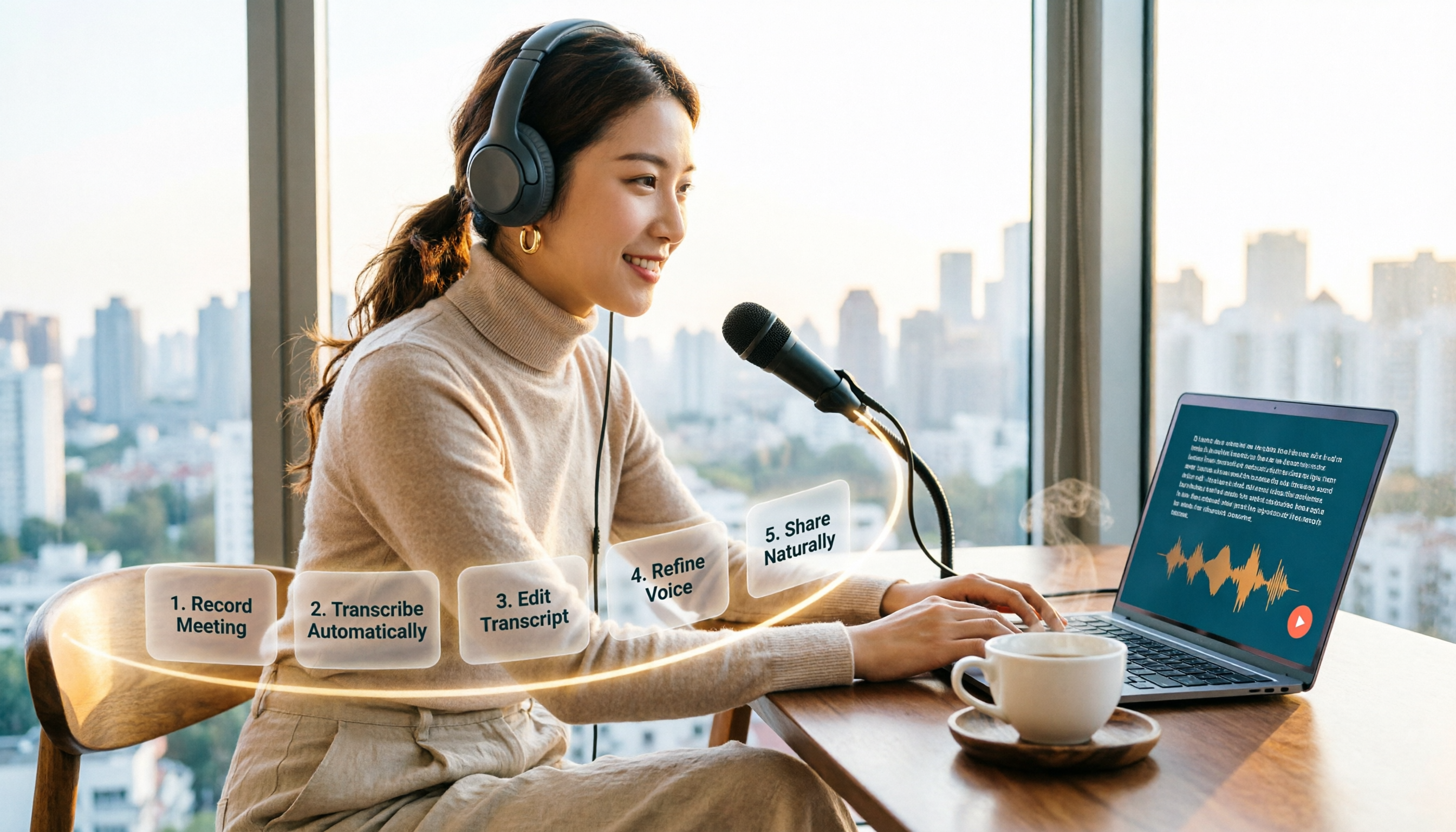
How to Choose an Online Text-to-Speech Tool in 2026: A Complete 5-Step Guide
Looking for an online text-to-speech tool but confused by free plans, credits, and commercial licenses? This guide walks you through 5 steps to choose the right one, compares TTSMaker, MyEdit, Vidnoz, and Toolbang, and explains practical workflows for downloads, accents, APIs, and converting meeting recordings to transcripts before generating speech.

4 YouTube Video Transcription Tools Tested: Which One Lets You Ask Questions Right After Transcribing?
We tested four popular YouTube video transcription tools—Tinrec, WayinVideo, TurboScribe, and Otter.ai—comparing transcripts, AI summaries, Q&A, and export formats to help you find the best solution for organizing Chinese content and building team knowledge.

Best Video Link to Text Extractors in 2026: 4 Tools Tested, This One Makes Chinese Transcripts Easiest
Which video link to text extractor should you choose? This article approaches the topic from a practical workplace perspective, first helping you distinguish between two completely different needs: 'speech transcription' and 'on-screen OCR.' It then uses 4 key purchasing criteria to evaluate tools, compares Tinrec, Text Grab, Zeemo, and Notta, and summarizes the 3 most common pitfalls and scenario-based recommendations.

2026 Comparison of 4 Video Meeting Notes Tools: Which Web App Saves the Most Time?
After a video meeting, do you spend another hour organizing notes? This article focuses on desktop (web and desktop apps) and compares the meeting note workflows of Tinrec, Notta, Otter.ai, and Granola. It explains differences in bot-free recording, transcript-to-notes conversion, AI Q&A, and team data retention, and provides key decision points, common pitfalls, and scenario-based recommendations for choosing a tool.
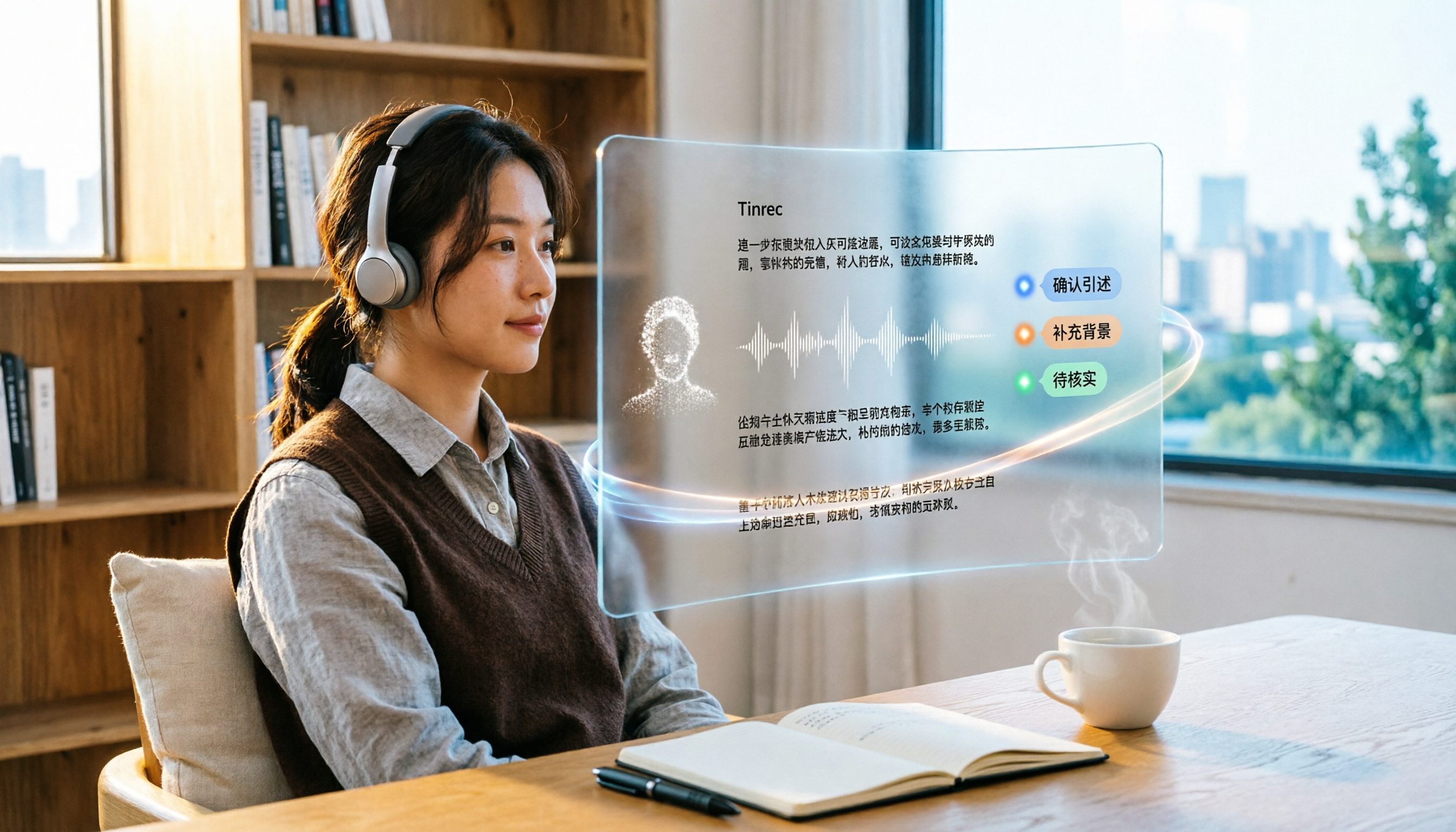
6 Best Video & Audio to Text Tools in 2026: Which Free Version Is Enough?
A hands-on comparison of 6 video and audio transcription tools, including Tinrec, Notta, Otter.ai, TurboScribe, VEED.IO, and Video Transcriber AI. We cover free tiers, supported formats, Chinese language performance, and team collaboration, plus scenario-based recommendations and FAQs.
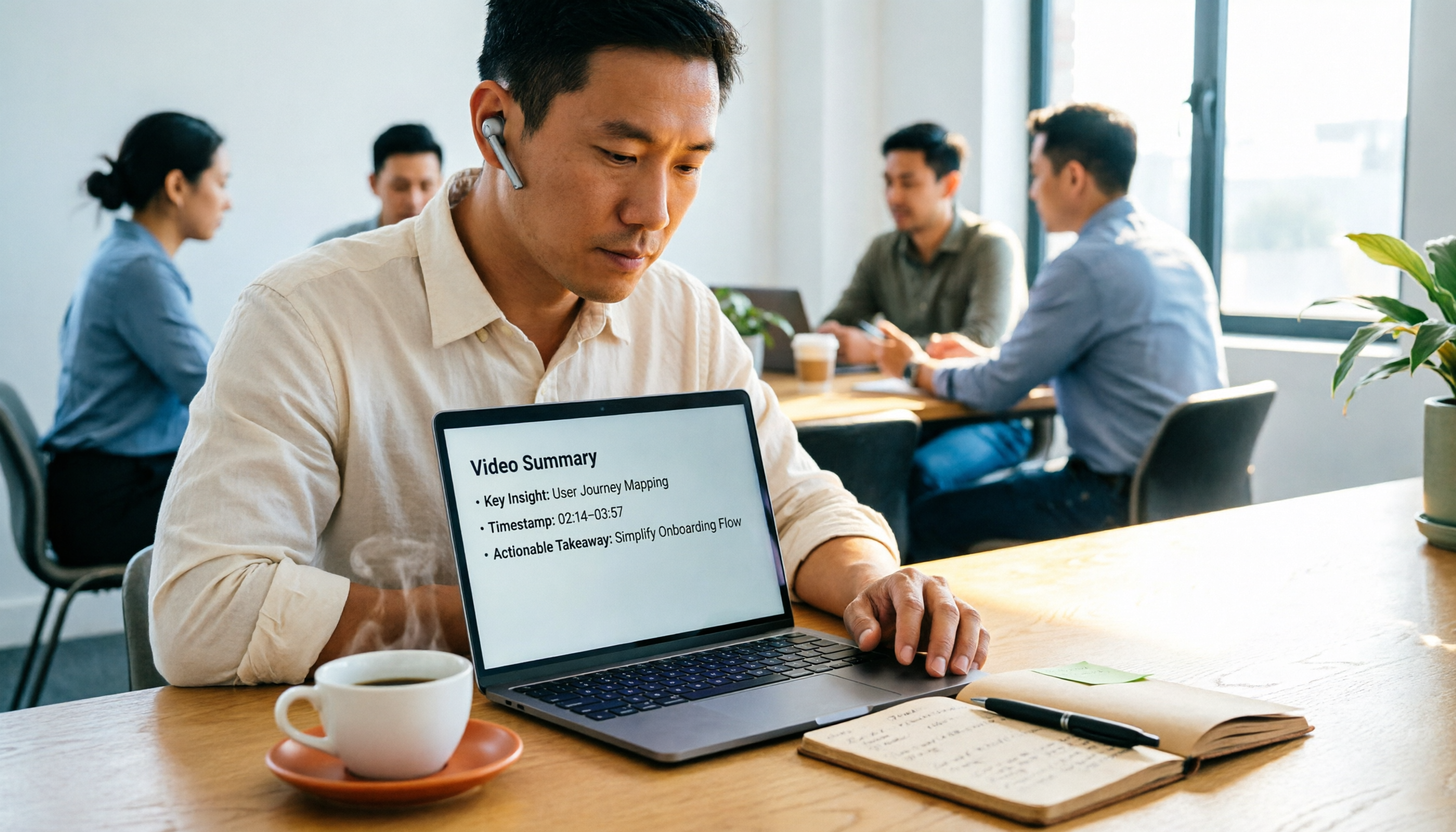
4 Video Summarization Tools Tested in 2026: Which One Actually Captures the Core Content?
Videos too long to finish, and even when you do, you can't grasp the key points? This article, from the perspective of a mid-level manager's hands-on testing, outlines 4 key criteria for choosing a video summarization tool and tests 4 tools: Tinrec, YouTube Summary with ChatGPT, WayinVideo, and Taption. It includes 3 common pitfalls to avoid and selection advice to help you determine which tool truly turns videos into usable data.
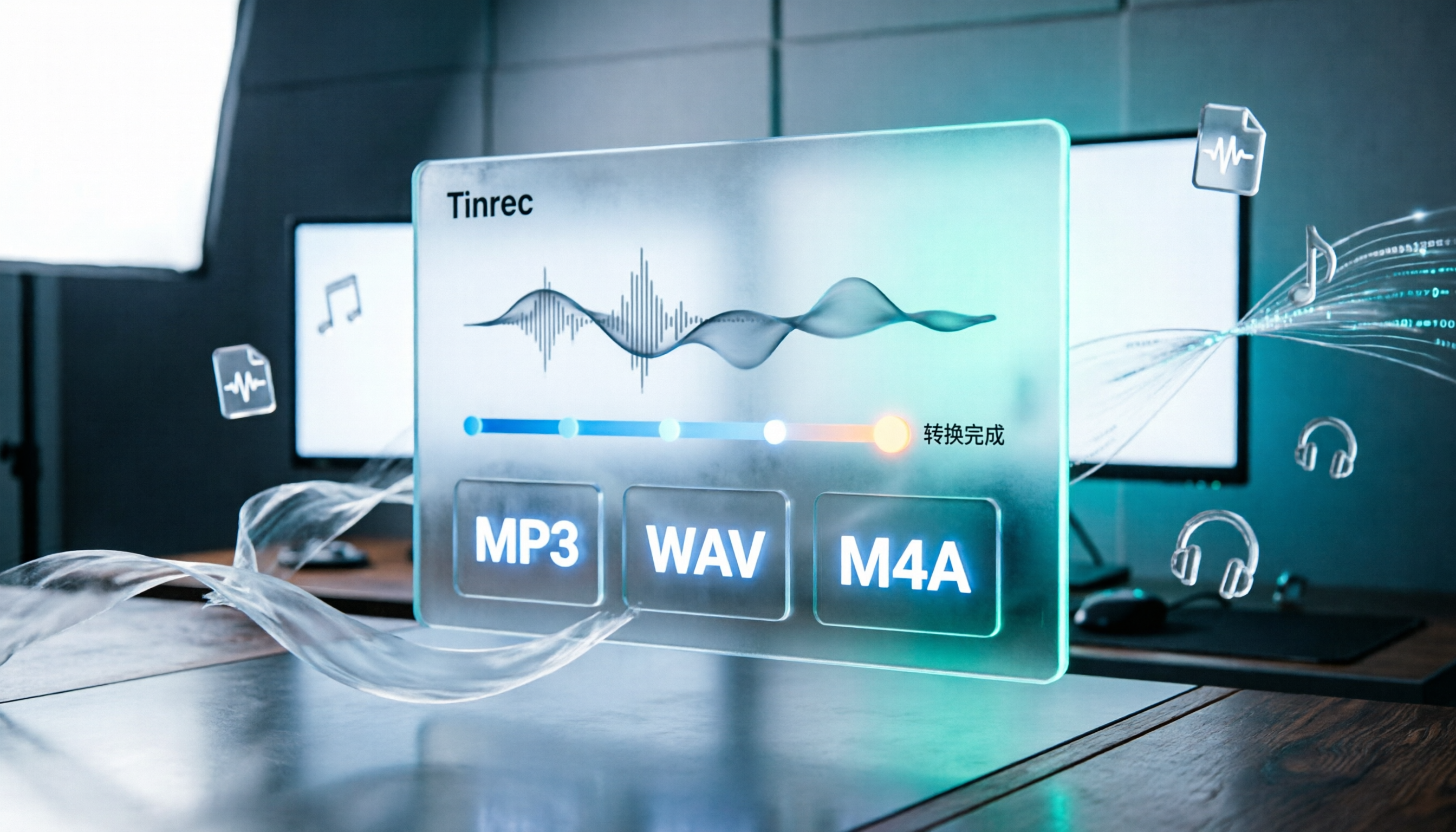
How to Convert Audio Formats in 2026: 5 Steps to Convert MP3, WAV, and M4A with an Online Converter
How to choose an online audio converter? This article first walks you through 5 steps to convert MP3, WAV, and M4A online, then compares Clideo and Online Audio Converter on format support, output settings, video-to-audio extraction, and privacy, and finally gives you recommendations you can follow directly.

5 Best Smart Video Content Analysis Tools in 2026: Tinrec vs Gemini vs WayinVideo
How to choose a smart video content analysis tool in 2026? This article starts with common misconceptions and compares the positioning of Tinrec, Gemini, WayinVideo, Notta, and Otter.ai. It also explains how Tinrec uses bot-free recording, AI summaries, Q&A, and team spaces to turn video and meeting content into searchable, queryable, and shareable data.