

Turn recordings into transcripts and summaries in minutes
Upload audio or video for multilingual transcription, AI notes, and action items
Notta App for Windows: Setup and 5-Step Meeting Transcription Guide (2026)
Let me ask you something: when you type "notta app for windows" into the search bar, what are you really trying to solve?
I'm guessing it's not "I want to see the Notta icon on my Windows desktop," but rather "I want to turn a meeting into usable text on Windows." The answers are different because Notta has three ways to run on Windows—the official desktop app, the browser-based web version, and third-party wrappers—and what each can do is not the same.
I manage a team of 10 and we have about 15 meetings a week. I've used Notta thoroughly, tried other tools along the way, and now our team's meeting workflow mainly runs on Tinrec's desktop app. This article is honest and straightforward—I'll walk through the exact sequence I followed on Windows, and at each step I'll tell you how Notta does it, what I ended up doing, and where the differences lie.
Before You Start: What You'll Need
- A Windows PC. Notta Desktop officially supports Windows 10 (version 1903 or later) and Windows 11, x64 devices only.
- A Notta account. According to official documentation, the desktop app is free for all Notta users—just log in with your existing account, no extra payment required.
- A one-time audio permission. The first time you open it, you'll need to allow microphone and system audio access; you won't have to reset it every time after that.
- Clarity on whether you're recording an online meeting or an in-person meeting. Online meetings rely on system audio, while in-person meetings rely on the microphone—the audio capture methods are completely different.
- A practice recording. Don't test on a board meeting for your first run—start with a 10-minute weekly meeting file.
Step 1: Decide Which "Windows Version" You Need
The goal here is to avoid the wasted effort of installing something that isn't what you actually need.
The first option is the official Notta Desktop. Download it from the official channel, log in, grant audio permission once, and it stays on your desktop. According to official documentation, it does not join meetings or leave any record in the participant list—it works by capturing audio locally on your computer.
The second option is Notta Web in a browser. Notta's official Help Center recommends computer users choose either the "web version or desktop app"; but note that Notta's web version uses a meeting bot mode—it joins your meeting as a visible participant. You'll see it in the participant list on Zoom or Meet.
The third option is a third-party wrapper, such as the Mac/Windows/Linux version offered by WebCatalog Desktop. It essentially packages the web page into a standalone window. The advantage is that it's separate from your browser tabs and lets you log into multiple Notta accounts and switch between them. Functionally, it's equivalent to the web version, not a native desktop program.
Why does this distinction matter? Because "whether there's a bot sitting in the meeting" can be a sensitive issue for certain client meetings, and only the first option avoids that.
When you're done, you should have a Notta entry point you can log into on your desktop or browser, and you should know which type you're using.
Scenario: A person opens their laptop in the office. On the left side of the desktop is the meeting window, on the right is the newly opened transcription app, and no unfamiliar participant names appear on either side.
Step 2: Record the Meeting Audio
The goal here is to capture clean audio—it's the foundation for everything that follows.
With Notta Desktop, the process is: open the app, log in, and join the meeting you're going to have. According to official documentation, it detects when you enter a meeting and prompts you to start recording; recording begins only after you confirm. It supports 40+ platforms and 58 languages, and audio is captured locally on your device.
Here's a point many people misunderstand: just because participants can't see a bot doesn't mean you can skip telling them. The official page itself clearly states that you are still responsible for informing participants that they are being recorded, in accordance with local laws and company policy. I've made this a hard rule in our team's internal guidelines: for all external meetings, we always open with "I'll be recording this meeting for notes."
My current daily approach is closer to Tinrec's desktop app: also no bot invitation, directly capturing computer system audio, handling meeting audio played on the computer for Zoom, Google Meet, Microsoft Teams, Webex, and more. The difference isn't in "whether you can record" but in what happens after recording—I'll cover that in the next steps.
When you're done, you should see this meeting in your recording list with a duration you can verify.
Scenario: A laptop is plugged in in the conference room, with the online meeting and transcription window open on screen, and transcribed text appearing in real time at the bottom.
Step 3: Transcribe and Check Your Quota
The goal here is to turn audio into searchable text while figuring out whether your plan can handle your meeting volume.
Notta transcribes as it records; after the meeting ends, the transcript, summary, and action items appear in your workspace. According to third-party download site descriptions, it can record in real time in Zoom, Teams, Google Meet, and Webex meetings, and the interface shows how many minutes of your free plan you've used that month.
Now let's do the math. According to Notta's official pricing page (as of the time of writing; refer to the official site for current details): the free version offers 120 minutes per month with a 3-minute limit per recording; Pro annual billing works out to about USD 8.17/month with 1,800 minutes per month; Business annual billing is about USD 16.67/seat/month, featuring unlimited transcription and role permissions.
Translated into workplace terms: the free version's 3-minute limit per recording means you can't even fit a small segment of a 40-minute project meeting. The 120-minute monthly quota roughly equals one short meeting per week. If you're like me with 15 meetings a week, paying is inevitable—the only question is which plan.
This is one reason I switched to Tinrec: its free version follows a "basic quota experience" approach, with weekly cards for short-term intensive meetings and Pro monthly and annual cards for long-term steady use. The options are segmented by usage rhythm, not hard-cut by minutes.
Stop organizing recordings by hand
Upload audio or video and automatically get a transcript, summary, and action items
When you're done, you'll have a timestamped transcript and a clear answer to "how much do I have left this month."
Step 4: Proofread and Search—Don't Read from Top to Bottom
The goal here is to turn the transcript into a version you can quote from in the shortest time possible.
My sequence is always three steps: first look at the structure, then search for keywords, and only then go back and listen to the original audio. Notta's smart search is quite good—you can search for keywords directly in processed text at the top of the interface, which is very useful when "the boss asks me what the conclusion was last time."
A word of caution: any AI transcription will make mistakes. The error rate depends on recording quality, ambient noise, accents, people talking over each other, and technical terminology—no one can give you a fixed number. My approach: always verify decision statements, amounts, and dates against the original audio; for other descriptive content, a quick read is enough.
I now add an extra step—using Tinrec's AI Q&A to directly ask "what was the conclusion about the budget in last week's meeting," and it pulls up the relevant passages, which I then cross-check against the timestamp. This is much faster than digging through a sea of keywords myself, especially for meetings from three months ago.
When you're done, you should have a proofread transcript and be able to answer "which meeting was a certain decision made in" within a minute.
Step 5: Turn It into Minutes and Action Items, Then Export
The goal here is to turn text into something you can send out right after the meeting.
Notta automatically generates summaries and action items—it does this thoroughly. At the team level, Notta Business officially also offers role permissions and usage reports, suitable for companies with management needs.
I moved our team workflow to Tinrec because it extends the "post-meeting" phase further: beyond summaries, chapters, highlights, and action items, it can generate mind maps, continue asking questions via AI chat, and use Agent post-processing to directly produce reports, tables, and meeting minutes documents, then export to Notion, Google Docs, OneNote, Dropbox—tools we already use.
For the team version, I particularly care about governance. Tinrec's team version is a separate team space, not multiple people sharing a personal account; it separates "roles" and "seats"—roles govern administration (who can manage members, view audits), seats govern usage (whether you can record, upload, edit, export). Members without seats can still view, play, and read team materials. It also has team hotwords, usage analytics, audit logs, and audio in the recycle bin is retained for 30 days and can be restored. Pricing is USD 29.80/paid seat/month, annual billing USD 199/paid seat/year (about USD 16.58/month). First-time eligible users can try 7 days, 1 seat, 300 minutes shared import quota; paid seats get 2,000 minutes shared import per month, and real-time recording under an active plan and seat is currently not deducted by minutes.
When you're done, you should be able to send a record with action items to attendees within 10 minutes of the meeting ending.
FAQ and Troubleshooting
Q: The Windows version won't install? First check your system version. Notta Desktop officially supports Windows 10 (1903 or later) and Windows 11, x64 devices only. Older versions or Arm-based machines may get stuck—in that case, switching to the web version is the easiest fix.
Q: Is the free version quota enough? It depends on your meeting volume. Notta's free version is 120 minutes per month with a 3-minute limit per recording—suitable for occasionally transcribing a recording. If you have regular weekly meetings, you'll hit the wall within three months. At that point, either upgrade or switch to a tool designed with "basic quota experience + rhythm-based pricing"—both paths are reasonable.
Q: Will meeting participants know I'm recording? With Notta Desktop or Tinrec Desktop, neither appears in the participant list—others can't see a bot. But "can't see" doesn't mean "don't need to tell"—informing participants in accordance with local laws and company policy is your responsibility.
Q: How accurate is Chinese meeting transcription? Don't expect a fixed number. Audio quality, accents, noise, overlapping speech, and technical terminology all affect results. If you need to handle meetings with mixed Chinese and English, confirm the tool's support for Chinese and mixed-language content before purchasing—Tinrec can be tested in this area, and important content should be verified against the original audio.
Q: Can I import already-recorded files? Yes, but methods vary. Tinrec supports audio and video file upload for transcription and also has some web link import capability; Notta also offers file import and cross-device sync (per third-party page descriptions; refer to official announcements for details). Don't test this during a meeting—run an old file through first.
Advanced Tips: Turn Meetings into Queryable Data (3 Methods)
Method 1: Don't just look at single meetings—be able to query across meetings. Tinrec's AI Q&A lets you keep asking questions about meeting content, handling questions like "what was last month's decision" or "what objections did this client raise" all at once, without going back to dig through three transcripts. My old approach was to open folders and search manually—it took ten-plus minutes each time; now it's one question.
Method 2: Turn on real-time translation for cross-language meetings. Tinrec lets you switch between original text, translation, or bilingual view during recording. When meeting with overseas counterparts, I don't have to wait until after the meeting to understand what they said—I can compare in real time during the meeting. This is the key step that upgrades transcription from "record" to "real-time understanding."
Method 3: Put meetings in a team space, not on someone's computer. I've learned this the hard way. Meeting data used to follow the person handling it—when they left, historical records scattered. Tinrec's team version keeps data owned by the team; when a member leaves or is removed, their team resources are handed over to other active members. Combined with team hotwords, technical terminology recognition is also more stable.
If You Don't Use Notta, Here Are Other Options
Notta Windows Desktop: Officially supports Windows 10 (1903+) and 11, no bot, 40+ platforms, 58 languages, free for existing accounts—suitable for people with low usage who want to test the waters first.
Granola: Also takes the no-bot approach, with a strength in combining your handwritten notes with AI. However, official documentation states it does not support uploading pre-recorded audio files and does not save meeting audio—those who need to retain recordings should think carefully first.
Back to my conclusion: if what you want is "turn Windows meetings into searchable, queryable, transferable team data," then Tinrec's post-meeting workflow and team governance are more worth looking at than simply comparing transcription minutes.
Summary
After going through these 5 steps, you should now know: Notta has three ways to run on Windows, and only the official desktop app avoids the meeting bot; the free version's 120-minute and 3-minute-per-recording limits determine who it's suitable for; and what really takes time is never the recording—it's the post-meeting proofreading, finding people, and following up on action items.
My own approach is to hand this workflow to Tinrec: bot-free desktop recording, transcripts, summaries and action items, AI Q&A, export to existing workflows, plus role and seat management at the team level. The free version has a basic quota you can try—run one of your own meeting recordings through it; it's faster than reading ten comparison articles.
One final reminder: no matter how much time a tool saves, informing participants before recording is still something you have to do yourself.
References
Turn every recording into actionable outcomes
Get 60 free transcription minutes when you sign in. No credit card required.
Related Reading
You might also like

Which Audio-to-Text Tool Is Best? 2026 Hands-On Test of 3 Tools: Tinrec for Chinese Meetings and Post-Meeting Follow-Ups
I tested three approaches—Good Tape, built-in transcription from meeting platforms, and Tinrec—and found that the real difference isn't transcription speed, but whether you can follow up, organize, and share with your team after the meeting. Using a 40-minute client interview, this article breaks down the complete workflow from recording to action, with a copy-paste post-meeting question template and 5 checkpoints for choosing a tool.

Tinrec vs Plaud Note Pro in 2026: 5-Dimension Comparison — Which Is Better for Chinese Meetings?
Hands-on Plaud review comparison: breaking down the differences between Plaud Note Pro and Tinrec across 5 dimensions — meeting capture method, post-meeting organization, Chinese-language experience, team collaboration, and cost structure — to help you decide whether to buy recording hardware or switch to a software solution.

Otter vs Tinrec in 2026: 5-Dimension Comparison — Which Is Better for Chinese-Speaking Teams?
How to choose an Otter pricing plan? This article breaks down Otter.ai's free, Pro, and Business plans, including prices and limits, and compares Tinrec and other meeting transcription tools across 5 dimensions: Chinese-language meetings, bot-free recording, post-meeting organization, team collaboration, and budget — helping you decide which plan fits your budget and use case.

Best Plaud Alternatives in 2026: 4 Tested Picks — Choose This If You Don't Want Extra Devices
Plaud alternatives aren't just cheaper voice recorders. This buying guide breaks down 4 options — PLAUD hardware, Notta, Granola, and Tinrec — comparing recording sources, audio retention, post-meeting outputs, and team data ownership. It also covers common pitfalls of white-label alternatives to help you choose right the first time.
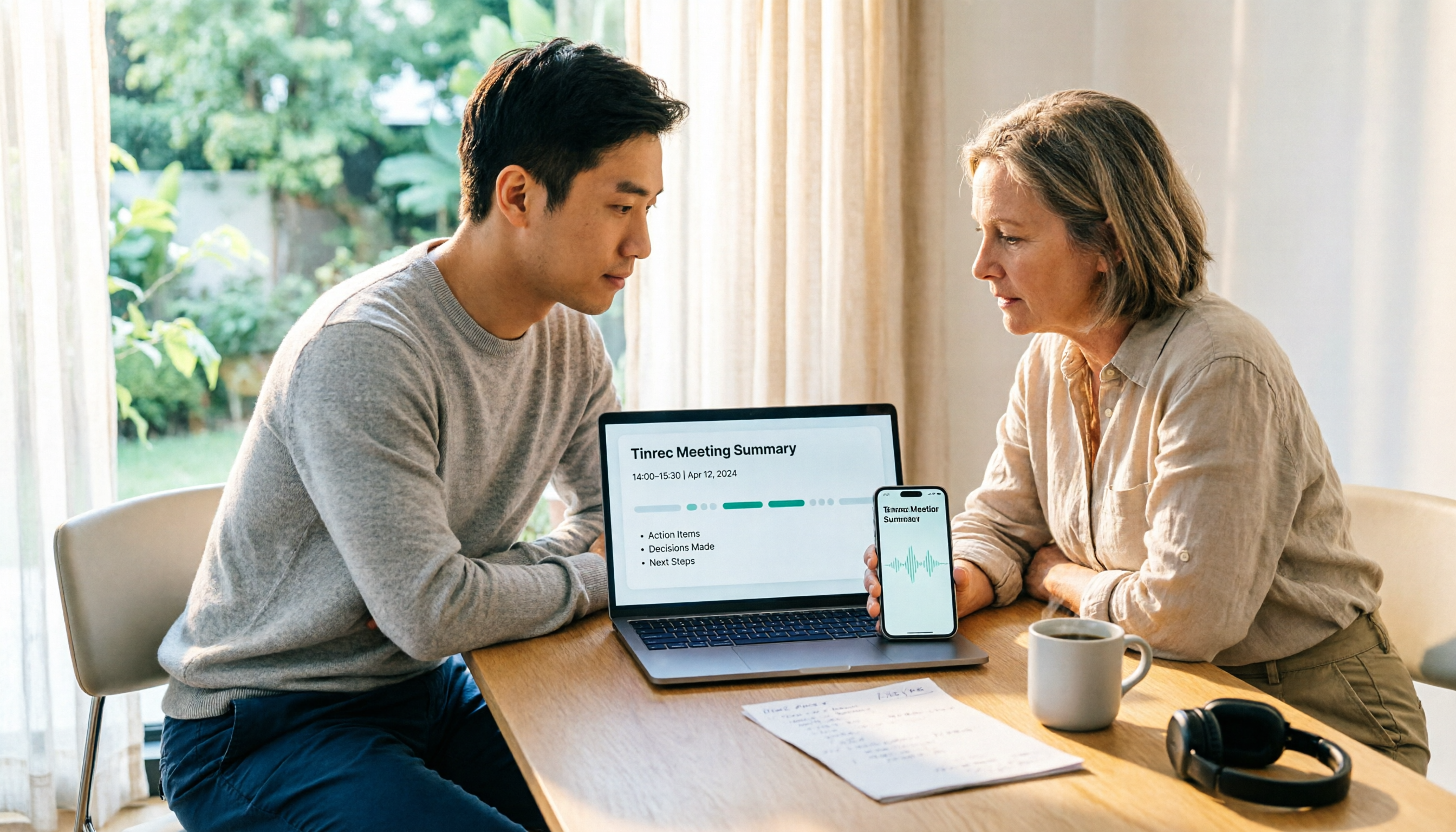
2026 Comparison of 3 Recording Organization Tools: Tinrec vs Plaud vs iPhone Built-in — Which Saves the Most Time?
Tinrec or Plaud? This article examines four decision points: online meetings, in-person recording, post-meeting organization, and team collaboration. It compares Tinrec's bot-free recording and AI Q&A, Plaud's hardware-based portable recording workflow, and the limits of iPhone's free built-in transcription, with a pitfalls guide and selection advice.

Best Otter.ai Alternatives for 2026: 5 AI Meeting Tools + Chinese Transcript Guide
Otter.ai excels at English business meetings, but if your meetings are in Chinese, mixed Chinese-English, or you need summaries, action items, and a searchable meeting database, it's time to switch. This guide starts with the key questions to ask when choosing a replacement, then reviews 5 Otter alternatives with their features, pricing, and ideal users.

Otter Chinese Accuracy and Free Plan Review 2026: 2 Meeting Note Tools Compared
Otter.ai has a Chinese interface, but that doesn't mean it accurately transcribes Traditional Chinese meetings. This article compares Otter.ai and Tinrec across official language support, mixed Chinese-English and Taiwanese name recognition, meeting capture methods, post-meeting organization, team governance, and free quotas. It also includes 3 practical checkpoints to test before rollout, helping you decide which tool fits your meeting scenarios.

2026 Comparison of 2 Audio-to-Text Tools: Notta vs. Tinrec — Why Teams Choose Tinrec for Meetings
Starting from the search context of 'notta web app,' this article compares Notta and Tinrec from a procurement perspective on meeting capture, post-meeting organization, team knowledge retention, and quota management, explaining why readers who need team meeting workflows would include Tinrec in their candidate list.
Notta Online Guide 2026: Chinese Meeting Transcription & Tinrec Alternative
Explore common pitfalls of Notta online transcription and meeting notes, and see how Tinrec offers a complete workflow with bot-free recording, transcripts, AI summaries, action items, Q&A, and team spaces, plus buying tips and FAQs.