
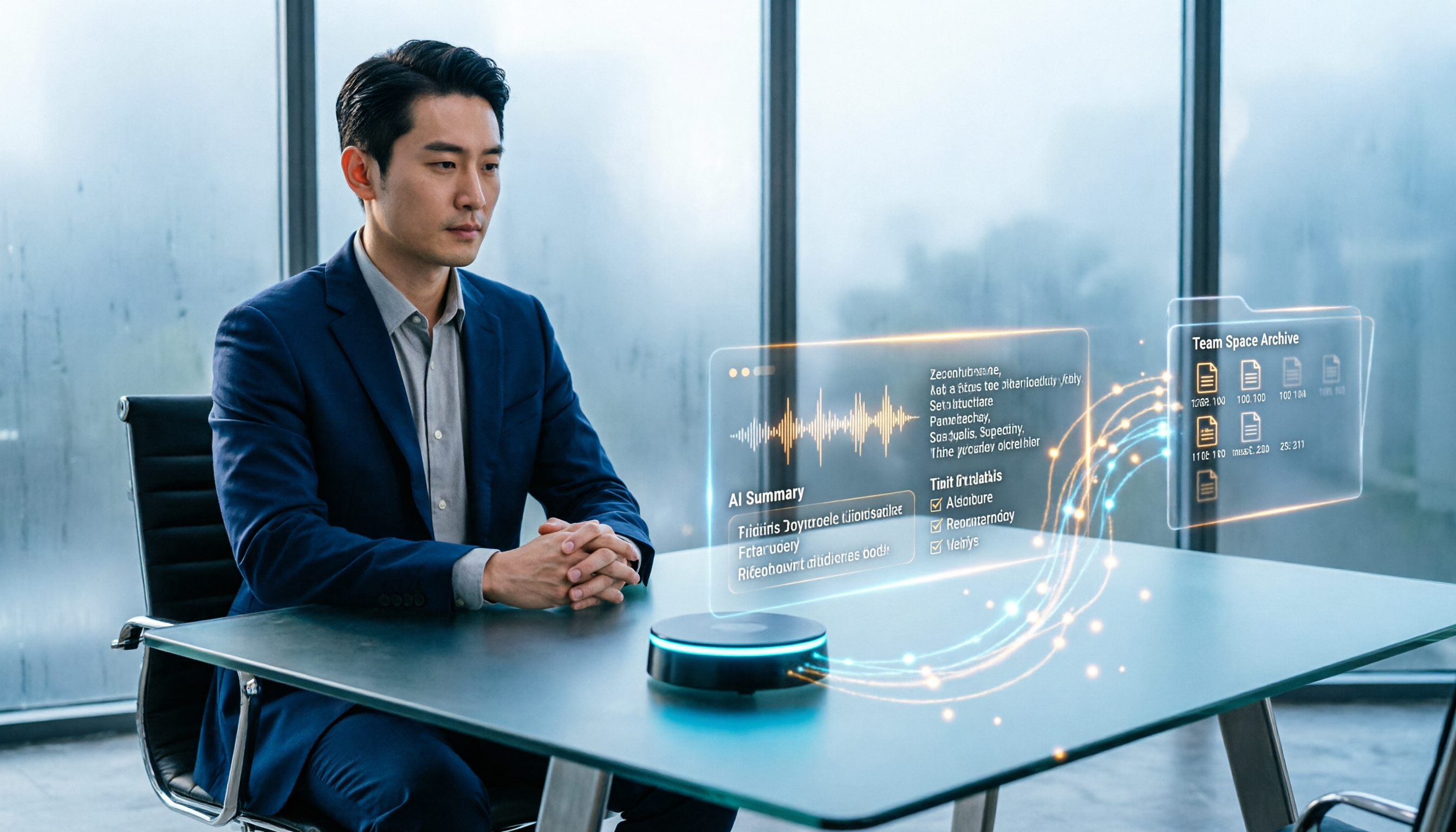
Turn recordings into transcripts and summaries in minutes
Upload audio or video for multilingual transcription, AI notes, and action items
First, a Common Pitfall Many People Keep Falling Into
Most people start writing their customer visit records only after they get back in the car or open their laptop that evening.
By then, all they remember is usually just "the conversation went pretty well today" and "they said they need to evaluate further." The truly useful details—the budget range the client mentioned, who the decision-maker is, what materials to bring next time—have already become fuzzy.
The second pitfall is even more common: records are scattered across paper notes, phone memos, LINE chats, and Excel files. When it's time to prepare for the next visit, just finding everything takes half an hour.
A more sensible approach is to reverse the order: let recording become a transcript during the visit itself, complete the record with AI summaries and action items before you leave, and finally archive everything in one place.
This article uses Tinrec as an example to walk you through these 5 steps.
Before You Start | What You Need to Prepare
- A smartphone or a computer. Tinrec has mobile, desktop, and web versions. Use your phone for in-person visits and the desktop version for online meetings.
- An account. The free version provides basic quota so you can test the waters with one visit first.
- Get the other party's consent to record before the visit. This is both a legal and a trust issue—just ask.
- Before entering the meeting room, decide on the 3 things you want to capture from this visit: the client's needs, the client's concerns, and the next action steps.
- A stable internet connection. Real-time transcription requires connectivity.
Once you're ready, you can begin.
Step 1 | Start Recording as Soon as the Visit Begins
The only purpose of this step is to capture the entire conversation so you have something to work with later.
For in-person visits, start recording once you've settled into the meeting room and finished the small talk. Place your phone on the table near the center of the conversation—don't leave it in your bag. For online visits (Zoom, Google Meet, Microsoft Teams, Webex), use the Tinrec desktop version to directly capture your computer's system audio—no need to invite an extra meeting bot.
Why emphasize "record from the start"? Because the client's most critical remark often comes in the first five minutes before you've even opened your notebook.
When done, you'll see the recording on screen, and the transcript will already be growing line by line.
(Illustrative image: A salesperson sitting in a client meeting room, phone placed in the center of the table, transcript text syncing on screen, natural atmosphere)
Step 2 | Let AI Transcribe While Recording
During the interview, Tinrec's real-time transcription turns the conversation into text. You don't need to look down and type—you can focus on looking at the other person as they speak, which actually helps build trust.
If your client speaks a foreign language or mixes languages, you can also enable real-time translation during recording and view it in original, translated, or bilingual mode.
Note that transcription quality is affected by the recording environment. Crowded rooms, open spaces, and loud air conditioning will reduce accuracy. Rather than spending time proofreading later, spend 30 extra seconds confirming your phone position when recording.
After the visit ends and you press stop, you'll get a complete transcript.
(Illustrative image: A salesperson checking their phone in the car, showing a freshly generated visit transcript with a clickable timeline for playback)
Step 3 | Spend 5 Minutes Proofreading Key Sections
You don't need to read the transcript word by word—that would be more tiring than handwriting.
Here's what you can do: only go back and check three things—places where the client mentioned numbers, places where the client mentioned names and titles, and places where the client mentioned timeframes. Leave the other typos alone, because what you'll actually use are the summaries and action items that follow.
Why these three? Because these are the key fields that will be reviewed by your manager, handed off to colleagues, and looked up by yourself three months later.
After proofreading, you'll have a quotable original conversation text, and every sentence can be clicked to verify against the recording timestamp.
(Illustrative image: A salesperson wearing headphones, a section of the transcript highlighted on screen, with timeline markers alongside)
Step 4 | Use AI Summaries and Action Items to Turn the Transcript into a Visit Record
This is the step where the record truly takes shape.
Tinrec automatically generates summaries, breaks long conversations into chapters, and extracts action items. You can directly fill in the fields your company typically uses: "Client Needs," "Concerns," "Commitments," and "Next Steps."
Honestly, this is far more accurate than recalling from memory. What the client said at the time—"the budget is roughly around this"—versus what you write down that evening from memory—"budget is limited"—are completely different levels of information.
Stop organizing recordings by hand
Upload audio or video and automatically get a transcript, summary, and action items
Even better is AI Q&A. You can directly ask "What concerns did this client mention this time?" or "What did I promise?" and the system will find answers from the meeting content. For quarterly reviews, you can also query across multiple meeting records at once.
When done, you'll have a structured visit record instead of a long stream-of-consciousness log.
(Illustrative image: A salesperson opening their laptop at a café, showing visit summaries, chapter lists, and action items)
Step 5 | Export and Archive So the Record Stays in the Right Place
The final step determines whether this record becomes one-time data.
You can export results in common formats to Notion, Google Docs, OneNote, or Dropbox for further editing, or directly generate reports, tables, and meeting minutes.
If you work as a team, it's recommended to put records in a team space. Tinrec's team version provides an independent team space where meeting data belongs to the team—new members can see historical data; when a member leaves or loses their seat, data can be transferred to other members and won't disappear with them. Administrators can also view usage trends and activity logs.
Why specifically mention this? Because sales turnover is normal—if customer visit records only exist in personal accounts, when the person leaves, the entire context of the customer relationship is lost.
(Illustrative image: In a meeting room, a manager and colleagues looking at a team meeting list and visit records on a projector screen)
FAQ and Troubleshooting
Q: The visit location is noisy and the transcript is full of typos. What should I do?
First, make sure your phone is close enough to the speaker. Environmental noise is the biggest enemy of transcription quality, followed by multiple people speaking at once. If you're processing an existing recording file, try re-running it in file import mode and reprocessing quieter segments—it usually improves significantly.
Q: The client doesn't want to be recorded. Are there alternatives?
You can step back and just capture key points—right after the visit, record a voice memo in the car, then upload it at home to transcribe and organize. The key is to process while memories are still fresh.
Q: Can it directly become our company's standard visit record form?
Yes. Tinrec supports generating reports, tables, and documents from meeting content, and can export to existing document tools, then paste fields into your company's form format. Most pure transcription tools only give you a transcript—you still have to fill in each field yourself.
Q: Is the free version enough?
The free version provides basic quota and is suitable for testing first. It's fine for occasionally organizing a few visit recordings; if you have visits every week, consider the Pro monthly plan; for short-term sprints (e.g., a full week of intensive client meetings), there's a weekly plan option. For quota and pricing, please refer to the official purchase page.
Q: We're a whole sales team. How do we manage multiple people?
The team version operates as an independent team space, not multiple people sharing one account. Roles manage permissions, and seats determine who can record, upload, edit, and export; members without seats can still view and read data. Currently, the team version is USD 29.80 per paid seat per month, or USD 199 per paid seat per year. Eligible teams can try 7 days free with 1 free seat and 300 minutes of shared team onboarding quota.
Q: Can deleted recordings be recovered?
The team version has an audio recycle bin where recordings can be restored before permanent deletion begins; the current retention period is 30 days. Accidental deletion isn't a problem, but it's not recommended as long-term backup.
Advanced Tips | 3 Ways to Make Customer Visit Records More Useful
1. Add company and product terminology to team hotwords
Industry jargon, product model numbers, and client company names are the most commonly mistranscribed terms. After adding them to team hotwords, the recognition experience for professional terms improves noticeably and saves a lot of proofreading time. This is a team-version-only setting.
2. Use AI Q&A to review the entire customer relationship
Don't just look at a single meeting. Throw in this client's visit records from the past six months and ask: "What concerns have they mentioned over time? Which ones have been resolved?" When preparing for the next visit, you'll remember more clearly than the client's own contact person.
3. Use Agent post-processing to directly produce deliverables
After a visit, when you need to write a weekly report or submit a client analysis table, you don't have to start from scratch. Generate reports, tables, and documents directly based on meeting content, then fine-tune. Most transcription tools stop at step 2 with the transcript—this post-processing is where the real time savings come from.
If You Don't Use Tinrec, Here Are Other Options
Notta: Good multilingual transcription capabilities, also supports file import and team plans—suitable for users whose primary need is pure transcription.
Granola: Also uses a bot-free desktop approach, emphasizing the combination of user notes and AI; however, it doesn't support uploading pre-recorded audio files and doesn't save meeting audio.
Each has its own positioning. If your focus is on "keeping recordings, querying afterward, and turning records into team assets," the Tinrec approach will be smoother.
Summary
Looking back at these 5 steps: record from the start of the visit, transcribe while recording, only proofread key sections, use AI summaries and action items to shape the record, and finally export and archive. The total time to create a customer visit record is roughly concentrated in the 10 minutes after you leave.
Getting the transcript is just the starting point. What's truly valuable is the summaries, action items, Q&A, and team knowledge base that follow—those are what you'll still open and read three months later.
Before your next visit, decide on the 3 things you want to capture, then just press record.
References
- Baidu
- Sample Form - Marketing & Sales: Business Visit Plan Table | 101Form.net
- Disconnecting "Human Connection": Establishing Contactless Real-Name Visitor Registration - Okogreen | Fair Trade Coffee
- Customer Visit Record and Plan Excel Template | XLS Free Professional Template Download - Pikbest
- No Matter Who the Client Is, You Must Prepare Materials Well Before Visiting - Walker Cloud
Turn every recording into actionable outcomes
Get 60 free transcription minutes when you sign in. No credit card required.
Related Reading
You might also like
5 iPhone LINE Call Recording Methods Tested for 2026: Which One Actually Captures Both Sides?
Want to record LINE calls on iPhone? Methods range from using another phone to iOS 26 native capture, but recordings often end up with only one side or silence. This article compares 5 common methods, explains 4 key points to check before buying, how to use Tinrec (my top pick after testing), the positioning of 3 alternatives, and 4 common pitfalls.

2026 Comparison of 2 Transcription Tools: Yating vs. Tinrec — Which Is Better?
Which is better, Yating or Tinrec? This hands-on comparison covers 5 dimensions: speaker diarization, post-meeting organization, meeting recording methods, free quotas, and team collaboration. We also summarize each tool's unique strengths and ideal use cases to help you decide which one to use.

2026 Comparison of 5 Client Visit Recording Platforms: Which One Turns Visit Notes into Trackable Team Data?
The most common mistake in client visit notes is writing them from memory in the car on the way back to the office. This article starts from real sales visit scenarios, outlines 5 evaluation dimensions, and compares Tinrec, Otter.ai, Fireflies.ai, Notta, and Granola on visit note-taking. It also explains how to choose between personal and team plans.

2026 Comparison of 3 Client Visit Record Tools: From Manual Forms to AI-Generated Visit Reports
Should you use cloud forms, transcription tools, or AI meeting notes for client visit records? This article starts with the most time-consuming task after a sales visit—documentation—and compares 101Form/101EIP cloud forms, Notta, Otter.ai, and Tinrec in terms of field design, audio-to-transcript conversion, AI summaries, and team knowledge retention. It also outlines 4 key purchasing criteria and 4 common mistakes to help you choose the right tool within your budget.

2026 Comparison of 3 Client Visit Recording Methods: Online Forms, Audio Transcription, or AI Meeting Tools—Which Saves the Most Time?
After a client visit, do you have to wait until you're back at the office to fill in the details? This article compares two approaches: an online client visit record form (using a form platform like 101Form as an example) and Tinrec audio recording. It examines six dimensions—recording in the moment, content completeness, post-meeting action items, historical search, team collaboration, and cost—to help you determine which one truly fits your visit rhythm.

How to Organize Client Visit Notes in 2026: 5 Steps from Recording to Team Database
Client visit notes aren't done just because you recorded them. This article breaks down the 5-step process from recording, transcription, and summary to-dos to a team database, and compares Tinrec, Granola, Notta, and PLAUD in client visit scenarios to help you choose the right tool and method.

2026 Complete Guide to Client Visit Recording Software: Costs, Features, and 3 Tools Tested
How to calculate the cost of client visit recording software without wasting money? This guide starts with the three most common pitfalls, breaks down the differences between free quotas, per-seat pricing, and annual discounts, tests Tinrec's performance in mobile recording, bot-free online meeting recording, and post-meeting AI Q&A, and compares the pricing and use cases of Notta, Granola, and PLAUD.

Tinrec vs Traditional Online Forms in 2026: 5-Dimension Comparison for Client Visit Records
Should client visit records be captured with online form fields or with a recording tool that preserves exact quotes? This article compares Tinrec and traditional electronic forms across 5 dimensions—searchability, post-meeting action, team knowledge retention, cost, and more—plus a pitfalls guide and selection advice to help you make a purchasing decision.

Yating Transcript vs Tinrec: 5-Dimension Comparison for 2026
Yating Transcript or Tinrec? This comparison covers Chinese and Taiwanese accent recognition, how to record online meetings, what you get after transcription, free quotas and pricing, and team collaboration across five dimensions to help you decide whether to stick with Yating or switch to Tinrec, which turns meetings into minutes and action items.