

Turn recordings into transcripts and summaries in minutes
Upload audio or video for multilingual transcription, AI notes, and action items
Recorded, then what? The real cost of meeting notes comes later
The meeting ends, the recording sits on your phone—does that count as done?
Most people get stuck not on 'can't record' but on having no one to organize it afterward. For a two-hour meeting, you have to re-listen to the transcript, pick out key points yourself, and recall who said what for each action item.
That's why 'how to record with Plaud' gets searched so much—what people really want to ask is: do I need to carry an extra device just to record meetings?
If your meetings are mostly on the computer, mix Chinese and English, and need to be handed off to colleagues afterward, then you're not just comparing where the record button is—you're comparing the whole workflow from recording to transcript to summary to action items to archiving.
Before choosing a tool, understand these 5 key points
1. Is the recording source online or offline? Online meetings via Zoom, Google Meet, Teams are very common. In such cases, recording with your phone pointed at the speaker easily degrades audio quality. Whether you can directly capture system audio makes a big difference.
2. Is there post-processing after recording? A tool that only gives you a transcript is essentially handing the organizing work right back to you. Summaries, chapters, action items, and the ability to ask questions about the content—that's where time is saved.
3. Performance with Chinese and mixed Chinese-English Many tools look great in English demos but start dropping words when switched to Chinese meetings. Actual performance depends on recording quality, accent, noise, and multiple people talking over each other—no tool can guarantee fixed accuracy.
4. Who ultimately owns the data? For personal use, it's fine. But if meeting data needs to be shared with the team, you have to ask: does the data remain after a member leaves? Who can edit, who can only view?
5. Is the cost structure buying hardware or buying a service? Hardware is a one-time expense plus subscription; software is pure subscription. For the same monthly fee, what you get differs—don't just compare numbers.
Tinrec (秒聽錄音) — Our most recommended path after testing
Tinrec is an AI meeting notes and collaboration tool for individuals and teams, available on web, desktop, and mobile. It turns meetings into searchable, collaborative, actionable data, not just a transcript.
For online meetings, no bot needs to join. The desktop version directly captures system audio, works with Zoom, Google Meet, Microsoft Teams, Webex, and no strange account appears in the participant list. This is especially useful for external client meetings.
You can see the transcript during the meeting. It transcribes as it records; for cross-language meetings, you can switch between original, translation, or bilingual view. After the meeting, the system organizes summaries, chapters, and action items—who is responsible for what and when it's due, listed directly.
You can keep asking after recording. This is where it differs most from ordinary transcription tools—you can ask follow-up questions about the meeting like 'who proposed the budget discussed last time', or compare multiple meetings together. Further, you can use Agent to generate reports, tables, and meeting minutes, and export to Notion, Google Docs, OneNote, etc. for further editing.
The team version handles 'data ownership' rather than 'shared accounts'. Teams have independent spaces, meeting data is owned by the team, members are invited via join links, and roles are distinguished as owner, admin, and regular member. It's important to distinguish roles and seats: roles determine who can manage the team and audit, seats determine who can record, upload, edit, and export. Members who are active but have no seat can still view, play, and read team data, but cannot perform resource operations.
Currently, the team version offers a 7-day free trial with 1 free seat and 300 minutes of team shared import quota; monthly payment is USD 29.80 per paid seat per month, annual payment is USD 199 per paid seat per year, about USD 16.58 per month, each paid seat has 2,000 minutes of team shared import quota per month. Real-time recording under an active plan is currently not deducted by minutes; file and web imports use the team shared quota. Prices and promotions are subject to the official purchase page.
The personal version is chosen by task: for occasional recording organization, start with the free version; for short-term intensive interviews, consider a weekly card; for weekly meeting needs, choose the Pro monthly card; for long-term recording data retention, look at the Pro annual card.
To be honest, limitations should be clearly stated. Transcription, summaries, and syncing all require internet; it has no hardware form, so on-site recording still relies on phone or computer; the team version currently offers team-level sharing plus role and seat governance, not file-level granular permissions; accuracy is affected by recording conditions—for important content, it's recommended to cross-check with transcript timestamps and recording playback.
Stop organizing recordings by hand
Upload audio or video and automatically get a transcript, summary, and action items
Who is it for? People who often have online meetings, need Chinese transcripts and post-meeting follow-up questions, and want data to stay in the team space.
How to record with Plaud? Three methods and actual workflow
If you're asking about hardware operation, Plaud's process is actually not complicated—mainly three methods.
Method 1: Press the record button directly on the device. No need to connect to the app; the device can record independently. This is its most convenient scenario—called into a meeting room on short notice, thinking of something while walking, needing a record after a phone call—just press and start.
Method 2: Trigger recording from the Plaud App. First connect the device to the app, then tap in the app to start recording on the connected device—suitable when you don't want to reach for the device.
Method 3: Organizing after recording. Recording itself doesn't need internet, but transcription, summarization, and file syncing require connection. After syncing files to the app, you can choose recognition for 112+ languages (not translation; Traditional Chinese is fine), generate transcripts with timestamps and speaker labels, then apply templates to generate summaries, and export for further use.
On cost, hardware must be purchased first: on the official US website, PLAUD NotePin is currently USD 159, PLAUD Note Pro is USD 189. On the software side, Starter offers 300 minutes of free transcription per month, Pro is USD 99.99/year with 1,200 minutes per month, Unlimited is USD 239.99/year.
Three things to note. First, it's a standalone device that needs charging and carrying—forget it and you're out of luck. Second, online meeting handling depends on how you place the device for audio pickup, which is less stable than directly capturing system audio. Third, some users report difficulty recognizing newly joined participants' voices; for multi-person meetings, it's still recommended to cross-check with the transcript.
Also, before recording, proactively inform the other party and obtain consent—regulations vary by region, and this step cannot be skipped.
Who is Plaud for? People who frequently go on-site, do interviews, make phone calls, don't want to open a computer, and prefer 'one button to start recording'. As for asking questions directly about meeting content, team space sharing, seat and usage auditing—these are not its main strengths currently.
Besides these two paths, what other options are there?
Otter.ai: A mature English meeting assistant; the free version offers a generous 300 minutes per month, supports meeting platform integration and AI conversation. It has deep experience in English business meetings, but Chinese meetings are not its strength; if your team meetings are all in English, it will be smoother than Tinrec.
Notta: Good multilingual transcription and translation; free version offers 120 minutes per month with a 3-minute limit per session; Pro annual payment is about USD 8.17/month. Its feature scope overlaps heavily with Tinrec, but it lacks the desktop bot-free system audio capture path, and post-meeting follow-up and team data governance are not its focus.
Platform built-in transcription: Zoom, Google Meet, Teams all have their own transcript features—the advantage is no new tool to install. The downside is data scattered across platforms; cross-platform meetings are hard to search and reuse in a unified database.
Pitfall guide: 3 most common mistakes when choosing a recording organization tool
Pitfall 1: Only comparing transcription minutes. Minutes look intuitive, but the real value of meetings lies in the subsequent summaries, action items, and follow-up questions. Buying 1,200 minutes but only using it to store transcripts means you're only using one-third of the tool.
Pitfall 2: Thinking that keeping the recording file equals having a record. A recording without an index, summary, or action items—three months later even you won't want to click on it. Organizing should be done the same day after the meeting; delay a week and it becomes archaeology.
Pitfall 3: Ignoring member turnover. Using a personal account to collect team meeting data—when the person leaves, the data goes with them. If meeting content is valuable to the company, it should be placed in the team space from the start, and the difference between roles and seats should be clarified.
One more thing that's not a tool issue but most overlooked: inform the other party and obtain consent before recording. This is not just courtesy—it's a legal matter.
Conclusion: Which one should you choose?
One-sentence conclusion: If you are 'meeting-focused, need post-meeting organization, and data for team use', Tinrec is the easier path; if what you need is 'press and record anytime, anywhere', hardware has its irreplaceable place.
Routing suggestions:
- Mostly online meetings, don't want a bot to join → Tinrec (desktop directly captures system audio)
- Want to ask AI directly after recording 'what's the conclusion, who's responsible for what' → Tinrec (supports meeting content Q&A)
- Chinese mixed with English, need bilingual view → Tinrec (real-time translation and bilingual view)
- Meeting data to be kept for the team, even if someone leaves it should be retained → Tinrec team version (space, roles, seats, audit)
- Frequently on-site, interviews, phone recording, prefer standalone device → PLAUD (hardware button recording, long battery life)
- Team meetings all in English, limited budget → Otter.ai (large free quota, mature English scenarios)
If you're not sure which one you need, the practical approach is to run for a week first: take a real meeting recording you have and try it, see where the transcript errs, whether the summary captures key points, and whether action items can be used directly. The free quota is usually enough to verify two or three times; if it works for you, then discuss payment—much safer than buying a whole set of equipment from the start.
References
- Plaud Taiwan|Official Website|Leading AI Recording Device Brand
- Plaud Note │ The Smartest AI Voice Recorder Card Ever
- Recording via Plaud App – Help Center
- PLAUD NOTE |AI Smart Voice Recorder Card|Free 300 Minutes Monthly Transcription - Sentra International
- Plaud User Guide|Complete Tutorial and Operation Guide
Turn every recording into actionable outcomes
Get 60 free transcription minutes when you sign in. No credit card required.
Related Reading
You might also like

Best iPhone Audio Transcription Tools in 2026: 4 Tested, This Free One Is Enough
Is iPhone audio transcription really free? This article tackles the common 'fake free' trap by comparing 4 options: iPhone's built-in Voice Memos transcript, Aiko, Notta, and Tinrec. It also outlines 4 key buying criteria and 4 pitfalls to help you choose the one that's truly sufficient without wasting money.

Best iPhone Two-Way Call Recording Methods in 2026: 5 Tested Options, This Free Method Wins
The days of iPhone lacking built-in call recording are over—but can 'free, two-way, and good quality' really coexist? We tested 5 methods: iOS 18.1 built-in call recording, screen recording, merged call services, hardware recorders, and jailbreak tweaks. We compare free limits, audio quality, file formats, and post-processing costs, plus a hands-on test of Tinrec turning call audio into transcripts, summaries, and action items—so you can pick the best combo for your needs.

3 iPhone Recording Transcription Tools Tested: Where Are Voice Memos & How to Get Transcripts (2026)
iPhone voice memos are saved only in the Voice Memos app by default—they don't appear in Files or Photos unless you manually export them. This guide first explains where recordings actually live and how to export them, then hands-on compares three recording organization methods: Tinrec, Granola, and TurboScribe, plus common pitfalls and selection advice.

5 iPhone Recording Apps Tested for 2026: Is the Built-in Free App Enough, or Does AI Transcription Save Time?
How to choose an iPhone recording app? This article starts with the most common misjudgments when selecting one, then tests and compares Voice Memos, Tinrec, Otter.ai, Notta, and other tools. It covers the differences between free and paid plans, how to record online meetings, and what to watch out for when sharing with a team—helping you find the one that truly saves time.
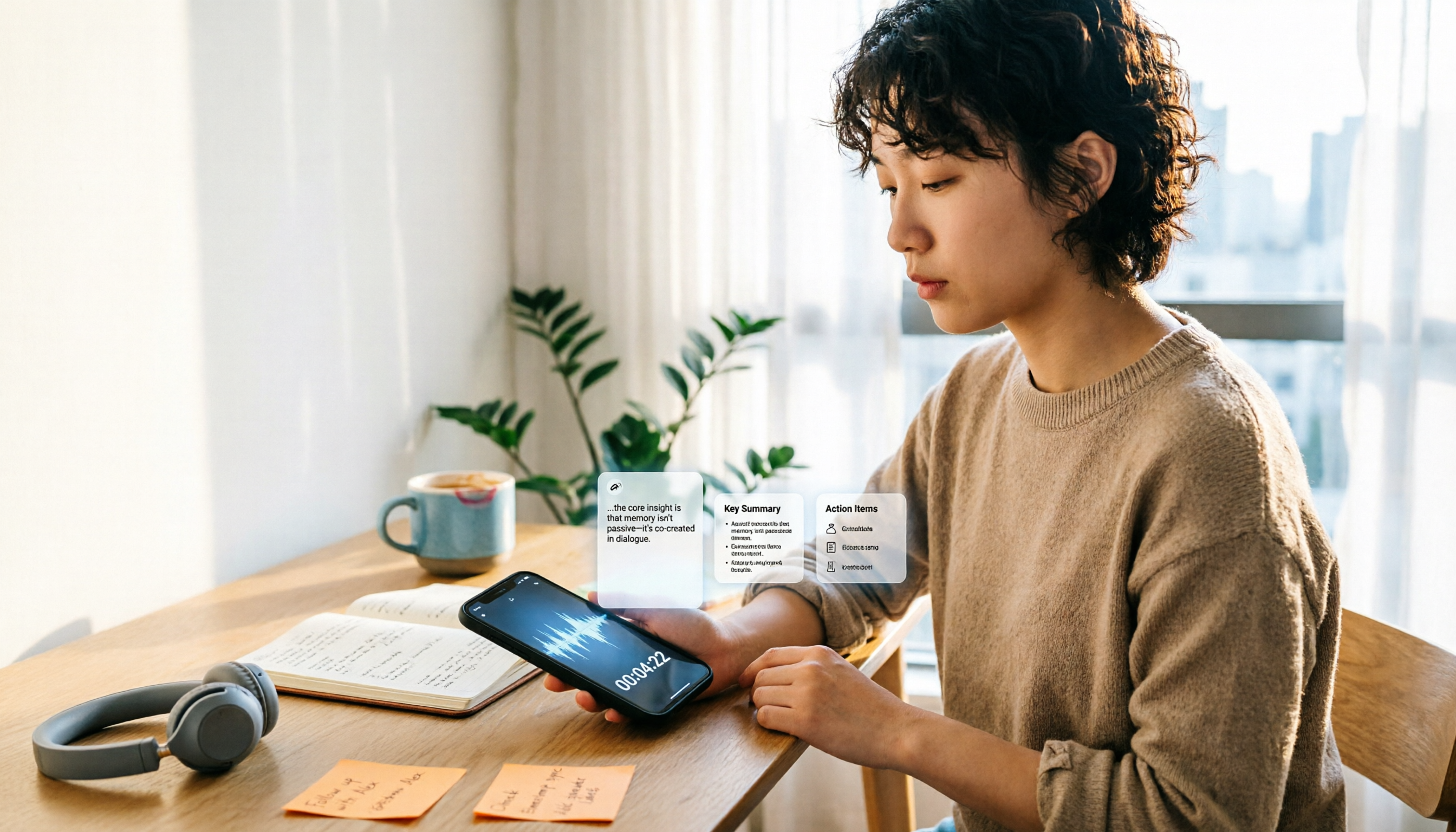
Where Is the iPhone Recording Button in 2026? 5 Quick Recording Methods Tested and Compared
iPhones don't have a dedicated physical recording button—recording entry points are scattered across the Voice Memos app, Lock Screen shortcut, Action button, and Back Tap. This guide breaks down the paths, supported models, and limitations of 5 ways to start recording, then explains how to use Tinrec to turn recordings into transcripts, summaries, and to-dos, so you can go from finding the button to getting usable data.

iPhone Voice Memos vs Tinrec in 2026: 5-Dimension Comparison — Which Saves More Time After Recording?
Recording on iPhone isn't hard — the challenge is what to do after. This guide starts with how to record on iPhone, covering Voice Memos basics and 4 one-tap recording setups, then compares built-in Voice Memos with Tinrec across 5 dimensions to help you decide when built-in is enough and when you need a tool that automatically transcribes and organizes meetings.

3 Free iPhone Recording Solutions Tested and Compared in 2026: Recording, Transcription, and Organization at a Glance
Recording on iPhone isn't hard—it's what comes after. Starting from 'free,' this article breaks down three common iPhone recording approaches and tests whether Tinrec's free version can turn a 40-minute recording into a searchable, organized transcript and to-do list. It also lists key buying considerations for free quotas, transcription, export, and team collaboration.

3 iPhone 13 Recording and Transcription Methods Compared: Is the Built-in Voice Memos App Enough?
The iPhone 13's recording feature is built right into the system—most people just can't find it, and after recording, they don't have the energy to organize. This guide first shows you where to find Voice Memos and how to set up one-tap recording, then compares the built-in feature, Tinrec, Notta, TurboScribe, and PLAUD from five angles: accessibility, transcription, Chinese recognition, online meetings, and data retention—so you can see which one fits your needs.
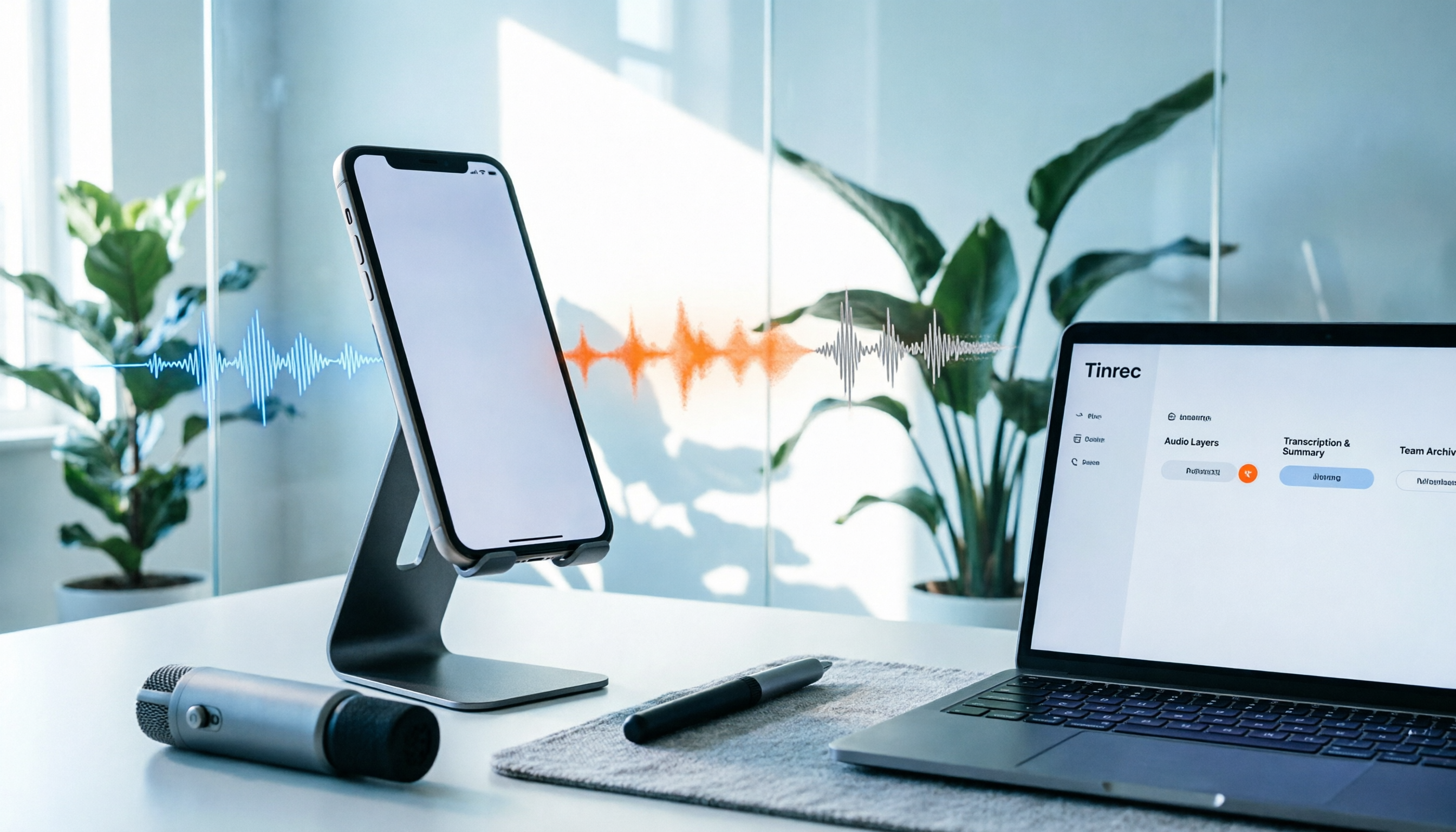
How to Record iPhone Screen with Audio in 2026: When to Turn On Mic + 3 Key Tips for Capturing System Sound
Can iPhone screen recording capture audio? Yes, but there are three audio sources, and most people only get one. This guide breaks down the differences between system sound, microphone ambient sound, and call audio, compares built-in screen recording with Tinrec for post-recording organization and team collaboration, and includes a 6-step quick start checklist.