

Turn recordings into transcripts and summaries in minutes
Upload audio or video for multilingual transcription, AI notes, and action items
When you can't hear the other party in a Teams meeting, most people's first reaction is to restart their computer. But I usually first confirm one thing: are you 'unable to hear the other party,' 'the other party can't hear you,' or 'no sound on both sides when sharing a video'?
These three situations have completely different troubleshooting paths. If you go in the wrong direction, you can spend half an hour and still not fix it.
Why Can't You Hear the Other Party in a Teams Meeting? First Distinguish 3 Situations
Situation 1: You can't hear the other party. The problem is usually with the speaker or output device—that is, the audio settings on your end.
Situation 2: The other party can't hear you. The problem is with the microphone, or you are muted.
Situation 3: When sharing your screen, no one can hear the video sound. This is because system audio is not being shared, and it has nothing to do with the speaker.
The checklist below mainly addresses the first situation. If you are dealing with the third situation, you can skip directly to Step 6.
6-Step Troubleshooting Checklist for When You Can't Hear the Other Party in Teams
Step 1: Check if Teams Shows an 'Unmute' Prompt
If your speaker was muted before the call started, Teams will proactively show a notification. Clicking 'Unmute' usually solves it.
This is the fastest step and also the most commonly overlooked.
Step 2: Confirm the Correct Output Device Is Selected
In the meeting window, click the dropdown arrow next to the microphone and confirm that the audio device selected is the headset or speaker you are actually using.
Many people plug in headphones, but Teams is still using the built-in monitor speakers, so the sound naturally 'disappears.'
Step 3: If the Device Doesn't Appear in the List, Reconnect It
If you don't see your device in the list, first check whether the Bluetooth device has power and whether it is connected to your phone or another device, then re-pair it.
For wired devices, unplug and plug them back in to let the system detect them again.
Step 4: Go Back to Windows Sound Settings and Check
Search for 'Sound settings' from the Windows Start menu and confirm that the speaker is enabled, not muted, and that the volume is not at 0.
Teams volume and system volume are separate, so you need to check both.
Step 5: Make a Test Call to Verify
Teams has a built-in 'Make a test call' feature. Follow the test call bot's instructions to record a message, and the system will play it back for you.
After the test, you'll get a summary and can adjust settings directly in device settings. Rather than repeatedly asking 'Can you hear me?' during a meeting, spend one minute testing before the meeting.
Step 6: When Sharing Your Screen, Check 'Include system audio'
After sharing your desktop, a toolbar appears at the top of the screen. Windows users need to manually check 'Include system audio' so the other party can hear the sound from videos or presentations.
Mac users usually don't need to check it; when sharing a video, the other party can hear it directly. This is also why two types of laptops in the same company may require different handling.
Option 1 | Tinrec — The Most Complete AI Meeting Notes Assistant
Let's be clear first: Tinrec won't fix your speaker. It solves a different problem—when audio really can't be recovered and the meeting must go on, how to keep the content from evaporating entirely.
Tinrec is an AI meeting recording and collaboration tool for individuals and teams. The desktop version directly captures computer system sound and handles online meetings on Teams, Zoom, Google Meet, Webex, and others without needing to invite an extra meeting bot to join as a participant.
Key Highlights:
1. Bot-free recording of online meetings. Open the desktop version to record Teams meetings and generate transcripts in real time. You don't need to add an extra account to the meeting roster, which is especially useful for external client meetings.
2. Transcription is just the beginning. After the meeting, it automatically generates summaries, chapters, and action items, and you can also ask AI questions about the meeting content. For example, you can directly ask 'What was the final decided amount for the budget?' without having to re-listen to a two-hour recording.
3. Chinese and multilingual meetings. Supports transcription in Chinese, Traditional Chinese, and multiple languages, and you can view the original text, translation, or bilingual content during recording. Actual performance will be affected by recording quality, accents, background noise, and overlapping speakers; for important content, it is recommended to cross-check with the transcript timestamps and listen back.
4. Team spaces for accumulating data. The team version provides independent spaces where members can view historical meeting data, and administrators can manage roles, seats, usage, and audit logs. Roles determine who can manage the team, while seats determine who can record, upload, and edit—these are different.
Pricing: The personal version has a free version to try basic quota, plus weekly cards, Pro monthly, and Pro annual plans, depending on usage frequency. The team version offers a 7-day trial for first-time eligible users, 1 free seat, and 300 minutes of shared import quota; monthly payment is USD 29.80 per paid seat per month, annual payment is USD 199 per paid seat per year, equivalent to about USD 16.58 per month, with 2,000 minutes of team shared import quota per seat per month. Prices and benefits are subject to the official purchase page.
Who it's for: Office workers and teams who frequently hold Teams or Meet meetings, need Chinese transcripts and post-meeting organization, and don't want a meeting bot to appear in the roster.
Stop organizing recordings by hand
Upload audio or video and automatically get a transcript, summary, and action items
Option 2 | Otter.ai — A Veteran Choice for English Business Meetings
Otter is a mature AI meeting assistant covering Teams, Zoom, and Google Meet, with support for real-time transcription, speaker identification, AI Chat, and team management.
Free Basic plan includes 300 minutes per month; Pro annual billing is about USD 8.49 per user per month, including 1,200 minutes of in-app recording per month and 10 file imports.
Who it's for: Users who mainly hold English meetings and need a mature team workflow. Chinese meeting experience is not its strength.
Option 3 | Fireflies.ai — Strong Meeting Automation and Integration
Fireflies' strengths are meeting automation, AI summaries, AskFred, and extensive third-party integrations, with comprehensive team analytics features as well.
Annual pricing is Free USD 0, Pro USD 10 per seat per month, Business USD 19 per seat per month, Enterprise USD 39 per seat per month. Note that its 'unlimited transcription' is still subject to storage and AI Credit rules.
Who it's for: Sales teams and companies that need to connect meeting data into CRM and other tools.
Option 4 | Notta — A Direct Competitor for Multilingual Transcription
Notta overlaps significantly with Tinrec, covering multi-platform transcription, meeting notes, file import, and translation.
Free version includes 120 minutes per month with a 3-minute limit per item; Pro annual billing is about USD 8.17 per month with 1,800 minutes per month; Business annual billing is about USD 16.67 per seat per month, offering unlimited transcription and usage reports.
Who it's for: Enterprises that need multilingual transcription and also care about team permissions and usage statistics.
Option 5 | Granola — The Bot-Free Meeting Notes Approach
Granola also takes a bot-free approach, using desktop system audio and microphone for real-time transcription, then combining it with the user's handwritten notes to generate content.
Basic is free, Business is USD 14 per user per month, Enterprise is USD 35 per user per month. It supports real-time transcript viewing and search, but does not support uploading pre-recorded audio files and does not retain meeting audio files.
Who it's for: People who are used to taking notes during meetings and don't need to listen back to the original recording.
Option 6 | TurboScribe — A Zero-Budget File Transcription Option
TurboScribe is more of a cost-effective file transcription tool, focusing on long files, batch uploads, subtitles, and translation.
Free version includes 3 files per day with a 30-minute limit per file; Unlimited annual billing is USD 120, equivalent to about USD 10 per month; the paid version supports files up to 10 hours or 5 GB each, and up to 50 files can be uploaded at once.
Who it's for: People who already have recording files, only need to turn them into text, and have a limited budget. It does not handle live meetings.
With So Many Options, How Should You Choose?
• Want transcription + AI Q&A + automatic meeting minutes all in one → Tinrec (few options offer all of these together)
• Need Chinese, Traditional Chinese, and mixed Chinese-English meetings → Tinrec
• Don't want a meeting bot to appear in the participant list → Tinrec or Granola (but Granola does not retain audio files)
• Need to organize data into reports, tables after the meeting, or export to Notion, Google Docs → Tinrec
• Team needs to manage members, seats, usage, and auditing → Tinrec Team version
• Pure English business meetings, team already used to Otter → Otter.ai
• Need to connect meetings into CRM and sales processes → Fireflies.ai
• Need multilingual transcription and team usage reports → Notta
• Only have scattered recording files and rarely hold online meetings → TurboScribe free version is enough
4 Things to Know Before Using These Tools
1. Tools won't fix your speaker. You still need to do the troubleshooting steps first; meeting recording tools are a backup, not a repair.
2. Get consent before recording. Taiwan and most regions have regulations regarding recording. For external meetings, it is recommended to inform participants in advance—this is the most basic practice.
3. Don't expect a fixed accuracy rate. Audio quality, accents, background noise, and multiple people speaking at the same time all affect results. For important decisions, it is recommended to cross-check with the transcript timestamps and listen back to the original audio.
4. Seats are not the same as roles. Taking Tinrec Team version as an example, members without seats can still view, play, and read team data, but they need a seat to record, upload, and edit. Before purchasing, think clearly about who really needs to modify data.
Conclusion
When you can't hear the other party in Teams, more than 90% of cases can be solved with the 6 steps above, especially 'unmute' and 'wrong output device selected.'
But if your meeting density is high, the probability of audio issues is actually not low. Rather than praying every time that your equipment works, it's better to prepare a post-meeting recovery process: real-time transcription, automatic summaries, and action item extraction, so that even the ten minutes you missed can be found afterward.
Based on the criteria of Chinese meetings, bot-free recording, and team data accumulation, Tinrec is an option worth including in your comparison. As for whether to pay and whether to use the personal or team version, it's recommended to first run a real meeting with the free quota before deciding.
FAQ
Q1: Where is the Teams test call?
In Teams settings under device settings, you can find 'Make a test call.' Follow the bot's instructions to record a message, and the system will play it back and provide a test summary for you to adjust your device.
Q2: Why can't the other party hear the video in a shared PPT?
Because you are sharing the screen, not the system audio. Windows users need to manually check 'Include system audio' in the top toolbar after sharing; Mac users usually don't need to check it.
Q3: What should I do if my Bluetooth headset is not detected in Teams?
First confirm the headset has power and check whether it is still connected to your phone or another device. Disconnect the original connection, re-pair, and then check the device list in Teams again.
Q4: Can Tinrec fix the no-sound problem in Teams?
No. Tinrec is a meeting recording and organization tool responsible for converting meeting content into transcripts, summaries, and action items; it does not handle audio device failures.
Q5: Is the free plan enough?
If you only occasionally organize a meeting recording, testing with the free quota is the most practical. If you have regular weekly meetings, then consider a paid plan for better value.
Q6: Do I need to inform participants before recording a meeting?
It is recommended. In addition to legal considerations, informing them in advance also helps everyone speak more naturally. This is especially true for external client meetings.
References
- My speaker isn't working in Microsoft Teams | Microsoft Support
- Sharing a PPT video in a Teams meeting, the other party can't hear the sound - Microsoft Q&A
- My speaker isn't working in Microsoft Teams - Microsoft Support
- Can't hear in Teams meeting? 5 major causes and efficient recording-to-text solutions (2026 guide) - Tinrec Blog
- Distance learning TEAMS | No sound problem solution - YouTube
Turn every recording into actionable outcomes
Get 60 free transcription minutes when you sign in. No credit card required.
Related Reading
You might also like
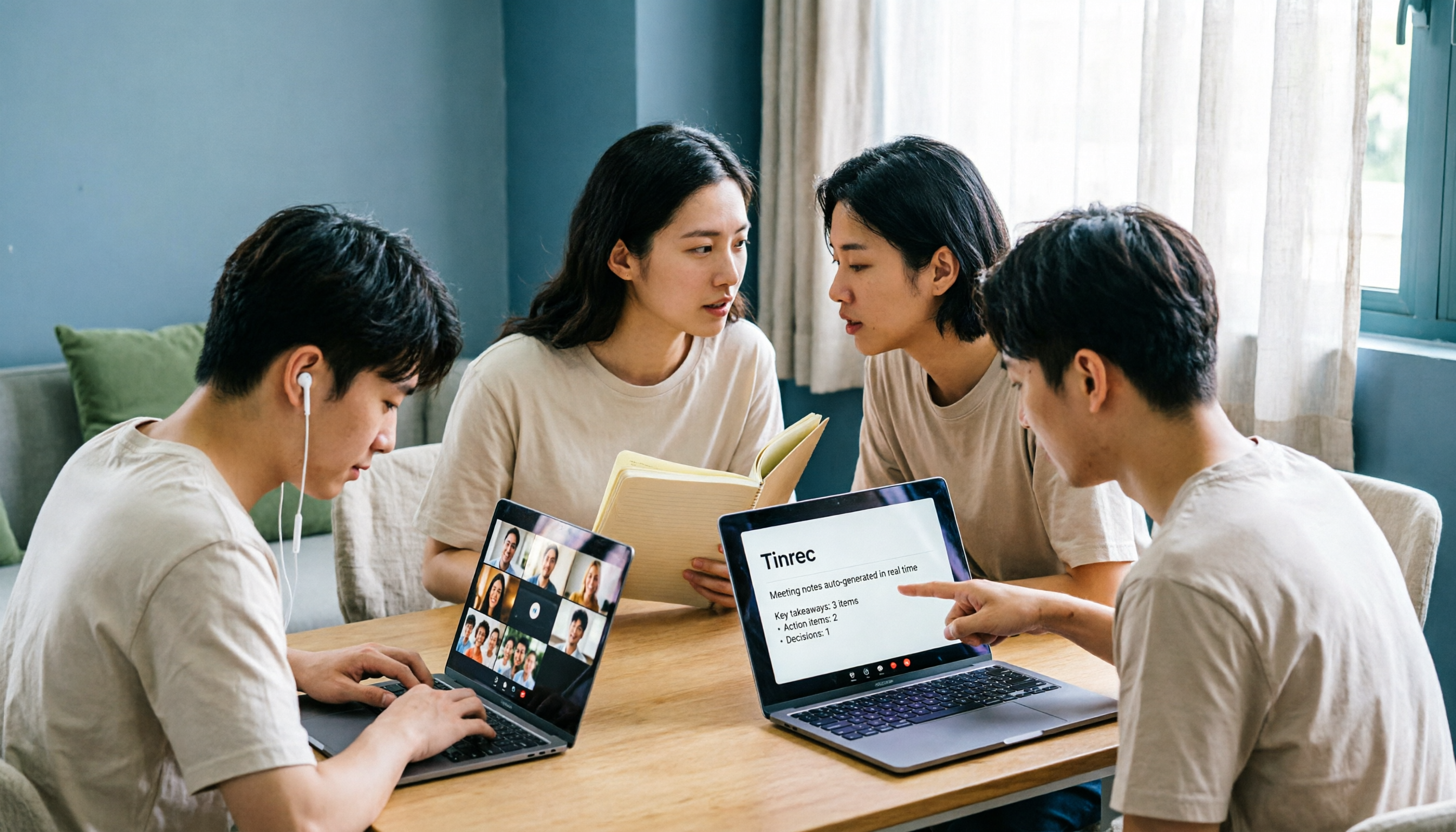
5 Meeting Transcription Solutions Tested for 2026: How to Fix No Sound in Teams Meetings
When you can't hear audio in a Teams meeting, don't rush to restart the meeting—the issue could be muted speakers, wrong device selected, dead Bluetooth battery, driver problems, or system audio not checked when sharing your screen. This guide walks you through troubleshooting steps in the order a student actually tested them, compares the real-world performance of 5 meeting transcription solutions, and explains why I ultimately made Tinrec a staple for online classes and group projects.

2026 AI Meeting Notes Tools: 5-Way Comparison — Understand the Criteria First to Avoid Choosing Wrong
Most people pick AI meeting notes tools based only on language count and free minutes, then end up with a tool they don't use for long. This article starts with 5 evaluation criteria that truly affect daily use, comparing Tinrec, Otter.ai, Notta, PLAUD Note, and others on meeting capture methods, post-meeting output, Chinese-language experience, data retention, and pricing transparency. It also covers 4 common buying mistakes and scenario-based selection advice.

4 AI Meeting Notes Apps Tested for 2026: Which Free Version Is Good Enough?
How to choose AI meeting notes software in 2026? This article tests and compares Tinrec, Notta, Granola, and TurboScribe across five dimensions: meeting capture method, post-meeting workflow, Chinese-language experience, team collaboration, and free tier limits. It also covers buying criteria, common pitfalls, and scenario-based recommendations.

2026 AI Meeting Notes Free Plans Compared: 4 Tools Side by Side
A 2026 comparison of free plans for 4 AI meeting notes tools: from hidden limits on free quotas, meeting audio sources, post-meeting outputs, to team roles and seats, clarifying the differences and use cases of Tinrec, Otter.ai, Notta, and Granola—helping you pick the one that truly fits without overspending.

2026 AI Meeting Notes Software: 5 Top Picks Tested and Compared — Is the Free Version Enough? Post-Meeting Organization Is Key
From free usage limits, Chinese transcription, bot-free recording, to team seat management, here are the key factors to consider when choosing AI meeting notes software in 2026. We also demonstrate Tinrec's complete workflow for post-meeting summaries, action items, AI Q&A, and team knowledge retention.

Best AI Meeting Notes Platforms in 2024: Testing 4 Options, Tinrec Excels for Chinese Meetings and Team Knowledge Retention
Many people treat AI meeting note platforms as simple audio-to-text converters, only to find themselves re-listening and catching up on action items afterward. This article covers selection criteria, pitfalls to avoid, and the positioning of Tinrec, Otter.ai, Notta, and Granola to help you determine which platform suits Chinese meetings, bot-free recording, and team knowledge retention.

2026 Free AI Meeting Notes Generators Compared: 5 Tools to Try
The meeting ends, and the overtime begins. This article examines five AI meeting notes generators from four angles: how free quotas work, how meetings are recorded, what you can do after the meeting, and how teams can take over later. It breaks down who Tinrec, Notta, Otter.ai, Granola, and TurboScribe are each best for, so you can verify—without spending money—whether a tool actually understands your meetings.

2026 AI Meeting Notes Comparison: 5 Tools Tested Without Bots — Which Handles Chinese Summaries Best?
For small-team leaders choosing an AI meeting notes tool, the real questions are where your meeting audio comes from and what you need after the meeting. This article tests 5 tools — Tinrec, Notta, Otter.ai, Granola, and PLAUD — across 4 key criteria: bot-free recording, post-meeting outputs, quotas, and team governance, to help you find the right fit for your meeting style.

5 AI Meeting Recorders Tested and Compared in 2026: Which Is More Practical—Bot-Free Recording or Chinese Language Experience?
This article clarifies the three most common misconceptions about AI meeting recorders, covering recording methods, Chinese recognition, post-meeting organization, and team permissions. It explains what to really look for when choosing one, and uses Tinrec as an example to demonstrate bot-free recording, real-time transcription, AI Q&A, and how team meeting data can be retained and utilized.