
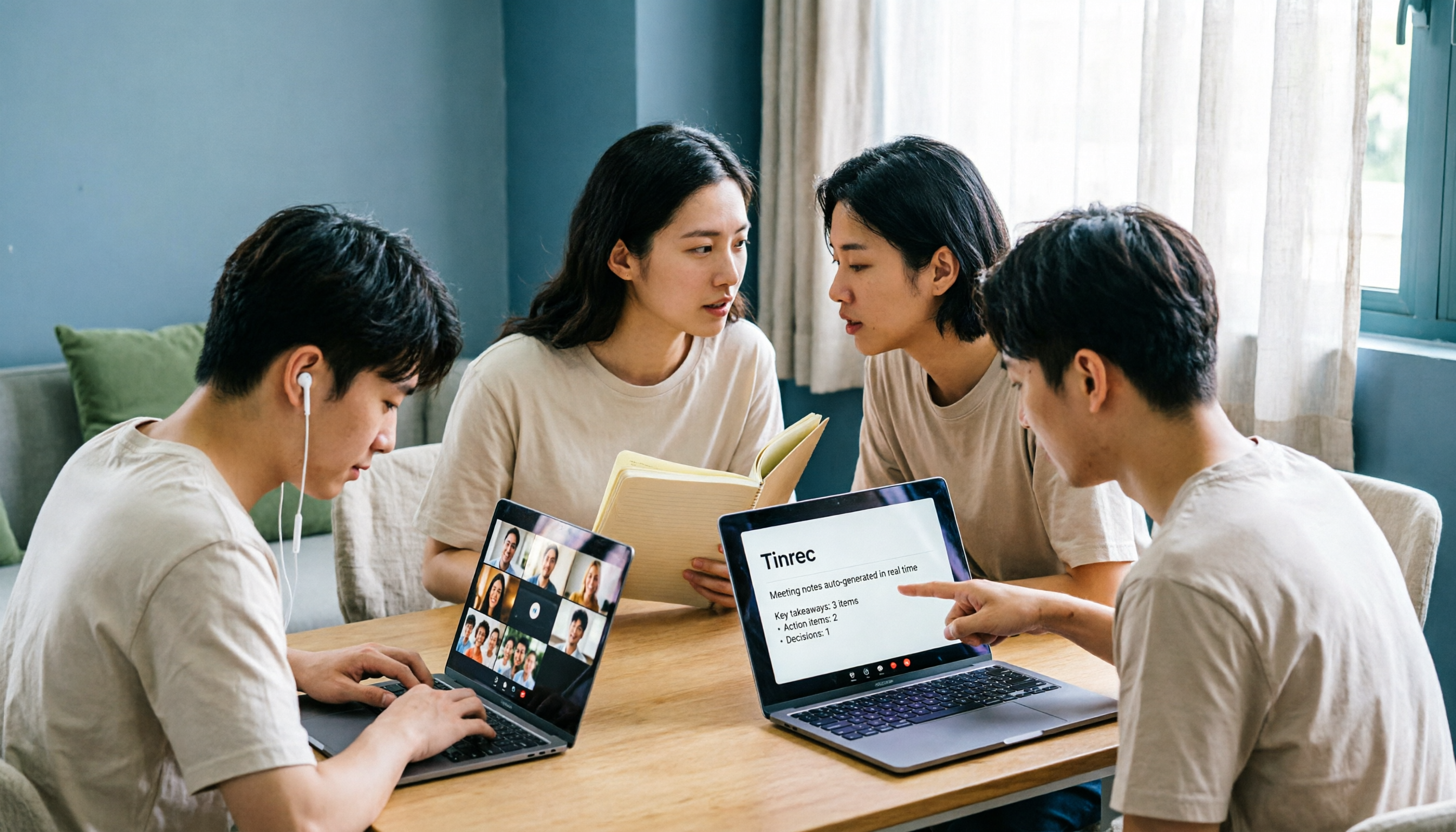
Turn recordings into transcripts and summaries in minutes
Upload audio or video for multilingual transcription, AI notes, and action items
Can't Hear in a Teams Meeting? First Ask Yourself: Which Kind of "Can't Hear" Is It?
Last semester, while working on my graduation project, I scheduled an online discussion with three classmates. As soon as the meeting started, I noticed—the screen was moving, someone was gesturing as they spoke, but my headphones were completely silent. I did the worst thing possible: I restarted the meeting. Three restarts later, still no sound.
Later I figured out that "can't hear" in a Teams meeting is actually three completely different problems, each with a different solution:
- I can't hear the other person: The problem is with the speaker or headphone output—it might be muted, switched to another device, or Bluetooth simply isn't connected.
- The other person can't hear me: The problem is with the microphone. This is separate from the speaker—don't troubleshoot them together.
- Can't hear video audio when sharing screen: This is about whether "system audio" is checked—it has nothing to do with whether your speaker works.
Classify first, then troubleshoot. That's the first thing I learned after getting stuck three times. Here's the actual sequence I went through.
Step 1: 5 Troubleshooting Actions for No Sound from Teams Speakers
1. Check if you're muted first, then check if the right device is selected If your speaker is muted before the meeting starts, Teams will show a prompt—select "Unmute" and you'll be able to hear others. Then click the dropdown arrow next to the microphone and make sure the device selected is the headset you're actually wearing, not the Bluetooth headphones you connected last time and put away in a drawer. You can also manually specify the microphone and speaker from the "⋯" menu in the top right of Teams → "Settings" → "Devices."
2. Use "Make a test call" to verify—don't guess Teams has a built-in test call feature. Follow the test call bot's instructions to record a short message, and the system will play it back to you and give you a test summary afterward. I've made it a habit: test 5 minutes before an important meeting—it's much better than scrambling during the call.
3. Physical checks for Bluetooth and wired connections If your device doesn't appear in the list, first check if your Bluetooth headphones have battery and whether they're still connected to your phone or tablet (this happens all the time). For wired headphones, unplug and replug, then reconnect. Also check the mute switch on the inline remote—my classmate was fooled by this switch for half an hour.
4. Windows sound settings and drivers Search "Sound settings" in Windows and confirm the speaker is enabled and not muted. If the problem started after a recent update, go to Device Manager → "Sound, video and game controllers" and update the driver, or try "Roll Back Driver."
5. Network and firewall—company or school networks are especially prone to issues If the audio is choppy and the video is lagging, it might be an unstable network. Teams requires a stable UDP connection. On campus or corporate networks, ask IT to check if the firewall is blocking media traffic. My own test method is crude but effective: switch to your phone's hotspot—if the sound comes back, the problem is with the original network configuration.
One more thing many people miss: when sharing your desktop and playing a video, the other person can't hear the audio. After sharing your desktop, a toolbar appears at the top—you need to manually check "Include system audio" for the other person to hear the video. Mac behaves differently—no checkbox needed for others to hear. This has nothing to do with your speaker, so stop restarting your sound card.
Still No Sound After Troubleshooting? Here's How I Use Tinrec to Recover Meeting Content
Troubleshooting can solve "I can't hear," but it can't solve "I already missed this part of the meeting."
I later realized a conceptual difference: the speaker is "output," recording is "capture"—these are two separate things. Once Teams audio enters your computer, besides going to your headphones, it can also be recorded. Tinrec's desktop version directly captures your computer's system audio to record online meetings—no need to pull an extra bot into the meeting room as a participant.
With Tinrec, my actual workflow is: open the desktop version and start recording when the meeting begins, while you continue your Teams meeting. Even if my headphones suddenly die and I can only see the screen and chat, afterward I still have a transcript, summary, and action items to refer to. This is a lifesaver for group projects—our group of four always had someone who "didn't catch that part" in every meeting.
Tinrec's Core Capabilities—Which Ones Do Students Use Most?
Bot-free recording of online meetings Tinrec's desktop version captures device system audio to handle online meetings—no need to invite an extra bot into Teams, Zoom, Google Meet, or Webex meetings. For students, this is very practical: no need to explain to professors or group members "why there's an extra account in the meeting."
Real-time transcription—text appears as people speak It's not transcribed after recording—text is generated synchronously during the meeting. When I take online classes taught in English, I keep it open to read along—at least I can see the words for parts I couldn't catch by ear.
AI summaries and chapters The most painful part of long meetings is going back to find key points. Tinrec organizes content into summaries and chapters—a two-hour discussion can be broken into sections, making review much faster.
Action item extraction The most common tragedy in group meetings is "no one remembers the conclusions afterward." Tinrec extracts action items from the discussion—who needs to do what is crystal clear. Our group uses this every week.
AI Q&A After transcription is complete, you can ask questions directly about the meeting content, such as "What three directions did we decide on for this project?" or "When is the submission deadline the professor mentioned?" Instead of re-listening to the recording, just ask.
Stop organizing recordings by hand
Upload audio or video and automatically get a transcript, summary, and action items
Real-time translation and bilingual view For cross-language meetings or original-language materials, you can switch between original text, translation, or bilingual view—this helped me a lot in my minor courses.
Multi-format export and further processing Results can be exported and further used to generate reports, tables, or documents, then brought into tools like Notion or Google Docs. Only current export methods are supported—actual formats are subject to what the product provides.
If the whole team needs to use it, Tinrec also has a Team version, which puts meeting data into a separate team space rather than having multiple people share a personal account. The Team version lets you create multiple team spaces, invite members via join links, set owners/admins/regular members, and distinguish between "roles" and "seats": roles determine who can manage the team and members, seats determine whether members can record, upload, edit, and export. Members who are active but have no seat can still view, play, and read team data. For pricing, the Team monthly plan is USD 29.80 per paid seat per month, and the annual plan is USD 199 per paid seat per year (equivalent to about USD 16.58 per month); first-time eligible teams get a 7-day trial, 1 free seat, and 300 minutes of team shared import quota, with paid seats providing 2,000 minutes of team shared import quota per seat per month. Actual prices and benefits are subject to the official purchase page.
Real-World Use Cases: How I Used It This Semester
Scenario 1: Online group project meetings We have a one-hour online discussion once a week. I used to type while listening, and ended up doing neither well. Now I record the entire meeting with Tinrec's desktop version, then review the summary and action items afterward and paste them directly into the group chat. Last semester, my headphones completely died during one meeting—I recovered the entire discussion from the transcript.
Scenario 2: Online classes and lectures For general education courses, external speakers are invited to give talks—they speak fast and there are no slides. I use Tinrec for real-time transcription, then use AI Q&A to capture key points after class—no need to listen to the recording from the beginning when reviewing.
Scenario 3: Graduation project interviews For the project, we conduct user interviews—40 minutes each, with fragmented speech. Tinrec can upload existing audio files for transcription or record directly. After organizing into a transcript, I can extract quotes—much faster than typing it out myself.
Scenario 4: Internship interviews and foreign-language meetings With online interviews, the fear is missing something. With permission, I record so I can review my answers afterward. For cross-language interviews or meetings, I turn on real-time translation view.
5 Things to Consider When Choosing a Meeting Transcription Tool
1. Don't just look at advertised accuracy numbers No tool can guarantee a fixed accuracy rate—performance is affected by recording quality, noise, accents, overlapping speakers, and technical terminology. Tinrec performs well in Chinese transcription with clear audio, but for important content, I still recommend cross-checking against the original text and recording.
2. What matters is whether it can help you organize after transcription If it only gives you a transcript, you still have to read through it yourself. Tinrec's value is in the second half: summaries, chapters, action items, AI Q&A, and exportable post-meeting deliverables.
3. Chinese and mixed Chinese-English handling capability In Taiwan, classes and meetings often mix Chinese and English—this is harder than pure English. Tinrec covers Chinese, Traditional Chinese, and multilingual scenarios, and also supports team hotwords to maintain commonly used technical terms.
4. Input sources must match your usage habits A solution that only supports file upload can't handle real-time meetings. Tinrec supports real-time recording, desktop online meetings, audio and video files, mobile recording, and some web link content can also be imported.
5. Free quota and long-term cost Students care most about this. Tinrec's Personal version has a free tier to try first, a weekly card for short-term intensive needs, a Pro monthly card for steady use, and an annual card for long-term data accumulation with a lower monthly equivalent. My advice: start with the free version for one or two meetings to confirm the workflow suits you, then decide whether to pay.
Frequently Asked Questions
Q: What's the most common reason for no sound in a Teams meeting? Usually it's muted speakers or the wrong device selected. First check if a mute prompt appears in the meeting, then confirm from the dropdown next to the microphone or "Settings" → "Devices" that the selected speaker is the one you're actually using.
Q: Do I need to have a bot join the meeting to record Teams meetings with Tinrec? No. Tinrec's desktop version captures your computer's system audio to record—no extra participant account appears in the meeting room. Note that you must actively start recording—it's not a tool that automatically joins all calendar meetings.
Q: Is the free version enough for students? You can try it first. The free version provides a basic quota to experience recording, importing, summaries, and transcription—actual quota is subject to the official website. If you only record one or two key classes or group meetings per week, start with the free version; consider a weekly card or Pro if you need intensive use.
Q: What's the difference between the Team version and the Personal version? Personal version data belongs to your personal account. The Team version is a separate team space with additional member, role, seat management, sharing benefits, usage analytics, audit logs, and audio recycle bin capabilities—suitable for an entire group or lab to use together.
Q: Can transcription be guaranteed 100% accurate? No, and it's not recommended to expect that. Recording quality, accents, noise, and terminology all affect results. A more practical approach: treat Tinrec as a tool to reduce manual note-taking costs, and cross-check key information against transcript timestamps and the recording.
Q: Do I need consent before recording? Yes. Recording and transcription involve personal data and local regulations. For formal interviews, interviews, or corporate meetings, it's recommended to inform participants in advance and obtain consent.
Summary
No sound in a Teams meeting is usually not a disaster: first distinguish whether it's the speaker, microphone, or system audio, then check in order—mute, device, test call, Bluetooth and wired connections—and only then touch the network and drivers. The real trouble is the meeting content you missed during troubleshooting.
That's the main reason I kept Tinrec this semester. It doesn't need to invite a bot into the meeting—the desktop version directly captures system audio, and afterward gives you a transcript, summary, chapters, and action items, and you can ask questions about the meeting content when needed. For students, the most practical approach is to start with the free version—pick a class where "missing something would be a problem" or an important project meeting, record it once, and see how much time the post-meeting organization saves you.
References
- My speaker isn't working in Microsoft Teams | Microsoft Support
- Sharing PPT video in Teams meeting, other party can't hear audio - Microsoft Q&A
- Can't hear in Teams meeting? 5 major causes and efficient recording-to-text solutions (2026 guide) - Tinrec Blog
- My speaker isn't working in Microsoft Teams - Microsoft Support
- My microphone isn't working in Microsoft Teams - Microsoft Support
Turn every recording into actionable outcomes
Get 60 free transcription minutes when you sign in. No credit card required.
Related Reading
You might also like

6 Teams Meeting Recording Tools Tested and Compared for 2026: How to Recover Meeting Highlights Even When You Can't Hear the Other Party
When you can't hear the other party in a Teams meeting, don't rush to restart your computer. This article breaks down three scenarios—'you can't hear the other party,' 'the other party can't hear you,' and 'no sound when sharing video'—organizes a 6-step troubleshooting checklist, and then compares 6 meeting recording tools so that when audio issues occur, you can still recover transcripts, summaries, and action items afterward.

2026 AI Meeting Notes Tools: 5-Way Comparison — Understand the Criteria First to Avoid Choosing Wrong
Most people pick AI meeting notes tools based only on language count and free minutes, then end up with a tool they don't use for long. This article starts with 5 evaluation criteria that truly affect daily use, comparing Tinrec, Otter.ai, Notta, PLAUD Note, and others on meeting capture methods, post-meeting output, Chinese-language experience, data retention, and pricing transparency. It also covers 4 common buying mistakes and scenario-based selection advice.

4 AI Meeting Notes Apps Tested for 2026: Which Free Version Is Good Enough?
How to choose AI meeting notes software in 2026? This article tests and compares Tinrec, Notta, Granola, and TurboScribe across five dimensions: meeting capture method, post-meeting workflow, Chinese-language experience, team collaboration, and free tier limits. It also covers buying criteria, common pitfalls, and scenario-based recommendations.

2026 AI Meeting Notes Free Plans Compared: 4 Tools Side by Side
A 2026 comparison of free plans for 4 AI meeting notes tools: from hidden limits on free quotas, meeting audio sources, post-meeting outputs, to team roles and seats, clarifying the differences and use cases of Tinrec, Otter.ai, Notta, and Granola—helping you pick the one that truly fits without overspending.

2026 AI Meeting Notes Software: 5 Top Picks Tested and Compared — Is the Free Version Enough? Post-Meeting Organization Is Key
From free usage limits, Chinese transcription, bot-free recording, to team seat management, here are the key factors to consider when choosing AI meeting notes software in 2026. We also demonstrate Tinrec's complete workflow for post-meeting summaries, action items, AI Q&A, and team knowledge retention.

Best AI Meeting Notes Platforms in 2024: Testing 4 Options, Tinrec Excels for Chinese Meetings and Team Knowledge Retention
Many people treat AI meeting note platforms as simple audio-to-text converters, only to find themselves re-listening and catching up on action items afterward. This article covers selection criteria, pitfalls to avoid, and the positioning of Tinrec, Otter.ai, Notta, and Granola to help you determine which platform suits Chinese meetings, bot-free recording, and team knowledge retention.

2026 Free AI Meeting Notes Generators Compared: 5 Tools to Try
The meeting ends, and the overtime begins. This article examines five AI meeting notes generators from four angles: how free quotas work, how meetings are recorded, what you can do after the meeting, and how teams can take over later. It breaks down who Tinrec, Notta, Otter.ai, Granola, and TurboScribe are each best for, so you can verify—without spending money—whether a tool actually understands your meetings.

2026 AI Meeting Notes Comparison: 5 Tools Tested Without Bots — Which Handles Chinese Summaries Best?
For small-team leaders choosing an AI meeting notes tool, the real questions are where your meeting audio comes from and what you need after the meeting. This article tests 5 tools — Tinrec, Notta, Otter.ai, Granola, and PLAUD — across 4 key criteria: bot-free recording, post-meeting outputs, quotas, and team governance, to help you find the right fit for your meeting style.

5 AI Meeting Recorders Tested and Compared in 2026: Which Is More Practical—Bot-Free Recording or Chinese Language Experience?
This article clarifies the three most common misconceptions about AI meeting recorders, covering recording methods, Chinese recognition, post-meeting organization, and team permissions. It explains what to really look for when choosing one, and uses Tinrec as an example to demonstrate bot-free recording, real-time transcription, AI Q&A, and how team meeting data can be retained and utilized.