
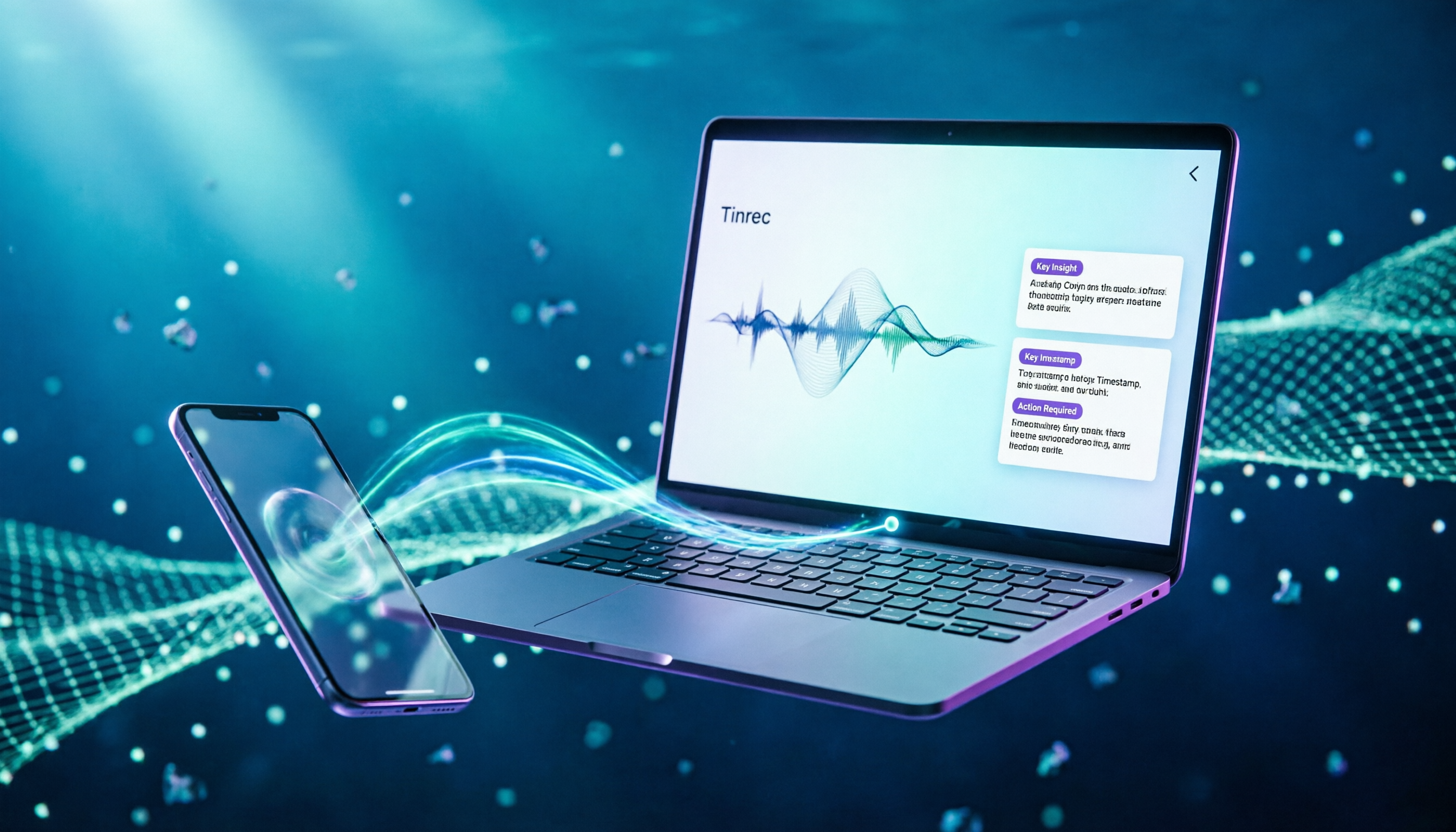
Turn recordings into transcripts and summaries in minutes
Upload audio or video for multilingual transcription, AI notes, and action items
Why Transferring iPhone Voice Memos to Windows Always Gets Stuck at the Last Step
Many people think that after tapping Share in Voice Memos and choosing "Save to Files," the job is done. In reality, that only moves the recording from the app into the Files app on your iPhone—your Windows PC still can't see it.
This is the most common misunderstanding, and the situation I encounter most often when replying to reader comments.
The second common issue is file size. One user on a forum mentioned trying to move a 6.xGB recording off a 128GB iPhone; moving it to Files first got stuck due to insufficient space. In such cases, choosing the wrong method isn't just slower—it simply can't be done.
The third issue is that the file transfers but won't open. iPhone Voice Memos outputs .m4a by default, which isn't necessarily a double-click-and-play format on Windows.
This article lays out five practical methods side by side and also addresses "what to do after the transfer."
Understand These 4 Key Points Before Transferring
First, format and playback. .m4a may require an additional player or conversion to .mp3 to open smoothly on Windows. If you just want to listen, it's not a big deal; but if the recipient needs to edit or add subtitles, format matters.
Second, file size limits. Email attachments typically cap around 25MB, so a meeting recording over 20 minutes can easily fail. Cloud storage doesn't have this issue, but you need to consider upload time and network speed.
Third, do you want the "file" or "usable content"? This is what most people don't think through. Putting an .m4a on your desktop still leaves you with an hour-long audio file—you still have to listen through it yourself to get the key points.
Fourth, where will the data live long-term? If you need to find these recordings three months later, "transferring to PC" is just backup, not organization. This is also where I usually look first—after the file lands, is there a way to search it and ask questions of it?
Tinrec: It Solves Not "Moving Files" but What Happens After
Tinrec is an AI meeting notes and collaboration tool for individuals and teams, available on web, desktop, and mobile. It's not positioned as file transfer software; rather, it turns recordings into searchable, summarizable, and queryable data.
Honestly, I initially dismissed it as "just another audio-to-text tool." After actually using it, the difference showed up in the twenty minutes after recording.
Scenario 1: Drop iPhone audio files into a Windows browser. Open Tinrec's web version on your PC, upload existing audio or video files, and it generates a transcript, then automatically produces summaries, chapters, key points, and action items. You don't need to pause and take notes while listening—a one-hour interview structures itself.
Scenario 2: Ask questions directly about meeting content. This is the biggest difference from typical transcription tools. Once the transcript is ready, you can directly ask "What budget range did the client mention this time?" or "Who was responsible for this action item in the last meeting?" It gives answers based on semantic understanding, not a pile of keywords you have to dig through yourself.
Scenario 3: Record on mobile, organize on desktop. Record with iPhone while out, and the audio and transcript are saved in your account. Log in to the same account on your Windows PC to continue. The advantage of this path is you don't need to figure out how to "move" files to your computer before starting work.
Scenario 4: Bring results back into your existing workflow. Organized content can be exported as documents or taken to Google Docs, Notion, OneNote, Dropbox, and other tools for further use. If your team has a fixed weekly report format, you can use Agent post-processing to directly generate reports, tables, and meeting minutes.
If an entire team is using it, Tinrec's Team plan is a separate team space, not multiple people sharing a personal account. Members can view the team's historical meeting data, while admins can manage roles, seats, sharing permissions, usage analytics, and audit logs. The current plan offers 2,000 minutes of shared team import quota per paid seat per month; team monthly billing is USD 29.80 per paid seat, annual billing is USD 199 (roughly USD 16.58/month). Eligible new teams get a 7-day trial, 1 free seat, and 300 shared minutes. Note that the Team plan distinguishes between "roles" and "seats"—members without a seat can view, listen, and read but cannot upload, edit, or export.
Stop organizing recordings by hand
Upload audio or video and automatically get a transcript, summary, and action items
Honest limitations. First, Tinrec doesn't handle moving files from iPhone to Windows—you still need iCloud, email, or a transfer tool for that step. Second, the free version provides a basic quota; if you process large volumes of audio weekly, you'll need to evaluate paid plans. Third, transcription quality depends on the recording environment—background noise, people talking over each other, and technical jargon can degrade results. For important content, cross-check with playback.
Who it's for. If your purpose for recording is "to use it later"—meeting notes, client interviews, course notes, transcript material—then rather than agonizing over which cable to use to move files, it's better to put files into a place that can organize them from the start.
Besides Tinrec, What Other Methods Exist for Getting iPhone Recordings to Windows?
Download via iCloud web. After saving the recording to Files on iPhone, put it in iCloud Drive, then log in to iCloud from a Windows browser and download the file. Free, no software installation needed, suitable for occasional use. But large files consume network bandwidth for both upload and download, and after downloading you still have an .m4a—transcript and key points still need to be handled yourself.
Email it to yourself. The most intuitive method—even older relatives can use it. The problem is the attachment limit is typically around 25MB, so a meeting recording over 20 minutes can easily fail to send. Suitable for scattered, short memos, not for meeting recordings.
Send via LINE or messaging apps to yourself. Taiwanese users are very familiar with this route—send from phone to your own computer, and the file lands. Convenient, but files get mixed into chat rooms, hard to find over time, and not suitable as a long-term database.
Wired connection with Windows File Explorer. The most reliable for large files or moving many files at once, free from network and attachment limits. However, most people get stuck at the "Music" sync step, unable to find the "Include Voice Memos" checkbox. This route suits those already comfortable with iTunes or device management interfaces.
Third-party file transfer software. No internet needed, no file size limits, batch export with original audio quality preserved—the most efficient approach for pure file-moving needs. But such tools typically only handle transport and won't turn recordings into searchable content—which is exactly where Tinrec does a completely different job.
If you've considered tools like Notta or Otter.ai: Notta has decent multilingual support, and Otter.ai is very mature for English meetings with a generous free tier. But if you need Chinese meeting notes, desktop recording without a bot joining the meeting, and a space where data can accumulate for team sharing, Tinrec is closer to that need.
Pitfall Guide: The 4 Most Common Mistakes When Transferring iPhone Recordings to Windows
Pitfall 1: Thinking "Save to Files" means it's on your computer. The Files app is a location on your iPhone, not your Windows desktop. This step is just a relay station—there's another step to go.
Pitfall 2: Trying to use AirDrop to send to Windows. AirDrop only works between Apple devices—fast from iPhone to Mac, completely incompatible with Windows. Many people only discover this on the spot.
Pitfall 3: Using email for large files and dealing with it only after sending fails. If a recording exceeds 15 minutes, skip email and use cloud storage or put it directly into an organization tool to save retry time.
Pitfall 4: Only focusing on moving files without thinking about how to use them later. This is the costliest pitfall. Moving files takes 10 minutes, but re-listening to an hour-long recording to extract key points takes an afternoon. Think clearly about the purpose of these recordings before deciding whether to just "move" them.
Conclusion: Which One Should You Actually Use?
Just occasionally sending a short recording to a friend → Use LINE or email, don't overthink it.
Have a batch of large files to back up to PC → Use wired connection or third-party transfer software—fastest and most stable.
Recordings are meant to be kept and used (meetings, interviews, courses) → Rather than agonizing over transfer methods, put files into Tinrec and get transcripts, summaries, action items, and AI Q&A all at once.
Team needs to share meeting data → Look at team space, seat management, and data ownership—exactly what Tinrec's Team plan handles, which sharing a personal account cannot achieve.
Mainly recording English meetings, zero budget → Otter.ai's free tier is indeed generous—no need to force it.
Transferring files itself isn't hard; what's hard is whether you're still willing to open them after the transfer. I suggest starting with Tinrec's free version—throw your most troublesome recording into it and see if the summaries and Q&A results are helpful to you before deciding whether to go further.
References
- Export Voice Memos recordings to Files on iPhone - Apple Support (Taiwan)
- Complete Guide to Exporting iPhone Voice Memos! 7 Methods to Quickly Transfer Recordings to PC
- How to transfer iPhone recordings to PC via wired connection - Mobile01
- Complete iPhone Voice Memos Tutorial (2026) | iCloud Sync, Backup, and Transfer to PC Methods
- Record on iPhone and Save File Back to PC - iPhone Tutorial - YouTube
Turn every recording into actionable outcomes
Get 60 free transcription minutes when you sign in. No credit card required.
Related Reading
You might also like

2026 AI Meeting Notes Comparison: Which Tool Delivers Google Meet Minutes Fastest?
Many assume Google Meet automatically provides AI meeting notes, but built-in notes have account and language restrictions, and live captions can't be copied directly. This article addresses common misconceptions, walks through Tinrec desktop's bot-free recording workflow for automatically generating transcripts, summaries, and action items after Google Meet, and lists 5 buying checkpoints and FAQs.

2026 Comparison of 3 iPhone Recording Organization Tools: Can't Find Recordings? Which Saves the Most Time Transcribing?
When you can't find an iPhone recording, it's usually not because the file disappeared, but because the recording never had a fixed home. This article first helps you check three locations: Voice Memos, iCloud, and the Files app, then compares Tinrec, Otter.ai, Notta, and TurboScribe on transcription, AI Q&A, and team organization, including free tier limits and 3 common pitfalls to avoid.
How to Transfer Apple Watch Voice Memos to iPhone in 2026: iCloud Sync + Transcript Guide
There's no 'transfer' step for Apple Watch recordings—it's all about whether iCloud Voice Memos sync is on. This guide walks you through 3 steps to set it up, find the 'Watch Recordings' folder, and troubleshoot 5 common sync failures. Plus, from a manager's post-meeting perspective, we compare Voice Memos vs. Tinrec on transcripts, summaries, action items, AI Q&A, and team collaboration.

2026 AI Meeting Notes Guide: Tinrec vs Plaud Features and Buying Advice
Searching for 'AI meeting notes recommendations' often brings up hardware reviews like Plaud, but for most students the real challenge is organizing recordings afterward. Based on my own experience, this guide explains the differences between Tinrec and Plaud in cost, online meeting handling, post-meeting outputs, and team collaboration, and covers free tier limits, plan structures, and key buying considerations.

2026 AI Meeting Recorder Comparison: Which Free Version Is Actually Enough?
We tested the free versions of five AI meeting recorder tools in 2026, comparing free quotas, online meeting support, Chinese transcription, post-meeting summaries, and AI follow-up Q&A. Tinrec performed most completely for Chinese meetings, bot-free recording, and post-meeting organization workflows. This article also honestly lists the free limitations and ideal users for Otter.ai, Notta, Granola, and PLAUD.

2026 AI Meeting Notes Tool Comparison: Tinrec vs Notta — Which Is Better for Chinese Meetings Across 5 Key Dimensions?
The biggest pitfall when choosing an AI meeting notes tool is focusing only on transcription accuracy. This comparison starts from the question "where should meeting data ultimately live?" and evaluates Tinrec and Notta across 5 dimensions: Chinese meeting input sources, online meeting capture methods, post-meeting outputs, team governance, and pricing/quotas — helping you decide which tool better fits your workflow.

2026 AI Meeting Notes Tools Compared: Which Turns Transcripts into Actionable Meeting Records?
We tested 3 AI meeting notes tools in 2026, comparing transcripts, summaries, action items, AI Q&A, exports, and team permissions. Includes a ready-to-use meeting record template and pitfalls to avoid, helping you spend less time on post-meeting work.

How to Take AI Meeting Notes in 2026: 5 Steps from Recording to Team Summary
A common AI meeting notes approach on PTT is to transcribe first and then ask AI to organize, but what really affects efficiency is whether meeting data can be searched, queried, and handed over. This article breaks down the process in 5 steps and compares Tinrec, Otter.ai, Notta, and Granola on differences in Traditional Chinese meetings, bot-free recording, and team governance.

2025 AI Meeting Notes Tools Compared: Which One Actually Saves You Time?
The real pain point of meeting notes isn't missing a recording—it's that no one ever reviews it. This article tests and compares Tinrec, Notta, Granola, and Otter.ai across five dimensions: recording capture method, post-meeting organization, Chinese language performance, data ownership, and pricing quotas. It also covers four common purchasing mistakes to help you choose the right tool within your budget.