
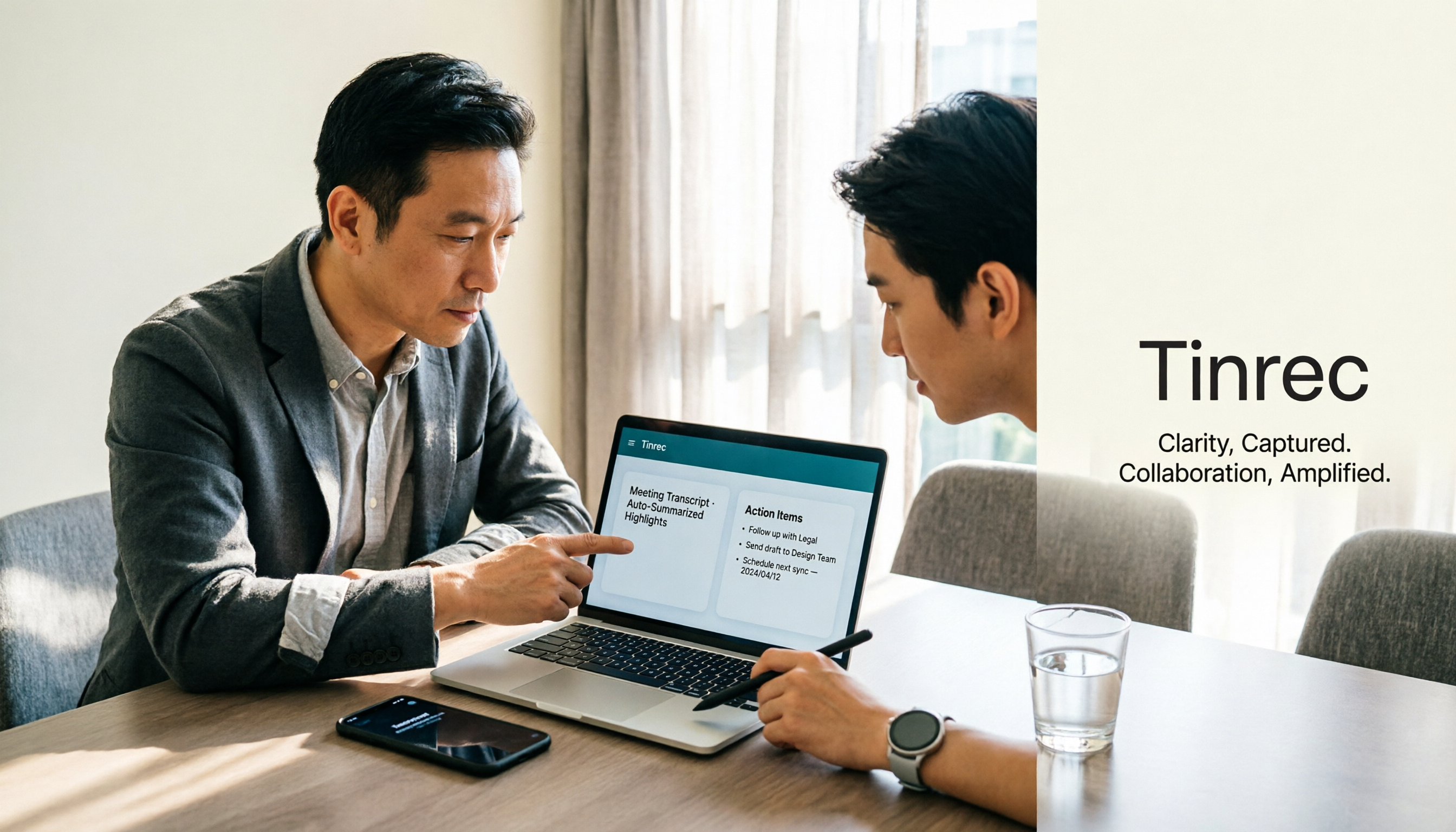
Turn recordings into transcripts and summaries in minutes
Upload audio or video for multilingual transcription, AI notes, and action items
A Mistake I Made
The first time I recorded on my Apple Watch, I was pulled into an impromptu cross-departmental meeting. Afterward, I stared at my watch looking for a 'send to iPhone' button—nothing. I even searched the App Store for 'watch recording transfer' and installed two tools: one was paid, the other synced unreliably.
Then I figured it out: Apple Watch recordings don't have a 'transfer' step at all. As long as your iPhone and watch are signed into the same Apple ID and iCloud Voice Memos sync is enabled, recordings made on the watch automatically appear on your iPhone.
So the real time investment isn't 'how to transfer'—it's 'how to turn the recording into usable meeting notes.' I'll cover sync first, then post-meeting organization—that's where I actually get stuck across my 15 weekly meetings.
Apple Watch Recording to iPhone: Quick Overview
| Item | What Actually Happens |
|---|---|
| Watch App | Built-in Voice Memos |
| Transfer Method | Automatic iCloud sync; no manual export or transfer |
| Requirements | Same Apple ID on both devices; iCloud sync enabled for Voice Memos |
| Location on iPhone | 'Watch Recordings' folder inside the Voice Memos app |
| What the Watch Can Do | Record and play back; watch version is basic, no editing |
| Editing & Sharing | Must be done on iPhone |
Step 1: Turn On iCloud Voice Memos Sync (Where Most People Get Stuck)
On your iPhone, open Settings → tap your name at the top → iCloud → scroll down to Voice Memos and turn on sync.
If this isn't enabled, you could record a hundred times on your watch and nothing will show up on your iPhone. If you don't see Voice Memos in the list at all, you probably deleted the app—redownload it from the App Store and it'll reappear.
Step 2: Record on Your Watch—It Keeps Recording Even When the Screen Turns Off
Open Voice Memos on your watch and tap the red button to start recording. The watch's microphone picks up the audio.
The most useful feature in practice is background recording: once you start, even if you lower your wrist and return to the watch face, recording usually continues, with a small microphone icon at the top of the screen. I've been in one-on-one meetings where I needed to check documents mid-conversation—switching screens didn't affect the recording.
Step 3: Go Back to Your iPhone and Grab the File from the 'Watch Recordings' Folder
Open Voice Memos on your iPhone. You'll see a separate 'Watch Recordings' folder where all watch recordings are collected. You can play, edit, and share them directly from there.
Syncing takes a little time and depends on your network. Don't panic if you don't see the file 10 seconds after recording—give it a few minutes.
Not Syncing? Check These 5 Things First
- iCloud storage is full. This is the most common cause. Insufficient space causes sync failures—clear space or upgrade your plan.
- The two devices aren't on the same Apple ID. People who mix work and personal phones are especially prone to this.
- iCloud sync for Voice Memos is turned off. Go back to Step 1 and re-enable it.
- Poor network conditions. Restart your watch's Wi-Fi or Bluetooth connection.
- You've checked everything and it still doesn't work. Restart both your watch and iPhone—that usually fixes it.
The Truth About Recording Quality: Don't Let Your Arm Hang Down
Some people ask whether watch recordings sound worse than iPhone recordings. Based on my own experience and hands-on testing, at close range the watch sounds quite good—close to iPhone quality, sometimes with even less background noise.
But there's one fatal habit: letting your arm hang down. With the watch on your wrist, once you lower your arm, the microphone position shifts and the sound becomes noticeably quieter or doesn't pick up at all. For effective watch recording, keep the watch as close to the sound source as possible—don't let it get too far away.
After It's on Your iPhone, the Real Challenge Begins
Let's be honest: getting Apple Watch recordings onto your iPhone is a one-time setup. What actually eats my time every day is the next part: turning audio files into transcripts, decision records, and action items.
Stop organizing recordings by hand
Upload audio or video and automatically get a transcript, summary, and action items
My old approach was to put on headphones and re-listen—a 40-minute meeting took about 50 minutes to organize. Then I switched to tools like Tinrec for post-meeting work. The differences are clear across several dimensions.
Dimension 1: Transcripts—One Requires Manual Typing, the Other Just Gives It to You
Voice Memos is designed for recording. The watch can't edit, and the iPhone can trim, play, and share—but there's no transcript. If you want text, you have to listen and type it yourself.
Tinrec converts recordings or audio files into transcripts that are searchable and let you jump back to specific timestamps.
→ This dimension: Tinrec clearly wins if you need a text transcript.
Dimension 2: Summaries & Action Items—One Gives You Audio, the Other Gives You Conclusions
Voice Memos gives you the full audio file—you have to find the conclusions yourself.
Tinrec organizes meeting content into summaries, chapters, and key points, and extracts action items from the discussion. For anyone who has to 'deliver something after the meeting,' this is the biggest gap.
→ This dimension: Tinrec wins.
Dimension 3: Post-Meeting Follow-Ups—One Requires Re-listening, the Other Lets You Ask Questions
When your boss asks 'who said that decision last time?' with Voice Memos, you're dragging the progress bar and listening from the start.
Tinrec supports AI Q&A around meeting content—you can directly ask about key points and commitments without re-listening to the whole thing.
→ This dimension: Tinrec wins.
Dimension 4: Cross-Device & Import—One Is Apple-Only, the Other Is Cross-Platform
Voice Memos syncs across iPhone, iPad, and Mac via iCloud—but only within the Apple ecosystem, and it only handles recording.
Tinrec has web, desktop, and mobile versions. It supports live recording and audio/video file imports. The desktop version can even capture system audio directly, handling online meetings on Zoom, Google Meet, Teams, and Webex without needing a bot to join the meeting. Results can be exported to Notion, Google Docs, OneNote, Dropbox, and other tools for further use.
→ This dimension: Tinrec has broader applicability.
Dimension 5: Team Collaboration—One Is Personal Files, the Other Is Team Data
Voice Memos files belong to your personal iCloud. To share with your team, you have to manually send files—and once they're out, versions scatter.
Tinrec's team plan is a separate team workspace with roles and seats: active members can view and play team data even without a seat, but recording, uploading, and editing require a seat. It also includes usage analytics, audit logs, and an audio recycle bin. When a member leaves, their data can be handed over to someone else instead of disappearing. Team monthly billing is USD 29.80 per paid seat per month; annual billing is USD 199 per paid seat per year (about USD 16.58 per month). Paid seats include 2,000 minutes of shared import quota per month. First-time eligible users get a 7-day trial with 1 free seat.
→ This dimension: Tinrec wins whenever multiple people collaborate.
What Unique Advantages Does Each Have?
Tinrec:
- Records online meetings without a meeting bot—the desktop version captures system audio directly.
- Post-meeting output isn't just a transcript—it can generate reports, tables, and documents that are ready to deliver.
- Complete team governance: roles, seats, usage, audit logs, recycle bin, and handover mechanisms for member changes.
- Chinese-language meetings and mixed Chinese-English content are key scenarios, plus real-time translation and team hotwords.
Voice Memos:
- Completely free—raise your wrist and record. Fastest when you're pulled into a meeting last-minute.
- Audio files stay in your own iCloud—no extra app to install.
Summary: Which Should You Choose?
- You just want to get Apple Watch recordings onto your iPhone and listen to them yourself → Just follow Steps 1–3 in this article. No other tools needed.
- You need a transcript after recording and have to turn it into meeting minutes for your boss or team → Tinrec. That's the most time-consuming part.
- You often get asked 'what was the conclusion last time?' after meetings → Tinrec. AI Q&A is much faster than dragging the progress bar.
- You handle online meetings and don't want a bot joining the room → Tinrec desktop version.
- Your team has 5+ people sharing meeting data and needs permission and usage management → Tinrec team plan.
In one sentence: Apple Watch handles the 'recording,' iPhone handles the 'storage,' but turning it into usable meeting data still requires a dedicated tool in between. I recommend starting with the free version, testing it on one of your own meeting recordings, and deciding from there.
One last reminder: inform meeting participants and get consent before recording. It's not just courtesy—legal requirements vary by location.
References
- How to Use Apple Watch Recordings on Your Phone: Sync Voice Memos to iPhone! - Tech Girlz
- Apple Watch as a Voice Recorder! How to Record in the Background on Apple Watch and Sync to iPhone - Apple Almond - iPhone/iOS Tech Media
- Record and Play Back Recordings on Apple Watch - Apple Support (Hong Kong)
- How to Transcribe Apple Watch Recordings? 3 Methods Tested with Step-by-Step Guide - Tinrec Blog
- How to Sync Apple Watch Recordings to iPhone?
Turn every recording into actionable outcomes
Get 60 free transcription minutes when you sign in. No credit card required.
Related Reading
You might also like

2026 AI Meeting Notes Comparison: Which Tool Delivers Google Meet Minutes Fastest?
Many assume Google Meet automatically provides AI meeting notes, but built-in notes have account and language restrictions, and live captions can't be copied directly. This article addresses common misconceptions, walks through Tinrec desktop's bot-free recording workflow for automatically generating transcripts, summaries, and action items after Google Meet, and lists 5 buying checkpoints and FAQs.

2026 Comparison of 3 iPhone Recording Organization Tools: Can't Find Recordings? Which Saves the Most Time Transcribing?
When you can't find an iPhone recording, it's usually not because the file disappeared, but because the recording never had a fixed home. This article first helps you check three locations: Voice Memos, iCloud, and the Files app, then compares Tinrec, Otter.ai, Notta, and TurboScribe on transcription, AI Q&A, and team organization, including free tier limits and 3 common pitfalls to avoid.

2026 AI Meeting Notes Guide: Tinrec vs Plaud Features and Buying Advice
Searching for 'AI meeting notes recommendations' often brings up hardware reviews like Plaud, but for most students the real challenge is organizing recordings afterward. Based on my own experience, this guide explains the differences between Tinrec and Plaud in cost, online meeting handling, post-meeting outputs, and team collaboration, and covers free tier limits, plan structures, and key buying considerations.

2026 AI Meeting Recorder Comparison: Which Free Version Is Actually Enough?
We tested the free versions of five AI meeting recorder tools in 2026, comparing free quotas, online meeting support, Chinese transcription, post-meeting summaries, and AI follow-up Q&A. Tinrec performed most completely for Chinese meetings, bot-free recording, and post-meeting organization workflows. This article also honestly lists the free limitations and ideal users for Otter.ai, Notta, Granola, and PLAUD.
5 Ways to Transfer iPhone Voice Memos to Windows in 2026: Which Is Fastest and Lossless?
Most people get stuck after saving iPhone voice memos to Files when trying to move them to a Windows PC. This hands-on test compares five transfer methods—speed, file size limits, and downstream organization costs—and explains why transferring the audio is only half the battle; the real time sink is transcription, extracting key points, and turning recordings into usable data.

2026 AI Meeting Notes Tool Comparison: Tinrec vs Notta — Which Is Better for Chinese Meetings Across 5 Key Dimensions?
The biggest pitfall when choosing an AI meeting notes tool is focusing only on transcription accuracy. This comparison starts from the question "where should meeting data ultimately live?" and evaluates Tinrec and Notta across 5 dimensions: Chinese meeting input sources, online meeting capture methods, post-meeting outputs, team governance, and pricing/quotas — helping you decide which tool better fits your workflow.

2026 AI Meeting Notes Tools Compared: Which Turns Transcripts into Actionable Meeting Records?
We tested 3 AI meeting notes tools in 2026, comparing transcripts, summaries, action items, AI Q&A, exports, and team permissions. Includes a ready-to-use meeting record template and pitfalls to avoid, helping you spend less time on post-meeting work.

How to Take AI Meeting Notes in 2026: 5 Steps from Recording to Team Summary
A common AI meeting notes approach on PTT is to transcribe first and then ask AI to organize, but what really affects efficiency is whether meeting data can be searched, queried, and handed over. This article breaks down the process in 5 steps and compares Tinrec, Otter.ai, Notta, and Granola on differences in Traditional Chinese meetings, bot-free recording, and team governance.

2025 AI Meeting Notes Tools Compared: Which One Actually Saves You Time?
The real pain point of meeting notes isn't missing a recording—it's that no one ever reviews it. This article tests and compares Tinrec, Notta, Granola, and Otter.ai across five dimensions: recording capture method, post-meeting organization, Chinese language performance, data ownership, and pricing quotas. It also covers four common purchasing mistakes to help you choose the right tool within your budget.