
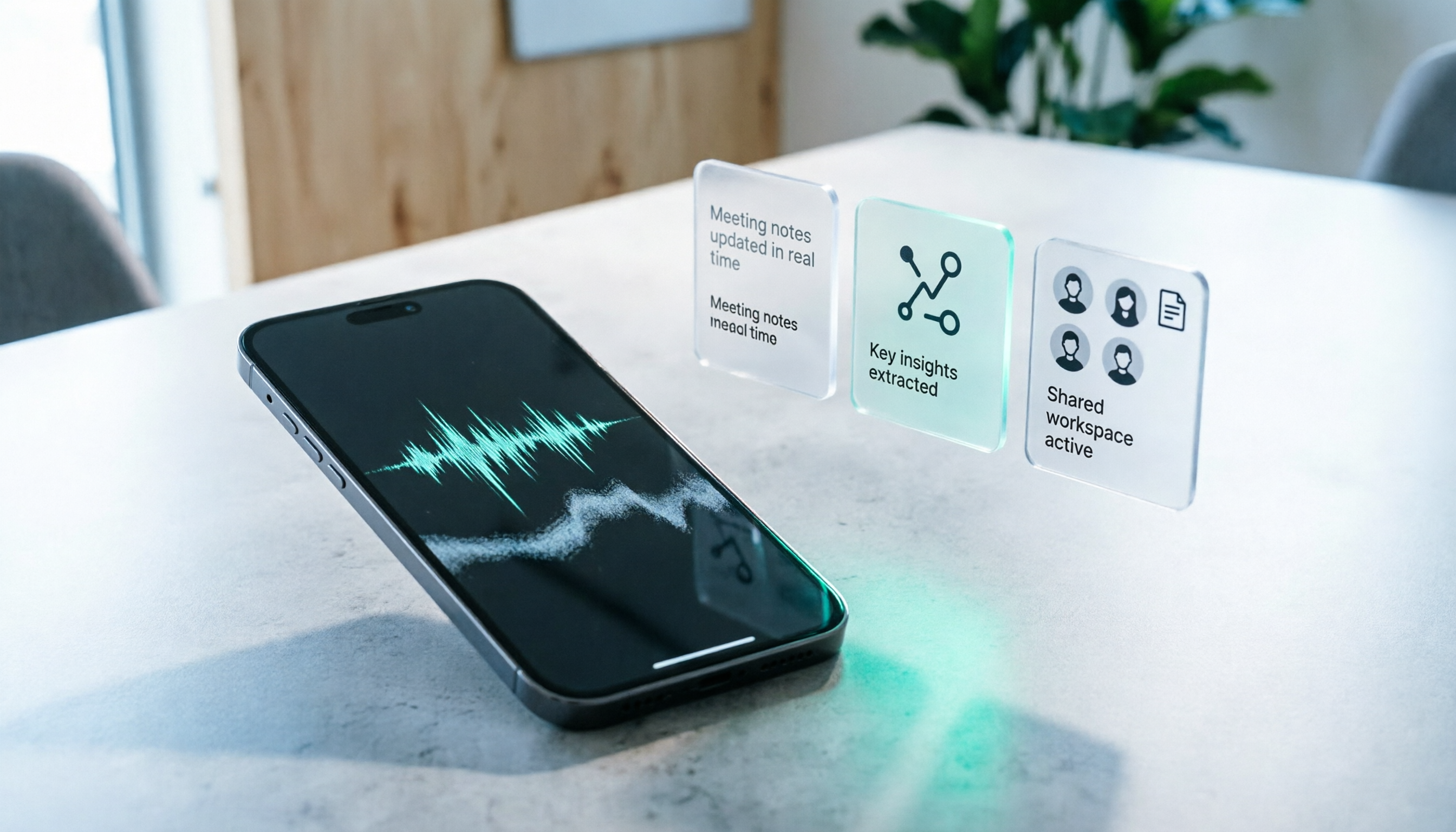
Turn recordings into transcripts and summaries in minutes
Upload audio or video for multilingual transcription, AI notes, and action items
iPhone Recording No Sound in 2026? 5-Step Troubleshooting & Alternatives
Meeting's over. You put on your headphones, open the one-hour interview recording from this morning—and all you hear is the hum of the air conditioner. The voices are barely audible. This "iPhone recording no sound" situation usually isn't a broken phone; it's more likely a problem with volume, output device, microphone permissions, or the recording environment. This article walks through 5 troubleshooting steps first, then discusses what gaps Tinrec, an AI meeting notes tool, can fill if the iPhone's built-in recording really isn't enough.
First, Identify Which "No Sound" Situation You're In
"No sound" can have completely different causes. Figuring out which one applies to you will save a lot of time:
- No sound when playing back a recording: The file has audio, but playback volume, Bluetooth output, or silent mode settings are the issue.
- The recording itself barely captured any sound: The microphone is blocked by a case, microphone permission is off, or the recording distance was too far.
- Can't find or hear call recordings: With built-in call recording on iOS 18.1 and later, recordings are saved in Voice Memos, not in the Phone app.
Confirm which situation you're in first—then the 5 steps below will make sense.
5-Step Troubleshooting: Start with the Simplest
Step 1: Check playback volume and output device
The most easily overlooked point: your phone might still be connected to Bluetooth headphones or your car stereo. Check Control Center to see if audio output is going to another device, turn the volume up past halfway, and cross-test with wired headphones.
Step 2: Check if the microphone openings are blocked
iPhone microphones are located at the bottom and near the camera. Thick cases, camera lens stickers, or how you hold the phone can all block the microphone openings. Before recording, use Voice Memos to record a quick 10-second test, play it back to confirm the volume is normal, then start your actual recording.
Step 3: Confirm microphone permissions
Go to Settings > Privacy & Security > Microphone and make sure Voice Memos and any recording app you use are enabled. If you accidentally tapped "Don't Allow" before, the app will capture no sound at all.
Step 4: Find call recordings in Voice Memos
For call recording on iOS 18.1 and later, a 3-second countdown appears when you start, and after the countdown both parties hear a notice that "this call will be recorded"—this is Apple's privacy protection design and cannot be disabled. The finished file appears in Voice Memos. If you can't find it in the Phone app, that's normal.
Step 5: Restart, update iOS, and cross-test
If you've checked the first four steps and still have no sound, restart your phone and update to the latest iOS, then test playback with an older recording. If the old file plays fine but the new one doesn't, the problem is usually in the recording stage. If even old files have no sound, it's more likely a hardware issue—consider taking it to a store for diagnostics.
Note: In Taiwan, recording someone's non-public conversation without their knowledge may violate Article 315-1 of the Criminal Code (offense of invading privacy), and unauthorized surveillance of communications may also violate the Communication Security and Surveillance Act. Before recording, confirm the situation and authorization, and obtain consent when needed.
Still Not Enough After Troubleshooting? The Problem May Not Be the Audio File, But the Workflow
Honestly, most people get their sound back after these 5 steps. But the real pain often comes after: you've rescued the recording—now what?
A 60-minute meeting recording needs to be re-listened to, key points extracted, and action items organized. One full re-listen takes an hour. iPhone's built-in Voice Memos can trim, replace, and continue recording. Even if you switch to another app while recording, a red bar appears at the top of the screen to remind you it's still recording—solid features, but its purpose is to "capture" sound, not to turn meetings into "usable data."
If you have to manually re-listen and type up notes after every recording, what you really need isn't a better microphone—it's a tool that turns recordings directly into transcripts, summaries, and action items. Tinrec is designed for exactly this workflow.
What Gaps Tinrec Fills in iPhone's Built-in Recording
Tinrec (秒聽錄音) is positioned as an AI meeting notes and collaboration tool, not just a recording app. It connects "record → transcribe → extract key points → generate action items → build team knowledge" into one flow, with no manual file moving in between.
For iPhone users, the three most practical differences are:
First, no need to re-listen after recording. Real-time transcription has very low latency—text appears as the meeting happens. By the time the meeting ends, the transcript is ready, and summaries, chapters, and action items are generated automatically.
Second, no bot needs to join online meetings. Using Tinrec's desktop app to capture system audio, you can record Zoom, Google Meet, Microsoft Teams, Webex, and other meetings without inviting an extra bot participant. This is especially valuable for client meetings—you don't want the other side to see a stranger's account in the participant list.
Third, old recordings can be rescued too. Audio or video files on your phone that "you can hear but never organized" can be uploaded to Tinrec for transcription, then turned into summaries and action items.
How to Choose Between Tinrec, PLAUD Recording Hardware, and iPhone Voice Memos
The three actually serve different purposes. Here's a clear comparison table:
Stop organizing recordings by hand
Upload audio or video and automatically get a transcript, summary, and action items
| Comparison | Tinrec | PLAUD Recording Hardware | iPhone Built-in Voice Memos |
|---|---|---|---|
| Core positioning | AI meeting notes & team collaboration | Portable AI recording device | Basic recording tool |
| Requires extra hardware | No—works on web, desktop, and mobile | Yes—NotePin USD 159, Note Pro USD 189 on US official site | No |
| Online meeting recording | Desktop app captures system audio without a bot | Primarily physical recording via hardware | Requires another device or relies on microphone |
| Post-recording output | Transcript, summary, chapters, action items, mind map, AI Q&A, documents & tables | Summary, templates, Q&A | Audio file only—manual organization needed |
| Export & workflow | Export to Notion, Google Docs, OneNote, Dropbox, etc. | Depends on app support | Manual file sharing |
| Team management | Team spaces, roles, seats, usage analytics, audit logs, audio recycle bin | Team membership & device management | None |
| Best for | Professionals who need post-meeting organization & team knowledge | People who need portable, long-duration physical recording | Light users who occasionally record memos |
PLAUD membership plans: Starter at 300 minutes/month, Pro at USD 99.99/year for 1,200 minutes/month, Unlimited at USD 239.99/year. If you're a journalist or salesperson doing in-person interviews and constantly on the go, the convenience of hardware recording is genuinely valuable. But if 90% of your recording scenarios are online meetings and discussions that need post-meeting organization, carrying an extra device isn't the point—the point is whether you can use the recording immediately after.
Tinrec's Core Features at a Glance
Real-time recording to text: Text is generated as you record—great for in-person meetings, interviews, and lectures. The transcript is ready when you finish.
Bot-free online meeting recording: The desktop app captures system audio directly, handling Google Meet, Teams, Zoom, and Webex without inviting extra participants.
Audio and video file transcription: Upload existing recordings, phone files, and media to quickly turn them into searchable text—ideal for rescuing past meeting records.
Real-time translation and bilingual view: Switch between original, translated, or bilingual views during cross-language meetings—no need to wait until after.
AI summaries, chapters, and action item extraction: Long meetings are automatically structured, and action items from discussions are listed separately—especially useful for weekly and project meetings.
AI Q&A: Ask questions about a single meeting or across meetings—like "What were the three premises for this decision?"—without digging through dozens of pages of transcript.
Agent post-processing and multi-format export: Further generate reports, tables, or documents from meeting content and bring them into your existing workflows like Notion and Google Docs.
Team spaces and governance: Dedicated team spaces centralize meeting data, with owner, admin, and member roles. Seats control permissions for recording, uploading, editing, and exporting. Usage analytics and audit logs are also available. Members without seats can still view and read team data but cannot perform resource operations like uploading or editing.
Pricing: Team plan is USD 29.80 per paid seat per month, or USD 199 per paid seat per year (about USD 16.58/month). Each paid seat provides 2,000 minutes of shared team import quota per month. Eligible teams can enjoy a 7-day trial, 1 free seat, and 300 shared minutes for the first time. Actual amounts and promotions are subject to the official purchase page.
Real-World Use Cases
Cross-department weekly meetings: Transcribe in real time, and summaries and action items are generated right after. Participants don't need to scramble for notes—share the transcript link in the group chat, and those who couldn't attend can catch up on their own.
Customer interviews and requirements gathering: Pain points, promises made, and pricing concerns all stay in the transcript. After the meeting, use AI Q&A to confirm "What were the three concerns the customer mentioned?"—far more reliable than writing CRM notes from memory.
Online webinars and lectures: The desktop app captures system audio to record the entire session. Later, use the chapter feature to jump to specific parts instead of re-listening from the beginning.
Personal knowledge building: Upload course recordings, voice memos, and quick inspiration notes to build a searchable database. When you later need to check "What exactly was that proposal?" you can find it with keywords.
4 Things to Look for When Choosing a Tool
1. Can it handle your actual meeting format? If most of your meetings are online, make sure the tool can reliably capture system audio, not just rely on microphone input. Tinrec's desktop app is designed for this.
2. Is the post-recording output sufficient? A transcript alone just pushes the organization work downstream. Look directly for summaries, chapters, action items, and export features.
3. Will data stay when team members change? With personal account-based tools, data leaves when the person leaves. Tinrec's team plan keeps meeting resources owned by the team—when a member loses their seat or leaves, resources can be handed over to other active members, and audio has a 30-day recycle bin for recovery.
4. Are quotas and pricing clearly explained? Real-time recording currently does not deduct minutes under an active team plan and active seat. File and web imports use shared team minutes and do not fall back to individual member quotas. Look at these two separately before purchasing to estimate your budget accurately.
Also note: transcription accuracy is affected by recording quality, ambient noise, accents, overlapping speakers, and technical terminology. No tool should be treated as a 100% accurate record—important decisions should still be verified against transcript timestamps and the original recording.
Conclusion: Fix Your iPhone First, Then Decide If You Need a New Tool
Over 90% of "iPhone recording no sound" issues can be resolved by checking output devices, cleaning microphone openings, and enabling permissions. For call recordings, remember to look in Voice Memos. The real question to ask yourself is: after fixing it, how much more time do you want to spend re-listening and organizing?
If your answer is "a lot," Tinrec is worth adding to your evaluation list—it supports Chinese and multilingual meetings, offers bot-free online meeting recording, turns recordings directly into summaries and action items, and uses team spaces to retain meeting knowledge. We recommend starting with the free version on one of your real meeting recordings to test transcription quality and whether the organization workflow fits your habits, then decide whether to move up to the Weekly, Pro, or Team plan. Testing with your own files is more accurate than reading any review.
References
- Record in Voice Memos on iPhone - Apple Support (Hong Kong)
- [Phone Tips] 2026 iPhone Built-in Call Recording Feature Tutorial! iOS Enable Call Recording / Key Notes | 傑昇通信
- iPhone Call Recording Tutorial: Step-by-Step Guide
- iPhone Recording Made Easy! One-Tap Quick Self-Protection at Key Moments
- Complete Guide to iPhone Recording: Beyond Voice Memos, This Tool Can Also Record LINE and Zoom Calls!
Turn every recording into actionable outcomes
Get 60 free transcription minutes when you sign in. No credit card required.
Related Reading
You might also like

2026 Comparison of 4 AI Meeting Note Tools: From Transcript to Action Items for Online Meetings
The real work begins after the online meeting ends. Based on the pain points of a mid-level manager juggling over a dozen meetings a week, this article breaks down 6 key factors for choosing an AI meeting note tool. It focuses on Tinrec as the main example and compares it with Notta, Otter.ai, and Granola, covering their differences and best-use scenarios, plus a guide to common pitfalls and selection advice.

5 AI Meeting Note Software Tested and Compared in 2026: How to Choose Based on Free Quotas and Chinese Accuracy
Meeting notes pile up mostly because you chose the wrong type of tool. This article starts with the three most common misconceptions, breaks down the differences among 5 AI meeting note software approaches on the market, and uses Tinrec as an example to explain the complete workflow from bot-free recording, transcription, summaries, action items, AI Q&A to team spaces, while honestly listing plans and pricing.

4 iPhone Recording Apps Tested in 2026: When You Can't Hear Your Recording, Which One Can Save Your Audio?
If you can't hear your iPhone recording, it's usually not a broken microphone. This guide first walks you through checking playback volume, Bluetooth connections, microphone permissions, storage space, and recording interruptions, then tests and compares four recording tools—Tinrec, Notta, TurboScribe, and PLAUD—to find the best one for long meetings and post-meeting organization.

2026 AI Meeting Notes Comparison: Google Ecosystem vs. Tinrec for Chinese Meetings
Most online meeting platforms now include AI note-taking, but they often fall short for Chinese-language meetings. This article compares four approaches—Google Meet's built-in Gemini, uploading audio to Gemini/NotebookLM, EchoScript AI, and Tinrec—across language support, meeting capture methods, post-meeting output, and team data governance. It also covers key buying criteria and three common mistakes to help you choose the right AI meeting notes solution for your team.

2026 AI Meeting Notes Comparison: Which Tool Delivers Google Meet Minutes Fastest?
Many assume Google Meet automatically provides AI meeting notes, but built-in notes have account and language restrictions, and live captions can't be copied directly. This article addresses common misconceptions, walks through Tinrec desktop's bot-free recording workflow for automatically generating transcripts, summaries, and action items after Google Meet, and lists 5 buying checkpoints and FAQs.

2026 Comparison of 3 iPhone Recording Organization Tools: Can't Find Recordings? Which Saves the Most Time Transcribing?
When you can't find an iPhone recording, it's usually not because the file disappeared, but because the recording never had a fixed home. This article first helps you check three locations: Voice Memos, iCloud, and the Files app, then compares Tinrec, Otter.ai, Notta, and TurboScribe on transcription, AI Q&A, and team organization, including free tier limits and 3 common pitfalls to avoid.
How to Transfer Apple Watch Voice Memos to iPhone in 2026: iCloud Sync + Transcript Guide
There's no 'transfer' step for Apple Watch recordings—it's all about whether iCloud Voice Memos sync is on. This guide walks you through 3 steps to set it up, find the 'Watch Recordings' folder, and troubleshoot 5 common sync failures. Plus, from a manager's post-meeting perspective, we compare Voice Memos vs. Tinrec on transcripts, summaries, action items, AI Q&A, and team collaboration.

2026 AI Meeting Notes Guide: Tinrec vs Plaud Features and Buying Advice
Searching for 'AI meeting notes recommendations' often brings up hardware reviews like Plaud, but for most students the real challenge is organizing recordings afterward. Based on my own experience, this guide explains the differences between Tinrec and Plaud in cost, online meeting handling, post-meeting outputs, and team collaboration, and covers free tier limits, plan structures, and key buying considerations.

2026 AI Meeting Recorder Comparison: Which Free Version Is Actually Enough?
We tested the free versions of five AI meeting recorder tools in 2026, comparing free quotas, online meeting support, Chinese transcription, post-meeting summaries, and AI follow-up Q&A. Tinrec performed most completely for Chinese meetings, bot-free recording, and post-meeting organization workflows. This article also honestly lists the free limitations and ideal users for Otter.ai, Notta, Granola, and PLAUD.