

Turn recordings into transcripts and summaries in minutes
Upload audio or video for multilingual transcription, AI notes, and action items
2026 Google Meet Note-Taking Showdown: Is Gemini's Auto Notes Enough?
The real decision isn't whether to use AI—it's where your notes should live
I recently helped a team of about a dozen people review their meeting workflow.
The problem wasn't a lack of notes. The problem was that notes were scattered across four places: some used Google Docs exported from Gemini, some wrote in notebooks, some sent screenshots to group chats, and some meetings had no record at all.
A two-hour meeting was followed by two hours of organizing.
Even worse was the inability to find things later. For a budget decision made three months ago, no one could track down who said what or what the reasoning was at the time.
That's why I often say: the real dividing line for AI meeting notes isn't transcription accuracy—it's whether the notes can be used afterward.
This article answers one key question:
Should your meeting notes stay within the Google ecosystem, or should they live somewhere they can be queried, handed off, and used by the team long-term?
Once you're clear on this, your tool choice won't waver.
4 key points to consider before choosing a Google Meet note-taking solution
Key point 1: Does your plan actually include Gemini notes?
This is the first pitfall, and the one most people fall into.
Google Meet's 'Take notes for me' isn't available by default. It requires an eligible Google Workspace subscription or Google AI plan.
So the first step isn't comparing features—it's confirming whether your account can use it at all.
My recommendation: start a test meeting, click 'Take notes for me,' and see if it actually produces a document. Don't rely on plan descriptions; look at the actual result.
Key point 2: What language is your meeting in?
Gemini's note-taking feature has a clear limitation: it can only handle one language at a time.
If some people speak Chinese and others speak English in the same meeting, it won't switch automatically.
The official list of supported languages is still being expanded.
If your meetings are purely in English, this isn't much of an issue. But if your daily meetings are in Chinese, mix Chinese and English, or involve clients from different countries, this directly affects whether you can use it.
Key point 3: Do you want a transcript or answers after the meeting?
Gemini's approach: it takes notes and action items in real time during the meeting, then organizes them into a Google Doc afterward.
This path is clear—turn the meeting into a document.
But documents are static.
When you want to ask three months later, 'What were the client's concerns about pricing?' you either dig through the document yourself or rewatch the meeting.
The other path: turn the meeting into a queryable database.
Neither path is inherently better, but you need to know which one you want.
Key point 4: Who owns the audio and data?
This is the least-asked question, but it becomes painful as teams grow.
Whose cloud drive are the meeting notes stored on? If that person leaves, are the files still there?
If notes follow an individual account, they're really personal assets, not team assets.
For teams that meet weekly and need to trace decisions, this matters far more than transcription accuracy.
Tinrec—my current go-to tool
Now that I've covered the criteria, let me share my own approach.
Tinrec is an AI meeting notes and collaboration tool for individuals and teams, available on web, desktop, and mobile.
I started using it not because it has the most features, but because it solved a very specific annoyance: no need to invite a meeting bot.
Scenario 1: No bot joining the meeting
Previously, the standard way to automatically record online meetings was to add a bot to the meeting room.
The problem is that as soon as an unfamiliar account appears, attendees start asking 'Who's that?' And for client meetings, you'd have to explain it first.
Tinrec's desktop version captures your computer's system audio directly, handling meeting audio played on platforms like Zoom, Google Meet, Microsoft Teams, and Webex.
No extra participant needed.
(Screenshot: Tinrec desktop interface, arrow pointing to 'Start recording system audio' button, with meeting platform names labeled nearby)
Scenario 2: After the meeting, you get something usable—not just a transcript
This is the biggest difference from pure transcription tools.
When a meeting ends, you get a transcript along with a summary, chapters, key points, and action items.
I can jump straight to 'this section is about the budget' and skip the first twenty minutes of chitchat.
This is especially noticeable in long meetings. The painful part of organizing transcripts used to be extracting those three conclusion sentences from a wall of text—not the typing.
Scenario 3: Ask questions about the meeting
This is my most-used feature and, I think, where it pulls ahead of most meeting note tools.
After recording, you can ask directly: 'Who mentioned the budget last meeting? What numbers did they give?'
It doesn't just throw keyword search results at you—it gives answers based on the content.
My habit: on the day of the meeting, I ask three questions—what were the conclusions, what are the action items, who's responsible for what. Only then is the meeting note truly organized.
(Screenshot: AI Q&A window, input 'What were the conclusions and action items of this meeting?', with a bulleted answer expanding below)
Scenario 4: The team version is about governance, not just sharing
If you're using it solo, the above three scenarios are the main points.
But if you're rolling it out across a department, you'll face another set of questions: who can record, who can edit, who owns the data.
Tinrec's team version provides an independent team space where meeting data belongs to the team, not an individual account.
Stop organizing recordings by hand
Upload audio or video and automatically get a transcript, summary, and action items
Here's a concept many people confuse: roles and seats are two different things.
Roles determine who can manage the team, members, and settings; seats determine who can record, upload, edit, and export.
Members who are active but have no seat can still view, play, and read team data—they just can't upload or edit.
Also, when a member leaves or is removed, their team resources need to be handed over to other members.
This design matters for teams: when people leave, meeting data doesn't disappear with them.
(Screenshot: Team space member list, arrow highlighting the difference between 'Role' and 'Seat' columns)
Pros in my view
First, bot-free recording. No more explaining who that is in client meetings—once you've used it, you can't go back.
Second, a complete post-meeting workflow. Summary, action items, Q&A, translation, export to Notion or Google Docs—it's all in one flow. You want data you can keep working with, not a transcript sitting on a hard drive.
Third, Chinese meeting experience is a focus. Mixed Chinese-English content can also be organized, which is more practical for work scenarios in Taiwan.
Limitations to note
It's not a tool that 'automatically joins all meetings.' You need to actively open it and start recording; it won't go find meetings in your calendar on its own.
Also, transcription quality is affected by recording quality, background noise, accents, and multiple people speaking at once. For important content, I still go back and check against the recording timestamps.
If you need batch transcription of large numbers of files, it's not the strongest choice for that either.
Who it's for
People who frequently meet on Google Meet, Zoom, and Teams and need to turn meetings into minutes and action items afterward.
Teams that need Chinese meeting notes and don't want a bot joining the meeting.
And a very practical condition: you want meeting data to be a team asset, not someone's personal file.
Besides Tinrec, what other options are there?
Google Meet's built-in Gemini 'Take notes for me'
If you already have an eligible Workspace or Google AI plan, this is the easiest starting point. Once enabled, it takes notes and action items in real time, automatically organizes them into a Google Doc after the meeting, saves it to Google Drive, and emails you the document link.
It even supports in-person meetings—using the device microphone, it works outside video calls too.
When enabled, all attendees see a pencil icon and notification, which is a plus for transparency.
The limitation is language: it handles one language at a time, and the supported language list is still expanding. Also, it outputs a document, not a queryable database, and doesn't focus on team data governance.
Granola
A bot-free AI meeting note tool that also captures desktop audio, similar in approach to Tinrec. Its distinguishing feature is combining your handwritten notes with AI transcription to generate meeting content that better reflects your thinking.
But note two things: it doesn't save meeting audio files, and it doesn't support uploading existing recordings.
If you need to replay a certain remark or want to organize old interview recordings together, this is a clear barrier. Tinrec can retain audio files and import existing audio/video in this regard.
Otter.ai
A veteran in English business meetings, with a free plan offering 300 minutes per month—plenty for pure English meetings.
If your meetings are entirely in English and your team is comfortable with an English interface, it's a reasonable choice.
But its strength is English meeting intelligence; Chinese meeting organization and turning meetings into a handoff-ready team database are not its focus. This is exactly where Tinrec is better suited for teams in Taiwan.
Pitfall guide: The 4 most common mistakes when choosing a meeting note tool
Pitfall 1: Assuming AI notes come with your plan.
Gemini's note feature requires an eligible version or plan. I've seen teams excitedly start a meeting only to find the feature wasn't activated. Test one meeting before discussing rollout.
Pitfall 2: Ignoring language limitations.
'One language at a time' isn't obvious in pure English meetings, but it breaks down in mixed Chinese-English meetings. If your meetings often mix languages, check how the tool handles it first.
Pitfall 3: Only wanting a transcript, not post-meeting Q&A.
Many people treat AI meeting tools as 'automatic typewriters,' using only a third of their capability. What really saves time is those post-meeting questions: what were the conclusions, who has action items, where did we leave off last time.
Pitfall 4: Not thinking about data ownership.
Meeting notes on personal accounts follow the person. If the team needs to use them, choose a solution with team spaces and member/seat management from the start—otherwise migrating later will be painful.
Conclusion: Which one should you choose?
Back to the opening question: Are your meeting notes 'a document' or 'an asset'?
If you want a document and your meetings are mainly in English, and you already have an eligible Google plan—just use Gemini's 'Take notes for me.' Lowest cost, shortest path.
If you want an asset that can be queried and handed off, the scenarios are:
- Frequently meet on Meet, Zoom, Teams and don't want a bot joining → Tinrec (desktop captures system audio)
- Meetings mainly in Chinese or mixed Chinese-English → Tinrec (Chinese meetings and multilingual organization are key)
- Want to ask directly after the meeting 'What were the conclusions, who has action items' → Tinrec (AI Q&A)
- Need to keep recordings and import old interview files → Tinrec (retains audio, supports file import)
- Department needs to share meeting data, members change → Tinrec team version (team space, roles and seats, usage and audit)
- Pure English meetings, limited budget → Otter.ai (generous free tier)
- Want to handwrite notes during meetings, no audio needed → Granola
Quick start checklist
- First confirm whether your Google plan includes Gemini notes; run a test meeting.
- Use a real Chinese meeting recording to test the language scenario you care about most.
- Ask three questions after the meeting: conclusions, action items, owners. See if the tool can answer.
- Check whether audio files are retained and can be replayed for reference.
- If for team use, confirm data ownership and handover process when members change.
- Pilot with one month's usage scale; don't roll out fully all at once.
Tools will keep changing, but your criteria don't need to: will anyone actually use these notes later?
Just start testing with one meeting. Adjust gradually, and you'll find the approach that fits your team.
References
- Google Meet built-in Gemini AI note-taking and 'Take notes for me' | Google Workspace
- Leveraging AI in meetings and video conferences | Google Workspace
- Raven AI Weekly | AI Agents, Automation (@iamraven.tw) on Threads
- Google Meet 'Take notes for me' feature - Computer - Google Meet Help
- Google Meet 'Take notes for me' now works for in-person meetings! One click lets Gemini automatically organize meeting content | T客邦
Turn every recording into actionable outcomes
Get 60 free transcription minutes when you sign in. No credit card required.
Related Reading
You might also like

How to Take Meeting Notes on iPhone 16 in 2026: 5 Steps from Recording to AI Summary
Using iPhone 16 for meetings—the real pain isn't the meeting itself, it's the post-meeting cleanup. This article, from the perspective of a mid-level manager who holds 15 meetings a week, breaks down the practical approach to meeting notes on iPhone 16, tests tools like Tinrec and Apple's built-in Notes, and tells you which tool to use for which scenario and where the pitfalls are.

iPhone 17 Meeting Notes Showdown 2026: Built-in Voice Memos vs Tinrec — Which Is Enough?
The most common mistake iPhone 17 users make with meeting notes is thinking that 'record + paste into AI later' solves everything. This article compares iPhone 17's built-in Voice Memos and Tinrec across features and workflow—from recording capture, transcript post-processing, online meetings, Chinese-language experience, team collaboration, to pricing and quotas—to help you decide which fits your meeting style.

iPhone Meeting Notes in 2026: Built-in Notes vs. ChatGPT Workflow vs. Tinrec — Which Saves the Most Time?
Is the iPhone Notes voice transcription good enough for meeting minutes? Starting from the real pain points of a mid-level manager with 15 meetings a week, this article tests and compares three approaches: the built-in iPhone Notes recording, a manual Voice Memos + ChatGPT workflow, and Tinrec. It outlines 4 key buying criteria and 4 common pitfalls, and honestly explains each option's limitations and best-fit scenarios.

Google Transcript Tools vs Tinrec (2026): 5-Factor Comparison for Chinese Meeting Notes
Google's transcript tools are free and easy to use, but they are split across three workflows: voice typing in Google Docs, AI Studio, and Android Live Transcribe. In meeting scenarios, they often struggle with audio capture and post-meeting organization. This article compares Google and Tinrec (秒听录音) across five dimensions—online meeting audio capture, Chinese recognition, summarization and action items, AI Q&A and export, and team collaboration—to explain which tool suits which situation.

How to Get Google Meet Transcripts in 2026: 5 Steps from Captions to AI Meeting Notes
Just finished a meeting and realized you don't have the transcript? This guide breaks down how to obtain Google Meet transcripts in 5 steps, compares built-in transcripts, SeaMeet, Notta, and Tinrec, and clarifies permissions, Chinese recognition, post-meeting organization, and team archiving.
Best Free AI Meeting Notes for iPhone in 2026: 4 Options Compared
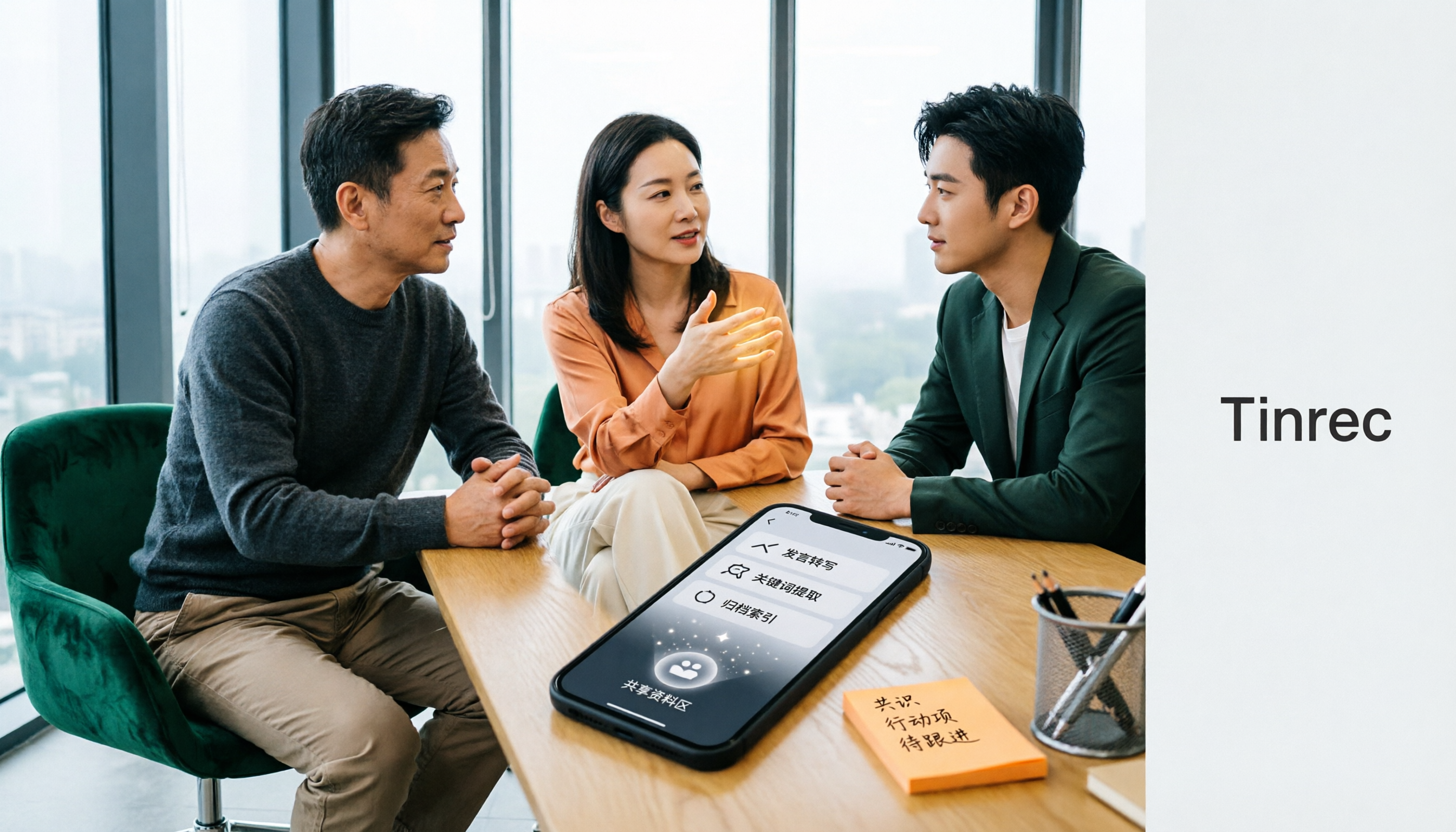
Looking for an AI meeting notes app on iPhone? The real challenge isn't features—it's whether the free tier is enough and if the output is usable. This guide breaks down 4 iPhone-compatible AI meeting note solutions across four dimensions: free tier format, post-meeting output, cross-device use, and team collaboration. It also explains how Tinrec differs in Chinese meetings, bot-free recording, and team knowledge retention.

Google Meet Gemini vs Tinrec: Which Meeting Notes Tool Saves More Time in 2026?
Google Meet's built-in Gemini can transcribe and summarize meetings, but recording and transcripts are plan-restricted, and captions can't be copied directly. This hands-on comparison of Tinrec and Google Meet's built-in meeting notes across 6 dimensions—recording method, post-meeting output, cross-platform support, Chinese-language experience, team management, and pricing/quotas—helps you decide which fits your meeting scenario.

2026 iPhone Meeting Recorder Apps: Free Plans Compared — Free, Weekly, and Pro
A student's hands-on guide to choosing a free plan for iPhone meeting recorder apps, debunking myths like 'free download doesn't mean free use,' and using Tinrec as an example to explain which scenarios suit the free version, weekly pass, Pro monthly, and annual plans.
Which Gemini Meeting Notes App Is Best? 2026 Hands-On Test of 2 Options—This One Is the Most Complete for Team Collaboration
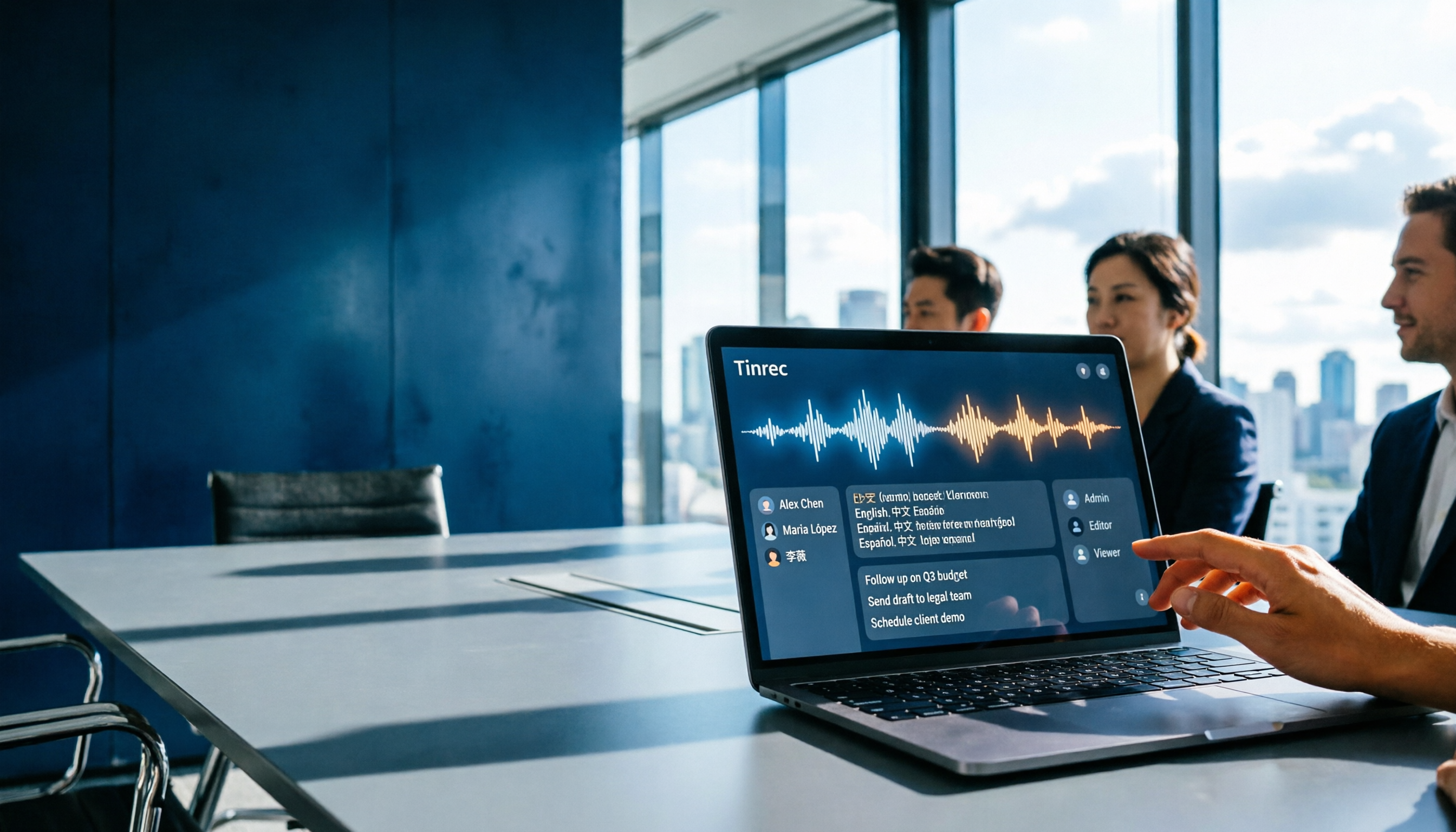
Dread meetings ending because the real work begins? This article compares Google Gemini (including Meet's "Take notes for me" and uploading audio files to Gemini) with Tinrec across five dimensions: meeting capture, multilingual transcription, post-meeting organization, file retention, and team governance. We break down the practical differences and identify who each tool is best for, helping you decide which one to use.