
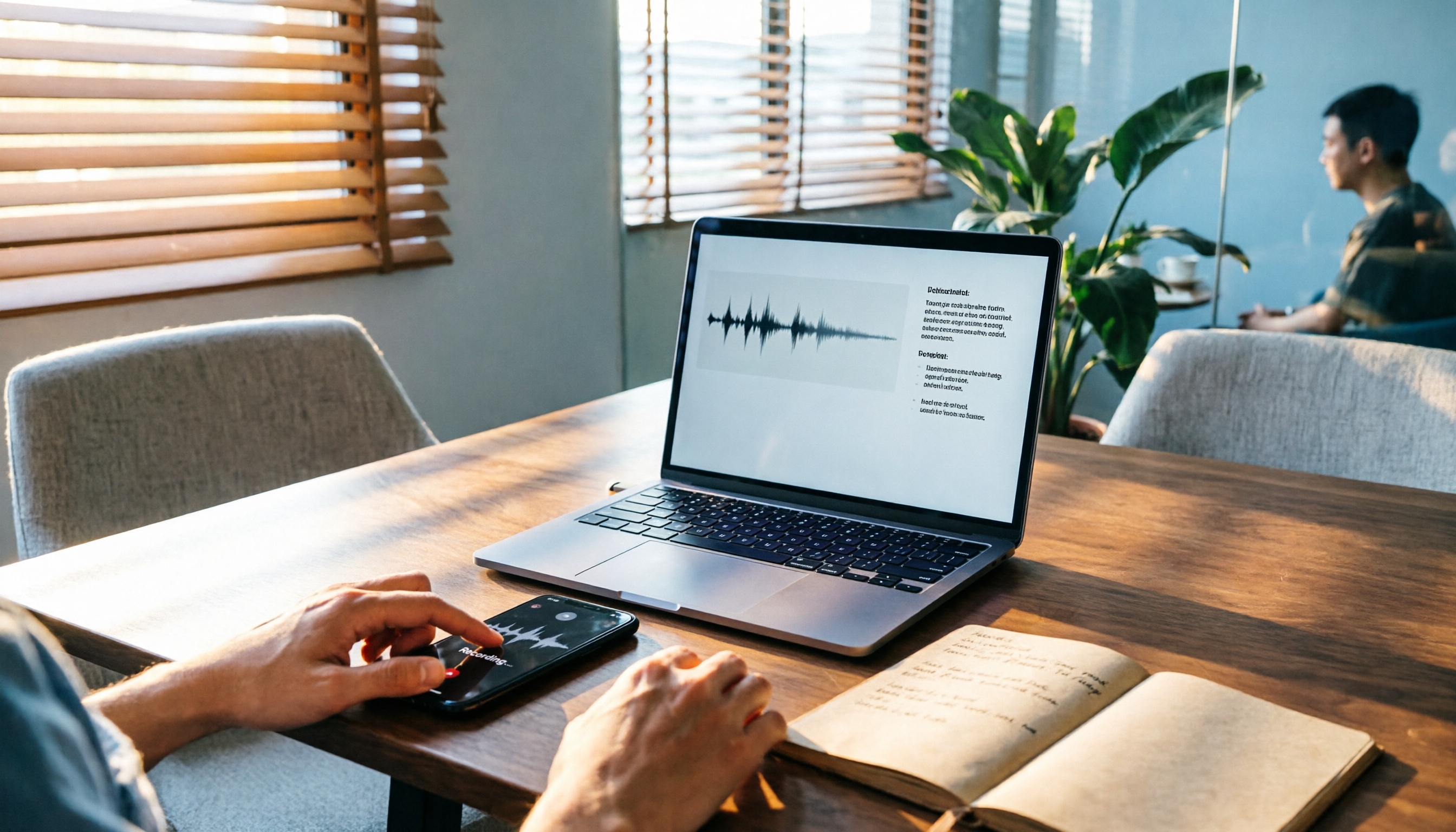
Turn recordings into transcripts and summaries in minutes
Upload audio or video for multilingual transcription, AI notes, and action items
2026 Comparison of 3 Audio-to-Text Tools: Tinrec 5-Step Tutorial and Free Tier Analysis
Many people think audio-to-text is just two actions: upload a file and press transcribe. What actually takes time is the recording beforehand and the organizing afterward. Rather than comparing who has higher accuracy first, it's better to break down the workflow correctly: recording, transcription, proofreading, organizing, and exporting. This article uses Tinrec as an example to walk through 5 steps, and compares it with Notta and TurboScribe in terms of workflow, free tier, and team capabilities. This is a practical dimension comparison, not a lab accuracy ranking.
Before You Start | What You Need to Prepare
- A smartphone or computer. Tinrec is available on web, desktop, and mobile; for online meetings, the desktop version is recommended because it directly captures computer system audio.
- A Tinrec account. The personal version lets you start with the free version to experience recording, import, summary, and transcription.
- A recording to organize. It can be a meeting, class, interview, or an existing audio or video file.
- A stable internet connection. Real-time transcription and cloud organization require internet access.
- If for team use, confirm your role and seat first. The team version distinguishes roles and seats; members without a seat can view, play, and read team data, but cannot upload, edit, import, or export.
Step 1 | Record the Content You Want to Convert to Text
The purpose of this step is to obtain a clear recording, on which subsequent transcription, summary, and Q&A are built.
For offline meetings or interviews, open Tinrec and record in real-time with your phone, keeping the phone as close to the speaker as possible. For online meetings, open Tinrec desktop version on your computer, actively initiate recording, and let it capture the meeting audio played on the computer. Note that Tinrec is not a meeting bot that automatically joins all calendar meetings; you need to open the desktop version yourself to start recording.
Why manage recording first? Because transcription quality is affected by recording quality, noise, accents, overlapping speech, and technical terms. Rather than spending time guessing content afterward, spend 30 extra seconds confirming the position during recording.
After completion, you will have a recording that Tinrec can process, and then you can convert it to a transcript.
Scenario example: A person sits in a meeting room, phone placed in the center of the table, screen showing recording in progress and real-time text appearing.
Step 2 | Let AI Transcribe for You
The purpose of this step is to turn sound into searchable, reviewable text.
If you just recorded in real-time, Tinrec will transcribe while recording; if it's an existing meeting, interview, or class recording, you can import audio or video files into Tinrec for transcription. Some public web links can also be used as supplementary import sources, but meeting collaboration mainly relies on real-time recording and file import.
Why real-time transcription? Because you can see the text during the meeting, participants can confirm statements immediately without having to listen from the beginning after the meeting. For cross-language meetings, you can enable real-time translation and view in original, translated, or bilingual mode.
After completion, you will see the transcript in Tinrec, can search for key sentences, and return to the corresponding time point.
Scenario example: Participants look at the transcript on the screen while listening to the recording to confirm the content of statements.
Step 3 | Quickly Proofread the Transcript
The purpose of this step is not to retype word by word, but to correct important names, product names, numbers, and technical terms to a usable level.
First quickly scan the summary and chapters to find the key sections of the meeting, then return to the transcript to verify. For team-specific terminology, the team can maintain hotwords to make subsequent recognition experience more consistent. To modify team data, members must have a seat; members without a seat can only view, play, and read.
Why proofread? Because AI can greatly reduce manual typing time, but important information should still be verified by combining transcript timestamps and recording playback; it is not recommended to treat AI output as the only version.
After completion, you will have a transcript that is more reliable than the original transcription and easier to hand over.
Scenario example: An editor marks several product names in the transcript, with the corresponding recording clip playing alongside.
Step 4 | Let AI Generate Meeting Minutes for You
The purpose of this step is to turn the transcript into actionable meeting material.
Tinrec can generate AI summaries, chapters, and key points from meeting content, and can also extract action items. Participants can ask AI questions about a single or historical meeting, such as "who is responsible for what" and "what is the reason for this decision." For more complete deliverables, Agent post-processing can generate reports, tables, and documents.
Why not just read the transcript? Because the transcript retains details but is not conducive to quick review. Summaries, chapters, and action items can break long meetings into scannable structures, allowing those who didn't attend to quickly get up to speed.
After completion, you will have meeting minutes, key points, and a to-do list that can be directly used for post-meeting follow-up.
Stop organizing recordings by hand
Upload audio or video and automatically get a transcript, summary, and action items
Scenario example: A project manager pastes meeting to-dos into the work list, and team members add responsible persons under the same minutes.
Step 5 | Export and Share
The purpose of this step is to bring the organized results back to your original workflow.
Tinrec supports multi-format export and can also bring results to Notion, Google Docs, OneNote, Dropbox, and other tools for continued use. For personal use, you can archive transcripts and summaries; for team use, meeting data can be saved in the team space so new members can also view historical meetings.
Why export? Because meeting data needs to return to the team's original notes, documents, or cloud drive for subsequent action. The team version additionally provides member and seat management, usage analysis, audit logs, audio recycle bin, and team hotwords. After audio enters the team recycle bin, it can be restored before permanent cleanup begins; currently the team recycle bin retention period is 30 days, and to-dos are not within the scope of the recycle bin.
The team version currently offers a first eligible trial of 7 days, 1 free seat, and 300 minutes of team shared import quota; monthly payment is USD 29.80 per paid seat per month, annual payment is USD 199 per paid seat per year, equivalent to about USD 16.58 per month. Paid seats provide 2,000 minutes of team shared import quota per month; under a valid plan and valid seat, real-time recording is currently not deducted by minutes. Prices and benefits are subject to the official purchase page.
After completion, your meeting content is no longer scattered across personal devices and chat records, but becomes searchable, collaborative, and traceable data.
Scenario example: Team members open last quarter's meeting minutes from the shared folder and search for the decision keywords from that time.
FAQ and Troubleshooting
Q: Is the free version enough? A: Tinrec's free version provides a basic quota, suitable for first experiencing recording, import, summary, and transcription. If you only occasionally organize a recording, you can start with the free version; for short-term intensive meetings, consider a weekly card; for stable weekly use, consider Pro monthly or annual card. Actual quotas and prices are subject to the official purchase page.
Q: Which online meeting platforms are supported? A: Tinrec desktop version directly captures computer system audio and can handle audio played on the computer from Zoom, Google Meet, Microsoft Teams, Webex, and other meetings. This does not mean official cooperation with these platforms, nor does it automatically join all meetings; you need to actively start Tinrec recording.
Q: Does it transcribe Chinese meetings well? A: Tinrec can handle Chinese, Traditional Chinese, mixed Chinese-English, and multilingual meetings, and also supports real-time translation and bilingual viewing. Transcription quality is affected by recording quality, noise, accents, overlapping speech, and technical terms; it is not recommended to promise a fixed accuracy rate.
Q: What is the difference between the team version and the personal version? A: Personal version data is managed by the individual account. The team version is an independent team space where meeting data belongs to the team, and adds roles, seats, sharing benefits, usage analysis, audit logs, and audio recycle bin. Members who are valid but have no seat can view, play, and read team data, but cannot upload, edit, import, or export.
Q: Will meeting data disappear after team members leave? A: It will not be directly taken away by individuals. Team resources belong to the team; when members leave, are removed, or lose their seat, they need to hand over the team resources they are responsible for to other valid members.
Q: What should I pay attention to before recording? A: Please comply with local laws and obtain participant consent when necessary. For sensitive content, first confirm the team's data management and authorization policies.
Advanced Tips | 3 Ways to Double Tinrec's Efficiency
1. Use AI Q&A to Turn Historical Meetings into a Queryable Database
Tinrec can answer questions about a single or multiple meetings, suitable for looking back at decision reasons, customer objections, and to-do context. Many transcription tools stop at transcripts or summaries; Tinrec's differentiation lies in continuing to turn meeting content into queryable data. Actual results depend on transcript quality and question scope.
2. Use Real-Time Translation for Cross-Language Meetings
For cross-language meetings, you can view original, translated, or bilingual content during recording. For those who need to communicate with foreign clients or multinational teams, this is smoother than finding a separate translation tool afterward. Tinrec can handle multilingual meetings, but you should still keep the habit of manually confirming important numbers.
3. Use Team Hotwords and Team Space to Accumulate Technical Terms
Teams can maintain commonly used terms to make the recognition experience of product names, project codes, and industry vocabulary more consistent. After meeting data is centralized in the team space, new members can view historical data, and managers can view usage and audit records. This kind of team accumulation is something personal recording apps find hard to replace.
If You Don't Use Tinrec, There Are These Options
Notta: Multi-platform transcription, meeting notes, document import, translation, and team plans are all available. The official free version offers 120 minutes per month, with a maximum of 3 minutes per single content; Pro annual payment is equivalent to about USD 8.17 per month, with 1,800 minutes per month. Suitable for those who want to first compare multilingual transcription options.
TurboScribe: Focuses on long files, batch upload, subtitles, and translation. The official free version offers 3 files per day, with a maximum of 30 minutes per file; Unlimited annual payment is USD 120. Suitable for transcribing large amounts of existing files, not for real-time meeting collaboration.
Overall, if you want real-time meetings, post-meeting summaries, to-dos, AI Q&A, and team data accumulation, Tinrec's workflow is more complete; if you only occasionally transcribe a long audio file, you can start with a free transcription tool.
Summary
The key to truly saving time with audio-to-text is not just throwing files to AI and finishing, but connecting recording, transcription, proofreading, minutes, and export into one workflow. Tinrec's value lies in turning meeting recordings into searchable, queryable, and handover-ready data, and the team version extends this from a personal tool to a team space. Next, you can take a recording of your own meeting or class and run through the 5-step workflow with the free version to see which part takes the most time, then decide whether to upgrade.
Reference Sources
- Audio to Text - Free Speech to Text Tool
- Tested 4 Best Online Speech-to-Text Tools, Free Instant Transcription of Audio Files
- Online Speech-to-Text AI, Free Conversion of MP3 or Audio Files to Text Transcripts - MyEdit
- Tested and Recommended! Completely Free OpenAI Whisper Speech-to-Text Automatic Tool, Subtitles and Transcripts in One Click | Buzz Tutorial - YouTube
- [AI Voice Notes] 5 Highly Recommended AI Transcription Tools! Generate Transcripts and Meeting Notes Highlights, Free vs Subscription, Pros and Cons Comparison | 104 Career Power
Turn every recording into actionable outcomes
Get 60 free transcription minutes when you sign in. No credit card required.
Related Reading
You might also like

2026 Latest Versions of 2 Speech-to-Text Tools Compared: Tinrec vs Otter.ai — Which Is Better for Chinese Meetings?
Many people assume the "latest version" is automatically the most accurate, but overlook how meeting audio gets in, whether output is usable right after the meeting, and whether team data stays with the team. Using Tinrec and Otter.ai as examples, this article compares Chinese transcription, bot-free recording, AI Q&A, team collaboration, and cross-platform input to help you decide which fits your meeting scenarios.

2025 Audio-to-Text Guide: Bot-Free Meeting Recording + Auto-Generated Summaries & Action Items
In 2025, audio-to-text is more than just turning voice into words. Based on a real meeting-recording workflow, this guide compares Tinrec and Otter.ai across five dimensions—Chinese meeting experience, bot-free recording, post-meeting outputs, team data governance, and pricing—to help you decide whether you need a transcript or meeting data you can keep using.

How to Use Speech-to-Text in 2026: 3 Steps to Get Started + AI Summaries and Action Items in One Go
How do you use speech-to-text? This guide covers three scenarios—live dictation, transcribing existing audio files, and online meeting notes—with a hands-on walkthrough of Tinrec's full workflow, free vs. paid differences, and comparisons of Notta, Otter.ai, and PLAUD for different use cases. It also highlights the 3 most common mistakes beginners make.

2026 Speech-to-Text Tools Compared: Which Free Tier Is Enough?
Meeting over but your notes are only three lines? This practical guide covers four key factors for choosing a speech-to-text tool, walks through Tinrec's full workflow and free plan limits, and compares Otter.ai, Notta, and TurboScribe on quotas and best-fit users—so you can find a plan that's sufficient without wasting money.

4 Best Audio-to-Text Tools in 2026: Free Tiers and Chinese Accuracy Compared
The meeting ends, but the overtime begins. This article compares Tinrec, Notta, TurboScribe, and Otter.ai across three dimensions: free tier limits, Chinese and mixed Chinese-English recognition, and post-meeting organization. It also highlights three common pitfalls to help you decide which tool can truly save you that hour after the meeting.

5 Best Speech-to-Text Tools in 2026: Chinese Accuracy & AI Summaries Compared
How to choose a speech-to-text tool? This comparison breaks down Chinese recognition, AI summaries and meeting Q&A, input sources, and team collaboration across four key criteria. It focuses on Tinrec (Miao Ting Lu Yin) and compares Otter.ai, Notta, and Granola on positioning, free tiers, and ideal users, with four common pitfalls and scenario-based recommendations.

2026 Review of 5 Audio-to-Text Apps: How Tinrec Differs from Otter and Notta
Hands-on testing of 5 popular audio-to-text apps in 2026, comparing Chinese meeting recognition, online meeting recording methods, post-meeting summaries and action items, free tiers, and team data management. We explain how Tinrec differs from Otter and Notta in real workflows to help you choose the one that truly saves time.

Free Audio Transcription in 2026: Avoid 'Fake Free' Traps + AI Summary Workflow Explained
How to choose free audio transcription in 2026? We break down three common 'fake free' traps and 5 key selection criteria, then compare the free tiers and limits of Tinrec, Google Live Transcribe, Good Tape, and Otter.ai. Includes a pitfall-avoidance guide and scenario-based recommendations to help you get usable transcripts and meeting highlights at zero cost.
2026 Comparison of 5 Audio-to-Text Tools: Is the Free Version Enough?
Free audio-to-text tools seem plentiful, but free tiers hide many limits: maximum duration per file, transcript-only without audio storage, and paywalls popping up mid-transcription. This article breaks down the free rules of 5 tools from a practical standpoint, explains Tinrec's no-bot meeting recording and post-meeting AI organization workflow, and compares the free plan differences of Notta, TurboScribe, and Otter.ai to help you decide which free version is truly sufficient.