

Turn recordings into transcripts and summaries in minutes
Upload audio or video for multilingual transcription, AI notes, and action items
How to Convert YouTube to Text in 2026: 5 Steps to Get a Free Transcript
There Are Tons of Free Tools, But the One Thing You Really Need to Decide Is This
Paste a link, hit generate, get a transcript—in 2026, that takes about thirty seconds. The problem is the next thirty minutes.
A two-hour online course turns into 20,000+ words. You open the file, scroll three times, close it, and never open it again. This isn't because the tool isn't free enough; it's because the tool only takes you halfway. The real question isn't "which tool is free" but "what am I going to do with this text afterward."
There's an even more common scenario: videos with subtitles turned off return blank when you paste the link. Many so-called "free YouTube to text" tools are actually just grabbing the platform's existing subtitles. Once the creator hasn't enabled subtitles, the tool gives you nothing.
If you just want to quickly scan what a video is about, a free subtitle-grabbing tool is enough. But if you want to turn a course into notes, an interview into a script, or a meeting into action items—you need a solution that can continue processing the text. Below, we break down several mainstream free YouTube-to-text tools in 2026 and tell you when it's worth upgrading.
4 Key Points to Understand Before Choosing a YouTube-to-Text Tool
1. Does it grab the "subtitle file" or the "audio"?
This is the biggest difference and the least asked question. Tools that only grab subtitles are fast and use almost no resources, but they fail when subtitles aren't enabled. Tools that process audio directly rely on AI speech recognition and can transcribe any video, but speed depends on video length and server queues. Before choosing, ask yourself: Do the videos you usually watch have subtitles enabled most of the time?
2. "Free" depends on three things, not just the word itself
First is the quota: how many videos per day, how many minutes per month. Second is the per-file length limit—some free versions only allow 30 minutes per file, so a one-hour interview gets stuck. Third is export formats: can you download TXT, SRT, VTT, or only copy-paste online? If you don't check these three, "free" can easily become "gone after the trial."
3. What can you do after transcription?
The basics of a transcript are searchability, timestamps, and clickable jumps back to the corresponding video position. One level up is automatic summaries, chapter segmentation, and action item extraction. Further up is the ability to ask questions directly about the content and export results to existing workflows like Notion, Google Docs, or OneNote. Rather than comparing transcription speed, compare how much time you'll spend organizing after you get the text.
4. Cross-device and data retention
Watching videos on your phone today, organizing notes on your computer tomorrow—whether the tool supports sync across iOS, Android, and web directly determines whether you'll actually use it. Also confirm: Are recordings or audio files retained? Is there a recovery mechanism after deletion? This is especially important when handling client interviews or internal courses.
Tinrec—If You Need More Than Just a Transcript
Tinrec is an AI meeting notes and collaboration tool for individuals and teams, available on iOS, Android, and web. Let's be clear about its positioning: it's not a dedicated YouTube downloader. It processes videos by uploading audio or video files for transcription, or importing some public video content via web links. The real focus is what happens after transcription.
Organize while transcribing, transcript ready to use
After uploading, you get a timestamped transcript that you can search in full text and click timestamps to jump back to the original segment. For a one-hour lecture, this is much faster than watching from start to finish.
Summaries, chapters, and action items generated at once
The most troublesome part of long videos is "knowing there are key points but not knowing which paragraph they're in." Tinrec automatically generates summaries and chapters, breaking two hours of content into a scannable structure. For product launches or client interviews, it can further extract action items into a trackable list.
AI Q&A: This is the biggest dividing line between it and most free tools
After recording, you can directly ask it: "What are the three pricing strategies mentioned in this interview?" "What is the speaker's view on AI regulation?" It answers based on semantic understanding, not a bunch of keyword search results. Among tools in the same price range, few options allow continuous follow-up questions around the content—this is the key to turning "a piece of text" into "a searchable database."
Stop organizing recordings by hand
Upload audio or video and automatically get a transcript, summary, and action items
Record online lectures directly
If the content isn't on YouTube but is an online course or livestream on Zoom, Google Meet, Microsoft Teams, or Webex, the desktop version can capture computer system audio to record and transcribe in real time without inviting a bot to join the meeting. For cross-language content, you can view it in original, translated, or bilingual mode during recording.
Honest limitations
Tinrec isn't designed for batch transcription of "dozens of videos at once"; processing time for long videos during peak hours may be longer. The free version provides a basic quota, suitable for trying one or two pieces of content to confirm results. If a whole team needs to share course notes and meeting materials, the team version offers independent team spaces, member and seat management, usage analytics, and audit logs. Paid seats include 2,000 minutes of shared team import quota per month, at USD 29.80 per paid seat per month or USD 199 per paid seat per year (actual prices and benefits are subject to the official purchase page).
Who it's for
If your purpose for transcribing is "to use it afterward"—making course notes, organizing article material, or building a searchable team database—then Tinrec currently offers the most complete workflow.
Besides Tinrec, These 3 Free Tools Are Also Worth Knowing
Wayin: Free, no login required. Paste a link to generate a transcript. AI processes audio directly, so it works even if the video has no subtitles. Supports export to TXT, SRT, VTT, DOC. If you occasionally need a text file and don't want to register an account, it's the most hassle-free choice. But it's essentially a one-off video-to-text tool; long-term organization and multi-person collaboration after transcription still require a solution like Tinrec with team spaces and AI Q&A.
Vizard: New accounts get 100 free credits; transcribing a video deducts only a few credits. Officially supports 180+ languages, and you can ask an Agent to cut the video into clips based on specified sentences, translate, or draft posts. Its strength is "short video repurposing"; if you want to build a long-term searchable database or manage usage permissions for a whole team, Tinrec's team spaces and seat management are what it lacks.
TurboScribe: Free version allows 3 files per day, 30 minutes per file, with export to DOCX, PDF, TXT, SRT, VTT. Paid version supports up to 10 hours per file and 50 files at once. This is the best option in this article for "batch transcription of large long files." If you have a whole batch of seminar recordings to process at once, it's more suitable than Tinrec; but if the focus is on summaries, action items, follow-up questions, and team sharing after transcription, that's a different story.
Pitfall Guide: 4 Most Common Mistakes with Free YouTube-to-Text
Pitfall 1: Mistaking "subtitle grabbing" for "AI transcription"
Many tools advertise free transcription but actually only read existing platform subtitles. Once the creator turns off subtitles, you get a blank page. The test is simple: try a video that definitely has no subtitles and see if it can generate content.
Pitfall 2: Only looking at "free" without checking per-file length and export formats
Whether the free quota is enough depends on your video length. Three videos per day but 30 minutes per file means it's unusable for podcasts or lectures. Also confirm whether you can download TXT or SRT; tools that only allow online copying will make organizing painful later.
Pitfall 3: Ignoring cross-platform and data retention
Transcribing on mobile and organizing on computer is the norm. If the tool is web-only, or audio files aren't retained and can't be recovered after deletion, the risk is high when handling content like client interviews. When choosing a tool, check whether there's a recovery mechanism.
Pitfall 4: Only using the tool as "audio-to-text"
This is the biggest waste. Most people transcribe, save as a txt, and then manually browse it anyway. In fact, tools like Tinrec can already: after transcription, directly ask "What are the three conclusions of this video?", export summaries and action items to Notion or Google Docs, or put them in a team space for colleagues to search themselves. Used correctly, you save not thirty minutes but an entire afternoon.
One final reminder: When transcribing others' video content, pay attention to copyright and platform terms of service; use for personal learning, research, and internal reference is more appropriate. If recording in meetings, it's also recommended to get participants' consent first.
Conclusion: Which One Should You Choose?
In one sentence: Free tools solve "turning into text"; Tinrec solves "whether the text is usable."
- Just need a transcript, don't want to register → Wayin (free, no login, works without subtitles)
- Have a batch of long files to process → TurboScribe (high per-file limit, full format support)
- Videos to be cut into short clips or translated → Vizard (credit-based, broad language support)
- Transcription to become notes, action items, queryable data → Tinrec (summaries, chapters, AI Q&A, multi-format export)
- Online courses, cross-language lectures with bilingual viewing → Tinrec (real-time translation and bilingual view)
- Team sharing course and meeting materials → Tinrec Team (team spaces, member seats, usage and audit)
The practical approach is simple: first use a free tool to transcribe a video type you watch most often, and see if you'll actually use what it gives you a second time. If the answer is no, the problem was never about free or not, but whether you got a piece of text or a piece of data you can continue working with. To verify the latter, start with Tinrec's free version basic quota, transcribe one or two pieces of content you truly care about, and then decide whether to go further.
References
Turn every recording into actionable outcomes
Get 60 free transcription minutes when you sign in. No credit card required.
Related Reading
You might also like

4 Free Speech-to-Text AI Tools Tested: Which Free Version Can Handle a Full Meeting Workflow in 2026?
Many free speech-to-text AI tools look good but fall short: time limits, export restrictions, and post-meeting organization require payment. This article compares Tinrec, Granola, Notta, and TurboScribe across five dimensions: free quota, Chinese recognition, post-meeting output, meeting recording method, and team management, to help you determine which free version can truly complete a meeting documentation workflow.

2026 Speech-to-Text Free Tools Comparison: The Free Tier Traps Dcard Users Fall Into Most
Common 'free speech-to-text' questions on Dcard often get stuck on free quotas, per-recording limits, and post-meeting organization. This article compares Tinrec and Otter.ai across dimensions—free plans, Chinese meetings, bot-free recording, AI post-meeting organization, team collaboration, and export workflows—to help you decide if the free version is enough and when to upgrade.

Best Voice Recorder Transcription in 2026: 4 Top Picks Compared — Hardware, Apps, and Team Collaboration
A curated comparison of voice recorder transcription tools—PLAUD, iFlytek, Notta, and Tinrec—covering recording quality, transcription, summarization, AI Q&A, and team collaboration to help you choose the right meeting notes workflow.

6 Best Free Speech-to-Text Software in 2026: Free Tiers and AI Summaries Compared
Compare free tiers and use cases of Tinrec, Otter.ai, Notta, TurboScribe, Granola, and MyEdit—from free minutes and Chinese meeting transcription to team collaboration—to help you choose the right speech-to-text software.

Tinrec Voice-to-Text Tutorial 2026: Real-Time Transcripts + AI Meeting Summaries
Starting from common misconceptions, this hands-on walkthrough of Tinrec's voice-to-text workflow covers real-time transcription, bot-free meeting recording, AI summaries, action item extraction, and team collaboration. It also outlines key considerations for choosing a voice-to-text app and includes an FAQ.

Free Speech-to-Text Options in 2026: 4 Tools Compared
Free speech-to-text tools seem plentiful, but most people pick the wrong one on their first try. This article examines the hidden limits of free tiers, breaks down 4 key selection criteria, and compares the free plans of Tinrec, Otter.ai, Notta, and TurboScribe with hands-on testing, plus a guide to avoiding pitfalls and scenario-based recommendations.

3 Free Video Speech-to-Text Solutions Tested in 2026: Beyond PowerDirector, Is Tinrec Good Enough for Subtitles?
Can PowerDirector's free version handle speech-to-text? It often depends on the version and quota. This article compares three approaches using real workflows and explains how Tinrec handles video transcription, meeting summaries, to-dos, and team data to help you choose the right free solution.
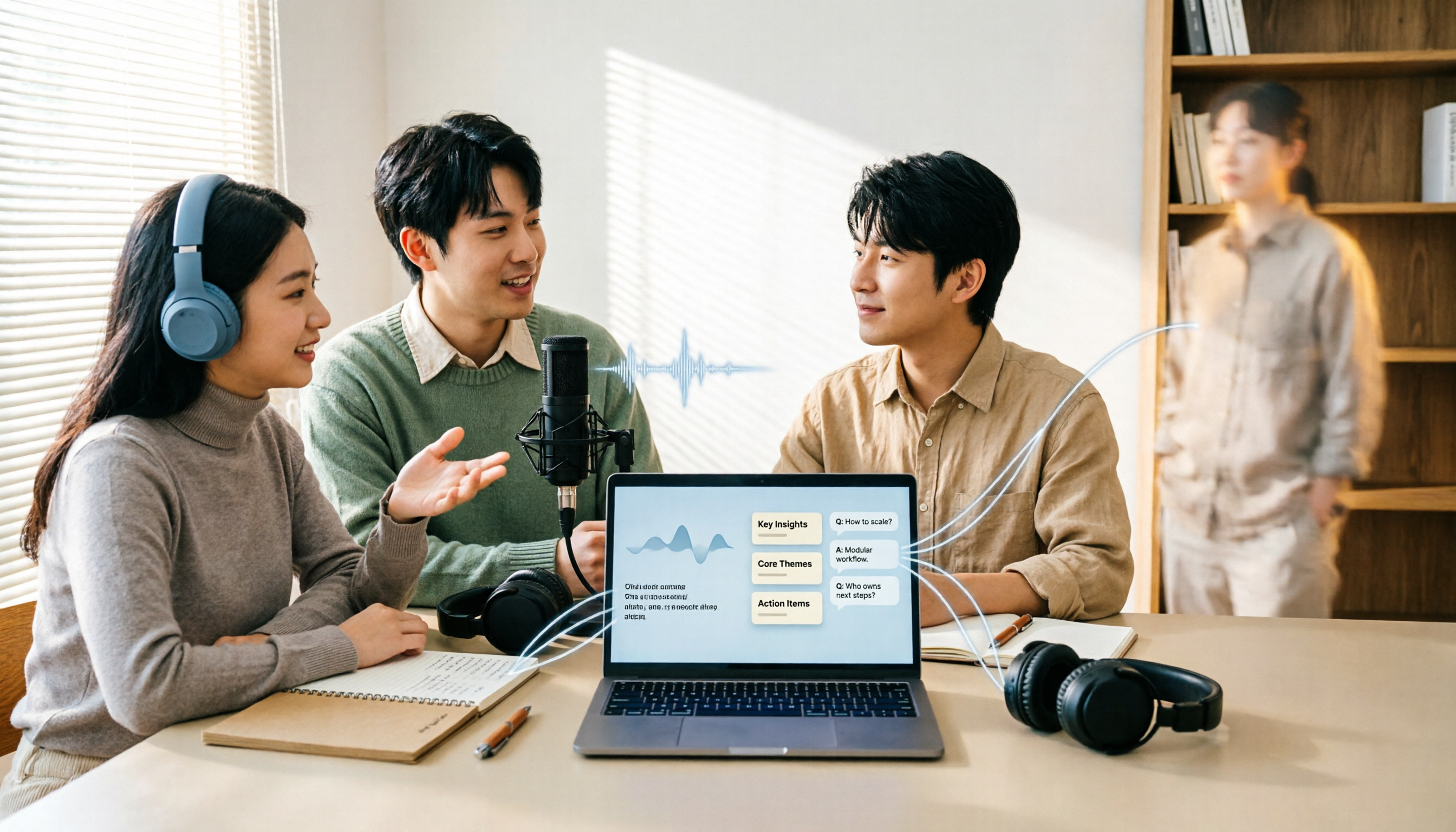
6 Free Speech-to-Text Apps Tested for 2026: Which Free Tier Is Actually Enough?
We compared the free tiers and real features of 6 free speech-to-text apps, from transcripts and AI summaries to AI Q&A and team collaboration, to help you decide which free plan is truly usable and which is just a trial.
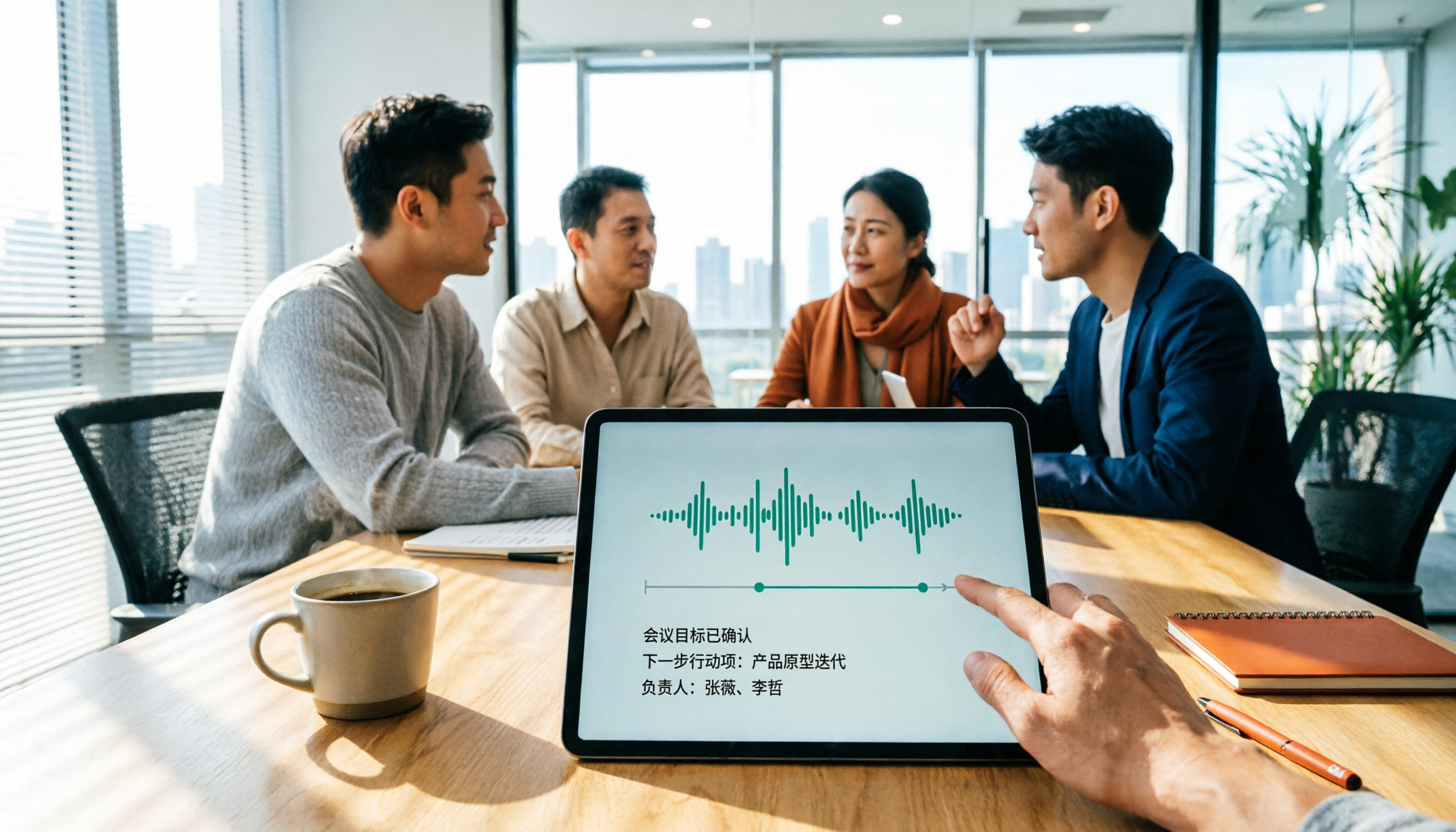
Tinrec vs Notta in 2026: 5-Dimension Comparison for Chinese Meeting Notes
The debate over speech-to-text recommendations on Dcard never ends because everyone's meeting style is different. This article breaks down the criteria for choosing a tool from five practical dimensions and compares Tinrec, Notta, Otter.ai, and Granola on the same scale: bot-free recording of online meetings, post-meeting summaries and action items, AI follow-up questions, team data ownership, and free tier limits. It concludes with scenario-based recommendations.