

Turn recordings into transcripts and summaries in minutes
Upload audio or video for multilingual transcription, AI notes, and action items
3 Free Video Speech-to-Text Solutions Tested in 2026: Beyond PowerDirector, Is Tinrec Good Enough for Subtitles?
After filming a video or recording an interview, the most annoying part is usually not editing but adding subtitles. You open PowerDirector, thinking it has built-in AI speech-to-text, right? But you get stuck on version, plan, and system differences, and you still need to confirm whether the free version works and for how long.
Honestly, this is the real situation many people face when searching for "PowerDirector speech to text free": it's not that they don't want to pay, but they don't want to buy a set of features they'll rarely use just for occasional subtitling.
Bottom line: PowerDirector's free basic version can be downloaded for trial, and some versions offer AI speech-to-text; however, availability, usable duration, and formats vary by version, plan, and Windows/Mac. If your needs go beyond adding subtitles to videos and include meeting notes, interview organization, summaries, and to-dos, an AI meeting notes tool like Tinrec will be more convenient.
This article doesn't pile on specs; instead, it breaks down three common approaches: built-in transcription in editing software, general free transcription services, and workflows like Tinrec that connect transcription with summaries and team collaboration.
What Can Video Speech-to-Text Do for You?
Scenario 1: No more typing subtitles sentence by sentence Previously, a 10-minute video took over half an hour just to transcribe by ear. Take Tinrec as an example: import the video or audio, confirm the language, and it generates a transcript; you proofread the text, then bring it back to your editing workflow to handle timing and subtitle styles, saving a lot of repetitive transcription time.
Scenario 2: Meeting notes ready right after the meeting Instead of taking notes during the meeting, let the tool record for you. Tinrec's desktop version can capture computer system audio to record online meetings on Zoom, Google Meet, Microsoft Teams, Webex, etc., without needing an extra meeting bot to join. After the meeting, the transcript, summary, and to-dos are already organized; you just need to confirm the key points.
Scenario 3: Quickly organize interviews and course content The worst part of interview recordings is not being able to find that one segment later. Tinrec splits long content into chapters and lets you use AI Q&A to directly ask, "What was the budget the client mentioned?" or "What methods did the instructor talk about?" without scrubbing from start to finish.
Scenario 4: One piece of material, multiple uses A transcript is not just subtitle material. Tinrec can then generate summaries, reports, tables, and documents, turning the same video or meeting content into articles, notes, social posts, or internal deliverables.
What Are the Core Capabilities of Speech-to-Text?
Real-time transcription and bot-free meeting recording Tinrec's real-time recording transcription is suitable for offline meetings, interviews, and on-site notes. For online meetings, the desktop version directly captures system audio; the user initiates recording, so no bot needs to be invited into the meeting. Note that this is not automatically joining all calendar meetings; you start recording on your computer.
Audio and video file transcription Already-recorded meetings, courses, or videos can be uploaded directly to Tinrec for transcription. This is very useful for those who need to supplement meeting notes, organize speech content, or first produce subtitle text files.
AI summaries, chapters, and to-do extraction Tinrec doesn't just give you a long transcript. It organizes meeting topics, discussion points, chapters, and action items separately, so you can quickly understand what the meeting was about and who needs to do what next.
AI Q&A and real-time translation After transcription, you can continue asking questions about the meeting content; finding budgets, decisions, or customer objections is faster than manual search. For cross-language meetings, you can view the original text, translation, or bilingual content in real time, reducing the burden of post-meeting organization.
Multi-format export and post-meeting processing Tinrec can export results to common document formats and also to tools like Notion, Google Docs, OneNote, Dropbox for further editing. If you need formal deliverables, you can also use Agent post-processing to generate reports, tables, and meeting documents.
What Are the Limitations of PowerDirector's Free Speech-to-Text?
Back to the keyword. According to current public tutorials and official information, PowerDirector offers a free basic version with built-in AI speech-to-text; however, this feature is not fully available in every version, the free version may have duration or format limitations, and feature completeness differs between Windows and Mac.
That is, you can try it first, but don't assume "free" means unlimited. If you only occasionally add subtitles in PowerDirector, just confirm your version's support; if you also need to handle meetings, interviews, and team data, rather than moving between different tools, it's better to use Tinrec to put transcription, summaries, Q&A, and export in one workflow.
Stop organizing recordings by hand
Upload audio or video and automatically get a transcript, summary, and action items
Practical Application Scenarios
Online meeting notes For those with weekly team meetings and project meetings, the biggest need is not spending another hour organizing after the meeting. Use Tinrec's desktop version to record the meeting, then directly view the summary, chapters, and to-dos; participants can also share the same transcript.
Customer interviews and requirement organization Sales or customer success teams often need to record customer needs, objections, and commitments. Tinrec can transcribe interviews into text, then use AI Q&A to find key passages, and finally export as follow-up tracking data.
Video and course subtitles If you need to add subtitles to videos, Tinrec's strength is first converting speech to a transcript so you don't have to type sentence by sentence; subtitle timing, font, and position are still best fine-tuned in editing software. This division of labor is much faster for content creators than starting from scratch.
Team weekly meetings and data handover The team version centralizes meeting recordings, transcripts, summaries, and to-dos in a team space. Members can view historical meetings, and administrators can manage roles, seats, usage, and audits; when a member leaves or loses a seat, team resources can be handed over and won't disappear with the individual account.
5 Things to Consider When Choosing a Video Speech-to-Text Tool
1. Free quota and limitations Don't just look at the word "free"; check what the free version can do and whether there are duration or format limits. Tinrec's free version provides a basic quota to experience recording, import, summaries, and transcription; the team version, for first-time eligible users, offers 7 days, 1 free seat, and 300 minutes of shared team import quota, followed by paid seats providing 2,000 minutes of shared import quota per month.
2. Can it handle your input sources Some people only need to upload videos, some need real-time recording, and others need to record online meetings. Tinrec supports real-time recording, audio and video files, mobile recording, and bot-free online meeting recording on desktop, making it friendlier for hybrid work styles.
3. Can it help you organize after transcription Transcribing to text is only the first step. Tinrec then generates summaries, chapters, to-dos, and mind maps, and you can use AI Q&A to ask follow-up questions; for long meetings, this saves more time than just providing a transcript.
4. Can exports connect back to your workflow Confirm whether the tool can bring results to where you commonly work. Tinrec supports multi-format export and third-party tool export, making it easy to bring transcripts into documents, notes, or team collaboration platforms for further processing.
5. Team governance capabilities If multiple people share meeting data, roles and seats need to be clearly defined. Tinrec's team version uses role-based control to manage permissions and seats to control usage eligibility; members without seats can still view team data but cannot upload, edit, or perform resource usage operations. This design is more suitable for teams than sharing a single personal account.
Frequently Asked Questions
Can I use AI speech-to-text in PowerDirector's free version? The free basic version can be tried first, but whether AI speech-to-text is available, usable duration, and formats vary by version, plan, and system; confirm your version before use. If your version doesn't support it, in practice you can first use Tinrec to transcribe the video audio into text, then bring the text back to your editing workflow.
Is Tinrec's free version enough? The free version provides a basic quota to experience recording, import, summaries, and transcription. For occasional organization of a video or a meeting, you can start with the free version; if you have regular weekly meetings, consider Pro or the team version for practicality.
Can Tinrec directly add subtitles to videos? Tinrec's strength is converting video or audio into transcripts, summaries, and to-dos, not subtitle style editing. You can use it to produce text content, then adjust timing, font, and position in editing software; this division of labor is usually faster than transcribing from scratch.
Can I record online meetings without a meeting bot? Yes. Tinrec's desktop version directly captures computer system audio and can handle Zoom, Google Meet, Microsoft Teams, Webex, etc.; you need to initiate recording actively, not automatically join all meetings.
What's the difference between the team version and the personal version? Personal version data is managed by the individual account. The team version has an independent team space, meeting data belongs to the team, and adds member roles, seats, sharing benefits, usage analysis, audit logs, and audio recycle bin. Members without seats can still view team data, but only after obtaining a seat can they record, upload, and edit.
Is Chinese transcription accurate? We do not recommend promising a fixed accuracy rate. Actual results are affected by recording quality, noise, accents, overlapping speakers, and technical terms. Tinrec supports Chinese, Traditional Chinese, and multilingual meetings, and you can maintain common terms with team hotwords; important content should still be verified against the original text and recording.
Conclusion
If you only occasionally add subtitles in PowerDirector, first confirm the free version's support; if it works, use it—that's the easiest way.
But if you don't want to be stuck by versions and quotas every time, or if what you really need to handle is meetings, interviews, courses, and team data, Tinrec is more like a complete workflow: record or import, transcribe, summarize, to-dos, Q&A, export, and finally settle into the team space.
The free version has a basic quota, enough for you to try a video or a meeting and see how much transcription time it saves you. For those who produce content daily or have weekly meetings, this "transcribe first, organize later" process is usually more worthwhile than pure manual typing.
References
- [Tutorial] PowerDirector Speech-to-Text in 2026: Free Version Can Also Quickly Add Subtitles to Videos - Miaoting Recording Blog
- PowerDirector Speech-to-Text Free Guide: Complete Workflow from Video to Subtitles - Miaoting Recording Blog
- Tested 4 Best Online Speech-to-Text Tools: Free Instant Transcription of Audio Files
- [PowerDirector News #2] PowerDirector 365 Automatic Speech-to-Text Free Tutorial Revealed! | April Highlights - YouTube
- Free PowerDirector 365 Speech-to-Text - No More Hassle Adding YouTube Subtitles CC - YouTube
Turn every recording into actionable outcomes
Get 60 free transcription minutes when you sign in. No credit card required.
Related Reading
You might also like

Free Speech-to-Text Options in 2026: 4 Tools Compared
Free speech-to-text tools seem plentiful, but most people pick the wrong one on their first try. This article examines the hidden limits of free tiers, breaks down 4 key selection criteria, and compares the free plans of Tinrec, Otter.ai, Notta, and TurboScribe with hands-on testing, plus a guide to avoiding pitfalls and scenario-based recommendations.
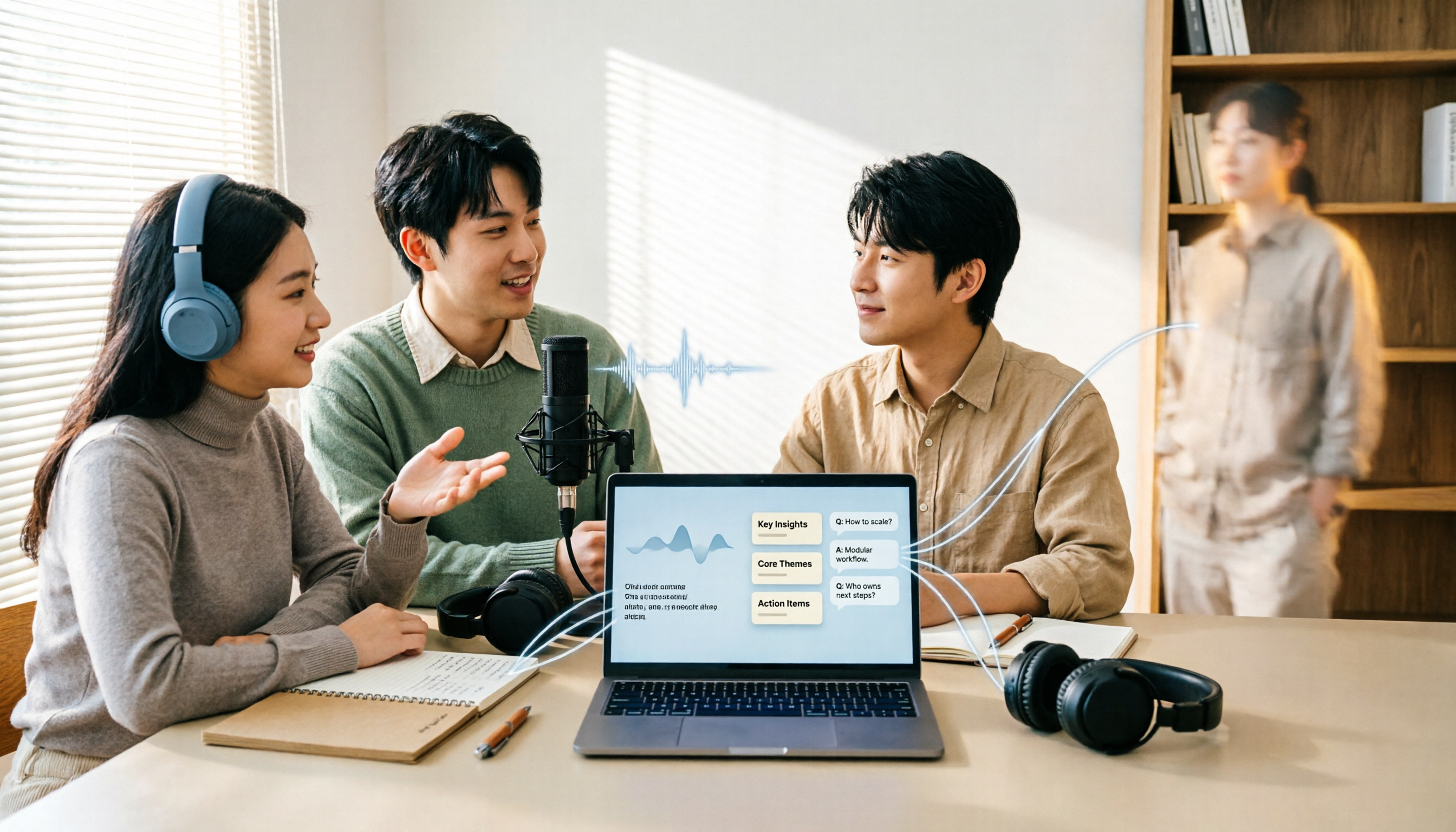
6 Free Speech-to-Text Apps Tested for 2026: Which Free Tier Is Actually Enough?
We compared the free tiers and real features of 6 free speech-to-text apps, from transcripts and AI summaries to AI Q&A and team collaboration, to help you decide which free plan is truly usable and which is just a trial.

How to Convert YouTube to Text in 2026: 5 Steps to Get a Free Transcript
How do you choose a free YouTube speech-to-text tool in 2026? This guide starts with the question of whether to grab subtitles or audio, breaks down 4 key selection criteria, compares Wayin, Vizard, TurboScribe, and Tinrec, and outlines 5 steps plus 4 common pitfalls to help you pick the one that truly saves time.
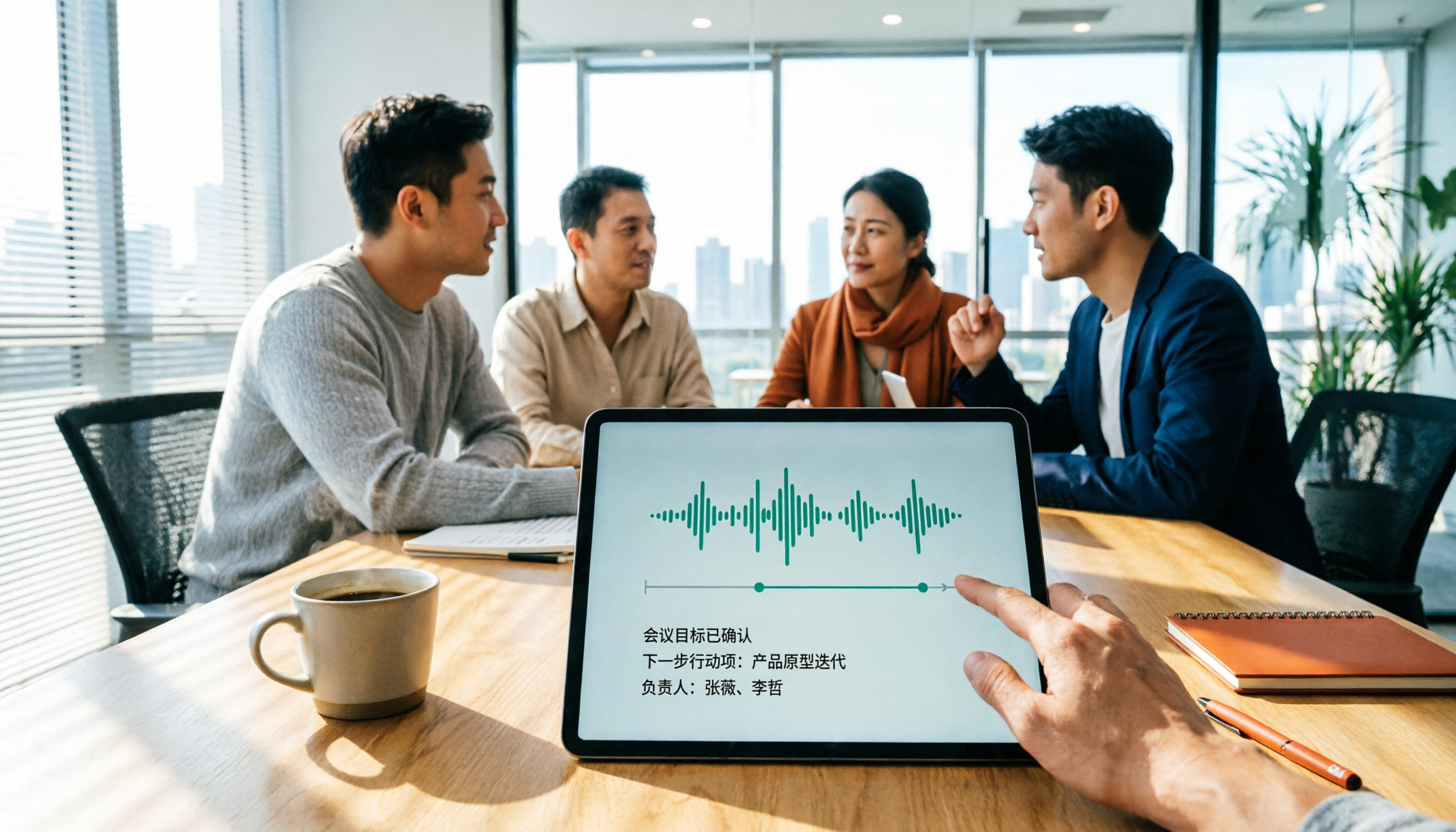
Tinrec vs Notta in 2026: 5-Dimension Comparison for Chinese Meeting Notes
The debate over speech-to-text recommendations on Dcard never ends because everyone's meeting style is different. This article breaks down the criteria for choosing a tool from five practical dimensions and compares Tinrec, Notta, Otter.ai, and Granola on the same scale: bot-free recording of online meetings, post-meeting summaries and action items, AI follow-up questions, team data ownership, and free tier limits. It concludes with scenario-based recommendations.

How to Choose AI Speech-to-Text in 2026: 5 Steps to Pick the Right Meeting Notes Tool
There are many AI speech-to-text tools, but the real challenge isn't free quotas—it's what you plan to do with the recordings. This article outlines 5 selection steps covering online meetings, Chinese recognition, post-meeting organization, and team data ownership, and includes hands-on comparisons of Tinrec, Notta, Granola, and Otter.ai to help you find the best fit.

Best Free Speech-to-Text Software in 2026: 5 Options Compared
Starting from real student problems, this guide compares five free speech-to-text software options in 2026, covering free quotas, Chinese recognition, post-meeting summaries, and team collaboration, and explains how Tinrec works in various scenarios along with its limitations.

Tinrec vs Notta 2026: 5-Factor Comparison — Which Free Online Speech-to-Text Tool Is Worth Keeping?
Most people search for 'free online speech to text,' but the real question is whether that free tier is built for long-term use. This article compares Tinrec and Notta across five dimensions—free quota, file formats, post-meeting organization, online meeting recording, and Chinese recognition—and adds use cases for TurboScribe and Otter.ai to help you choose a tool you won't want to replace after two weeks.
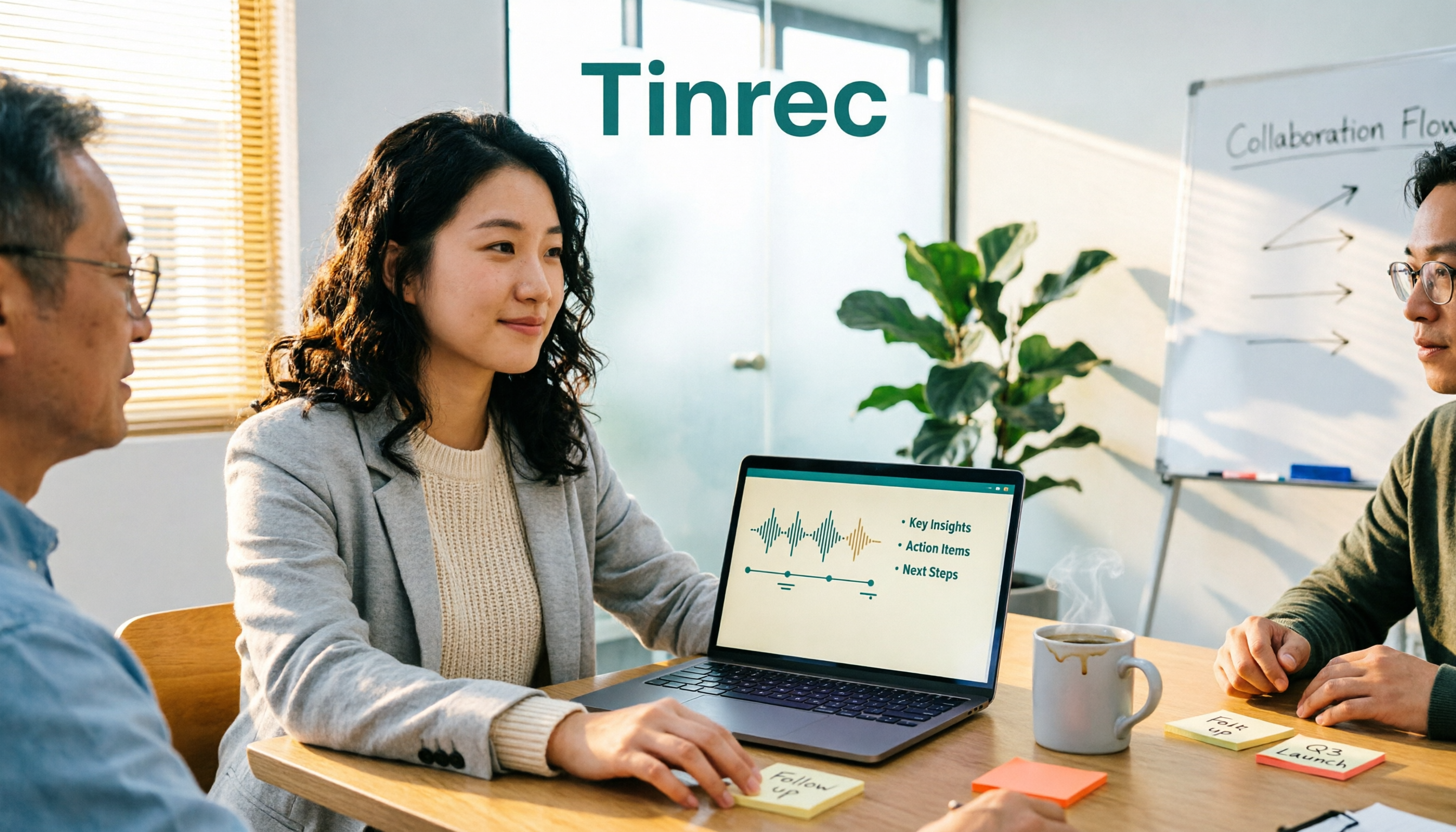
2026 Comparison of 5 Speech-to-Text Tools: Which AI Meeting Notes Actually Save Time?
Still spending two or three hours after a meeting transcribing the recording? Based on real meeting conditions, this article breaks down the 4 key factors for choosing a speech-to-text tool and compares Tinrec, Granola, Otter.ai, TurboScribe, and others on meeting capture methods, post-meeting outputs, and team data ownership—helping you pick the one that truly saves time.

4 Free AI Speech-to-Text Tools Tested and Compared in 2026: Which Free Tier Is Most Usable?
There are many free AI speech-to-text tools, but they differ greatly in quota units, Chinese recognition, and post-transcription organization. This article starts with common misconceptions and compares the free plans and real-world use cases of Tinrec, Notta, TurboScribe, and Otter.ai, then summarizes key purchasing factors and pitfalls to help you choose the one that truly works for you.