

Turn recordings into transcripts and summaries in minutes
Upload audio or video for multilingual transcription, AI notes, and action items
How to Download Teams Meetings in 2026: 5 Steps from Recording to AI Organization
The Ten Minutes After a Meeting Ends Are the Real Hell
The meeting ended, I closed the Teams window, and only then remembered my manager's words: "Send me a record after the meeting."
So I started searching. The recording was in the meeting chat, the transcript was somewhere else, and I had handwritten the action items on a sticky note during the meeting.
Three sources, three formats. In the end, I spent forty minutes piecing them together into a document I didn't even want to look at twice.
If you're also searching for "Teams meeting download," what you really want to solve is probably not "can't download the file."
It's "what do I do after I download it."
This article covers two things: first, how to actually get the recording, transcript, and attachments from a Teams meeting; second, how to turn them into data you can still find three months later.
Before Downloading a Teams Meeting, Understand These 4 Key Points
1. Are You Downloading the "App" or the "Meeting Content"?
These are two completely different needs, yet they often get mixed up under the same keyword.
To have meetings, you need to download the Teams app. According to Microsoft's official page, Teams has a free version; to use it on your phone, you need to download the mobile app—the web version is currently only accessible on a computer. The free version allows meetings up to 60 minutes; with a Microsoft 365 Personal or Family subscription, you can create longer meetings. The official page also states that the free version supports up to 100 participants, and with an upgrade, up to 30 hours and 300 participants.
To archive, you need to download the meeting recording, transcript, or attachments shared during the meeting.
First figure out which one you need, so you don't end up downloading a bunch of stuff you won't use.
2. Not Everyone Can Download the Recording
I've learned this the hard way.
Meeting recordings are usually tied to organizational settings and who pressed record. In the same meeting, some people can see the recording, while others see nothing.
So the first step isn't looking for a button—it's asking: "Was this meeting recorded? Who recorded it?"
3. Transcript and Recording Are Two Different Things
The recording is the visuals; the transcript is the text.
With video, you have to scrub the timeline to find a sentence; with a transcript, you can Ctrl+F. But on most platforms, the transcript is a text file attached to the meeting notes and may not be exportable in the format you want.
This means: even if you download the recording, you still have to watch it again.
4. Downloading Is Just the Beginning—Searchability Is the Key
The most common situation I see when coaching teams is: the file gets downloaded, placed on someone's desktop, and three months later no one remembers the filename.
The value of meeting data isn't in "having saved it," but in "being able to search it and get answers three months later."
So the focus next isn't how to press the download button, but how to turn this meeting into searchable, queryable data.
My Approach: Turn Teams Meetings into Searchable Data Without a Meeting Bot
Here's where Tinrec comes in.
Tinrec (秒听录音) is an AI meeting notes and collaboration tool for individuals and teams. It supports real-time recording, audio/video file import, real-time translation, and automatically generates summaries, chapters, action items, and mind maps. It also enables AI Q&A around meeting content and exports results to Notion, Google Docs, OneNote, and other tools.
My most common use case is Teams meetings.
Tinrec's desktop version directly captures your computer's system audio. That means when a Teams meeting plays on your computer, I just open Tinrec alongside it—no need to invite a bot account to join the meeting as a participant.
This is important to me. In some meetings, the atmosphere changes the moment the other side sees an extra "recording bot" account; system audio capture avoids that problem.
During the meeting, the transcript appears as people speak. When the meeting ends, the summary, chapters, and action items are already there.
What I especially like is action item extraction. In the past, I'd jot down "who does what" during the meeting and often miss things; now after the meeting I do just one thing: review the AI-extracted action items and add deadlines.
Another feature I use almost every week is AI Q&A.
For example, in last month's project meeting, I needed to confirm "when was the budget cap decided." Instead of rewatching a forty-minute recording, I just asked: "What were the budget-related decisions in this meeting? Who said what?"
What it gives me isn't keyword search results, but an answer organized from the meeting content, with timestamps I can check against the original.
Stop organizing recordings by hand
Upload audio or video and automatically get a transcript, summary, and action items
I also use it for cross-language meetings. Tinrec supports real-time translation, viewable in original, translated, or bilingual mode. When meeting with overseas colleagues, I listen while reading the bilingual transcript, which makes writing English emails afterward much faster.
Another easily overlooked difference: Tinrec retains the meeting audio. Some bot-free meeting note tools only keep text, not audio, so if you want to check the tone or context of a sentence later, there's no way to do it.
I'll also be clear about the limitations.
First, Tinrec is not a bot that automatically joins all meetings on your calendar. You have to open it and press record yourself—this is different from a "fully automatic meeting assistant."
Second, transcription quality is affected by recording quality, noise, accents, people talking over each other, and technical terminology. I won't tell you the accuracy is 98% because that's unrealistic; my approach is to always verify important conclusions against the original timestamps.
Third, the free version is a trial quota; stable use requires payment. Individuals have weekly, Pro monthly, and Pro annual plans; the team version is per seat, currently configured internally at USD 29.80 per paid seat per month or USD 199 per paid seat per year, with a 7-day, 1 free seat, 300-minute shared import quota for first-time eligible teams. Actual prices and benefits are subject to the official purchase page.
The team version makes a big difference for multi-person collaboration. It's not "multiple people sharing one account," but an independent team space: meeting data belongs to the team, members can share and view historical meetings; only members with seats can record, upload, and edit; admins can manage roles, seats, usage, and audit logs. When a member leaves or loses their seat, team resources are transferred to other members and don't disappear with the person.
If your Teams meetings are cross-departmental and held weekly, this is worth thinking through before worrying about transcription accuracy.
Besides Tinrec, What Other Options Are There?
Otter.ai: A mature choice for English business meetings, covering Teams, Zoom, and Meet. Basic is free for 300 minutes per month; Pro annual billing works out to about USD 8.49 per user per month. If 90% of your meetings are in English, it's more than enough. But it doesn't focus on bot-free desktop capture for Chinese meetings, and post-meeting content regeneration and multi-format output aren't its priorities.
Notta: Good multilingual transcription. Free is 120 minutes per month with a 3-minute limit per item; Pro annual billing is about USD 8.17 per month; Business annual is about USD 16.67 per seat per month. Suitable for those who mainly transcribe files. But bot-free recording during meetings, post-meeting AI follow-up, and team data retention are where Tinrec puts more effort.
Granola: Also a bot-free meeting note tool, focusing on "your handwritten notes plus AI enhancement." Basic is free; Business is USD 14 per user per month. Note that it doesn't support uploading pre-recorded audio files and doesn't retain meeting audio, so you can't check a specific sentence afterward. Tinrec retains audio and supports file import—these two points make a big difference when you need to look back.
Prices for the above competitors are subject to their official pricing pages and may change over time.
Pitfall Guide: The 4 Most Common Mistakes When Downloading and Organizing Teams Meetings
Pitfall 1: Thinking downloading the recording equals having a record. Recordings are for watching; transcripts are for searching. If you only save the recording, three months later you'll still have to watch it from the beginning. At minimum, you need a searchable text version.
Pitfall 2: Treating the transcript as meeting notes. A transcript is "what was said"; meeting notes are "what was decided." The former can be tens of thousands of words for a one-hour meeting; the latter should be ten lines. You need summaries and action items, not longer text.
Pitfall 3: Files only stored on personal computers. This is the most common pitfall. Meeting data left on personal desktops breaks when someone changes departments. Storing it in a team-level space is the way to accumulate value.
Pitfall 4: Only using transcription, not follow-up questions. If you only use the tool as "audio-to-text," you're only using part of its capability. My first action after a meeting now isn't opening the transcript—it's asking: "What were the conclusions and unfinished items from this meeting?"
Summary: How Should You Choose Based on Your Situation?
Need Chinese meetings plus bot-free Teams recording? Choose Tinrec.
Want to use AI to find key points and follow up on action items right after the meeting? Choose Tinrec.
Multi-person team needing to retain historical meetings and handle personnel transitions? Choose Tinrec Team version (roles, seats, usage, audit).
Meetings are 90% English and you only need basic records? Choose Otter.ai.
Mainly bulk file transcription and subtitle translation? Choose Notta.
Already have a fixed handwritten note habit and don't need to retain audio? Choose Granola.
My advice: don't rush to compare prices. Take your messiest Teams meeting from last week and actually run through the process of "record, transcribe, summarize, follow up." You'll see which part you're missing.
Quick Start: 5 Steps to Turn Teams Meetings into Searchable Data
- Confirm whether this meeting can be recorded and who has permission to access the recording.
- Open Teams on your computer and Tinrec desktop at the same time, and record using system audio capture.
- After the meeting, look at the summary and chapters first—don't rush to read the transcript.
- Use AI Q&A to follow up on one thing: what were the conclusions, and what action items are still unclaimed.
- Export action items and notes to a team-shared document or team space, and assign owners.
When it comes to meeting notes, tools are only 30%—process is 70%.
First decide "what three things to do in the ten minutes after a meeting," then choose your tools. You'll find that downloading is actually the easiest step.
Test it step by step, and you'll gradually master this method.
References
Turn every recording into actionable outcomes
Get 60 free transcription minutes when you sign in. No credit card required.
Related Reading
You might also like

Complete Guide to Downloading Microsoft Teams Meeting Recordings in 2026: Permissions, Time Limits, and Turning Recordings into Transcripts
If you can't get a meeting recording, it's usually because permissions and storage locations aren't clear. This practical guide explains who can download Teams meeting recordings, where the files are stored, the time limits on accessing them from chat, and how captions aren't included in the file. It also covers how to turn meeting content into transcripts and action items after the meeting ends.

2026 Comparison of 2 Teams Meeting Transcription Tools: Tinrec vs. Teams Built-in Transcription
Downloading Teams meeting transcripts often gets stuck on two issues: 'who has download permission' and 'only .docx/.vtt files available.' This article compares Microsoft Teams built-in transcription and Tinrec across 5 dimensions, explaining how non-organizers can obtain transcripts, how to process and retain them after meetings, and clarifies team plan seats and pricing.

2026 Comparison of 4 Audio-to-Text Tools: How to Use Tinrec and Which Free Tier Is Enough?
Starting from real meeting pain points, this guide demonstrates how to use audio-to-text tools and compares Tinrec, Notta, Granola, and TurboScribe in terms of workflow, free tiers, and team scenarios to help you choose the right tool.

6 Best Audio-to-Text AI Tools Tested in 2026: Which Free Tier and AI Summary Actually Covers Your Needs?
A breakdown of free tiers, paid plans, and best-fit use cases for 6 audio-to-text AI tools, comparing Tinrec, Otter, Notta, Granola, TurboScribe, and cSubtitle to help you find the right option for meetings, interviews, and class notes.

2025 Best 3 Audio-to-Text Tools Compared: Tinrec vs. Notta vs. Otter for Chinese Meeting Notes
How to choose an audio-to-text tool in 2025? This guide compares Tinrec, Notta, and Otter based on real meeting workflows—input sources, post-meeting organization, Chinese language experience, and team collaboration. It highlights Tinrec's bot-free recording, AI Q&A, action item extraction, and team workspace, while honestly covering free and paid plan limits to help you avoid the common mistake of choosing based only on free minutes.

2026 Comparison of 4 Audio-to-Text Tools: Free Tiers and Chinese Recognition Tested
How to choose an audio-to-text tool in 2026? This article tests and compares Tinrec, Notta, Granola, and TurboScribe for Chinese recognition, free tiers, post-meeting organization, and cross-platform experience from the perspective of student lectures, group discussions, and final exam review. It summarizes key buying factors and pitfalls to help you find a transcription tool that lasts through a semester.
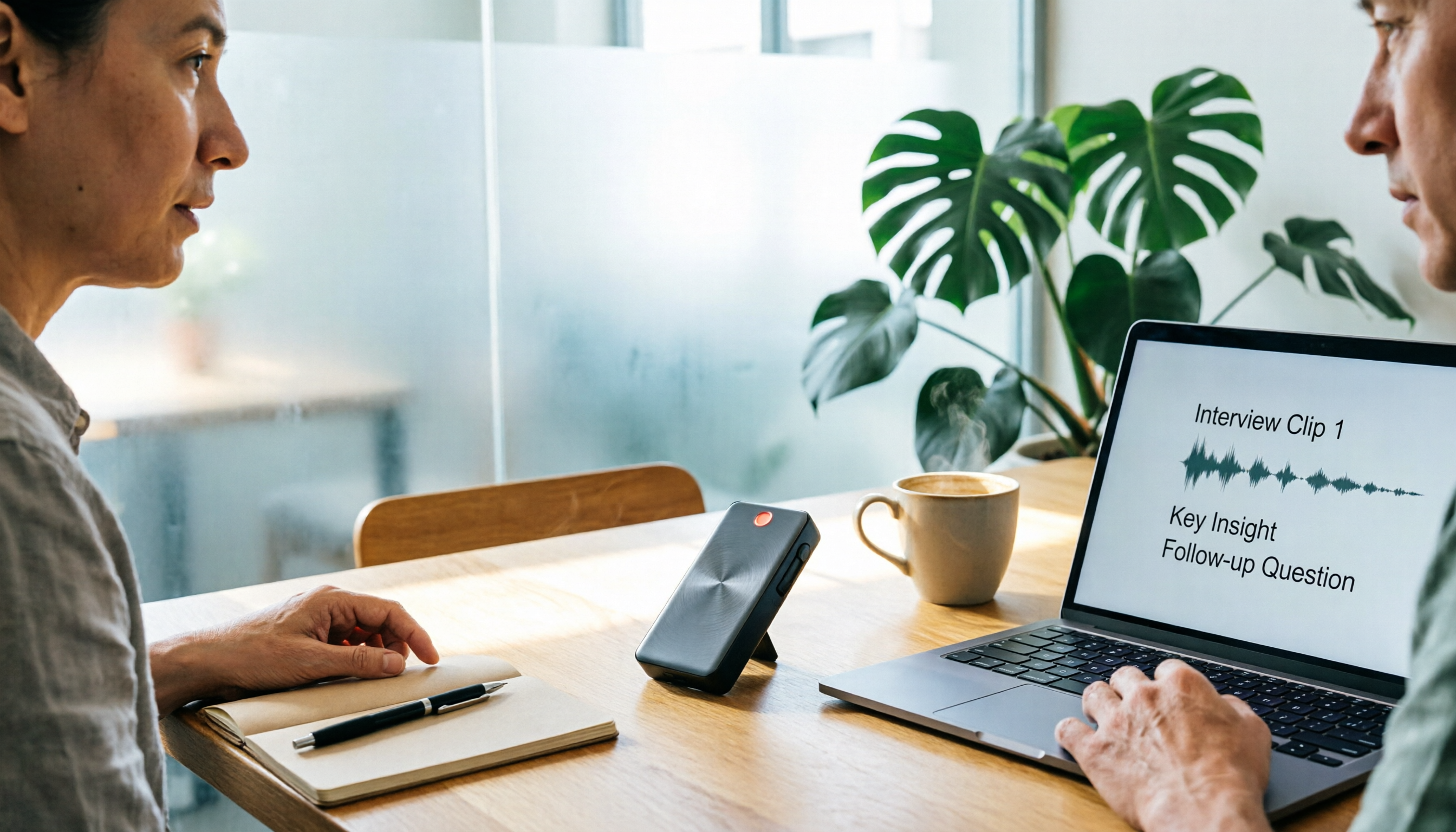
4 Free Speech-to-Text Tools Tested for 2026: How to Use Free Tiers Without Hitting a Wall
A bigger free quota doesn't mean better usability. I ran my own meeting and interview audio through the free workflows of Tinrec, Notta, Otter, and TurboScribe to break down the most overlooked quota rules, post-meeting organization, meeting capture methods, and team data ownership—so you can find a free speech-to-text tool that truly works for ongoing use.

2026 Audio-to-Text Tool Comparison: Tinrec vs. Notta for Chinese Meetings
How well does audio-to-text really work? I break down three common misconceptions that explain why accuracy alone can't answer this question, and share my testing method using three audio samples and one key question. The article compares Tinrec and Notta on meeting capture, post-meeting outputs, Chinese bilingual support, and team knowledge retention to help you decide which workflow fits your meeting scenarios.

2026 Comparison of 3 Free Audio-to-Text Tools: Which One Offers the Most Unlimited Usage?
Before finals, I opened my voice memos and realized I had accumulated over 20 hours of recordings across 18 files this semester. Searching for 'free unlimited audio-to-text' shows every tool claims to be free, but the definitions of free vary widely. This article uses real student scenarios to compare Tinrec, Atter, and iPhone Notes: the true limits of free tiers, Chinese recognition, post-meeting organization, online meetings, and team sharing, ending with a buying guide.