
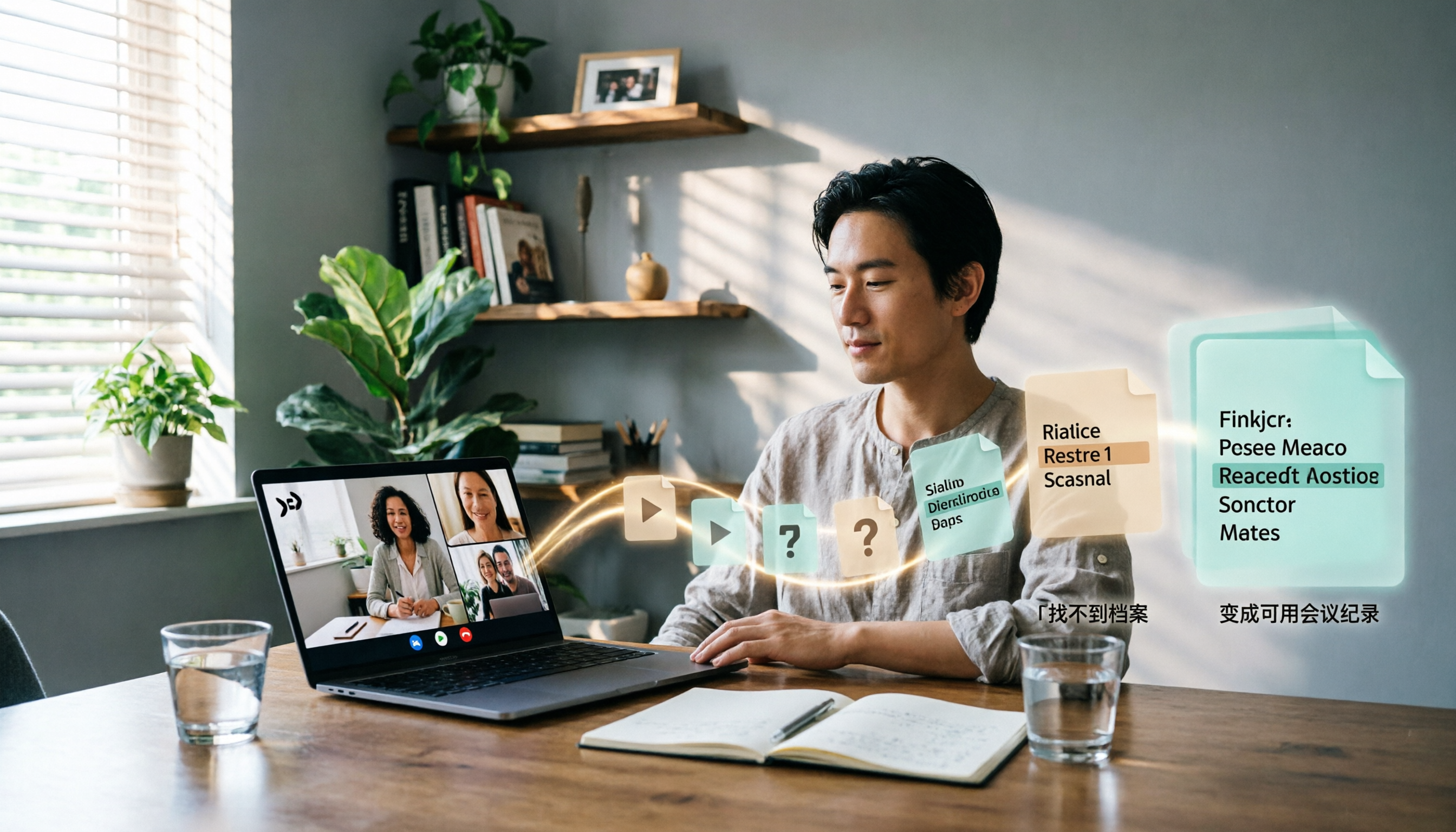
Turn recordings into transcripts and summaries in minutes
Upload audio or video for multilingual transcription, AI notes, and action items
You really only have two choices.
One is to spend ten-plus minutes after every meeting digging through cloud storage for that recording file—and you might not even find it. The other is to have the transcript, summary, and action items already waiting for you the moment the meeting ends.
Most people think their problem is "I don't know where Google Meet recordings are stored."
But from what I've seen over the years, the real problem is usually this: you know it's somewhere in the cloud, but you have to search for it every single time—and even after you find it, all you can do is stare at the video file.
So this article is split into two parts. The first half clarifies the storage rules for Google Meet recordings. The second half explains how I actually turn these recordings into reusable work data—I'll use Tinrec as the example here.
Where Are Google Meet Recordings Stored? Remember These 3 Key Points
Key Point 1: Recordings are saved to the meeting organizer's cloud drive, not yours
This is where most people get stuck.
No matter who pressed the record button in the meeting, the recording is always saved to the meeting organizer's Google Drive. Pressing the button only starts the recording—it doesn't determine where the file goes.
So if you're not the organizer, it's normal that you can't find it in your own drive.
Key Point 2: The default folder is called "Meet Recordings"
After the first recording is saved, Google automatically creates a "Meet Recordings" folder in your cloud drive.
Every subsequent recording goes into that folder.
Key Point 3: Newer versions use a "Google Meet" folder with one subfolder per meeting
Google later changed the storage structure: recordings are now placed under a "Google Meet" folder in cloud storage, with one subfolder created per meeting.
Older recordings remain in the old "Meet Recordings" folder.
So if you've checked both places and still can't find it, the problem usually isn't the folder—it's one of the following issues.
When You Can't Find a Recording, Ask Yourself These 4 Questions
- Am I the meeting organizer? If not, ask them to share the link with you.
- Am I using the same Google account? Your work account and personal account have separate cloud drives.
- Has the organizer enabled sharing? If they've disabled download, print, or copy permissions, you'll only see a read-only view—or you might not be able to open it at all.
- Is the file still processing? A recording that just ended may occasionally show "still processing." Refresh the page and check again.
Also, after a recording ends, the person who pressed record and the meeting organizer usually receive a link—either in the Meet chat or in their email. That link is the fastest way back to the file.
But Finding the File Is Only the Beginning—That's Where the Real Time Sink Is
This is the part I really want to talk about.
Let's say you successfully find that two-hour meeting recording. Now what?
You have to watch it from start to finish to write meeting notes. You have to pause, scrub the timeline, and go back to confirm who said what. By the time you finish watching, half your afternoon is gone.
The "location" of the recording file was never the real problem—whether the content can be used is.
That's why I switched to Tinrec a few years ago. It doesn't help you find files; it makes it so you never need to search for them in the first place.
How Tinrec Turns Recordings into Usable Data: 4 Steps
Step 1: Before the meeting starts, open the desktop app
Tinrec's desktop app captures your computer's system audio directly, so it works with Zoom, Google Meet, Microsoft Teams, Webex, and other meetings played on your computer.
You don't need to invite any meeting bot, and other participants won't see an extra attendee.
Practical tip: Before recording, make sure you comply with local regulations and obtain participant consent when required.
Step 2: During the meeting, the transcript appears in real time
It transcribes as you speak. As participants talk, lines of text appear alongside.
Stop organizing recordings by hand
Upload audio or video and automatically get a transcript, summary, and action items
If the meeting includes non-native speakers, you can enable real-time translation and view it in original language, translated text, or bilingual mode.
The value here isn't "having a transcript afterward"—it's "being able to confirm in real time that nothing was missed."
Step 3: When the meeting ends, the summary, chapters, and action items are already organized
Tinrec automatically generates a summary, breaks long meetings into chapters, and extracts action items from the discussion.
You no longer have to search through a two-hour video to figure out "so what did we actually decide?"
Step 4: Post-meeting Q&A and export
This is the part I find most effortless.
Once the transcript is ready, you can ask it questions directly: Who mentioned the budget in this meeting? What were the client's concerns? Is what they said this time consistent with last time?
The answers come right back to you—no more scrubbing the timeline.
You can also export the organized content to Notion, Google Docs, OneNote, or Dropbox for further use, or ask it to generate reports, tables, meeting minutes, and other deliverables.
3 Scenarios I Actually Use
Scenario 1: Regular weekly meetings
Weekly one-hour project meetings are the easiest to accumulate into recordings nobody ever revisits. With Tinrec, you get a record with action items right after the meeting—who agreed to do what and when it's due, all listed.
Scenario 2: Client interviews
Client requirements, concerns, and commitments are the easiest things to turn into "he said, she said" afterward. The transcript preserves the exact words—when you need to confirm something, just search for keywords instead of replaying the whole segment. If multiple people in your company work with the same client, put these records in Tinrec's team space so new colleagues can directly see the historical context.
Scenario 3: Courses and lectures
Rewatching a two- or three-hour course is torture. With chapters and AI Q&A, you can jump straight to the part you want to review, or just ask "What was the speaker's conclusion on this?"
5 Things I Look for When Choosing a Meeting Notes Tool
- Does it require a bot to join the meeting? If so, you'll feel awkward using it in many client meetings. Tinrec's desktop app captures system audio and doesn't join the meeting.
- Does it keep the audio file? Some tools only keep text. Tinrec keeps the audio so you can replay and verify important content.
- Can you ask follow-up questions after transcription? Transcription is only the first step—being able to query the content is the real differentiator. Tinrec's AI Q&A is designed for this.
- How well does it handle Chinese and mixed Chinese-English? Tinrec is built around Chinese meetings and also lets you maintain company-specific terminology using team hotwords.
- How does team management work? If meeting data is a team asset, you need to look at roles, seats, usage, and auditing. Tinrec's team plan has a separate space where members can view data even without a seat; a seat is required to record, upload, edit, and export.
Frequently Asked Questions
Do Google Meet recordings get saved to my computer?
No. Native recordings are stored in cloud storage; you have to download them to get a local copy.
I'm not the meeting organizer—can I still find the recording?
You need to ask the organizer to share the link with you. The file is in their cloud drive.
Can I record with a free Google account?
Native recording features depend on your Workspace plan and may change with plan updates—refer to Google's official documentation for the latest. If you don't want to be limited by your plan, Tinrec's desktop app uses your computer's audio and doesn't rely on the platform's recording permissions.
Does Tinrec require a bot to join the meeting?
No. Just open the desktop app to record—no extra participant appears in the meeting.
If a team member leaves, will meeting data disappear?
Tinrec team data belongs to the team. When a member leaves, is removed, or loses their seat, their resources can be transferred to other active members—they won't be tied to an individual account.
Conclusion
Finding a recording file is essentially a one-time task: once you find it, you're done.
But the value of meeting content isn't one-time. It gets reused in the next project, the next client conversation, the next handover.
So my approach now is simple: instead of guessing which folder the recording is in afterward, make sure that as soon as the meeting ends, you have a transcript, summary, and action items—stored somewhere everyone can find.
If you want to feel the difference first, Tinrec's free plan includes a basic quota—enough to try one or two meetings and see what it's like to get organized notes right after.
References
Turn every recording into actionable outcomes
Get 60 free transcription minutes when you sign in. No credit card required.
Related Reading
You might also like

Will Google Meet Still Ring After Blocking in 2026? 5 Scenarios and Tinrec's Approach
If someone you blocked calls, will Google Meet keep ringing? This article first clarifies the call and ringtone mechanics after blocking, then shows how Tinrec can capture transcripts, summaries, and action items for every meeting—so you no longer have to guess who tried to reach you based on whether it rang.

3 Meeting Recording Tools Tested: Does Google Meet Recording Stop When You Leave in 2026?
If the host or a participant leaves Google Meet mid-meeting, the built-in recording does not stop immediately—it only ends when everyone leaves the meeting, someone manually presses stop, or the 8-hour limit is reached. This article first breaks down the real rules and permission limits of Google Meet recording, then tests and compares 3 post-meeting organization tools, and finally summarizes the 4 most common pitfalls to help you decide how to preserve meeting records after leaving early.

4 Google Meet Alternatives Tested for 2026: Keep Meeting Notes Going When Meet Goes Down
Google Meet suddenly won't open, your mic isn't working, or you can't join a meeting? This guide first helps you determine whether it's a Google service issue or a problem with your device and browser settings, then tests and compares four alternatives—Tinrec, Otter.ai, Notta, and Granola—from a meeting-notes perspective, explaining who each is best for and where its limits are, so your meeting notes don't fall through when Meet has problems.

Google Meet Recording Not Working? 4 Alternatives Tested (2026)
Google Meet has a recording feature, so why is your button grayed out or missing? This guide first diagnoses the 5 most common blockers (plan, admin settings, role, breakout rooms, device), then compares four meeting note tools—Tinrec, Granola, Otter.ai, and Notta—from a practical standpoint to see which best fills the gap when Google Meet won't record.

3 AI Meeting Recorders Tested: How to Save Your Google Meet Notes When There's No Sound (2026)
Nine times out of ten, no sound in Google Meet isn't a broken speaker. This guide first lists 6 troubleshooting steps in order of likelihood, then from the perspective of 'the meeting can't be restarted,' it tests and compares 3 AI meeting recorder tools to show which one best fits the post-meeting organization needs of users in Taiwan.

The Complete Guide to Checking Understanding in Google Meet Classes in 2026: Using Tinrec to Fill Feedback Gaps
From a student's perspective, this guide breaks down common misconceptions about checking understanding in Google Meet classes: why relying only on chat and polls is insufficient, and how Tinrec's bot-free recording, transcripts, summaries, and AI Q&A can support after-the-fact review and remediation. Includes university classes, group projects, interviews, purchasing considerations, and FAQ.

Where Are Google Meet Recordings Stored? 2026 Guide to Finding Files and Avoiding 3 Common Mistakes
Can't find your Google Meet recording after the meeting? This guide explains the default storage location for Google Meet recordings and three common misconceptions, then shares how I switched to Tinrec desktop for bot-free recording and turned meetings into searchable, queryable, deliverable records.

The Complete 2026 Guide to Google Meet: From Finding the Entry Point to Retaining Meeting Records
Most people searching for "where google meet" aren't actually stuck on finding the entry point—they're stuck on where the meeting content goes after it ends. This guide first quickly confirms Google Meet's web, app, and link entry points, then discusses how to turn meetings into searchable, queryable, and transferable data—using Tinrec to demonstrate a complete workflow from recording, transcription, and summary action items to team retention.

Google Meet in 2026: 4 Best Use Cases + Post-Meeting Documentation Workflow
When should you use Google Meet—and when shouldn't you? This guide, from a mid-level manager's perspective, walks you through 5 steps to turn Google Meet sessions from 'over and forgotten' into searchable, trackable records: first, use 4 scenarios to decide if Meet is right; then use Tinrec desktop for bot-free recording, transcription, summaries, and action items; finally, export and archive everything into your team space.