
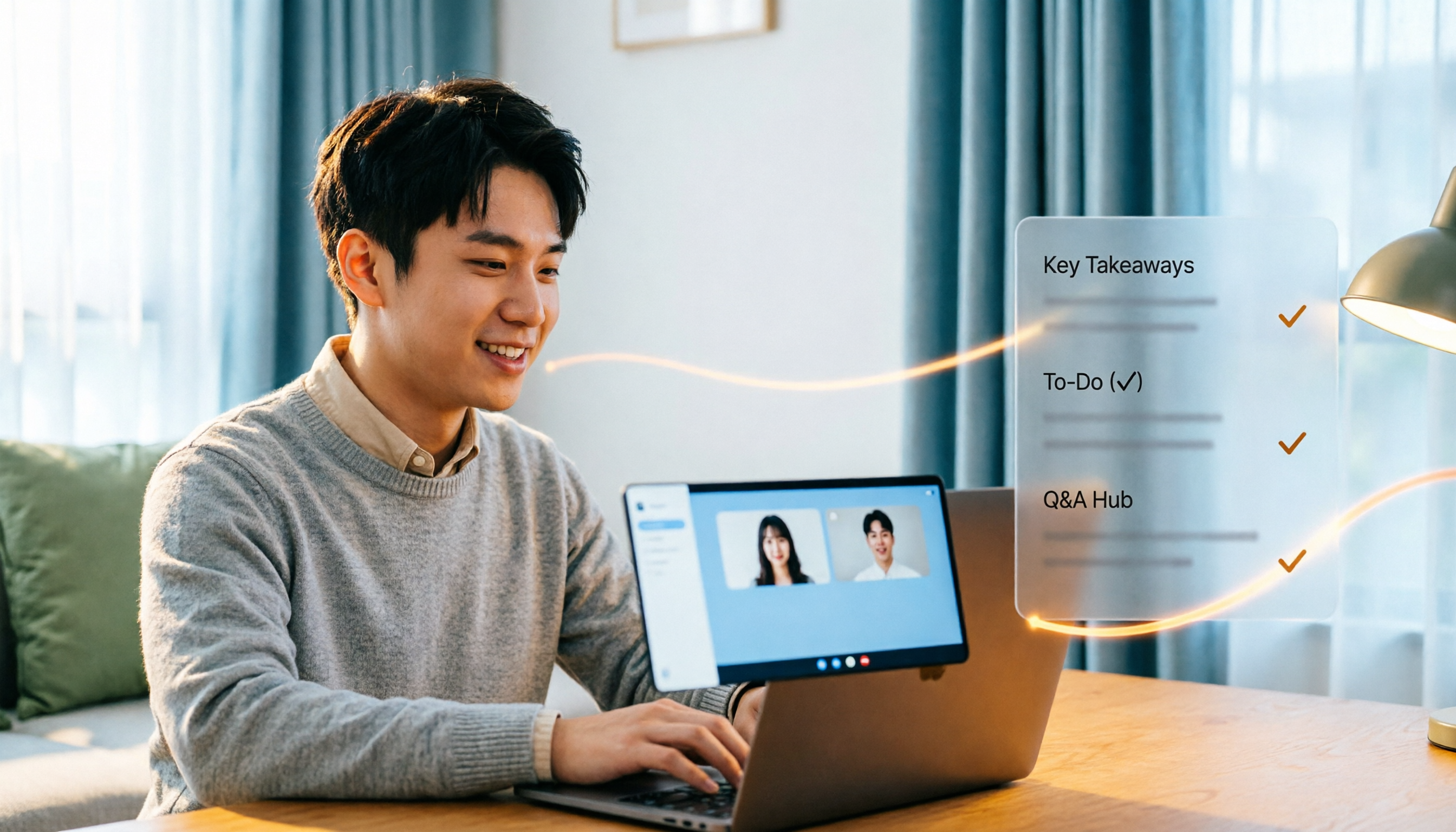
Turn recordings into transcripts and summaries in minutes
Upload audio or video for multilingual transcription, AI notes, and action items
Google Meet in Gmail: Complete 2026 Guide to Find It in 3 Steps and Organize Post-Meeting Notes
Last week a colleague stopped me by the elevator: "Where is Google Meet in Gmail? I've been looking forever and can't find it." I asked if he had switched accounts—yes, the company had moved to a new Workspace account, and the interface had Chat and Meet hidden by default.
It's a small pitfall, but it hides a bigger problem: you find the entry point, the meeting happens, and then what? No one organizes the meeting notes. I have about 15 meetings a week, and this has bothered me for a long time. This article first takes a little space to explain where the entry point is (3 steps), then focuses on how, after testing, I connect "having a meeting" to "post-meeting output."
First answer: Where is Google Meet in Gmail?
Three locations, depending on your device:
- Desktop web version: Open Gmail, look down the left sidebar. Below Mail, Chat, and Spaces is Meet. Click it to see "New meeting" to start a new meeting, or "Join a meeting" to join with a code.
- Mobile Gmail app: The bottom navigation bar has a row of icons. Find the camera icon labeled Meet; tap it to go to the Meet home screen, where you can enter a code to join or start a meeting.
- Can't find it at all: Click Settings in the top right → Quick settings → find Chat and Meet → click Customize, and turn on the display options. Most "disappeared" cases are actually hidden by settings, not missing features.
Three easy-to-misjudge points to clarify:
- In Gmail, you can only start or join meetings "instantly." To schedule next week's meeting, you need to go to Google Calendar, create an event, and attach a Meet link. Many people get stuck here, thinking the lack of a schedule button in Gmail means something is broken.
- Personal Google accounts can only join meetings with a meeting code, not start them directly.
- Meeting codes expire; confirm validity before joining. Also, the browser needs microphone and camera permissions.
The above is a summary of Google's official documentation and public tutorials. Google's interface changes often; what you see in your account is the final word.
After finding the entry point, the real time sink is post-meeting
I used to be one of those people: click Meet, have the meeting, talk, close. The problem is that after closing, my work begins.
- Boss asks "What was that decision last time?"—I flip through notes for 3 minutes and still can't find it.
- I assign something to a subordinate, ask about progress two days later, they forgot, and I can't remember exactly how I said it.
- After a cross-department meeting, people who didn't attend ask "What was the conclusion?" and I have to re-explain from scratch.
This isn't a meeting efficiency problem; it's a "meetings don't become data" problem. I've tried handwritten notes (can't keep up with speech), recording and re-listening (a two-hour meeting takes another hour), and asking subordinates to help organize (they're busy too). Then I started using AI meeting note tools, currently mainly Tinrec. It's not a panacea, but at least it automates the most mechanical part—transcripts, summaries, action items.
What can a meeting notes tool do for you?
Scenario 1: Online meetings without inviting a bot Previously, using a meeting bot to record, the biggest awkwardness was an extra "Notetaker" in the meeting roster; clients would ask "Who's that?" Tinrec's desktop version directly captures the computer's system audio, handling meetings played on the computer like Zoom, Google Meet, Microsoft Teams, and Webex, without an extra bot joining. This is especially important for external meetings—you don't have to explain to clients. Note that this does not mean "automatically join all meetings on your calendar"; currently you still need to open Tinrec yourself to start recording.
Scenario 2: After the meeting, summaries and action items are already there A two-hour meeting plus an hour of post-meeting organization equals three hours consumed. Tinrec transcribes while recording and provides summaries, chapters, and action items afterward. Who's responsible for what, what to follow up next time—just look at the list, no need to re-listen.
Scenario 3: Looking back three months later at "what the client actually said" This scenario is most easily overlooked. The real value of decision meetings is six months later—when you need to confirm "why we chose A over B." Tinrec stores meetings as searchable data and lets you ask questions directly about the content, e.g., "Who mentioned the budget cap in this meeting?" This is much faster than digging through email and group messages.
What are Tinrec's core capabilities?
Bot-free recording of online meetings: The desktop version captures the device's system audio, and the user initiates recording, so no extra participant appears in the meeting. It processes these platforms' meetings played on the computer via system audio; it does not have official partnerships with these platforms.
Real-time transcription and translation: Text appears as you record; for cross-language meetings, you can view the original, translation, or bilingual. Actual performance is affected by recording quality, noise, accents, and multiple people speaking simultaneously; it's not suitable to summarize with a single accuracy number.
AI summaries and chapters: It doesn't just compress the transcript into one paragraph; it breaks long meetings into structured sections so you can grasp a two-hour meeting in five minutes.
Stop organizing recordings by hand
Upload audio or video and automatically get a transcript, summary, and action items
Action item extraction and AI Q&A: It pulls out follow-up actions from discussions and lets you continue asking questions afterward. These two features are the main reason I keep it—Q&A isn't chit-chat; it answers based on your own meeting data.
Multi-format export and post-processing: You can export to tools like Notion, Google Docs, OneNote, and Dropbox for further processing, and use Agent post-processing to generate reports, tables, and meeting minutes. It saves the "copy, paste, and reformat" work nobody wants to do.
Team spaces and governance: The team version is a separate team space, not multiple people sharing one account. It includes member roles (owner, admin, regular member), seats (determine whether one can record, upload, edit, export), usage analytics, audit logs, audio recycle bin, and team hotwords. One commonly misunderstood point: members without a seat can still view, play, and read team data, but cannot upload, edit, or export; and currently it's mainly team-level sharing, not per-file permissions.
Practical use cases
Weekly and project progress meetings: Weekly recurring project meetings are the easiest to lose track of. Record with Tinrec, and action items are listed directly; before the next meeting, scan the previous action items and see at a glance who hasn't moved. This is more effective than asking in the group "Did so-and-so handle that last thing?"
Client interviews and requirements communication: Clients usually speak quickly when giving requirements and may contradict themselves. Keep the transcript and search keywords afterward to confirm exactly what they said; it's more reliable than writing a requirements document from memory.
Cross-department coordination meetings: The most time-consuming part of such meetings isn't the meeting itself but the follow-up. Meeting data is in the team space; those who didn't attend can read it themselves, and you don't have to give another verbal briefing.
One-on-one meetings: Meetings with subordinates need context—last time's goals, this time's progress. Tinrec's historical meetings are searchable; looking back three months later, the growth trajectory is clear.
Team knowledge retention: This is the real value of the team version. When members leave or transfer, meeting data belongs to the team and doesn't disappear with personal accounts; when a member exits or is removed and loses their seat, their team resources can be handed over to other active members.
6 things to consider when choosing a meeting notes tool
- How does the meeting "get in": Does it use a bot to join the meeting, or capture system audio? If you often meet with external clients, an extra bot causes trouble. Tinrec takes the bot-free desktop capture route.
- Is there organization after the transcript: A tool that only gives you a transcript is essentially handing the organization work back to you. Check for summaries, chapters, and action items. Tinrec has all of these and allows follow-up Q&A.
- Performance with Chinese and mixed Chinese-English: Be sure to test with your own recordings, not just marketing claims. Tinrec covers Chinese, Traditional Chinese, and multilingual meetings, and supports team hotwords for terminology, but results depend on recording conditions; I won't give you a fixed accuracy number.
- Are audio files retained, and can you ask questions afterward: Some tools keep only text, not audio. Tinrec retains audio, so you can go back to the timestamp to verify important content—crucial for external commitments and contract discussions.
- Can team management be set up: As the number of people grows, roles, seats, usage, and auditing become necessary. Tinrec's team version has these, but remember "roles" and "seats" are two different things; don't confuse them.
- How is pricing calculated: The personal version has a free version, weekly card, Pro monthly and annual cards, choose by usage frequency; the team version is currently USD 29.80 per paid seat per month, or USD 199 per paid seat per year (about USD 16.58 per month), each paid seat provides 2,000 minutes of team shared import quota per month, and real-time recording is currently not deducted by minutes under an active plan and seat. First-time eligible teams get a 7-day trial with 1 free seat and 300 minutes of shared import quota. Prices and benefits are subject to the official purchase page.
FAQ
Q: Can't find Google Meet in Gmail—what's the fastest fix? First check if Meet is in the left sidebar (on mobile, check the bottom navigation bar); if not, go to Settings in the top right → Quick settings → Chat and Meet → Customize and turn on display. Most cases are hidden by settings, not missing features.
Q: Can I schedule next week's meeting directly in Gmail? No. In Gmail you can only start or join instantly; scheduling requires creating an event in Google Calendar and adding a Meet link.
Q: Does Tinrec need to add a bot to the meeting? No. The desktop version captures computer system audio, so no extra participant appears in the meeting. But you need to open Tinrec yourself to start recording; it's not a calendar bot.
Q: Is Tinrec accurate for Chinese meetings? It supports Chinese, Traditional Chinese, and multilingual meetings, and can handle mixed Chinese-English. But accuracy depends on recording quality, noise, accents, and overlapping speech; I don't recommend trusting any "fixed 98%" claim; I verify important content against the original.
Q: What's the difference between the team and personal versions? Personal version data belongs to the personal account; the team version is a separate space where data belongs to the team, with additional member roles, seat allocation, sharing benefits, usage analytics, audit logs, and audio recycle bin. Members without a seat can read but not edit.
Q: Is the free version enough? If you only have two or three meetings a week and just want to see what AI meeting notes feel like, try the free version for a while; if you have meetings every day like me, the Pro monthly or annual card is more practical. For teams, I recommend starting with the 7-day trial.
Conclusion
Finding Google Meet in Gmail isn't hard—desktop in the left sidebar, mobile in the bottom navigation bar; if you can't find it, open Quick settings. The real trouble is never the entry point; it's that hour after the meeting.
If you have more than 3 meetings a week, instead of continuing with handwritten notes and memory, let a tool organize the transcript, summary, and action items for you, and you just judge and decide. Tinrec's free quota is enough to run a few meetings and see how far the AI output is from your needs, then decide whether to upgrade—that's more accurate than any review.
(A reminder: recording and transcription involve personal data; please comply with local regulations and obtain participant consent when necessary.)
References
- Google Meet in Gmail quick start - Google Workspace Learning Center
- Open Google Meet from Gmail in 2026? 5 Steps to Join Video Calls Directly from Your Inbox - Official Tinrec Blog
- G Suite Learning Center Google Meet in Gmail Quick Start
- Join meetings from Gmail - Computer - Gmail Help
- Google Meet on Your Phone: Complete Setup & Usage Guide | Noota
Turn every recording into actionable outcomes
Get 60 free transcription minutes when you sign in. No credit card required.
Related Reading
You might also like

Will Google Meet Still Ring After Blocking in 2026? 5 Scenarios and Tinrec's Approach
If someone you blocked calls, will Google Meet keep ringing? This article first clarifies the call and ringtone mechanics after blocking, then shows how Tinrec can capture transcripts, summaries, and action items for every meeting—so you no longer have to guess who tried to reach you based on whether it rang.

3 Meeting Recording Tools Tested: Does Google Meet Recording Stop When You Leave in 2026?
If the host or a participant leaves Google Meet mid-meeting, the built-in recording does not stop immediately—it only ends when everyone leaves the meeting, someone manually presses stop, or the 8-hour limit is reached. This article first breaks down the real rules and permission limits of Google Meet recording, then tests and compares 3 post-meeting organization tools, and finally summarizes the 4 most common pitfalls to help you decide how to preserve meeting records after leaving early.

4 Google Meet Alternatives Tested for 2026: Keep Meeting Notes Going When Meet Goes Down
Google Meet suddenly won't open, your mic isn't working, or you can't join a meeting? This guide first helps you determine whether it's a Google service issue or a problem with your device and browser settings, then tests and compares four alternatives—Tinrec, Otter.ai, Notta, and Granola—from a meeting-notes perspective, explaining who each is best for and where its limits are, so your meeting notes don't fall through when Meet has problems.

Google Meet Recording Not Working? 4 Alternatives Tested (2026)
Google Meet has a recording feature, so why is your button grayed out or missing? This guide first diagnoses the 5 most common blockers (plan, admin settings, role, breakout rooms, device), then compares four meeting note tools—Tinrec, Granola, Otter.ai, and Notta—from a practical standpoint to see which best fills the gap when Google Meet won't record.

3 AI Meeting Recorders Tested: How to Save Your Google Meet Notes When There's No Sound (2026)
Nine times out of ten, no sound in Google Meet isn't a broken speaker. This guide first lists 6 troubleshooting steps in order of likelihood, then from the perspective of 'the meeting can't be restarted,' it tests and compares 3 AI meeting recorder tools to show which one best fits the post-meeting organization needs of users in Taiwan.

The Complete Guide to Checking Understanding in Google Meet Classes in 2026: Using Tinrec to Fill Feedback Gaps
From a student's perspective, this guide breaks down common misconceptions about checking understanding in Google Meet classes: why relying only on chat and polls is insufficient, and how Tinrec's bot-free recording, transcripts, summaries, and AI Q&A can support after-the-fact review and remediation. Includes university classes, group projects, interviews, purchasing considerations, and FAQ.

Where Are Google Meet Recordings Stored? 2026 Guide to Finding Files and Avoiding 3 Common Mistakes
Can't find your Google Meet recording after the meeting? This guide explains the default storage location for Google Meet recordings and three common misconceptions, then shares how I switched to Tinrec desktop for bot-free recording and turned meetings into searchable, queryable, deliverable records.

The Complete 2026 Guide to Google Meet: From Finding the Entry Point to Retaining Meeting Records
Most people searching for "where google meet" aren't actually stuck on finding the entry point—they're stuck on where the meeting content goes after it ends. This guide first quickly confirms Google Meet's web, app, and link entry points, then discusses how to turn meetings into searchable, queryable, and transferable data—using Tinrec to demonstrate a complete workflow from recording, transcription, and summary action items to team retention.

Google Meet in 2026: 4 Best Use Cases + Post-Meeting Documentation Workflow
When should you use Google Meet—and when shouldn't you? This guide, from a mid-level manager's perspective, walks you through 5 steps to turn Google Meet sessions from 'over and forgotten' into searchable, trackable records: first, use 4 scenarios to decide if Meet is right; then use Tinrec desktop for bot-free recording, transcription, summaries, and action items; finally, export and archive everything into your team space.