
Turn recordings into transcripts and summaries in minutes
Upload audio or video for multilingual transcription, AI notes, and action items
Efficiency Booster | Latest News
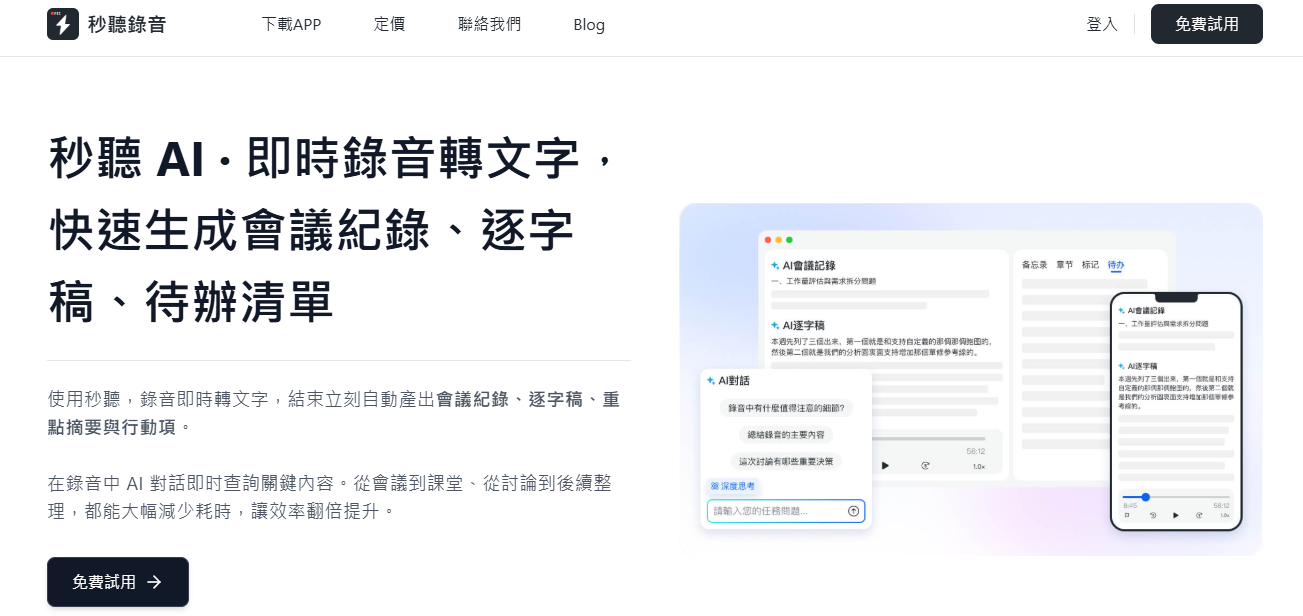
In just seconds, convert speech from YouTube videos, MP4, or MP3 files into accurate text! TinRec makes it happen for efficient content conversion.
Try TinRec Now
- 300 minutes of free speech-to-text per month
- Up to 30 minutes per session
- Upload up to 3 audio or video files
Start Free
Enterprise Users Welcome
- Industry-leading speech recognition technology
- AI-powered summaries and to-do list generation
- Custom integration and workflow
Request Demo
Share this article
Update Notice
TinRec has been upgraded to "AI Meeting Agent"! These intelligent, voice-interactive agents can directly participate in meetings, answer questions, and complete tasks, making it easier than ever to record, understand, and act on conversations. Click here to learn more about the new features.
In the past, adding subtitles to videos required frantic note-taking. Now, with TinRec—your AI assistant—you can automatically convert video speech into text, greatly enhancing content accessibility and professionalism. Here are four simple steps to turn any video audio into polished subtitles.
1. Get Started
Create an Account: Go to TinRec to register a free TinRec account, or log in directly. If you need to transcribe videos longer than 30 minutes, we recommend upgrading to the Pro or Enterprise plan for more features.
Prepare Your Video: Whether it's a local recording, a YouTube link, or a cloud-stored audio/video file, TinRec can handle it. Supported formats include: AAC, MP3, M4A, WAV, WMA, MOV, MPEG, MP4, WMV, and supports multilingual recognition (Chinese, English, Japanese, Cantonese, Hokkien).
Stop organizing recordings by hand
Upload audio or video and automatically get a transcript, summary, and action items
2. Let TinRec Work Its Magic
Upload or Stream: Click the "Import" button and drag your video file onto the interface. For YouTube videos, you can first use a tool like MotionBox.io to extract MP3, then upload. Alternatively, play the video on your computer and click "Record" in TinRec to transcribe the audio in real time.
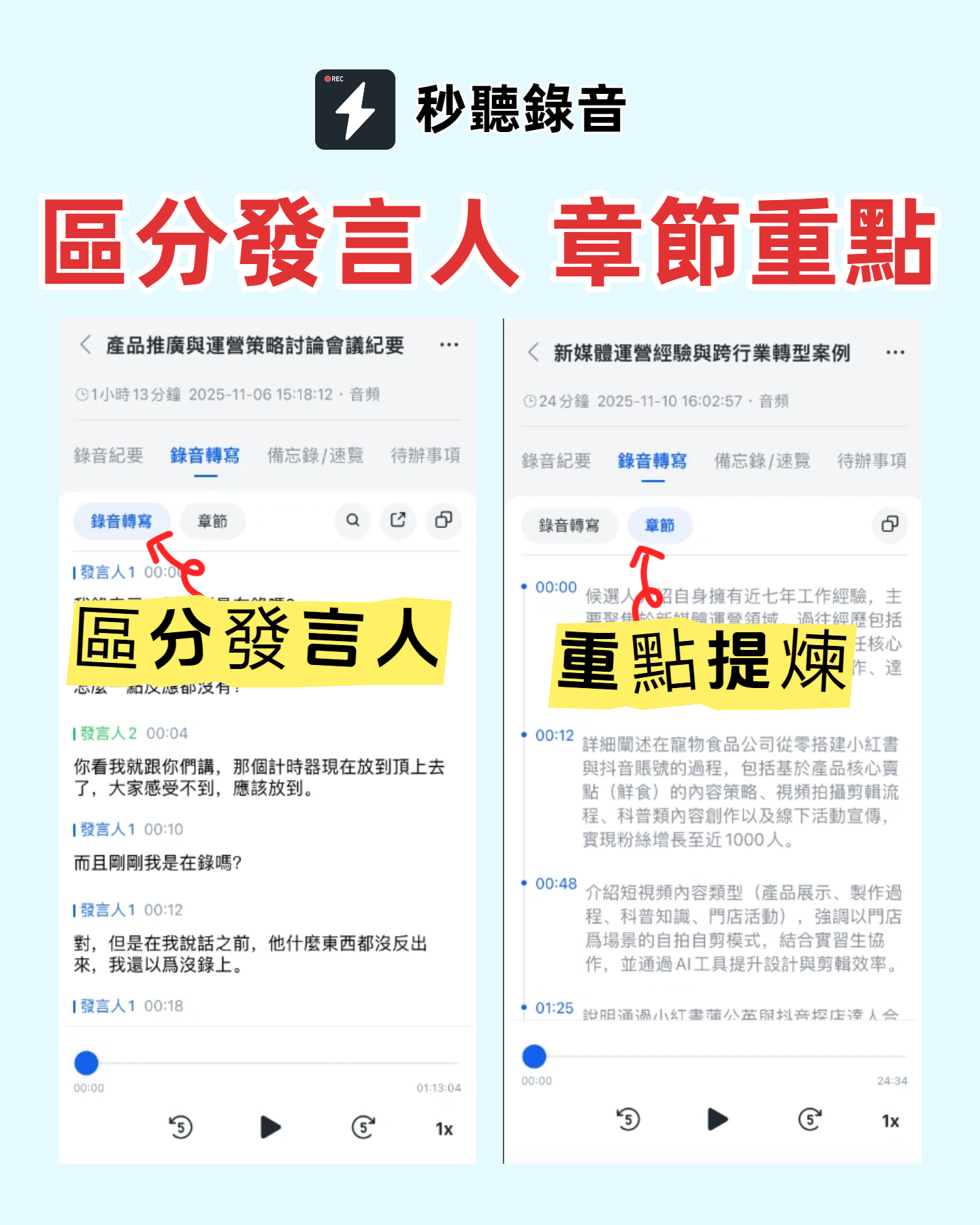
Wait Easily: Click "Go to Transcript," and TinRec will quickly generate highly accurate text with speaker labels and timestamps.
3. Edit and Export Subtitle Files
Polish the Transcript: Review the auto-generated text, adjust speaker names, correct misinterpretations, and optimize wording for your target audience.
Export Subtitle File: Click "Export" and select "SRT file" format. This file includes timestamps and speaker information, compatible with major platforms like YouTube and Vimeo.
4. Publish Your Subtitled Video
Go to Your Platform: Log in to YouTube, Vimeo, or other video platforms.
Upload Subtitles: Navigate to the subtitle settings page of your video and upload the SRT file exported from TinRec.
Share: Make your subtitled video public so more viewers can easily understand the content.
5. Tips for Better Subtitles
- Keep it concise: Keep subtitles short for easy reading.
- Ensure accuracy: Proofread the transcript carefully to avoid errors that could cause confusion.
Now you have the ability to turn any video into professional subtitles! Put down your pen and paper—let TinRec help you become a subtitle pro. Your audience (and their ears) will thank you!
Try TinRec Now
- 300 minutes of free speech-to-text per month
- Up to 30 minutes per session
- Upload up to 3 audio or video files
Start Free
Related Articles
- How to Convert MP4 to Text for Free and Effortlessly? Learn how to use TinRec's AI technology to quickly convert MP4 files into high-accuracy text for various scenarios.
- How to Convert MP3 to Text? Practical Steps for Accurate Transcription Master the techniques of converting MP3 files to text with TinRec and experience the efficiency and accuracy of AI tools.
- How to Get Podcast Transcripts? Step-by-Step Guide Learn how to use TinRec to obtain podcast transcripts and understand the dual value of transcripts for creators and listeners.
- Export SRT as Word Document with Auto Line Breaks Learn how to export DOCX format files from TinRec with auto line break functionality to boost post-production efficiency.
Turn every recording into actionable outcomes
Get 60 free transcription minutes when you sign in. No credit card required.
Related Reading
You might also like
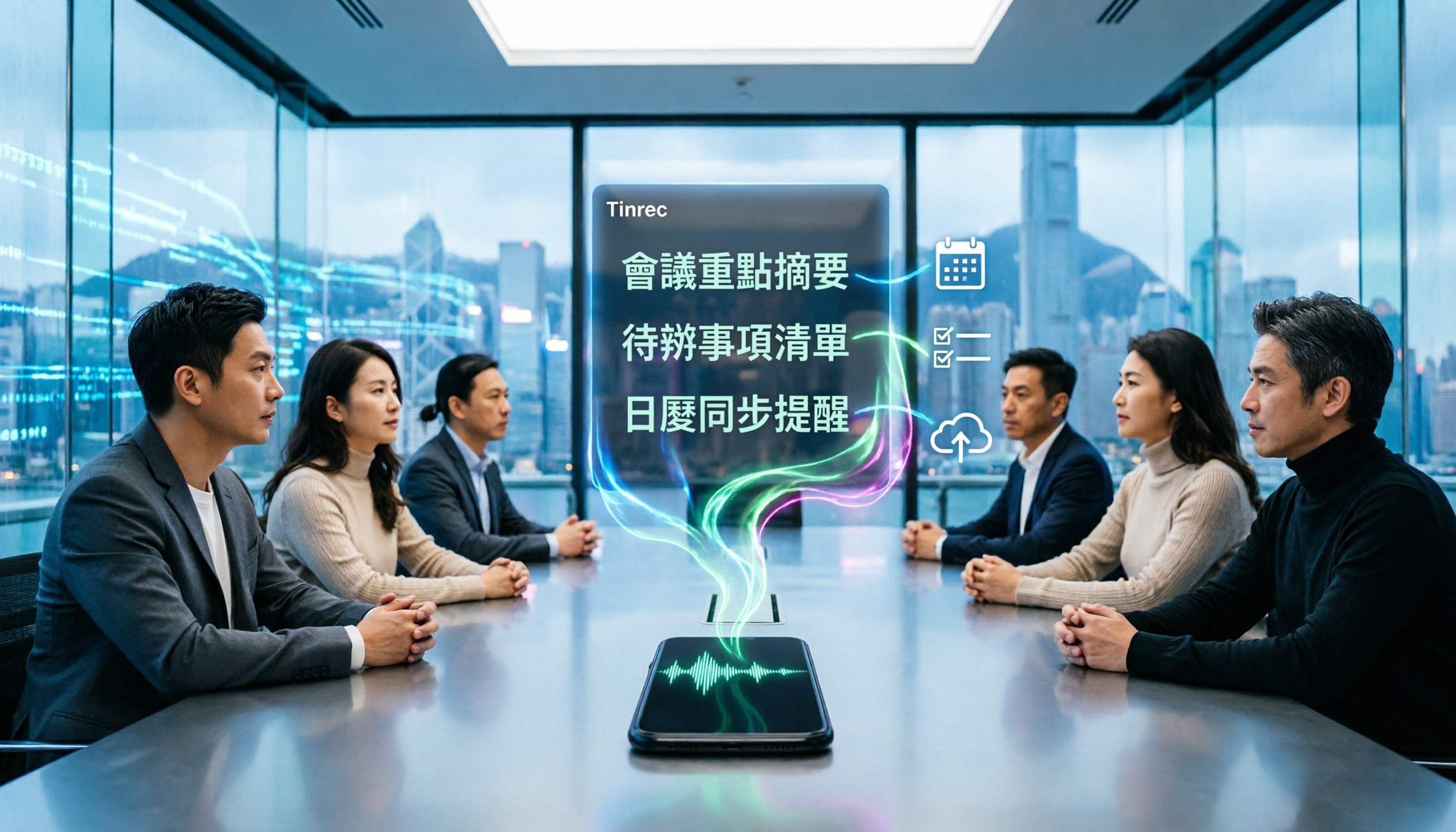
4 Best iPhone Cantonese Transcription Tools in 2026: Is Apple's Built-in Transcript Enough?
Apple's Voice Memos on iOS 18.4 and later can transcribe Cantonese recordings, but a raw transcript isn't the same as meeting-ready notes. This comparison breaks down four iPhone-compatible options—Tinrec, Apple Voice Memos, Notta, and PLAUD Note—covering Cantonese recognition accuracy, post-meeting organization, cross-platform export, and free-tier limits. We also flag the four most common mistakes buyers make, so you can tell when the built-in tool is enough and when you need something more.
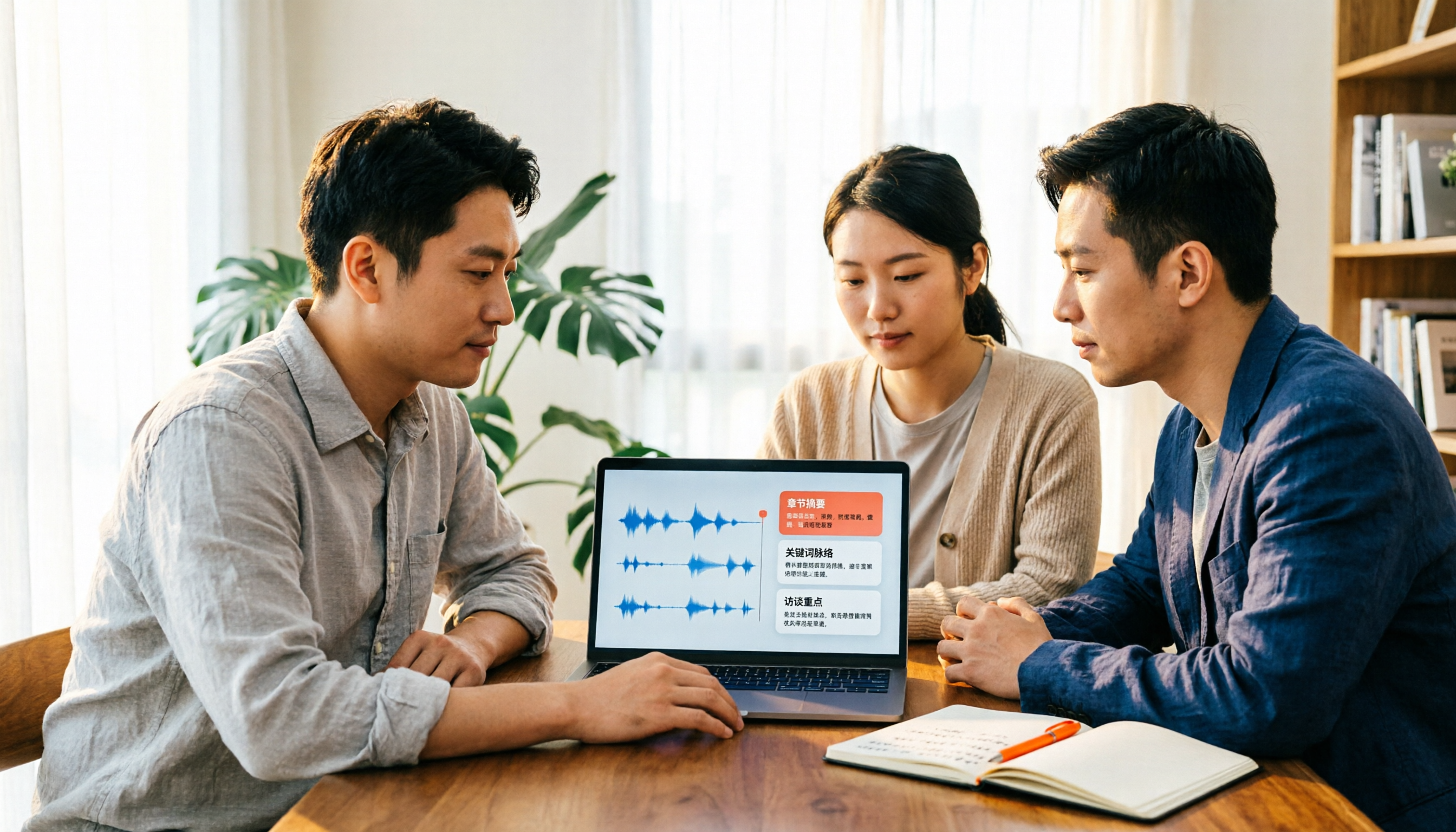
2026 Video Summarizer Comparison: Is Tinrec Better for Chinese Long Videos Than Monica and NoteGPT?
Before choosing a video summarizer, clarify whether you're summarizing public videos or your own meeting and interview recordings. This article compares Tinrec, Monica, NoteGPT, and others across five dimensions: source material, output depth, Chinese language performance, audio retention, and team governance. It also covers Tinrec's core features, practical use cases, team pricing, and FAQs to help you decide if the free version is enough.

Tinrec vs Notta 2026: 5-Dimension Comparison of AI Meeting Summary Generators — Which Is Better for Chinese-Language Scenarios?
Compare Tinrec and Notta across five dimensions, and see how Otter.ai and Granola differ. This article explains how to choose a meeting summary generator—meeting capture method, Chinese recognition experience, post-meeting output, team collaboration governance, and pricing—to help you decide which tool truly saves time on post-meeting organization.

2026 Comparison of 4 Meeting Speaker Organization Tools: Can Transcripts Be Traced Back to Speakers and Topics?
After a meeting, you have dozens of pages of transcripts but can't trace who said what or which topic was finalized? Starting from the real pain points of 'meeting speaker organization,' this article outlines 4 key points for choosing a tool and compares Tinrec, Otter.ai, Notta, and Granola in terms of transcript review and positioning, post-meeting output, and team collaboration. It also includes a pitfalls guide and selection advice.

Tinrec vs Otter.ai: Which AI Meeting Recorder Is Better for Chinese Meetings in 2026?
After a meeting, you're left with a recording and messy notes. This article compares Tinrec and Otter.ai across five dimensions—Chinese and mixed-language transcription, bot-free meeting recording, post-meeting summaries and action items, team roles and seat management, and free tiers and pricing—to help you decide which tool fits your workflow.

2026 Audio Summarizer Guide: Auto Summaries + AI Q&A to Find Key Points
How do you choose an audio summarizer? This guide covers common pitfalls and key factors like summary quality, AI Q&A, and cross-platform export. We recommend Tinrec, which supports bot-free online meeting recording, automatic summaries, action item extraction, and team spaces. Also includes alternatives like Granola and PLAUD, plus tips to avoid mistakes.

5 Best AI Transcription Tools in 2026: Which One Saves the Most Time?
We tested 5 recording-to-transcript tools, comparing Chinese recognition, post-meeting organization, AI Q&A, and team collaboration. See how Tinrec stacks up against Otter.ai, Notta, and TurboScribe, plus key buying tips and pitfalls to avoid.

Tinrec vs Otter.ai: Which AI Meeting Summary Tool Is Better for Chinese-Speaking Teams in 2026?
Many people think a transcript means the meeting notes are done, but the real time sink is post-meeting organization. This hands-on comparison of Tinrec and Otter.ai—two tools that automatically generate meeting summaries from recordings—evaluates them across six dimensions: Chinese-language meeting experience, recording method, post-meeting outputs, audio retention, team governance, and pricing/quotas, helping Chinese-speaking teams decide which tool better fits their workflow.

4 Best Meeting Transcription Tools in 2026: Free Tiers, Chinese Accuracy, and Post-Meeting Efficiency Compared
Tired of spending hours writing meeting minutes? This article compares Tinrec, Notta, Granola, and PLAUD Note across four key areas: how they record online meetings, Chinese and mixed-language transcription accuracy, post-transcription summarization and AI Q&A, and team data ownership. It also includes a pitfalls guide and selection advice.