

Turn recordings into transcripts and summaries in minutes
Upload audio or video for multilingual transcription, AI notes, and action items
Online meetings you can join with just a Google Meet code can be a headache after they end—replaying recordings, creating transcripts, and writing meeting notes. This guide uses Tinrec (a voice recording and transcription app) to walk you through converting meeting recordings into searchable, summarizable text. Even if you record with your phone, Tinrec can automatically generate to-do lists.
Before You Start: What You Need
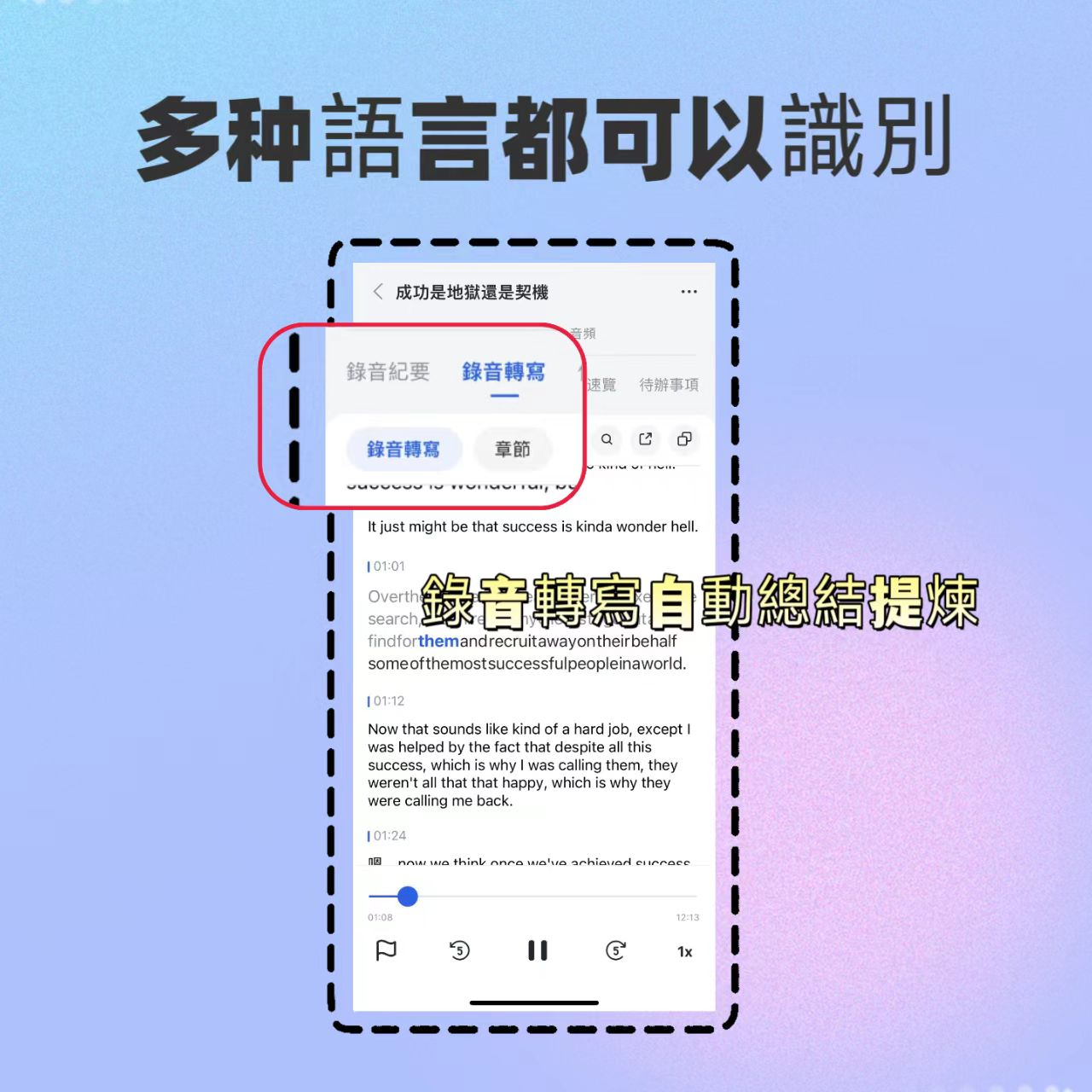
• A computer or smartphone (iPhone/Android—Tinrec supports both)
• Download the Tinrec app (free on App Store or Google Play; sign up with Google or Apple ID)
• A Google Meet recording (you can use Meet’s built-in recording feature or record with your phone nearby)
• A stable internet connection (real-time transcription requires internet; download language packs for offline use)
Step 1: Record Your Google Meet Meeting
The goal here is to get a clear meeting recording—everything else depends on it.
If you’re on a computer, use Meet’s “Record meeting” feature (saves to Google Drive). If you joined via a meeting code and can’t use built-in recording, open Tinrec on your phone, tap record, and place the phone near the speaker.
Position the phone as close to the speaker as possible—the clearer the audio, the higher the AI transcription accuracy. If attendees use microphones, the quality will be even better than external speakers.
Once done, the recording is saved in Tinrec. You’ll see it on the main screen with duration and file size.
Step 2: Let AI Transcribe It
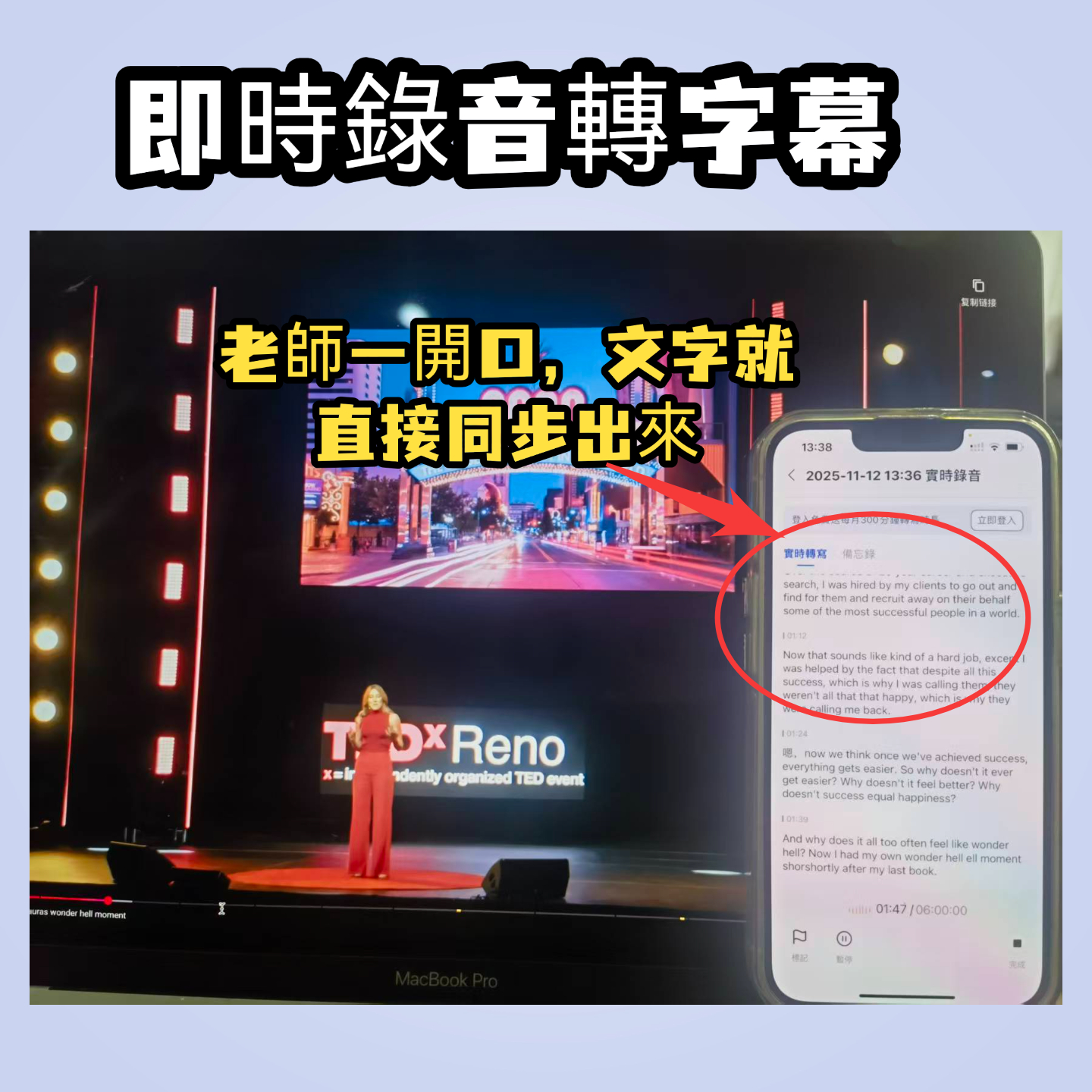
Open the recorded meeting in Tinrec, and it will automatically transcribe the audio. This step is fully automated—just wait a few minutes (transcription takes about one-third of the recording length).
During transcription, text appears in segments, already split by speaker (Speaker A, B, C). This speaker differentiation is handy—no more guessing who said what.
Why wait for AI? Manually transcribing a one-hour meeting takes 3–4 times as long. With Tinrec’s draft, you only need to proofread quickly, saving at least 80% of the time.
After transcription, you’ll have a full transcript with timestamps and speaker labels.
Step 3: Quickly Proofread the Transcript
Spend about 5 minutes scanning for obvious errors. Tinrec’s accuracy is high for normal audio, but proper nouns, English abbreviations, or overlapping speech can cause mistakes.
Play the recording alongside the text—click any segment to jump to that point for easy comparison. Mark or manually edit any persistent errors.
Proofreading isn’t just error-checking; it’s also a chance to review key points. Many people note to-dos or highlight important sections as they go.
Once proofread, your transcript becomes a reliable source document for meeting notes.
Stop organizing recordings by hand
Upload audio or video and automatically get a transcript, summary, and action items
Step 4: Let AI Generate Meeting Minutes
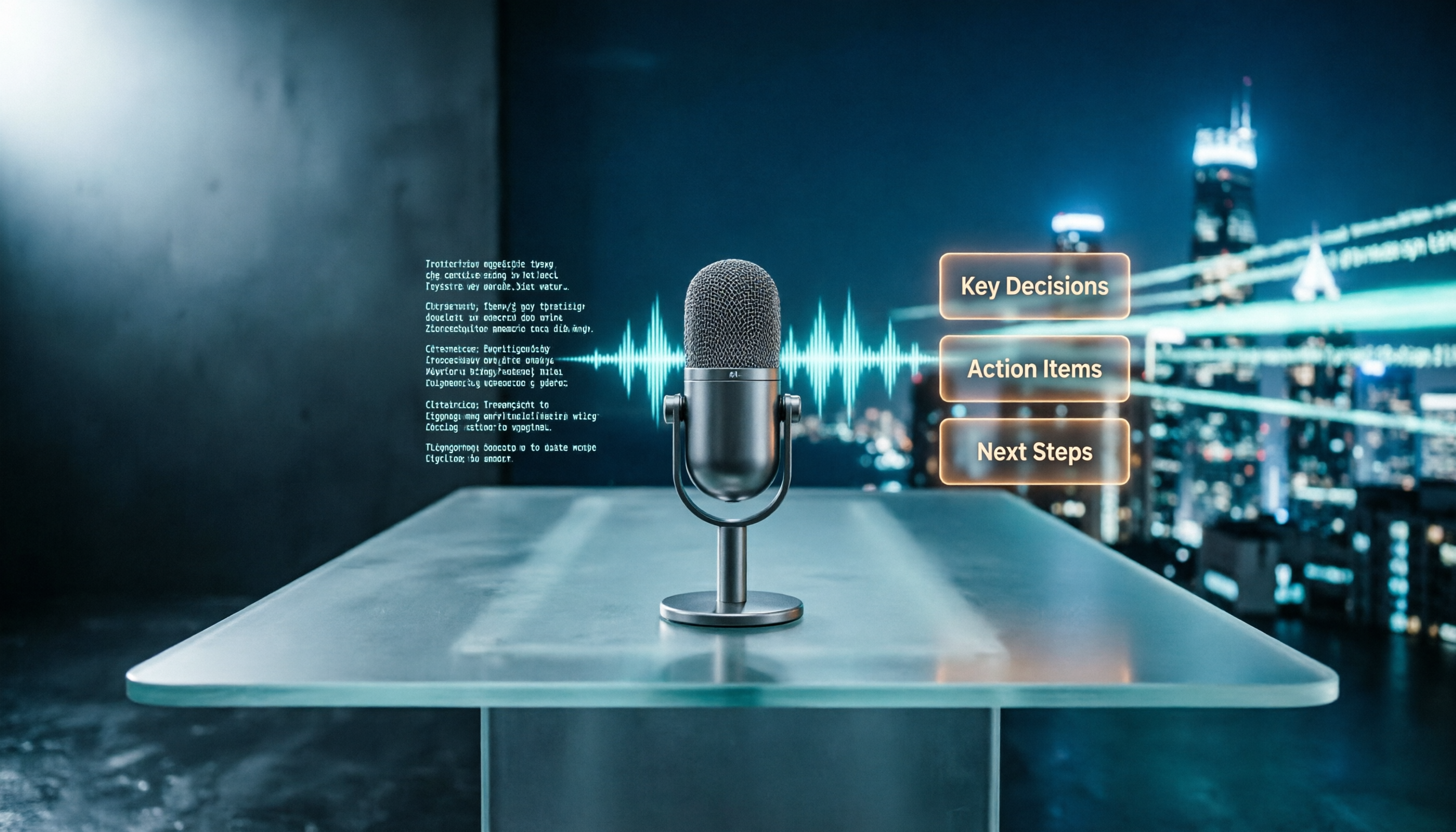
Transcripts are comprehensive but long. Tinrec’s AI summary feature automatically extracts key topics, decisions, and action items from thousands of words.
Tap “AI Summary,” and the system generates a 300–500 word summary with auto-divided sections (e.g., “Project Updates,” “Budget Discussion,” “Next Steps”). You can edit it or send it directly as meeting notes to colleagues.
Even better: the “To-Do List” feature automatically extracts “who, what, and when” from the conversation. For frequent Google Meet users, this saves hours of follow-up.
You’ll end up with a full transcript, a summary, a to-do list, and meeting highlights organized by section.
Step 5: Export and Share
Tinrec supports multiple export formats: text, PDF, Word, even Markdown. You can also share a link that lets team members view the transcript and summary without installing Tinrec.
If you use Notion, Google Docs, or OneNote, Tinrec’s sync feature automatically sends results to these tools, integrating into your existing workflow.
After exporting, that Google Meet discussion you joined with a code is no longer just a blurry recording—it’s searchable, copyable, traceable documentation.
FAQ & Troubleshooting
Q: The transcription has many errors. What should I do?
Usually caused by a noisy environment or the phone being too far. Tinrec has built-in noise reduction—enable it in settings before recording. If using Google Meet’s built-in recording, you can manually select “High Noise” mode after importing. Most transcription tools don’t have this option.
Q: My Google Meet meeting is nearly two hours. Can it transcribe the whole thing at once?
Yes, Tinrec supports recordings up to 5 hours (free plan offers 100 minutes/month; consider Pro for longer meetings). Keep the screen on during transcription to prevent auto-pause.
Q: The meeting mixes Chinese and English. Can the AI handle it?
Tinrec handles mixed-language content well, especially common Chinese-English code-switching. However, if entire sentences are in English with a heavy accent, accuracy may drop—proofread those parts.
Q: I don’t know how to use Google Meet’s built-in recording.
No problem—just download Tinrec on your phone, join the meeting, and record from the speaker. Or use Tinrec’s web version to record system audio.
Pro Tips: 3 Ways to Double Tinrec’s Efficiency
- AI Chat Query: Ask Tinrec questions like “What was the meeting conclusion?” or “Who is responsible for the budget spreadsheet?”—it answers based on the transcript.
- Cross-Platform Sync: Record on your phone, then edit immediately on your computer. Record during your commute, polish at the office.
- Multiple Deliverables: Beyond basic meeting minutes, export to-do lists as Excel tables or convert key points into mind maps for easy sharing.
Alternatives to Tinrec
• Otter.ai: Good for English-first teams, auto-joins Google Meet and generates English minutes, but Chinese transcription quality is lower than Tinrec.
• Notta: Similar features but higher per-minute pricing and weaker capability for online video transcription.
Both lean toward “meeting bots” or pure transcription tools, unlike Tinrec which organizes audio into summaries, to-dos, Q&A, and exportable formats. If you need a long-term tool for meetings, classes, and videos, try Tinrec’s free plan first.
Conclusion
With these 5 steps, any online discussion joined via Google Meet code can be quickly turned into transcripts, automatically generated meeting minutes, and to-do lists. Next: download the free version of Tinrec and try it with a recent meeting. The 100 minutes/month free tier is enough for 2–3 meetings—experience the full journey from recording to actionable documentation.
Turn every recording into actionable outcomes
Get 60 free transcription minutes when you sign in. No credit card required.
Related Reading
You might also like

2026 Latest Versions of 2 Speech-to-Text Tools Compared: Tinrec vs Otter.ai — Which Is Better for Chinese Meetings?
Many people assume the "latest version" is automatically the most accurate, but overlook how meeting audio gets in, whether output is usable right after the meeting, and whether team data stays with the team. Using Tinrec and Otter.ai as examples, this article compares Chinese transcription, bot-free recording, AI Q&A, team collaboration, and cross-platform input to help you decide which fits your meeting scenarios.

2025 Audio-to-Text Guide: Bot-Free Meeting Recording + Auto-Generated Summaries & Action Items
In 2025, audio-to-text is more than just turning voice into words. Based on a real meeting-recording workflow, this guide compares Tinrec and Otter.ai across five dimensions—Chinese meeting experience, bot-free recording, post-meeting outputs, team data governance, and pricing—to help you decide whether you need a transcript or meeting data you can keep using.

How to Use Speech-to-Text in 2026: 3 Steps to Get Started + AI Summaries and Action Items in One Go
How do you use speech-to-text? This guide covers three scenarios—live dictation, transcribing existing audio files, and online meeting notes—with a hands-on walkthrough of Tinrec's full workflow, free vs. paid differences, and comparisons of Notta, Otter.ai, and PLAUD for different use cases. It also highlights the 3 most common mistakes beginners make.

2026 Speech-to-Text Tools Compared: Which Free Tier Is Enough?
Meeting over but your notes are only three lines? This practical guide covers four key factors for choosing a speech-to-text tool, walks through Tinrec's full workflow and free plan limits, and compares Otter.ai, Notta, and TurboScribe on quotas and best-fit users—so you can find a plan that's sufficient without wasting money.

4 Best Audio-to-Text Tools in 2026: Free Tiers and Chinese Accuracy Compared
The meeting ends, but the overtime begins. This article compares Tinrec, Notta, TurboScribe, and Otter.ai across three dimensions: free tier limits, Chinese and mixed Chinese-English recognition, and post-meeting organization. It also highlights three common pitfalls to help you decide which tool can truly save you that hour after the meeting.

5 Best Speech-to-Text Tools in 2026: Chinese Accuracy & AI Summaries Compared
How to choose a speech-to-text tool? This comparison breaks down Chinese recognition, AI summaries and meeting Q&A, input sources, and team collaboration across four key criteria. It focuses on Tinrec (Miao Ting Lu Yin) and compares Otter.ai, Notta, and Granola on positioning, free tiers, and ideal users, with four common pitfalls and scenario-based recommendations.

2026 Review of 5 Audio-to-Text Apps: How Tinrec Differs from Otter and Notta
Hands-on testing of 5 popular audio-to-text apps in 2026, comparing Chinese meeting recognition, online meeting recording methods, post-meeting summaries and action items, free tiers, and team data management. We explain how Tinrec differs from Otter and Notta in real workflows to help you choose the one that truly saves time.

Free Audio Transcription in 2026: Avoid 'Fake Free' Traps + AI Summary Workflow Explained
How to choose free audio transcription in 2026? We break down three common 'fake free' traps and 5 key selection criteria, then compare the free tiers and limits of Tinrec, Google Live Transcribe, Good Tape, and Otter.ai. Includes a pitfall-avoidance guide and scenario-based recommendations to help you get usable transcripts and meeting highlights at zero cost.
2026 Comparison of 5 Audio-to-Text Tools: Is the Free Version Enough?
Free audio-to-text tools seem plentiful, but free tiers hide many limits: maximum duration per file, transcript-only without audio storage, and paywalls popping up mid-transcription. This article breaks down the free rules of 5 tools from a practical standpoint, explains Tinrec's no-bot meeting recording and post-meeting AI organization workflow, and compares the free plan differences of Notta, TurboScribe, and Otter.ai to help you decide which free version is truly sufficient.