
Turn recordings into transcripts and summaries in minutes
Upload audio or video for multilingual transcription, AI notes, and action items
The other day, after a corporate training session, a student came up to me and asked, "Teacher, Google Meet now has AI meeting notes. Does that mean we don't need another tool?"
My answer was, "It depends on your needs."
But after trying it myself a few times, I realized that for most knowledge workers, the built-in AI alone falls a little short.
It's not that the built-in feature is bad.
It's that it only solves a small part of "recording," without turning your meetings, courses, and interviews into truly searchable, queryable, and reusable "knowledge."
So today, I want to share a workflow that shows you how, with a tool like Tinrec, you can turn Google Meet recordings from a long, hard-to-digest audio file into actionable material.
And this method isn't just for meetings.
You can apply the same logic to any audio or video content.
What Can Google Meet's AI Meeting Notes Do for You? First, Recognize Its Limitations
Google Meet's AI features mainly provide real-time captions during meetings and automatically send a summary after the meeting.
This is convenient for those who just want a quick recap of "what was roughly discussed."
But if you're a professional who needs to organize, assign tasks, and cross-reference later, you'll quickly run into a few issues:
- Summaries are too brief: The emailed summary is usually just a few lines, missing discussion details, different people's positions, and action items.
- Can't ask follow-up questions: You can't ask the AI, "What was the final budget figure?" — it's not possible.
- Recordings are stuck in the cloud: It's hard to combine this recording with others from the same project to build your own database.
- No cross-platform integration: If you have in-person meeting recordings, lecture audio, or technical talks from YouTube, Google Meet can't help.
These limitations are exactly why I started using Tinrec to handle the second half of the organization work.
(Screenshot: Google Meet meeting screen and Tinrec icon, arrow pointing to workflow from meeting recording to complete organization)
Tinrec's Core Capability: Not Just Recording, But Understanding and Action
When I put a Google Meet recording into Tinrec, the first thing it does is transcribe it to text.
But then, it's completely different.
1. Real-time transcription, text as you record
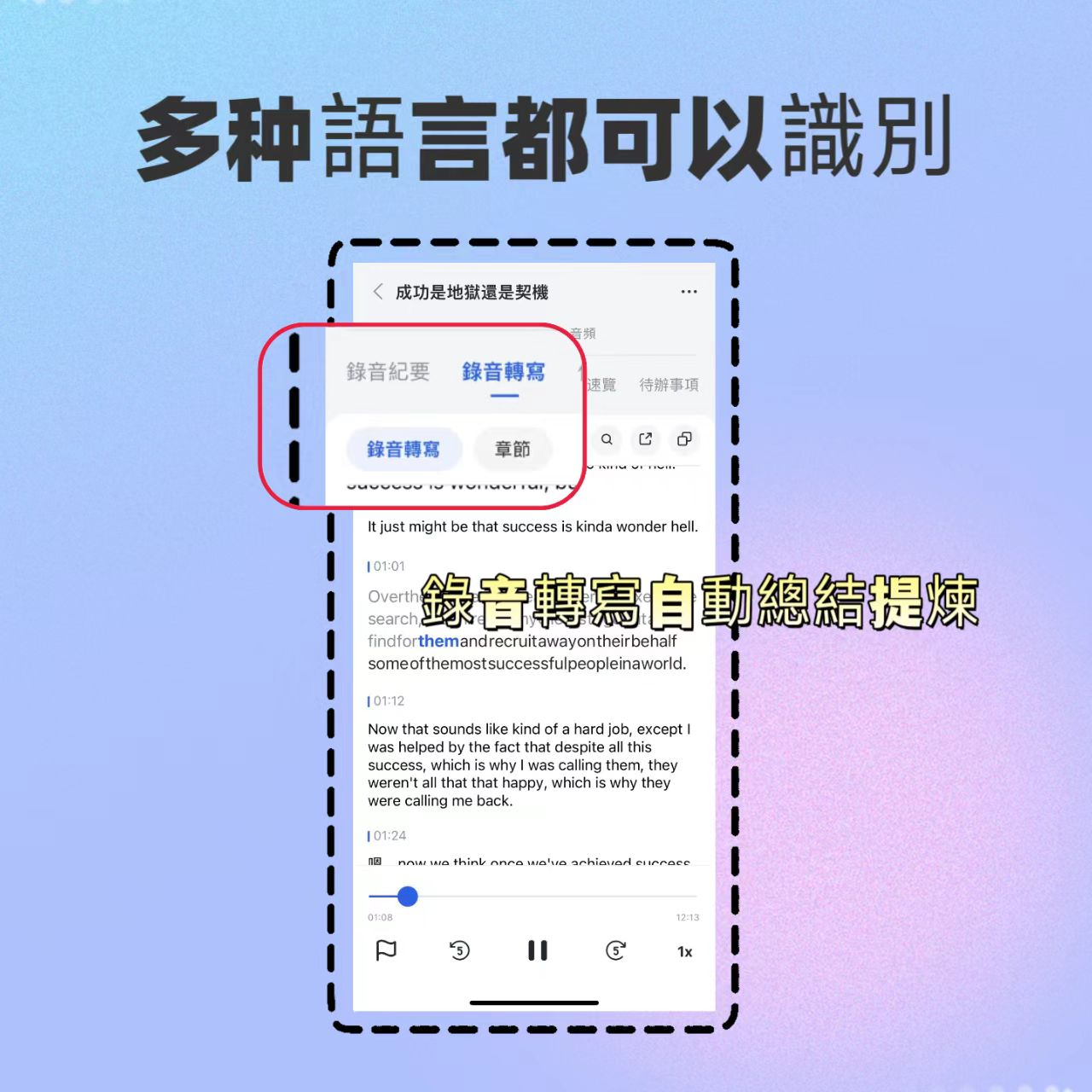
You can certainly turn on captions in Google Meet, but Tinrec saves both the recording and text simultaneously, and later you can click on any word to jump to that moment in the audio.
(Screenshot: Real-time transcription 1, arrow pointing to the live transcription text block)
2. Structured AI Summary
It doesn't just condense the transcript into a paragraph.
Tinrec lists the meeting topic, conclusions, action items, and responsible persons separately.
This is much clearer than Google Meet's summary—I don't have to re-listen to find key points.
(Screenshot: Quick listen meeting summary, arrow pointing to sections for summary, conclusions, action items)
3. Automatic Extraction of Action Items
This is my favorite feature.
During meetings, people talk over each other, and afterward, it's easy to miss "who should do what."
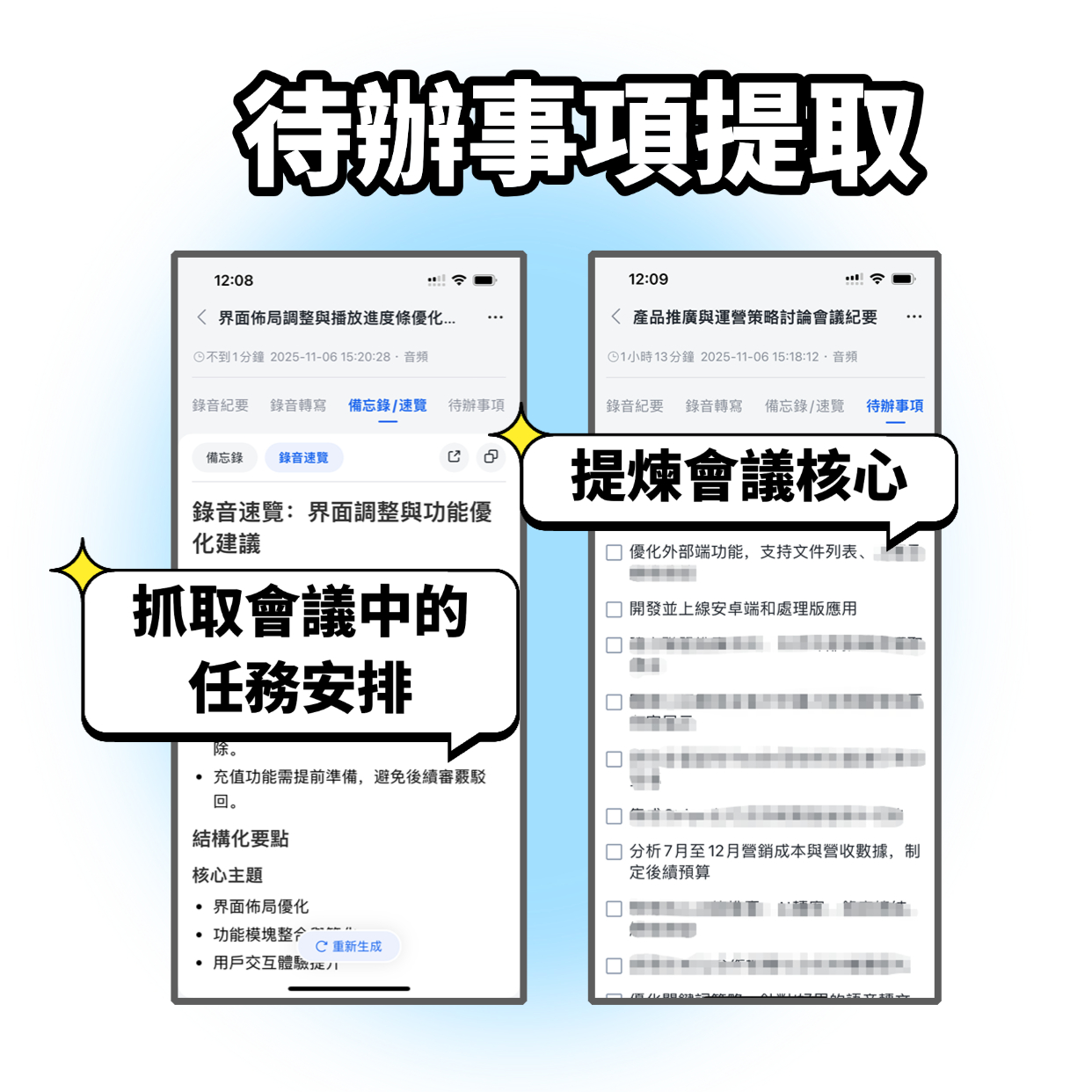
Tinrec directly extracts action items from the conversation, even organizing deadlines.
(Screenshot: Action item extraction 1, arrow pointing to each action item and responsible person)
4. AI Chat Query: Turn Recordings into a Q&A Database
Google Meet ends after recording.
But in Tinrec, you can directly ask: "In last week's product meeting, what timelines did the marketing team propose?"
It searches based on semantics, so you don't have to dig through the transcript yourself.
(Screenshot: AI chat query 1, arrow pointing to question input box and answer content)
5. Multi-format Export, Connecting Back to Your Workflow
Whether you need to generate meeting minutes, organize into a table, or export to Notion or Google Docs, Tinrec integrates with your existing work habits.
(Screenshot: Multi-format file export, arrow pointing to export menu)
Stop organizing recordings by hand
Upload audio or video and automatically get a transcript, summary, and action items
Real-World Use Cases: From Meetings to Courses, One Method Covers All
Scenario 1: Online Project Meeting
I hold a meeting on Google Meet and simultaneously open Tinrec to record.
When the meeting ends, I already have the transcript, summary, and action items.
I paste the action items into the team group chat, and everyone knows what to do immediately.
(Screenshot: Meeting minutes - key notes anytime, arrow pointing to one-click share button)
Scenario 2: Online Course or Lecture
Many knowledge workers use Google Meet for courses and lectures.
The built-in recording file is hard to review.
After putting it into Tinrec, not only can I view the transcript, but I can also use the chapter feature to split a two-hour session into a dozen topic segments, clicking to jump directly to the part I want to review.
(Screenshot: Speaker differentiation and chapter splitting, arrow pointing to chapter titles and timestamps)
Scenario 3: Client Interviews or User Research
Interview recordings often last an hour or more, and finding key quotes is painful.
Using the AI chat query, I ask: "What examples did the interviewee give when mentioning pain points?"
Tinrec directly pulls out the relevant passages and original text, making report writing much faster.
(Screenshot: AI Q&A, arrow pointing to dialogue-based answer from recording)
Scenario 4: Turn YouTube Technical Talks into Written Notes
Google Meet doesn't cover public online videos.
But Tinrec can directly paste a YouTube link, transcribe the entire video into a text summary, and let you ask questions about its content.
(Screenshot: YouTube online video analysis and summary, arrow pointing to the link input field and generated summary)
You see, both use AI, but the difference is: one passively sends you a summary email; the other lets you actively turn content into callable knowledge.
5 Key Points to Consider Before Choosing an AI Meeting Organization Tool
If you're considering adding a tool beyond Google Meet, evaluate from these angles:
1. Do you only need to organize meetings?
If your audio/video sources are only Google Meet, the built-in feature might barely suffice.
But if you have any course recordings, offline meetings, interviews, or video note-taking needs, you need a tool that handles multiple sources.
Tinrec is very comprehensive in this regard—it supports almost all common audio/video formats.
2. What's the next step after organizing?
If you just want a text file for reference, any transcription tool will do.
But if you need to extract actions, repeatedly query, or even generate reports, then "post-transcription processing" capabilities are key.
Tinrec integrates summaries, action items, Q&A, and export—in my experience, it has the smoothest workflow.
3. Quality of Chinese content processing
Google Meet's AI summary often lacks detail for Chinese meetings.
In my tests, Tinrec's summaries and action items are much more complete for Chinese meetings and mixed Chinese-English contexts.
4. Cross-platform and data consolidation
If you want all meeting and learning recordings in one place, searchable and queryable at any time, built-in platform features won't work because they're locked inside the meeting software.
Tinrec has iOS, Android, and web versions, with unified management of recordings and results—crucial for building a personal knowledge base.
(Screenshot: Supports iOS, Android, and web, arrow pointing to each device icon)
5. Pricing and flexibility
Many tools require a monthly fixed fee, but you may not have heavy meetings every month.
Tinrec has a free trial and weekly cards for short-term needs, which is friendlier for those with occasional intensive meetings or courses.
Frequently Asked Questions
Q: Do I need to install a plugin or grant permission to use Tinrec with Google Meet?
No. Just open Tinrec on your computer or phone, select record, and it will capture your device's system audio and microphone audio.
No changes are needed on the Google Meet side.
Q: Are the recorded files secure?
All recordings and transcriptions are encrypted and stored in your account, accessible only by you.
You can delete them at any time.
Q: Is the free version sufficient?
If you have only one or two meetings per week, the free version's monthly allowance is enough to try the full workflow.
If you have intensive courses or projects, adding a weekly or monthly card will be more than sufficient.
Q: Can multiple people share the same recording?
Currently, Tinrec uses a personal account model.
But you can export the organized summaries and action items to share with your team.
(Screenshot: Action item list, arrow pointing to share or export button)
Conclusion: Make Your Google Meet Recordings Truly Your Knowledge Assets
In my experience, when you separate "recording" from "organization," your needs become clear.
Google Meet's AI handles the first step of recording.
And Tinrec handles the truly valuable second half: understanding, action, and consolidation.
If you're already using Google Meet for meetings, courses, and interviews, but still in the "receive a summary email and forget it" state,
I suggest you try putting the same recording into Tinrec.
You'll find that a recording can be more than just an archive—it can be truly usable data.
You can do it too, three quick steps to get started:
- Download Tinrec (iOS, Android, or web) and create a free account.
- Next time you're on Google Meet, open Tinrec and start recording simultaneously.
- After the meeting, check the summary and action items, try asking the AI questions, and experience the difference organization makes.
Try it step by step, and you'll gradually master this method.
Turn every recording into actionable outcomes
Get 60 free transcription minutes when you sign in. No credit card required.
Related Reading
You might also like

2026 Latest Versions of 2 Speech-to-Text Tools Compared: Tinrec vs Otter.ai — Which Is Better for Chinese Meetings?
Many people assume the "latest version" is automatically the most accurate, but overlook how meeting audio gets in, whether output is usable right after the meeting, and whether team data stays with the team. Using Tinrec and Otter.ai as examples, this article compares Chinese transcription, bot-free recording, AI Q&A, team collaboration, and cross-platform input to help you decide which fits your meeting scenarios.

2025 Audio-to-Text Guide: Bot-Free Meeting Recording + Auto-Generated Summaries & Action Items
In 2025, audio-to-text is more than just turning voice into words. Based on a real meeting-recording workflow, this guide compares Tinrec and Otter.ai across five dimensions—Chinese meeting experience, bot-free recording, post-meeting outputs, team data governance, and pricing—to help you decide whether you need a transcript or meeting data you can keep using.

How to Use Speech-to-Text in 2026: 3 Steps to Get Started + AI Summaries and Action Items in One Go
How do you use speech-to-text? This guide covers three scenarios—live dictation, transcribing existing audio files, and online meeting notes—with a hands-on walkthrough of Tinrec's full workflow, free vs. paid differences, and comparisons of Notta, Otter.ai, and PLAUD for different use cases. It also highlights the 3 most common mistakes beginners make.

2026 Speech-to-Text Tools Compared: Which Free Tier Is Enough?
Meeting over but your notes are only three lines? This practical guide covers four key factors for choosing a speech-to-text tool, walks through Tinrec's full workflow and free plan limits, and compares Otter.ai, Notta, and TurboScribe on quotas and best-fit users—so you can find a plan that's sufficient without wasting money.

4 Best Audio-to-Text Tools in 2026: Free Tiers and Chinese Accuracy Compared
The meeting ends, but the overtime begins. This article compares Tinrec, Notta, TurboScribe, and Otter.ai across three dimensions: free tier limits, Chinese and mixed Chinese-English recognition, and post-meeting organization. It also highlights three common pitfalls to help you decide which tool can truly save you that hour after the meeting.

5 Best Speech-to-Text Tools in 2026: Chinese Accuracy & AI Summaries Compared
How to choose a speech-to-text tool? This comparison breaks down Chinese recognition, AI summaries and meeting Q&A, input sources, and team collaboration across four key criteria. It focuses on Tinrec (Miao Ting Lu Yin) and compares Otter.ai, Notta, and Granola on positioning, free tiers, and ideal users, with four common pitfalls and scenario-based recommendations.

2026 Review of 5 Audio-to-Text Apps: How Tinrec Differs from Otter and Notta
Hands-on testing of 5 popular audio-to-text apps in 2026, comparing Chinese meeting recognition, online meeting recording methods, post-meeting summaries and action items, free tiers, and team data management. We explain how Tinrec differs from Otter and Notta in real workflows to help you choose the one that truly saves time.

Free Audio Transcription in 2026: Avoid 'Fake Free' Traps + AI Summary Workflow Explained
How to choose free audio transcription in 2026? We break down three common 'fake free' traps and 5 key selection criteria, then compare the free tiers and limits of Tinrec, Google Live Transcribe, Good Tape, and Otter.ai. Includes a pitfall-avoidance guide and scenario-based recommendations to help you get usable transcripts and meeting highlights at zero cost.
2026 Comparison of 5 Audio-to-Text Tools: Is the Free Version Enough?
Free audio-to-text tools seem plentiful, but free tiers hide many limits: maximum duration per file, transcript-only without audio storage, and paywalls popping up mid-transcription. This article breaks down the free rules of 5 tools from a practical standpoint, explains Tinrec's no-bot meeting recording and post-meeting AI organization workflow, and compares the free plan differences of Notta, TurboScribe, and Otter.ai to help you decide which free version is truly sufficient.