

Turn recordings into transcripts and summaries in minutes
Upload audio or video for multilingual transcription, AI notes, and action items
Before You Start | What You Need
Last semester, while rushing through final papers, my group used Google Meet for discussions and Teams for project meetings. Notes were a mess until I discovered Tinrec. This article not only compares two major video tools but also shows you how to use Tinrec to turn any online class or meeting recording into your personal notes database.
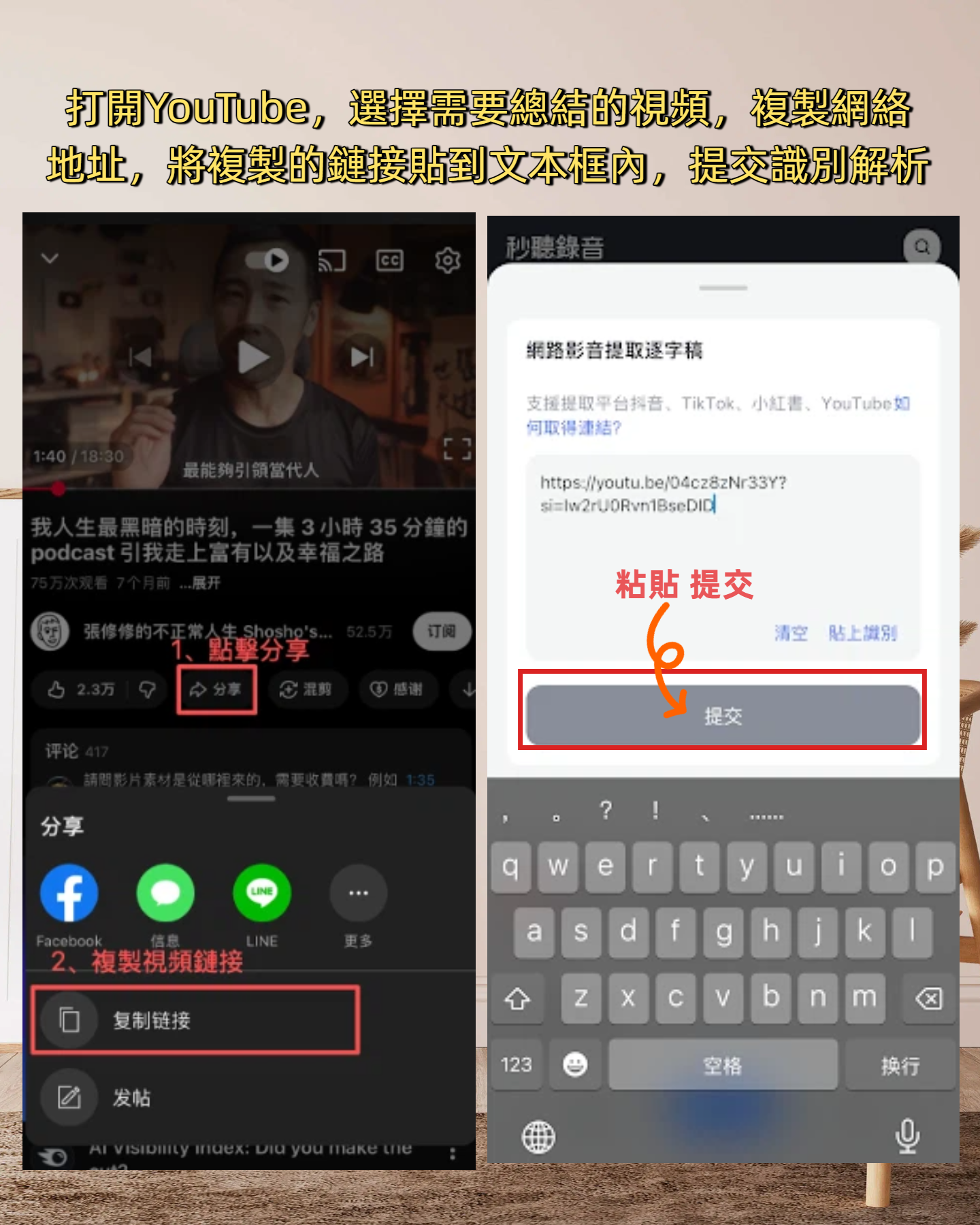
Before you start, get these ready:
• A smartphone or computer (iPhone, Android, Windows, Mac – Tinrec supports all platforms with both the mobile app and web version)
• Download the Tinrec app (free from App Store or Google Play, sign in with Google or Apple ID)
• A Google Meet or Microsoft Teams account (school email usually gives free access; both platforms are used by students)
• A stable internet connection (real-time recording and transcription require internet; for offline use, download language packs)
• A desire to ditch handwritten notes – trust me, this trick doubled my final exam review efficiency last semester.
Step 1 | Record Your Online Meeting or Class
The goal is to get a clean audio recording – all AI processing depends on it.
Open Tinrec, tap the record button on the main screen, then switch back to Google Meet or Teams to start your class or discussion. You can record directly via the phone speaker, but I recommend using the computer's internal recording (Tinrec's web version supports system audio capture) to capture the instructor's voice and slide narration clearly.
I initially used Google Meet's built-in recording feature, but the files were huge and lacked text records. Later, I tried Teams recording, but converting to text required Word Online – slow and often missing sentences. Then I discovered Tinrec records and transcribes in real time, so a word-for-word transcript is ready when class ends – a lifesaver.
Why use Tinrec specifically? Because built-in recordings only save video, while Tinrec simultaneously converts audio to text with timestamps, saving you post-processing time. It also supports noise reduction, so even if you're recording in a dorm with a roommate gaming in the background, AI can isolate the instructor's voice.
After recording, you'll see the audio file on Tinrec's main screen with its duration. If you record on a computer, the mobile app syncs it too – I often record on my computer and review on my phone during commutes.
(Illustration: A student at a dorm desk with a laptop open to a Teams meeting, a phone next to it running Tinrec recording, with real-time transcript text streaming on the screen)
Step 2 | Let AI Generate a Transcript
If you recorded live, the transcript was already generated in real time; if you import an existing Meet or Teams recording, this step is for you.
In Tinrec, open the recording and tap “Transcribe” below. AI will convert audio to text. A typical 1-hour class takes about 5-10 minutes, with accuracy over 90% (though mumbling or background noise may reduce it).
Why is this step important? Handwritten notes capture at most 30% of key points, but a transcript preserves 100%. When you can't remember whether the professor said “will be on the exam” or “won't be,” just search the keyword. Last semester, Tinrec's transcripts saved me from writing two notebooks.
After transcription, each line has a timestamp; tap to jump to the original audio – a huge advantage over Meet or Teams' basic text records.
(Illustration: Mobile screen showing a class transcript with clear text, a timeline on the side, and buttons like “Summary” and “To-Do” below)
Step 3 | Quickly Proofread the Transcript
AI may still mishear terms like “Information Management” as “Infor Mation Management,” especially for jargon. But don't worry – proofreading in Tinrec is faster than you think.
Stop organizing recordings by hand
Upload audio or video and automatically get a transcript, summary, and action items
You can edit directly in the transcript while listening: tap a timestamp to play audio from that second, then correct the text. I usually finish proofreading a 2-hour class in 10 minutes, since most is correct; only a few keywords need fixing.
Tip: Enable “Smart Noise Reduction” and “Professional Vocabulary” in settings, and input common course terms beforehand to boost transcription accuracy. Meet and Teams lack this feature entirely.
Once proofread, the transcript becomes your ultimate review material – perfect for collaborative notes.
Step 4 | Let AI Generate Meeting Minutes (or Class Notes)
This is my favorite feature – the one that elevated Tinrec from a transcription tool to an organizational tool.
On the transcript page, tap “AI Summary,” and Tinrec automatically produces structured highlights:
- Today's topic
- Key discussion points (or class sections)
- Action items (super useful for group assignments)
- Key conclusions
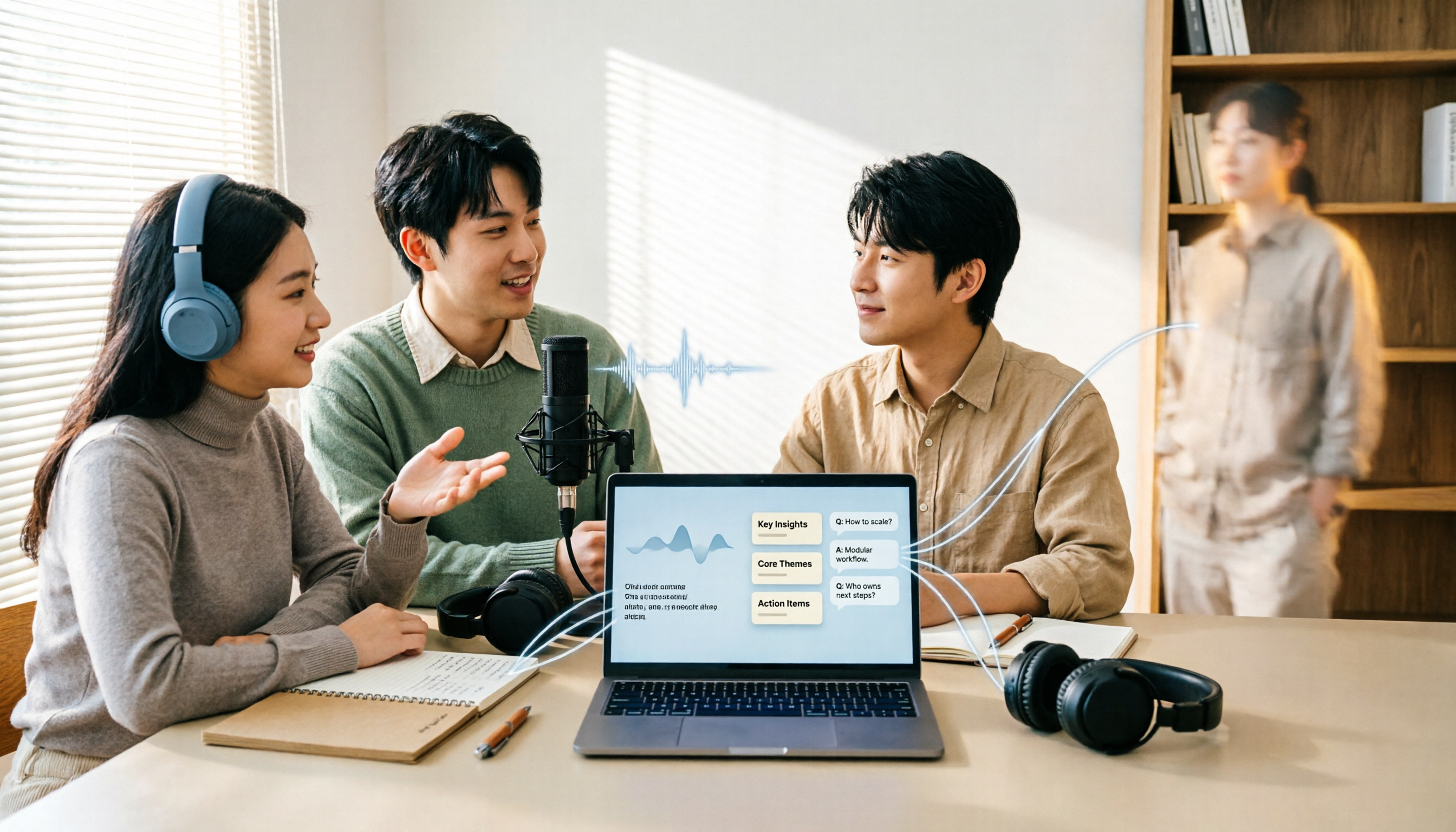
It can even distinguish different speakers (if audio quality is good), essentially labeling “Xiao Ming said this, the professor responded with that.”
Now, when my group meets via Google Meet, I drop the Tinrec summary into the group chat afterward, so nobody asks “What did we just discuss?” Teams' AI meeting notes are only available in Teams Premium (paid), which students can't afford; Tinrec's free version includes summary, with 100 minutes per month – enough for 4-5 key classes.
(Illustration: A clearly structured meeting minute with sections like topic, chapters, to-do list – clean style reminiscent of a Notion page)
Step 5 | Export and Share
After organizing, you'll need to share. Tinrec offers many export options – it's a productivity tool in itself.
You can export as:
- Plain text or Word file (print for classmates)
- PDF (archive in Notion)
- SRT subtitle file (for educational videos)
- Directly sync to Notion, Google Docs, OneNote, Dropbox (I set up auto-export, so each transcript goes straight to my course database)
My usual workflow: class recording → Tinrec transcript + summary → export to Notion, one page per course, searchable and reviewable at finals. Neither Meet nor Teams can do this entire workflow.
Frequently Asked Questions
Q: Which records more clearly, Google Meet or Teams?
Both recording qualities depend on your network and device, not the platform. However, Tinrec's noise reduction and voice enhancement compensate for both – I tested in the same dorm room, and transcript accuracy was nearly identical for both Meet and Teams. So don't stress about the platform; use Tinrec to record.
Q: Can I use Tinrec to record while in a Meet or Teams meeting? Will it conflict?
Not at all. Use the phone for Tinrec recording and the computer for the video call – they operate independently. Or use Tinrec's web version to capture system audio on the same computer during the meeting. I use this method to generate live transcripts without the professor noticing.
Q: Is the free version sufficient?
Tinrec's free plan gives 100 minutes of transcription per month. For students recording only key classes (about 3-4 per week), it's enough. If you record every class like I do, the Pro plan costs around $5/month – skip two snacks and you're set. Compared to Teams Premium or Otter Pro, this price is student-friendly.
Advanced Tips | 3 Ways to Double Tinrec's Efficiency
These three features are unique to Tinrec – once used, there's no going back.
1. AI Chat Query: Turn Recordings into a Personal Assistant
During finals, you can ask Tinrec directly: “Which chapters did the professor say would be on the exam?” or “What's the deadline for the group project?” AI searches all historical recordings for answers – ten times faster than flipping through notes. Meet and Teams only search chat logs, nowhere near this.
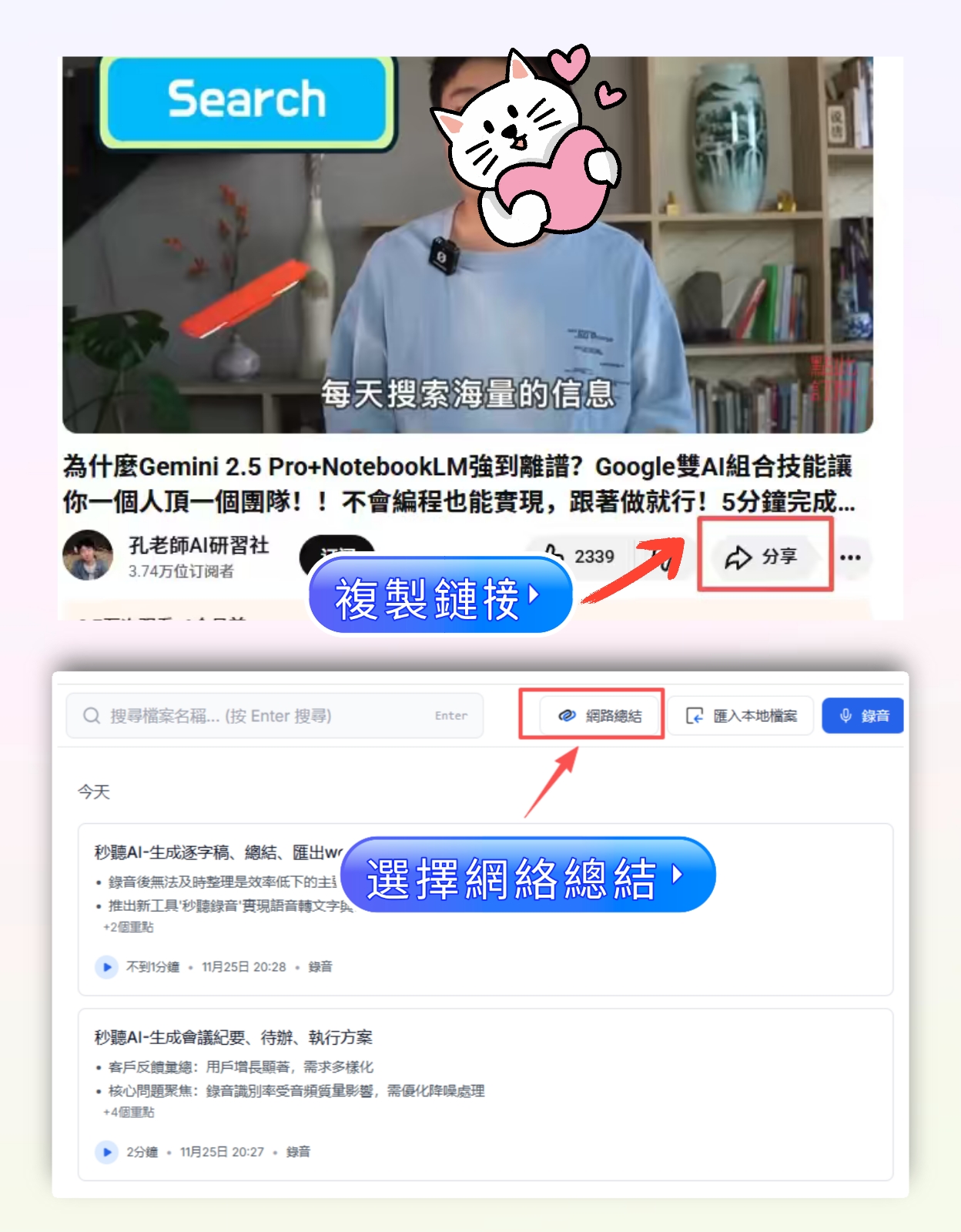
2. Web Video Link Parsing: Organize YouTube Videos Teachers Share
Some classes have supplementary videos; just paste the link into Tinrec, and it converts to text and key points – no need to watch the whole thing. I use this for flipped classroom videos, saving tons of time.
3. Cross-Platform Sync: Record on Phone, Edit on Computer Seamlessly
I record in class on my phone, then edit and export on my computer via Tinrec's web version – all data synced. Built-in tools can't offer this convenience.
Alternatives If You Don't Use Tinrec
Of course, other tools exist, but each has trade-offs.
• Built-in transcriptions in Meet or Teams: Free versions offer only basic captions, no summaries, to-dos, or content search. Suitable only for those wanting “rough text.”
• Otter.ai: Strong meeting bots, but the free plan offers 300 minutes/month, and Chinese transcription accuracy is lower than Tinrec – lower value for students.
Looking back, Tinrec integrates recording, transcription, organization, export, and Q&A into one, with a generous free quota for students – the most convenient classroom note-taking solution I've used.
Conclusion
Master these 5 steps, and whether you're using Google Meet or Teams for classes or meetings, you can automatically generate transcripts, class notes, and action items with Tinrec. No more hand cramps or missed points.
Next step: Download the free version of Tinrec and try it on your own online class recording. 100 free minutes per month are enough for 2-3 test runs. Trust me – after using it, you'll be recommending it to your entire class like I did.
Turn every recording into actionable outcomes
Get 60 free transcription minutes when you sign in. No credit card required.
Related Reading
You might also like

Free Speech-to-Text Options in 2026: 4 Tools Compared
Free speech-to-text tools seem plentiful, but most people pick the wrong one on their first try. This article examines the hidden limits of free tiers, breaks down 4 key selection criteria, and compares the free plans of Tinrec, Otter.ai, Notta, and TurboScribe with hands-on testing, plus a guide to avoiding pitfalls and scenario-based recommendations.

3 Free Video Speech-to-Text Solutions Tested in 2026: Beyond PowerDirector, Is Tinrec Good Enough for Subtitles?
Can PowerDirector's free version handle speech-to-text? It often depends on the version and quota. This article compares three approaches using real workflows and explains how Tinrec handles video transcription, meeting summaries, to-dos, and team data to help you choose the right free solution.
6 Free Speech-to-Text Apps Tested for 2026: Which Free Tier Is Actually Enough?
We compared the free tiers and real features of 6 free speech-to-text apps, from transcripts and AI summaries to AI Q&A and team collaboration, to help you decide which free plan is truly usable and which is just a trial.

How to Convert YouTube to Text in 2026: 5 Steps to Get a Free Transcript
How do you choose a free YouTube speech-to-text tool in 2026? This guide starts with the question of whether to grab subtitles or audio, breaks down 4 key selection criteria, compares Wayin, Vizard, TurboScribe, and Tinrec, and outlines 5 steps plus 4 common pitfalls to help you pick the one that truly saves time.

Tinrec vs Notta in 2026: 5-Dimension Comparison for Chinese Meeting Notes
The debate over speech-to-text recommendations on Dcard never ends because everyone's meeting style is different. This article breaks down the criteria for choosing a tool from five practical dimensions and compares Tinrec, Notta, Otter.ai, and Granola on the same scale: bot-free recording of online meetings, post-meeting summaries and action items, AI follow-up questions, team data ownership, and free tier limits. It concludes with scenario-based recommendations.

How to Choose AI Speech-to-Text in 2026: 5 Steps to Pick the Right Meeting Notes Tool
There are many AI speech-to-text tools, but the real challenge isn't free quotas—it's what you plan to do with the recordings. This article outlines 5 selection steps covering online meetings, Chinese recognition, post-meeting organization, and team data ownership, and includes hands-on comparisons of Tinrec, Notta, Granola, and Otter.ai to help you find the best fit.

Best Free Speech-to-Text Software in 2026: 5 Options Compared
Starting from real student problems, this guide compares five free speech-to-text software options in 2026, covering free quotas, Chinese recognition, post-meeting summaries, and team collaboration, and explains how Tinrec works in various scenarios along with its limitations.

Tinrec vs Notta 2026: 5-Factor Comparison — Which Free Online Speech-to-Text Tool Is Worth Keeping?
Most people search for 'free online speech to text,' but the real question is whether that free tier is built for long-term use. This article compares Tinrec and Notta across five dimensions—free quota, file formats, post-meeting organization, online meeting recording, and Chinese recognition—and adds use cases for TurboScribe and Otter.ai to help you choose a tool you won't want to replace after two weeks.

2026 Comparison of 5 Speech-to-Text Tools: Which AI Meeting Notes Actually Save Time?
Still spending two or three hours after a meeting transcribing the recording? Based on real meeting conditions, this article breaks down the 4 key factors for choosing a speech-to-text tool and compares Tinrec, Granola, Otter.ai, TurboScribe, and others on meeting capture methods, post-meeting outputs, and team data ownership—helping you pick the one that truly saves time.