

Turn recordings into transcripts and summaries in minutes
Upload audio or video for multilingual transcription, AI notes, and action items
Before You Start | What You Need to Prepare
To follow this tutorial to create meeting presentations using AI, preparation is simple: you can get started in 5 minutes:
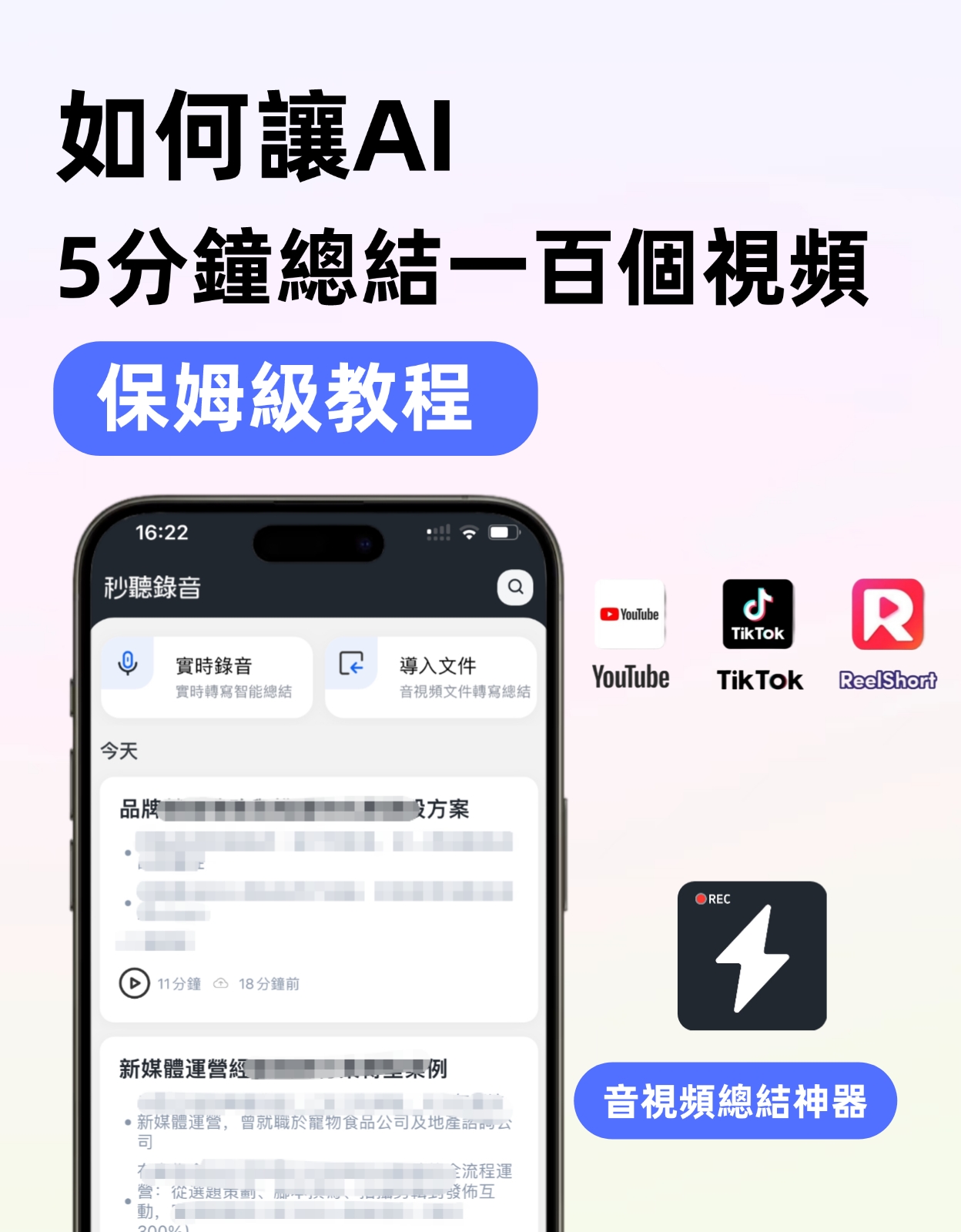
- A smartphone (both iPhone and Android, Tinrec supports both platforms, plus a web version)
- Download the Tinrec app (free download from App Store or Google Play, log in with Google or Apple ID in one tap)
- A meeting recording you just finished (live recording or online meeting recording file, supports MP3, M4A, WAV and other common formats)
- Stable internet connection (real-time transcription requires internet; if using offline, download language packs in advance)
- A free AI presentation tool account (e.g., Gamma, Canva Docs - you'll need it in a later step)
Step 1: Record the Meeting, Ensure Clear Audio
The goal of this step is to obtain a clear audio file—it's the foundation for all subsequent steps; poor audio quality cannot be salvaged even by AI.
Open Tinrec, tap the red record button on the main screen to start. During the meeting, place your phone in the center of the table, as close to the speakers as possible. For online meetings, install the Tinrec web version on your computer or use virtual audio capture to record system audio. You don't need to monitor it during recording; it runs in the background.
Why is audio quality so important? Because AI transcription accuracy is directly proportional to audio clarity—background noise, echoes, and overlapping voices all affect results. It's better to spend 30 seconds optimizing the recording position than to spend half an hour correcting errors afterwards.
After recording, the main screen will show the recording with its duration and file size.
(Illustration: A person sitting in a meeting room, phone placed at the center of the table recording, with colleagues discussing around, professional and natural scene)
Step 2: Let AI Auto-Transcribe to Verbatim Text, Faster Than Expected
After recording, the next step is to convert the audio into text. Tinrec's AI transcription is very fast—usually, a few minutes of audio will produce an initial draft in about ten seconds.
Select the recording from the list, and it will start transcribing automatically. You'll see the transcript appear in real-time, scrolling down, with different speakers labeled (it has built-in speaker diarization, so even with 3-4 people speaking, it distinguishes who said what). The transcript is synchronized with the timeline—tapping any sentence jumps to that point in the recording for easy verification.
If there are inaccuracies in proper nouns or colloquial Cantonese, you can edit them on the spot, and the system will remember your corrections, improving accuracy over time.
The entire process is fully automatic; you don't need to do anything but wait for it to finish.
(Illustration: Phone screen showing real-time transcript with time stamps, speakers distinguished by different colors)
Step 3: One-Click Generate Meeting Minutes, Get Highlights Instantly
With the transcript ready, the next step is to condense it into meeting minutes—the core material for creating presentations. Tinrec has an "AI Summary" feature that automatically analyzes the full text and produces a structured summary.
Press "Generate Summary," and within seconds it outputs: meeting topic, key discussion points, decisions, and action items. You can also choose the "Meeting Minutes" mode, which simulates a formal minutes format—including date, attendees, agenda, discussion content, decisions, and to-dos, with automatic keyword highlighting.
If your meeting lasts an hour, it will automatically split into sections—each with a title and summary, so you can grasp the entire meeting flow at a glance.
(Illustration: Phone screen showing meeting minutes with sections, key highlights, and summary, clean and easy to read)
Step 4: Extract To-Dos, Never Miss Follow-ups
The most annoying part after a meeting is forgetting who is responsible for what. Tinrec's "Extract To-Dos" function automatically pulls all action items from the minutes, clearly listing who is responsible, deadlines, and progress.
Stop organizing recordings by hand
Upload audio or video and automatically get a transcript, summary, and action items
Press "To-Do Items," it generates a to-do list where each item links back to the original text—tapping it shows the context. You can mark items as complete directly in the app or export them to sync with your team.
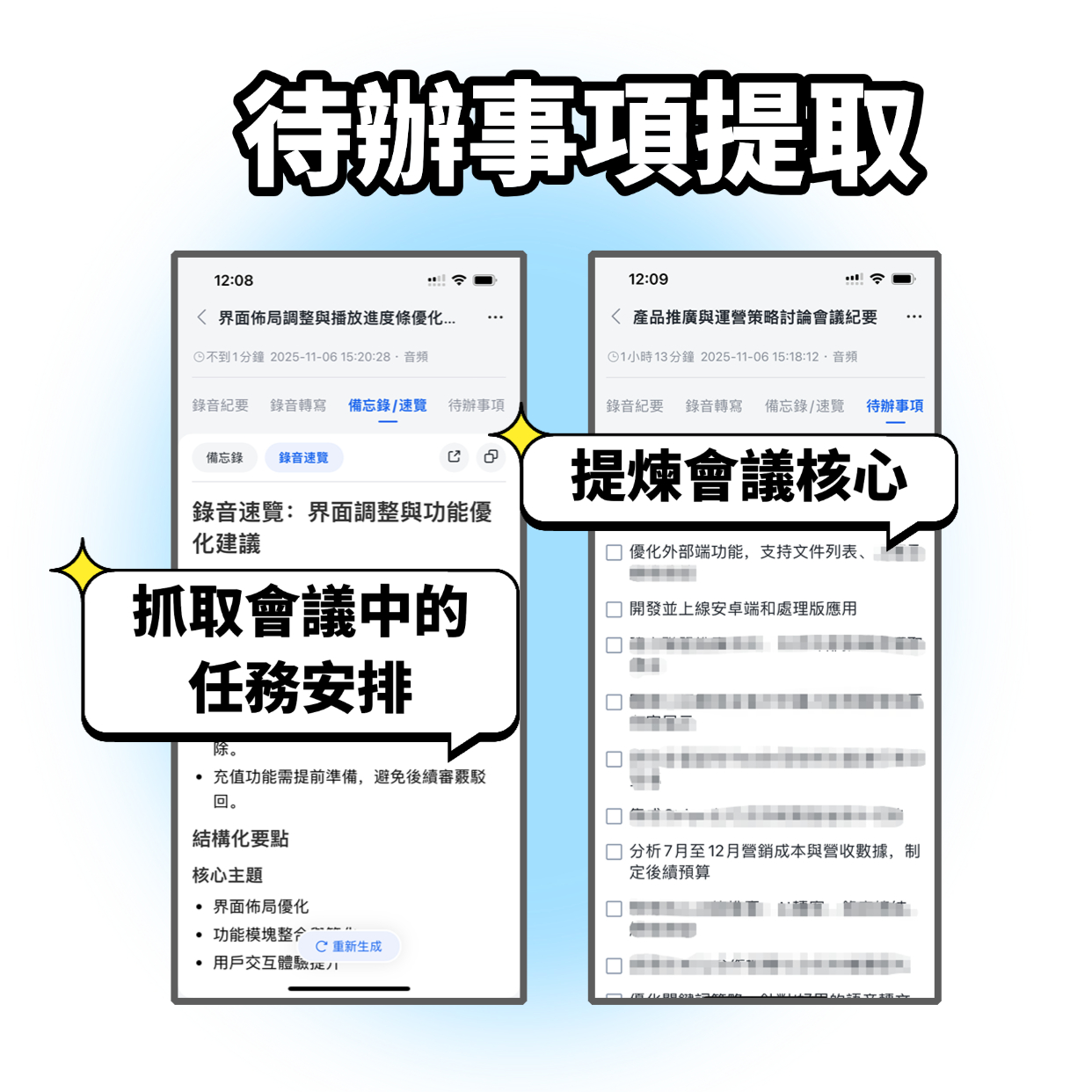
This feature is especially useful for people who frequently attend project meetings—no more manual organization of action items, saving a lot of time.
(Illustration: Phone displaying a tidy to-do list with completion status, assignee, and deadline)
Step 5: Export Content, Generate PPT with AI Presentation Tools in One Click
Now for the final step—turn your organized text content into a PowerPoint presentation! Tinrec natively supports multiple export formats, including TXT, Markdown, Word (DOCX), and even direct sync to Google Docs or Notion.
Press "Share" or "Export," choose your preferred format. I recommend Markdown or copying plain text, as these formats are most easily ingested by AI presentation tools.
Then open a free AI presentation tool (e.g., Gamma), paste the meeting minutes text you just copied, select a template, and it will automatically generate a professional presentation with titles, key points, and charts—all in under two minutes. You can fine-tune the layout and add images, then download as a PPTX file—done!
(Illustration: Computer screen showing exported text from Tinrec on the left, and the auto-generated polished PPT on the right in the AI presentation tool, one-click conversion)
FAQ and Troubleshooting
Q: The transcription has many errors, what should I do?
Usually it's due to noisy recording environment or distance. Tinrec has built-in smart noise reduction—enable it in settings before recording. If you have an existing file, you can manually select "High Noise Environment" mode after import; most transcription tools don't have this option and only use default settings for all recordings.
Q: The meeting includes Cantonese mixed with English, will it transcribe accurately?
Tinrec supports bilingual recognition (Chinese-English code-switching) and handles everyday code-switching well. However, if there are many proper nouns, it's recommended to manually supplement them after recording; the system will learn and improve over time.
Q: The generated meeting minutes are too long, can I customize the length?
Yes. In the AI summary settings, you can choose "Brief Summary" or "Detailed Summary," or even input commands to extract only decisions or discussion on a specific topic.
Q: Is my privacy safe when using AI to generate presentations?
Tinrec encrypts all data during transmission; recordings and texts are stored only in your account. As for third-party AI presentation tools, it's recommended to avoid uploading highly sensitive business secrets, or use locally-run open-source models for generation.
Advanced Tips: 3 Exclusive Features to Double Your Efficiency with Tinrec
Tip 1: AI Conversational Query—Directly "Ask" Your Recording
Tinrec has a built-in AI Q&A feature. Under each recording, tap "AI Chat," type a question like "What did the client say about the quote?" or "What priorities were decided in the last meeting?" It will search the entire recording and return relevant paragraphs with timestamps so you can listen to the original audio. This feature is rare in other tools, especially useful for people who frequently need to review old meeting recordings.
Tip 2: Web Video to Text—Not Just Meetings, Also YouTube / TikTok
If your meeting referenced a YouTube video, or you want to transcribe a competitor's interview into text for a presentation, simply paste the link into Tinrec. It will automatically parse the video's audio and generate a transcript and summary. Supports platforms like Bilibili, Xiaohongshu (RED), and TikTok. This is something Otter and Fireflies cannot do.
Tip 3: Cross-Platform Sync + Multi-Format Export
Tinrec's iOS, Android, and web versions are fully synced. Record on your phone, then continue editing on your computer at the office, and export as DOCX or Markdown. You can also set automatic backups to Dropbox or Google Drive, so you never lose recordings. This cross-device experience is often overlooked by many transcription tools.
If You Don't Use Tinrec, Here Are Alternatives
- Otter.ai: Excels at automatically joining meetings and generating English business summaries, but has limited support for Chinese and Cantonese, and cannot process web videos. Suitable for teams with purely English meetings.
- Notta: Offers comprehensive multilingual transcription and translation, with reasonable minute limits, but lacks AI conversational query and web video parsing; it's more of a transcription tool than an organization platform.
However, if you want to truly turn recordings into "reusable assets"—from text, summaries, to-dos, all the way to generating presentations—Tinrec integrates the most complete workflow, especially for the multi-scenario needs of Hong Kong office workers.
Summary
After learning these 5 steps, you now know how to use Tinrec to turn any meeting recording—whether in-person or online—into text, minutes, and to-dos, then combine with AI presentation tools to quickly create professional presentations. Once you're familiar, the entire process can be completed in under 10 minutes, so you no longer need to work overtime writing minutes and building slides after meetings.
Next step: Download Tinrec's free version, grab a recent meeting recording and try it out. You get 100 minutes of free transcription credit each month, enough for two or three meetings. You can also explore web video transcription and AI Q&A—you'll never look back.
Turn every recording into actionable outcomes
Get 60 free transcription minutes when you sign in. No credit card required.
Related Reading
You might also like
How to Use Yating Transcript for Online Meetings in 2026: Taiwanese Accent Recognition + 3-Step Post-Meeting Cleanup
When capturing transcripts for online meetings, the key is often not which tool is most accurate, but how the meeting audio gets into the tool. This article covers practical ways to use Yating Transcript for online meetings, including recording and export steps, quotas, and sharing limitations. It also compares Tinrec, Otter, Notta, TurboScribe, and Granola in terms of positioning and pricing to help you choose the right solution for your scenario.

2026 Comparison of 4 Zoom Meeting Note Tools: After Scheduling a Meeting, Whose AI Minutes Save the Most Time?
Scheduling a Zoom meeting takes only seconds, but organizing transcripts, summaries, and action items afterward often takes more time. This article compares Tinrec, Otter.ai, Fireflies.ai, and Granola in real-world scenarios, covering meeting capture methods, Chinese recognition, post-meeting outputs, audio retention, and team collaboration, to help you determine which tool best fits your meeting habits.

Tinrec vs Zoom 2026: 5-Dimension Comparison — Built-in or Dedicated Meeting Notes Tool?
Zoom is the most familiar video conferencing app for office workers, but the real pain point comes after the meeting: recording, organizing, and handover. This article compares Zoom's built-in features with Tinrec across 5 dimensions to help you decide when Zoom alone is enough and when you need a dedicated meeting notes tool.

2026 AI Meeting Notes Free Plans Compared: 3 Options at a Glance
A mid-level manager who runs over a dozen meetings a week tests and summarizes the three types of free AI meeting notes plans in 2026: fixed free quota, short-term sprint, and long-term stable. The article covers Tinrec's real-time transcription, AI summaries, action item extraction, AI Q&A, bot-free online meeting recording, and team seat management, while also honestly explaining limitations and recording consent considerations.

Zoom Video Conference Download Comparison 2026: 4 Tools Tested — How to Automate Meeting Notes After Downloading
People searching for "Zoom video conference download" often install Zoom only to find they still have to organize meeting notes themselves. This article examines four key aspects—capture method, audio retention, post-meeting output, and team handoff—and compares Tinrec, Zoom built-in recording, Otter.ai, and Notta with hands-on testing, plus a pitfalls guide and selection advice.

Best Zoom Meeting Transcription Tools in 2026: 4 Tested, and the One That Makes Chinese Meetings Easiest
Most people download Zoom to attend meetings, but the real time sink is the post-meeting cleanup. This review tests four meeting transcription tools—Tinrec, Otter.ai, Notta, and Granola—focusing on key decision points like how meeting audio gets into the tool, what you get after transcription, data ownership, and how seats are counted. It also covers buying tips and the three most common pitfalls to help you pick the right tool within your budget.

5 Ways to Download Zoom Meeting Recordings in 2026: Which Gets You Usable Meeting Data Fastest?
Zoom meeting recordings don't just appear on your computer after you hit record. This guide compares 5 practical methods—from Zoom cloud recording, local recording, browser extensions, to AI meeting tools—explaining each download process, limitations, and ideal users, so you'll know where files are, how to get them, and how to use them.

How to Download Zoom Meeting Recordings in 2026: A 5-Step Guide
Can't find your Zoom recording after the meeting? This guide explains where recordings are stored, who has download permission, and provides 5 steps to get Zoom meeting videos from local, cloud, and shared links. It also covers how to turn the downloaded content into truly usable meeting materials.

5 Zoom Meeting Apps Tested for 2026: Which Free Tier Is Most Generous?
Starting from real pain points in campus group meetings, this compares 5 Zoom meeting apps and online meeting tools: which ones turn meetings into transcripts, summaries, and action items, and which just connect the video. Includes free tier limits, plan differences, and tips for students choosing a tool.