
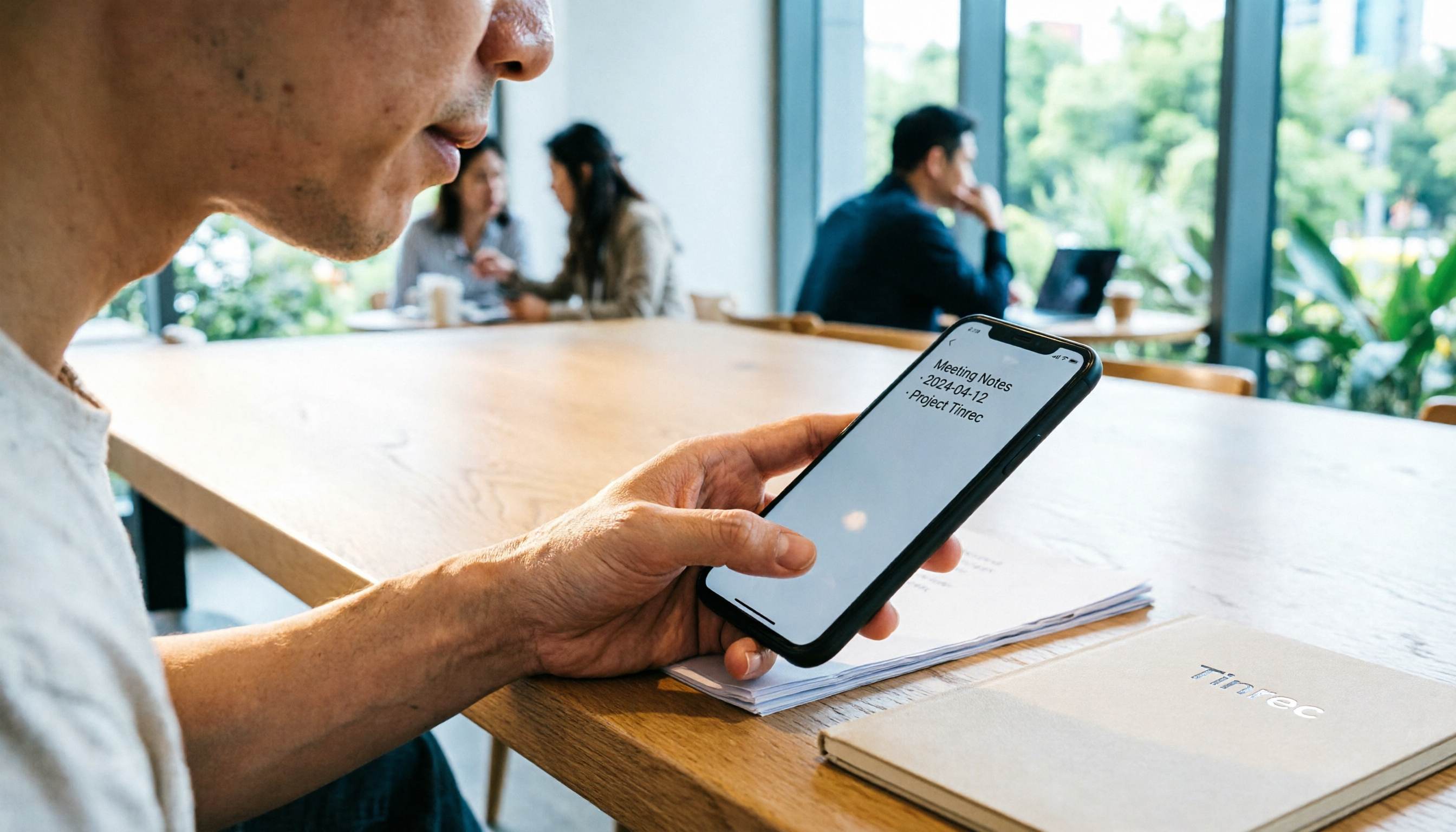
Turn recordings into transcripts and summaries in minutes
Upload audio or video for multilingual transcription, AI notes, and action items
How to Transcribe Voice Recordings on Your Phone in 2026: A Complete 5-Step Guide (Using Tinrec as an Example)
I've tried several apps for transcribing phone recordings before—either the output was full of errors or it only supported English. Some even required expensive hardware. Then I used Tinrec (Second Listen Audio), and finally found one that works: not only does it transcribe Chinese accurately, but it also automatically organizes key points. It's a real time-saver for teams.
Before You Start|What You Need
- A smartphone—iPhone or Android, both supported by Tinrec.
- Download the Tinrec app for free from the App Store or Google Play, and sign in with Google or Apple ID.
- Prepare a recording to transcribe—could be a meeting recording, lecture, or interview file.
- A stable internet connection for real-time transcription. For offline use, download the language pack in advance.
Step 1|Record the Content You Want to Transcribe
The goal of this step is to obtain a clear recording, which is the foundation for all subsequent steps.
Open Tinrec and tap the record button on the main screen to start. Keep your phone close to the speaker during recording—the closer it is, the clearer the audio, and the higher the transcription accuracy. For one-on-one interviews, place the phone between both people; for multi-person meetings, put it in the center of the table.
Why emphasize recording quality? Because AI transcription accuracy depends on audio quality. Even the strongest engines can't handle fuzzy recordings. Rather than spending time correcting errors later, spend an extra 30 seconds positioning the phone correctly during recording.
When done, you'll see the recording on the Tinrec main screen, along with its duration and file size.
Step 2|Let AI Transcribe It into a Verbatim Transcript
After recording, it's time to let Tinrec automatically convert it to text.
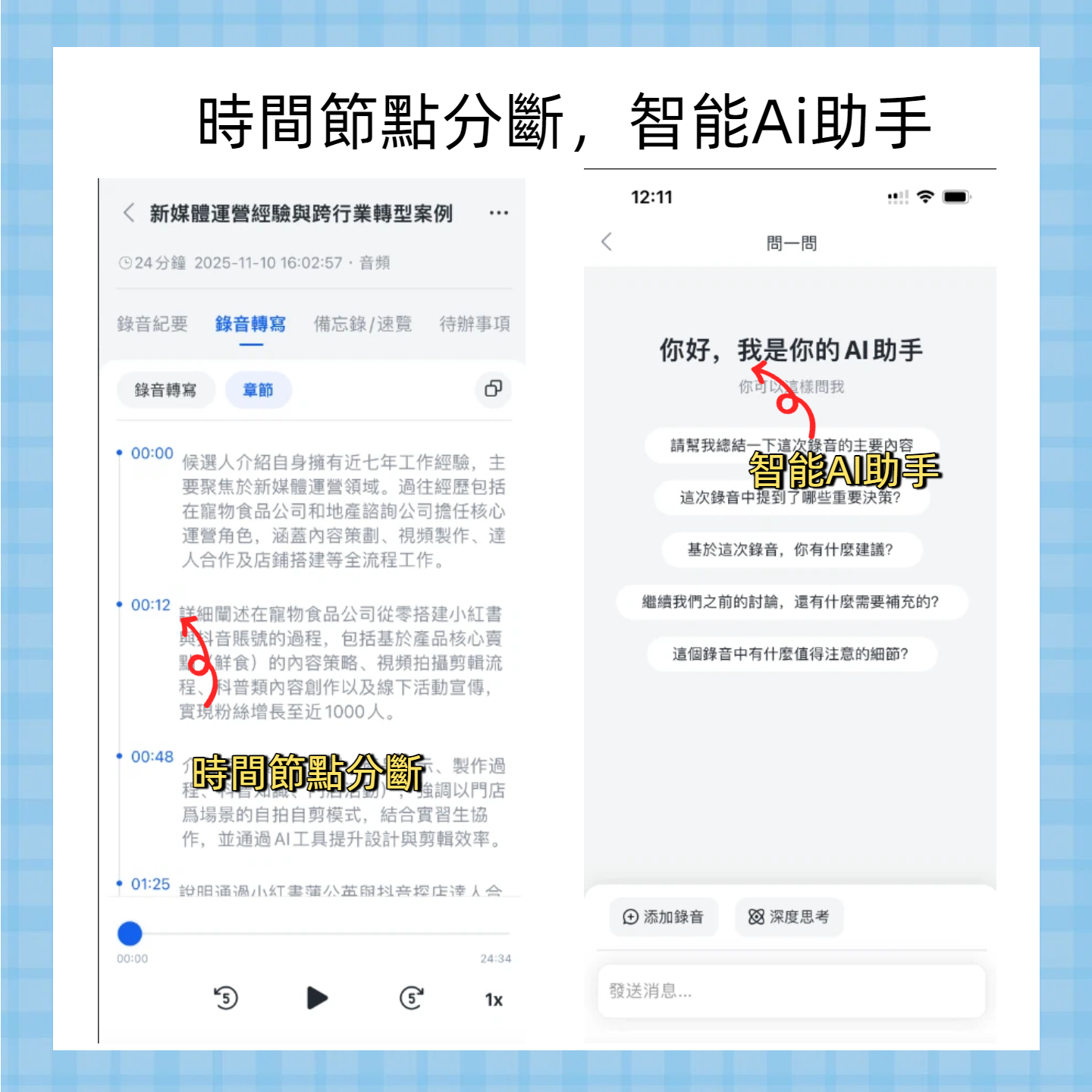
In the recording list, tap the recording you just made and select "Transcribe." Tinrec starts processing—it's fast, typically transcribing 1 minute of audio in about 10 seconds. It automatically splits the text into segments and offers a "Speaker Diarization" option, which is great for multi-person meetings.
After transcription, you get a verbatim transcript with timestamps. Tap any segment to jump to the corresponding audio position, making proofreading easy.
Step 3|Quickly Proofread the Transcript
AI transcription isn't 100% perfect, but Tinrec's accuracy is quite good with clear recordings. When proofreading, I do the following:
- Quickly scan for obvious typos or missing segments.
- Use timestamps to listen to the original audio for correction, saving time and effort.
- For important meetings, use the "Mark Highlights" feature to highlight key sentences for easy reference later.
Honestly, for most meeting recordings, I only need to correct proper nouns or colloquial phrases, saving at least 80% of the time overall.
Stop organizing recordings by hand
Upload audio or video and automatically get a transcript, summary, and action items
Step 4|Let AI Generate Meeting Minutes
Transcript too long? Tinrec can directly summarize it into a summary and to-do list.
Tap "AI Summary," and it automatically generates a concise meeting overview including the meeting title, participants, discussion points, and conclusions. Then tap "To-Do List," and it extracts "who, when, and what" from the conversation, turning them into an actionable to-do list that can be copied to task management tools.
This feature is really useful for our small team—no need to spend half an hour writing minutes after a meeting.
Step 5|Export and Share
Tinrec can export the processed text and summary in multiple formats: TXT, Word, PDF, or even sync directly to Notion, Google Docs, or Dropbox. This way, it integrates into your existing workflow.
Tap Export, choose your format and cloud service, authorize, and it syncs automatically. Very convenient.
FAQs and Troubleshooting
Q: The transcribed text has many errors. What should I do?
It's usually due to a noisy environment or being too far from the speaker. Tinrec has built-in smart noise reduction—enable it in settings before recording. If you're using an existing recording, you can manually select the "High Noise Environment" mode after uploading. Most transcription tools don't offer this option.
Q: When multiple people are speaking, the speakers can't be distinguished. What should I do?
Tinrec has a "Speaker Diarization" feature. Although not 100% accurate, it works well in typical meetings. If you're using the free version, you can manually label speakers.
Q: Can I use it with an unstable internet connection?
Real-time transcription requires internet, but you can record offline first and upload for transcription when connected. Alternatively, download offline language packs for Chinese and English offline transcription.
Advanced Tips|3 Ways to Double Your Efficiency with Tinrec
Ask the AI directly about recording content
Beyond summaries, you can ask Tinrec directly, "What was the budget figure discussed in the last meeting?" and it will find the relevant segments from the recording. Competitors like Otter have this feature too, but Tinrec's Chinese comprehension is better.Transcribe online video links directly
Paste a link from YouTube, TikTok, or Xiaohongshu, and Tinrec will parse it into a verbatim transcript and summary. This is super convenient for content research. Notta has a similar feature, but Tinrec offers more comprehensive support for Chinese videos.Cross-platform sync for seamless transition between phone and computer
Record on your phone, and it's immediately viewable on the web version on your computer, where you can also edit. This saves me the hassle of transferring files, as I often move between the office and meetings outside.
If You Don't Use Tinrec, Here Are Other Options
- Notta: Similar features and decent transcription quality, but higher monthly fees and less direct support for online videos compared to Tinrec. Suitable for teams that already need a meeting bot.
- Otter.ai: Strong in English meetings, but Chinese transcription is less than ideal, and the free plan offers fewer minutes. If you primarily handle English meetings, give it a try.
But if you're a Chinese-language user covering various scenarios like meetings, lectures, and videos, Tinrec remains the most cost-effective choice at the moment.
Conclusion
After learning these 5 steps, you can now use Tinrec to turn your phone recordings into verbatim transcripts, auto-generated meeting minutes, extracted to-do lists, and even query key points through AI chat. Next step: download the free version of Tinrec and try it with one of your own recordings. The free monthly allowance is enough for a few meetings. That's it—recommend you give it a try.
Turn every recording into actionable outcomes
Get 60 free transcription minutes when you sign in. No credit card required.
Related Reading
You might also like

The Complete Guide to Call Recording Apps in 2026: From Call Recording to Transcripts and Meeting Notes
How do you choose a call recording app? This guide compares built-in call recording, third-party recording apps, and Tinrec's recording-to-notes workflow across five dimensions: device and carrier limitations, file storage, transcription and summarization needs, cross-platform support, and team collaboration. It helps you decide which type to install and how to use recordings afterward.

Tinrec vs TapeACall 2026: 5-Factor Comparison — Which iPhone Call Recording App Is Better for Post-Call Organization?
This article compares Tinrec and TapeACall for iPhone call recording and post-call organization across five dimensions: scenario coverage, transcription and AI organization, Chinese language processing, file export, and team collaboration. It helps readers decide whether they need a call recording tool or an AI meeting notes tool that turns recordings into searchable data.

5 Phone Call Recording Solutions Tested for 2026: How to Choose iPhone Call Recording According to PTT
Starting from the most common iPhone call recording pain points on PTT, we tested and compared five solutions: iOS 18 built-in, PLAUD recording hardware, Notta, Otter.ai, and Tinrec. We break down system limitations, transcription workflows, post-meeting summaries, and team collaboration differences to help you choose the right call recording solution for your actual work scenarios.

4 Call Recording Tools Tested and Compared in 2026: The Key Is How You Organize After Recording
Most people searching for 'call recording download' think about finding an app to record calls, but rarely consider what to do with the recording afterward. This article starts from real pitfalls, breaks down the key points to understand before downloading a call recording app, and tests and compares Cube ACR, Call Recorder ™, Call Recorder, and Tinrec, explaining why 'recording' and 'organizing' should be separate tool choices.

2026 iPhone Call Recording Showdown: Apple Built-in vs Third-Party Apps vs AI Transcription
Apple's built-in call recording arrived with iOS 18.1, but the real time sink is transcription, summarization, and follow-up. This comparison covers Apple's native feature, third-party call recording apps, AI recording hardware, and Tinrec—including availability, regional restrictions, legal reminders, and common pitfalls.

5 Best iPhone Call Recording Apps in 2026: From Built-in to AI Transcription
iPhone's built-in call recording only arrived with iOS 18 and plays a notification sound when activated, while most third-party call recording apps rely on three-way calling. This guide breaks down 5 key factors for choosing an app, walks through a real-world test of Tinrec's post-recording workflow, and compares Otter.ai, Notta, and PLAUD in terms of positioning and pricing, plus 4 common pitfalls to avoid.

Phone Call Recording Apps in 2026: 3 Steps to Choose the Right Tool + AI-Powered Call Summaries
How do you choose a phone call recording app? First, decide whether you need to just record calls or actually use the content. This guide walks you through 3 key decision points to pick the right tool, and compares a free call recording app (Cube ACR as an example) with Tinrec for call capture, transcription, AI Q&A, team collaboration, and cost. Includes system limitations for iPhone and Android, plus 6 FAQs.

How to Record iPhone Calls in 2026: A 5-Step Guide
iPhone's built-in call recording arrived with iOS 18, but many users struggle to find the button, locate saved recordings, or get transcripts to appear. This guide walks you through five steps—from enabling the feature and recording calls to finding files and organizing transcripts—and tests how Tinrec handles summaries and action items afterward.
6 iPhone Call Recording Apps Tested for 2026: Which Free Option Actually Records?
iPhone call recording apps advertise themselves as free, but after downloading you hit a subscription page. This guide covers 6 practical options—from built-in iOS call recording, Call Recorder, and TapeACall to speakerphone side-recording and AI transcription tools—explaining each one's free limits, notification tone restrictions, and ideal users, plus legal reminders for recording in Taiwan, so you can choose between zero budget and full features.