

Turn recordings into transcripts and summaries in minutes
Upload audio or video for multilingual transcription, AI notes, and action items
Whether working remotely or in a hybrid setup, Google Meet has become a daily meeting tool for many professionals. However, after the meeting ends, quickly organizing complete records, action items, and key takeaways remains a common headache. Currently, there are three common solutions: using Google Meet's built-in captions and recording features, manually typing notes while meeting, or leveraging professional AI recording and organizing tools like Tinrec.
In this article, we take Tinrec as an example, guiding you step by step through recording, transcribing, summarizing, and exporting your Google Meet meetings. We'll also briefly compare the pros and cons of the three solutions to help you find the best workflow for your needs.
Before You Start | What You Need to Prepare
- A computer or smartphone that can run Google Meet (whether for screen sharing, presenting, or simply attending).
- Install the Tinrec app or open the web version (supports iOS, Android, and web; you can register for free with a Google or Apple ID).
- Make sure your Google Meet meeting allows recording (if the meeting is hosted by someone else, it's recommended to get the host's consent).
- A stable internet connection (real-time transcription requires internet; you can download language packs for offline use).
- A meeting recording ready to be processed (can be recorded live or a saved Meet recording file).
Step 1 | Set Up Google Meet Recording and Sync with Tinrec
The goal of this step is to ensure clean audio input into Tinrec, avoiding echo or background noise that could affect transcription.
When joining a Google Meet on your computer, it's recommended to use headphones and let Tinrec capture audio through your computer's built-in microphone. It's simple: open Tinrec's 'Live Recording' feature, select the appropriate language (Traditional Chinese for Taiwan), then tap the record button. At this point, it will capture the meeting audio from your speakers, while headphones let you hear the discussion clearly without feedback.
Why set it up this way? Because directly using a phone microphone to record computer speakers picks up ambient noise and echo, reducing transcription quality. If you're joining Meet on your phone, you can open Tinrec recording on the same phone, but it's recommended to use wired headphones and disable speakerphone for better audio capture.
Once done, you'll see Tinrec transcribe speech to text in real time, appearing sentence by sentence.
Step 2 | Let Tinrec Automatically Generate a Transcript
After the meeting recording is complete, the next step is to get a full transcript. Tinrec starts transcribing during the recording and automatically generates a timestamped transcript after it ends, without needing to upload or wait.
You can find the meeting record in 'My Files'; tap it to see the full text from start to finish. If multiple people speak during the recording, Tinrec can distinguish between speakers (marked as 'Speaker A / B') for easy review.
This step is almost fully automatic; just confirm the language setting is correct and let AI handle the rest. For a 30-minute meeting, the transcript is ready within seconds after recording ends, with excellent accuracy in standard meeting environments.
(Illustration: An online meeting screen with Google Meet window on the left and Tinrec's real-time transcript on the right, with speaker labels.)
Step 3 | Quickly Proofread the Transcript and Mark Key Points
Once you have the transcript, you don't need to read it all. Tinrec highlights potential key sections; you can play the recording and proofread against the text simultaneously.
Suggested workflow: Open the transcript on the web version, click any sentence to jump to that segment of the recording and listen synchronously. For especially important discussions, you can use the 'Memo' feature to mark them, or manually add notes to quote later when organizing minutes.
Why do this? Because AI transcription may have errors due to accents, jargon, or overlapping speech; spending 5 minutes proofreading greatly improves the quality of subsequent summaries and avoids obvious mistakes in shared records.
After proofreading, you'll have a clean transcript with marked key points, ready for future reference.
Stop organizing recordings by hand
Upload audio or video and automatically get a transcript, summary, and action items
(Illustration: Transcript editing screen with highlighted text marked as memos, and corresponding recording timeline on the right.)
Step 4 | Let AI Generate Meeting Minutes and Action Items
This is Tinrec's core value – not just a transcript, but a well-organized meeting summary.
On the recording file page, click 'AI Summary' or 'Meeting Minutes'; the system automatically analyzes the content and produces a structured summary including meeting topic, discussion points, decisions, and action items. You can also manually adjust the desired length (brief summary or full minutes) or highlight specific sections.
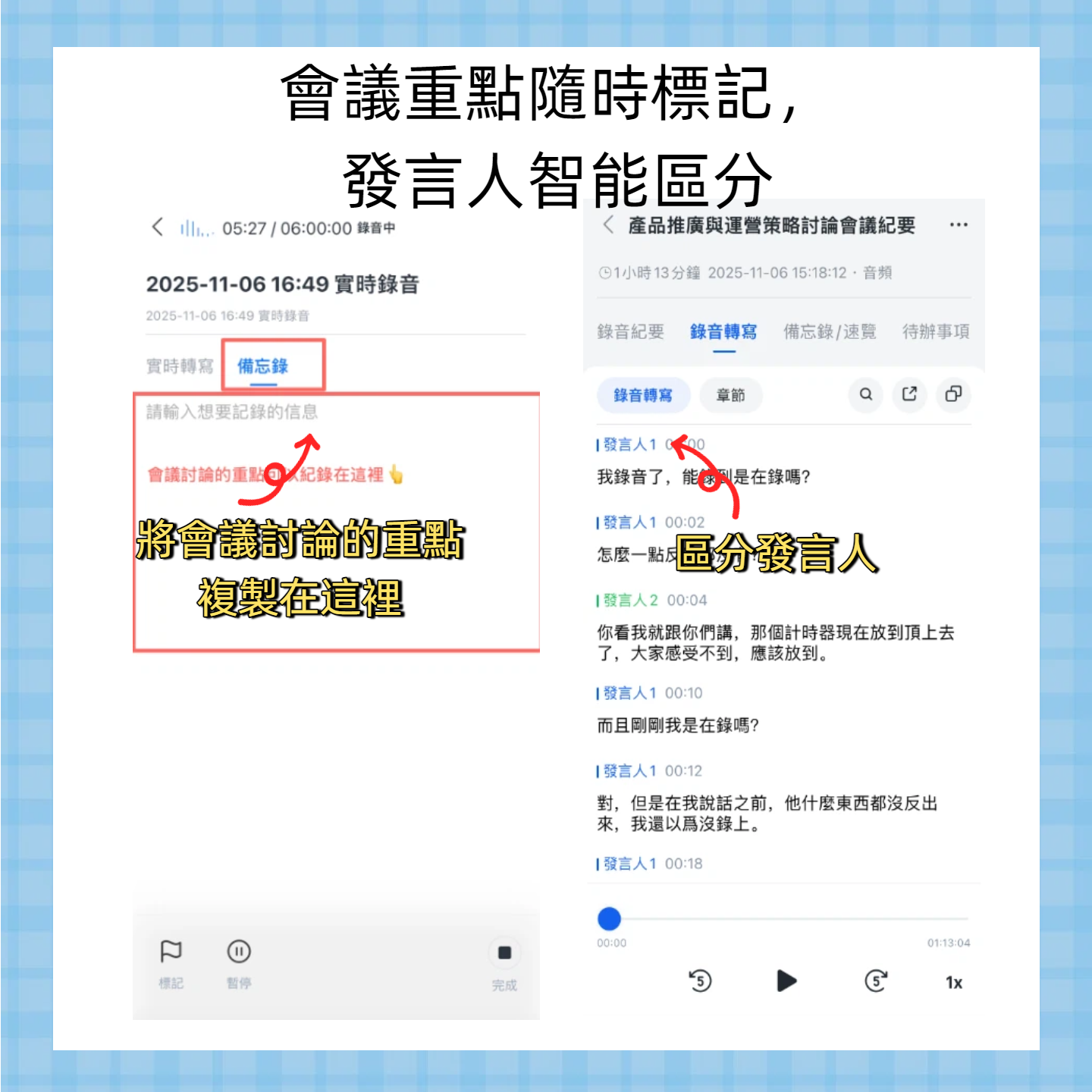
Another useful feature is 'AI Q&A': you can ask Tinrec 'What was the budget conclusion?' or 'Who is responsible for contacting the vendor?' and it answers based on the recording content, effectively giving you a conversational meeting database.
This step completely saves you the time of listening again or writing manual notes, turning discussions into actionable lists.
(Illustration: AI-generated meeting minutes card with date, participants, summary, key points, and action items.)
Step 5 | Export and Share with Your Team
Finally, export the organized data in your preferred format. Tinrec supports exporting as plain text, Word, PDF, Markdown, etc. You can also share a link directly with colleagues or send to tools like Notion, Google Docs, OneNote via integrations.
If you prefer using Google Docs for meeting records, choose 'Export to Google Docs'; all key points and action items will be automatically formatted and saved as official meeting minutes.
For those who frequently communicate across departments, this workflow saves a lot of copy-pasting time.
(Illustration: Export menu showing available formats and third-party tool icons.)
Frequently Asked Questions and Troubleshooting
Q: What's the difference between Google Meet's built-in transcription and Tinrec? A: Google Meet's live captions are mainly for real-time assistance; they don't save a full transcript after the meeting, nor do they offer automatic summaries or action item extraction. Tinrec, on the other hand, transforms recordings into searchable, editable, and reusable resources, ideal for archiving and tracking progress.
Q: What if I notice delays or missed sentences in the transcription during recording? A: This is usually related to network stability or multiple people talking simultaneously. Ensure a stable Wi-Fi connection and enable 'Smart Noise Reduction' in Tinrec settings. If you find errors later, click the text to play that segment for correction.
Q: Is the free version sufficient? A: The free version provides a basic monthly transcription allowance, enough for 3-5 meetings per month for occasional users. If you have multiple meetings weekly, consider the Pro plan, which costs about the price of a cup of coffee per month for unlimited organization.
Q: Is transcription accurate if the meeting mixes Chinese and English? A: Tinrec handles mixed Chinese and English well, but accuracy may be affected by accents and speech speed. We recommend setting the main language to 'Chinese' and relying on the system to correctly transcribe proper nouns or English words. If errors occur, use the transcript's quick jump feature to manually correct.
Q: Where are the recordings stored? Is it secure? A: All recordings and transcriptions are encrypted and stored in the cloud, accessible only by your account. You can delete any files you no longer want at any time.
Advanced Tips | 3 Ways to Double Tinrec's Efficiency
1. Use 'Web Video Analysis' to Directly Process YouTube Meeting Recordings
If your team uploads Google Meet recordings to YouTube (set to unlisted), you can paste the video link into Tinrec's 'Web Link Analysis' to extract the audio and convert it to text and summaries. This feature is currently unsupported by most competitors, making it great for post-meeting processing.
2. Cross-Meeting AI Q&A for a Personal Meeting Knowledge Base
As you accumulate more meeting recordings, you can directly enter keywords (e.g., 'Q3 budget') in Tinrec's search bar, and it will find relevant segments across all past recordings. Unlike Otter or Fireflies, which focus on single-meeting chats, Tinrec is more like a conversational long-term database, ideal for those who need to trace decision-making history.
3. Use 'Agent Post-Processing' to Automatically Generate Weekly Reports
If you need to summarize multiple meetings each week, try Tinrec's 'Agent Post-Processing' feature (currently in beta). Just select all recordings from the week, and AI will automatically generate a draft weekly report, condensing discussions, decisions, and action items. You can fine-tune and send it out, greatly reducing weekend overtime.
If You Don't Use Tinrec, Here Are Other Options
- Google Meet built-in recording + transcription: Suitable for users who only need simple playback without detailed text records. However, it lacks summarizing and exporting features, and cannot search past meeting content.
- Manual note-taking + note apps: Suitable for those with very few meetings and who prefer organizing their own notes. The downside is distraction during meetings and the need to spend time re-listening to fill gaps.
Overall, if you want automated meeting records and need complete, searchable, and trackable data, Tinrec is currently a highly integrated option.
Conclusion
By mastering the 5 steps above, you can now use Tinrec to turn Google Meet meetings into structured data with transcripts, summaries, and action items, and even search across meetings and automatically generate reports. We recommend trying the free version next time you have a meeting – the monthly basic allowance is enough for a few meetings to experience the difference from 'forgetting after the meeting' to 'every meeting leads to actionable output'.
Turn every recording into actionable outcomes
Get 60 free transcription minutes when you sign in. No credit card required.
Related Reading
You might also like

4 Speech-to-Text Tools Tested: Which Saves the Most Time for Meeting Notes, Transcripts, and AI Q&A?
Many people compare speech-to-text tools by looking only at marketing numbers like '98% accuracy,' but overlook the real bottlenecks. This article starts with common pitfalls, explains how to judge whether a tool is worth using, then tests and compares Tinrec, Otter.ai, Notta, and Granola on meeting notes, transcripts, post-meeting organization, and team collaboration. It includes actual pricing and tips to avoid pitfalls, helping you choose the one that truly saves time.

2026 Comparison of 4 Speech-to-Text Tools: Which Turns Recordings into Actionable Meeting Data?
Starting from real pain points in interviews and meeting notes, this hands-on comparison tests Tinrec, Yating Transcription, Notta, and Otter.ai, covering selection criteria, common pitfalls, and scenario-based recommendations to help you find the tool that truly makes transcripts work-ready.
2026 Comparison of 4 Audio-to-Text Windows Tools: Is the Free Tier Enough?
When converting audio files to transcripts on Windows, most people choose the wrong approach from the start. This article uses real meeting recordings to test four tools—Tinrec, Notta, Otter.ai, and TurboScribe—comparing file support, post-meeting organization, online meeting audio capture, and free tier limits. It also outlines four common pitfalls to help you pick the one that fits your workflow.

How to Use Tinrec for Real-Time Speech-to-Text in 2026: Record Meetings Without Bots + Automatic Summaries and Action Items
How do you choose a real-time speech-to-text tool? First, determine your meeting format, whether you need a bot to join, and whether you want summaries and action items after the meeting. Using Tinrec as an example, this article covers real-time transcription, bot-free recording of online meetings, AI summaries, Q&A, translation, and team collaboration, along with buying considerations and FAQs.
2026 iPhone Audio-to-Text Comparison: Built-in Transcription, Apps, and Tinrec — Which Saves the Most Time?
Drowning in meeting, interview, and class recordings? Should you use iPhone's built-in Voice Memos, the Notes app, or a third-party tool to turn audio into text? This guide compares iPhone's built-in transcription, Tinrec, Yating Transcription, and Plaud from a Taiwan user's perspective, covering steps, version requirements, free quotas, and team collaboration needs to help you pick the most time-saving option.

4 Audio-to-Text Tools Tested: Free Tiers and Post-Meeting Cleanup Compared (2026)
We compare Tinrec, Notta, TurboScribe, and Granola across Chinese meeting support, bot-free recording, free tiers, AI summaries, and team collaboration to help you pick the tool that saves the most cleanup time.

2026 Speech-to-Text Software Comparison: Tinrec vs Yating Transcription — Which Saves More Time for Chinese Meetings?
We tested Tinrec and Yating Transcription across five dimensions: Chinese and Taiwanese Hokkien recognition, online meeting recording, post-meeting summaries and AI Q&A, team collaboration, and pricing. If you're looking for Chinese meeting notes, bot-free recording, and team knowledge retention, this guide tells you which one to choose.

2026 Voice-to-Text AI Comparison: Which Free Tier and Post-Meeting Tools Are Enough?
Most people think voice-to-text AI is just about dropping in a recording and getting a transcript, but the real hassle is post-meeting organization. This article starts with common misconceptions, outlines 4 key purchasing points, and compares Tinrec, Notta, Otter.ai, and PLAUD Note, with a guide to avoid pitfalls and scenario-based recommendations.

Tinrec vs Notta 2026: 5-Dimension Comparison for Chinese Meeting Transcription
There are many audio-to-text tools, but what really matters is Chinese recognition, meeting capture methods, post-meeting output, team collaboration, and pricing. This article compares Tinrec and Notta across 5 dimensions, and also covers options like Yating Transcription, TurboScribe, Granola, and PowerDirector to help you choose the right one for your use case.