
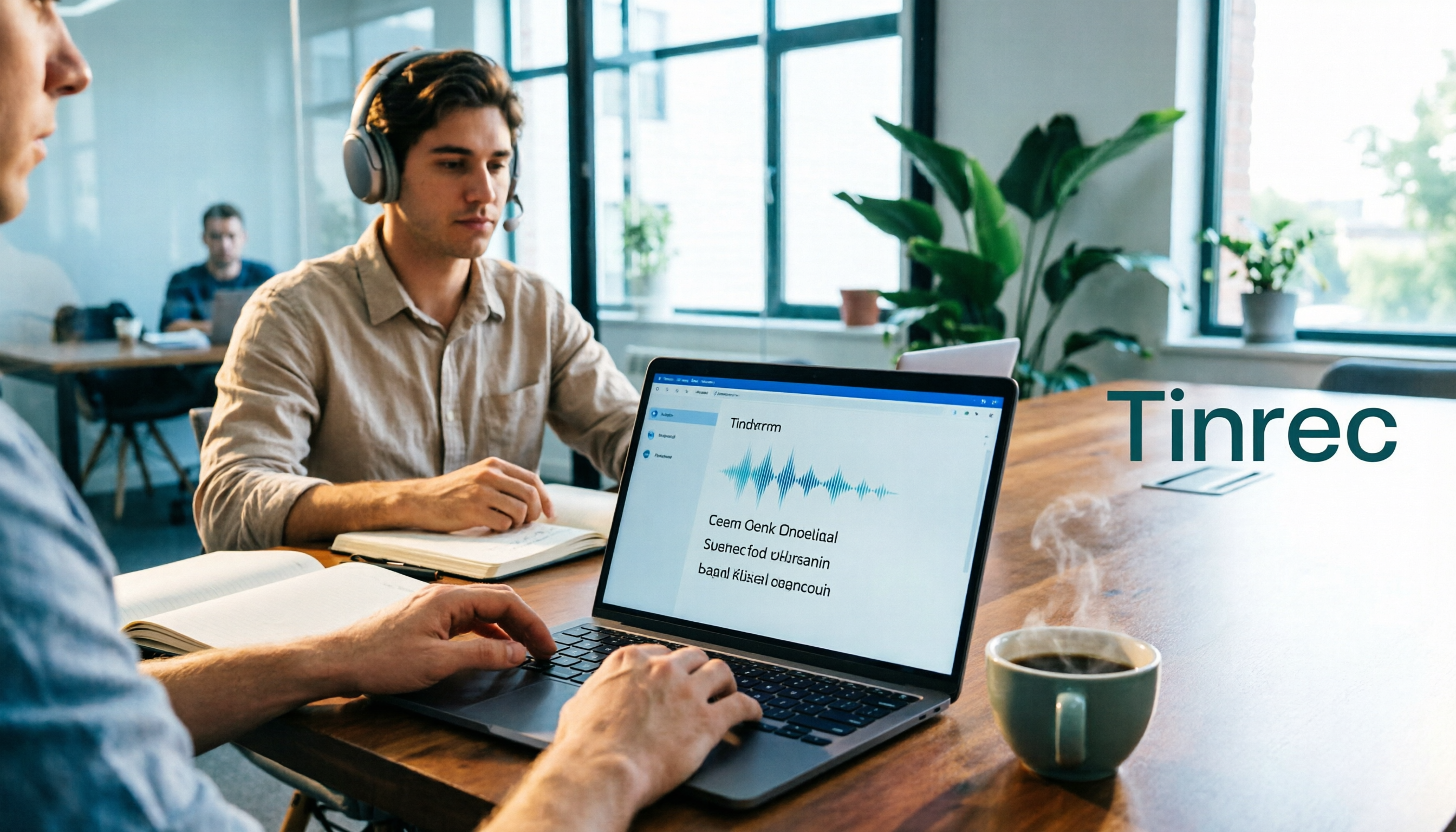
Turn recordings into transcripts and summaries in minutes
Upload audio or video for multilingual transcription, AI notes, and action items
2026 Comparison of 4 Audio-to-Text Windows Tools: Is the Free Tier Enough?
Pain Point: Most People Take the Wrong First Step When Transcribing Audio on Windows
"I need to turn this meeting recording into text"—many people's first move is to open a browser, search for a tool, and download some software they've never heard of.
This is the most common mistake. On Windows, the first question isn't "which one is free," but "what will I do with this recording next?"
If you just want to know what was said, listening at double speed with headphones might be faster than waiting for transcription. The real need for a transcript usually comes when writing meeting minutes, capturing client commitments, or turning interviews into article material—and 80% of that work is re-listening and organizing, only 20% is typing.
There's a second inefficient approach: dump the recording into a tool, get a 10,000-word plain text transcript, and read it from the first line to the last. That just swaps typing time for reading time—no real savings.
A better approach is to choose a tool that helps you organize after transcription: first skim the summary, then jump to sections, ask questions directly about the content, and finally verify key passages against the transcript. This article tests four Windows-compatible options against that standard.
Before Choosing a Windows Audio-to-Text Tool, Understand These 4 Key Points
1. Can your file get in, and can it finish processing? Format and length are the first hurdles. Some free versions limit file length, so a 40-minute meeting gets stuck. Check whether it accepts your MP3, M4A, WAV, and whether video files can be uploaded directly. Meeting-focused tools like Tinrec import both audio and video without conversion.
2. What do you get after transcription? A plain transcript versus a transcript plus summary, chapters, and action items are two different products. The former types for you; the latter completes half your post-meeting work. This is what I value most in testing, and where most people buy the wrong thing.
3. How does online meeting audio get in? If your recordings come from Zoom, Google Meet, Teams, or Webex, note whether the tool sends a bot into the meeting or captures system audio directly. The former can be awkward with external clients—you have to explain an extra account. The latter is cleaner but requires you to start recording manually.
4. Is the quota in minutes or file count? "300 free minutes" and "3 free files per day, 30 minutes each" aren't directly comparable. Consider how many recordings you transcribe per month and their length, then match to a plan. Also, for team use, check whether quotas are shared or per-user—often overlooked.
Tinrec (秒聽錄音)—The Most Hassle-Free Workflow After Testing
Tinrec (秒聽錄音) is an AI meeting notes and collaboration tool for individuals and teams, accessible on Windows via desktop and web. It's positioned not just as speech-to-text, but as a way to turn meeting recordings into searchable, queryable, exportable data.
Upload existing recordings and get usable meeting data directly Drag in a one-hour client interview, and you get not just a transcript but also a summary, chapters, and action items. I usually skim the summary for three key points, then jump from chapters to the "budget" section to verify exact wording—much faster than reading the transcript from the start.
No extra meeting bot for online meetings The desktop version captures system audio directly, handling Zoom, Google Meet, Microsoft Teams, Webex, and similar. This is especially noticeable with external meetings—no unfamiliar account in the participant list, no need to notify the client beforehand.
Ask questions about the content after the meeting This is where it most clearly differs from ordinary transcription tools. After recording, you can ask: "What launch date did the client mention in last week's meeting?" It answers based on the content, rather than throwing keywords for you to search.
Export and further processing Transcripts and summaries can be exported to Notion, Google Docs, OneNote, Dropbox, and other common tools, and can also generate reports, tables, and meeting minutes.
My test conditions were realistic: a ~15-minute Teams meeting recording, indoor environment, air conditioning background noise, two people interrupting. Result: most passages were usable directly; names, product models, and numbers still needed manual proofreading. This is something I do with all transcription tools—always replay the original audio to confirm important conclusions.
Stop organizing recordings by hand
Upload audio or video and automatically get a transcript, summary, and action items
Three reasons I think it's worth it First, transcription, summarization, action items, and export all happen in one workflow—no moving files between tools. Second, no meeting bot; Chinese and mixed Chinese-English meeting notes are smoother, and real-time translation can be enabled for original/translated comparison. Third, the team version keeps data in the team space, so it doesn't leave with departing members.
Things to note The free version offers a basic quota, suitable for trial; stable use requires payment (weekly card, Pro monthly, and annual—choose by usage frequency; prices on the official site). Also, the team version is primarily team-level sharing, not fine-grained file-level permissions; if you need to batch process dozens of long audio files at once, a pure transcription-focused tool is more suitable.
For team use: first eligible teams get a 7-day trial with 1 free seat and 300 minutes of shared team import quota; paid seats are USD 29.80/month or USD 199/year (about USD 16.58/month), each paid seat provides 2,000 minutes of shared import quota per month; real-time recording currently isn't deducted by minutes.
Who it's for If you frequently handle Chinese meetings, need to keep both audio files and online meetings in one place, and want to ask questions directly after meetings rather than manually searching transcripts, Tinrec is currently the closest fit.
Besides Tinrec, What Other Options Are There on Windows?
Notta: Positioned for multilingual transcription and meeting notes, available on Windows. Free version: 120 minutes per month, max 3 minutes per session—that 3-minute limit is basically unusable for a 40-minute meeting. Pro annual billing is about USD 8.17/month, 1,800 minutes per month. Suitable for those with many foreign-language files needing subtitle translation. But if you care about "no extra bot account during meetings," Tinrec's desktop system audio capture is more convenient.
Otter.ai: A veteran choice for English meetings. Basic free tier offers 300 minutes per month—quite generous. Pro annual billing is about USD 8.49/user/month, including 1,200 minutes and 10 file imports. If 90% of your recordings are English, it's a good deal. However, for Chinese and mixed Chinese-English organization, most people will want to try a Chinese-oriented tool; Tinrec's real-time translation and bilingual comparison make the difference here.
TurboScribe: A pure file transcription approach, strong for long files and batch processing. Free: 3 files per day, 30 minutes each. Unlimited annual is USD 120 (about USD 10/month); paid allows up to 10 hours or 5 GB per file, 50 files per upload. If you have dozens of course recordings to transcribe at once, it's a great fit. Conversely, it won't organize action items or answer questions about meeting content—that's where meeting workflow tools like Tinrec differ.
Pitfall Guide: The 4 Most Common Mistakes When Transcribing Audio on Windows
Pitfall 1: Only looking at free minutes, not per-file limits. Some plans seem to have enough total hours but only allow a few minutes per session—long meetings still get stuck. Check the "per-file limit" number first.
Pitfall 2: Treating the transcript as the end goal. Getting the transcript is just the beginning. If the tool lacks summary, chapters, or query features, you still have to read 10,000 words yourself. The real time-saver is "grab key points first, then verify against the original."
Pitfall 3: Using Office built-in transcription as a long-term archive. Microsoft 365 Word's "Transcribe" can handle audio, but files are stored in OneDrive's "Transcribed Files" folder, and each document can only keep one transcript—creating a new one overwrites the old. Convenient for temporary use, but messy for managing a year of meeting records.
Pitfall 4: Sharing one account across the team. Personal version data belongs to the individual and leaves with them. Team version is a separate space with roles and seats managed separately—members without seats can still view, play, and read team data, but need a seat to record, upload, or edit. Seems troublesome at first, but you'll see the difference when members change.
Conclusion: Which One Should You Choose?
In one sentence: On Windows, transcribing audio isn't about "can it transcribe," but "how much work remains after transcription."
- Mostly Chinese meetings, need to upload audio files and record online meetings, want to ask questions directly after → Tinrec
- Recordings are almost all English, zero budget → Otter.ai (300 free minutes is the best English option in this article)
- Dozens of long audio files to batch transcribe at once → TurboScribe
- Many foreign-language files, heavy subtitle and translation needs → Notta
- Just occasional transcription of one or two files → Word Transcribe or use free tiers for now
Final advice: Test with one of your own real recordings, not the official demo audio. Real recordings have air conditioning noise, people interrupting, and unfamiliar technical terms—that's the real test. Run through the full workflow with the free tier first; upgrade only if it feels right. No need to pay upfront.
References
Turn every recording into actionable outcomes
Get 60 free transcription minutes when you sign in. No credit card required.
Related Reading
You might also like

2026 Comparison of 4 Audio-to-Text Tools: Which One Saves the Most Time for Chinese Meeting Minutes?
Does the real work start after the meeting ends? This article tackles real workplace pain points, outlines four key factors for choosing an audio-to-text tool, and compares Tinrec, Otter.ai, Notta, and Granola. Tinrec stands out with bot-free desktop recording, Chinese meeting transcription, AI Q&A, and team spaces. The article also honestly lists each tool's free tier limits to help you find the one that truly saves time.

Best Interview Recording-to-Text Tools in 2026: 4 Tested, This One Excels at Chinese Interviews and Post-Meeting Follow-ups
We tested 4 interview recording-to-text tools, comparing input sources, Chinese recognition, post-meeting organization, and team data management. Tinrec performed best in Chinese interviews, recording online meetings without bots, and AI follow-up questions after meetings. This article includes key buying factors, pitfalls to avoid, and scenario recommendations.

2026 Audio Transcription Tool Buying Guide: 6 Hands-On Tests and Selection Advice
For mid-level managers who have a dozen meetings a week and still need to organize notes afterward, we tested 6 audio transcription tools: from Tinrec's bot-free recording and AI Q&A to Notta, Otter, TurboScribe, Granola, and the free Google Docs voice typing. This guide lays out positioning, pricing, and who each tool is for, so you pick the right tool—not just the most popular one.

4 Best Speech-to-Text Tools in 2026: Free Tiers, Chinese Transcription, and Post-Meeting Summaries Compared
How to choose a speech-to-text tool? This article starts with the difference between live dictation and audio file transcription, then compares Tinrec, Notta, Granola, and PLAUD on free tiers, Chinese transcription, post-meeting AI summaries, and team seats. It also lists 4 common pitfalls to help you decide based on budget and use case.

2026 Comparison of 4 Audio-to-Text Tools: Which One Can Generate Meeting Minutes Directly from Computer Meetings?
With more and more audio files and online meetings on computers, the real time sink is often not recording but re-listening and organizing. This article starts from computer-based usage scenarios and compares four tools: Tinrec, Granola, TurboScribe, and PLAUD. It explains key factors to consider when choosing, how to avoid the trap of only looking at transcription minutes, and provides recommendations for different workflows.

How to Use Online Speech-to-Text in 2026: 5 Steps from Recording to Transcript
How to choose and use online speech-to-text tools in 2026? Starting from real meeting pain points, this article covers 5 key selection criteria, Tinrec's 5-step workflow, brief reviews of 3 online transcription tools, and a guide to avoiding pitfalls—helping you go from recording to a searchable, collaborative transcript.

2026 Speech-to-Text Showdown: 3 Tools Tested for Chinese Accuracy and Post-Meeting Efficiency
How do you really measure speech-to-text accuracy? This article breaks down the WER (Word Error Rate) calculation logic and key factors affecting accuracy, then compares Tinrec and Notta across Chinese recognition, accent tolerance, technical terminology, post-meeting organization, and pricing/quotas. Otter.ai is included as a reference for Chinese scenarios, helping you decide which tool best fits your meeting and transcription needs.

Best Free iPhone Speech-to-Text Solutions in 2026: 5 Options Compared
Your iPhone's built-in Voice Memos already offers transcription, so why look elsewhere? Based on real student use cases, this guide covers five free ways to transcribe speech to text on iPhone in 2026—from the completely free built-in feature to Otter.ai, Notta, and TurboScribe with generous free tiers, plus Tinrec for automatic summaries, to-dos, and AI Q&A. We explain each option's free limits and the classroom or group discussion scenarios they suit best.
2026 Comparison of 6 Audio-to-Transcript Tools: Free Tiers and Chinese Recognition—Which Saves the Most Time?
A review of the free tiers, Chinese recognition, and post-meeting organization capabilities of 6 audio-to-transcript tools—Tinrec, cSubtitle, MyEdit, Canva, Google AI Studio, and ChatGPT Work—to help you choose the right solution for meetings, interviews, courses, and subtitles.