

Turn recordings into transcripts and summaries in minutes
Upload audio or video for multilingual transcription, AI notes, and action items
Last semester, I took a course that required a lot of group discussions. We had Google Meet meetings every week, but afterward no one remembered the conclusions, let alone organized meeting notes. Then I started using Tinrec to transcribe recordings instantly, recording every Google Meet, turning them into transcripts, and automatically generating meeting minutes. It saved me a ton of time for the final project. This guide will show you how to do it.
Before You Start: What You Need
Before you start recording a Google Meet meeting, make sure you have these things ready:
- A computer or phone that can run Google Meet: The device you usually use for classes or meetings will do.
- Download the Tinrec app or open the web version: Tinrec supports iOS, Android, and the web version—use whichever you prefer. I alternate between my phone and the web version: I use my phone to record and the web version to view transcripts.
- A stable internet connection: Real-time transcription requires an internet connection; school Wi-Fi is usually fine. If you need to use it offline, remember to download the language pack first.
- A Google Meet meeting: Either one you’re about to record or an audio file you recorded earlier using another method.
Step 1: Record Your Google Meet Meeting
The goal here is to capture a clear recording of the meeting, which will make the transcription and summary more accurate.
Open Tinrec, tap the record button on the main screen, and place your phone next to your computer so it picks up the sound from Google Meet. If you’re using Google Meet on your phone, you can record with the same phone—Tinrec supports background recording without interrupting the call.
Why is recording position important? Because AI transcription relies on audio clarity. Instead of spending a lot of time later correcting errors, it’s much better to spend an extra 30 seconds during recording to place the phone closer to the speaker or use a headset microphone for better audio quality.
After recording, you’ll see the audio file on the main screen, with the duration and file size displayed.
Step 2: Let AI Transcribe the Recording into a Transcript
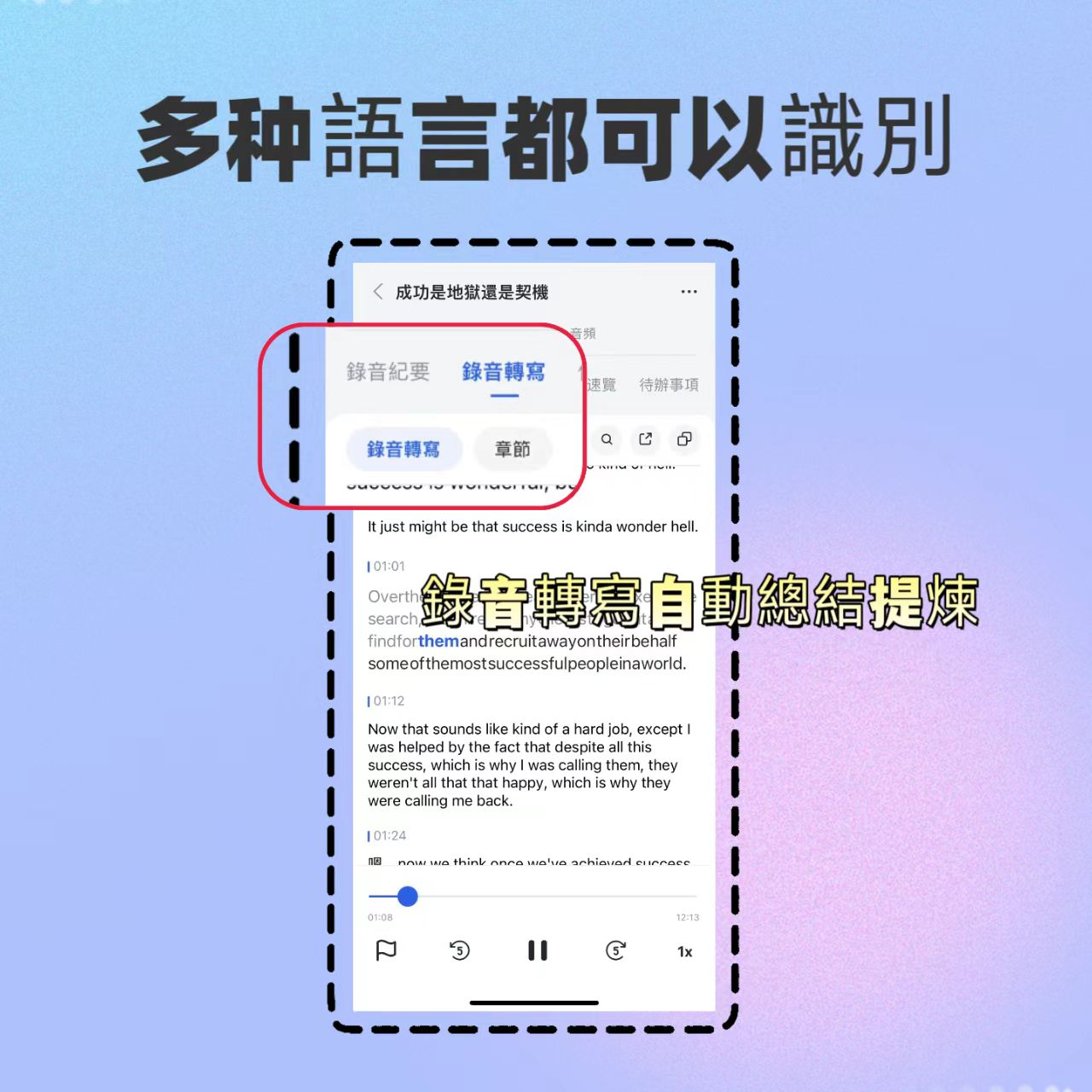
Once the recording is complete, Tinrec will start transcribing automatically. You don’t need to do anything; just wait a few minutes (depending on the recording length), and a full transcript will appear on the screen.
Transcription is fairly fast: a two-hour class takes about five to ten minutes. The transcript includes timestamps, and clicking on a timestamp will jump to that part of the recording—super convenient for reviewing the original audio or checking context.
I use this to review group discussions before midterms and finals. Instead of listening to two hours of audio, I can quickly scan the transcript for keywords.
Step 3: Quickly Proofread the Transcript and Mark Key Points
The generated transcript won’t be 100% perfect, especially if there’s fast speech, background noise, or overlapping voices. But it’s usually over 80% accurate. Just skim through it and fix obvious typos.
Stop organizing recordings by hand
Upload audio or video and automatically get a transcript, summary, and action items
While proofreading, I use Tinrec’s memo feature to highlight important sections, making it easier to find key discussions later when browsing summaries or searching.
If your Google Meet has multiple speakers, Tinrec will try to distinguish them and label them as Speaker 1, Speaker 2, etc., in the transcript. It’s not as accurate as a human, but it’s enough to know who said what.
Step 4: Let AI Automatically Generate Meeting Minutes and Action Items
This is the feature I recommend to my classmates the most. After proofreading the transcript, simply tap "AI Summary," and Tinrec will generate meeting minutes with sections, key points, and conclusions.
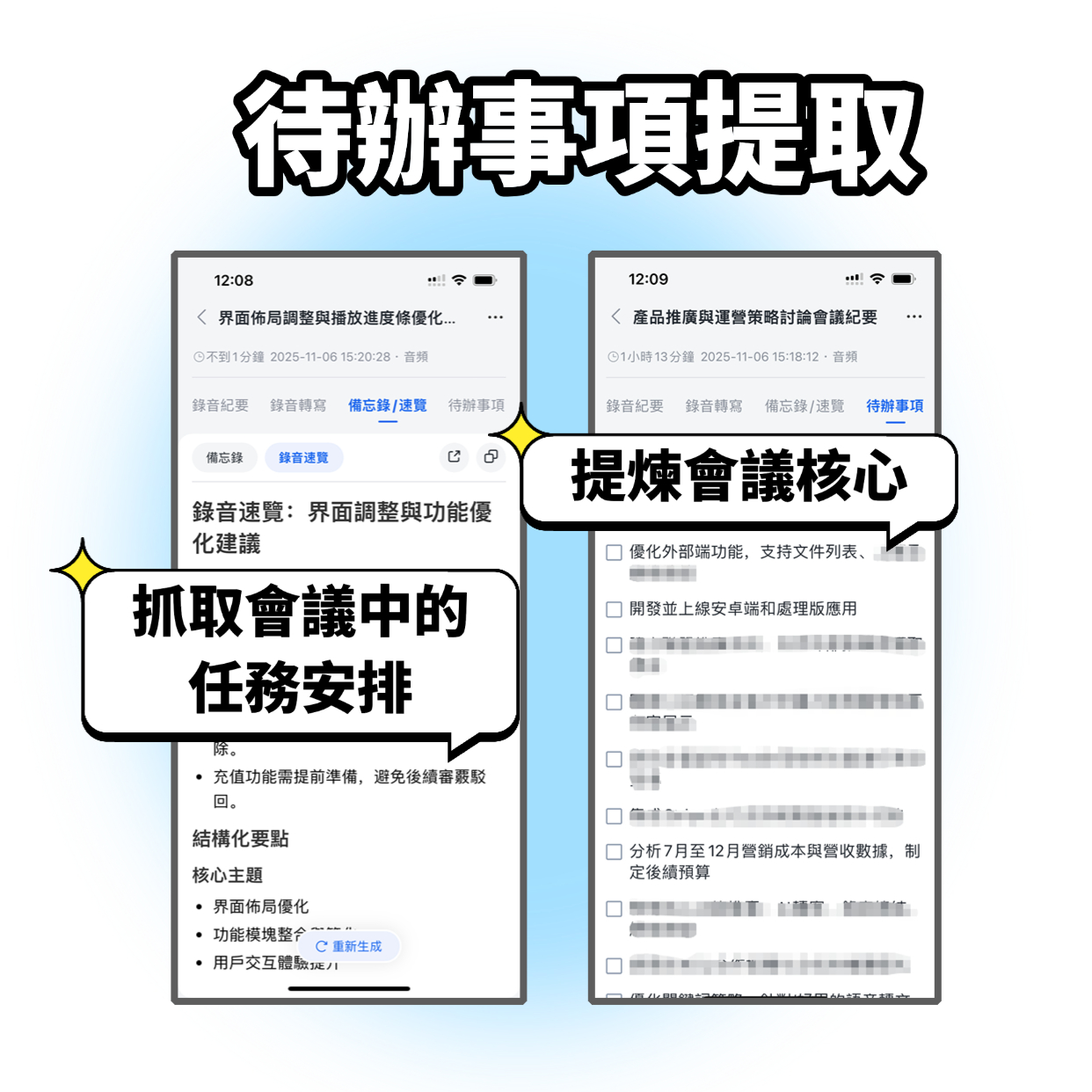
Even better, it automatically extracts action items—who is responsible for what and the expected deadline—all clearly listed. That’s how we handled our group project assignments: after the meeting, we generated action items, took a screenshot, and posted it in the group chat. No one had to ask, "So, what did we just decide?"
For students, this feature is a lifesaver for group discussions.
Step 5: Export Meeting Notes and Share with Team Members
Once your meeting minutes are ready, you can export them as PDF, Word, TXT, or share a direct link. I usually export as PDF and upload it to Google Drive so team members can preview it online without downloading any app.
If you prefer Notion or OneNote, Tinrec also supports third-party exports, allowing you to integrate the meeting notes into your existing note-taking system.
Frequently Asked Questions and Troubleshooting
Q: What if the transcript has a lot of errors?
This is usually due to a noisy recording environment or the microphone being too far away. Tinrec has built-in smart noise reduction; enable it in the settings before recording. If you’re using an already-recorded Google Meet audio file, you can manually select the "High Noise Environment" mode after importing—most other transcription tools don’t have this option and just use the default mode.
Q: Is the free plan sufficient?
Tinrec’s free plan provides 100 minutes of basic transcription per month. For a student’s Google Meet group discussions—two meetings per week, 30 minutes each—that’s about 240 minutes per month, which exceeds the limit. But if you only record key meetings or top up with a weekly card, it’s quite manageable. I used the free plan first and bought a weekly card for the two weeks before midterms and finals—it cost just a few bucks.
Q: Can I do other things while recording a Google Meet?
Yes. Tinrec supports background recording, so you can still use your phone or browse the web while talking in Google Meet without interrupting the recording.
Advanced Tips: Use Tinrec’s AI Q&A to Quickly Find Meeting Highlights
Beyond summaries, Tinrec’s AI Q&A feature is a real time-saver. You can directly ask questions within the transcript or historical recordings, like "What was the project deadline discussed last Wednesday?" or "Who is responsible for making the slides?" It will find the answer from the recording content without you having to dig through manually.
This feature is incredibly useful when preparing final reports. Our entire semester’s meeting records are stored in Tinrec, and whenever I need to find a decision, I just ask. Most competing tools either only have limited meeting summaries or restrict Q&A to the current recording without cross-recording search capability.
Alternatives to Tinrec
- Otter.ai: Great for English meetings, but Chinese transcription and summary detail are not as good as Tinrec, and the free version lacks AI Q&A.
- Notta: Offers more transcription minutes, but features like online video transcription and cross-recording AI Q&A require the Pro version, and there’s no clear student plan.
Honestly, if you mainly deal with Chinese meetings or class recordings and need automatic generation of complete minutes and action items, Tinrec is still the most convenient tool I’ve used.
Summary
Now that you’ve learned these 5 steps, you can use Tinrec to turn any Google Meet recording into a transcript, automatically generate meeting minutes, and even use AI Q&A to pull out key points. Next step: download the free version of Tinrec and try it with your next group discussion recording. The monthly 100 minutes of free transcription is enough for two or three meetings—if you find it saves you time, then consider upgrading.
Turn every recording into actionable outcomes
Get 60 free transcription minutes when you sign in. No credit card required.
Related Reading
You might also like

Best Free AI Meeting Notes Tools in 2026: 4 Options Compared
Spending two hours after a meeting to organize transcripts? This article compares 4 free AI meeting tools: whether the free tier is truly usable, if there's a per-meeting length limit, whether recordings are kept, and if you can ask the AI questions afterward. It also tests Tinrec's desktop version for recording online meetings without a bot, including its limitations.

2026 AI Meeting Tools Compared: Tinrec, Otter.ai, Notta & Granola — From Transcripts to Team Collaboration
A side-by-side comparison of four AI meeting productivity tools in 2026. This article examines how meetings are recorded, what you get after the meeting, whether audio files are retained, and how teams manage data. It compares Tinrec, Otter.ai, Notta, and Granola on positioning, pricing, and limitations, and highlights four common pitfalls when choosing an AI meeting tool to help you find the one that truly saves time.

How to Use AI Agents to Generate Documents in 2026: 5 Steps from Recording to Report
Many people use AI agents to generate documents but end up with vague templates—often because the AI lacks meeting context. This article walks you through 5 steps, starting from meeting recordings, using Tinrec's transcripts, summaries, action items, and agent post-processing to produce deliverable meeting minutes, reports, and tables. It also covers key purchasing considerations, team plan benefits, and FAQs.

5 AI Meeting Transcription Tools Compared for 2026: From Free to Team Plans, Which One Best Boosts Meeting Efficiency?
Instead of just looking at transcription minutes, first assess recording method, Chinese language support, post-meeting organization, team governance, and budget. This article compares common AI meeting solutions across five decision factors and uses Tinrec as an example to show how to turn meetings into searchable, collaborative, and actionable data.

Tinrec vs Otter.ai 2026: 4-Dimension Comparison — Which AI Agent Structured Output Is More Practical?
When AI Agent responses don't match your expected format, many teams only discover the pain after deployment. This article examines four dimensions — JSON Mode, JSON Schema, Function Calling, and observability — to explain how to evaluate structured output, and compares Tinrec and Otter.ai on structuring meeting content. Includes pitfalls to avoid and scenario-based selection advice.

Tinrec vs Notta 2026: 5-Dimension Comparison — Which Handles End-to-End Meeting Processing Better?
The value of an AI Agent isn't just having an 'AI button' — it's whether it can take a meeting from recording to transcript, summary, and action items all the way to deliverable documents. This article compares Tinrec and Notta across 5 dimensions, breaking down processing chain completeness, follow-up Q&A and verification, team governance, language support, and actual cost to help you make a purchasing decision.

2026 AI Meeting Assistant Comparison: Why Tinrec May Fit Chinese Meetings Better Than Fireflies
Starting from the pain point of rushing to write meeting minutes after a meeting ends, this compares Tinrec and Fireflies on meeting capture, Chinese-language experience, post-meeting workflows, team governance, and pricing/quotas, and summarizes Tinrec's core features, real-world scenarios, and buying considerations.

2026 AI Meeting Recorder Showdown: Tinrec vs Granola — Which Is Better for Chinese-Speaking Teams?
This comparison of Tinrec and Granola, two bot-free AI meeting note tools, covers meeting capture, input sources, audio retention, Chinese-language experience, post-meeting outputs, and team management. It outlines each tool's ideal use cases and pricing to help you decide which fits your meeting workflow.

2026 AI Meeting Productivity Tools Buyer's Guide: 4 Hands-On Tests and Selection Advice
How do you choose an AI meeting tool? This guide examines four key criteria—meeting capture method, post-meeting outputs, Chinese-language experience, and team data governance—and hands-on tests Tinrec, Otter.ai, Notta, and Granola to compare their differences. It also includes a pitfalls guide and scenario-based selection advice to help you pick the one tool you'll actually use after meetings.